eBonding Integration: The Ultimate 2026 Guide to Flexible Data Sync

eBonding integration

In the material world, a bond joins two things together with an adhesive. That same idea extends to the digital world through eBonding—literally, electronic bonding.

The goal? Connect inherently different business applications through integration so they share matching data without anyone copying and pasting between screens.

This article covers how eBonding works, why organizations need it, real-world scenarios where it solves actual problems, how to evaluate the right tool for the job, and what pitfalls to watch out for.

Key Takeaways

  • eBonding automates data synchronization between business applications, eliminating manual data entry and the errors that come with it.
  • It originated in telecommunications but now spans ITSM, development, CRM, and project management workflows across industries.
  • Cross-company eBonding introduces unique challenges around security, field mapping, and process alignment that intra-company integrations don’t face.
  • Building an eBonding solution in-house rarely scales—maintenance costs, rigidity, and time-to-value make commercial tools the more practical path.
  • When choosing an eBonding tool, prioritize flexibility, reliability, connector coverage, independent control over data flows, and security features.
  • Exalate supports bidirectional sync across Jira, ServiceNow, Salesforce, Azure DevOps, Zendesk, Freshservice, Freshdesk, GitHub, Asana, and custom REST API connectors—with AI-assisted configuration to accelerate setup.

What is eBonding?

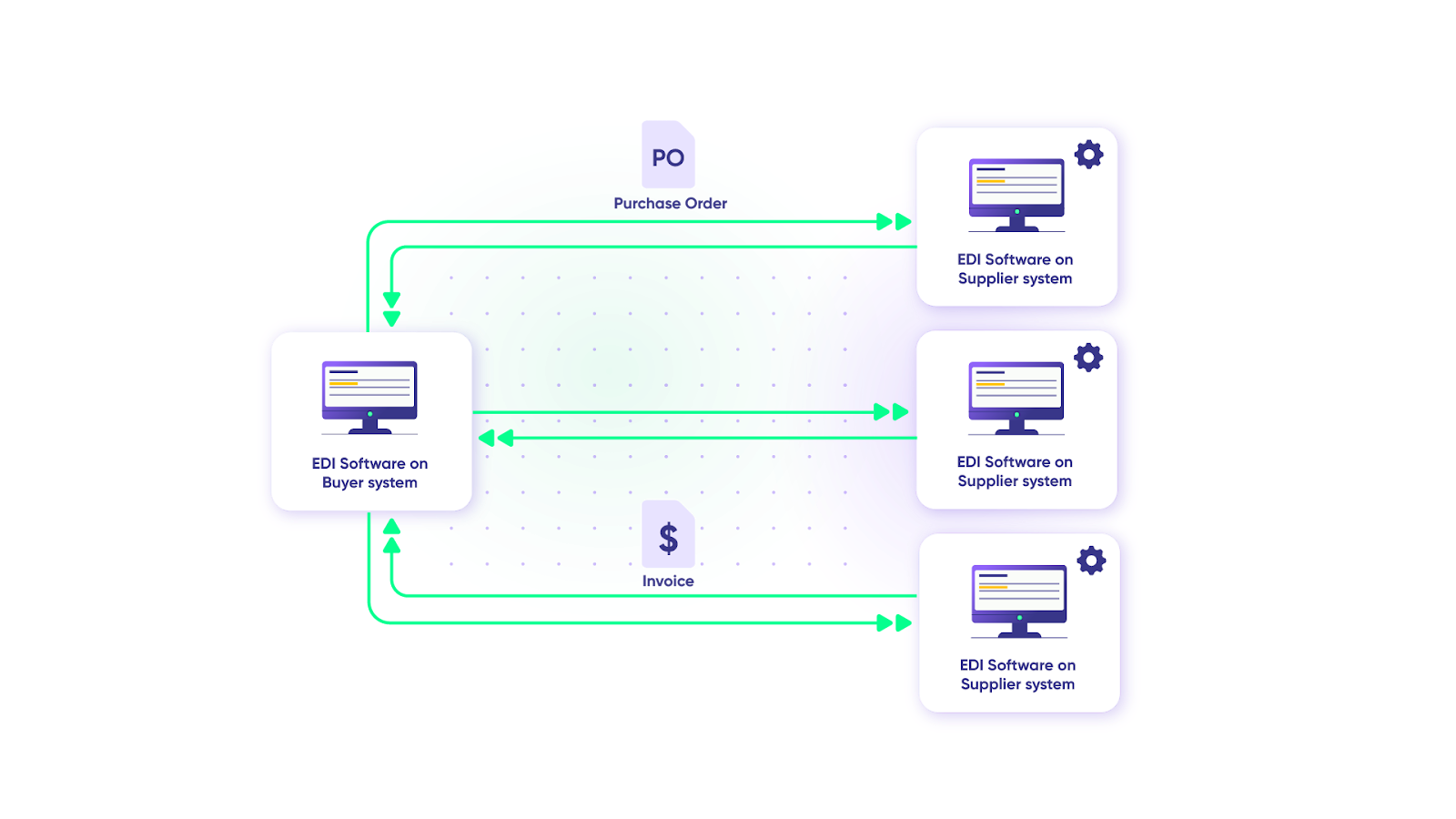
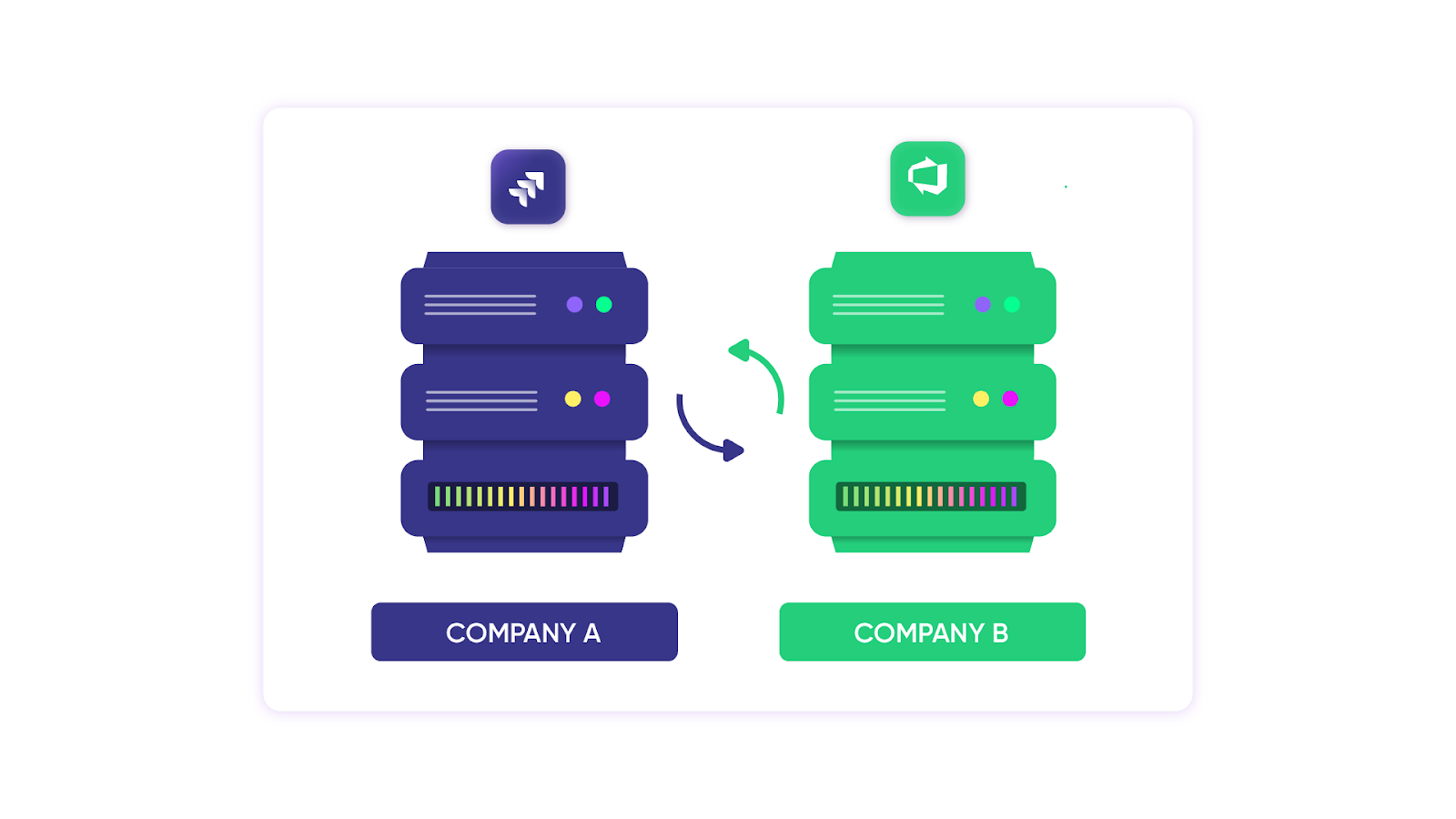
eBonding (also written as ebonding or e-bonding) is the use of automated connectors to synchronize information between different business applications so they always have matching data.

When something changes in one system, the change shows up in the other. Both sides deliver a continuous, end-to-end business process without manual intervention.

But it’s more than just syncing data in two directions. eBonding is a planned, structured methodology for integrating applications to automate workflows and deliver better service to customers. That’s why some people also call it a B2B software integration methodology.

How eBonding Works

At a technical level, eBonding involves three layers:

  1. Connection layer. Two applications are linked through a connector—either a native integration, an API-based connector, or a third-party platform. This layer handles authentication (typically using tokens like JWT), encrypted data transport (TLS 1.2/1.3), and endpoint configuration.
  2. Mapping layer. Fields in one application are mapped to equivalent fields in the other. This is where complexity lives—a “Summary” field in Jira might correspond to “Short description” in ServiceNow, and “Priority” in one tool might map to “Severity” in another. Handling these differences accurately is what separates good eBonding from broken eBonding.
  3. Sync logic layer. Rules define what triggers a sync, what data flows in each direction, and how conflicts are resolved. Triggers can be condition-based (e.g., sync only when a work item reaches a specific status) or event-based (sync on every update). The best tools give each side independent control over what they send and receive—so you’re never forced to share data you don’t want shared.

Where Did It All Start?

eBonding traces its origins to the telecommunications industry. Large telecom customers needed their ticketing systems to communicate automatically with one another instead of relying on email chains to pass information back and forth.

Other industries saw the value and adopted it. As managed services (MSPs) grew and outsourcing expanded, so did the number of applications teams used. With different workflows, schemas, and naming conventions across those apps, information couldn’t move between them without someone manually doing the work.

People dealt with it the only way they could—emails, phone calls, and switching between applications to find what they needed. This is what’s known as the “swivel chair approach.”

It was slow, frustrating, and error-prone. Manual handoffs led to duplicated data, wrong statuses, misplaced tickets, and growing friction between teams.

So organizations searched for automatic ways to synchronize information. eBonding was the answer.

Why Do You Need It?

  • Eliminate manual data entry and its errors. eBonding syncs data automatically and in real-time. Nobody needs to learn someone else’s application or manually transfer information between screens. You work in your familiar tool, and the data stays consistent on both sides, without lifting a finger.
  • Automate and simplify business processes. When information flows automatically between applications, the workflows connected to that information run faster. Teams stop spending time on data logistics and focus on work that actually matters. This is especially critical for organizations operating under tight SLAs where delayed handoffs directly impact response times and customer satisfaction.
  • Enable digital transformation across your ecosystem. Implementing eBonding in the right way connects you with customers, vendors, partners, and suppliers in a secure, automated, and reliable manner. It’s the foundation for end-to-end process automation across your entire business network—whether that network spans two teams or twenty organizations.
  • Improve SLA compliance and customer experience. When support teams can see engineering progress in real time and engineering teams have full context on customer-reported problems, resolution times drop. Organizations using automated eBonding typically see measurable improvements in mean time to resolution (MTTR) and SLA adherence because the information bottleneck disappears.

eBonding Scenarios

Here are the most common scenarios where eBonding delivers real value.

Intra-Company vs. Cross-Company

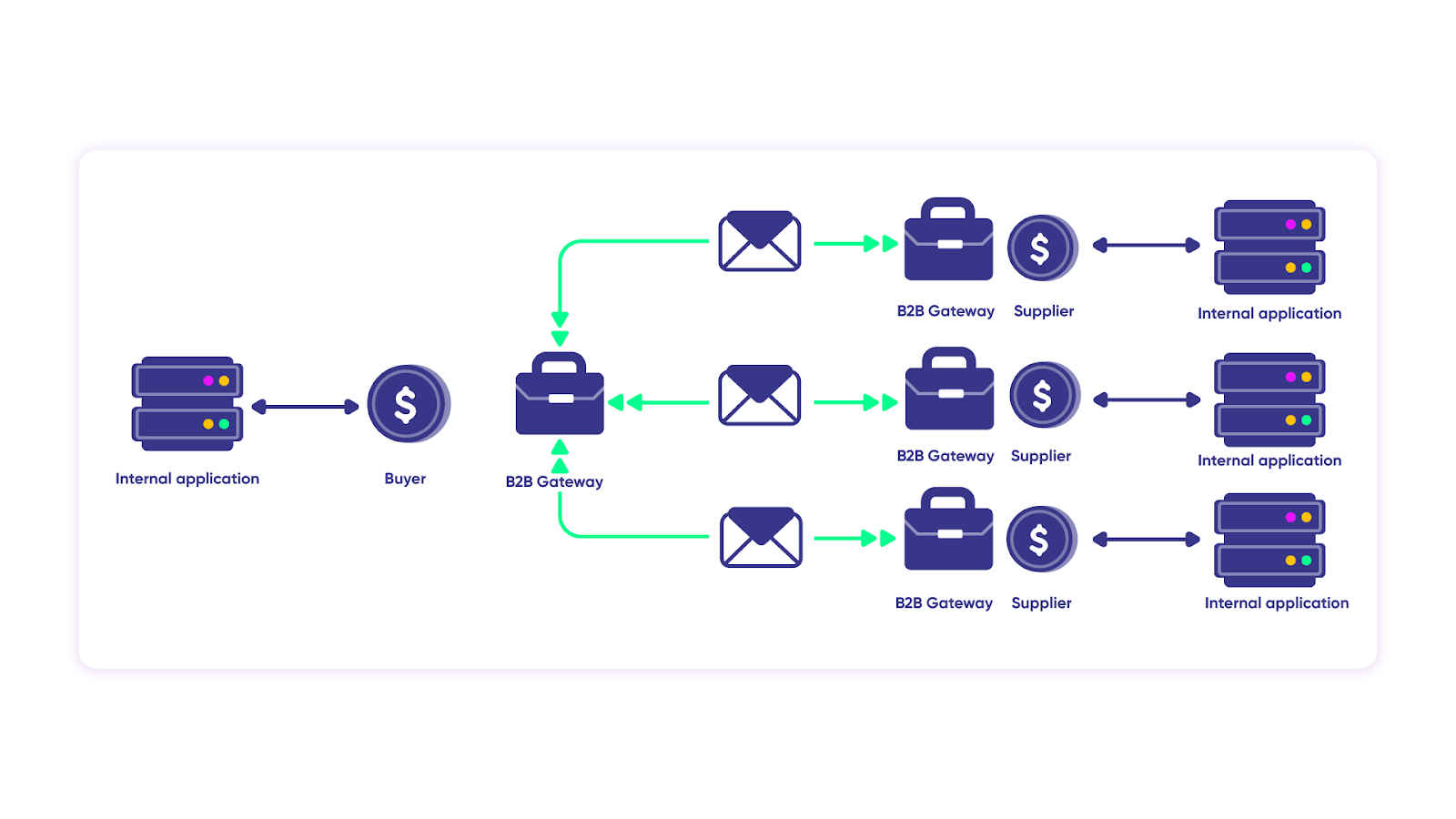
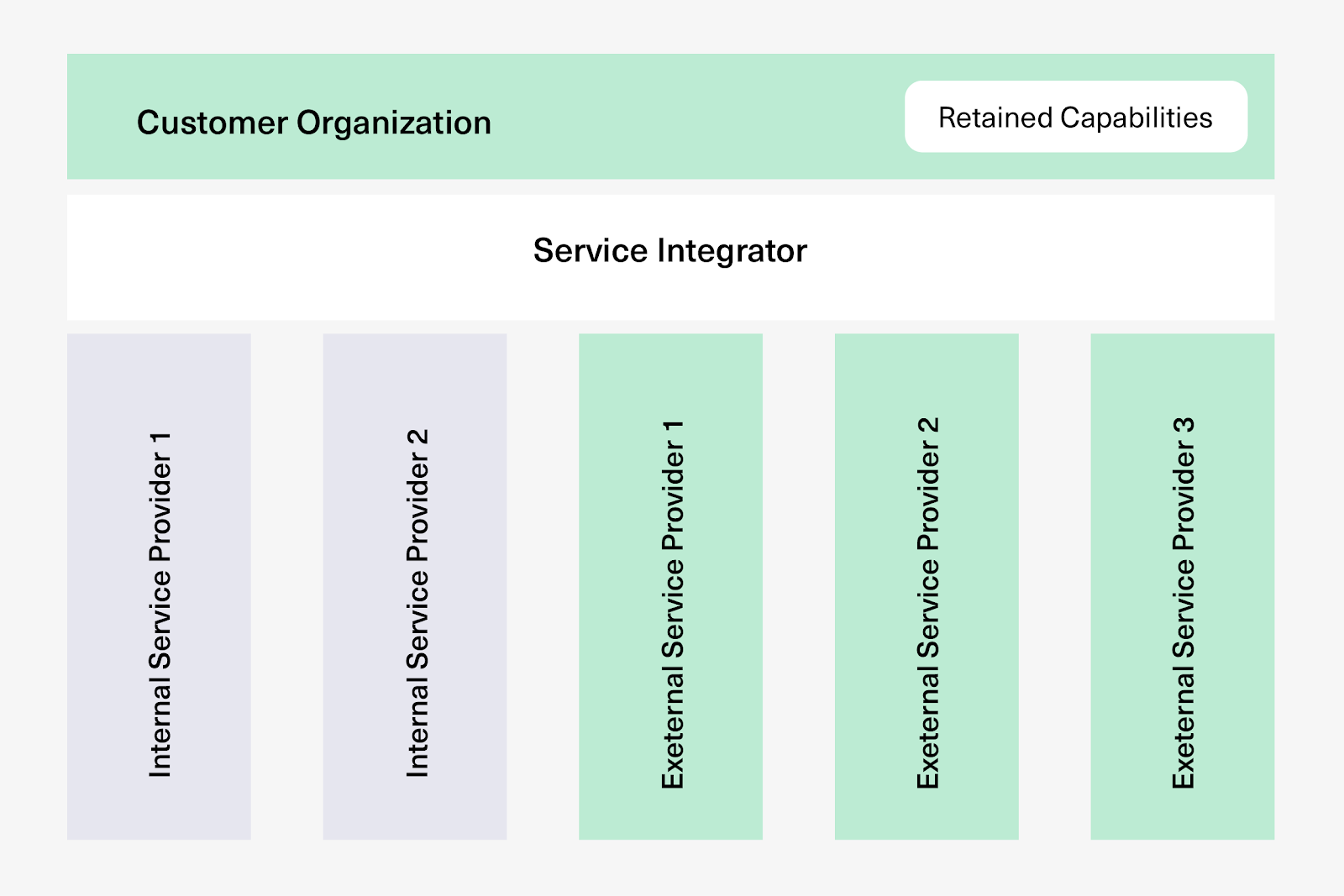
Outsourcing, multi-sourcing, and managed service providers are the norm now. They help deliver projects faster by leveraging the right expertise.

The scenarios below cover both intra-company eBonding (within one organization—different teams, departments, or projects) and cross-company eBonding (integrating with suppliers, vendors, customers, or partners).

This distinction matters because cross-company eBonding introduces unique challenges. When the bond extends outside your organization’s borders, you’re dealing with multiplied security, reliability, and scalability concerns. Each party has its own data governance policies, compliance requirements, and access controls, and those need to be respected on both sides.

Intra-Company: Development and QA Alignment

Case: A software company’s development team uses GitHub for code and development work items, while the QA team uses Jira to manage test cases, test plans, and execution tracking.

Every time a GitHub work item is completed, it needs to be passed to Jira for QA to pick up. When tests pass, someone sends an email or makes a call to the dev team. When bugs are found, the QA team manually notifies the relevant developer, who then works on it in GitHub. The back-and-forth continues until everything’s resolved.

Solution: Bidirectional eBonding between GitHub and Jira. When a development work item reaches “ready for QA,” it automatically creates a corresponding work item in Jira with all relevant context: description, acceptance criteria, and linked PRs. Test results flow back to GitHub automatically, and bug reports sync in real time.

Real-world application: A fintech company running sprint-based releases used this approach to eliminate the 2–3 day lag between code completion and QA pickup. Developers see test results in GitHub without switching tools, and QA engineers get full context in Jira without chasing developers for information.

Cross-Company: Multi-Sourced Service Management

Case: An investment company (Alpha) uses Jira internally for project management. It outsources software development to Beta (also on Jira) and its customer ticketing system to Theta (on Zendesk).

To track development work items handled by Beta, Alpha sends endless emails and manually creates matching work items in its own Jira. It also needs visibility into tickets raised in Theta’s Zendesk.

Solution: eBonding between all three platforms. Alpha’s Jira syncs bidirectionally with Beta’s Jira for development work, and with Theta’s Zendesk for customer tickets. Each organization controls what data it shares and receives independently—so Beta doesn’t see Alpha’s customer tickets, and Theta doesn’t see Alpha’s development backlog.

Real-world application: An MSP managing clients across Jira, ServiceNow, Freshservice, and Zendesk uses eBonding to maintain a unified view of all client work without requiring access to every client’s system. Status updates, comments, and priority changes sync automatically while each party retains full control over their own data and processes.

ServiceNow eBonding

If you’ve searched for eBonding before, you’ve likely seen ServiceNow come up alongside it. That’s because eBonding has long been closely associated with ServiceNow’s ecosystem, including its eBonding spoke (more on that later).

ServiceNow to Jira: Support-to-Engineering Escalation

Case: A company uses ServiceNow to track customer incidents. Support agents analyze incoming incidents, provide workarounds, and escalate to engineering (using Jira) when technical expertise is needed.

The escalation happens manually—agents forward details to the dev team via email or internal messages. While the work item is being worked on in Jira, support agents have no visibility on its status and can’t tell the customer what’s happening. On a tight SLA schedule, this blind spot directly impacts resolution times and customer satisfaction.

Solution: Bidirectional eBonding between ServiceNow and Jira. When an incident meets escalation criteria, a Jira work item is created automatically with all incident context—description, priority, customer impact, and SLA deadlines. Status updates, comments, and resolution details sync back to ServiceNow in real time.

Real-world application: A B2B SaaS provider reduced escalation handoff time from hours to seconds by eBonding ServiceNow incidents with Jira work items. Support agents see engineering progress without leaving ServiceNow, and engineers get the full customer context without joining a service desk they don’t use daily.

Multi-Platform eBonding

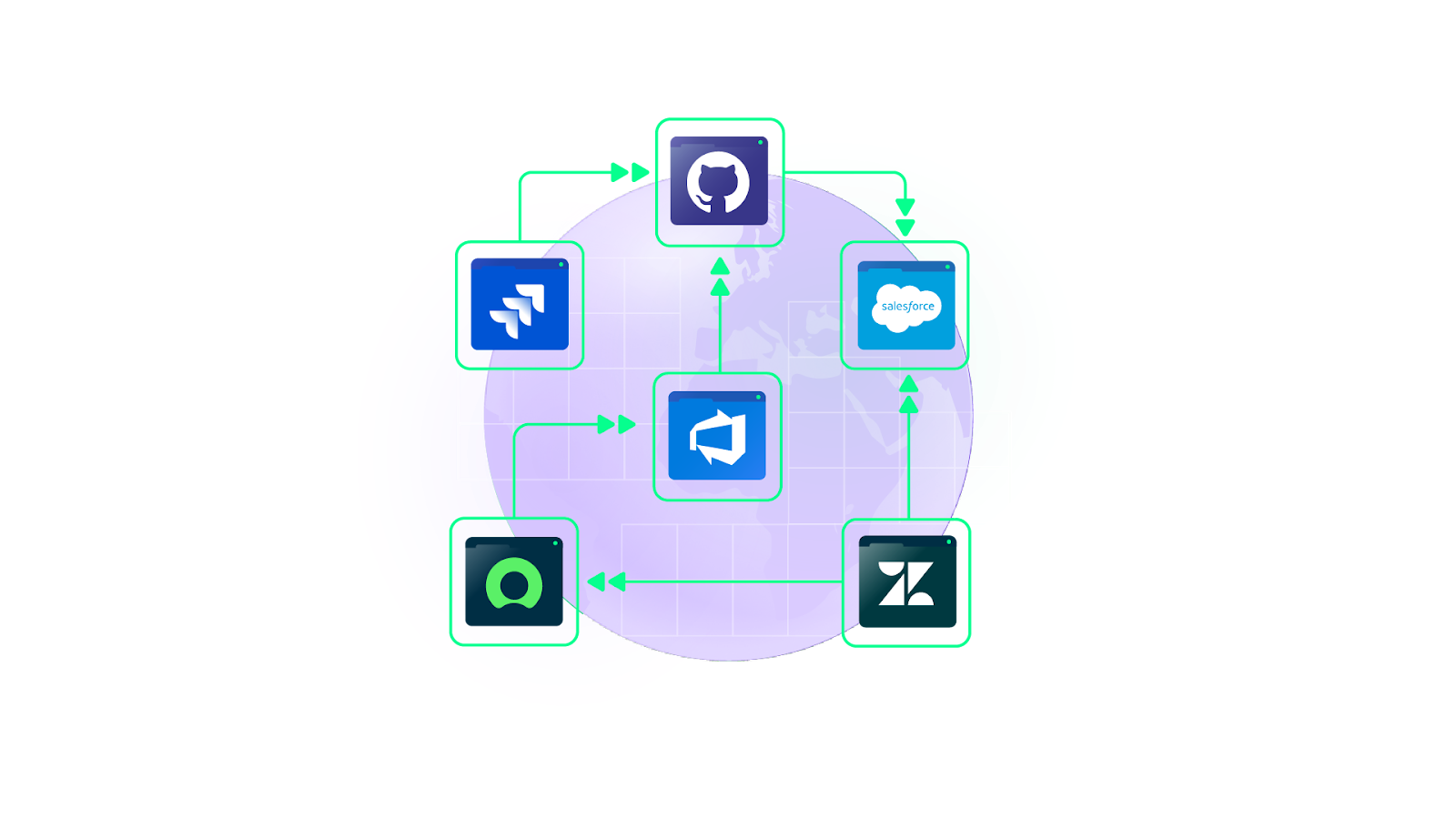
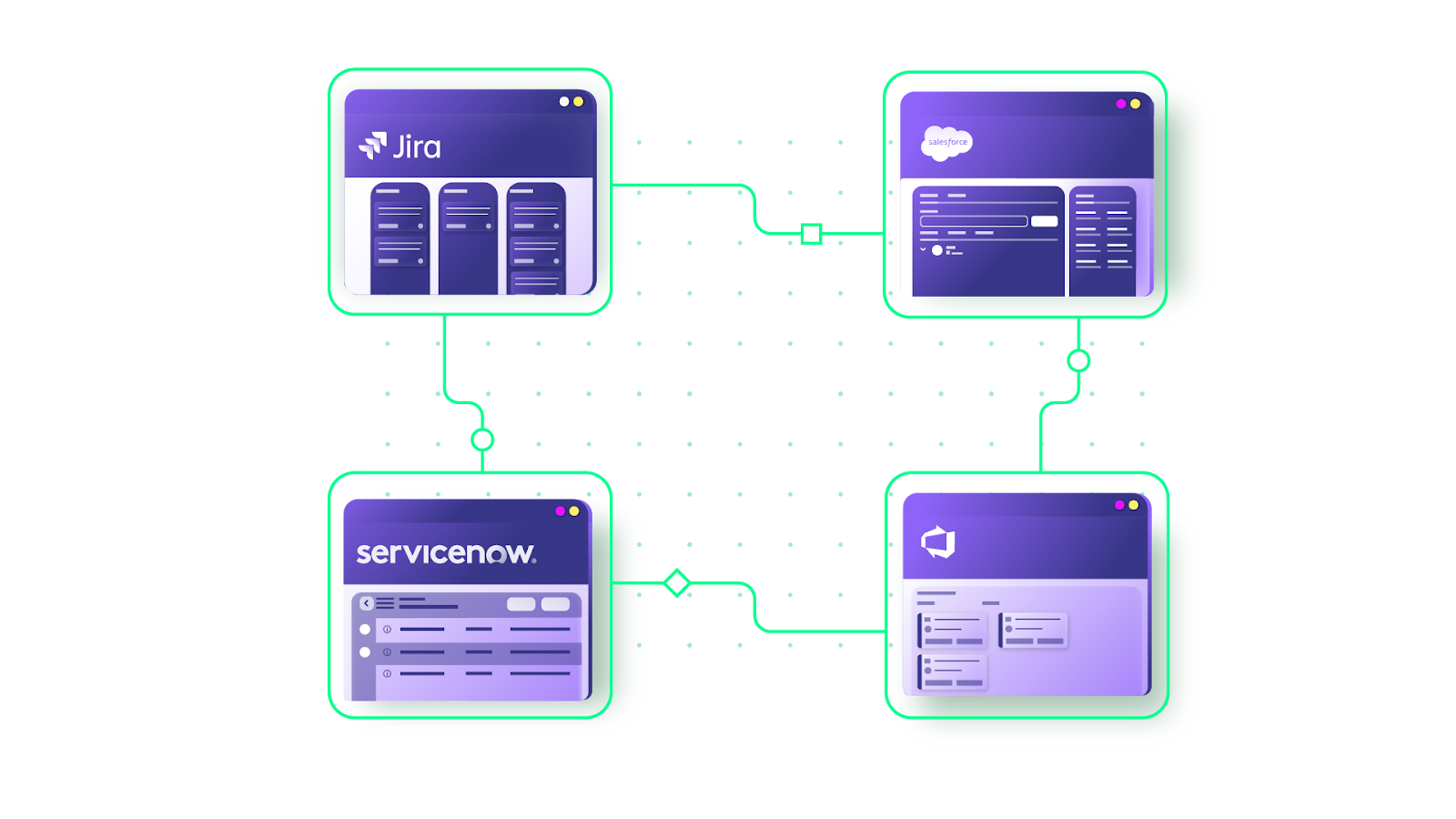
It’s common for organizations to run multiple work management systems—Jira, ServiceNow, Azure DevOps, Salesforce, GitHub, Zendesk, Freshservice, Freshdesk, Asana, and others. When teams within your organization use different tools, or when your eBonding partners do, you need integration between them.

Salesforce to Jira: Sales and Development Alignment

Case: Jira-Salesforce Modern teams are digital, global, and often not co-located. A sales team using Salesforce generates valuable customer feedback, feature requests, and bug reports as cases. That information needs to reach the development team working in Jira.

Without integration, someone manually copies case details from Salesforce into Jira work items, losing context and creating delays. By the time engineering sees a request, the customer has already been waiting.

Solution: Bidirectional eBonding between Salesforce and Jira. Customer-reported cases in Salesforce automatically create work items in Jira with full context. When engineering updates the work item status or adds comments, those changes sync back to Salesforce so the sales team can update the customer immediately.

Real-world application: A healthcare technology company eBonded Salesforce cases with Jira work items to close the feedback loop between customer-facing and engineering teams. Product managers gained real-time visibility into which customer requests were in development, and sales reps could provide accurate ETAs without pinging engineering for updates.

Multi-Vendor MSP Coordination

Case: A managed services provider handles IT operations for multiple clients, each using a different platform—one on ServiceNow, another on Freshservice, a third on Zendesk.

The MSP’s internal team uses Jira. Every client interaction requires manually copying ticket data between platforms, leading to inconsistent statuses, missed SLA deadlines, and frustrated clients who can’t get timely updates.

Solution: eBonding between Jira and each client’s platform (ServiceNow, Freshservice, Zendesk). Each connection maintains independent sync rules—so the MSP controls what data flows in and out per client without exposing one client’s information to another.

Real-world application: An MSP serving financial services clients reduced manual ticket handling by 60% after eBonding its Jira instance with client platforms. Client-specific SLAs were embedded into sync triggers, ensuring that high-priority tickets from premium clients were automatically escalated with the right urgency level.

Have you noticed the pattern in every scenario above? Information gets passed manually, errors multiply, teams lose visibility, and customer experience suffers. eBonding eliminates all of that by automating the data flow end-to-end.

But it’s not a plug-and-play exercise.

Challenges of eBonding

A lot can go wrong, and it usually starts with the details.

  1. Field mapping complexity. Every organization and application follows different processes, schemas, and naming conventions. Jira work items have “Summary” while ServiceNow has “Short description.” “Priority” in one tool might be “Severity” in another. Statuses like “In Progress,” “On Hold,” and “Resolved” can mean different things—or not exist at all—in the other system. Finding common ground for information exchange is manageable for one or two eBonded connections, but it becomes a tangled mess as integrations grow.
  2. Process alignment. Different teams handle workflows differently. What happens when an incident is put on hold? When it’s resolved? When it’s automatically closed after resolution? Some applications don’t allow modifications to closed tickets. Handling these edge cases means mapping out detailed process flows for every connection—and keeping them updated as processes evolve.
  3. Error detection and recovery. Integration errors are notoriously hard to find. Without proper monitoring, errors can get buried in general logs or go completely undetected until they become blockers. And by that point, downstream data may already be out of sync—requiring manual cleanup that defeats the purpose of automation in the first place.
  4. Security and compliance across boundaries. Cross-company eBonding means data is leaving your organization. That requires encrypted transport (TLS 1.2/1.3), token-based authentication (JWT), role-based access controls, and clear data governance policies about what gets shared. Look for eBonding tools that hold certifications like ISO 27001 and that publish their security posture transparently through resources like a public Trust Center.
  5. Scalability under growth. An eBonding solution that works for two connections doesn’t necessarily work for twenty. As you add partners, clients, and platforms, each new connection introduces its own field mappings, sync logic, and process considerations. The tool needs to handle this growth without requiring a rebuild every time.

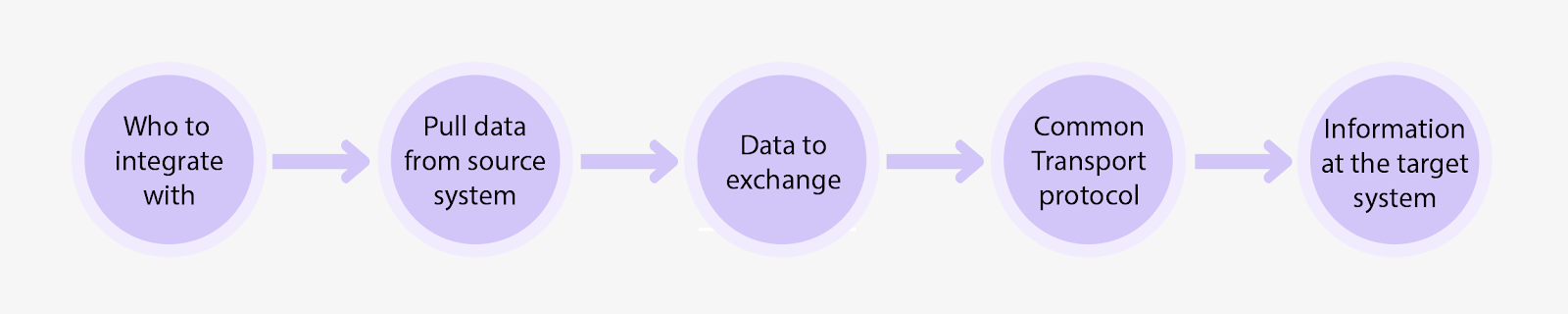
So before you start, spend time asking the right questions: What data needs to sync? In which direction? What triggers the sync? How are conflicts handled? Who owns the connection? What happens during downtime?

These are just starting points, but getting them right upfront saves enormous pain later.

Build vs. Buy: Getting Started with eBonding

Strategize, plan, assemble a team of developers, testers, project managers, and architects, build the solution, test it, and roll it out.

It sounds straightforward. It rarely is.

Why Building In-house Falls Short 

The time, effort, and money you invest in a custom eBonding solution are almost never proportionate to future business requirements. 

An in-house system works initially, but over time, it becomes a liability. Maintenance costs compound as the underlying platforms evolve: API changes, schema updates, and deprecations all require development work. 

Scaling to new partners or platforms means building new connectors from scratch, every single time. And the rigidity of a custom-built solution means adapting to changing requirements often requires a near-complete rebuild rather than a configuration change.

Many companies push their teams to ship eBonding integrations as fast as possible, leaving no time to think about strategy, architecture, or long-term maintainability. The result is an inadequate, fragile solution that creates more problems than it solves.

Why Commercial eBonding Tools Make More Sense

Off-the-shelf eBonding platforms offer pre-built connectors, configurable sync logic, and managed infrastructure. They come in different flavors, deployment models, pricing structures, connector coverage, and code vs. no-code configuration options.

The advantages of building in-house are significant. Pre-built connectors mean you’re not writing API integrations from scratch. AI-assisted configuration reduces setup time and scripting errors. 

Managed infrastructure means someone else handles uptime, retries, and queue management. And when a platform releases API changes, the vendor updates the connector—not your engineering team.

After a while, the math becomes clear: an eBonding tool saves man-hours and money while delivering faster time to value. But not all tools are equal, so knowing what to look for matters.

What to Look for in an eBonding Tool

Rather than listing evaluation criteria in one place, here are the capabilities that matter most—organized by the problems they solve.

Flexibility That Matches Your Reality

Businesses don’t want to abandon their existing application ecosystem to integrate. They need ways to connect and collaborate without leaving their own tools.

Integration requirements also change constantly. What you sync today might be obsolete tomorrow. A new partner might need completely different field mappings next week. Your eBonding tool needs to adapt rapidly to these shifts without requiring a development cycle for every change.

The most flexible tools support granular, condition-based sync rules that let you define exactly what data flows, when, and in which direction, with the ability to modify those rules independently on each side of the connection.

Reliability That Survives Downtime

All systems experience downtime. Your eBonding integration shouldn’t collapse because of it.

The right tool uses transactional sync queues that track changes in the order they occurred. When a connected system recovers, changes are applied in sequence from where they left off. Built-in retry mechanisms handle temporary failures automatically, so data isn’t lost during maintenance windows or unexpected outages.

The goal is that nobody should even notice an outage happened—the sync catches up on its own.

Scalability Across Partners and Platforms

eBonding always involves more than one connection. More partners, more applications, more integrations. A tool that handles two connections well but crumbles at twenty isn’t going to work.

Look for platforms that support a broad range of connectors—Jira, ServiceNow, Salesforce, Azure DevOps, Zendesk, Freshservice, Freshdesk, GitHub, Asana, and ideally custom connectors for proprietary systems. 

The tool should make onboarding a new partner or application a configuration exercise, not a development project.

Independent Control Over Data Flows

In any eBonding relationship, especially cross-company, each side needs to independently control what data they send and receive. If making a change to your sync requires contacting the other party or updating a shared configuration, that’s a bottleneck that slows everything down and creates unnecessary dependencies.

Each side should be able to define its own sync rules, field mappings, and data filters without affecting the other. This is both a productivity feature and a security feature; it ensures that you never inadvertently share data you didn’t intend to.

Proper Error Handling Without Data Loss

Integration errors shouldn’t vanish into a generic log. The right tool provides visibility into sync status, pending changes, and failed operations, without requiring you to dig through system-wide logs. When errors occur, they should be surfaced clearly and resolved automatically where possible, or flagged for attention where they can’t be.

eBonding Tools: ServiceNow’s eBonding Spoke and Exalate

Two tools worth evaluating for eBonding are IntegrationHub’s eBonding spoke and Exalate. The first is a popular, ServiceNow-native solution. The second is gaining traction for its flexibility, broad connector coverage, and AI-assisted configuration.

IntegrationHub: eBonding Spoke

If you’re new to ServiceNow, it’s a leading IT service management platform, and IntegrationHub is ServiceNow’s automation and integration layer. 
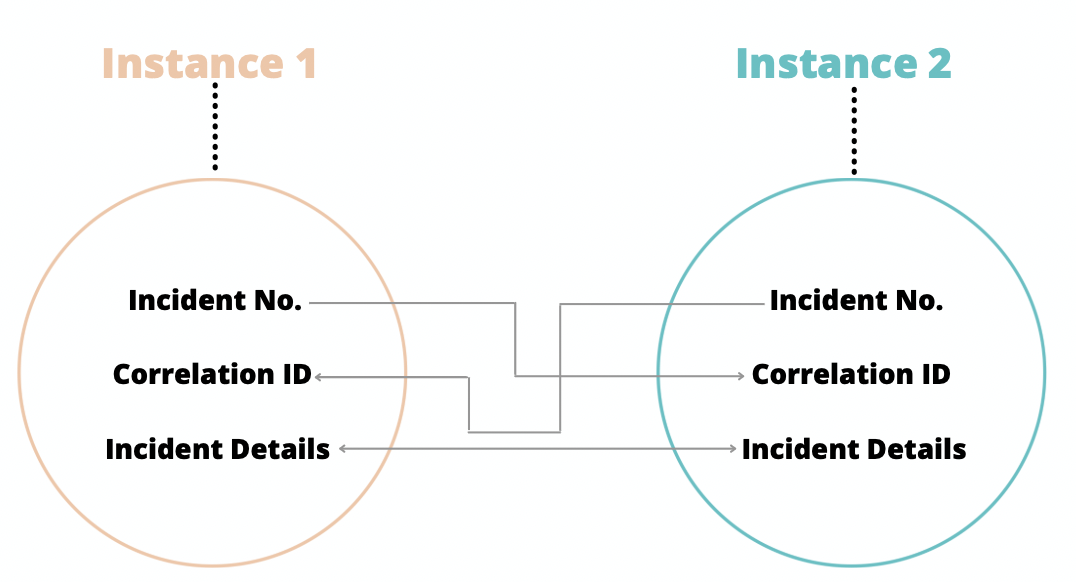
ebonding between servicenow instances

It includes pre-defined integration patterns for syncing data between ServiceNow instances and between ServiceNow and other platforms (Jira, Slack, Salesforce, GitHub, etc.) using spokes and the flow designer.

The eBonding spoke specifically enables bidirectional integration between two ServiceNow instances. It doesn’t require an IntegrationHub or Orchestration subscription—it’s available by default in your ServiceNow instance.

It works through three core actions:

  1. Create Remote Incident. Takes incident details from the source instance and creates a matching one on the target instance. Both sides get a Correlation ID containing the other’s incident number, establishing a persistent link between the two records.
  2. Lookup Remote Incident. Retrieves details of the remote incident—short description, summary, priority, and other relevant fields.
  3. Update Remote Incident. Pushes updates from the source instance to the remote one using the Correlation ID, keeping both records aligned.

The result: both ServiceNow instances always have matching incident data. Changes on one side are reflected on the other through these actions.

Where it works well: The eBonding spoke is a solid choice if both sides of your eBonding use ServiceNow. It’s straightforward to set up and doesn’t require deep technical expertise for basic scenarios.

Where it falls short: If you need integration between ServiceNow and non-ServiceNow applications, you need to add specific spokes (Jira spoke, GitHub spoke, etc.) through IntegrationHub—at an additional cost. 

These are third-party API integrations with pre-built actions that cover common scenarios, but become rigid when you need advanced or custom sync logic. Requesting updates or new capabilities means waiting on the spoke creator.

For a deeper comparison, check out Exalate vs. IntegrationHub.

Exalate

Exalate is a cross-company (or B2B) integration platform that closes the gaps created by inconsistent, scattered information spread across applications, teams, and company borders.

It supports bidirectional sync across work management systems, including Jira Cloud, Azure DevOps (Cloud and Server), ServiceNow, Salesforce, GitHub, Zendesk, Freshservice, Freshdesk, Asana, and custom platforms through REST API connectors.
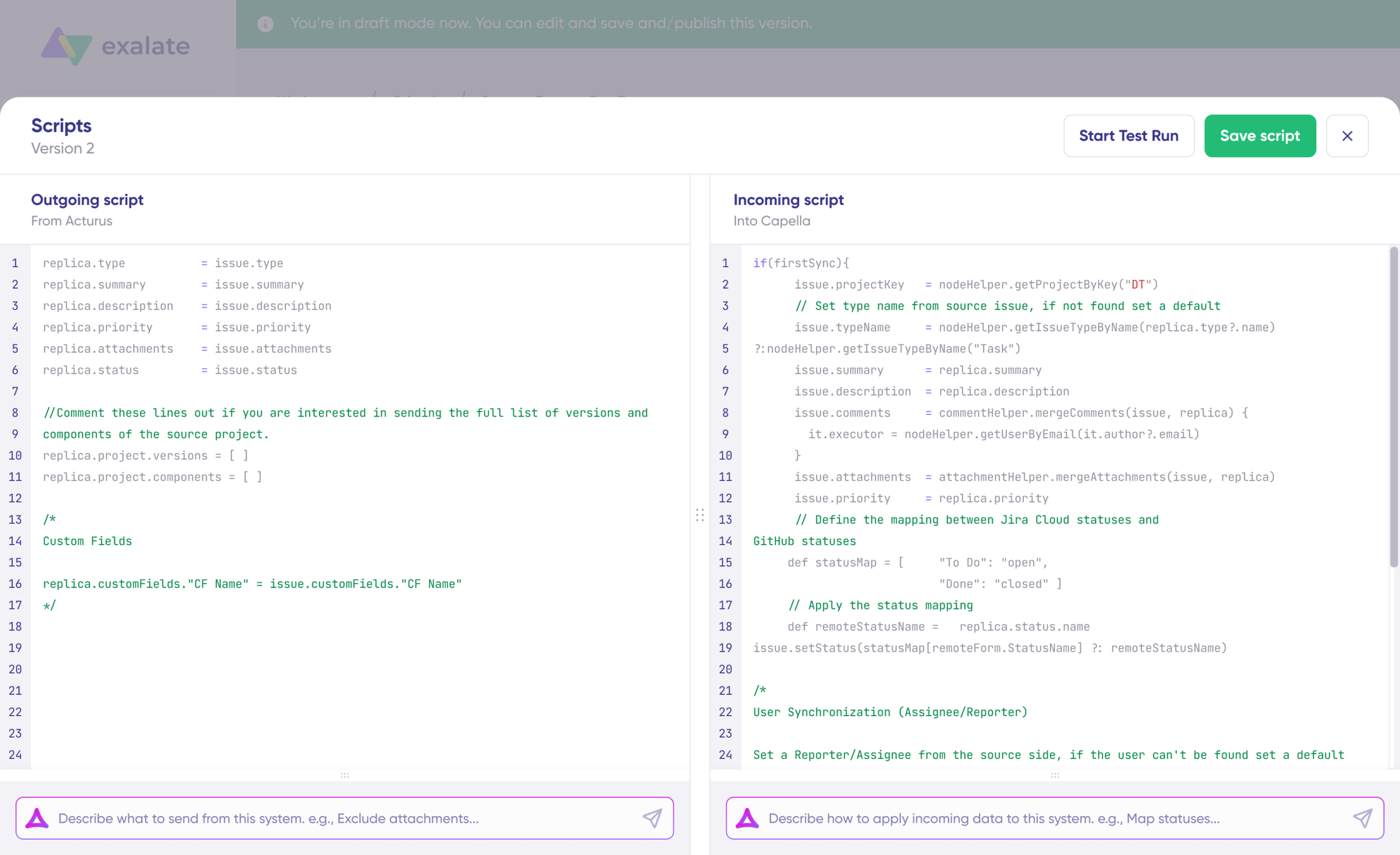
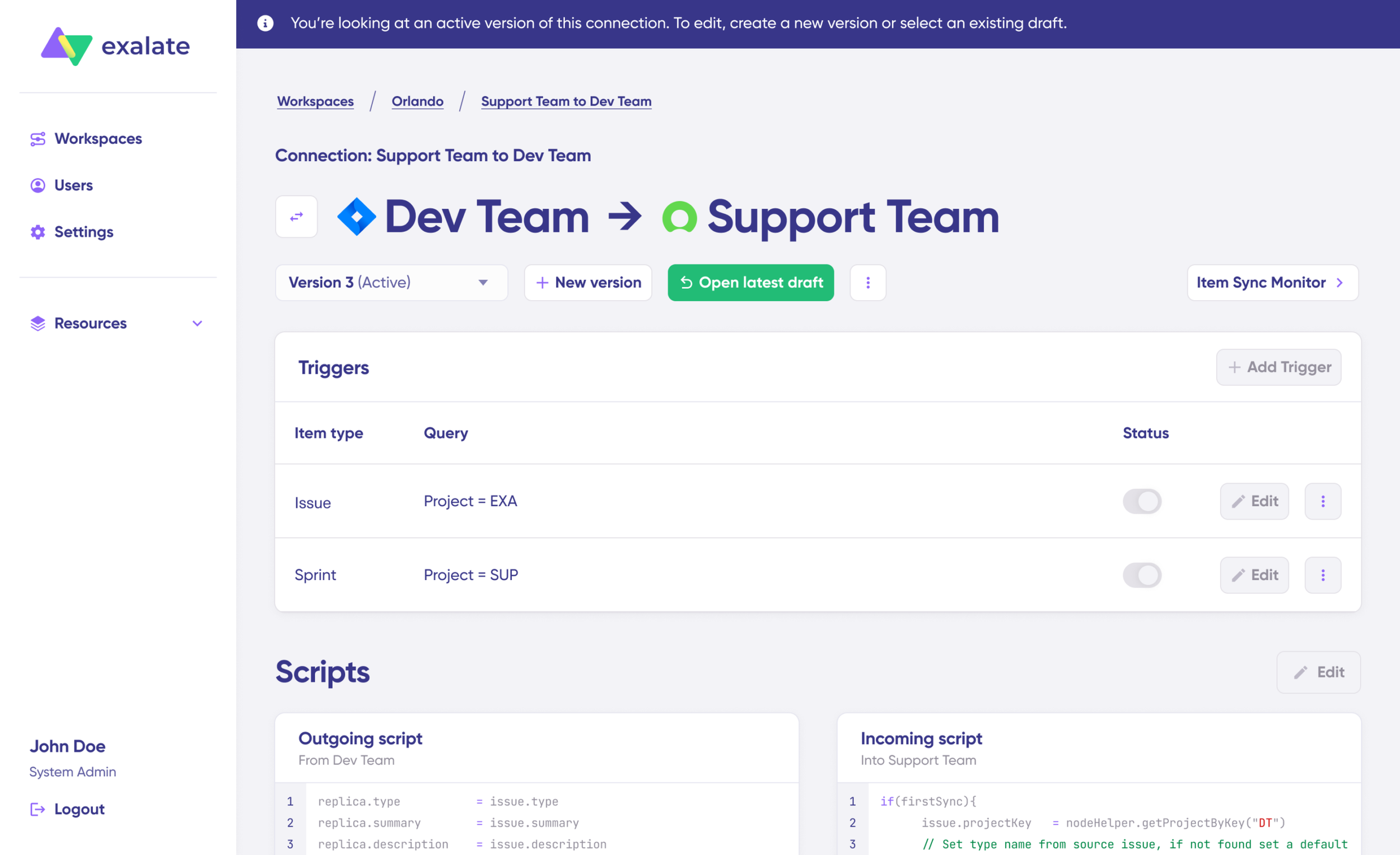
Script version interface showing incoming and outgoing scripts in Exalate

So whether you need Zendesk-Salesforce, GitHub-ServiceNow, ServiceNow-ServiceNow (just like eBonding spoke), or any cross-platform combination, Exalate can handle it.

What makes it practical for eBonding:

Independent control per side. Each party in an eBonding connection defines its own sync rules, without needing to coordinate changes with the other side. Outgoing sync rules on the Jira side determine what goes from Jira to Zendesk, and incoming sync rules determine what comes back. The same applies on the Zendesk side. Neither party can override the other’s configuration.

  • AI-assisted configuration. Exalate includes Aida, an AI documentation assistant that helps teams scope integration requirements, navigate setup decisions, and troubleshoot configuration questions. AI-assisted integration generates sync configurations from natural language descriptions. This reduces the learning curve and gets integrations running faster.
  • Security built in, not bolted on. Exalate holds ISO 27001:2022 certification. Data transport uses TLS 1.2/1.3 encryption, authentication relies on JWT tokens with automatic rotation, and role-based access controls govern who can configure and manage connections. For organizations with strict data residency requirements, Exalate offers cloud, on-premise, and Docker deployment options.
  • Reliability through sync queues. Transactional sync queues track changes in sequence. If a connected system goes down, changes queue up and are applied in order once the system recovers. Built-in retry mechanisms handle temporary failures automatically without data loss.
  • Broad connector coverage. Beyond the standard ITSM, development, and CRM platforms, Exalate supports custom connectors for proprietary systems with available REST APIs. This means your eBonding reach isn’t limited to the platforms on a pre-built connector list.

eBonding Spoke vs. Exalate: Which One?

These aren’t direct competitors, but there are facts worth weighing.

The eBonding spoke is the natural choice if you’re a ServiceNow-to-ServiceNow shop and your use case is straightforward incident mirroring. It’s included in your ServiceNow instance, easy to configure, and covers the basics well.

For anything beyond ServiceNow-to-ServiceNow—or when you need advanced sync logic, cross-company controls, multi-platform coverage, or AI-assisted configuration—Exalate is the stronger option. It handles ServiceNow-to-ServiceNow just as well, plus every other platform combination your ecosystem requires.

You can also integrate ServiceNow with other applications through IntegrationHub, but the experience is less intuitive and more constrained. The Exalate vs. IntegrationHub comparison breaks down the specifics.

eBonding vs. iPaaS: What’s the Difference?

This is a question that comes up frequently, and the distinction matters.

eBonding is a methodology—a structured approach to synchronizing data between business applications so they maintain matching records and deliver end-to-end workflows. It’s focused specifically on keeping two or more systems in sync with bidirectional, real-time data exchange.

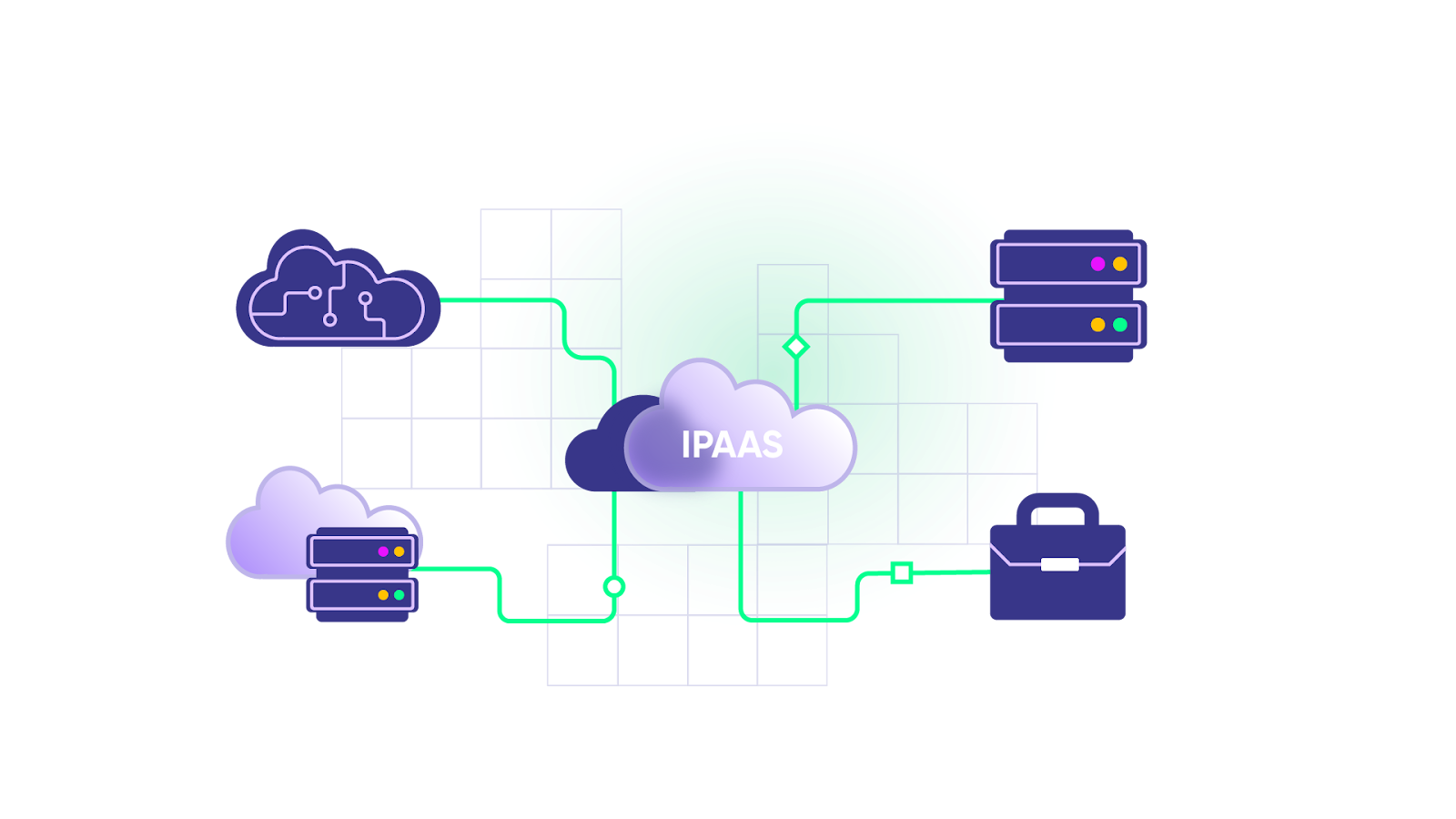
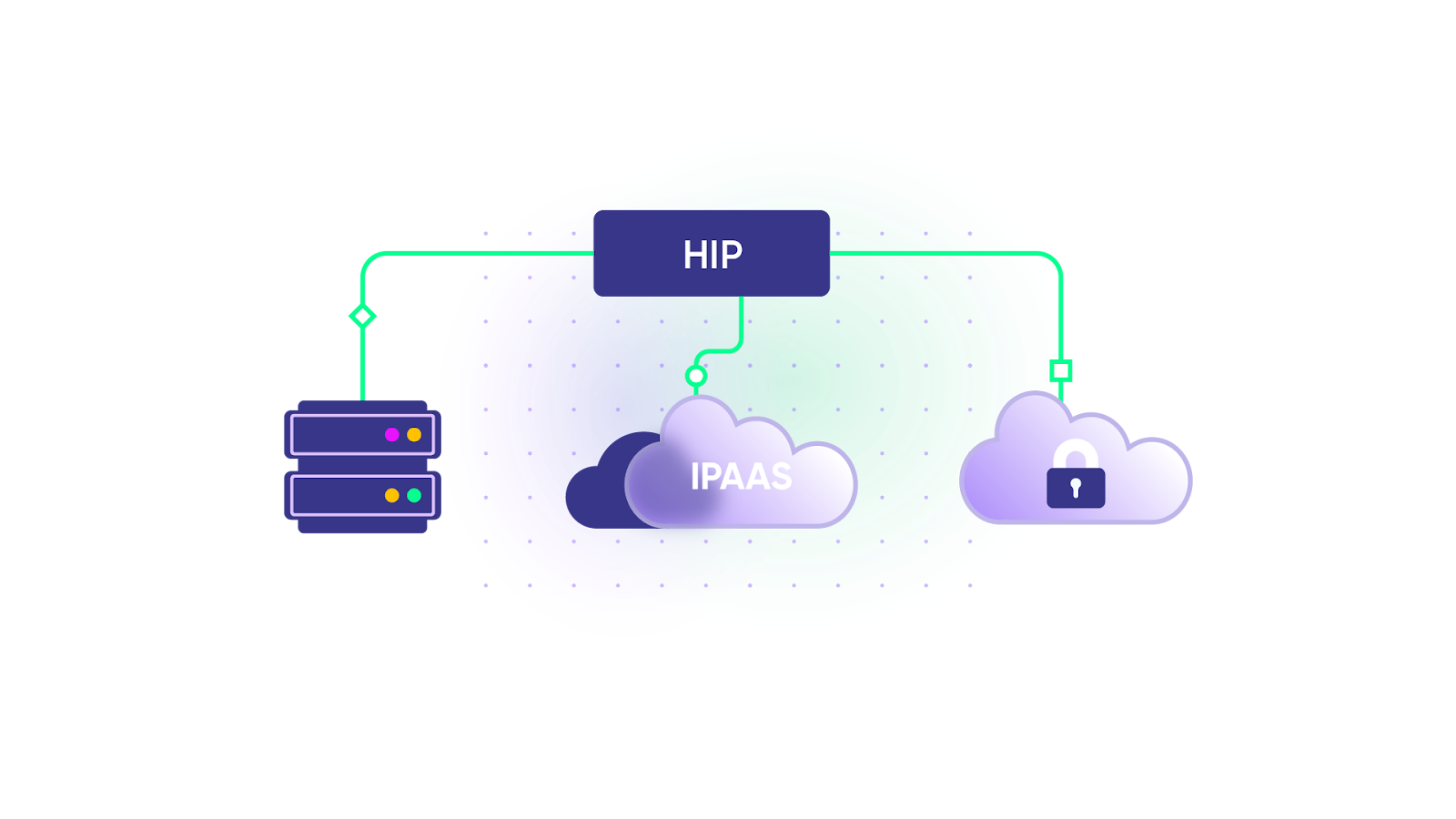
iPaaS (Integration Platform as a Service) is a broader category of cloud-based integration tools that connect applications, automate workflows, and move data between systems. iPaaS platforms handle many integration patterns—ETL, event-driven architectures, API management, workflow automation—of which eBonding-style synchronization is just one.

Think of it this way: eBonding is the what (synchronized, matching data across systems). iPaaS is one possible way (a cloud platform that can deliver eBonding among other integration patterns).

Some iPaaS platforms are good at simple data movement but struggle with the deep, bidirectional synchronization and field-level control that serious eBonding requires. Dedicated eBonding tools like Exalate are purpose-built for this specific pattern—which is why they handle complex cross-company sync scenarios more effectively than general-purpose iPaaS platforms.

eBonding Best Practices

Getting eBonding right isn’t just about choosing the right tool. It’s about approaching the implementation strategically.

  1. Start with a clear data map. Before touching any tool, document exactly what data needs to sync, in which direction, and under what conditions. Map fields between systems explicitly—don’t assume “Priority” means the same thing everywhere.
  2. Define ownership and escalation paths. Who owns each connection? Who gets notified when a sync fails? Who has the authority to change sync rules? These questions seem administrative, but leaving them unanswered causes real operational problems.
  3. Implement incrementally. Don’t try to eBond everything at once. Start with a single, well-defined connection, validate it thoroughly, and then expand. Each new connection builds on lessons learned from the previous one.
  4. Plan for change. Your eBonding requirements will evolve. New partners, new platforms, new data fields, new compliance requirements. Choose tools and architectures that treat change as normal rather than exceptional.
  5. Monitor continuously. Don’t wait for someone to report a problem. Set up monitoring that alerts you to sync failures, queue backlogs, and data mismatches proactively.

Conclusion

eBonding isn’t new, but it’s more relevant than ever. As organizations rely on more applications, more partners, and more distributed teams, the need for automated, reliable data synchronization only grows.

The core idea is simple: keep matching data in matching systems, automatically, so everyone works with the same information. The execution is where things get complex—field mapping, process alignment, security, scalability, and error handling all require careful planning.

Building in-house rarely scales. Commercial tools like ServiceNow’s eBonding spoke and Exalate offer faster time to value, lower maintenance costs, and broader flexibility. The right choice depends on your ecosystem—ServiceNow-only shops may find the eBonding spoke sufficient, while organizations managing diverse platforms and cross-company relationships will benefit from Exalate’s broader connector coverage, AI-assisted configuration, and independent control per side.

Whatever path you choose, start with strategy, implement incrementally, and pick tools that grow with your integration network.

Frequently Asked Questions

What is eBonding in ITSM? 

eBonding in IT Service Management refers to the automated, bidirectional synchronization of service records—incidents, change requests, problems—between different ITSM platforms. For example, eBonding between ServiceNow and Jira ensures that when a support agent escalates an incident, engineering sees it instantly as a work item in their own tool, with all relevant context. Exalate supports eBonding across ITSM platforms, including ServiceNow, Jira, Freshservice, Freshdesk, and Zendesk.

How is eBonding different from a simple API integration? 

A basic API integration typically moves data in one direction or handles simple CRUD operations. eBonding goes further; it maintains synchronized, matching records across systems with bidirectional updates, conflict resolution, field mapping, and conditional sync logic. It’s an ongoing, stateful relationship between records, not a one-time data push. Exalate handles the full eBonding lifecycle, including sync queues that maintain order and retry mechanisms that prevent data loss during outages.

Can eBonding work across company boundaries? 

Yes, and this is one of its most valuable applications. Cross-company eBonding connects your systems with those of partners, vendors, MSPs, or customers. The key requirement is that each organization maintains independent control over what data they share and receive. Exalate is purpose-built for this. Each side configures their own sync rules without affecting the other party.

What platforms does Exalate support for eBonding? 

Exalate connects Jira Cloud, ServiceNow, Zendesk, Salesforce, Azure DevOps (Cloud and Server), Freshservice, Freshdesk, GitHub, and Asana out of the box. For platforms not on that list, custom REST API connectors extend integration capabilities to proprietary systems and niche tools. This makes Exalate suitable for multi-platform eBonding environments where you need to connect diverse systems across multiple partners.

Is the ServiceNow eBonding spoke free? 

The eBonding spoke is available by default in your ServiceNow instance without requiring an IntegrationHub subscription. However, it only supports ServiceNow-to-ServiceNow synchronization. If you need to eBond ServiceNow with non-ServiceNow platforms like Jira, Salesforce, or GitHub, you’ll need additional spokes through IntegrationHub, which come at extra cost.

How does AI-assisted configuration help with eBonding?

Exalate includes Aida, an AI assistant that guides teams through integration scoping, setup decisions, and troubleshooting. For complex sync scenarios, AI-assisted integration generates configurations from natural language descriptions—you explain what data should sync and under what conditions, and the platform produces the configuration. This significantly reduces implementation time and makes advanced eBonding accessible to teams without deep scripting expertise.

Can eBonding handle complex field mappings between different systems? 

Yes, but the quality of field mapping depends heavily on the tool you choose. Different systems use different schemas, naming conventions, and data types—”Priority” in Jira might map to “Urgency” in ServiceNow, and status workflows are rarely identical. Exalate supports granular field-level mapping with conditional logic, allowing you to transform data as it moves between systems. AI-assisted configuration helps generate these mappings from natural language descriptions, reducing the manual effort involved.

What security certifications should an eBonding tool have? 

At a minimum, look for ISO 27001. Your eBonding tool should also use TLS 1.2/1.3 for encrypted data transport, JWT tokens for authentication, and role-based access controls for configuration management. Exalate maintains these certifications and publishes its security posture transparently on its Trust Center

Recommended Reads:

How to Set up an Azure DevOps Salesforce Integration: The Comprehensive 2026 Guide

Azure DevOps Salesforce integration

Information continuously evolves and grows in organizations. This untapped information, if shared between teams using different applications like Azure DevOps and Salesforce, can increase business revenue and leave you with more satisfied customers. For this purpose, an Azure DevOps Salesforce integration is the best choice. 

Such integration can automate information exchange between Azure DevOps and Salesforce. It can also ensure the exchange is bi-directional and in real-time, so data is consistently accessible and up-to-date.

This guide will introduce you to a step-by-step Azure DevOps Salesforce integration. It will also help you understand the benefits of such integration and present the key drivers for choosing the correct integration technology.

Key Takeaways

  • Azure DevOps-Salesforce integration eliminates manual data entry between development and sales teams, reducing errors and saving time.
  • Real-time bi-directional synchronization keeps customer-facing teams and developers aligned with automatic updates across both platforms.
  • Choosing the right integration tool requires evaluating security certifications (ISO 27001), scripting flexibility, and multi-platform support.
  • Common use cases include escalating Salesforce cases to Azure DevOps work items, providing progress updates to sales teams, and establishing smooth customer support pathways.
  • AI-assisted configuration with tools like Exalate’s Aida feature enables both simple no-code setups and advanced custom integrations using Groovy scripts.

Why Integrate Azure DevOps and Salesforce?

Azure DevOps provides end-to-end DevOps toolchains for software development and deployment, with thousands of apps available through its marketplace.

Salesforce serves as the CRM backbone for sales, marketing, and service teams to strengthen customer relationships through AppExchange integrations.

Both platforms excel at breaking down silos, but when they operate in isolation, critical information gets trapped.

The Real Cost of Manual Data Exchange:

Without integration, teams waste hours on:

  • Copy-pasting case details from Salesforce into Azure DevOps work items
  • Chasing developers via Slack or email for bug fix status updates
  • Manually updating Salesforce cases when work items change status
  • Searching through email threads to understand customer context
  • Re-entering the same information across multiple tools

This manual workflow creates:

  • Data entry errors that confuse both teams
  • Lost customer context when escalating work items
  • Delayed responses to customer requests
  • Scattered information across disconnected systems
  • Frustrated teams switching between applications constantly

Features to Consider When Choosing an Azure DevOps Salesforce Integration

Choosing the right integration tool determines whether you eliminate manual work or simply shift it elsewhere. The wrong tool creates new bottlenecks, while the right one becomes invisible infrastructure that just works.

Here’s what matters most:

Security and Compliance

Security should be your top criterion since integration involves sensitive business data flowing between systems, often across company boundaries.

Look for:

  • ISO certification 
  • Encryption in transit and at rest
  • Role-based access control 
  • Secure transport protocols 

Review detailed security measures in the Trust Center. You can also read more about how Exalate implements security measures by reading its security and architecture whitepaper

Scripting and Operational Control

The best integration tools give both sides complete control over their data without requiring coordination with the other party.

This means:

  • Independent sync rule configuration 
  • Flexible Groovy scripting engine 
  • No mutual dependencies 
  • Granular field-level control 

Exalate achieves this through outgoing and incoming sync rules on both sides. Your development team in Azure DevOps controls what comes in. Your sales team in Salesforce controls what goes out. Both maintain full autonomy.

Reliability and Sync Integrity

Your integration must handle downtimes, system failures, and network issues gracefully without losing data or creating duplicates.

Exalate breaks synchronization into atomic steps, maintaining order even during Azure DevOps upgrades, firewall reconfigurations, or Salesforce maintenance windows.

Flexibility: From No-Code to Advanced Customization

Your integration needs will evolve. Simple syncs become complex. New requirements emerge. Your tool should adapt without requiring complete reconfiguration.

For simple use cases:

  • Pre-configured sync rules work out-of-the-box
  • No-code setup for standard field mappings
  • Quick configuration that business users can understand

For advanced scenarios:

  • Custom Groovy scripts for complex transformations
  • AI-assisted configuration with Aida to generate sync rules from natural language
  • Test Run feature validates changes before production deployment
  • Quick Sync tests configurations in real-time

Exalate supports both ends of this spectrum. Start with no-code configuration, then add scripting as requirements grow more sophisticated.

Multi-Platform Integration Network

Your integration tool should support connections beyond just Azure DevOps and Salesforce. As partnerships expand and tool stacks evolve, you’ll need flexibility to connect additional platforms.

Exalate integrates with:

  • Project management: Jira, Azure DevOps, Azure DevOps Server
  • Service management: ServiceNow, Freshservice, Freshdesk, Zendesk
  • Development: GitHub
  • Collaboration: Asana
  • CRM: Salesforce
  • Custom connections: API-based connectors for proprietary systems

This multi-platform support means that when your partner uses Jira while you use Azure DevOps, or when you need to sync Freshservice tickets into Salesforce cases, you’re already covered.

How to Set up an Azure DevOps Salesforce Integration with Exalate: Step-by-Step Guide

This tutorial demonstrates how to use Exalate to configure an Azure DevOps Salesforce integration.

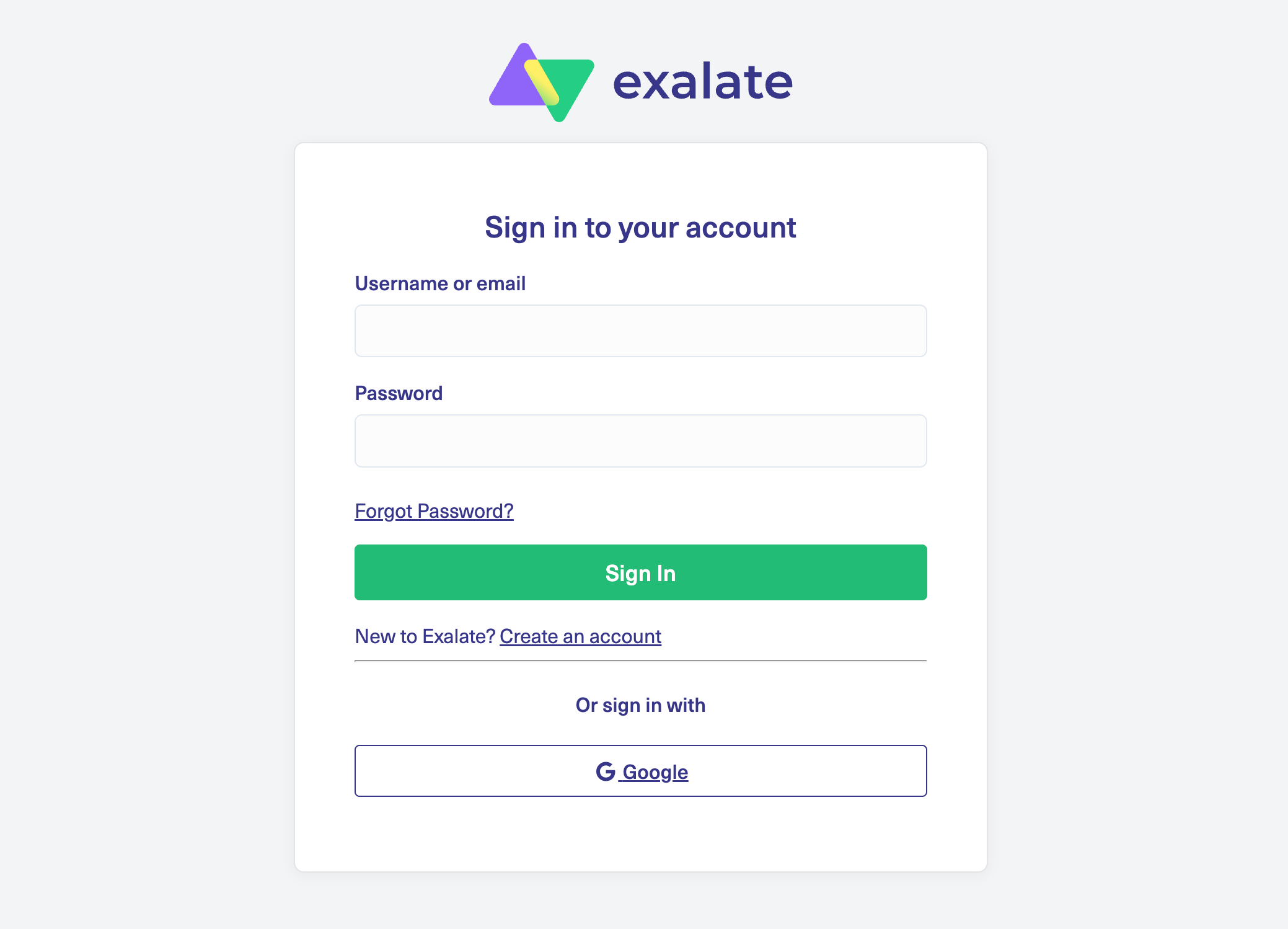
Step 1: Create Your Exalate Account 

exalate login page

Visit the Exalate integrations page to get started. If you’re new to Exalate, create an account by entering your email and verifying it, or sign up using your Google account. Existing users can log in directly.

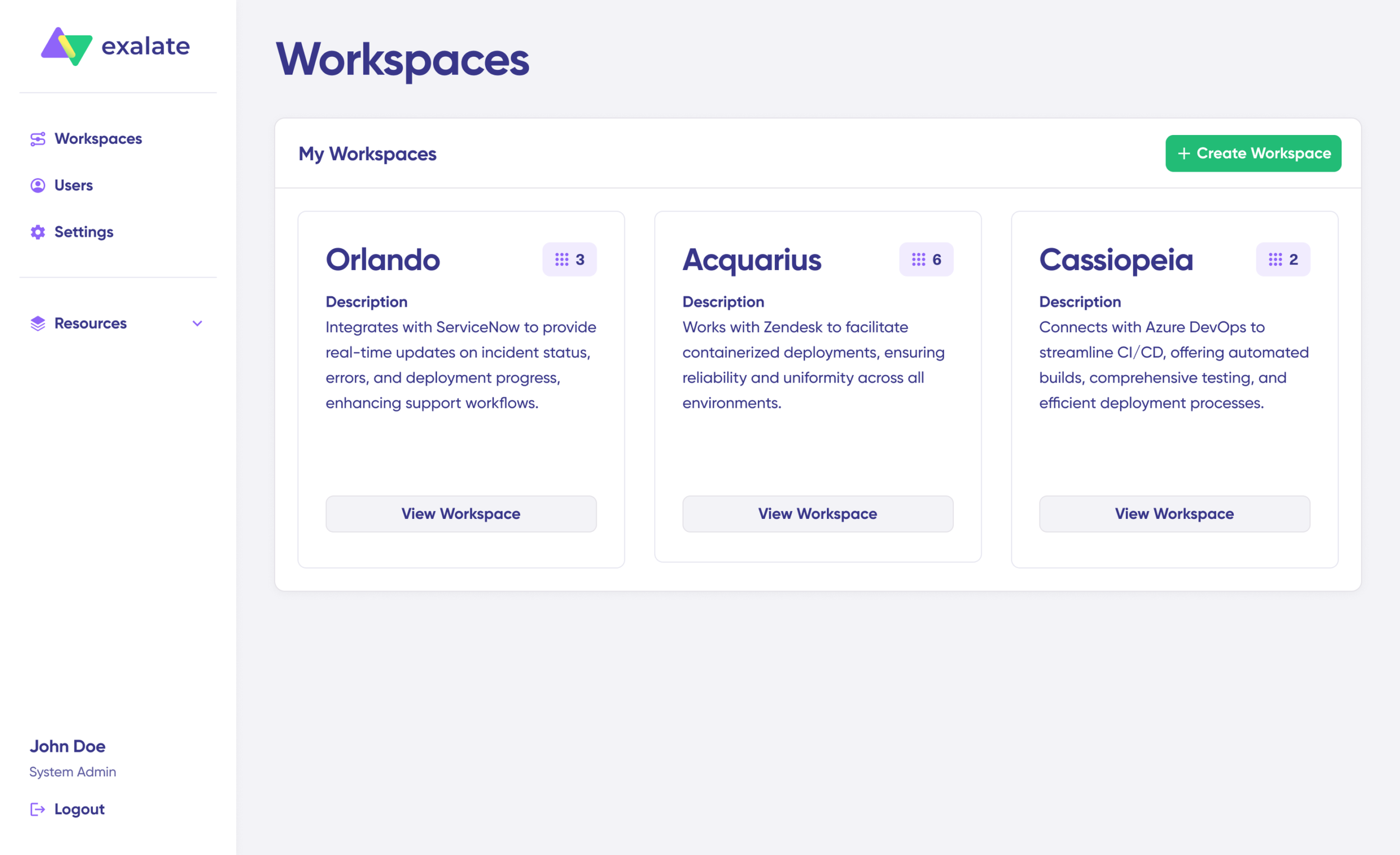
workspaces in exalate

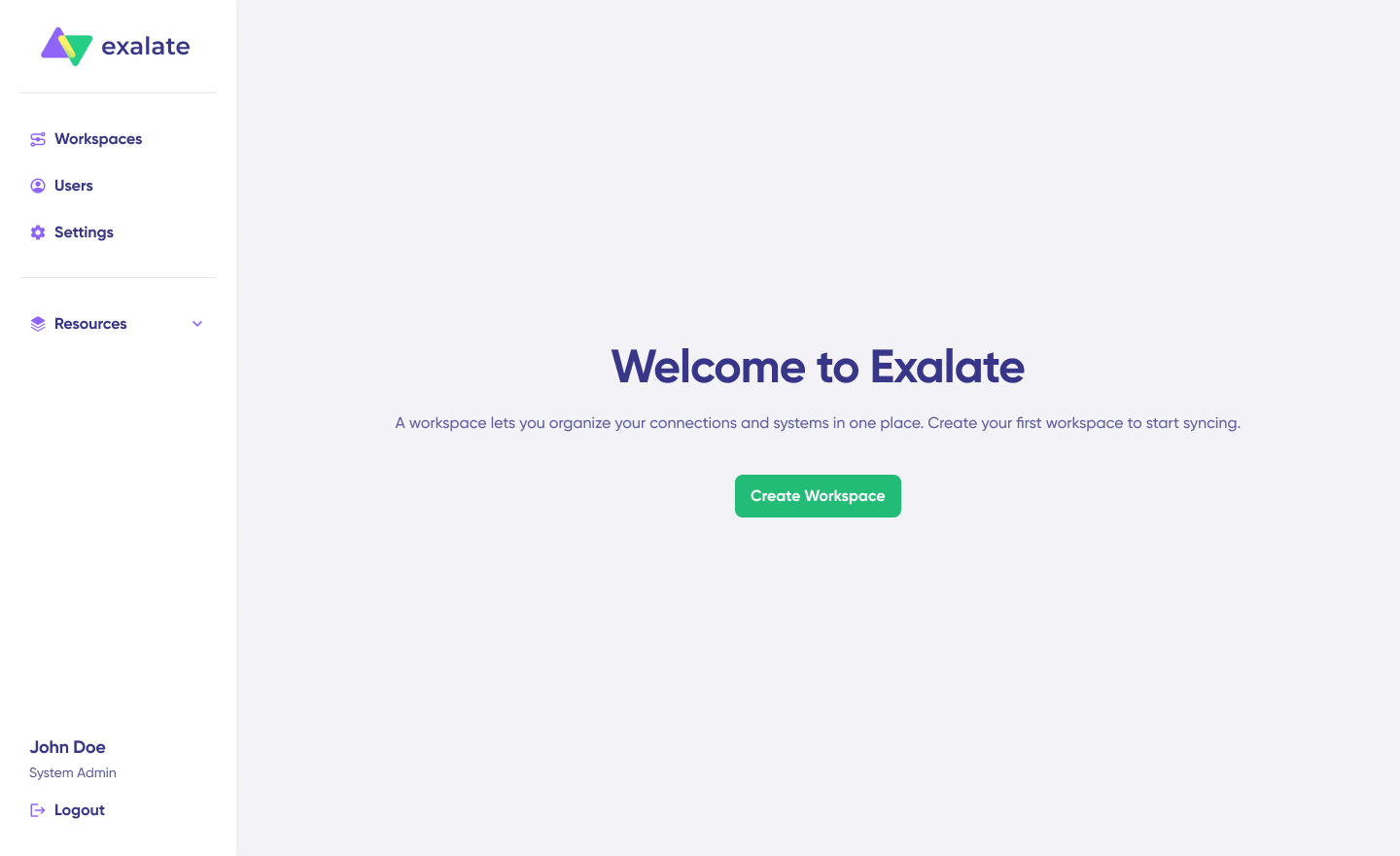
Workspaces serve as organizational hubs where you manage all your integrations and connections in one centralized location. Navigate to the “Workspaces” tab to view your existing workspaces. For first-time users, click the “+ Create Workspace” button.

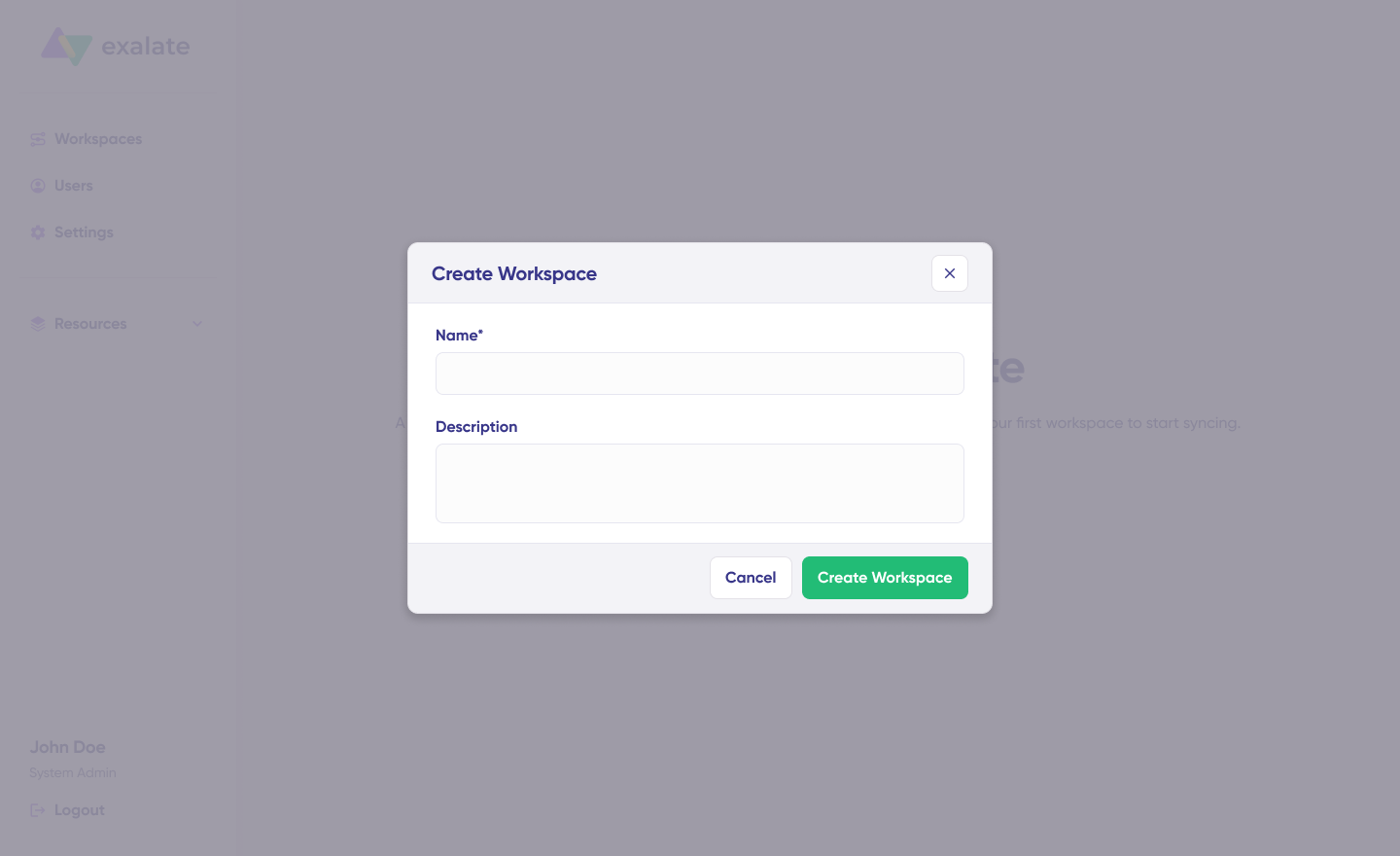
Exalate interface for creating workspace with name and description

Provide a name and description for your workspace, then click “Create workspace” to proceed.

Step 2: Create Your Azure DevOps-Salesforce Connection

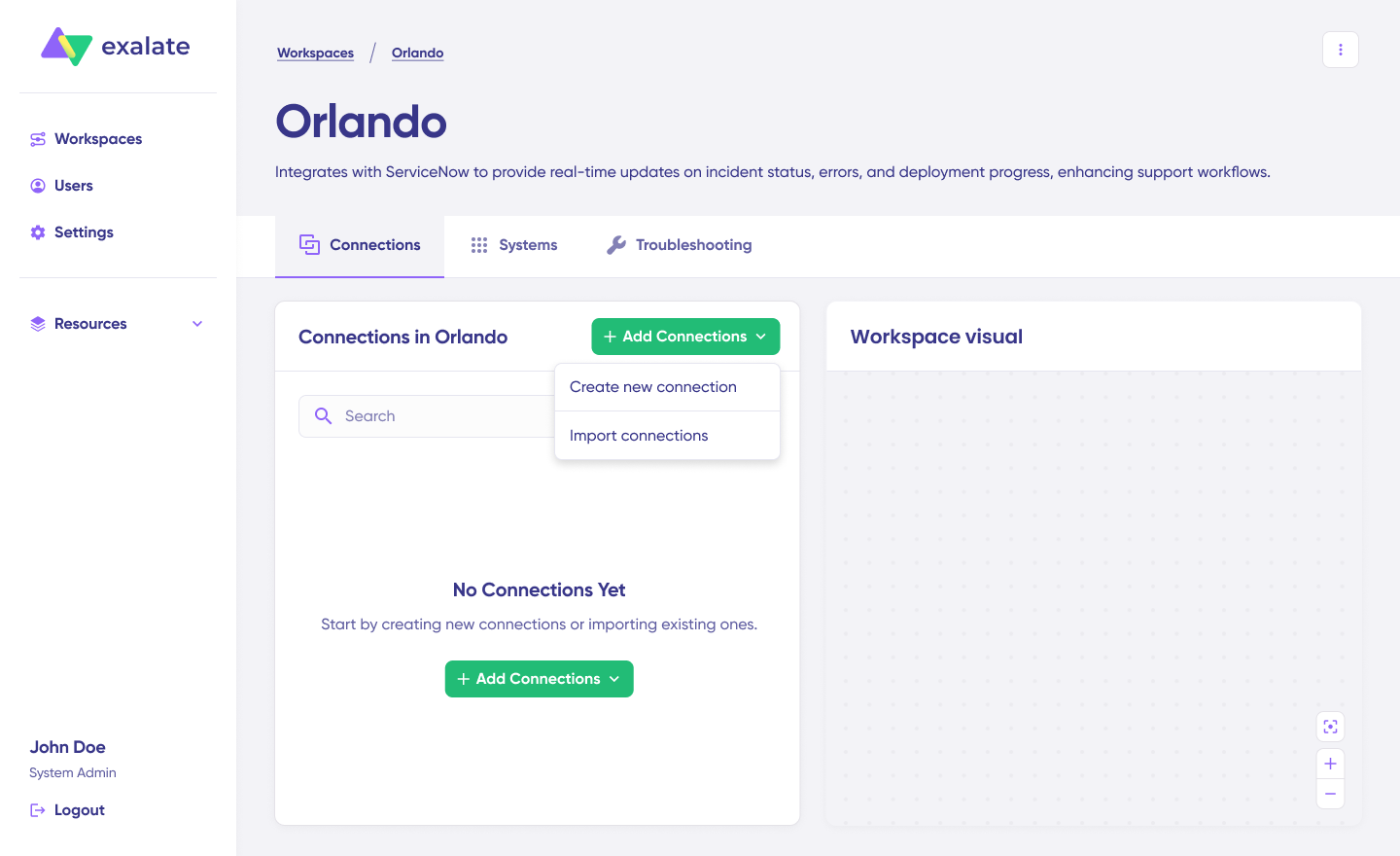
If you already have a workspace, all your connections appear under the “Connections” tab. From there, you can edit connections and view detailed connection information.

To create a connection, you need an active Exalate account with at least one workspace and valid authentication credentials for both Azure DevOps and Salesforce.

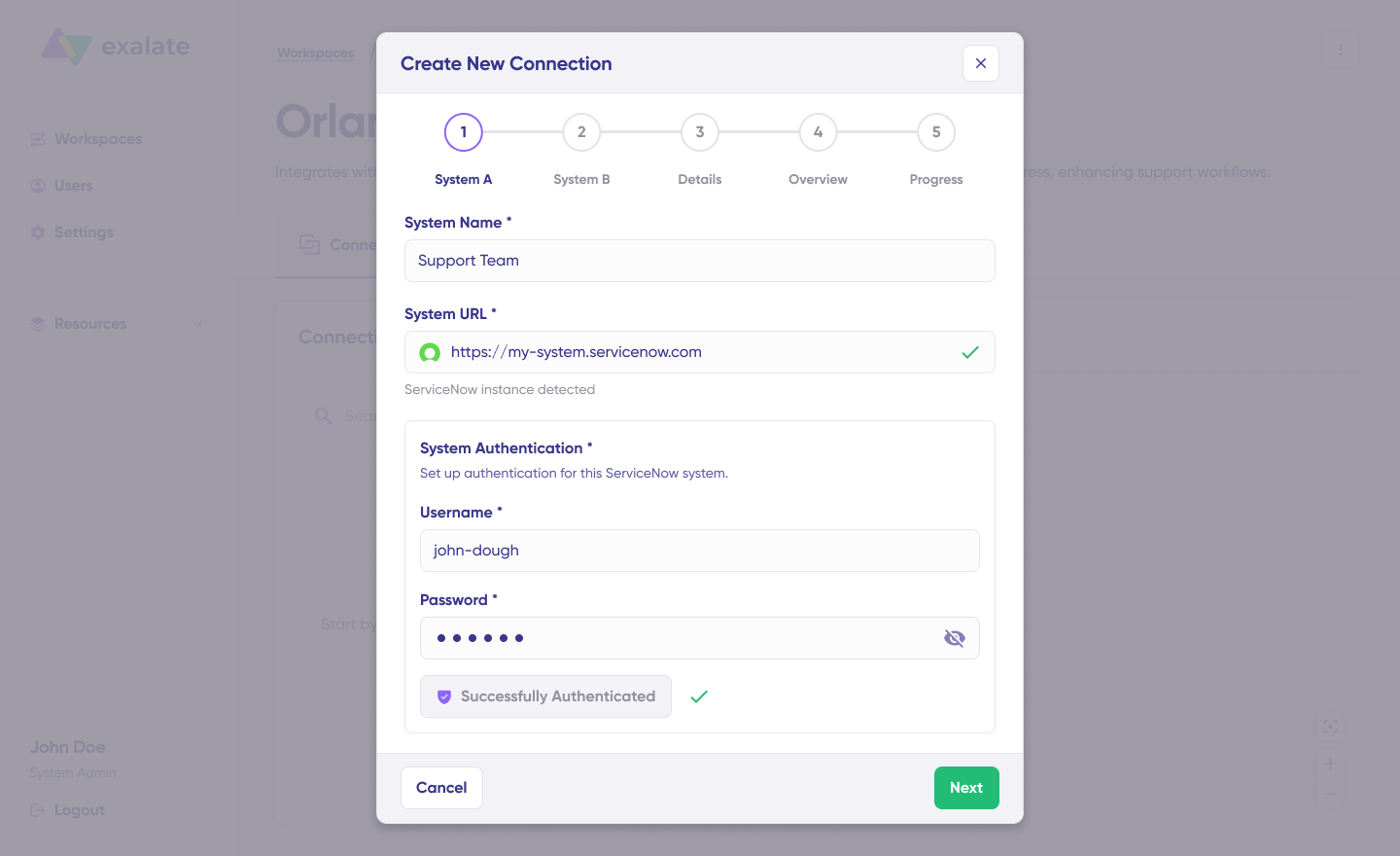
create a new connection with Exalate

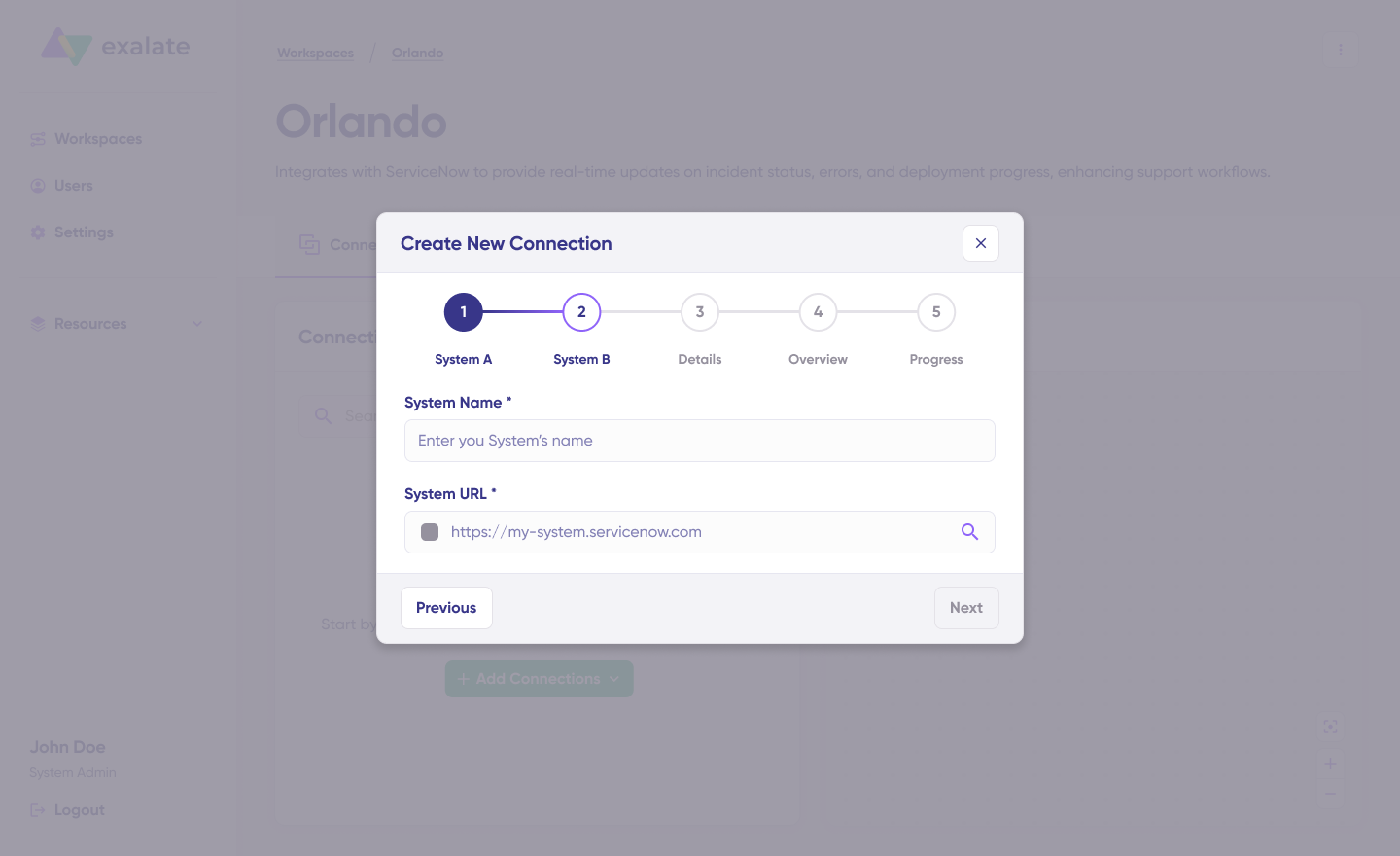
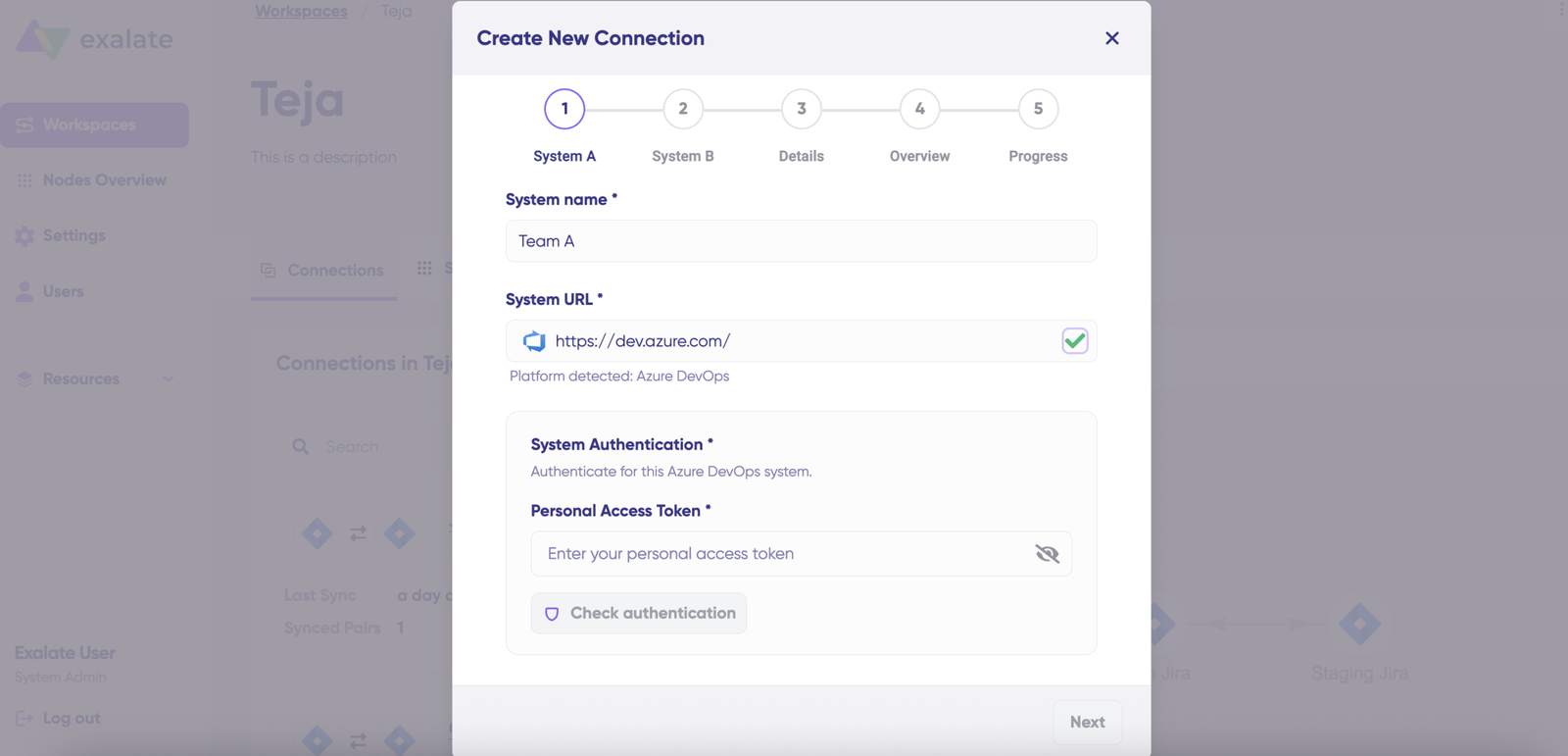
Click “+ Add connections” and select “Create new connection“. Name your first system—choose either Azure DevOps or Salesforce as System A (order doesn’t matter). Enter the URL of your chosen system. For example, if starting with Azure DevOps, enter your Azure DevOps organization URL.

Exalate interface for creating a new connection

If your system already exists in your current workspace, authentication happens automatically. For new systems, enter your authentication credentials. Both Azure DevOps and Salesforce support Basic authentication with username and password.

Exalate interface for setting up connections for system b

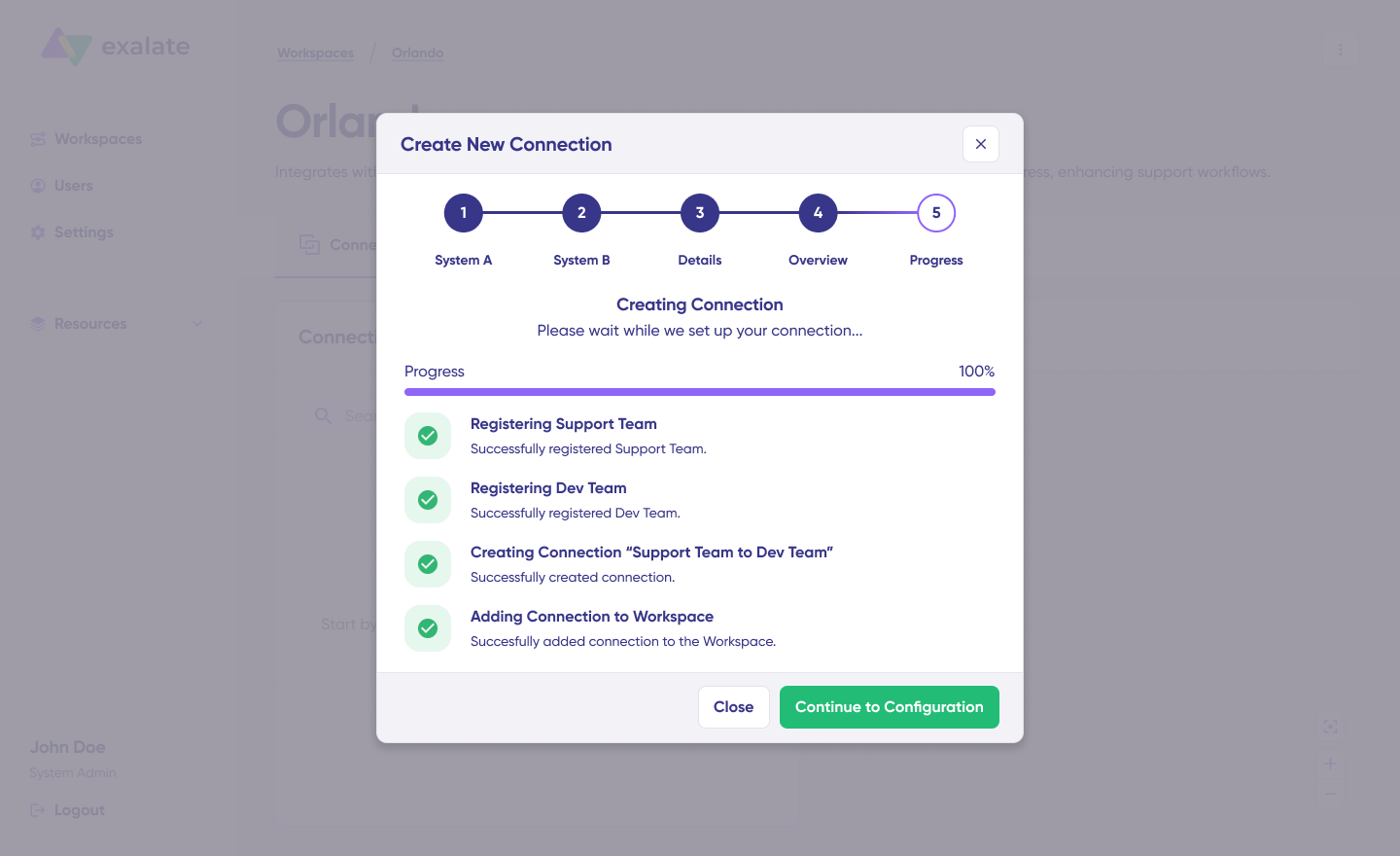
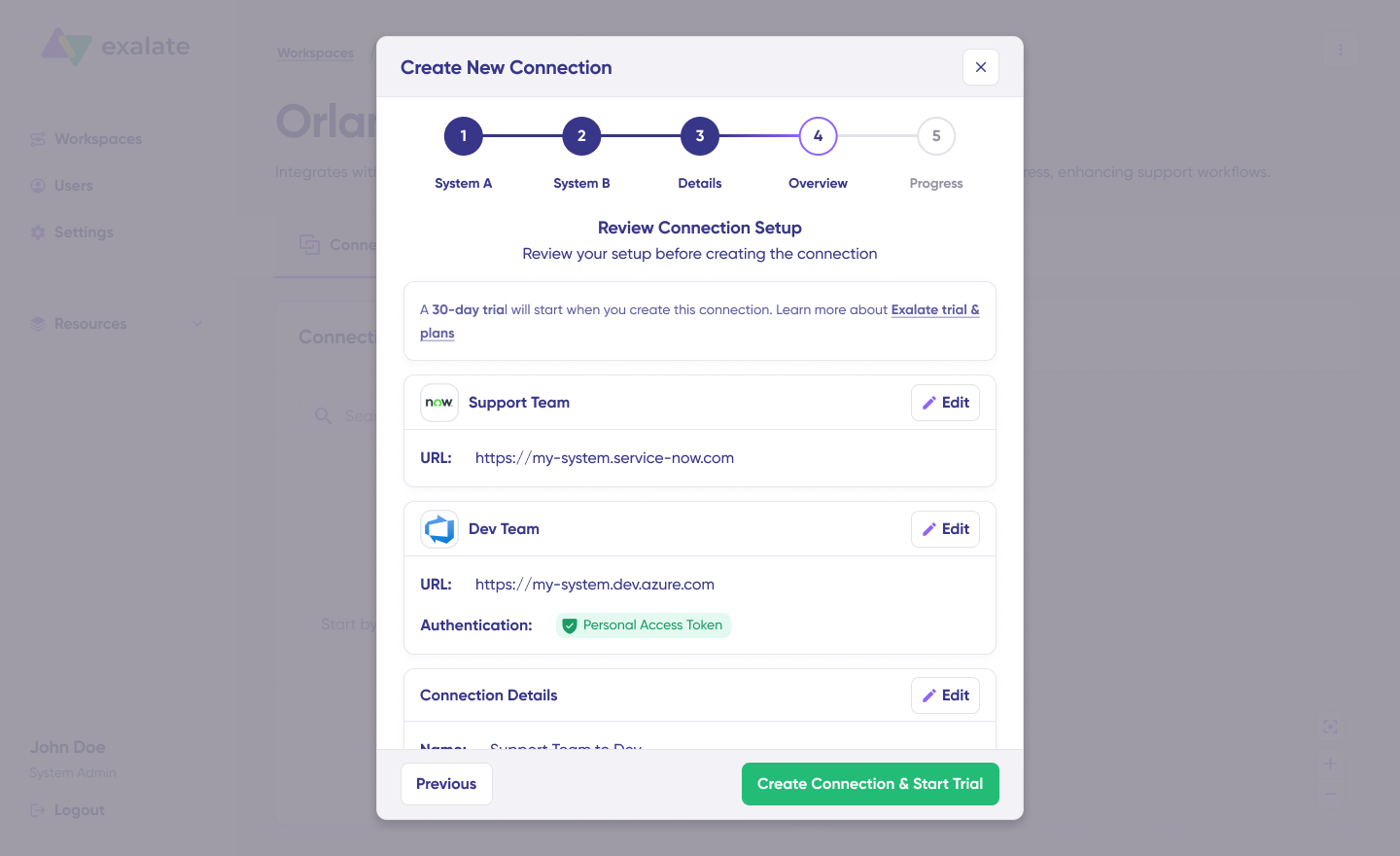
Complete the same setup process for your second system (Salesforce or Azure DevOps). Provide a name and description for your connection, then click “Next“. Review the connection details for accuracy and click “Create connection“.

Exalate interface for setting up connections completed flow

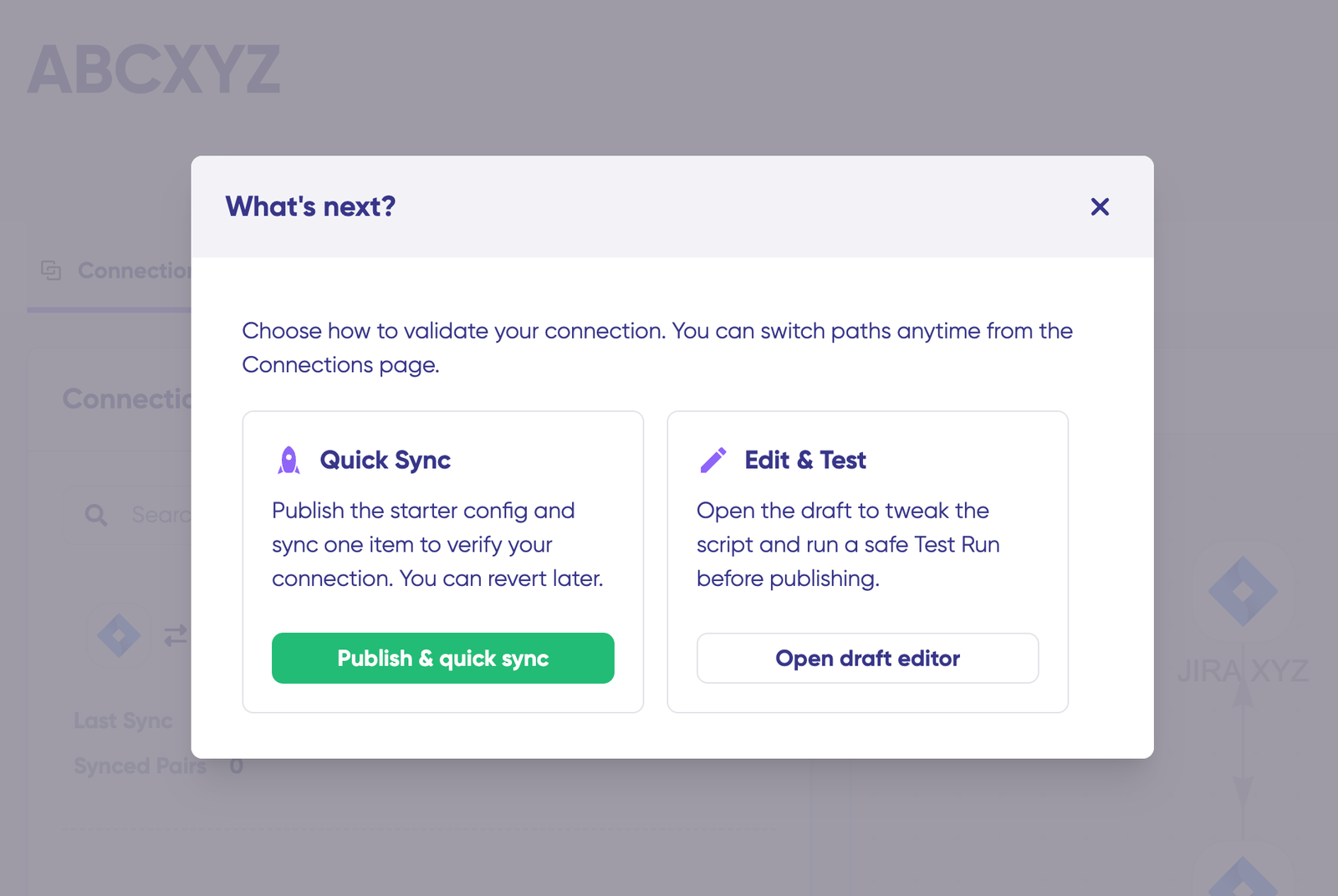
Once the process completes, select “Continue to configuration” and choose an Azure DevOps project for synchronization. Then click “Build & continue.”

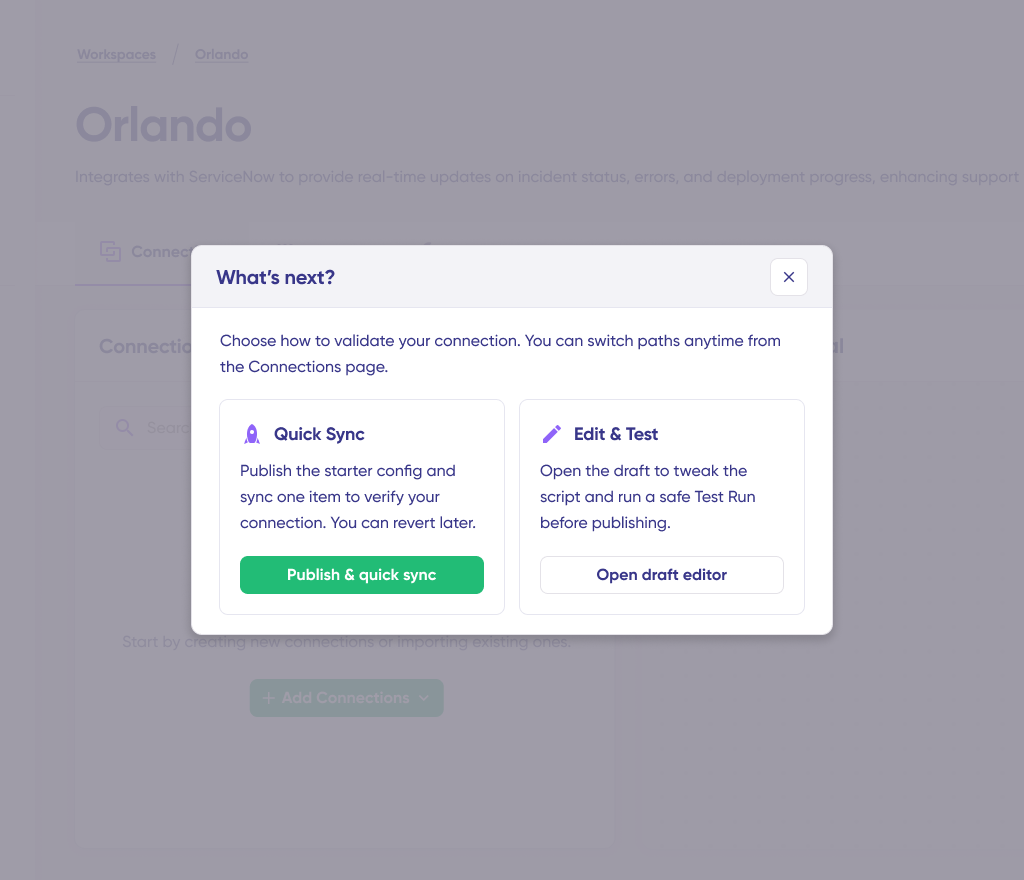
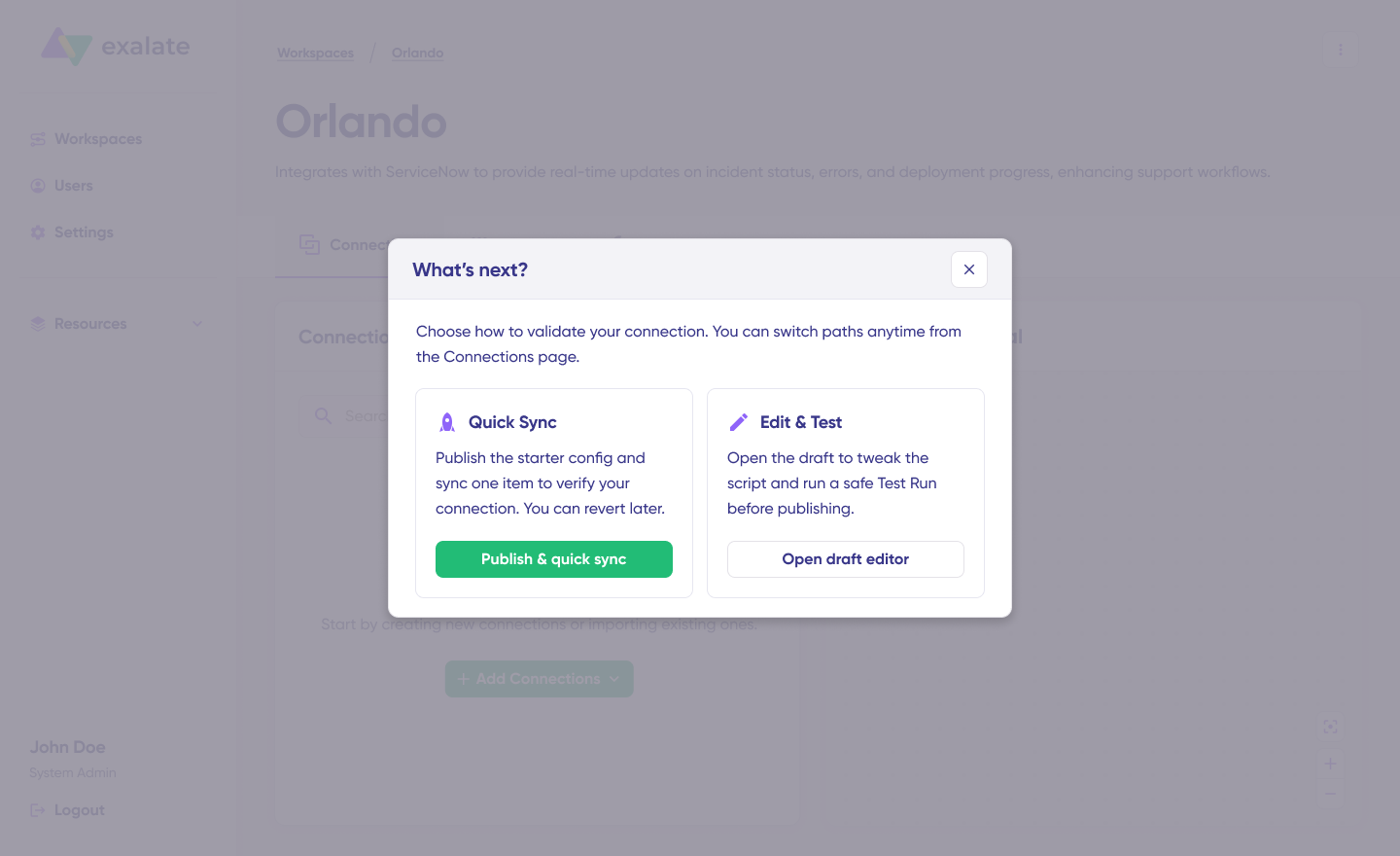
quick sync and edit test screen for exalate

You now have two configuration options: “Quick Sync” and “Edit & Test.”

Step 3: Quick Sync – Verify Your Connection

Quick Sync lets you synchronize a single item between Azure DevOps and Salesforce to verify that your connection functions correctly. This is an optional but recommended step.

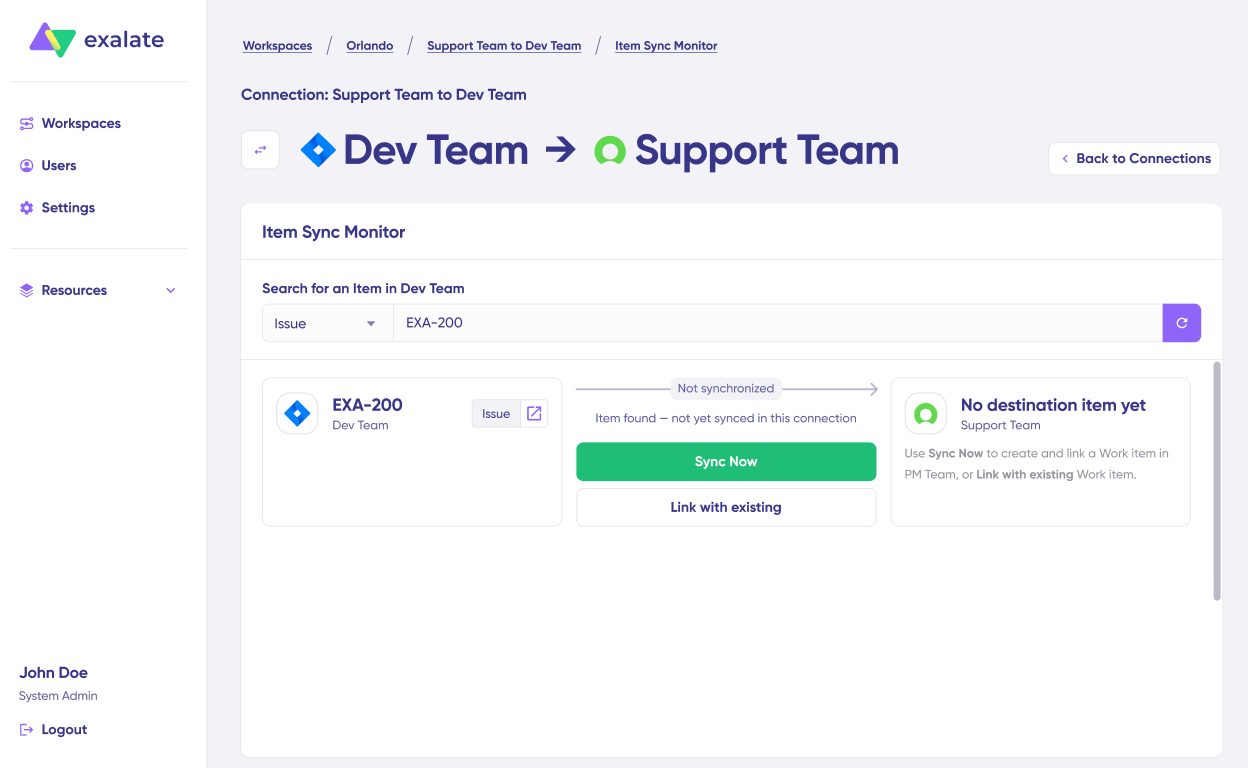
Item to sync in item sync monitor

Under the “Item sync monitor,” enter the work item ID from Azure DevOps or the Case number from Salesforce. To sync your first item, click “Sync Now.” To link two existing items, click “Link with existing.

Synced item in Item sync monitor

During synchronization, you’ll receive real-time status updates. Once complete, open both synced items in new windows to verify the sync worked correctly. You can also compare how the synced items appear and preview how changes will be applied across both systems.

Step 4: Edit & Test – Configure Your Sync Rules

To begin customizing your integration, click “Create a new version” or select “Open latest draft.” This prevents accidental modifications to your active configuration. All draft changes save automatically.

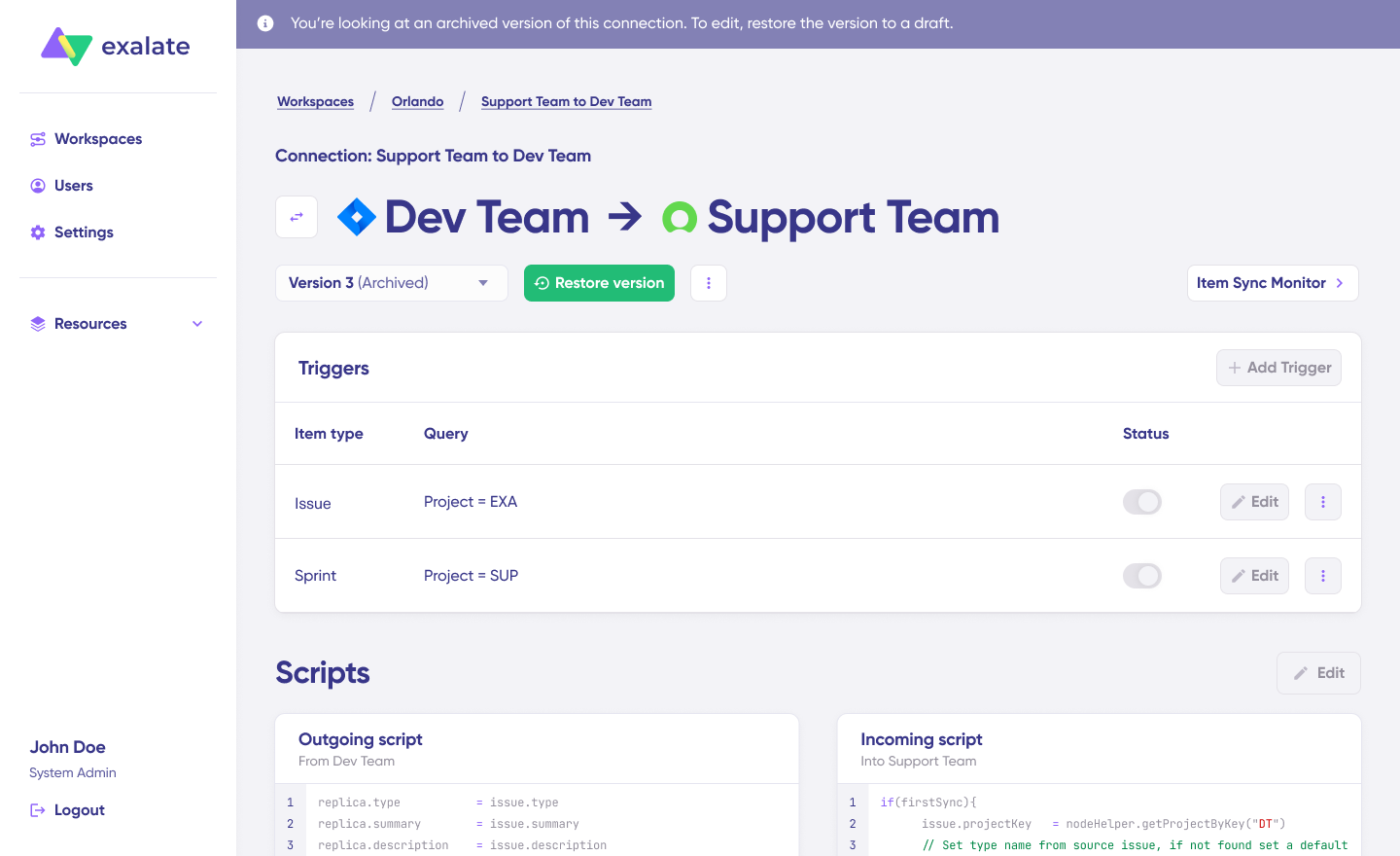
Archive version mode to enable the editing of scripts in Exalate

Click the “Edit” button to open the sync rule editor. Sync rules use Groovy-based scripts that let you define custom data logic, field mappings, and conditional workflows. This flexibility supports both simple and complex integration scenarios.

Change the sync direction by clicking the bidirectional arrows next to the connection name. Scripts are divided into outgoing and incoming sections. 

Script version interface showing incoming and outgoing scripts in Exalate

The outgoing script (from Azure DevOps to Salesforce) defines which data leaves Azure DevOps and how it’s packaged. 

The incoming script (from Azure DevOps to Salesforce) defines how incoming data from Azure DevOps maps to Salesforce fields. 

If you reverse the sync direction from Salesforce to Azure DevOps, the script roles reverse accordingly.

To sync new values, add them to your sync scripts directly (for technical users). To prevent specific data from syncing, remove that script line from the outgoing Azure DevOps script.

For example, when syncing from Azure DevOps to Salesforce, you might map Work Item Type to Case Type, State to Status, Title to Subject, Description to Description, Assigned To to Owner, Priority to Priority, Comments to Case Comments, and Attachments to Attachments.

Step 5: Use Aida for AI-Assisted Configuration

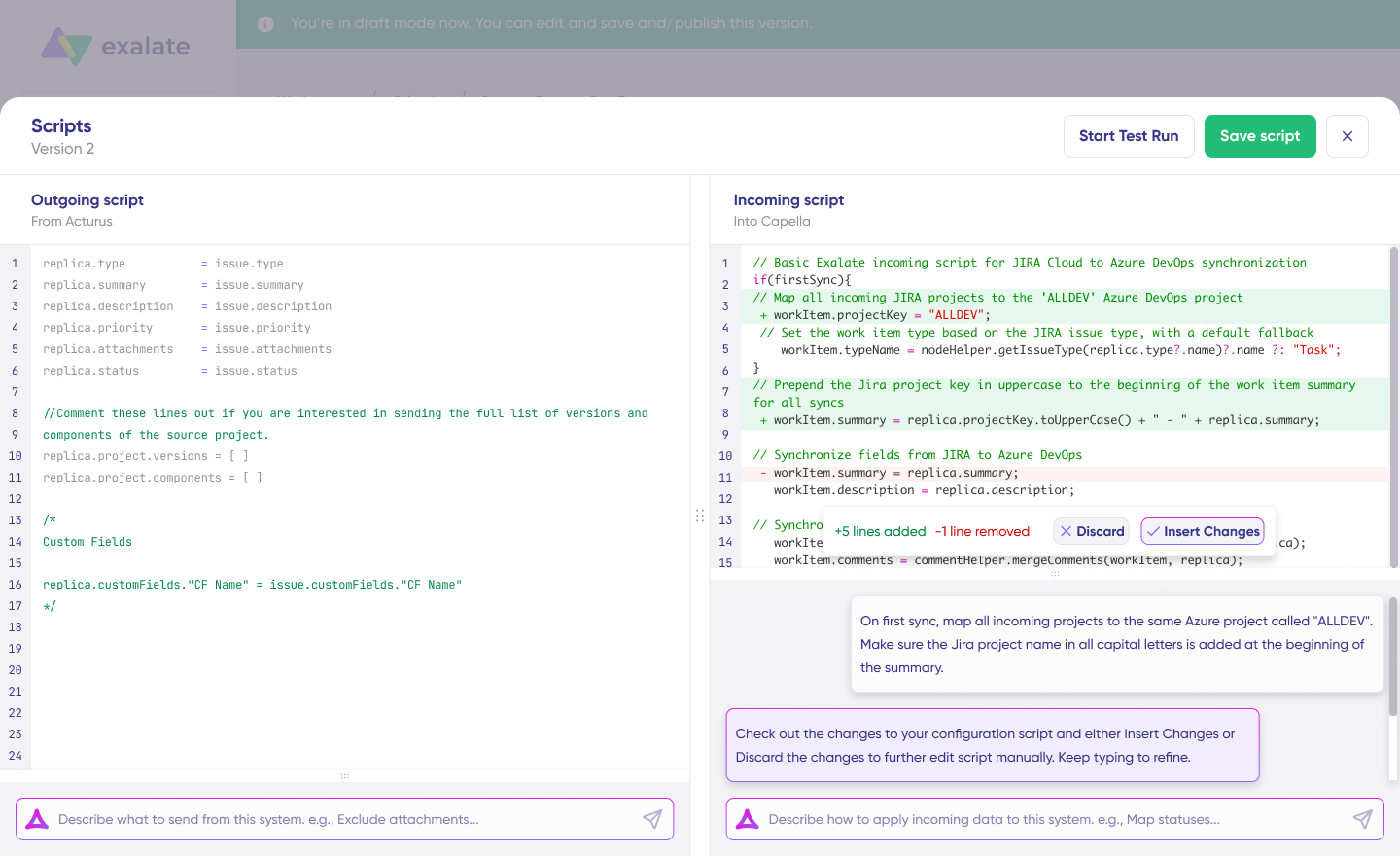
If you want to save time and avoid scripting complexity (especially useful for business users), use Exalate’s AI-assisted configuration feature called Aida to generate sync scripts automatically. Aida is available in both incoming and outgoing script sections.

Based on Exalate’s scripting API and your existing configuration, Aida generates working Groovy scripts with proper field mappings.

Exalate interface for Aida-assisted scripting

Once Aida finishes generating your script, review the proposed changes. Green highlights indicate new lines that will be added. Red highlights indicate lines that will be removed. Choose to “Insert” or “Discard” Aida’s suggestions.

Outgoing and incoming scripts work independently, as does Aida, so maintain separate context and direction for each prompt. While Aida is helpful, always review the generated code before applying it to your integration.

Example prompts might include:

  • “Sync only Cases where Type equals ‘Bug’ to Azure DevOps as work item type ‘Bug'”,
  • “Map Salesforce Priority values High, Medium, Low to Azure DevOps Priority 1, 2, 3”,
  • “When Azure DevOps State is ‘Resolved’, update Salesforce Status to ‘Fixed'”.

Step 6: TestRun – Validate Before Production

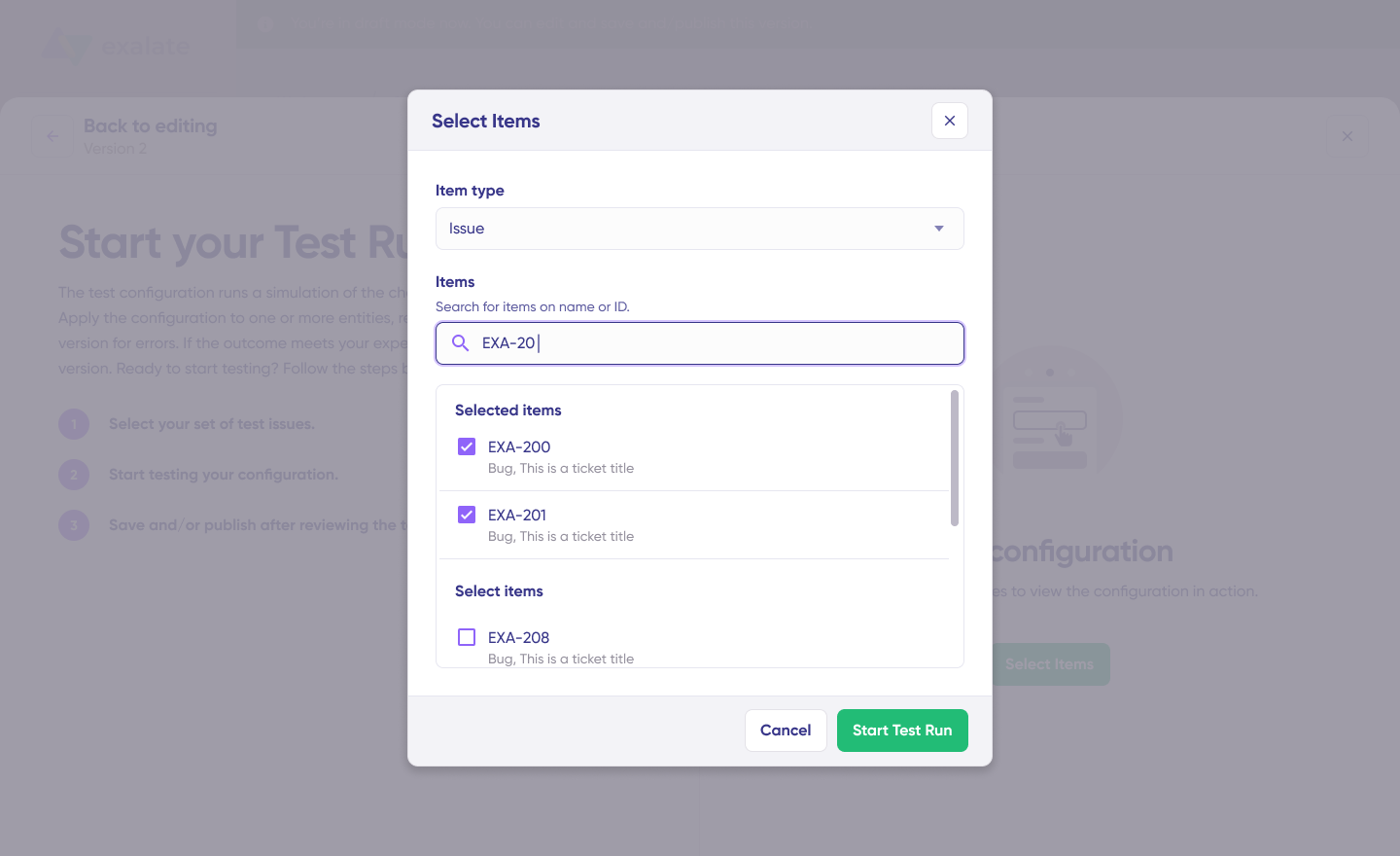
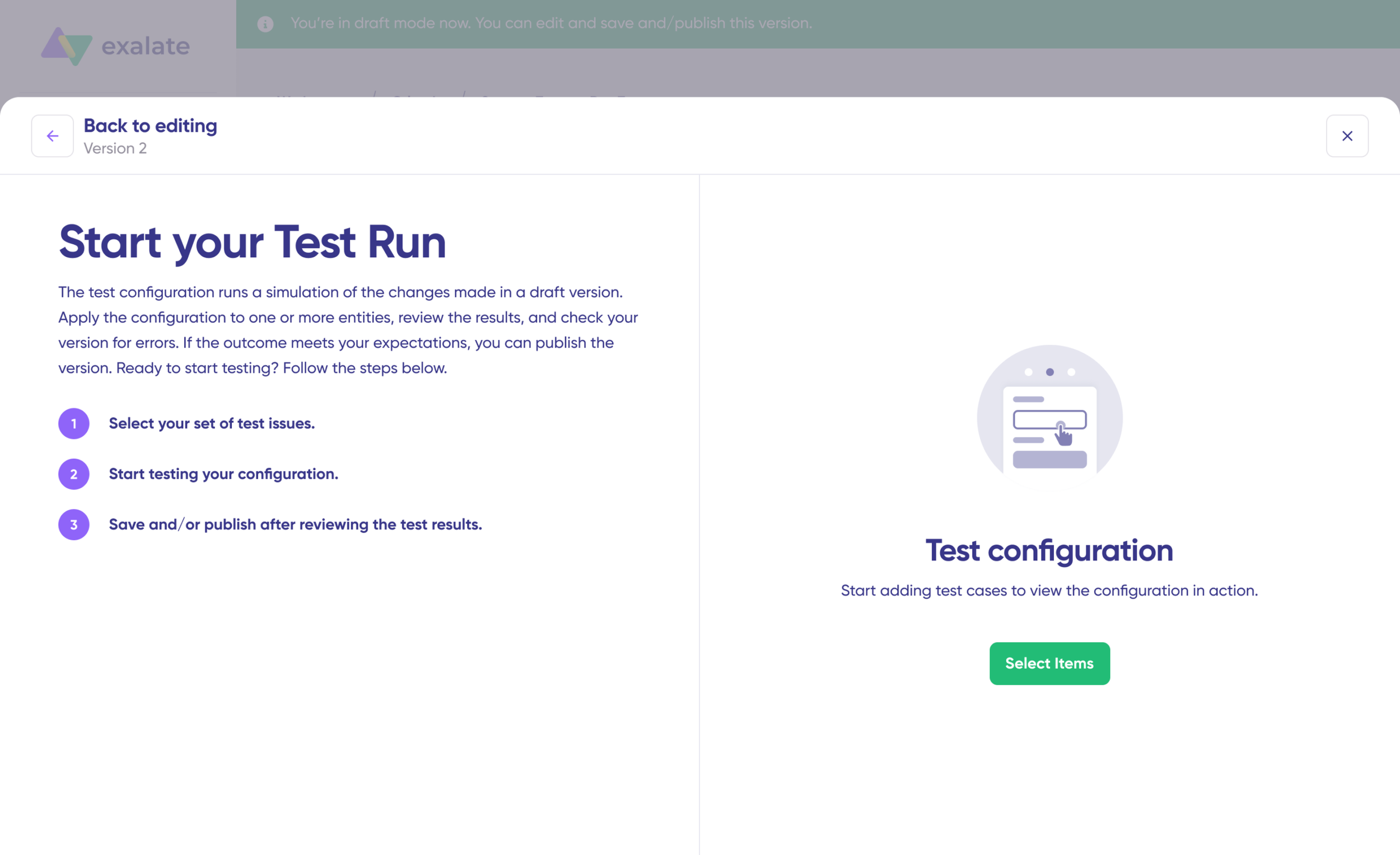
Once your sync scripts are ready, save them using “Save script” or test them using the “Start Test Run” option.

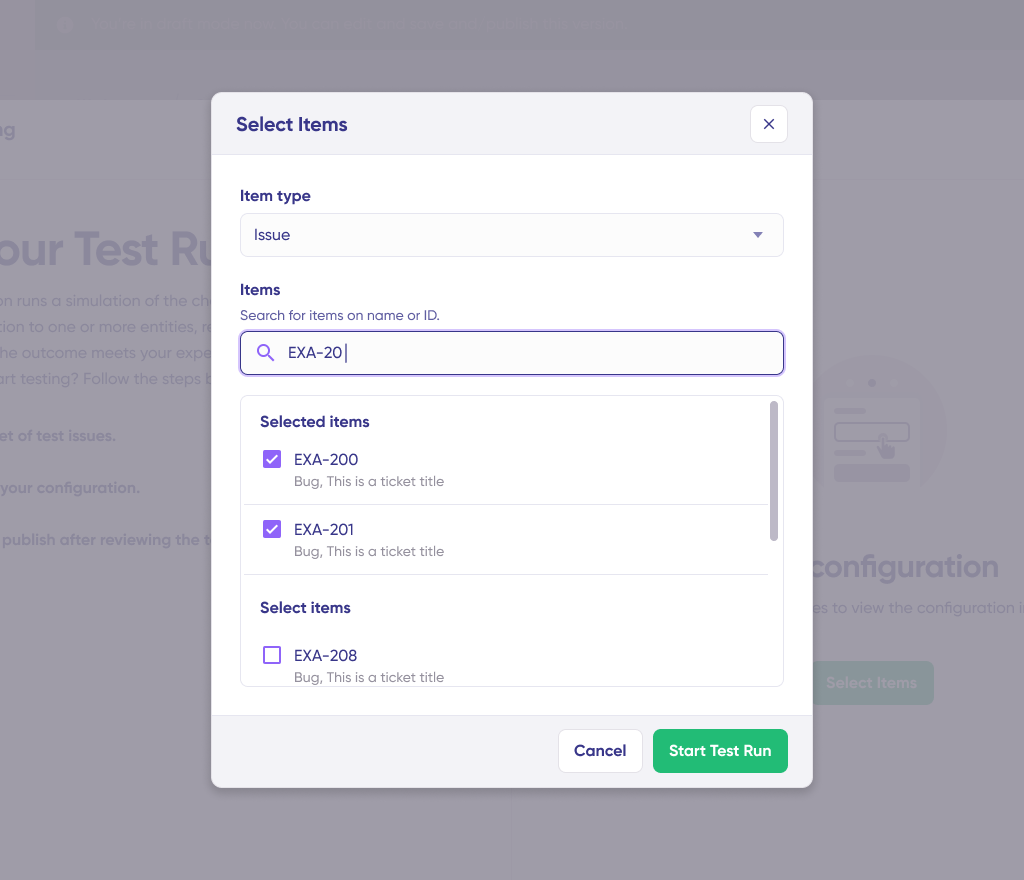
select items to test run

Click “Select Items” to choose work items or cases you want to test. You can select multiple items for comprehensive testing. Click “Start Test Run” to begin. View all incoming and outgoing replicas for each selected item in their respective tabs. Preview how the sync configuration will be applied to your items. Verify that field mappings look correct by examining the replica JSON.

edit script for test run

If needed, go back to the editor, adjust your scripts, and test again. Deploy only when you’re confident the configuration works as expected. This safety net prevents errors from affecting your live production data.

Activated draft mode to enable the editing of scripts in Exalate

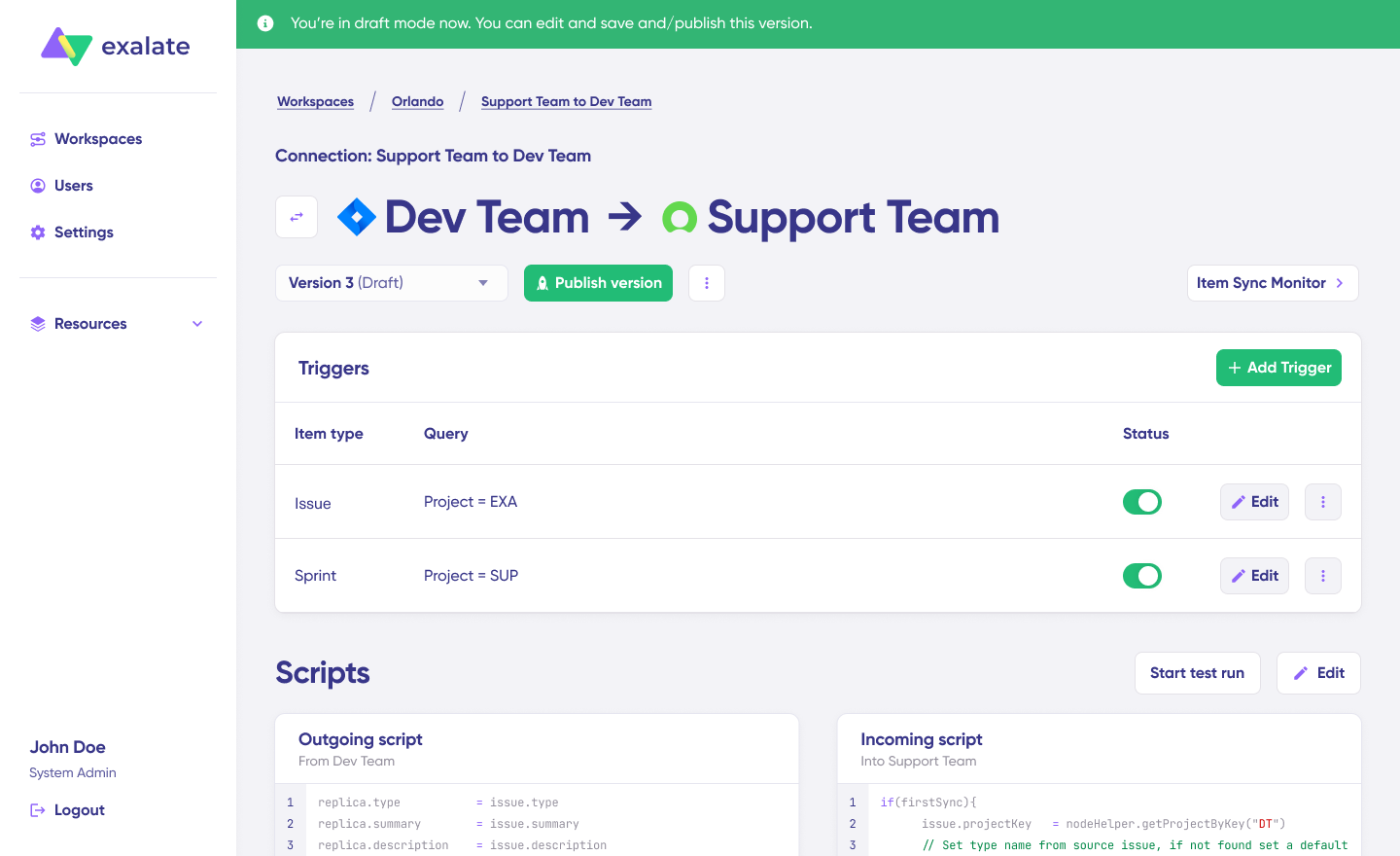
Once everything meets your requirements, click “Publish Version” to apply the updated configuration to your live synchronization.

All versions for a connection are available in the “Version” dropdown. Versions can be Active (currently running in production), Draft (editable working version), or Archived (previous versions saved for reference).

Step 7: Add Triggers for Automatic Synchronization

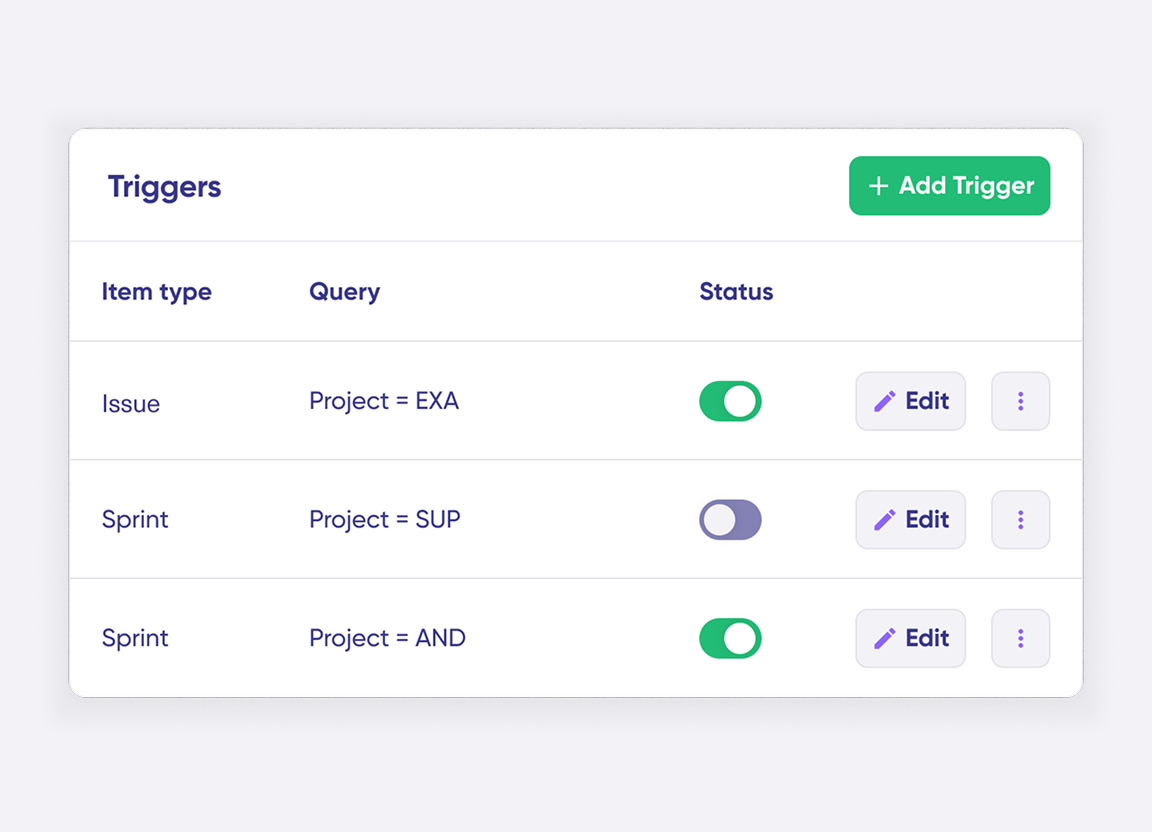
To enable automatic synchronization, add “Triggers”—these are conditions or filters applied to specific items. For example, you might sync all Azure DevOps work items where Tags contain “customer-facing” or sync all Salesforce Cases where Account = "Enterprise Customer" and Status = "Escalated".

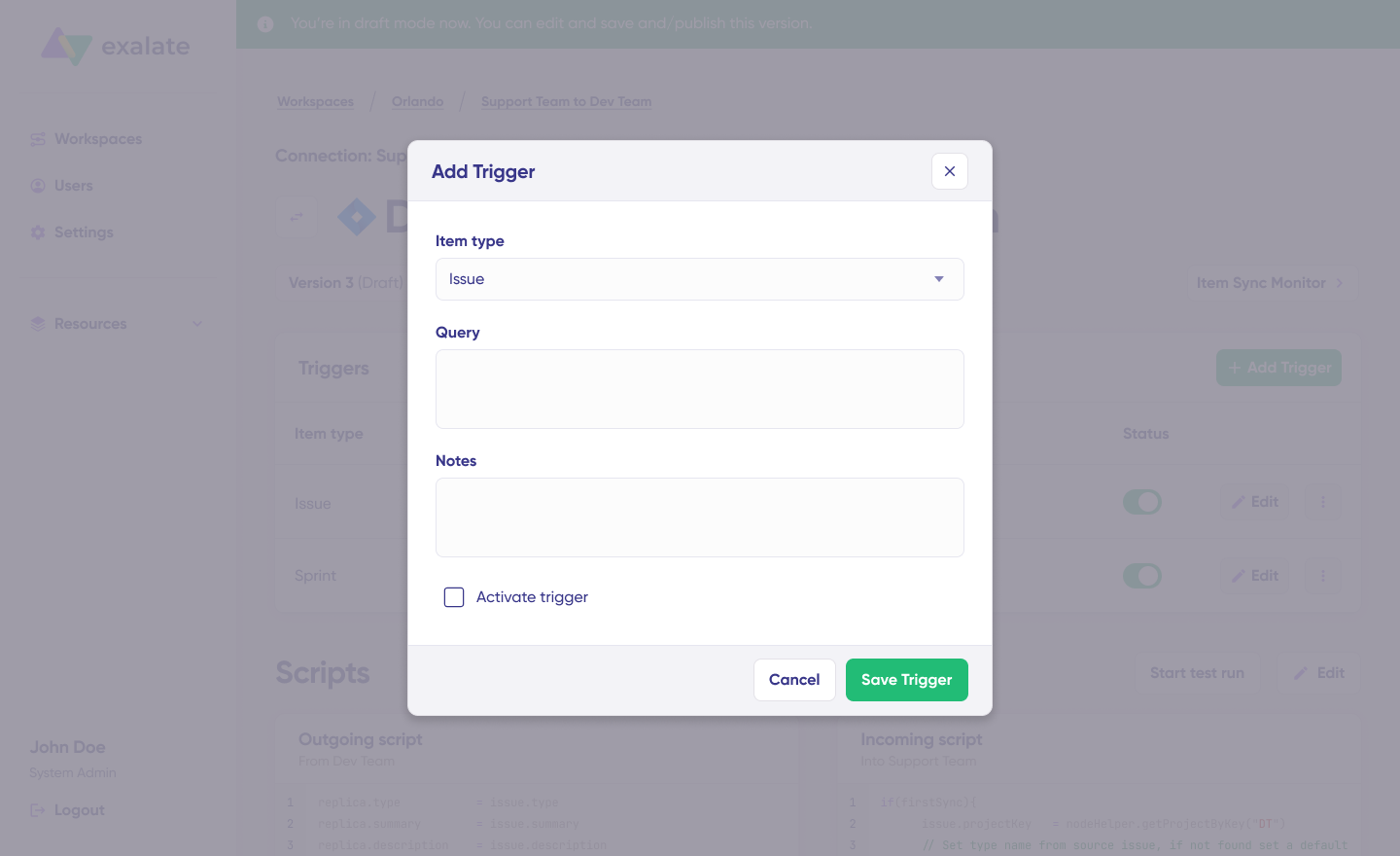
add trigger screen for Exalate triggers

Click the “+ Add trigger” button to create triggers. These triggers are platform-specific.

For Azure DevOps, use Work Item Query Language (WIQL) to specify conditions for work items. 

Examples:[System.Tags] CONTAINS 'salesforce-sync' or [System.WorkItemType] = 'Bug' AND [Microsoft.VSTS.Common.Priority] = 1.

For Salesforce, use Salesforce Object Query Language (SOQL) syntax to apply triggers to Cases, Opportunities, Accounts, or custom objects. 

Examples: Type = 'Bug' AND Priority = 'High' or Account.Type = 'Customer' AND Status != 'Closed'.

Save your changes by publishing the trigger configuration.

Step 8: Troubleshoot with Aida

Aida AI accelerates troubleshooting by providing clear, context-aware suggestions to resolve errors exactly where you encounter them.

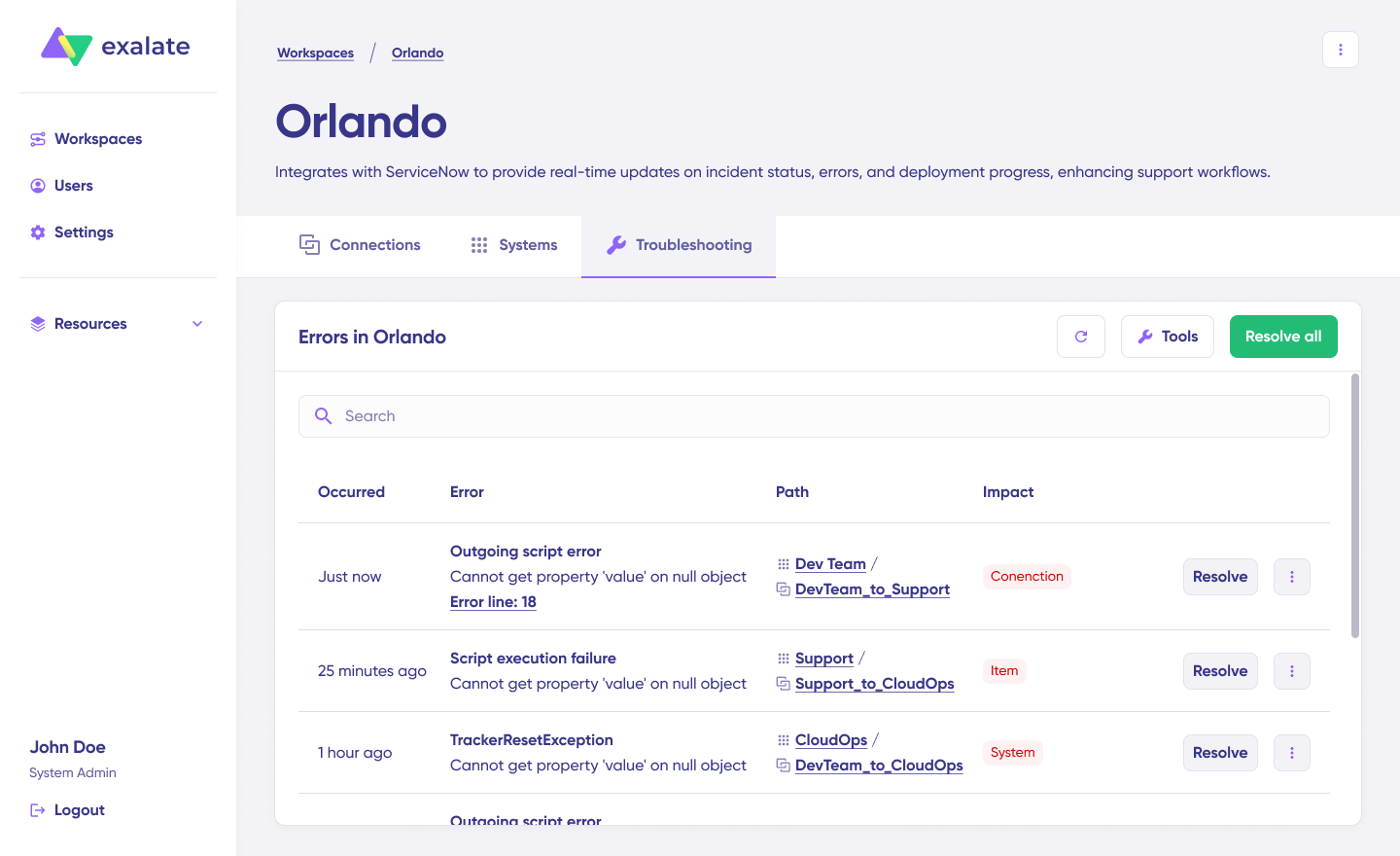
troubleshooting interface with error logs

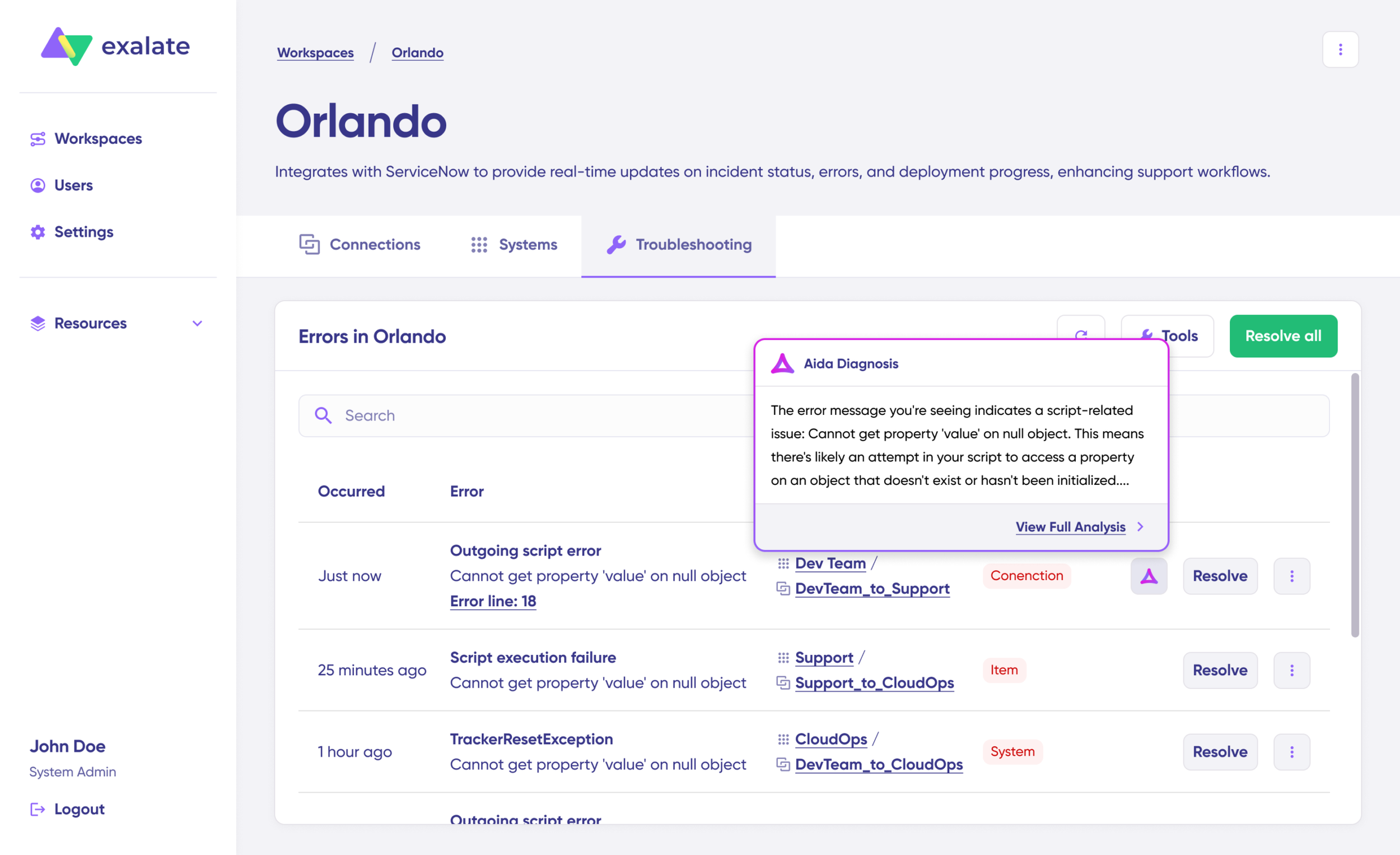
Navigate to the “Troubleshooting” tab in your workspace. Hover over the error you want to diagnose and click the Aida icon that appears next to the error. Review the AI-generated suggestion in the modal window, which includes a brief explanation of the error and a proposed solution. 

trouble shooting screen showing Aida diagnosis pop-up

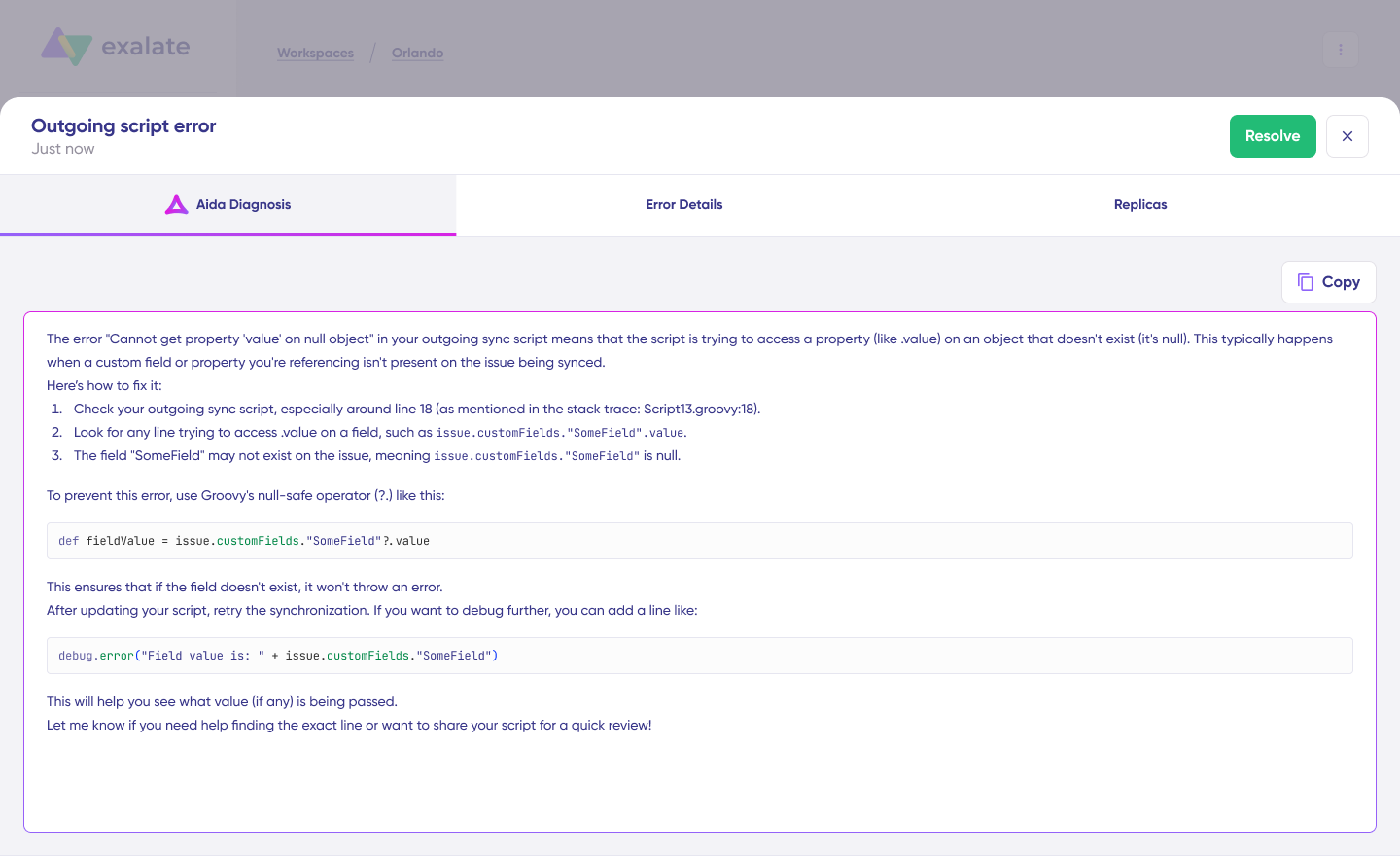
Click “View Full Analysis” for additional context. Access “Error details” to copy the stack trace if needed. Choose to “Resolve” and retry the failed synchronization.

Aida diagnosis interface with error details

Common error scenarios include:

  • field mapping errors (when Azure DevOps fields don’t map correctly to Salesforce fields),
  • user assignment errors (when a user in Azure DevOps doesn’t exist in Salesforce),
  • status transition errors (when status values don’t align between systems),
  • and attachment sync errors (when file size limits or permissions block attachment transfers).

With Aida’s assistance, you can identify root causes quickly and apply fixes without extensive debugging.

Common Use Cases For Azure DevOps to Salesforce Integration

Use Case 1: Bug Escalation from Salesforce Cases to Azure DevOps Work Items

Challenge: Customer support agents in Salesforce receive bug reports but lack visibility into development progress. They can’t provide accurate ETAs to customers, leading to repeated escalations and frustrated clients.

Solution: When support agents identify a case as a bug, they escalate it directly from Salesforce. The integration automatically creates an Azure DevOps work item with full context: customer account, reproduction steps, priority, and attachments. As developers update the work item status, comments sync back to the Salesforce case automatically.

Real-World Application: A SaaS company reduced average bug resolution communication time by 67%. Support agents no longer chase developers for updates. They see work item status, assigned developer, and progress notes directly in Salesforce. Customers receive proactive updates without agents leaving their CRM.

Use Case 2: Feature Request Management Across Teams

Challenge: Sales teams gather feature requests from prospects and customers, but these requests get lost in email threads or spreadsheets. Product and development teams lack visibility into which features would close the most deals.

Solution: Sales reps create Opportunities or Cases in Salesforce for feature requests, tagging them appropriately. These automatically sync to Azure DevOps as Epics or User Stories, complete with deal size, customer priority, and business justification. Product managers see the revenue impact, developers understand customer needs, and sales get automatic updates when features ship.

Real-World Application: An enterprise software company tied $4.2M in pipeline to specific feature requests. When development delivered those features, sales automatically received notifications in Salesforce, enabling them to re-engage prospects immediately. Win rates for deals with tracked feature requests increased by 43%.

Use Case 3: Customer Support Ticket Routing to Development

Challenge: Not every customer inquiry requires development resources, but when it does, the handoff creates delays. Support needs a way to quickly escalate technical work items without creating unnecessary work for simple questions.

Solution: Support agents triage incoming cases. For technical work requiring code changes, they click “Send to Dev” in Salesforce. The integration creates an Azure DevOps Bug or Task with customer details, support agent notes, and priority. Developers can ask clarifying questions through comments that sync back to the case, keeping support informed without context-switching.

Real-World Application: A B2B platform reduced average technical escalation time from 6 hours to 12 minutes. Support agents stopped writing detailed emails to development. Developers stopped asking “which customer is this for?” because all context arrived with the work item. First response times for escalated work items dropped 72%.

Use Case 4: Cross-Company Collaboration During Mergers

Challenge: When companies merge, development and sales teams use different tools. Migrating everything immediately disrupts operations, but teams need to collaborate right away.

Solution: Integration serves as middleware during the transition period. Company A’s Azure DevOps syncs with Company B’s Salesforce without requiring either team to migrate. Teams maintain their familiar workflows while sharing critical information. As systems eventually consolidate, the integration handles gradual data migration.

Real-World Application: During a merger, two companies maintained separate Azure DevOps and Salesforce instances for 18 months while integrating operations. The integration enabled joint customer support and product development without forcing either team to switch tools immediately. When they finally consolidated systems, historical data was already synchronized and normalized.

Use Case 5: Multi-System Customer Support Pathways

Challenge: Customers submit tickets through Zendesk. Support teams in Salesforce need visibility. Development teams in Azure DevOps need actionable work items. Manual handoffs between three systems create delays and lost context.

Solution: Three-way integration connects Zendesk → Salesforce → Azure DevOps. Customer tickets automatically create Salesforce cases. When support determines development is needed, cases become Azure DevOps work items. Developers add comments that filter back through Salesforce to Zendesk, reaching customers without manual copying.

Real-World Application: An enterprise SaaS provider supports customers across Zendesk, Freshservice, and Freshdesk (different acquisitions used different tools). All support cases flow into Salesforce for unified tracking, and technical work items automatically reach Azure DevOps. Average resolution time dropped from 8 days to 4 days.

Use Case 6: Partner and Vendor Collaboration

Challenge: Your development team uses Azure DevOps. Your implementation partner uses Salesforce. Sharing project status requires weekly calls, status reports, and manual updates, creating delays and misunderstandings.

Solution: Integration connects your Azure DevOps to your partner’s Salesforce (or vice versa). Each side controls what they share. You might sync specific work item types while keeping internal work private. Partners see real-time progress without accessing your Azure DevOps instance. You see their Salesforce cases without needing their CRM access.

Real-World Application: A software vendor working with 12 implementation partners reduced partner communication overhead by 76%. Partners see project status automatically in their Salesforce. The vendor’s development team sees partner-reported customer work items automatically in Azure DevOps. Weekly status calls became monthly strategic reviews because tactical updates happened automatically.

Common Field Mappings for Azure DevOps Salesforce Integration

Understanding how data maps between Salesforce and Azure DevOps helps you plan your integration configuration effectively.

Salesforce Case → Azure DevOps Work Item:

  • Case Number → Work Item ID (reference field)
  • Subject → Title
  • Description → Description
  • Status → State
  • Priority → Priority
  • Owner → Assigned To
  • Account Name → Tags or Custom Field
  • Comments → Discussion comments
  • Attachments → Attachments

Azure DevOps Work Item → Salesforce Case:

  • State → Status
  • Assigned To → Owner
  • Priority → Priority
  • Iteration Path → Custom field
  • Area Path → Custom field
  • Comments → Case Comments
  • Attachments → Attachments

Custom mappings:

  • Azure DevOps Tags → Salesforce multi-select picklists
  • Salesforce Account → Azure DevOps Area Path
  • Salesforce Case Type → Azure DevOps Work Item Type

Use Exalate’s field mapping interface to configure these relationships visually or through Groovy scripts for complex transformations.

Conclusion

Integrating Azure DevOps and Salesforce eliminates the manual data entry, communication delays, and context loss that plague disconnected sales and development teams. 

Real-time bidirectional synchronization means support agents see development progress automatically, developers receive customer context without switching tools, and everyone spends less time updating systems and more time serving customers.

The right integration tool provides security (ISO certification, encryption, RBAC), flexibility (no-code setup to advanced Groovy scripting), and control (independent sync rules, field-level transformations). 

Tools like Exalate support growth from simple case-to-work-item syncs to complex multi-platform integration networks spanning Jira, ServiceNow, Freshservice, Freshdesk, Asana, and beyond.

Whether you’re escalating bugs, tracking feature requests, managing SLAs, or collaborating with partners, Azure DevOps to Salesforce integration transforms how customer-facing and technical teams work together.

Ready to see how integration eliminates manual work and keeps teams aligned? Book a demo with our engineers to discuss your specific use case.

Frequently Asked Questions

Why should I integrate Salesforce and Azure DevOps with Exalate?

Exalate eliminates manual data entry between customer-facing teams using Salesforce and development teams using Azure DevOps. With Exalate, cases automatically become work items with full context, status updates sync bidirectionally in real-time, and teams maintain complete autonomy over what they share. Unlike basic connectors, Exalate gives each side independent control through Groovy-based sync rules; your sales team controls what leaves Salesforce, your dev team controls what enters Azure DevOps.

What data can Exalate sync between Salesforce and Azure DevOps?

Exalate syncs any Salesforce object (Cases, Opportunities, Accounts, Tasks, custom objects) to any Azure DevOps work item type (Bugs, Tasks, User Stories, Epics, custom types). You can sync standard fields, custom fields, comments, attachments, and related objects. Exalate’s Groovy scripting engine handles complex transformations like mapping Salesforce picklists to Azure DevOps states, syncing multi-level hierarchies, or aggregating data from multiple related objects into single fields.

Can Exalate sync Azure DevOps work items back to Salesforce cases?

Yes, Exalate supports full bidirectional synchronization. When developers update work item status, add comments, attach files, or change priorities in Azure DevOps, those updates automatically sync back to linked Salesforce cases. You control exactly which fields sync in each direction using independent incoming and outgoing sync rules. Support and sales teams see real-time development progress without leaving Salesforce.

Does Exalate work with Azure DevOps Server (on-premises)?

Yes, Exalate supports both Azure DevOps cloud and Azure DevOps Server (on-premises). You can create connections between multiple on-premises instances, or build hybrid cloud-to-on-premises integrations. Exalate’s architecture doesn’t require opening inbound firewall ports, making it suitable for enterprise security policies.

How does Exalate handle security when integrating Salesforce and Azure DevOps?

Exalate maintains ISO 27001:2022 certification and implements enterprise-grade security controls. All data is encrypted in transit using TLS 1.2+ and at rest. Role-based access control limits who can configure sync rules and view synchronized data. Exalate’s Groovy scripting engine lets you filter sensitive fields before syncing, implement custom validation rules, and enforce data governance policies in code. Review complete security documentation at the Exalate Trust Center.

Can I use Groovy scripts with Exalate to customize Salesforce-Azure DevOps integration?

Yes, Exalate’s Groovy-based scripting engine provides complete customization flexibility. Write conditional logic to sync only specific cases (“sync only when Priority = High and Type = Bug"), transform data during sync (map Salesforce status values to Azure DevOps states), aggregate information from related objects, or implement complex business rules. Exalate’s Aida AI feature generates Groovy scripts from natural language descriptions, making advanced customization accessible to non-technical users.

What’s the difference between real-time and batch synchronization in Exalate?

Exalate uses real-time synchronization by default to show updates in seconds, not minutes or hours. When someone updates a Salesforce case, Exalate immediately processes the change and syncs it to the linked Azure DevOps work item. This real-time approach is critical for time-sensitive workflows like SLA management, customer escalations, and cross-team collaboration, where teams need immediate visibility into status changes.

Can Exalate sync specific Azure DevOps projects to specific Salesforce orgs?

Yes, you can sync specific Azure DevOps projects to specific Salesforce orgs, create separate connections for different teams, and maintain independent sync rules for each connection. This is essential for enterprises with multiple Azure DevOps instances, multiple Salesforce orgs, or complex partner relationships requiring selective data sharing. Each workspace maintains its own configuration without affecting other connections.

Can Exalate sync comments and attachments between Salesforce and Azure DevOps?

Yes, Exalate syncs comments and attachments bidirectionally, preserving complete context for both teams. Developers’ technical notes in Azure DevOps work item comments automatically appear in Salesforce case comments. Support agents’ customer interactions sync to Azure DevOps. File attachments sync in both directions, ensuring teams see all relevant documentation without switching platforms. You control which comments sync using filters in your Groovy script.

Can Exalate integrate Azure DevOps and Salesforce with other tools simultaneously?

Exalate supports multi-platform integration networks. You can connect Azure DevOps and Salesforce while simultaneously integrating with Jira, ServiceNow, Zendesk, Freshservice, Freshdesk, Asana, GitHub, and other platforms. Users can also build complex workflows like: Zendesk tickets → Salesforce cases → Azure DevOps work items, all with independent sync rules at each connection. Each integration maintains its own configuration, allowing you to create sophisticated multi-tool workflows that match your exact business processes across your entire tool stack.

Recommended Reads:

Salesforce GitHub Integration [2026]: How to Set up a Sync in 6 Steps

GitHub Salesforce integration

Sales and development teams benefit from automatically exchanging information through a Salesforce GitHub integration because it gives them access to consistent and up-to-date business data across platforms.

In this guide, we examine how teams and organizations can benefit from GitHub Salesforce integration and consider critical factors when choosing integration technology. We’ll explore practical implementation approaches and examine common use cases that deliver measurable business value.

Note: For this guide, we use an integration platform called Exalate.

Key Takeaways

  • Salesforce-GitHub integration eliminates manual data entry between sales and development teams, reducing errors and accelerating response times.
  • Bidirectional synchronization keeps customer issues, feature requests, and development updates aligned across both platforms automatically.
  • AI-assisted configuration through platforms like Exalate simplifies complex integration scenarios without requiring extensive coding knowledge.
  • Flexible field mapping and custom triggers enable teams to tailor integrations to specific business workflows and requirements.
  • Real-time status updates between Salesforce cases and GitHub issues improve customer communication and internal transparency.

Why Integrate Salesforce and GitHub

Enhanced customer support and faster query resolution are significant factors in keeping existing customers happy and maintaining low churn.

To achieve this common goal, teams in an organization often search for information across different applications or ask other team members for context. This manual approach creates bottlenecks.

In modern workplaces, teams no longer need to request information via email, schedule unnecessary meetings, or waste time copy-pasting data while toggling between applications. Manual data entry leads to mistakes, redundant information, misplaced context, and wasted productive time.

Automated information exchange through integration platforms helps teams maintain a unified view of business-critical information without leaving their preferred tool. If your teams use Salesforce and GitHub, automatic real-time data exchange can help them deliver better customer experiences and collaborate more effectively.

Use Cases for Salesforce GitHub Integration

Let’s explore practical business applications for Salesforce to GitHub integration:

Customer Support and Development Collaboration

Case: A customer reports a critical bug through a Salesforce case that requires immediate developer attention.

Solution: The integration automatically creates a corresponding GitHub issue with all relevant case details: description, priority, customer account information, and assigned owner. Custom fields sync bidirectionally to preserve context.

Real-world application: A SaaS company reduced average bug resolution time by 40% after implementing Salesforce-GitHub integration. Support reps no longer manually create developer tickets, and developers receive complete customer context immediately.

Bidirectional Status Updates

Case: Development teams make progress on issues, but sales teams lack visibility into fix timelines and must manually follow up.

Solution: Status synchronization between GitHub issues and Salesforce cases provides real-time progress updates. When developers mark a GitHub issue as “In Progress” or “Resolved,” the corresponding Salesforce case updates automatically.

Real-world application: An enterprise software vendor improved customer satisfaction scores by 25% because account managers could proactively communicate fix timelines without pestering engineering teams for updates.

Priority-Based Routing

Case: High-value customer requests get lost in the queue alongside routine issues, creating frustration and potential churn risk.

Solution: Based on SLA timelines and assigned priority levels, incoming Salesforce cases route to corresponding GitHub issues automatically. Custom triggers map priority fields between platforms, ensuring critical issues receive immediate attention.

Real-world application: A financial services company implemented priority-based routing that automatically escalates cases from enterprise customers, reducing enterprise support SLA breaches by 60%.

Feature Request Management

Case: Sales teams collect valuable product feedback from customers, but these insights rarely reach product and engineering teams in an organized way.

Solution: Feature requests logged as Salesforce opportunities or cases automatically create GitHub issues in the product backlog. Voting and comment synchronization keep sales teams informed when features ship.

Real-world application: A B2B software company transformed its feature request process, increasing the percentage of customer-requested features that actually shipped from 15% to 45% within one year.

Accelerated Support Resolution

Case: Duplicate bug reports consume engineering time, while a lack of automated issue creation delays initial response.

Solution: Automating GitHub issue creation from Salesforce cases prevents duplication through intelligent matching. Automated workflows speed up triage timelines and eliminate manual ticket creation overhead.

Real-world application: A healthcare technology company reduced its average first response time from 4 hours to 30 minutes by eliminating manual issue creation steps.

These use cases become even more powerful with customizable integration platforms that adapt to your specific workflows and business requirements.

Choosing the Right Integration Platform

Implementing a Salesforce GitHub integration requires evaluating different platforms and choosing the right one based on your business needs. Here are key considerations.

Bidirectional Synchronization

Your integration should support two-way data flow, not just one-way updates. Changes in either Salesforce or GitHub should reflect in the other platform based on your configured rules. This ensures both teams always work with current information, regardless of where updates originate.

Look for platforms that let you control sync direction per field; some information might flow one way while other data syncs bidirectionally.

Security and Compliance

Data security is paramount when exchanging business-critical information between platforms. Your integration platform should support encrypted data transfers, role-based access controls, and secure transfer protocols like HTTPS.

Additionally, look for ISO certification and other credentials. These certifications demonstrate that the platform maintains rigorous security standards.

Flexible Field Mapping

Business requirements vary significantly across organizations. Your integration platform should accommodate custom fields, unique data structures, and complex transformation rules without forcing you into rigid templates.

This flexibility becomes critical when you need to map Salesforce custom objects to GitHub issue metadata or sync proprietary fields that standard integrations don’t support.

AI-Assisted Configuration

Modern integration platforms leverage AI to simplify complex configuration scenarios. Rather than writing code from scratch, AI-assisted tools like Aida can generate integration scripts based on natural language descriptions of your requirements.

For example, you might describe “sync high-priority Salesforce cases to GitHub issues in the engineering repository,” and the AI generates the necessary configuration automatically. This dramatically reduces implementation time for teams without deep technical expertise.

Intelligent Triggers and Automation

Beyond basic synchronization, look for platforms that support conditional triggers. You should be able to specify exactly when synchronization occurs based on field values, status changes, or custom business logic.

For instance, you might only want to sync Salesforce cases to GitHub when they reach a specific status or exceed a certain priority threshold. Granular trigger control prevents unnecessary synchronization and keeps your data clean.

Scalability and Reliability

Integration platforms should handle downtime gracefully. When either Salesforce or GitHub experiences temporary unavailability, your integration should queue pending changes and apply them automatically once connectivity is restored.

This transactional approach prevents data loss and ensures consistency even during system maintenance windows or unexpected outages.

Connector Coverage

While you’re implementing Salesforce-GitHub integration today, your tech stack will evolve. Choose platforms that support additional connectors for tools like ServiceNow, Azure DevOps, Zendesk, Jira, Freshservice, Freshdesk, Asana, and others.

Exalate supports integrations across these platforms and more, giving you flexibility as your integration needs expand. This prevents vendor lock-in and reduces the need to learn multiple integration tools as your stack grows.

For this article, we’ve chosen Exalate because it meets these critical requirements. It uses encrypted file exchange and role-based access controls, provides AI-assisted configuration through Aida, and supports customizable field mapping through flexible scripting capabilities. Check this security whitepaper for further details.

Exalate’s transactional synchronization engine queues all applicable changes automatically and handles retries intelligently, even during system upgrades or maintenance windows. It supports integrations for Jira, ServiceNow, Azure DevOps, Zendesk, Salesforce, GitHub, Freshservice, Freshdesk, Asana, and others.

How to Set up a Salesforce GitHub Integration

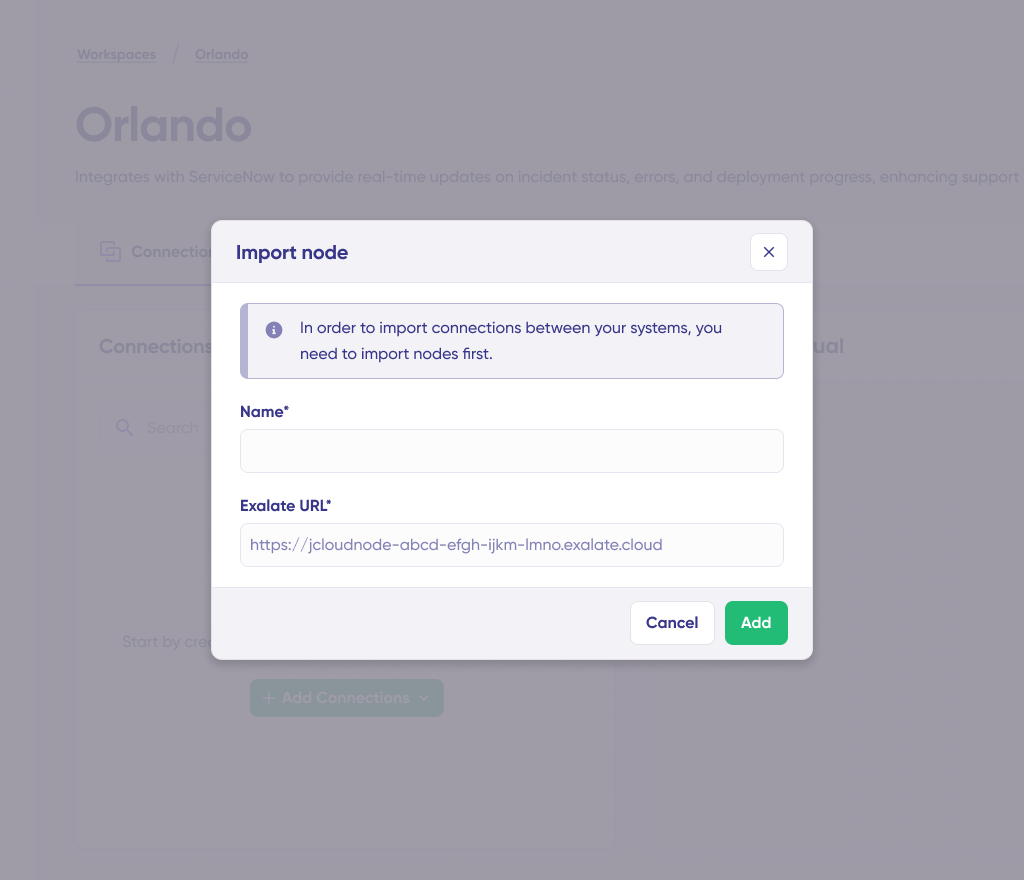
If you’re on Exalate Classic, then you can import your existing nodes and connections using the “Import connection” feature.  

import existing connection

This will help you retain existing configurations and sync rules as you move to New Exalate.

To get started with Exalate for GitHub or discuss your use case and requirements, please contact sales.

Common Salesforce GitHub Integration Scenarios

Beyond the standard use cases, organizations implement Salesforce GitHub integrations to solve specific challenges:

  1. Customer-Driven Development Priorities: Product teams sync high-value customer requests from Salesforce opportunities directly into GitHub project boards. This ensures engineering roadmaps align with revenue-generating opportunities rather than internal assumptions about customer needs.
  2. Release Communication: When GitHub releases are tagged and deployed, corresponding Salesforce cases receive automatic updates notifying account managers. This enables proactive customer communication about fixes and new features without manual tracking.
  3. Technical Debt Visibility: Development teams expose technical debt and infrastructure issues from GitHub to Salesforce, giving business stakeholders visibility into non-feature work that impacts product quality. This helps justify resource allocation for refactoring and architectural improvements.
  4. Multi-Tier Support Escalation: Level 1 support teams working in Salesforce can escalate complex technical issues to Level 2 engineers working in GitHub with complete context transfer. Bidirectional synchronization ensures both teams see updates regardless of where they’re added.
  5. Sales Engineering Collaboration: Pre-sales engineers log technical requirements and constraints from prospect conversations directly into Salesforce. These automatically sync to GitHub, giving product and engineering teams visibility into feature requirements needed to close deals.
  6. Customer Success Team Alignment: Customer success managers tracking account health in Salesforce can surface urgent issues directly to engineering via GitHub without manual handoffs. When critical bugs impact strategic accounts, automated escalation ensures rapid engineering response.

Measuring Integration Value

Implementing Salesforce GitHub integration delivers measurable benefits across several dimensions:

  • Time Efficiency: Organizations typically see 60-80% reduction in time spent on manual data transfer between platforms. Support teams save hours per week previously spent copying information, chasing updates, or scheduling status meetings.
  • Error Reduction: Automated synchronization eliminates transcription errors, missing context, and outdated information. Teams report 90%+ reduction in data discrepancies between platforms after implementing integration.
  • Response Time Improvement: Faster information flow between sales and engineering accelerates initial response times and overall issue resolution. Some organizations cut average resolution time by 40-50% simply by eliminating coordination overhead.
  • Customer Satisfaction Impact: When support teams provide accurate, timely updates about issue progress, customer satisfaction scores typically improve 20-30%. Proactive communication enabled by real-time synchronization transforms the customer experience.

Frequently Asked Questions

What is Exalate’s Salesforce GitHub integration?

Exalate’s Salesforce GitHub integration connects your GitHub repository with your Salesforce org through a flexible integration platform. It automatically synchronizes cases, issues, status updates, and custom fields between platforms based on your configured rules, eliminating manual data entry while giving each team control over what information they send and receive.

How does Exalate handle synchronization during downtime?

Exalate queues all pending changes during downtime and automatically applies them once connectivity is restored. Changes sync in the correct sequence without data loss, even during system maintenance, network issues, or unexpected outages. This ensures both teams always work with consistent information, regardless of temporary platform unavailability.

Can I use Exalate without extensive coding knowledge?

Yes, Exalate offers AI-assisted configuration through Aida that generates integration scripts from natural language descriptions. While some technical knowledge helps with complex scenarios, you can describe your requirements in plain English—like “sync high-priority Salesforce cases to GitHub engineering repository”—and Aida generates the necessary configuration automatically.

How much does Exalate cost for Salesforce to GitHub integration?

Exalate pricing scales with the number of synced items. There’s a free plan for basic use cases and paid plans based on sync volume. Check out our pricing page to see which plan works best for your use case. 

What information can Exalate sync between Salesforce and GitHub?

Exalate syncs any Salesforce entity (Cases, Opportunities, Accounts, Tasks, custom objects) with GitHub issues based on your configuration. Common synchronized data includes descriptions and summaries, status and priority levels, assigned owners, custom fields, comments and attachments, timestamps, and relationship links. You control exactly which fields sync and how they transform between platforms.

How does Exalate control which Salesforce cases sync to GitHub?

Exalate supports conditional triggers that determine exactly when synchronization occurs. You configure rules based on case status, priority level, assigned team, customer account, custom field values, or combinations of conditions. This prevents unnecessary synchronization and keeps your GitHub repository focused on relevant issues while maintaining flexibility as requirements change.

What other platforms does Exalate support besides Salesforce and GitHub?

Exalate supports integrations across Jira Cloud, ServiceNow, Azure DevOps, Zendesk, Freshservice, Freshdesk, Asana, GitHub, and custom REST APIs. This multi-platform support means you can use Exalate as your tech stack evolves, connecting different tool combinations without learning multiple integration platforms or switching vendors.

How secure is Exalate for Salesforce GitHub integration?

Exalate maintains ISO 27001:2022 certification and uses encrypted data transmission, role-based access controls, and secure protocols for all synchronization. Each side of the integration controls what information it sends and receives independently. For detailed security documentation, compliance certifications, and architecture details, visit our Trust Center

Recommended Reads:

How to Set up a Salesforce ServiceNow Integration: The Complete 2026 Guide

Salesforce ServiceNow Integration

Key Takeaways

  • Bidirectional sync keeps Salesforce cases and ServiceNow incidents automatically aligned in real-time, eliminating manual data entry across sales, support, and IT teams
  • Field mapping flexibility transforms data between platforms, for e.g, ServiceNow Priority 1 becomes Salesforce High Priority, status updates flow both ways, and custom fields sync according to your business logic
  • Cross-team visibility gives sales teams immediate access to critical incidents while IT operations tracks customer context, improving resolution times by 25%
  • Script-based control with AI assistance lets you handle complex workflows like SLA tracking, multi-instance architectures, and conditional data sharing without template limitations
  • A unified management console provides network visualization of all connections, bulk operations across integrations, and centralized monitoring for MSPs managing multiple client environments

What is Salesforce ServiceNow Integration?

Salesforce ServiceNow integration connects your CRM platform with your IT Service Management (ITSM) system to enable seamless, bidirectional data exchange. This integration synchronizes customer data, service requests, incidents, and workflows between platforms automatically.

The integration can be implemented through native connectors, custom API development, or specialized third-party tools that facilitate the connection between Salesforce orgs and ServiceNow instances.

Salesforce manages customer relationships, sales pipelines, marketing campaigns, and service processes. ServiceNow automates IT services, operations management, and internal workflows. Connecting these platforms creates a unified ecosystem where customer-facing teams and IT operations share context without switching systems.

Why Integrate Salesforce and ServiceNow

Organizations using both platforms face specific challenges: sales teams working in Salesforce lack visibility into IT incidents affecting customers, while ServiceNow operators handling technical requests miss context from CRM records.

Use Case Example:

A customer reports a billing issue through Salesforce. The case requires backend investigation by IT operations working in ServiceNow.

Without Integration:

  • Support agent manually creates a ServiceNow incident
  • Updates happen independently in each system
  • Customer history and SLA details don’t transfer
  • Status mismatches create confusion

With Integration:

  • Salesforce case automatically creates a ServiceNow incident with complete context
  • Status updates sync bidirectionally (Case “In Progress” → Incident “Work in Progress”)
  • Comments flow between systems while respecting visibility rules
  • Resolution in ServiceNow closes the Salesforce case with proper notes
  • Both teams work in preferred tools with complete visibility

Key Benefits

  • Eliminate duplicate work: Automation removes manual copying between systems
  • Faster resolution: Complete context transfers with each case, reducing back-and-forth
  • Better collaboration: Sales and IT operations stay aligned without constant meetings
  • Improved reporting: Consolidated data enables cross-functional analytics

What Does Salesforce ServiceNow Integration Do

The integration creates a bidirectional data bridge that synchronizes information automatically.

How It Works:

  1. Automatic entity creation: Salesforce cases create ServiceNow incidents (or vice versa) based on triggers you define
  2. Real-time updates: Comments, attachments, and status changes sync within seconds
  3. Field transformation: Salesforce “High” priority becomes ServiceNow “1 – Critical” based on your mapping rules
  4. Context preservation: Account details, opportunity information, and case history transfer without data loss
  5. Workflow independence: Sales teams stay in Salesforce, IT operations in ServiceNow, data stays synchronized

Data Typically Synced Between Salesforce and ServiceNow

Standard Objects:

  • Salesforce Cases → ServiceNow Incidents
  • Salesforce Accounts → ServiceNow Customer records
  • Opportunities → Change Requests
  • Comments and activity history
  • Attachments and documents
  • Status and workflow stages
  • Ownership (Account Executive, Assigned To)
  • Priority and urgency levels
  • Dates (Created, Due, Closed)

Advanced Synchronization:

  • Any data accessible via REST APIs
  • Custom objects and fields
  • Opportunity stages and revenue forecasts
  • Customer health scores
  • Contract information
  • SLA commitments
  • Related records (parent-child relationships)

Real-World Use Cases for Salesforce ServiceNow Integration

1. Customer Escalation with Complete Context

Scenario: Enterprise customer reports a critical issue affecting their production environment.

Workflow:

  1. Account Executive creates a high-priority case in Salesforce with customer details and contract SLA
  2. Integration automatically creates a ServiceNow incident with complete context, including:
    • Customer account history
    • Active opportunities
    • Contract terms and SLA requirements
    • Previous support interactions
  3. The IT operations team investigates in ServiceNow
  4. Status updates flow back to Salesforce automatically
  5. Resolution notes sync back to the Salesforce case
  6. Account Executive maintains visibility throughout

Outcome: 40% faster resolution time through complete context transfer and elimination of information gathering delays.

2. Opportunity-Driven Change Management

Scenario: Large deal requires infrastructure changes before customer onboarding.

Solution:

  • Salesforce Opportunity reaches “Contract Signed” stage
  • Automatically creates a ServiceNow Change Request with:
    • Customer requirements from the opportunity
    • Timeline tied to contract start date
    • Stakeholder information
  • IT operations schedules and tracks implementation
  • Progress updates appear in the Salesforce opportunity
  • Implementation completion triggers Opportunity stage advance

3. MSP Multi-Tenant Client Management

Challenge: MSP manages multiple client Salesforce orgs while centralizing operations in ServiceNow.

Solution:

  • Connect 10+ client Salesforce instances to central ServiceNow
  • Cases sync automatically when clients log requests
  • Comments and attachments flow bidirectionally
  • The unified dashboard shows all client connections
  • Different sync rules per client based on contracts
  • Clients work in Salesforce without ServiceNow access

Architecture:

  • Single ServiceNow instance as operational hub
  • Multiple Salesforce org connections
  • Client-specific field mappings and triggers
  • Automated routing based on account ownership

What Are the Best Ways to Connect Salesforce and ServiceNow?

ServiceNow IntegrationHub (Native Method)

ServiceNow’s IntegrationHub includes a Salesforce Spoke for connectivity.

While native, it has limitations:

  • ServiceNow-centric control (limited Salesforce-side autonomy)
  • Additional licensing costs
  • Limited bidirectional functionality for complex scenarios
  • Works well for simple, unidirectional data pushes

Best For: Basic one-way data flows when the budget isn’t constrained

Custom API Development

Building with Salesforce and ServiceNow APIs provides complete control but requires significant investment:

  • Full customization capability
  • No licensing fees initially
  • High development costs (80-300+ hours)
  • Ongoing maintenance burden
  • Scaling difficulties as requirements evolve
  • Manual error handling and monitoring implementation

Best For: Organizations with dedicated integration development teams and stable, long-term requirements

Read our detailed comparison: Build vs. Buy Integration Solutions | Try our Build vs. Buy Calculator

Third-Party Integration Solutions

Purpose-built integration platforms offer pre-configured connectors with flexibility for customization.

Many template-based tools handle simple scenarios but cannot adapt to complex, multi-directional workflows or custom business logic.

What to Consider When Choosing an Integration Solution

Integration tools should adapt to business needs through out-of-the-box solutions combined with custom workflows and field mappings.

Security

Look for tools offering:

  • Encrypted data transfers (TLS 1.2/1.3)
  • Role-based access control (RBAC)
  • Compliance certifications (ISO 27001, GDPR, HIPAA, etc.)
  • OAuth 2.0, API keys, Personal Access Tokens
  • Complete audit trails for configuration changes and data transfers

Security breaches through integrations expose customer data, violate compliance, and damage trust. Certified platforms reduce risk and satisfy audit requirements.

Visit the platform Trust Centers to review security documentation, penetration test results, and compliance certificates.

Real-Time Synchronization

Delays between systems create confusion. If ServiceNow shows “In Progress” while Salesforce shows “Resolved,” which is accurate?

Why it matters: Real-time sync eliminates ambiguity. IT operations and development teams make decisions based on current data. Stale information leads to duplicate work, missed SLAs, and frustrated customers.

Flexibility

Business processes evolve. Solutions must support complex scenarios with conditional logic and advanced data mappings by default.

Integration must also support historical data exchange and legacy system integration.

Rigid integration templates force workflow changes (expensive and disruptive) or incomplete data sync (defeating the purpose).

Essential capabilities:

  • Custom field mapping for standard and custom objects
  • Conditional logic (sync high-priority cases only)
  • Data transformation (Opportunity Amount → Budget field)
  • Support for complex relationships (Account hierarchies, related cases)

AI-Assisted Configuration

Traditional integration setup requires developers to understand both platforms’ APIs, data models, and scripting languages. AI changes this.

Look for:

  • Natural language script generation: Describe requirements (“sync all high-priority incidents to Salesforce as cases”), receive working code
  • Context-aware suggestions: AI understands the existing configuration and recommends improvements
  • Error explanations: When sync fails, AI translates technical errors into plain language with fix suggestions

This reduces implementation time from days to hours. Non-developers configure complex sync rules. Troubleshooting accelerates when errors are explained clearly instead of cryptic API messages.

Scalability

You might start with one Salesforce project syncing to one ServiceNow assignment group. Six months later, you need five instances connected to ServiceNow, plus Azure DevOps, Freshservice, and Asana.

Why it matters: Starting with non-scalable solutions means later migration: re-implementing integrations, retraining teams, and disrupting workflows. Choosing scalable platforms from the start avoids this pain.

Scaling requirements:

  • Multi-instance support (multiple Salesforce orgs, ServiceNow instances)
  • Unlimited connections without exponential cost increases
  • Unified management console
  • Bulk operations across connections

Reliability

Look for:

  • Automatic retry logic: Failed sync attempts retry automatically with exponential backoff
  • Rollback capability: If configuration changes break sync, revert to the previous working versions
  • Safe testing: Validate configuration changes before production deployment

Broken integrations are worse than no integration, where teams see outdated data, make decisions on false information, and lose system trust. Reliability features minimize downtime and provide safety nets.

Dashboards and Monitoring

Real-time visibility into sync operations is essential. Look for:

  • Activity dashboards showing sync status across all connections
  • Queue monitoring to track synchronization progress
  • Error notifications with context-aware troubleshooting suggestions
  • Network visualization displaying how integrations connect

These features help identify issues quickly and maintain operational control.

Cost and Pricing Models

Integration pricing varies significantly. Understanding the model prevents budget surprises.

Pricing models:

  • Per-user licensing: Pay based on Salesforce or ServiceNow user count
  • Flat pricing: Fixed rate per integration or system
  • Per-transaction (usage-based): Pay per API call or sync event
  • Per-connection: Pay per integration pair (Salesforce ↔ ServiceNow)
  • Outcome-based (sync pairs): Pay for work items actively synchronized at any given time

Look for pricing transparency. Estimate costs before committing.

Why Use Exalate for Salesforce ServiceNow Integration

Exalate combines flexibility with operational simplicity through unified management:

  • Script-based engine: Groovy scripting for any custom workflow logic
  • Unified console: Manage all integrations and connections from one interface; build multi-tier integration networks
  • AI-assisted configuration: Aida (Exalate AI) generates and troubleshoots sync scripts based on natural language prompts
  • Test Run functionality: Validate sync scripts before production deployment
  • Script versioning: Every publish creates a new version with a full audit trail (who changed what, when) and rollback capability. Work on drafts without affecting production
  • Real-time sync: Complete queue visibility and incident history
  • Activity Dashboard: Monitor sync status, track performance, and identify issues across all connections
  • Security-first: ISO 27001 certified, RBAC, encryption at rest and in transit. Visit Exalate Trust Center
  • Supported integrations: Salesforce, ServiceNow, Jira, Jira Service Management, Azure DevOps Cloud and Server, Zendesk, Freshservice, Freshdesk, Asana, GitHub, and more. View all supported connectors
  • Outcome-based pricing: Pay for active work items in sync, not user seats. Costs scale with actual usage, not team size. With each integration pair, create unlimited connections and users. Cost decreases as items under sync increase

View pricing details | Exalate Pricing Calculator

Start a free Exalate trial

How to Integrate Salesforce and ServiceNow

This guide demonstrates Salesforce ServiceNow integration using Exalate’s unified console.

Getting Started

Visit the Exalate app. Existing users log in directly. New users create accounts by entering their email and verifying, or signing up with Google.

Create a Workspace

Workspaces organize and manage integrations and connections centrally. Find existing workspaces under the “Workspaces” tab.

To create your first workspace:

  • Click “+ Create Workspace”
  • Enter name and description
workspaces in exalate

Create Your Connection

Once you have a workspace, create connections between Salesforce and ServiceNow.

View all connections under the “Connections” tab, where you can edit settings and view connection details.

create a new connection with Exalate

Connection Setup:

  • Click “+ Add connections” > “Create new connection”
  • Name your first system (System A)—either Salesforce or ServiceNow
  • Enter system URL (e.g., your ServiceNow instance URL)
  • Validation check occurs; existing systems in the workspace authenticate automatically
  • Systems from different workspaces import into the current workspace
  • New systems require authentication details (ServiceNow uses Basic; Salesforce uses API tokens)
Exalate interface for setting up connections for system a
  • Complete setup for the other side
  • Name and describe your connection
  • Click “Next”
  • Review details and click “Create connection”

When complete, select “Continue to configuration.”

Exalate screen for Quick Sync and Edit & Test

Configuration Options

After creating connections, choose between configuration approaches:

Quick Sync: Test your connection by syncing one item between Salesforce and ServiceNow. Enter work item details in the “Item sync monitor” and click “Sync Now” to sync the first item, or “Link with existing” to connect two existing items.

Status updates appear during sync. Once complete, view both synced items and compare how they appear with changes applied.

Edit & Test: Click “Create a new version” or “Open latest draft” to modify sync configuration. This ensures you don’t accidentally modify the existing configuration. Changes in drafts save automatically.

Activated draft mode to enable the editing of scripts in Exalate

Understanding Sync Rules

Sync rules use Groovy scripts for custom data logic, mappings, and conditional flow, adapting to any complex workflow.

Change sync direction by clicking the arrows next to the connection name.

Scripts are divided into:

  • Outgoing script: Controls values passed from source to destination
  • Incoming script: Defines how incoming values map to the destination

Replica works like a message payload, holding actual data passed between synced entities in JSON format.

To sync new values, enter sync scripts if familiar with Groovy. To stop something from syncing (e.g., attachments), remove that script line from the outgoing script.

Exalate interface for Aida-assisted scripting

AI-Assisted Configuration with Aida

Save time and simplify scripting using Aida to generate sync scripts.

Aida is available in both incoming and outgoing script sections:

  • For Outgoing scripts: Describe what data should leave your system (“Exclude attachments” or “Only sync high-priority items”)
  • For Incoming scripts: Describe how incoming data should apply (“Map statuses” or “Set default assignee if user not found”)

Based on Exalate’s scripting API and existing scripts, Aida generates working Groovy scripts with proper field mappings.

Review Aida’s suggested changes. Green highlights indicate additions; red highlights show removals. Choose to “Insert” or “Discard” suggestions.

Outgoing and incoming scripts work independently, as does Aida, so maintain separate context and direction for each prompt.

Test Run: Validate Before Production

Once sync scripts are ready, “Save script” or test them using “Start Test Run.”

Select items to apply sync configuration to (multiple items supported). Click “Start Test Run.” View all incoming and outgoing replicas for each selected item in the respective tabs.

select items to test run

Review how sync configuration applies to items, preview replicas, and verify field mappings. Adjust scripts and test again if needed.

Deploy only when confident that everything works correctly. This safety net prevents errors from affecting live data.

edit script for test run

When everything matches your needs, click “Publish Version” to apply the updated configuration to live synchronization.

All versions for connections are available in the “Version” dropdown. Versions can be “Active,” in “Draft” (editable), or “Archived.”

Adding Triggers

To start automatic sync, add triggers that are conditions or filters applied to specific items. For example, sync all Salesforce cases with the label “escalated” or sync all ServiceNow incidents belonging to specific assignment groups.

add trigger screen for Exalate triggers

Click “+ Add trigger” to create triggers. These are platform-specific:

  • For Salesforce: Use Salesforce Object Query Language (SOQL) to specify conditions
  • For ServiceNow: Use advanced search syntax to apply triggers to incidents, problems, change requests, etc.

Save changes by publishing.

Deploy and Monitor

Your first synchronization starts automatically based on sync rules and triggers. The Activity Dashboard provides real-time visibility into all sync operations.

Troubleshooting with Aida

Aida AI helps troubleshoot errors faster with clear, context-aware suggestions.

When errors occur, go to the “Troubleshooting” tab of your workspace. Hover over errors and click the Aida icon. AI-generated suggestions appear in modal windows with short explanations and proposed solutions.

trouble shooting screen showing Aida diagnosis pop-up

“View Full Analysis” provides additional context. “Error details” lets you copy stack traces; “Replicas” shows JSON format if required.

Choose to “Resolve” and retry errors as needed.

Advanced Salesforce ServiceNow Integration Scenarios

Multi-Instance Connections

Hub-and-spoke architecture connects multiple Salesforce and ServiceNow instances simultaneously. Central ServiceNow environments integrate with several departmental Salesforce instances, or multiple vendor-managed ServiceNow instances link into single MSP environments.

All connections are administered through the unified console, providing network-style visualization of every integration. Administrators perform bulk operations, update multiple connections at once, and apply consistent script templates across similar integrations.

Custom Field Mapping

Sync virtually any field accessible through the REST API. In ServiceNow, this includes fields across Incident, Change Request, Problem, and other tables. In Salesforce, map standard fields, custom fields, and multi-select fields.

Example: ServiceNow Configuration Item values sync into custom Salesforce fields using Groovy scripts, maintaining consistent contextual data across systems and ensuring critical attributes move seamlessly with work items.

Correlation Fields

Correlation fields define and preserve relationships between local and remote work items.

Storing Salesforce identifiers inside ServiceNow retains traceability even when titles or descriptions change. Users in either system navigate quickly back to originating items, creating a stable linkage supporting long-term auditing, reporting, and troubleshooting.

SLA and Time Tracking

Sync SLA records and maintain state updates between Salesforce and ServiceNow to ensure critical incidents are handled with priority within SLAs.

When priority incidents are raised, customer support identifies them as development work items. Along with SLA and time information, incident status syncs so agents maintain visibility and development teams know SLA and time constraints beforehand.

When work is marked resolved in Salesforce, corresponding status updates in ServiceNow are created with specific comments as resolution notes.

Private Communication Management

Internal teams working on specific problems must pass important information from ServiceNow to Salesforce, for instance, leaving notes for development teams.

Private comments remain private and sync between systems. Share only ServiceNow work notes to Salesforce so development teams have the required information.

Cross-Entity Synchronization

Sync different related entities between Salesforce and ServiceNow for better visibility and streamlined operations.

Examples: sync Salesforce customer cases related to an account as ServiceNow incidents; sync CMDB, change requests, problems, custom fields, and almost any field available via REST APIs.

Exalate integrates ServiceNow’s Agile backlogs, defects, and incidents with Salesforce, keeping everything updated in real-time.

Salesforce ServiceNow Integration Challenges

1. Data Mapping and Compatibility

Mapping fields correctly between systems is challenging. ServiceNow may track incidents with different categorizations or status codes than Salesforce.

Even when data maps correctly, formats might not align. This requires transforming and standardizing data before sending, adding complexity, especially with custom fields or complex data relationships.

2. Security and Compliance

Transferring sensitive customer data between systems requires strict security protocols. Ensure data encryption and compliance with industry standards (ISO 27001) and regulations like GDPR, HIPAA, etc., to maintain privacy and avoid security breaches.

3. Scalability

As businesses grow, the data volume exchanged between Salesforce and ServiceNow increases. Choose integration tools that scale with business needs and handle larger transaction volumes without compromising performance.

4. Data Integrity and Quality Control

Poor data quality causes inaccurate reporting, poor decision-making, and duplicate record creation, causing confusion, inefficiencies, and errors in both systems.

5. System Downtime and Synchronization Failures

Integration tool downtime halts data synchronization, resulting in delays, unprocessed tickets, and incorrect transfers.

Ensure integration tools are resilient enough to handle interruptions, including transactional synchronization during downtimes or system failures.

6. User Adoption and Training

Even seamless technical integrations fail if end-users don’t embrace the system. Training and adoption are often overlooked but play significant roles in integration success.

7. Complex Business Processes

Integrating systems handling complex workflows and business processes is particularly challenging. Ensuring complex workflows replicate accurately in integration can be difficult.

8. Cost and Resource Allocation

While integrating Salesforce and ServiceNow offers significant long-term benefits, the upfront investment can be substantial.

Initial setup costs often require hiring external consultants, purchasing specialized tools, or dedicating internal IT resources, a spending barrier for smaller organizations or those with limited budgets.

Ongoing maintenance costs add up over time and require dedicated resources once integration goes live.

Best Practices

1. Define Clear Objectives

Start with a clear understanding of why you’re integrating Salesforce and ServiceNow, whether for better incident tracking, customer support, or sales alignment. Defined goals guide setup processes.

2. Collaborate Across Teams

Involve sales, support, and IT from the start to ensure integration is tailored to their needs and everyone is on board with changes. Establish specific KPIs to measure and track during implementation.

3. Document the Integration Process

Document the entire integration setup, including workflows, data mappings, and configurations. This documentation serves as a reference for troubleshooting, future updates, or scaling as the business grows and personnel change.

4. Maintain Flexibility for Future Changes

Choose integration tools allowing easy customization and scaling as needs change. Periodically review and adjust integration to keep it aligned with changing business goals and technological advances.

5. Provide Ongoing Training

Once integration is live, train users on efficient system use. Provide training materials, workshops, and continuous support to help them get the most from integration and reduce resistance to change.

6. Set Up Automated Alerts and Monitoring

Real-time alerts enable proactive measures before minor problems escalate. Set up alerts notifying appropriate team members of potential issues like data synchronization failures, system downtimes, or security risks.

7. Test with Real-World Scenarios

Test integration for everyday workflows and edge cases, such as handling large data volumes, failed transactions, or system updates, to ensure integration resilience.

8. Optimize for Performance

Set up performance monitoring tools to track sync speed and reliability between Salesforce and ServiceNow. Optimizing API calls, limiting unnecessary data syncs, and focusing on key integration points keep integration running smoothly.

Key Metrics to Track

Monitor these metrics for continuous improvement:

Response Time: Compare average response times before and after integration to see how automation and streamlined data flows improved customer service efficiency.

Data Accuracy and Integrity: Measure frequency and severity of data inconsistencies such as missing, incorrect, or duplicate information.

User Adoption Rates: Monitor how many users actively use the integrated system versus those relying on manual processes or outdated workflows. High adoption rates indicate user-friendly integration.

Incident Resolution Speed: Focus on how quickly issues are resolved once identified in ServiceNow and synced with Salesforce.

Integration Downtime and System Failures: Measure frequency and duration of integration downtime or failures. Ideally, integration should be reliable and available 24/7.

Frequently Asked Questions

Can Salesforce integrate with ServiceNow?

Yes, Salesforce integrates with ServiceNow using native ServiceNow integrations or standalone tools like Exalate.

Why should I integrate Salesforce with ServiceNow?

Integrating Salesforce with ServiceNow streamlines workflows, automates data sharing, reduces manual tasks, improves customer experience, and enhances team collaboration, ultimately boosting efficiency.

What data can be synchronized between Salesforce and ServiceNow?

Exalate synchronizes custom fields, comments, attachments, descriptions, and every ServiceNow and Salesforce entity.

You can sync fields from Salesforce objects such as accounts, cases, opportunities, products, and tasks. You can also sync ServiceNow entities such as incidents, problems, RITMs, catalog tasks, etc.

What are the main challenges of Salesforce-ServiceNow integration?

Main challenges include data mapping complexities, security compliance, scalability, ensuring real-time sync, and dealing with custom fields or configurations between platforms.

Can I connect multiple Salesforce and ServiceNow instances?

Yes. Exalate supports multi-instance hub-and-spoke architectures.

Connect:

  • Multiple Salesforce instances to one ServiceNow
  • One Salesforce instance to multiple ServiceNow instances
  • Complex mesh networks across departments or MSP client environments

All managed from a single unified console with network visualization.

What fields can I sync between Salesforce and ServiceNow?

Any field accessible via REST API:

Standard Fields: Cases, comments, attachments, status, priority, assignee, description

Advanced: Custom fields, SLA information, time tracking, correlation fields, CMDB configuration items, approval workflows

ServiceNow: Any table (Incident, Change Request, Problem, RITM, Customer Case, etc.)

Salesforce: Any Salesforce object (Account, Case, Opportunity, Task, Product, etc.)

Can I sync bidirectionally in real-time?

Yes. Exalate provides real-time bidirectional synchronization. When items update in Salesforce, they sync to ServiceNow within seconds (and vice versa).

What if I only want certain items to sync?

Use platform-native triggers for granular control:

Salesforce: SOQL (Salesforce Object Query Language) Example: priority in ('High', 'Highest')

ServiceNow: Filter queries Example: assignment_group=IT Operations^priority<=2

Triggers ensure only matching items enter sync.

Can I transform data during sync?

Yes. The Groovy scripting engine supports any transformation:

  • Map ServiceNow “Critical” to Salesforce “High”
  • Convert timestamps between time zones
  • Concatenate multiple fields
  • Apply conditional logic (e.g., sync comments only if they don’t contain “CONFIDENTIAL”)

Aida helps generate transformation scripts from natural language prompts.

Can I control what data is shared between teams?

Yes. Full operational control through scripting.

Scenario: Share case summary and status with external partner, but keep internal comments private.

Scripts give granular control over what crosses system boundaries.

How does Exalate pricing work?

Exalate offers a 30-day free trial with full functionality.

Outcome-based pricing: Pay for active sync pairs (items currently synchronized) at any given time.

Each integration is billed independently. Mix plan tiers (Starter for one integration, Pro for another).

View detailed pricing

Can I use Exalate as an MSP connecting to client systems?

Yes. Exalate is designed for cross-company integration:

MSP Scenario: Connect your ServiceNow instance to multiple client Salesforce instances. Clients work in their tools; you manage from the unified console.

Features for MSPs:

  • Decoupled authentication (clients don’t need ServiceNow access)
  • Role-based access control
  • Single-point integration visualization of all client connections
  • Bulk operations across connections

Check out the managed services offering from Exalate.

What if I need a connector that’s not currently supported?

Custom connector development is available for Enterprise customers, MSPs, or MSSPs.

We’ve built connectors for:

  • Proprietary in-house systems
  • Industry-specific tools (healthcare, manufacturing, etc.)
  • Legacy platforms

Inquire about custom connector development

Ready to Connect Salesforce and ServiceNow?

Start your free trial to experience:

  • Unified visibility across all integrations
  • Operational control with full Groovy scripting flexibility
  • AI-assisted setup with Aida generating scripts from natural language
  • Safe deployment with TestRun validation and script versioning
  • Real-time visibility through Activity Dashboard
  • Enterprise security: ISO 27001 certified, RBAC, encryption
  • Outcome-based pricing: pay for active sync pairs, not user seats

Integrating Salesforce and ServiceNow eliminates manual data entry, keeps development and IT operations aligned, and accelerates incident resolution.

Start a free Exalate trial

Recommended Reads:

Salesforce Zendesk Integration: The 2026 Guide (Step-by-Step)

Salesforce Zendesk integration

Sales and customer support teams typically operate on different platforms: Salesforce for CRM and Zendesk for ticketing. Without a Salesforce Zendesk integration, these teams work in silos, leading to inconsistent customer experiences and duplicated effort. A proper integration bridges this gap by enabling automatic, bidirectional data flow between both systems.

This guide covers the practical benefits of integrating Salesforce with Zendesk, how to evaluate integration solutions, and a step-by-step approach to implementing the sync using Exalate.

Key Takeaways

  • A Salesforce Zendesk integration enables automatic synchronization of Cases, tickets, contacts, and custom fields between both platforms
  • Native Zendesk integration provides one-way sync from Salesforce to Zendesk only, limiting bidirectional workflows
  • Third-party solutions like Exalate offer full bidirectional sync with Groovy scripting for complex use cases
  • Exalate’s unified console lets you manage all connections from one interface with AI-assisted configuration (Aida)
  • Security features include ISO 27001 certification, role-based access control, and encryption at rest and in transit
  • Outcome-based pricing means you pay for active sync pairs, not user seats

Why Integrate Salesforce and Zendesk?

Salesforce and Zendesk serve distinct but complementary functions. Salesforce manages customer relationships, sales pipelines, and account data. Zendesk handles support tickets, customer conversations, and service workflows. When these platforms don’t communicate, problems arise.

Use Case Example:

A support agent receives a ticket in Zendesk from an existing customer reporting a product defect. Without integration, the agent can’t see the customer’s purchase history, account status, or open opportunities in Salesforce. They might escalate to sales without context, or worse, provide generic support to a high-value enterprise account.

Without Integration: Manual lookup in Salesforce, copy-paste between systems, and delayed response times. Sales teams remain unaware of support issues affecting their accounts.

With Integration:

  • Customer account data from Salesforce appears in the Zendesk ticket
  • Support tickets automatically create linked Cases in Salesforce
  • Status changes, comments, and resolution notes sync bidirectionally
  • Sales reps see active support issues directly in their account view
  • Escalations include the complete customer history from both systems

Benefits of Salesforce Zendesk Integration

Unified Customer View: Sales and support teams access the same customer information without switching platforms. Support agents see account value, recent purchases, and sales context. Sales reps see ongoing support issues and customer satisfaction signals.

Reduced Manual Work: Automatic synchronization eliminates duplicate data entry. When a Zendesk ticket updates, the corresponding Salesforce Case updates too. Comments, attachments, and status changes flow in real-time.

Improved Collaboration: Support can flag issues for sales attention. Sales can monitor service quality for key accounts. Both teams work from consistent, current data.

Faster Resolution: Escalations include complete context. No back-and-forth asking for customer details already captured in the other system.

Better Reporting: Unified data enables cross-functional reporting. Track how support issues affect sales cycles. Measure customer health across both engagement and support metrics.

What Data Can You Sync Between Salesforce and Zendesk?

A Salesforce Zendesk integration can synchronize various entity types and fields:

Entities:

  • Zendesk tickets ↔ Salesforce Cases
  • Zendesk users ↔ Salesforce Contacts or Leads
  • Zendesk organizations ↔ Salesforce Accounts
  • Zendesk comments ↔ Salesforce Case comments or chatter feed
  • Attachments (files, images, documents)

Standard Fields:

  • Subject/Summary
  • Description/Body
  • Status and priority
  • Assignee and reporter
  • Created date and due date

Advanced Sync:

  • Custom fields from both platforms
  • Tags and labels
  • Satisfaction ratings
  • Time tracking data
  • Related records and parent-child relationships
  • Any field accessible via the REST API

Common Use Cases for Salesforce Zendesk Integration

Support Ticket to Sales Case Escalation

Scenario: Customer reports a billing error that requires sales involvement.

Workflow:

  1. Ticket created in Zendesk with customer details and issue description
  2. Agent tags the ticket for escalation
  3. Integration automatically creates a Salesforce Case with a complete ticket history
  4. Sales rep assigned based on account ownership
  5. Resolution in Salesforce syncs back to close the Zendesk ticket
  6. Customer receives consistent updates regardless of which system handles the response

Customer Account Health Monitoring

Challenge: Sales teams need visibility into support activity for their accounts without logging into Zendesk.

Solution:

  • Active support tickets sync to Salesforce as Cases
  • Ticket count and severity roll up to Account records
  • Sales reps see support health indicators in their dashboard
  • High-priority tickets trigger alerts in Salesforce
  • Integration supports connections to other platforms like Jira, ServiceNow, Azure DevOps, Freshservice, and Freshdesk for multi-tool environments

Automate Customer Success Workflows

Scenario: The onboarding team in Salesforce needs to track support interactions during implementation.

Workflow:

  1. Implementation project tracked in Salesforce Opportunities
  2. Customer submits questions via Zendesk during setup
  3. Tickets sync to Salesforce with Opportunity association
  4. The customer success team sees all touchpoints in one view
  5. Issue patterns inform future implementations

Consolidate Related Tickets in Zendesk

Sync all the support tickets to the organization level so there would be an overview of all the tickets in a particular organization. This could involve sending all related tickets based on the assignee or label.

Customer success representatives can benefit from having a complete overview of Salesforce objects. 

What Are the Best Ways to Connect Salesforce and Zendesk?

Before implementing, understand the available approaches and their trade-offs.

Native Zendesk for Salesforce Integration

Zendesk offers a built-in integration with Salesforce through its Admin Center.

Capabilities:

  • Display Salesforce data in Zendesk ticket sidebar
  • One-way data sync from Salesforce accounts to Zendesk organizations
  • One-way sync from Salesforce contacts/leads to Zendesk users
  • Zendesk ticket view within Salesforce pages

Limitations:

  • One-way sync for most data (Salesforce → Zendesk)
  • Requires specific Salesforce editions (Performance, Unlimited, Enterprise, or Developer with API access)
  • Multi-organization connections have feature limitations
  • Limited customization for complex field mappings

Best For: Basic visibility of Salesforce data within Zendesk when full bidirectional sync isn’t required.

Custom Development

Building a custom integration using Salesforce and Zendesk APIs offers maximum control.

Advantages:

  • Complete flexibility in data mapping
  • No third-party licensing fees

Challenges:

  • 100+ hours of development time
  • Ongoing maintenance burden
  • No built-in error handling or retry logic
  • Security and authentication must be implemented from scratch
  • Scaling requires additional development

Best For: Organizations with dedicated integration teams and unique requirements that no existing solution handles.

Read our detailed guide: Build vs. Buy Integration Solutions, or estimate the investment with our build vs. buy calculator.

Third-Party Integration Platforms

Integration platforms provide pre-built connectors with configuration options.

Template-based tools (like Zapier or Unito) work for simple, trigger-based automation. They struggle with complex mappings, conditional logic, and enterprise requirements.

Script-based solutions (like Exalate) offer flexibility comparable to custom development with the operational benefits of a managed platform.

What to Consider When Choosing an Integration Solution

Selecting the right tool determines whether your Salesforce Zendesk integration becomes a productivity asset or a maintenance headache. Focus on these capabilities.

Security and Compliance

Your integration transfers customer data, account information, and support conversations between systems. Weak security exposes sensitive information.

What to look for:

  • ISO 27001 certification for verified security practices
  • Data encryption in transit (TLS 1.2/1.3) and at rest
  • Role-based access control (RBAC) to separate permissions
  • Authentication options like OAuth 2.0 and API tokens
  • Audit trails for compliance and troubleshooting
  • Public Trust Center with security documentation and penetration test results

Why it matters: Integration endpoints are attack vectors. Certified platforms undergo regular security audits. Uncertified solutions may have undiscovered vulnerabilities.

Visit the Exalate Trust Center for security documentation.

Real-time Bidirectional Synchronization

One-way sync creates incomplete workflows. If tickets update in Zendesk but Cases don’t reflect changes in Salesforce, teams work with stale data.

What to look for:

  • True bidirectional sync (changes flow both directions)
  • Real-time updates without polling delays
  • Conflict resolution for simultaneous changes
  • Selective sync (choose which fields go which direction)

Why it matters: Native Zendesk integration offers a limited one-way sync. If you need Cases to update tickets (not just tickets to create Cases), you need a bidirectional solution.

Customization and Flexibility

Your workflows aren’t generic. Status values don’t match between systems. Priority scales differ. Custom fields require transformation logic.

What to look for:

  • Custom field mapping between platforms
  • Status transformation (e.g., Zendesk “Solved” → Salesforce “Closed”)
  • Conditional sync rules (only sync high-priority tickets)
  • Groovy or script-based configuration for complex logic
  • AI-assisted configuration to generate scripts from natural language

Why it matters: Rigid integrations force you to change your workflows. Flexible integrations adapt to how you already work.

Operational Control and Reliability

Integrations fail. APIs timeout. Systems go down for maintenance. Your solution needs resilience.

What to look for:

  • Automatic integrated retry mechanism
  • Queue-based processing that resumes after outages
  • Test Run functionality to validate changes before production
  • Script versioning with rollback capability
  • Activity dashboard for monitoring sync health

Why it matters: A broken integration is worse than no integration. Stale data creates confusion. Reliable platforms minimize downtime and provide safety nets.

Scalability

You might start with one Salesforce org syncing to one Zendesk instance. Six months later, you add a second Zendesk brand, connect Freshservice for IT, and integrate Asana for project tracking.

What to look for:

  • Multi-instance support (multiple Salesforce orgs, multiple Zendesk instances)
  • Connections to other platforms (Jira, ServiceNow, Azure DevOps Cloud and Server, Freshdesk, GitHub)
  • Unified console for managing all integrations
  • Network visualization showing all connected systems

Why it matters: Starting with a limited solution means migration pain later. Choose a platform that grows with your integration needs.

Transparent Pricing

Integration pricing models vary widely. Some charge per user, some per transaction, some per connection.

Pricing models:

  • Per-user: Costs scale with team size regardless of sync volume
  • Per-transaction/API call: Unpredictable bills that penalize active use
  • Per-connection: Fixed cost per integration pair
  • Outcome-based (sync pairs): You pay for items actively in sync

Exalate uses outcome-based pricing; you pay for active sync pairs at any given time, not user seats. The cost per item decreases as volume increases. Each integration (e.g., Salesforce ↔ Zendesk) is billed independently.

Why Use Exalate to Integrate Salesforce and Zendesk?

Exalate combines scripting flexibility with operational simplicity through a unified management console:

  • Groovy scripting engine: Handle any custom workflow with full programming capabilities
  • AI-assisted configuration (Aida): Generate and troubleshoot sync scripts using natural language prompts
  • Unified console: Manage all integrations from one interface with network visualization
  • Test Run functionality: Validate script changes before production deployment
  • Script versioning: Full audit trail with rollback to previous configurations
  • Real-time sync: Complete queue visibility with automatic retry on failures
  • Security-first: ISO 27001 certified, RBAC, encryption at rest and in transit
  • Broad connectivity: Jira, ServiceNow, Azure DevOps (Cloud and Server), Freshservice, Freshdesk, Asana, GitHub, and more. View all supported connectors
  • Outcome-based pricing: Pay for active items in sync, not user seats

How to Integrate Salesforce and Zendesk: Setup Guide

This walkthrough demonstrates connecting Salesforce and Zendesk using Exalate. The process involves creating a workspace, establishing a connection, configuring sync rules, and setting up triggers.

Getting Started

Access the Exalate console at app.exalate.com. Create an account if you’re new, or log in to your existing workspace.

Creating a Workspace

Workspaces organize your integrations. All connections between your systems live within a workspace.

Navigate to the Workspaces tab and click “+ Create Workspace”. Provide a name that reflects your use case (e.g., “Sales-Support Sync”) and add an optional description.

workspaces in exalate

Connecting Salesforce and Zendesk

From your workspace, go to the Connections tab and select “+ Add connections” → “Create new connection”.

System A (First Platform): Enter “Salesforce” as the system name and your Salesforce instance URL. Exalate auto-detects the platform and prompts for the API token. Authorize Exalate to access your Salesforce org.

Exalate interface for setting up connections for system a authentication

System B (Second Platform): Enter “Zendesk” as the system name and your Zendesk subdomain URL (e.g., yourcompany.zendesk.com). Provide your Zendesk token when prompted.

Connection Details: Name your connection descriptively (e.g., “Support Tickets to Sales Cases”). Click Next, review the summary, and confirm.

Exalate interface for editing connection name and description

Configuration Options

quick sync and edit test screen for exalate

Quick Sync (Publish & Quick Sync): This option immediately publishes the default sync configuration and lets you test with a single item. Use this to verify the connection works before customizing.

Under “Item sync monitor,” enter a Zendesk ticket ID or Salesforce Case number. Click “Sync Now” to create a linked item on the other side, or “Link with existing” to connect two items that already exist in both systems.

Item to sync in item sync monitor

The sync monitor shows real-time status. Once complete, you can open both items to verify data transferred correctly.

Activated draft mode to enable the editing of scripts in Exalate

Edit & Test (Open Draft Editor): This option opens the configuration editor where you customize sync rules before publishing. Recommended for most implementations where default mappings need adjustment.

Understanding Sync Rules

Exalate uses Groovy-based scripts to control data flow.

Script version interface showing incoming and outgoing scripts in Exalate

The Replica: Think of the replica as a data payload traveling between systems. It’s a JSON-like object that carries field values from source to destination. The outgoing script populates the replica; the incoming script reads from it.

Two scripts govern each connection side:

Outgoing Script: Defines what data leaves your system. The script populates a “replica” object with field values.

Example (Zendesk outgoing):

replica.summary = ticket.subject
replica.description = ticket.description
replica.priority = ticket.priority
replica.status = ticket.status
replica.comments = ticket.comments

Incoming Script: Defines how incoming data maps to local entities. The script reads from the replica and writes to local fields.

Example (Salesforce incoming):

if(firstSync) {
    entity.projectKey = "SUPPORT"
}
entity.summary = replica.summary
entity.description = replica.description
entity.priority = replica.priority
Code language: JavaScript (javascript)

The replica acts as a payload carrying data between systems. Each side controls its own scripts independently.

Editing Sync Rules

To customize the sync, click “Open draft editor” or navigate to your connection and click “Edit.”

Before modifying the active configuration, create a new version by clicking “+ New version” or “Open latest draft.” This ensures you don’t accidentally change production settings. Draft changes save automatically.

Click “Edit” next to the Scripts section to open the script editor.

The Script Editor Interface:

The editor displays two panels side-by-side:

  • Left panel: Outgoing script (data leaving this system)
  • Right panel: Incoming script (data entering this system)

Use the direction toggle (arrows near the connection name) to switch between viewing Salesforce-side scripts and Zendesk-side scripts.

The default script sends common ticket fields:

groovy

replica.key = ticket.key
replica.summary = ticket.subject
replica.description = ticket.description
replica.priority = ticket.priority
replica.status = ticket.status
replica.assignee = ticket.assignee
replica.reporter = ticket.reporter
replica.comments = ticket.comments
replica.attachments = ticket.attachments

Each line maps a ticket field to the replica. The replica carries these values to Salesforce.

To sync additional fields, add lines to the outgoing and incoming scripts depending on how you want the data to flow. To exclude a field, remove or comment out the corresponding line.

Using AI-Assisted Configuration

Aida, Exalate’s AI assistant, generates sync scripts from natural language descriptions. Instead of writing Groovy manually, describe what you want:

“Sync the ticket subject to the Case subject. Map Zendesk priority High to Salesforce priority Urgent. Only sync tickets tagged ‘escalate’ to Salesforce.”

Exalate interface for Aida-assisted scripting

Aida generates the corresponding script. Review the suggested changes where green highlights show additions, red shows removals. Insert valid suggestions or refine your prompt.

Testing Before Deployment

Click “Start Test Run” to validate your configuration against real data without affecting production.

Select one or more items to test. The Test Run shows how the replica looks on both sides, what data leaves the source, and how it maps at the destination.

select items to test run

Review field mappings. If something looks wrong, go back, adjust the scripts, and test again. Publish only when the preview matches expectations.

edit script for test run

Setting Up Triggers

Triggers define which items enter the sync automatically. Without triggers, you’d manually initiate each sync.

add trigger screen for Exalate triggers

Zendesk Triggers: Use Zendesk search syntax.

  • Sync all open tickets: status<solved
  • Sync escalated tickets: tags:escalate
  • Sync high priority: priority:high

Salesforce Triggers: Use SOQL (Salesforce Object Query Language).

  • Sync all Cases: Status != 'Closed'
  • Sync specific record type: RecordType.Name = 'Support Case'

Click “+ Add Trigger”, select the entity type, enter your query, and activate.

Activated draft mode to enable the editing of scripts in Exalate

Deploying and Monitoring

Publish your configuration to go live. Exalate begins processing items that match your triggers.

Monitor sync health from the workspace dashboard. The Activity Dashboard shows sync status across all connections. The Troubleshooting tab displays errors with Aida-powered diagnosis.

Exalate interface for Aida-assisted scripting

If errors occur, Aida explains the issue in plain language and suggests fixes. Click the error, review the diagnosis, and resolve.

Advanced Salesforce Zendesk Integration Scenarios

Exalate’s scripting engine supports complex workflows beyond basic field mapping.

Multi-Instance Connections

Connect multiple Zendesk brands to a single Salesforce org, or multiple Salesforce orgs to one Zendesk instance. The unified console visualizes all connections in a network view.

Manage configurations consistently using script templates across similar connections. Bulk operations apply changes to multiple connections simultaneously.

Custom Field Transformations

Map Zendesk custom fields to Salesforce custom fields with transformation logic:

// Transform Zendesk custom field to Salesforce picklist
def zendeskValue = replica.customFields."Product Category"
entity.Product_Category__c = zendeskValue ?: "General"
Code language: JavaScript (javascript)

Status Mapping

Align different status workflows between systems:

// Map Zendesk statuses to Salesforce statuses
def statusMap = [
    "new": "New",
    "open": "Working",
    "pending": "Waiting on Customer",
    "solved": "Closed"
]
entity.Status = statusMap[replica.status] ?: "New"
Code language: JavaScript (javascript)

Conditional Sync

Only sync specific items based on field values:

// Outgoing: Only sync if ticket is escalated
if(ticket.tags?.contains("escalate")) {
    replica.summary = ticket.subject
    replica.description = ticket.description
    // ... other fields
}
Code language: JavaScript (javascript)

Preserving Attachments

Sync files between Zendesk tickets and Salesforce Cases:

replica.attachments = ticket.attachments

The incoming side receives attachments and creates them on the destination entity automatically.

Frequently Asked Questions

Why should I integrate Salesforce and Zendesk?

A Salesforce Zendesk integration eliminates data silos between sales and support teams. Without integration, agents manually copy customer data between systems, leading to errors and delays. With integration, tickets automatically create Cases, status updates sync in real-time, and both teams share a unified customer view.

What’s the difference between Exalate and native Zendesk Salesforce integration?

The native Zendesk integration provides:

  • One-way data sync (Salesforce accounts → Zendesk organizations)
  • Salesforce data is displayed in the Zendesk ticket sidebar
  • Limited customization options

Exalate provides:

  • Full bidirectional sync (changes flow both directions)
  • Groovy scripting for complex transformations
  • AI-assisted configuration (Aida) for script generation
  • Unified console managing multiple platforms (Jira, ServiceNow, Azure DevOps, Freshdesk, etc.)
  • Test Run and script versioning for safe deployments

Can I sync custom fields between Salesforce and Zendesk?

Yes. Exalate syncs any field accessible via the REST API, including custom fields on both platforms. You define the mapping in sync scripts. For example, map a Zendesk custom dropdown to a Salesforce picklist field with value transformation.

Does Exalate support bidirectional sync?

Yes. Exalate enables true bidirectional synchronization where changes in either system automatically update the other. Create a ticket in Zendesk, and a Case appears in Salesforce. Update the Case status in Salesforce, and the ticket status changes in Zendesk.

How does Exalate handle sync failures?

Exalate queues all sync operations. If a failure occurs (API timeout, system maintenance, etc.), the queue retains pending changes. When systems recover, Exalate automatically processes the queue in order without manual intervention. Script versioning lets you roll back to previous configurations if a change causes issues.

What Salesforce editions work with Exalate?

Exalate works with any Salesforce edition that supports API access: Enterprise, Unlimited, Performance, and Developer editions.

Can I connect multiple Salesforce and Zendesk instances?

Yes. Exalate supports multi-instance architectures. Connect multiple Zendesk brands to one Salesforce org, or connect multiple Salesforce orgs to one Zendesk instance. The unified console shows all connections in a network visualization for easy management.

How does Exalate pricing work?

Exalate uses outcome-based pricing. You pay for active sync pairs, that is, the items currently synchronized between systems, at any given time. You don’t pay per user or per transaction. Each integration (Salesforce ↔ Zendesk) is billed independently. Costs decrease as sync volume increases.

View pricing details.

Is Exalate secure for enterprise use?

Yes. Exalate is ISO 27001 certified with:

  • Data encryption in transit (TLS 1.2/1.3) and at rest
  • Role-based access control (RBAC)
  • OAuth 2.0 and API token authentication
  • Full audit trails of configuration changes

Review security documentation at the Exalate Trust Center.

Does Exalate integrate with other platforms?

Yes. Beyond Salesforce and Zendesk, Exalate connects Jira, Jira Service Management, ServiceNow, Azure DevOps (Cloud and Server), GitHub, Freshservice, Freshdesk, and Asana. View all integrations.

Ready to Connect Salesforce and Zendesk?

With Exalate, you get:

  • Unified visibility: Manage all integrations from one console
  • Operational control: Full scripting flexibility with Groovy
  • AI-assisted setup: Aida generates scripts from natural language
  • Safe deployment: TestRun validates changes, versioning enables rollback
  • Real-time monitoring: Activity Dashboard tracks sync health
  • Enterprise security: ISO 27001 certified, RBAC, encryption at rest and in transit
  • Outcome-based pricing: Pay for active sync pairs, not user seats

Integrate Salesforce and Zendesk to unify your sales and support data, eliminate manual copying, and give both teams a complete customer view.

Start a free Exalate trial

Recommended Reads:

B2B Integration: The Comprehensive 2026 Guide

B2B integration

Businesses need to automate, optimize, and integrate their processes to collaborate effectively with customers, partners, and suppliers. Making this work requires a solid B2B integration strategy.

This guide covers how B2B integration works, the different types you’ll encounter, implementation patterns, and how it can improve your revenue-driving business processes. We’ll also explore Service Integration and Management (SIAM) in the context of B2B integration and how it helps organizations deliver value to their customers. 

Key Takeaways

  • B2B integration connects disparate business systems (ERP, CRM, ITSM) to enable automatic, real-time information exchange between organizations.
  • EDI laid the foundation, but modern approaches use APIs, web services, and cloud-based platforms for faster, more affordable integration.
  • Five core steps drive implementation: identifying integration partners, extracting data, defining exchange formats, agreeing on protocols, and ensuring target system interpretation.
  • Integration types overlap but include data, system, process, application, and cross-company integration, each serving different business needs.
  • Connection models range from simple to complex: point-to-point for basic needs, hub-and-spoke for complex routing, and iPaaS/HIP for cloud-native flexibility.
  • SIAM principles enhance B2B integration by providing governance frameworks for multi-vendor environments.
  • Outsourcing integration to specialists often delivers better ROI than building in-house solutions.

What is B2B Integration?

B2B integration (business-to-business integration) is the process of connecting two or more businesses to create a symbiotic relationship between them.

These organizations could be suppliers, partners, vendors, or customers. Each one has its own set of applications and systems: ERP, CRM, SCM, ITSM platforms, and so on.

The problem? These systems aren’t designed to cooperate with one another.

When different systems play different roles in a business ecosystem, they struggle to exchange information. Different formats, protocols, technologies, and deployment models prevent seamless data sharing.

B2B integration bridges this gap. It enables companies to exchange business-critical information within and across organizational borders, automatically and in real-time.

Business-to-business integration also involves automating and optimizing business processes to improve external relationships with suppliers, trading partners, and customers while supporting the processes that maintain those relationships.

Put simply, B2B is a cross-company or cross-platform integration strategy that enables organizations to collaborate, communicate, and trade more effectively with third parties.

The Evolution of B2B Technologies

The first B2B integration attempt traces back to EDI (electronic data interchange) in the 1960s.

EDI is used to enable businesses to exchange files electronically. Instead of mailing paper documents, companies could send them using EDI software in standardized formats, reducing manual processes and human errors.

EDI framework for standardized data transfer

The catch? EDI was expensive to implement. Small and medium-sized businesses couldn’t afford it.

The internet’s rise in the 1990s changed everything. E-marketplaces and e-hubs emerged as low-cost alternatives, enabling businesses of all sizes to communicate electronically. Interoperability increased, and companies began collaborating more widely.

As the internet matured, protocols like HTTP, FTP, and SMTP opened new integration possibilities.

XML became the universal standard for representing and exchanging structured data independent of programming language, software platform, or hardware. Its popularity grew until it became common in EDI exchanges as well.

XML also sparked the emergence of web services: methods for integrating programs through standard XML technologies using unified, open interfaces called application programming interfaces (APIs).

Web services enabled communication across company intranets, extranets, and the internet. Their platform independence significantly reduced integration problems between different systems.

Today, modern integration platforms combine these technologies with AI-assisted configuration, cloud-native architectures, and pre-built connectors, making B2B integration accessible to organizations of all sizes.

How Does B2B Integration Work?

B2B integration pulls information from source systems or applications and transfers/transforms it onto target systems. These systems can be internal (within the company) or external (belonging to trading partners, customers, or suppliers).

Here’s how the integration process works:

Step 1: Decide Who to Integrate With

Identify which trading partners, suppliers, vendors, or customers you need to integrate with.

This means:

  • Identifying the systems or applications these companies use
  • Understanding their network layouts and available APIs
  • Deciding on communication types (synchronous vs. asynchronous)

For synchronous communications (like payment gateways), the sender application waits for a response before proceeding. Communication timeouts become a significant consideration.

For asynchronous communication, the sender proceeds without waiting for a response. This works well for simpler transactions like purchase order receipts, where there’s no dependency between systems.

Step 2: Pull Data From The Source System

Extract data from source applications using APIs or web services.

The extraction method depends on the deployment model of integrating systems. The data might be as simple as customer ticket information or as complex as monthly sales figures.

Step 3: Decide on The Data You Want to Exchange

Choose which documents to exchange and their formats in terms of B2B specifications like EDI, EDIFACT, or custom formats.

Beyond documents, consider data format requirements. Companies often use proprietary formats (like iDoc, flat files, etc.), which need conversion to standard formats like CSV, JSON, or XML.

Step 4: Agree on a Common Transport Protocol

Both parties must agree on the transportation medium and messaging protocols (FTP, HTTP, HTTPS, etc.) for effective integration.

Key considerations include:

  • File sizes to be transferred
  • Whether real-time synchronization is required
  • Sensitivity of the business data
  • Communication type (synchronous vs. asynchronous)

Security is critical. Proper encryption mechanisms must be in place. HTTPS for secure file transfers is essential. For unencrypted transfers between systems, VPN encryption adds a necessary security layer.

Step 5: Make Sense of The Information in The Target System

Convert incoming data so the target system can read it and absorb it into end-to-end business processes.

Web portals often simplify the extraction, transformation, and ingestion of data. How data is interpreted in the target system determines the integration’s success.

Positive indicators include improved SLAs, happier customers, faster trading partner onboarding, and faster business approvals.

Types of B2B Integration

B2B integration types often overlap because they share underlying components and features.

Data Integration

Different applications in B2B ecosystems can’t read and exchange data natively. Special solutions bridge this gap.

Depending on your needs, you’ll want cross-compatible solutions. For instance, Salesforce data integration tools connect Salesforce with other applications, enabling automatic data exchange for transactions like order-to-cash, quote generation, and status updates.

Two approaches exist:

  1. Custom code with transformers to interpret data between applications
  2. Standardized formats (like XML) so each application can read and interpret data easily

System Integration

System integration connects computer systems with software applications and databases.

The goal is to make different components function as a single system. Organizations integrate these systems to execute business tasks smoothly and reduce operational silos.

Process Integration

Process integration automates logical business processes by mapping them onto IT assets.

Workflow steps are identified, and applications are configured to interact with and automate these steps. The result: faster delivery of goods or services with fewer manual errors.

Application Integration (Enterprise Application Integration)

Companies and their trading partners use CRM, ERP, and ITSM systems (hosted on-premise or as cloud apps) that weren’t designed to communicate with each other.

Enterprise application integration (EAI) presents different applications as a single application with a common UI.

Implementation approaches include:

Integrating applications provides a unified view of business-critical processes and data, supporting use cases like dispute resolution and trading partner onboarding.

Cross-Company Integration

Cross-company integration is a specialized form of application integration focused on connecting different applications (work management systems, CRM, ITSM tools) to exchange business-critical information.

This exchange is bidirectional, real-time, and automatic.

Exalate, for example, is a cross-company integration solution that synchronizes data bidirectionally between work management systems like Jira, ServiceNow, Azure DevOps (Cloud and Server), Zendesk, Salesforce, Freshservice, Freshdesk, Asana, GitHub, and more.

The right integration type depends entirely on your use case. Different businesses have different demands and processes, so choosing one type or a combination requires input from industry experts based on your specific needs.

What are the Connection Models for B2B Integration?

Systems can connect using different connection models depending on complexity and scale requirements.

Point-to-Point Connection

Ideal for companies without complex business logic. Point-to-point represents direct, individual connections between systems.

Point-to-point integration is traditionally EDI-based: data is extracted from one system, modified into another format, and sent to the target system.

Its simplicity makes it easy to adopt. But systems are tightly coupled, creating dependencies. Scaling becomes difficult, and too many point-to-point connections create a spaghetti integration mess.

One-to-Many Connection

This multi-platform integration format uses a central entity (often an ESB—Enterprise Service Bus) as a common interface layer connecting subsystems.

The ESB works as middleware that glues multiple subsystems together and acts as a messaging backbone. This model handles complex internal systems for large companies and works well in cloud environments.

The main advantage: the ESB or middleware can be replaced without affecting other subsystems.

Ideagen, a GRC (governance, risk, and compliance) company, used Exalate to connect with multiple businesses and partners, increasing efficiency by automating the handover process between support and development.

Hub and Spoke Connection

The central hub acts as a message broker through which all requests pass. The hub’s integration engine translates messages for its spokes (subsystems), enabling communication between them.

Spokes can be added without disturbing the architecture. The downside: an additional hop increases latency. This model is widely used in e-commerce and financial services.

iPaaS (Integration Platform as a Service)

iPaaS, or integration-as-a-service, is a set of cloud-based integration solutions for building and deploying integrations. You can integrate systems, data, and processes as an all-inclusive package accessible through common interfaces.

iPaaS integration in the B2B framework

iPaaS offers pre-built connectors that help disparate applications connect and communicate regardless of the hosting model (on-premise or cloud).

Hybrid Integration Platform (HIP)

HIP is a more generic version of iPaaS. It enables cloud-based solutions (public/private) or on-premise systems to integrate and work as a single unit.

Hybrid integration platform

HIPs comprise two basic components:

  • Protocol connectors for handling various protocols (HTTP, TCP, etc.)
  • Standard data formatters for handling various data formats (XML, JSON, etc.)

Exalate overlaps with both HIP and iPaaS, helping integrate different work management systems to synchronize information and data flow bidirectionally.

Why Do You Need B2B Integration?

Here’s what B2B integration delivers:

  • Reduced time, cost, and errors. Automating information exchange eliminates manual processing overhead. This is critical for time-sensitive industries like logistics: LF Logistics achieved faster delivery and improved field management through integration.
  • Increased productivity and efficiency. Automating key business processes orchestrates workflows end-to-end for smooth collaboration. Turkiye Sigorta maintained streamlined communication with suppliers using this approach.
  • Automated movement of business-critical information. Less rework means increased cash flow. Organizations gain a unified view of revenue-driven processes, enabling faster decision-making.
  • Compliance and governance support. Modern B2B integration tools incorporate stringent government and industry compliance requirements through secure data integrations. Managers and stakeholders can track, report, and monitor information flow throughout the business ecosystem.
  • Global transformation. B2B system integration synchronizes disparate systems, data, and applications, delivering holistic organizational change.

How Companies Handle B2B Integrations

Companies take various approaches to B2B integration. The choice often comes down to building or buying the integration.

Build it In-House

The most obvious approach, but building integration solutions requires immense technical expertise, resources, time, and budget.

In-house solutions can be robust, but often aren’t scalable. Maintenance and updates drain technical resources that could focus on core business work.

Peer-to-Peer Connections

A simpler approach: establish point-to-point connections with specific suppliers or trading partners.

Simple and cost-effective upfront. But as businesses or applications multiply, maintenance becomes a nightmare.

Using Native App Integrations

Modern apps include native integrations that they already support. Marketing automation tools typically connect directly with Salesforce. ServiceNow integrations and IntegrationHub options work similarly.

Convenient for popular use cases. But native integrations become static and lack flexibility for additional customization.

Integration Solution Providers

The logical outcome: leverage integration solution providers who deliver purpose-built integration capabilities. These solutions provide architecture for digitizing information and routing it through trading ecosystems.

B2B integration platforms integrate critical business workflows across partners, suppliers, and vendor systems using a single gateway.

They extract information from source applications, process it into appropriate formats, and send it to destination applications using the right transport protocols.

You can also outsource your entire integration to these providers if you’d rather not manage integration complexity yourself.

B2B Integration Use Cases

Use Case 1: Connect Manufacturers to Suppliers

An automobile manufacturer needs to procure raw materials from multiple suppliers.

MSP connection between clients, a form of B2B integration

The challenge:

  • Request pricing and availability (QPA—Query for Pricing and Availability)
  • Get quotations
  • Compare quotes and choose a supplier
  • Send the purchase order (PO)
  • Make payment and receive purchase receipt (PR)

Without integration, this takes months with significant manual intervention, delays, and costly errors.

The integrated solution:

  1. The manufacturer broadcasts a QPA to suppliers through their B2B gateway
  2. When sent, an entry is created in their backend ERP
  3. Suppliers check inventory databases and respond with pricing/availability via their B2B gateways
  4. B2B gateways interpret information across different company systems
  5. After shortlisting, a PO is sent to the selected supplier
  6. The supplier confirms and requests payment (synchronous message)
  7. After payment, the buyer receives a PR acknowledgment

B2B Gateways are applications enabling secure, reliable, real-time data interchange between internal and external systems of trading partners.

Use Case 2: Inter-Company E-Commerce Enablement

Case: An e-commerce company (Company A) outsources website development to Company B. Company A uses Jira; Company B uses Azure DevOps.

Exalate enables inter-company b2b integration

The problem: Work item information passed between them through phone calls or emails required manual updates on both trackers (Jira/Azure DevOps). This increased friction caused data loss and errors, slowed customer complaint resolution, and hurt Company A’s SLA.

Solution > An integration that:

  • Passes information bidirectionally between trackers using pre-defined mappings (Jira work items mapped to Azure DevOps work items)
  • Provides Company A with a unified view of information across trackers
  • Triggers automatic status updates on both Jira and Azure DevOps
  • Gives both companies autonomous control over what information passes and how incoming information is interpreted
  • Secures data exchange with encryption and automatic recovery for data lost during transitions

Real-world application: Company A’s SLA improved with happier customers. Manual data entry errors dropped, and both companies enjoyed seamless, frictionless communication.

Use Case 3: MSP Integration

Managed services providers (MSPs) benefit significantly from B2B integration because it provides a seamless platform to connect with partners and other MSPs.

Case: A cybersecurity MSP needed deep ticket integration to help customers prevent, detect, and respond to security issues—achieving what they call a “stronger security posture.”

Solution: Using Exalate, when customers create incidents, problems, or other entities in ServiceNow, field contents map to the MSP’s internal Jira Service Management instance.

Real-world application: When the MSP updates the Jira work item, customers receive instant updates in the entity they created. The MSP gained a competitive advantage through faster response times and seamless customer communication.

Use Case 4: Support-to-Development Escalation

Case: Support teams using Freshservice receive complex technical work items requiring developer involvement. Developers work in Jira and don’t have access to the service management platform.

Solution: Exalate automatically syncs escalated Freshservice tickets to Jira as work items, including all customer context, priority information, and attachments.

Real-world application: Developers see complete context in their backlog without switching tools. When they resolve the work item, the Freshservice ticket updates automatically—keeping customers informed without manual intervention.

Use Case 5: Multi-Vendor Project Coordination

Case: A large enterprise manages multiple vendors, each using different project management tools (Asana, Azure DevOps, Jira). Coordinating deliverables and status updates across vendors creates communication overhead.

Solution: Exalate creates a hub-and-spoke integration where the enterprise’s central system syncs relevant project data with each vendor’s platform.

Real-world application: Project managers see unified status updates without chasing individual vendors. Each vendor maintains their preferred tooling while the enterprise gets consolidated visibility across all projects.

B2B integration benefits virtually any industry regardless of location, size, or domain. But implementation comes with challenges.

The Challenges of B2B Integration

Whether using in-house or cloud-hosted integration services, implementation challenges exist:

  • Technology evolution: The vast number of evolving technologies, protocols, and standards creates ongoing adaptation requirements.
  • Data visibility: Achieving a comprehensive, unified view of critical business data remains challenging.
  • Regulatory compliance: Ever-shifting regulatory and governance concerns complicate integration design.
  • Data volume: Large volumes of business documents in initial stages create big data challenges due to sheer volume.
  • Resource constraints: Smaller companies often lack budget and resources for end-to-end business integration solutions.

How to Pick The Right B2B Integration Solution

Key considerations when choosing an integration solution:

Deployment Model

Options include on-premise, cloud, or hybrid. On-premise means the integration solution is deployed and managed on your servers. Cloud delivers the solution “as-a-service.” Hybrid combines both.

Cloud models typically offer faster implementation than on-premise solutions, but organizations requiring enhanced security control often prefer on-premise deployments.

Cost of the Integration Solution

A major driver for adoption decisions. Consider:

  • Maintenance costs
  • Upgrades and IT support costs
  • Upfront costs
  • Training costs for staff

Perform due diligence on how your integration approach impacts the organization from a human capital perspective.

To estimate potential returns, use Exalate’s ROI calculator to understand how integration investment translates to time and cost savings.

Security Features

Data is currency—security is paramount. Look for solutions with:

  • Private VPNs
  • HTTPS
  • Advanced authentication tools
  • Secure file transfers
  • Role-based access mechanisms
  • ISO 27001:2022 certification

Security concerns also relate to industry regulation. Account for compliance, regulatory, and GDPR considerations. For comprehensive security documentation, visit Exalate’s Trust Center.

System Flexibility

Look for:

  • Flexible customizations
  • Control over what information passes between systems
  • Control over how incoming information is interpreted
  • Support for unique business cases and specialized integration scenarios

The B2B integration solution you choose should allow creating complex integrations with help from AI-assisted configuration tools, chatbots, copilots, and virtual assistants.

B2B Integration Best Practices

Choose newer technologies and solutions for integrating business data, applications, or systems.

Sometimes, vendors who previously supported legacy systems like older EDIs no longer maintain or support them.

Different applications don’t support built-in mechanisms to interact—they require technology bridges. But technology becomes obsolete quickly. Modern technologies like APIs evolve fast, so businesses must support integration between these modern application designs.

Cloud-based B2B integration solutions are gaining popularity because they’re more affordable than on-premise options. This holds true when scaling; multi-tenant architecture ensures true scalability and supports growth.

  • Understand your business needs by involving stakeholders and devising a strategy. Take a step back and think about how B2B integration helps your company and what value it adds.
  • Evaluate your business processes and find a solution that complements them. You don’t want an integration solution that forces you to overhaul processes and workflows entirely.
  • Think about future scalability. Understand how the solution will scale as your business grows; you don’t want a rigid solution.
  • Choose an adaptable solution. It must be easy to use and intuitive for all users. It shouldn’t require extensive setup time to get running.

The Future of B2B Integration

Businesses are increasingly offloading B2B integration to seasoned experts. Organizations will no longer struggle with frictionless partner communication.

EXALATE integrating jira salesforce azure devops and servicenow

B2B integration services are evolving in response to business needs:

  • Expanded scope: Integration platforms now support entire supplier ecosystems, including IoT devices connected to their networks—not just data exchange and transformation.
  • Outsourcing trend: More organizations outsource B2B integration services to third-party providers with specialized expertise.
  • Deployment flexibility: Services are delivered over cloud, on-premise, or hybrid deployment models. Cloud-based services growth has blurred boundaries between integration disciplines (B2B, A2A, ETL). Single integration platforms can now serve almost all integration needs.

SIAM in The Context of B2B Integration

SIAM (Service Integration and Management) provides management and governance of services in multi-sourced environments.

graph showing a service integrator that facilitate b2b integration

It introduces the “service integrator” role, working to aggregate and consolidate services from service providers to deliver value to customers. It’s a single logical entity responsible for end-to-end service delivery.

Many companies have widely adopted SIAM, gaining a stronghold due to the value it brings to multi-sourced environments.

Using SIAM methodology in B2B integrations means delivering the same standards and values SIAM sets for your integration effort. Integration solution providers should strive to adopt SIAM methodologies and best practices to deliver increased value to customers.

As SIAM demand increases in multi-vendor outsourcing ecosystems, players already adopting SIAM continuously enhance their solutions by including B2B integrations.

Increased awareness of ITIL 4 (Information Technology Infrastructure Library)—because of its benefits for end-to-end IT service delivery and value co-creation—has boosted SIAM adoption and, in turn, B2B integration adoption. SIAM creates the same value as ITIL in multi-sourced environments.

Exalate as a B2B Integration Solution

Exalate connects businesses through an integration-as-a-service option for connecting with MSPs and external customers.

Exalate interface for Aida-assisted scripting

Exalate supports unidirectional and bidirectional integration between systems, including Salesforce, Zendesk, Freshdesk, Freshservice, Jira, GitHub, Azure DevOps (Cloud and Server), ServiceNow, Asana, and more.

It provides an AI-assisted integration scripting console for customizing mappings. The engine (Groovy-based) uses embedded AI tools—Aida for AI-assisted configuration for generating sync scripts from natural language prompts.

With Exalate, you can establish a network of partners by connecting applications and systems to share and obtain necessary resources while maintaining autonomous control of your systems.

Ready to connect your business tools with partners? Book a short call with our team to discuss your requirements, and we’ll take it from there.

Frequently Asked Questions

What’s the difference between B2B integration and API integration?

API integration is a subset of B2B integration. APIs are the technical mechanism for connecting systems, while B2B integration encompasses the entire strategy, including business processes, data formats, protocols, and governance, for exchanging information between organizations.

What systems does Exalate support for B2B integration?

Exalate supports Jira (Cloud), ServiceNow, Azure DevOps (Cloud and Server), Zendesk, Salesforce, Freshservice, Freshdesk, GitHub, Asana, Service Desk Plus, and custom integrations through REST API support.

What security certifications should I look for in a B2B integration solution?

Look for ISO 27001 certification, GDPR compliance, TLS 1.3 encryption, and OAuth2 authentication. These certifications indicate the provider maintains rigorous security practices for protecting business-critical data.

Can B2B integration work with legacy systems?

Yes, but with considerations. Modern integration platforms can connect to legacy systems using appropriate adapters and protocols. However, vendors may no longer support older systems, so evaluate whether legacy connectivity fits your long-term strategy.

What’s the difference between iPaaS and HIP for B2B integration?

iPaaS (Integration Platform as a Service) focuses on cloud-based integration solutions with pre-built connectors. HIP (Hybrid Integration Platform) is broader, enabling both cloud-based and on-premise systems to integrate seamlessly. Many modern solutions overlap both categories.

Recommended Reads:

How to Set up a Zendesk Azure DevOps Integration: The Complete 2026 Guide

Azure DevOps Zendesk integration

As more and more information flows through organizations, teams working on different platforms can benefit from sharing this data. Once you pick the right Zendesk Azure DevOps integration solution, you can make these systems interact seamlessly according to your specific use case.

In this practical guide, we’re going to show you how to set up a Zendesk Azure DevOps integration between teams that work together seamlessly.

Key Takeaways

  • Zendesk Azure DevOps integration enables automatic bi-directional sync between support tickets and work items without manual data entry
  • Teams can sync critical fields, including descriptions, attachments, comments, status, priority, assignees, and custom fields across both platforms
  • AI-assisted configuration with Aida streamlines script-based mapping for complex synchronization requirements
  • Proper integration eliminates communication silos and maintains a unified view of customer issues across support and development teams
  • Security-first solutions, encryption, and role-based access control protect sensitive customer and development data
  • Integration reduces resolution times by 40% and eliminates duplicate data entry across teams

What is Zendesk Azure DevOps Integration?

Zendesk Azure DevOps integration is the process of connecting both platforms to enable automatic data sharing and real-time updates between customer support and development teams. 

This creates a seamless workflow where support tickets in Zendesk can trigger work items in Azure DevOps, and development updates automatically reflect back in customer-facing tickets.

The integration typically involves customer support teams using Zendesk, collaborating with developers and engineers working in Azure DevOps. A trigger or automation dictates when data exchange occurs, with Groovy script-based sync rules defining how entities map between platforms.

Common scenario: A development team using Azure DevOps benefits from customer feedback collected in Zendesk tickets. The support team gets real-time visibility into development progress. Marketing teams can leverage both customer feedback and developer updates to enhance campaigns using data analytics to identify trends, customer sentiments, and product feedback.

With the right setup, you automate data exchange, debugging, and analysis, creating a seamless information flow that benefits development, customer support, and marketing teams simultaneously.

What Can I Sync Between Zendesk and Azure DevOps?

Azure DevOps work items support syncing multiple fields and entities, including:

  • ID, Title, Description
  • CreatedBy, CreatedDate, ChangedDate
  • State, Reason, AreaPath, IterationPath
  • Attachments, Comments, Links
  • Priority, Severity, Effort
  • Custom fields

Zendesk tickets support syncing fields and entities, including:

  • Subject, Email, Description
  • Status, Type, Priority, Group
  • Assignee, Requester, Submitter
  • Tags, Organization, Brand
  • Due Date, Custom Fields
  • Comments, Attachments

Exalate’s AI-assisted configuration with Aida and Groovy scripting engine enables advanced customization. Get the functions and expressions right, and you unlock powerful synchronization capabilities tailored to your specific workflow.

Why Integrate Zendesk and Azure DevOps?

  • Enhance Cross-Team Collaboration: All stakeholders stay updated about ticket and work item status. This increases visibility for team members working on similar initiatives from different platforms, eliminating information silos.
  • Automate Workflows: Configure bi-directional and unidirectional synchronizations with trigger-based automation. Reduce manual tasks and accelerate issue resolution without additional overhead.
  • Reduce Errors and Improve Accuracy: Eliminate human data entry errors by ensuring only specific actions trigger data exchanges. Automated synchronization maintains data consistency across platforms.
  • Maintain a Unified View: Teams working on specific issues—customer support, bug reporting, feature development—access a singular information source for accurate, timely decision-making.
  • Improve Customer Satisfaction: Faster issue resolution, better communication, and proactive updates lead to higher customer satisfaction scores and reduced churn.
  • Save Money and Resources: Both teams stay in their familiar environments without onboarding entirely new platforms. Reduce software licensing costs and training overhead while improving productivity.

Features to Consider When Choosing an Integration Solution

  • AI-Assisted Configuration: Look for platforms offering AI-powered scripting assistance like Aida to accelerate setup and handle complex mapping scenarios. This reduces implementation time from weeks to days.
  • Full Script and Operational Control: Ensure you maintain complete control over sync logic and data transformation. Script-based approaches offer flexibility that no-code solutions cannot match for advanced requirements.
  • Security and Compliance Standards: Look for ISO 27001 certification demonstrating commitment to information security management. The solution must provide encryption of data both in transit and at rest to protect sensitive information. Role-based access control (RBAC) enables granular permissions, allowing you to control who can access and modify integration configurations. 
  • Flexibility and Customization: The solution should support both bi-directional and unidirectional sync to accommodate different workflow requirements. Conditional sync based on field values enables smart routing and selective synchronization. Multiple sync configurations for different teams allow each department to maintain their own integration rules while sharing the same platform.
  • Reliability and Error Handling: The system should recover gracefully from downtime without requiring manual intervention. Detailed logs for troubleshooting help you quickly diagnose and resolve synchronization problems. Support for testing environments like TestRun and Quick Sync allows you to validate configurations before deploying to production.
  • Scalability: The integration should handle increasing ticket and work item volumes as your organization grows. Multiple team configurations running simultaneously ensure different departments can operate independently without performance issues.
  • Workspace-Based Setup: Modern integration platforms offer workspace organization for managing multiple sync configurations, team permissions, and connection management from a unified interface.
  • Support for Multiple Connectors: Beyond Zendesk and Azure DevOps, consider solutions supporting Freshservice, Freshdesk, Asana, Azure DevOps Server, Jira, ServiceNow, Salesforce, and other platforms for future integration needs.
[Read More About Pricing]

How to Set Up Zendesk Azure DevOps Integration with Exalate: Complete Configuration Guide

This guide walks you through connecting Zendesk and Azure DevOps using Exalate’s workspace-based integration platform.

Step 1: Create Your Exalate Account and Workspace

exalate login page

Navigate to the Exalate integrations page and create your account. You can register using your email address with verification, or sign up quickly with your Google account. If you’re already an Exalate user, simply log in to access your dashboard.

workspaces in exalate

Set up your workspace by accessing the centralized hub for managing all your integrations and system connections.

welcome to exalate page

Access existing workspaces through the “Workspaces” tab, or create a new one by clicking “+ Create Workspace.”

Exalate interface for creating workspace with name and description

Provide a descriptive name and details for your workspace, then click “Create workspace” to proceed.

Step 2: Configure Your Zendesk-Azure DevOps Connection

Begin building your integration between Zendesk and Azure DevOps. Navigate to the “Connections” tab within your workspace to view all active integrations. From here, you can manage existing connections or create new ones.

You’ll need an active Exalate account with at least one workspace and valid authentication credentials for both Zendesk and Azure DevOps before proceeding.

create a new connection with Exalate

Click “+ Add connections” followed by “Create new connection.” Define System A by entering either Zendesk or Azure DevOps—the order doesn’t affect functionality. Enter your system URL. For example, if starting with Zendesk, provide your Zendesk instance URL.

Exalate interface for creating a new connection

Exalate automatically validates the URL. If this system exists in your current workspace, authentication happens seamlessly. For systems in other workspaces, they’ll be registered to your current workspace. New systems require authentication credentials—both Zendesk and Azure DevOps support Basic authentication with username and password.

Exalate interface for setting up connections for system b

Repeat this configuration for your second system (Azure DevOps or Zendesk). Provide a connection name and description, then click “Next.”

Exalate interface for editing connection name and description

Review all connection details for accuracy and click “Create connection.

Exalate interface for setting up connections completed flow

Once complete, select “Continue to configuration” and choose the Zendesk ticket group or Azure DevOps project you want to synchronize. Click “Build & continue” to proceed.

quick sync and edit test screen for exalate

You’ll now see two configuration paths: “Quick sync” and “Edit & Test.” Let’s explore both options.

Step 3: Quick Sync – Verify Your Connection

Quick Sync lets you test the integration by synchronizing a single item between Zendesk and Azure DevOps. This optional validation step confirms your connection works correctly.

Item to sync in item sync monitor

In the “Item sync monitor,” enter a Zendesk ticket number or Azure DevOps work item ID. Click “Sync Now” to synchronize the first item, or select “Link with existing” to connect two pre-existing items. Monitor real-time status updates as synchronization progresses.

Synced item in Item sync monitor

Once complete, open both synced items in new windows to verify the integration. Compare how synced items appear and review how changes were applied across platforms.

Step 4: Edit & Test – Configure Advanced Sync Rules

For detailed customization, click “Create a new version” or select “Open latest draft.” This approach prevents accidental modifications to your live configuration. The editor automatically saves draft changes as you work.

Exalate screen with edited scripts and triggers with various versions

Click “Edit” to access the Groovy-based scripting environment. Sync rules use Groovy scripts enabling custom data mapping, conditional logic, and complex workflow adaptations. Change sync direction by clicking the directional arrows next to the connection name. Scripts are organized into incoming and outgoing sections.

Script version interface showing incoming and outgoing scripts in Exalate

If syncing from Zendesk to Azure DevOps, the outgoing script defines what data leaves Zendesk (tickets, subjects, descriptions, priorities, assignees, attachments, comments, custom fields), while the incoming script specifies how this data maps to Azure DevOps work items (title, description, state, assigned to, priority, attachments, discussion, custom fields). The direction reverses if you change the sync flow.

The replica functions as a message payload containing actual data transferred between synced entities in JSON format. To add new field mappings, write sync scripts directly if you’re comfortable with scripting. 

Step 5: Use Aida AI-Assisted Configuration

Save time and avoid scripting complexity by leveraging Exalate’s Aida AI-assisted configuration feature. Aida generates sync scripts automatically and is available in both incoming and outgoing script sections.

For outgoing scripts, describe what data should sync from your system. Examples include “Only sync urgent priority tickets”.

For incoming scripts, specify how incoming data should apply to your system. Examples include “Convert Zendesk priority levels to Azure DevOps priority values.”

Exalate interface for Aida-assisted scripting

Based on Exalate’s scripting API and your existing configuration, Aida generates working Groovy scripts with proper field mappings. Review Aida’s suggestions carefully—green highlights indicate new lines being added, red highlights show lines being removed. Choose “Insert” to accept suggestions or “Discard” to reject them.

Outgoing and incoming scripts operate independently, as does Aida. Maintain a separate context and direction for each prompt. While Aida accelerates configuration, always review the generated code before applying it to production.

Step 6: TestRun – Validate Before Going Live

With sync scripts configured, save your work or test the configuration using “Start Test Run” before deploying to production.

start test run for Exalate interface

Select specific items you want to test—you can choose multiple Zendesk tickets or Azure DevOps work items. Click “Start Test Run” to begin the dry run. Review all incoming and outgoing replicas for each selected item in their respective tabs.

select items to test run

Preview how the sync configuration will apply to your items. Verify field mappings appear correct in the replica preview. If needed, return to the editor, adjust scripts, and test again. Deploy only when you’re confident the synchronization behaves as expected.

edit script for test run

This validation layer prevents errors from affecting live customer and development data, ensuring safe deployment.

Activated draft mode to enable the editing of scripts in Exalate

Once everything meets your requirements, click “Publish Version” to activate the updated configuration for live synchronization. All connection versions appear in the “Version” dropdown and can be “Active,” in “Draft” (editable), or “Archived.”

Step 7: Configure Sync Triggers

To automate synchronization, configure triggers—conditions that determine which items sync automatically. Examples include syncing all Zendesk tickets tagged with “engineering-escalation” or all Azure DevOps work items in the “Customer Support” area path.

add trigger screen for Exalate triggers

Click “+ Add trigger” to begin. Triggers are platform-specific. For Zendesk, use Zendesk’s search syntax to filter tickets by status, type, priority, group, assignee, tags, or custom fields. 

For Azure DevOps, use Azure DevOps query syntax to specify conditions for work items based on state, area path, iteration path, work item type, priority, or custom fields. Save changes by publishing your trigger configuration.

Step 8: Troubleshoot with Aida AI

Aida AI accelerates error resolution by providing context-aware suggestions directly where errors occur.

troubleshooting interface with error logs

Navigate to the “Troubleshooting” tab in your workspace. Hover over any error you want to diagnose and click the Aida icon that appears next to the error. Review the AI-generated suggestion in the modal window, including a concise error explanation and proposed solution.

trouble shooting screen showing Aida diagnosis pop-up

Select “View Full Analysis” for additional context. Access “Error details” to copy the stack trace, or view “Replicas” to examine the JSON format. Choose “Resolve” and retry failed synchronizations.

Aida diagnosis interface with error details

With this comprehensive setup, your Zendesk support tickets and Azure DevOps work items will sync seamlessly, enabling better collaboration between customer support and development teams.

Zendesk Azure DevOps Integration Use Cases

Use Case 1: Escalate Critical Support Tickets to Development

Challenge: Customer support identifies a bug affecting multiple users, but manually creating development work items causes delays and information loss.

Solution: When support agents mark tickets with specific tags or priority levels in Zendesk, Exalate automatically creates corresponding work items in Azure DevOps with all relevant context. The synchronization is selective, passing only the information developers need.

Real-World Application: A SaaS company handling 500+ daily support tickets, with automated escalation for high-priority bugs. Critical tickets tagged “bug-critical” instantly create Azure DevOps work items with complete context, attachments, and customer impact details. Development updates automatically reflect in Zendesk, keeping customers informed without manual communication.

Use Case 2: Maintain Bi-Directional Status Updates

Challenge: Support teams and developers work in silos, leading to duplicated status inquiries and inconsistent customer communication.

Solution: When developers change work item status in Azure DevOps (from “In Progress” to “Ready for Testing”), Zendesk ticket status automatically updates (from “Open” to “Pending”). Customers receive automated notifications about progress without support agents manually checking development status.

Real-World Application: An enterprise software company reduced status inquiry tickets by 60% by syncing development progress directly to customer tickets. Support agents focus on complex issues instead of providing status updates.

Use Case 3: Sync Priority Across Platforms

Challenge: Development teams struggle to align work item priority with actual customer impact and SLA requirements.

Solution: Zendesk ticket priority (Low, Normal, High, Urgent) automatically maps to Azure DevOps work item priority. When support agents escalate ticket priority based on customer SLA or business impact, development teams see the updated priority instantly.

Real-World Application: A financial services company ensured SLA compliance by syncing priority levels. High-priority tickets from premium customers automatically become Priority 1 work items, ensuring development resources align with business value.

Use Case 4: Link Multiple Related Tickets to a Single Work Item

Challenge: A product bug affects dozens of customers, creating duplicate work items and fragmented communication.

Solution: Support agents tag related Zendesk tickets with a common identifier. Exalate routes all tagged tickets to a single Bug or Epic in Azure DevOps. When developers update the work item status, all related tickets receive synchronized updates simultaneously.

Real-World Application: During a major outage affecting 150 customers, a tech company linked all incident tickets to one Azure DevOps work item. A single status update propagated to all 150 tickets, saving hours of manual communication and ensuring message consistency.

Use Case 5: Notify Support Teams About Releases and Fixes

Challenge: Support teams learn about bug fixes and new releases after customers report issues, which often damages your team’s credibility.

Solution: When developers mark Azure DevOps work items as “Resolved” or “Deployed,” corresponding Zendesk tickets automatically update with resolution details and estimated release timelines.

Real-World Application: A SaaS company improved support team confidence by ensuring agents know about fixes before customers ask. Proactive communication about resolved issues increased customer satisfaction scores by 25%.

Use Case 6: Impersonate Comments for Cross-Company Collaboration

Challenge: When working with external clients or partners, maintaining communication clarity and brand consistency is difficult.

Solution: Using comment impersonation, comments from Azure DevOps developers appear in Zendesk as if posted by a designated support representative. This maintains professional communication standards while enabling technical collaboration.

Real-World Application: A consulting firm collaborating with client development teams uses comment impersonation to ensure all customer-facing communication appears from designated account managers, while technical details flow seamlessly between internal teams.

Use Case 7: Sync Custom Fields for Workflow Automation

Challenge: Organizations use custom fields for routing, categorization, and reporting that differ between Zendesk and Azure DevOps.

Solution: Exalate’s scripting engine maps custom fields between platforms. A Zendesk “Customer Tier” field (Bronze, Silver, Gold, Platinum) maps to an Azure DevOps “Business Impact” field, enabling automated routing and resource allocation.

Real-World Application: An e-commerce platform routes tickets from Platinum customers to senior developers automatically by syncing custom tier fields, ensuring VIP customers receive priority support and development resources.

Use Case 8: Track Feature Requests from Customers

Challenge: Valuable customer feature requests get lost in support tickets without development team visibility.

Solution: Support agents tag tickets as “feature-request” in Zendesk, automatically creating User Story work items in the Azure DevOps product backlog. Product managers review customer-driven requests during sprint planning.

Real-World Application: A project management software company implemented feature request tracking, resulting in anincrease in customer-requested features in their roadmap. Customer retention improved as users saw their suggestions implemented.

Best Practices for Zendesk Azure DevOps Integration

  • Document Everything Systematically: Maintain coherent documentation ensuring field names, mapping logic, and descriptions are correct and properly labeled. This accelerates troubleshooting and team onboarding.
  • Conduct Security and Compliance Evaluation: Verify the integration provider has necessary compliance certifications (ISO 27001, SOC 2, GDPR). Enforce strict data handling practices, protecting user and business data.
  • Establish Role-Based Permissions: Admins should configure permissions with specific roles and access levels based on individual clearance. Prevent unauthorized access to sensitive customer or development data.
  • Start with Templates, Customize as Needed: Begin with pre-configured templates for common scenarios. Use AI-assisted configuration to accelerate customization for specific requirements. Leverage Groovy scripting for advanced use cases.
  • Reduce Notification Overload: Configure sync to send only essential notifications. Excessive updates clog systems and drown out important information, reducing team effectiveness.
  • Test Before Full Deployment: Use TestRun to verify synchronization behavior before enabling production workflows. Identify and fix mapping errors early using Aida’s diagnostic tools.
  • Monitor and Optimize Continuously: Review sync performance metrics regularly. Identify bottlenecks, optimize field mappings, and refine triggers based on actual usage patterns.
  • Plan for Cross-Platform Compatibility: Ensure the chosen solution supports the specific fields and entities you need to sync. Verify compatibility with your Zendesk and Azure DevOps configurations before commitment.

Conclusion

Zendesk Azure DevOps integration transforms how customer support and development teams collaborate by eliminating manual data entry, improving communication, and maintaining a unified view of customer work items across platforms. 

By synchronizing critical fields, automating workflows, and providing bi-directional updates, organizations reduce resolution times, improve customer satisfaction, and empower teams to focus on high-value work instead of administrative tasks.

When selecting an integration solution, prioritize security with ISO 27001 certification, encryption, and role-based access control. Look for AI-assisted configuration to accelerate setup, full script control for customization, and reliable error handling for production environments. 

Once your integration is configured, teams enjoy seamless information sharing without ongoing manual effort. Changes propagate automatically, updates reflect instantly, and you can refine synchronization as requirements evolve.

Frequently Asked Questions

Why integrate Azure DevOps and Zendesk with Exalate?

Integrating Azure DevOps and Zendesk with Exalate enables development teams to track and manage customer work items in Zendesk directly within their development workflow in Azure DevOps. Support teams gain full visibility of important customer tickets, improving transparency and cross-team collaboration.

Exalate eliminates manual data entry, reduces errors, and ensures both teams work from a unified information source through AI-assisted configuration and Groovy script-based sync rules that adapt to your specific workflow requirements.

How does Exalate connect Zendesk and Azure DevOps?

Exalate connects Zendesk and Azure DevOps through workspace-based configuration. You create a connection within your Exalate workspace, authenticate both platforms, and define sync rules using either Aida AI-assisted configuration or custom Groovy scripts.

Exalate enables bi-directional or unidirectional synchronization, allowing you to customize exactly what data syncs, when it syncs, and how fields map between platforms.

Does Azure DevOps have native service desk functionality?

No, Azure DevOps does not include native service desk functionality. It focuses on development workflows, project management, and DevOps practices. Exalate bridges this gap by integrating Azure DevOps with dedicated customer service platforms like Zendesk, Freshservice, or Freshdesk, providing comprehensive service desk capabilities while maintaining development efficiency in Azure DevOps.

Is Azure DevOps similar to Zendesk?

Azure DevOps and Zendesk serve different purposes. Azure DevOps provides a complete DevOps ecosystem for software development, including version control, build automation, release management, and work tracking. Zendesk focuses on customer service, support ticket management, and customer experience optimization.

Exalate bridges these different systems, allowing their core functionalities to complement each other through seamless integration. You get the best of both worlds without forcing teams to abandon their preferred tools.

What fields can I sync between Azure DevOps and Zendesk using Exalate?

Exalate supports comprehensive field synchronization between Zendesk and Azure DevOps. Ticket descriptions and work item details maintain complete context across platforms. Comments and updates flow bi-directionally to keep teams aligned, while status and state changes synchronize automatically.

Assignee information ensures proper resource allocation and accountability. Attachments, including screenshots, logs, and files share automatically between systems. Priority and severity levels align urgency across support and development. Custom fields map using Groovy script-based transformation rules, regardless of field type. 

Can I integrate Azure DevOps and Zendesk for free with Exalate?

Exalate offers subscription-based plans designed for teams of all sizes, from small startups to enterprise organizations. While both Azure DevOps and Zendesk offer free tiers with limited functionality, they don’t include native integration capabilities. Exalate’s pricing is transparent and based on the number of connections or users. Review Exalate’s pricing details to determine costs associated with your specific integration requirements.

How does bi-directional sync work in Exalate?

Exalate’s bi-directional sync enables changes in either platform to automatically reflect in the other. When a support agent updates a Zendesk ticket status, the corresponding Azure DevOps work item status updates automatically through Exalate’s sync rules, and vice versa. You configure sync direction and frequency using Groovy scripts or Aida AI-assisted configuration based on your workflow requirements, with options for real-time sync or scheduled intervals.

Can I sync multiple Zendesk groups to different Azure DevOps projects with Exalate?

Yes, Exalate’s workspace-based architecture supports multiple sync configurations simultaneously. You can create separate connections within your workspace to route tickets from different Zendesk groups (Support, Technical, Sales) to different Azure DevOps projects. Using conditional sync rules and triggers, you can filter based on tags, priority, or custom field values. This enables department-specific workflows while maintaining organizational consistency.

How does Exalate handle time zone differences in sync timestamps?

Exalate automatically handles timestamp conversion between platforms. Zendesk ticket creation times appear correctly in Azure DevOps work items regardless of where users are located globally. The replica payload preserves original timestamp data, and Exalate’s scripting engine applies appropriate time zone transformations during field mapping. 

How do I prevent duplicate work items when multiple tickets describe the same issue in Exalate?

Exalate supports linking multiple Zendesk tickets to a single Azure DevOps work item through conditional sync rules. You configure Groovy scripts to detect related tickets using tags, custom fields, or keyword matching. Instead of creating duplicate work items, Exalate adds references and consolidates information into one development task. When the work item updates, all linked tickets receive synchronized updates simultaneously.

Can I customize which comments sync between platforms using Exalate?

Yes, Exalate’s Groovy script-based sync rules allow granular comment filtering. You can write conditional logic to filter comments based on author, content keywords, tags, or privacy settings. This enables you to sync technical comments from developers to support tickets while filtering internal development discussions that aren’t customer-facing. Aida AI-assisted configuration can help generate these filtering rules if you prefer not to write scripts manually.

How secure is data during Exalate synchronization between Zendesk and Azure DevOps?

Exalate prioritizes security with ISO 27001 certification and comprehensive data protection. Role-based access control ensures only authorized users can configure and manage integrations. Exalate undergoes regular security audits and maintains compliance with enterprise security standards. Visit the Exalate Trust Center for detailed security documentation, compliance certifications, and audit reports.

Does Exalate support custom fields between Zendesk and Azure DevOps?

Yes, Exalate’s Groovy scripting engine supports unlimited custom field mapping between Zendesk and Azure DevOps. You define transformation rules specifying how custom fields map between platforms, regardless of field types (text, numbers, dropdowns, dates, multi-select). Aida can generate custom field mapping scripts based on your requirements, or you can write Groovy scripts directly for complete control over data transformation logic.

Recommended Reading:

TFS4JIRA vs. Exalate [2026]: How Do They Compare?

TFS4JIRA vs. Exalate

When your engineering team uses Jira and your DevOps team runs Azure DevOps, keeping work items synchronized becomes critical. Manual updates waste time and introduce errors. Integration tools like TFS4JIRA and Exalate automate this sync, but they serve different needs.

This comparison helps you decide which tool fits your scenario: basic internal sync or complex, multi-platform, cross-company collaboration.

Quick Comparison Table

CriteriaTFS4JIRAExalate
Best ForSimple Jira-Azure DevOps syncComplex, multi-platform, intra or cross-company integrations
Platforms SupportedJira, Azure DevOps/TFS onlyJira, Azure DevOps, ServiceNow, Salesforce, Zendesk, GitHub, Freshdesk, Freshservice, Asana, and more
ArchitectureCentralized (synchronizer required)Unified console with operational control on each side
FlexibilityNo-code profiles only; limited customizabilityFully customizable AI-assisted scripting configuration (Aida)
AI CapabilitiesNoneAida for script generation and troubleshooting
Real-Time SyncInterval-based syncReal-time sync on all plans
Pricing ModelUser-tier based (Atlassian Marketplace)Outcome-based (active items in sync)
Security CertificationsAvailable at their Trust centerISO 27001, encryption at rest and in transit. All security details are available at the trust center
Script VersioningNAYes, with rollback
Test Run (Safe Testing)NoYes
Support OptionsAppfire ticketingCommunity, Standard, Priority tier

What is TFS4JIRA?

TFS4JIRA is an integration and migration plugin by Appfire that connects Jira (Cloud and Data Center) with Azure DevOps and TFS. It synchronizes issues and work items bidirectionally using synchronization profiles, a no-code configuration interface.

Key capabilities:

  • Bidirectional sync between Jira and Azure DevOps/TFS
  • Synchronization profiles for mapping fields, statuses, and hierarchies
  • Migration support for moving data between platforms
  • Cloud Native option (hosted by Appfire) or self-hosted synchronizer
  • Paginated comment API support

Limitations:

  • Supports only Jira and Azure DevOps/TFS
  • No scripting for custom logic
  • Centralized architecture requires synchronizer access
  • No AI-assisted configuration
  • No API for programmatic access

What is Exalate?

Exalate is a flexible integration platform that synchronizes data bidirectionally across multiple work management systems. Beyond Jira and Azure DevOps, it connects ServiceNow, Salesforce, Zendesk, GitHub, Freshdesk, Freshservice, Asana, Azure DevOps Server, and more.

Key capabilities:

  • Unified console to manage all integrations from one place
  • Highly customizable through a Groovy-based scripting engine
  • Aida, an AI assistant for scripting help and error troubleshooting
  • Test Run functionality to test sync rules before deployment
  • Script versioning with rollback capability
  • Operational control: configure incoming and outgoing sync independently on each side
  • Side-by-side view: work with both sides of a connection on a single screen, view script rules, queues, and errors simultaneously
  • Improved Sync Queue and Sync Status: monitor outgoing and incoming sync messages, filter by connection name or entity ID, track processing status
  • Network visualization: visual map showing how all your integrations connect across platforms
  • Bulk operations: link existing items and sync new items in bulk
  • Real-time sync: always up-to-date view with full item history, no delays, no data gaps

Architecture advantage: Each side of the integration maintains full control over what data is sent and received. This design supports especially cross-company scenarios where both parties need autonomy without exposing their internal systems.

Feature Comparison

Ease of Setup

TFS4JIRA: Install the plugin on Jira, set up the TFS4JIRA Synchronizer (self-hosted or Cloud Native), configure synchronization profiles. Requires admin access to both systems.

Exalate: Start from exalate.app. Enter your source system URL (verified automatically), then destination URL (verified automatically), name your connection, and begin configuring. No separate synchronizer installation required for cloud-to-cloud integrations.

Configuration Flexibility

TFS4JIRA: No-code synchronization profiles handle standard mappings (fields, statuses, hierarchies). Custom logic beyond predefined options is not supported.

Exalate: Exalate uses Groovy scripts to define sync behavior. These scripts control:

  • Entity creation rules and relationships
  • Which fields sync and in which direction
  • How data transforms during sync (e.g., converting status values between systems)
  • Conditional logic (e.g., only sync high-priority issues)
  • Custom field handling and complex mappings

Aida, the AI-assisted configuration tool, helps generate scripts from plain-language descriptions and explains errors in readable terms.

Supported Platforms

TFS4JIRA: Jira Cloud, Jira Data Center, Azure DevOps Services, Azure DevOps Server, TFS

Exalate: Jira Cloud, Jira Data Center, Azure DevOps Cloud, Azure DevOps Server, ServiceNow, Salesforce, Zendesk, GitHub, Freshdesk, Freshservice, Asana, and additional connectors through the Pro and Enterprise plans. Same-platform sync is also supported (Jira to Jira, ServiceNow to ServiceNow). Support for Custom Connectors: Enterprise customers can work with Exalate to build custom connectors for platforms not yet supported. This enables organizations to integrate legacy systems or niche tools into their sync network.

Use Cases

Both tools handle common scenarios:

  • Bidirectional issue sync between development and operations
  • Status and field mapping across platforms
  • Hierarchy and link preservation
  • Comment and attachment sync

Where Exalate extends further:

  • Cross-company integrations where each party controls their own data
  • Multi-platform environments (e.g., Jira to ServiceNow to Salesforce)
  • Custom field transformations and conditional logic
  • Scenarios requiring audit trails and script versioning
  • Organizations needing a unified view of all integrations

Real-Time Sync and Data Integrity

TFS4JIRA:

  • Synchronization based on configured intervals
  • Standard sync queue for tracking
  • Basic error logging through the synchronizer interface

Exalate:

  • Real-time sync on all plans, no delays between updates
  • Full item history and audit trail of all sync activity
  • Aida explains errors in plain language and suggests context-aware fixes
  • Test Run validates changes before production deployment
  • Script versioning with rollback to prior working versions

For incident management and support escalation, real-time sync ensures faster response times and accurate status tracking

Security Comparison

TFS4JIRA:

  • JWT-based token authentication
  • Standard Atlassian Marketplace security measures
  • Data policy updates for GCP storage (access logs retained 30 days)
  • Some deployment scenarios allow non-HTTPS configurations (security risk)

Exalate:

  • ISO 27001 certified
  • Encryption of data both in transit and at rest
  • Role-based access control
  • Flexible authentication: API keys, OAuth, PAT
  • Full script/operational control over your sync side
  • SentinelOne endpoint protection

For detailed security documentation, visit the Exalate Trust Center.

Pricing Comparison

TFS4JIRA Pricing

UsersCloud (Annual)Data Center (Annual)
1-10FreeFree
25$1,050$1,050
50$2,100$4,200
100$4,200$6,300
500$12,200$10,500
1,000$18,750$15,750

Pricing is user-tier based, covering only the Jira side.

Exalate Pricing (Outcome-Based Model)

Exalate uses outcome-based pricing: you pay based on how many work items are actively syncing, not user counts or transaction volumes.

Use the Exalate Pricing Calculator to estimate costs for your scenario.

Start a free Exalate trial

Buyer Personas: Who Uses Each Tool

Understanding who typically evaluates these tools helps contextualize the decision.

Integration Administrator / Technical Lead

  • Challenge: Managing sync between dev tools while maintaining data integrity
  • TFS4JIRA fit: Quick setup for single Jira-Azure DevOps connection, no scripting needed
  • Exalate fit: Full control through scripting, AI assistance for complex logic, unified console for managing multiple connections

DevOps Manager

  • Challenge: Coordinating work between Jira-based planning and Azure DevOps execution
  • TFS4JIRA fit: Standard bidirectional sync covers basic handoff scenarios
  • Exalate fit: Custom workflows, conditional routing, audit trails for compliance

IT Manager / Enterprise Architect

  • Challenge: Scaling integrations across teams and external partners
  • TFS4JIRA fit: Limited to Jira-Azure DevOps; not suitable for multi-platform environments
  • Exalate fit: Unified management of all integrations, security certifications for procurement approval

MSP / Solution Partner

  • Challenge: Managing integrations across multiple client environments
  • TFS4JIRA fit: Single-platform focus limits service offerings
  • Exalate fit: Cross-platform support, white-glove implementation services, network visualization for managing client integrations

Who Should Choose TFS4JIRA?

TFS4JIRA fits teams that:

  • Only need to connect Jira and Azure DevOps/TFS
  • Operate within a single organization (no cross-company needs)
  • Require standard field and status mapping without custom logic
  • Have small teams (1-10 users can use it free)
  • Prefer Atlassian Marketplace billing

Not recommended for:

  • Cross-company integrations requiring autonomous control
  • Multi-platform environments beyond Jira and Azure DevOps
  • Complex mapping logic or conditional sync rules

Who Should Choose Exalate?

Exalate fits teams that:

  • Need intra or cross-company integrations with independent control on each side
  • Operate multi-platform environments (Jira, ServiceNow, Salesforce, Zendesk, etc.)
  • Require custom sync logic, conditional mappings, or data transformations
  • Need a unified console to manage multiple integrations
  • Value script versioning, side-by-side script view, and Test Run testing

Not recommended for:

  • Simple Jira-Azure DevOps sync where TFS4JIRA’s free tier suffices
  • Teams unwilling to learn Groovy scripting for advanced scenarios (though AI assistance reduces this barrier)

Support, Documentation, and Community

TFS4JIRA:

  • Documentation through Appfire Confluence
  • Support via Appfire ticketing system

Exalate:

Handling Common Objections

When evaluating integration tools, buyers often have concerns. Here’s how each tool addresses common objections:

“Exalate requires scripting skills. We don’t have developers.”

Reality: Exalate’s Groovy scripting engine is powerful, but you don’t need to be a developer to use it effectively:

  • Aida AI assistant generates sync scripts from plain-language descriptions. Describe what you want to sync in natural language, and Aida writes the Groovy code for you.
  • Aida troubleshooting explains errors in readable terms and provides context-aware suggestions for fixing issues.
  • Pre-built script templates cover common sync scenarios out of the box. You can start with these and ask Aida to modify them for your needs.
  • Managed services are available where Exalate’s team handles implementation end-to-end.

Customer feedback indicates Aida gets users about 80% of the way there, with only a quick review needed to finish. The learning curve for scripting is significantly reduced when AI handles the complexity.

TFS4JIRA’s approach: Entirely no-code synchronization profiles, which works well for standard Jira-Azure DevOps scenarios but limits options when requirements grow beyond predefined mappings.

“Exalate seems more expensive than TFS4JIRA’s free tier.”

Reality: Direct price comparison misses the full picture:

  • TFS4JIRA’s free tier covers 1-10 users and only Jira-Azure DevOps. If you need ServiceNow, Salesforce, or other platforms, TFS4JIRA doesn’t help.
  • Exalate’s Starter plan ($100/month per integration) includes real-time sync, all field types, and Aida assistance.
  • Exalate charges for active items in sync, not user counts. Predictable costs scale with actual usage.
  • Use the pricing calculator to compare total cost against building custom integrations or managing multiple point solutions.

Customer insight: 82% of Exalate customers report eliminating copy-paste ticket escalation, saving up to 15 hours per team each week.

“We only need Jira-Azure DevOps sync. Why consider Exalate?”

Fair point. For simple Jira-Azure DevOps sync within a single organization, TFS4JIRA may be sufficient, especially with the free tier for small teams.

Consider Exalate if:

  • You anticipate connecting additional platforms (ServiceNow, Salesforce, Zendesk)
  • You need intra or cross-company integrations with autonomous control
  • Custom logic or conditional mappings are likely requirements
  • You value a unified console for managing all integrations

“We tried scripting-based tools before. It was a maintenance nightmare.”

Reality: Exalate addresses maintenance concerns directly:

  • Script versioning creates a traceable change history. Every modification is tracked.
  • Rollback capability lets you revert to previous versions if something breaks.
  • Test Run functionality validates changes before they affect production data.
  • Aida troubleshooting explains errors in plain language with context-aware suggestions.
  • Side-by-side view shows both sides of a connection on one screen for faster diagnosis.

Customer feedback: Nearly half of recent customers specifically requested version-pinning or sandbox testing, which Exalate provides.

“What if Exalate doesn’t support a connector we need?”

Options available:

  • Check the Early Access connector program for upcoming connectors (TOPdesk, Xurrent, ManageEngine ServiceDesk Plus, Ivanti, ConnectWise, SolarWinds, HaloITSM)
  • Enterprise customers can request custom connector development
  • Exalate’s API-based approach means any platform with an API can potentially be connected

“TFS4JIRA has been around longer. Isn’t it more proven?”

Context: TFS4JIRA predates Exalate, but longevity doesn’t equal capability. Market analysis shows TFS4JIRA’s user base declining while integration requirements grow more complex.

Exalate’s customer base includes enterprises running mission-critical integrations across multiple platforms. The 2025 field report shows 70%+ of customers label Exalate “mission-critical” for their operations.

What Customers Are Saying

Exalate Reviews

Verified reviewer feedback:

“What stands out most about Exalate is the support and custom AI tool that helps you code and set up syncs incredibly fast.” — G2 Verified User

“We’ve been using Exalate to synchronize tickets between Zendesk and Jira, and the experience has been smooth and highly effective. What truly stands out is the flexibility and control it provides.” — G2 Verified User

Key themes from customer conversations (2025 Field Report):

  • 82% integrate chiefly to eliminate copy-paste ticket escalation
  • 70% of organizations run at least one cross-company connection
  • 70%+ label Exalate “mission-critical”
  • Average time savings: up to 15 hours per team each week

TFS4JIRA Reviews

Users praise the straightforward Jira-Azure DevOps sync for basic scenarios. Common themes include easy setup for standard field mapping and reliable synchronization for internal teams.

Challenges noted by users include limited flexibility for complex scenarios and no path to multi-platform integration.

Summary: Making Your Decision

Your SituationRecommended Tool
Simple Jira-Azure DevOps syncTFS4JIRA
Small team (under 10 users), basic needsTFS4JIRA (free tier)
Cross-company integration requiring autonomyExalate
Multi-platform environmentExalate
Custom logic, conditional mappingsExalate
Need AI-assisted configurationExalate
Enterprise-grade security requirementsExalate
Budget-conscious with predictable costsExalate (outcome-based pricing)

Both tools solve the core problem of keeping Jira and Azure DevOps synchronized. TFS4JIRA works well for straightforward internal scenarios. Exalate extends to complex, multi-platform, cross-company environments where flexibility and control matter.

Start a free Exalate trial

FAQs

Can TFS4JIRA connect platforms other than Jira and Azure DevOps?

No. TFS4JIRA only supports Jira (Cloud and Data Center) and Azure DevOps/TFS. For multi-platform integrations, consider Exalate, which supports ServiceNow, Salesforce, Zendesk, GitHub, Freshdesk, Freshservice, Asana, and more.

Does Exalate require installation on both systems?

For integrations, you configure connections through the unified console. Enter your source and destination URLs, verify the connection, and start configuring. The setup process is streamlined compared to traditional node-based installations.

How does Exalate handle cross-company integrations securely?

Each side of the integration maintains operational control. You configure what data goes out (outgoing sync) and how incoming data is processed (incoming sync) independently. This design ensures neither party exposes its internal system configuration to the other.

What is Aida, and how does it help?

Aida is an AI assistant within Exalate that helps with two main tasks:

(1) generating sync scripts from plain-language descriptions of what you want to achieve, and

(2) explaining errors in readable terms with context-aware suggestions for resolution. This reduces the learning curve for Groovy scripting and speeds up troubleshooting.

Can I test my sync rules before deploying them?

With Exalate’s Test Run functionality, yes. You can test your sync scripts on specific issues without affecting production data. This reduces the risk of errors in live integrations.

How does Exalate pricing work?

Exalate uses outcome-based pricing. You pay based on the number of work items actively in sync, not users, transactions, or update frequency. Each integration (connection between two unique systems) requires its own plan. Use the pricing calculator to estimate your costs.

Is TFS4JIRA free for small teams?

Yes. TFS4JIRA offers a free tier for teams of 1-10 users through the Atlassian Marketplace.

Which tool is better for migration vs ongoing sync?

TFS4JIRA supports both migration and ongoing sync for Jira-Azure DevOps scenarios. Exalate is designed primarily for ongoing bidirectional sync across multiple platforms. For migration-only needs between Jira and Azure DevOps, TFS4JIRA may be sufficient. For ongoing complex sync, Exalate provides more flexibility.

Recommended Reads:

Service Integration and Management (SIAM): The Complete 2026 Guide

Service Integration and Management

For many organizations, the complex nature of modern IT systems can be mind-boggling. There is the constant challenge of managing internal service providers and multiple third-party vendors. Fortunately, service integration and management (SIAM) has emerged to bring sanity to an IT world plagued with chaos.

Welcome to your complete guide to the SIAM multi-supplier methodology.

Here, you’ll find insights that address the problems of a multi-sourcing ecosystem. We’ll explain how SIAM simplifies supplier management while keeping service quality high.

This guide will appeal to those seeking a broad set of ideas to help implement an effective SIAM governance model. It will also cater to those looking for ways to derive more value from their existing SIAM practices.

But we’re getting ahead of ourselves. Let’s first explore what Service Integration and Management really brings to the IT service delivery approach.

Key Takeaways

  • SIAM is an approach to managing multiple service suppliers through a single service integrator function that coordinates collaboration and accountability across all providers.
  • The service integrator role distinguishes SIAM from traditional ITSM frameworks by handling cross-provider governance, integration, and end-to-end service delivery.
  • SIAM replaces ROI with Return on Value (ROV) and TCO with Total Cost of Consumption (TCC) to measure service delivery effectiveness beyond financial metrics alone.
  • SIAM implementation follows four stages (Discovery and Strategy, Plan and Build, Implement, and Run and Improve) and is best initiated through incident, change, and problem management processes.
  • SIAM and ITIL serve different purposes: ITIL provides best practices for service management, while SIAM adapts those practices for multi-supplier environments.
  • Cross-platform integration tools that connect ITSM platforms like ServiceNow, Jira, Zendesk, Freshservice, and Azure DevOps are critical to operationalizing SIAM principles.
  • Organizations can choose from four SIAM operational models (internally sourced, externally sourced, hybrid, and lead supplier) depending on their maturity, budget, and governance requirements.

What is SIAM?

SIAM (Service Integration and Management) is an approach to managing multiple service suppliers by integrating them so they can collaborate and deliver consistent value to the customer. SIAM introduces the concept of a single, customer-facing logical entity known as the service integrator.

The service integrator is an independent function that handles the management and integration of multiple source partners. It takes on the complexity of multiple-provider service delivery by making solutions, technologies, and systems work together, with a focal point on technology integration.

In practical terms, think of an enterprise running ServiceNow for IT operations, Jira for development, Freshservice for a specific business unit’s help desk, and Salesforce for customer-facing service. 

Without SIAM, each of those systems operates in a silo. The service integrator pulls them into a coordinated model where incidents, changes, and service requests flow across providers without manual handoffs or finger-pointing.

SIAM Key Concepts

SIAM as a methodology has been around for over a decade and is still evolving. However, it isn’t a process reference framework like ITIL and COBIT, or a standard like ISO/IEC 20000.

Even so, growing research into the field shows a clear distinction in purpose from its predecessors. SIAM smoothly combines related services from different providers into end-to-end services to meet business needs.

These are what separate SIAM from “old-fashioned” service management standards:

  • Service integrator as a distinct function. Unlike traditional ITSM, where supplier management is a secondary concern, SIAM makes the integration of multiple providers the core focus. The service integrator coordinates across all providers, ensuring seamless delivery rather than leaving providers to figure it out on their own.
  • Continuous improvement with cost optimization. SIAM’s service management system isn’t static. It targets ongoing improvement in service quality while sustainably reducing costs, balancing performance with value rather than chasing one at the expense of the other.
  • Accountability for multi-provider integration. Service contracts under SIAM define expectations, manage risks, and realize benefits across all providers. This means no single provider can deflect responsibility when something breaks in the chain.
  • Provider alignment with customer outcomes. SIAM shifts service providers away from individual performance goals toward delivering outcomes aligned with the customer’s expectations. A provider might hit every internal SLA and still fail the customer if the overall service experience is poor.
  • Governance practices focused on business value. Management and governance under SIAM are designed to extract maximum value from service providers for the business, not just enforce compliance.

In addition, SIAM recognizes three governance levels within an organization (strategic, organizational, and tactical), each with distinct roles and responsibilities.

Apart from the service integrator, SIAM also introduces other key concepts into service management delivery:

  • Key Performance Indicators (KPIs). SIAM ensures supplier performance through reliable metrics. Return on Value (ROV) becomes the ideal instrument because SIAM produces benefits that are both tangible and intangible. Total Cost of Consumption (TCC) replaces traditional ownership metrics because SIAM is inherently a consumer of services.
  • Knowledge Management System. SIAM provides valuable guidance on best practices and proven IT service delivery techniques, creating a shared knowledge base that service providers can reference.
  • Service Portfolio Management. SIAM provides supplier coordination, collaboration, integration, and interoperability through a governance framework backed by Service Level Agreement (SLA) contracts. All parties know their roles and responsibilities.

What SIAM is Not

SIAM is sometimes confused with vendor management or outsourcing strategy. It’s neither. Vendor management focuses on individual supplier relationships and contractual compliance. 

The outsourcing strategy decides what to outsource and to whom. SIAM sits above both: it provides the governance and integration layer that makes multi-vendor delivery actually work as a cohesive service.

SIAM is also not a replacement for ITSM. It builds on ITSM processes and adapts them for environments where multiple providers need to collaborate rather than operate independently.

How does SIAM help an Organization?

Organizations have to do a lot to stay competitive. They consume services from a broad range of service providers in addition to developing their own delivery capabilities. SIAM is increasingly relevant because of the advantages it brings to multi-service delivery when implemented properly.

The Benefits of Service Integration and Management (SIAM)

  • Increased accountability. SIAM creates end-to-end accountability for service delivery by making every provider aware of required outcomes and expectations. When an incident crosses provider boundaries, there’s a clear chain of responsibility rather than each provider pointing at the other.
  • Optimized cost with improved value. Managing multiple operations and services is expensive. SIAM reduces that cost by eliminating duplicated effort across providers, streamlining processes, and ensuring the organization pays for consumed value rather than raw capacity.
  • Effective risk management. By spreading services across multiple providers, SIAM enables organizations to avoid concentration risk. If one provider has an outage or fails to deliver, the SIAM framework provides fallback paths and clear escalation procedures. Tailor-made services from specialized providers further reduce the risk of a one-size-fits-all approach.
  • Improved flexibility. Access to expertise from a wider array of service providers avoids costly vendor lock-in. If a provider isn’t delivering, the SIAM model makes it easier to substitute them without disrupting the entire service ecosystem.
  • Increased expertise. SIAM allows organizations to assemble best-of-breed provider portfolios. Instead of settling for a single vendor’s capabilities across the board, you can pick the strongest provider for each service area.
  • Improved governance and control. SIAM gives organizations the control they need over suppliers by providing clear governance structures, performance metrics, and escalation paths.
  • Improved service quality. By integrating service delivery across providers and holding everyone to shared standards, SIAM enhances the overall quality of IT services reaching end-users.

The Role of SIAM in Changing IT Service Delivery Metrics

A common adage in business says, “If you can’t measure it, you can’t improve it.” This is relevant to IT services because they’re evolving from just being “cost centers” to things that deliver value.

Measuring the value of IT service delivery needs appropriate instruments that capture value. This creation of value is vital for suppliers in developing customer value models. Correspondingly, it enables customers to understand their own requirements and what satisfying those requirements is worth to them.

SIAM: Why ROV Overrides ROI

SIAM helps provide a supplier assessment framework that goes beyond price. The cheapest option doesn’t necessarily indicate you’re getting the best value. As Warren Buffett describes it, “Price is what you pay; value is what you get.”

Traditionally, businesses have used Return on Investment (ROI) as the measure of profitability. However, financial metrics don’t capture intangibles, which makes ROI an insufficient yardstick for SIAM.

Return on Value (ROV) provides a better way of articulating the value an IT initiative generates for business. It considers both tangible benefits (cost savings, efficiency gains) and intangible ones (improved collaboration, faster decision-making, reduced friction between teams). 

For instance, when an integration between your ServiceNow instance and a service provider’s Jira environment eliminates four hours of daily manual ticket copying, the ROV captures not just the labor cost savings but also the reduction in errors, faster resolution times, and improved customer satisfaction.

SIAM: Why TCC Overrides TCO

Total Cost of Ownership (TCO) lets a business know what it’s spending on infrastructure. But it doesn’t specify what they’re really using. In a service-oriented model, this distinction is key.

IT services are meant to be consumed. SIAM is a consumer of services. Fixating on TCO for measuring SIAM is irrelevant because it tells you what you own, not what you use. TCC (Total Cost of Consumption) measures the cost per unit of consumption of IT services.

This is relevant because SIAM focuses on empowering organizations to co-create effective value through collaborative service delivery. A provider might own expensive infrastructure, but if the customer only consumes a fraction of its capacity, TCO paints a misleading picture of cost efficiency.

How does Service Integration and Management (SIAM) Work?

There is a tendency to define SIAM through the lens of process areas commonly associated with traditional IT service management (ITSM). But SIAM isn’t a process. It’s a methodology involving practices, processes, functions, roles, and structural elements.

SIAM in Practice

The central philosophy of SIAM that ultimately guides its practices is this: although you can outsource the provisioning of your organization’s IT services to third parties, you should never relinquish accountability for these services.

SIAM Foundation Body of Knowledge describes four stages that make up the SIAM roadmap:

Stage 1: Discovery and Strategy. This phase identifies the organization’s current state, defines the desired multi-supplier model, and establishes the business case for SIAM. It includes stakeholder alignment and high-level roadmap creation.

Stage 2: Plan and Build. Here, the SIAM model is designed in detail. This covers governance structures, process frameworks, tooling requirements, and contract structures for service providers. Integration requirements between provider systems are assessed at this stage, including which platforms need to exchange data and how.

Stage 3: Implement. The SIAM model goes live, typically starting with a pilot involving a subset of services and providers. Integrations between provider systems are activated, governance is enforced, and initial KPIs are tracked.

Stage 4: Run and Improve. SIAM enters steady-state operation with continuous improvement cycles. Performance data from integrated systems feeds governance decisions, and the model evolves as services mature.

Challenges in SIAM Implementation

  • Process harmonization. Getting different suppliers to follow the same process is difficult. Each provider brings their own practices, escalation procedures, and reporting standards.
  • Technology fragmentation. Providers use different platforms. One may run ServiceNow, another Jira, a third Freshservice, and a fourth Azure DevOps. Centralizing reporting and ticket flow across these platforms is time-intensive and complicated without the right integration tooling.
  • Collaboration resistance. Parties may meet their contractual obligations but either can’t or won’t jointly invest the time to improve service delivery. This “letter of the contract” behavior undermines SIAM’s collaborative intent.
  • Data visibility. Without real-time integration between provider systems, the service integrator lacks the unified view needed to manage end-to-end service delivery. Manual reporting and delayed updates create blind spots in governance.

When evaluating how to solve technology fragmentation, look for integration platforms that offer bidirectional synchronization, support a wide range of connectors (Jira, ServiceNow, Zendesk, Freshservice, Freshdesk, Salesforce, Azure DevOps, GitHub, Asana), and provide AI-assisted configuration to reduce setup complexity. 

Platforms with ISO certification and a publicly accessible trust center provide the security assurance that SIAM governance requires. Exalate’s Trust Center is one example of this kind of transparency.

How to Get Started with SIAM

SIAM is a management methodology that draws on other management processes. There are 24 processes associated with it, listed in the SIAM Foundation Body of Knowledge by SCOPISM.

While all 24 processes have their place and purpose in a SIAM strategy, the best three to start with are:

  • Incident management. The most immediately visible process is that incidents affect end-users directly and cross provider boundaries frequently. Starting here forces providers to establish shared escalation paths and communication workflows.
  • Change management. Changes in one provider’s environment often ripple across others. Managing change across providers prevents uncoordinated modifications from disrupting service delivery.
  • Problem management. Root causes often span multiple providers. Problem management in a SIAM context forces collaborative investigation rather than each provider closing the ticket on their side.

A SIAM Use Case: Incident Management

Let’s walk through a practical incident management example in the SIAM IT context.

Case: A customer uses Jira as their primary project tracker. They outsource IT management to two service providers, each running their own ServiceNow instance. Service Provider A monitors infrastructure and raises incidents like network outages, website downtimes, and system failures. Service Provider B handles critical customer-facing tickets.

Solution: When Provider A’s monitoring system raises an incident in ServiceNow, a corresponding work item is created automatically in Jira (Project A) with the necessary summary, description, attachments, and work notes. Similarly, when a critical customer ticket occurs in Provider B’s ServiceNow instance, a work item is created in Jira (Project B) for the dev team, with all relevant information attached.

Real-world application: The automation and integration between all these instances ensure appropriate conditions trigger work items in the right Jira projects. All required information is exchanged and acted upon in real time, with status updates flowing to stakeholders automatically. This eliminates the manual copy-paste cycle between systems, reduces mean time to resolution, and removes the finger-pointing that typically plagues multi-provider incident workflows. The service integrator gets a unified view of all incidents across providers without chasing individual reports.

Use Case: Cross-Provider Change Management

Case: An MSP managing a client’s cloud infrastructure (using Azure DevOps) needs to coordinate change windows with the client’s internal IT team (using Jira) and a third-party security provider (using ServiceNow). A major infrastructure change requires approval and coordination across all three parties.

Solution: When a change request is created in Azure DevOps, synced work items appear in both Jira and ServiceNow. Each provider reviews and approves the change within their own system. Status updates, risk assessments, and implementation notes sync bidirectionally, so all three parties see the same information without switching platforms.

Real-world application: Instead of a weekly change advisory board meeting where providers manually report status, the service integrator sees real-time change status across all providers. Conflicts between change windows are caught early because the integrated data flow surfaces scheduling overlaps automatically. The result is fewer failed changes, shorter implementation windows, and documented approval trails across all systems.

Use Case: Multi-Provider Problem Management with Shared Root Cause Analysis

Case: A government agency running Freshservice for internal IT support, ServiceNow for managed infrastructure, and Jira for development encounters recurring network latency issues. Each provider blames the others because they only see their own slice of the problem.

Solution: When a problem record is created in Freshservice, related records are synced to ServiceNow and Jira. Investigation notes, diagnostic data, and workaround information flow between all three platforms. When the root cause is identified in one provider’s system, the resolution propagates to all related records across platforms.

Real-world application: Instead of three separate investigations running in parallel (each concluding “the problem isn’t on our side”), the shared problem record forces collaborative investigation. The root cause is identified 60% faster because all diagnostic data is visible in a single context, regardless of which system generated it. The service integrator can track time-to-resolution across the full problem lifecycle, not just within individual provider boundaries.

The SIAM Operational Model

SIAM provides companies with a structure to manage vendors who supply IT services. It presents four common models. Organizations are free to choose whichever approach works best for them:

  • Internally Sourced Service Integrator. The organization retains the service integrator role internally, managing all provider coordination with its own staff. This model provides maximum control but requires significant internal capability and tooling investment. Best for organizations with mature IT governance and dedicated integration teams.
  • Externally Sourced Service Integrator. A third-party organization takes on the service integrator role. This model works well when the organization lacks the internal expertise or headcount to manage multi-provider coordination. It does introduce a dependency on the external integrator’s capabilities and responsiveness.
  • Hybrid Service Integrator. The organization retains strategic oversight internally while delegating day-to-day integration operations to an external party. This provides a balance between control and capability, though it requires clear delineation of responsibilities to avoid overlap.
  • Lead Supplier as Service Integrator. One of the existing service providers takes on the integrator role. This is cost-efficient since you’re leveraging existing relationships, but it creates a potential conflict of interest: the lead supplier is both a provider and the coordinator evaluating other providers’ performance.

Each model requires integration technology that connects provider platforms reliably. Regardless of the model chosen, the service integrator needs real-time data flow between systems to maintain governance and SLA compliance.

How SIAM Compares with Other ITSM Frameworks

IT Service Management (ITSM) touches on all lifecycle activities involving the creation, design, delivery, and support of IT services. However, ITSM and SIAM are often wrongly used interchangeably.

The noteworthy difference is supplier management. ITSM is aimed at managing IT services for an organization. SIAM builds on ITSM processes and helps adapt them for a multi-supplier environment.

SIAM vs. ITIL

ITIL is a set of practices that can be adopted for ITSM. SIAM is viewed as the next generation of ITIL. However, some argue that SIAM is merely using ITIL in a different way. This is partially true in the sense that SIAM is an adaptation of ITIL, but with a focus on multi-supplier delivery.

SIAM and ITIL work together to deliver services to an organization’s end users. They diverge in the sense that ITIL provides best practices for service definition activities. In contrast, SIAM assists organizations in sourcing the service from multiple vendors.

In summary, ITIL doesn’t “reflect multi-tenant sourcing models nor end-to-end service integration.” The service integrator role that SIAM supplies fills this void.

ITIL v3

ITIL v3 contains best practices for working with a single supplier. For the services provided, it suggests establishing delivery terms and conditions. Subsequently, you create operational-level agreements with internal business units and underlying contracts with external parties.

However, it says nothing about how you coordinate smartly with multiple suppliers. And in a world where most enterprises use 5-15 service providers for IT delivery, that’s a significant gap.

ITIL v4

ITIL v4 emerged in response to newer service management frameworks such as SIAM. It focuses on value creation and philosophies in the domains of service management. Examples such as DevOps, Agile methodologies, and development support processes readily come to mind.

ITIL v4 acknowledges the multi-provider reality more than v3 did, but it still doesn’t provide the depth of governance and integration guidance that SIAM offers for complex multi-supplier environments.

If you’re interested in learning more about ITIL 4 and the right choice for your service management approach, read this guide to ITIL 4 and service management.

Note: You might also be interested in this episode of Integration Talks, a podcast on everything integration, where Clair Agutter provides an overview of SIAM, its deployment, combining it with ITIL 4, and more.

SIAM vs. VeriSM

VeriSM is a more recent service management approach that targets the entire organization rather than just IT. While SIAM focuses specifically on integrating multiple service providers through a service integrator, VeriSM takes a broader view of how organizations deliver value through products and services, encompassing governance, people, and technology.

The two aren’t mutually exclusive. Organizations can use VeriSM’s Management Mesh concept at the organizational level while applying SIAM principles specifically to multi-provider IT service delivery.

SIAM vs. Lean IT and DevOps

Lean IT focuses on eliminating waste in IT service delivery. DevOps emphasizes breaking down silos between development and operations teams to accelerate delivery. Neither framework was designed for multi-supplier environments.

SIAM complements both. It provides the governance layer that coordinates Lean IT and DevOps practices across multiple providers. A service provider applying DevOps internally still needs SIAM principles when their delivery integrates with other providers’ workflows.

The Technology Foundation for SIAM: Integration Platforms

SIAM governance requires information to flow between provider systems in real time. Without this, the service integrator is managing from spreadsheets and weekly status calls rather than live data.

Integration platforms connect the ITSM tools used by different providers, enabling bidirectional synchronization of work items, incidents, changes, and problem records. The technology you choose to support SIAM directly impacts how effectively you can enforce governance and measure provider performance.

When evaluating integration platforms for a SIAM environment, focus on these criteria:

  • Connector coverage. The platform should support the tools your providers actually use. Look for native connectors covering Jira Cloud, ServiceNow, Zendesk, Salesforce, Azure DevOps (Server and Service), Freshservice, Freshdesk, GitHub, and Asana. For niche or proprietary systems, REST API connector capabilities ensure you’re not locked out of connecting any platform in your ecosystem.
  • Bidirectional synchronization. Data needs to flow both ways. If an incident is updated in ServiceNow, the corresponding work item in Jira should reflect that update automatically, and vice versa. One-directional sync creates information gaps that undermine SIAM governance.
  • Independent control per side. Each provider in a SIAM ecosystem should control what data they send and receive through their own sync rules and field mappings. No provider should be able to override another’s configuration. This respects provider autonomy while enabling the data flow SIAM governance requires.
  • AI-assisted configuration. Setting up integrations across multiple providers can be complex. AI-assisted configuration reduces this complexity by guiding setup decisions and generating initial sync rules. Exalate uses Aida, a scripting assistant that helps teams configure integrations faster and includes documentation assistance for ongoing management.
  • Security and compliance. Integration platforms handle sensitive operational data crossing organizational boundaries. ISO 27001:2022 certification is the baseline. Look for vendors with a transparent security posture and publicly accessible compliance documentation.
  • Scalability. SIAM environments grow as organizations add providers. The integration platform should handle increasing connection counts and data volumes without degradation.

Exalate is built for exactly this kind of multi-provider environment. It connects the major ITSM and project management platforms used across SIAM ecosystems, provides independent configuration control for each connected party, and uses AI-assisted configuration through Aida to reduce the setup burden. Each side of an integration defines its own sync rules without affecting the other party’s configuration.

How Exalate Fits into Your SIAM Model

An effective SIAM implementation entails cross-provider, cross-functional, and cross-process integration.

To reap the benefits of ROV in the SIAM context, it’s important to have a thorough understanding of how suppliers and providers can benefit from a cross-platform integration solution that promotes SIAM best practices.

However, the story is not limited to solution providers alone. It also involves getting customers on board by educating them on the advantages of choosing the correct service provider.

How SIAM Service Providers Can Use Exalate to Gain Competitive Advantage

Service providers and Managed Service Providers can offer integrations as part of their service. Such an effort solves the major hurdle of outsourced IT services: technology integration.

The ITSM toolsets used across the SIAM ecosystem are bound to be different. One provider runs ServiceNow, another Jira, a third Freshservice, and a fourth uses Azure DevOps. This creates a need for integration service providers like Exalate that allow cross-integration of ticket data and workflows from a single source of truth to multiple providers.

If integration is offered as a part of the service package, it insulates providers from the IT service chaos that occurs due to tool differences. With the right solution, the KPIs, SLAs, risks, security (backed by ISO certification), and other integration considerations are all handled through service contracts, setting the base for SIAM.

Exalate solves the inherent problem of coordination in SIAM by giving each service provider full and independent control over their side of the integration. Each provider defines what data they share and receive through their own sync configuration. 

This overcomes the resistance service providers face while adopting SIAM, because they control their own configuration without worrying about how other providers might affect them.

With the right integration in place, service providers can turn it into their competitive advantage to win customers.

Effective ROV for the SIAM Customer

As a natural outcome of dealing with integrated service providers, customers no longer have to worry about how their technology stack will function with outsourced providers’ stacks.

They can expect enhanced service delivery with integrated processes and systems connected with their insourced or outsourced service providers. Using SIAM’s best practices, the TCC for SIAM customers will co-create value through collaborative service delivery.

Exalate: Your SIAM Sidekick

While SIAM keeps buzzing in the background and works on streamlining processes between service providers and customers, Exalate works tirelessly to ensure all the integration hassle is offloaded.

With integrated technologies, people, and processes, collaborations can happen in an automated and effective manner, turning SIAM into a reality.

If you’re considering how integration fits into your SIAM strategy, book a call to discuss your specific scenario with an integration engineer.

Frequently Asked Questions

What is Service Integration and Management (SIAM)?

SIAM is a management methodology for coordinating multiple service providers to deliver IT services as a cohesive, end-to-end experience. It introduces the service integrator role, an independent function that manages cross-provider governance, integration, and collaboration so that no single provider operates in isolation.

How is SIAM different from ITIL?

ITIL provides best practices for managing IT services, primarily designed for single-provider environments. SIAM builds on ITIL processes and adapts them for multi-supplier delivery. The key addition is the service integrator role, which coordinates across providers, something ITIL doesn’t address in depth.

What are the four SIAM operational models?

The four models are internally sourced (organization acts as service integrator), externally sourced (third party takes the integrator role), hybrid (strategic oversight stays internal while daily operations are outsourced), and lead supplier (one existing provider also serves as integrator). Each has tradeoffs around control, cost, and potential conflicts of interest.

What role does technology integration play in SIAM?

Technology integration is foundational to SIAM. Providers use different ITSM platforms, and without automated data synchronization between them, the service integrator can’t maintain a unified view of service delivery. Integration platforms that connect tools like ServiceNow, Jira, Zendesk, Freshservice, Azure DevOps, and Salesforce enable the real-time data flow that SIAM governance depends on.

How does Exalate support SIAM implementation?

Exalate connects the ITSM and project management platforms used across SIAM ecosystems, enabling bidirectional synchronization of work items, incidents, changes, and problem records. Each provider controls their own side of the integration independently. Aida, Exalate’s scripting assistant, provides documentation assistance and helps configure complex multi-provider integrations. Exalate supports Jira Cloud, ServiceNow, Zendesk, Salesforce, Azure DevOps (Server and Service), Freshservice, Freshdesk, GitHub, and Asana.

What security certifications should a SIAM integration platform have?

At a minimum, look for ISO certification, which confirms the vendor has a systematic information security management system. Integration platforms handle sensitive operational data crossing organizational boundaries, so security transparency matters. Vendors with a publicly accessible trust center provide the documentation needed for SIAM governance and compliance requirements.

What’s the best way to start implementing SIAM?

Start with three processes: incident management, change management, and problem management. These are the processes where multi-provider coordination breaks down most visibly. Establish shared escalation paths, integrate the ITSM tools providers use, and define clear KPIs before expanding SIAM governance to other process areas.

Can SIAM work for small and medium businesses?

Yes, though the model scales appropriately. Small businesses with two or three providers may not need a formal service integrator role but still benefit from SIAM principles: defined responsibilities, clear escalation paths, and integration between provider systems. The governance overhead of full SIAM implementation makes more sense as vendor complexity increases, typically around five or more active service providers.

Why does SIAM use Return on Value (ROV) instead of ROI?

ROI only captures financial returns and misses the intangible benefits that SIAM delivers, like improved collaboration, faster incident resolution, reduced friction between providers, and better end-user satisfaction. ROV accounts for both tangible and intangible outcomes, giving a more accurate picture of whether the SIAM investment is paying off.

How do you measure SIAM success?

SIAM success is measured through a combination of operational KPIs (mean time to resolution across providers, first-call resolution rates, change success rates) and value-based metrics (ROV, TCC, end-user satisfaction). The service integrator should track these across all providers rather than letting each provider self-report, which requires integrated data from the underlying ITSM platforms.

Recommended Reads:

Zendesk ServiceNow Integration: The Complete 2026 Guide

ServiceNow Zendesk integration

Platforms like Zendesk and ServiceNow can manage entire areas of your organization and help you with various tasks. 

Zendesk can serve as a ticket management system for the support team, while ServiceNow can be the central solution for the IT and operations teams. 

Since both teams often collaborate internally or even across companies, the best course of action is to align them with a Zendesk ServiceNow integration. 

If you prefer staying in your own environment while sharing data bidirectionally with another team on another platform, then this article is just for you. 

I’ll explain the reasons for needing Zendesk ServiceNow integration, the use cases, and how to configure your instance for cross-platform synchronization.

Key Takeaways

  • Zendesk-ServiceNow integration eliminates manual data sharing between support and IT teams, reducing errors and response times.
  • Exalate provides autonomous synchronization with workspace-based setup, giving both teams control over their data.
  • Security features include ISO certification, encryption in transit and at rest, and role-based access control.
  • Aida (AI-assisted configuration) accelerates integration deployment and reduces setup complexity.
  • Custom field mapping and bidirectional sync ensure contextual accuracy across platforms.
  • Real-time monitoring through unified dashboards provides visibility into sync status and performance.
  • Integration scales seamlessly from small team collaborations to enterprise-wide deployments.

Why Do You Need Zendesk ServiceNow Integration?

Zendesk is a customer relationship management platform offering comprehensive helpdesk and customer support tools. Beyond ticketing, it provides communication channels, automation, and reporting features.

ServiceNow is a cloud platform for IT service and workflow management. With revenues exceeding $3 billion annually and thousands of customers, it offers extensive features and enterprise-grade capabilities.

Here’s why integrating them matters:

  • Teams working across Zendesk and ServiceNow need seamless access to overlapping data without platform switching. When support teams log customer issues in Zendesk while IT tracks incidents in ServiceNow, integration ensures both sides see complete, updated information.
  • Manual data sharing introduces errors and delays. Integration solutions handle data transformation between APIs automatically, ensuring standardized, contextually accurate formatting across platforms.
  • Process efficiency improves dramatically when support and IT workflows connect. Team members eliminate spreadsheet exports, manual updates, and messaging requests for information, saving hours weekly.
  • Scalability becomes simpler when integration bridges platform gaps. As your organization grows, both teams can expand operations independently without worrying about breaking connections or losing data synchronization.
  • Zendesk to ServiceNow integrations create the transparency and accountability needed for effective inter-team and inter-company collaboration.
  • Cost optimization happens when teams stay in their native platforms. Zendesk users avoid ServiceNow licensing fees and vice versa, while maintaining full collaboration capabilities.

Features to Consider When Choosing a Zendesk-ServiceNow Integration

Selecting the right integration solution requires evaluating several critical factors:

  • Autonomous operation ensures both teams maintain control over their data and configurations. Solutions that don’t rely on centralized middleware give each side the ability to make changes without disrupting the other team’s workflow.
  • Security and compliance are non-negotiable for enterprise environments. Look for ISO certification, encryption of data both in transit and at rest, role-based access control, and comprehensive audit capabilities.
  • Customization flexibility determines whether the integration adapts to your workflows or forces you to adapt to it. The ability to sync custom fields, transform data based on business rules, and configure field mappings ensures the solution fits your specific requirements.
  • Scalability matters as your organization grows. Integration solutions should handle increasing data volumes, support multiple connections, and maintain performance under load.
  • AI-assisted configuration reduces setup time and technical complexity. Modern solutions use AI to generate synchronization rules, suggest field mappings, and provide documentation assistance.
  • Real-time vs. batch synchronization impacts how quickly updates appear across platforms. Real-time sync ensures immediate visibility, while batch processing may introduce delays but reduce API call volume.
  • Error handling and retry mechanisms determine reliability. Automatic retries, detailed error logging, and recovery procedures minimize data loss and downtime.
  • Support for multiple platforms provides flexibility beyond Zendesk-ServiceNow. Solutions supporting Jira, Azure DevOps, Freshservice, Freshdesk, Asana, and other platforms enable broader collaboration scenarios.
  • Pricing transparency helps budget planning. Subscription-based models with clear pricing structures prevent unexpected costs as your integration needs evolve.

The integration solution used in this guide is called Exalate. It was built with these core concepts in mind, allowing both teams to control their own side of the connection while collaborating flexibly with one another. 

Exalate also speeds up script generation for connections by using Aida, an AI-powered scripting assistant. It also provides a documentation assistant to help with technical configurations.

How to Set Up Zendesk ServiceNow Integration with Exalate: Step-by-Step Guide

This tutorial walks you through creating a Zendesk ServiceNow integration using Exalate’s workspace-based setup.

Key Zendesk Fields Available for Synchronization:

  • Ticket number, subject, description
  • Status, priority, type
  • Requester, assignee, tags
  • Comments and attachments
  • Custom fields
  • Due dates and SLA information

Key ServiceNow Entities and Fields Available for Synchronization:

  • Incidents, change requests, problems, customer cases, RITMs
  • Number, short description, description
  • State, priority, urgency, impact
  • Assignment group, assigned to
  • Work notes, comments, attachments
  • Custom fields and tables
  • SLA and escalation data.

Step 1: Create Your Exalate Account

Visit the Exalate integrations page and create a new account. If you’re already registered, log in directly.

exalate login page

You can sign up manually by entering your email and verifying it, or use Google authentication for faster access.

Step 2: Set Up Your Workspace

Workspaces provide a centralized location for organizing and managing all your integrations and connections. 

welcome to exalate page

Navigate to the “Workspaces” tab to view existing workspaces. For first-time users, click the “+ Create Workspace” button.

workspaces in exalate

Provide a name and description for your workspace, then click “Create workspace” to complete the setup.

Step 3: Configure Your Zendesk to ServiceNow Connection

If you have an existing workspace, find all your connections under the “Connections” tab. From here, you can edit connections and view detailed connection information.

Note: Creating a connection requires an active Exalate account with at least one workspace and access credentials for both systems you’re connecting.

create a new connection with Exalate

To create your connection:

Click “+ Add connections” > “Create new connection“. Then name your first system—either Zendesk or ServiceNow as System A (the order doesn’t matter).

Enter the URL for your chosen system. For example, if starting with Zendesk, provide your Zendesk instance URL.

Create Connection with API token

Behind the scenes, Exalate verifies your system. If it already exists in your current workspace, authentication happens automatically. If the system belongs to a different workspace, it registers anew for your current workspace

For new systems, provide authentication credentials. Both Zendesk and ServiceNow support Basic Auth using username and password

Exalate interface for setting up connections for system b

Complete the same setup process for the second system, following identical authentication rules

Provide a name and description for your connection, then click “Next.”

Step 4: Review and Create Connection

Exalate interface for reviewing the names and connection details

Review all connection details for accuracy and click “Create connection & Start Trial.” That’s it!

When the process completes, select “Continue to configuration” and choose which Zendesk ticket types or ServiceNow entities you want to synchronize. Then click “Build & continue.

Exalate interface for setting up connections completed flow

You now have two configuration paths: “Quick sync” and “Edit & Test.”

quick sync and edit test screen for exalate

Step 5: Quick Sync – Verify Your Connection Works

Quick Sync lets you synchronize a single item between Zendesk and ServiceNow to verify that your connection functions properly. This optional validation step provides immediate feedback.

Item to sync in item sync monitor

Under the “Item sync monitor,” enter the ticket number from Zendesk or the incident number from ServiceNow. Click “Sync Now” to synchronize the first item, or select “Link with existing” to connect two already-existing items.

Synced item in Item sync monitor

During synchronization, you’ll receive status updates. Once complete, view both synced items by opening them in separate windows. You can also compare how the synced items appear and preview how changes will be applied.

Step 6: Edit & Test – Configure Sync Rules

Exalate screen with edited scripts and triggers with various versions

To customize your integration, click “Create a new version” or select “Open latest draft.” This prevents accidental modifications to your active configuration. The draft auto-saves your changes automatically.

Click the “Edit” button to access the editor and modify sync rules.

Sync rules use Groovy-based scripts that enable custom data logic, field mapping, and conditional workflows—adapting to any complex use case or workflow requirement.

Change sync direction by clicking the bidirectional arrows next to the connection name. Scripts are organized into incoming and outgoing sections.

Archive version mode to enable the editing of scripts in Exalate

Understanding sync direction:

If syncing from Zendesk to ServiceNow, the outgoing script defines values passed from Zendesk to ServiceNow, while the incoming script determines how Zendesk values map to ServiceNow fields. These scripts reverse when the direction changes.

The replica functions as a message payload, holding actual data passed between synced entities in JSON format. To sync new values, write the sync script directly if you’re technically comfortable. To prevent something from syncing, delete that script line from the console.

Step 7: Use Aida for AI-Assisted Configuration

Save time and eliminate scripting complexity using Exalate’s AI-assisted configuration feature called Aida. Aida generates sync scripts automatically and appears in both incoming and outgoing script sections, so select the appropriate side for your needs.

Script version interface showing incoming and outgoing scripts in Exalate

Aida assists in two ways:

For Outgoing scripts: Describe what data should leave your system. Example: “Only sync urgent tickets.”

For Incoming scripts: Describe how incoming data should be applied to your system. Example: “Map ticket status to incident state.”

Based on Exalate’s scripting API and your existing configuration, Aida generates working Groovy scripts with proper field mappings.

Exalate interface for Aida-assisted scripting

After Aida drafts your script, review the suggested changes. Green highlights indicate new lines being added, while red highlights show lines being removed. Choose to “Insert Changes” or “Discard” Aida’s suggestions.

Outgoing and incoming scripts operate independently, as does Aida, so maintain separate context and direction for each prompt.

Note: Aida is helpful, but like any AI tool, always review generated code before applying it to your integration.

Step 8: TestRun – Validate Before Production

Once your sync scripts are ready, choose “Save script” or test them using the “Start Test Run” option.

start test run for Exalate interface

To test your configuration, “Select Items” you want to apply the sync to—multiple items can be selected simultaneously.

select items to test run

Click “Start Test Run” to proceed. View all incoming and outgoing replicas for each selected item in their respective tabs.

Preview how the sync configuration applies to your items, examine the replica, and verify that field mappings appear correct.

edit script for test run

If adjustments are needed, return to the editor, modify scripts, and test again. Deploy only when you’re confident everything works as expected. This safety mechanism prevents errors from affecting production data.

Step 9: Publish Your Configuration

Activated draft mode to enable the editing of scripts in Exalate

When everything meets your requirements, click “Publish Version” to apply your updated configuration to live synchronization. All versions for a connection are accessible in the “Version” dropdown, showing statuses as either “Active,” “Draft” (editable), or “Archived.”

Step 10: Configure Triggers for Automatic Sync

To enable automatic synchronization, add “Triggers“—conditions or filters applied to specific items. Examples include syncing all Zendesk tickets with a specific tag or all ServiceNow incidents belonging to a particular assignment group.

add trigger screen for Exalate triggers

Click the “+ Add trigger” button to create triggers. These triggers are platform-specific:

  • For Zendesk: Use Zendesk’s search syntax to specify conditions for tickets based on priority, status, tags, or custom fields.

type:ticket status:open

This code snippet will only sync open tickets.

  • For ServiceNow: Use advanced search syntax to apply triggers to incidents, problems, change requests, or other entities based on assignment group, priority, or custom criteria.

urgency=1

This code snippet will only sync incidents and entities with the highest urgency value.

Save your changes by publishing them. This will automatically activate the trigger.

Step 11: Troubleshooting with Aida

troubleshooting interface with error logs

Aida accelerates error troubleshooting by offering clear, context-aware suggestions directly where errors appear.

trouble shooting screen showing Aida diagnosis pop-up

When errors occur, navigate to the “Troubleshooting” tab in your workspace. Hover over the error you want to diagnose and click the Aida icon that appears beside it. The AI-generated suggestion displays in a modal window, including a concise error explanation and proposed solution.

Aida diagnosis interface with error details

Select “View Full Analysis” for additional context. Access “Error details” to copy the stack trace or view “Replicas” in JSON format if needed. Choose “Resolve” to apply fixes and retry failed synchronizations.

Zendesk to ServiceNow Use Cases: How Organizations Leverage Integration

Case 1: Maintain Priority Across Platforms

Challenge: When tickets move between Zendesk and ServiceNow, priority levels must convey the same urgency to both teams. Misaligned priorities lead to delayed responses and frustrated customers.

Solution: Exalate maps priority fields bidirectionally, ensuring a high-priority ServiceNow change request automatically reflects as high priority in Zendesk. Triggers on the Zendesk side can escalate and sort tickets automatically based on synchronized priority levels.

Real-World Application: A financial services company routes critical customer issues from Zendesk to ServiceNow for backend system changes. High-priority tickets trigger immediate notifications to on-call engineers, reducing response time from hours to minutes.

Case 2: Relay Progress Updates in Real Time

Challenge: Support teams in Zendesk need visibility into ServiceNow incident progress without manually requesting updates. IT teams need to know when support marks tickets as resolved.

Solution: Status and state synchronization keep both teams informed. When ServiceNow changes an incident state to “In Progress,” the corresponding Zendesk ticket status updates automatically. Comments added on either side appear in both systems.

Real-World Application: A SaaS company’s support team creates Zendesk tickets for reported outages. As the ServiceNow incident moves through investigation, diagnosis, and resolution states, support representatives see real-time updates and can proactively communicate with customers.

Case 3: Create Multi-Platform Connectivity Networks

Challenge: Complex workflows span multiple teams and platforms. A customer issue might require support, development, and QA involvement across Zendesk, ServiceNow, Jira, and Azure DevOps.

Solution: Exalate connects multiple platforms simultaneously, creating workflows that span organizational boundaries. Support receives customer reports in Zendesk, creates ServiceNow change requests for IT, escalates to development in Jira, and routes QA tasks to Azure DevOps, all automatically.

Real-World Application: A telecommunications provider handles network outage reports through this workflow: Customer → Zendesk ticket → ServiceNow incident → Jira work item for engineering → Azure DevOps task for testing. Each team sees only relevant information, reducing clutter while maintaining end-to-end visibility.

Case 4: Synchronize Custom Fields for Complete Context

Challenge: Standard field mapping (summary to description, status to state) doesn’t capture specialized information like customer sentiment scores, SLA tier, or custom categorization.

Solution: Custom field synchronization enables organizations to map Zendesk custom fields to ServiceNow custom fields. This ensures complete context transfer, including metadata that drives prioritization and routing decisions.

Real-World Application: An e-commerce company tracks customer lifetime value (CLV) in Zendesk custom fields. When syncing to ServiceNow, CLV data routes high-value customer issues to senior engineers automatically, improving retention rates.

Case 5: Track Product Launches and Release Issues

Challenge: New product launches generate ServiceNow incidents, change requests, and problems alongside increased Zendesk ticket volume. Teams need unified visibility into customer reception and technical issues.

Solution: Connected systems aggregate data across platforms, enabling stakeholders to track overall customer sentiment, identify release-related issues faster, and accelerate resolution timelines.

Real-World Application: A software company launching a mobile app update monitors Zendesk tickets for user complaints while tracking ServiceNow incidents for backend errors. Integration reveals that login issues stem from API changes, enabling rapid fixes before customer churn increases.

Case 6: Manage Multi-Company Collaborations

Challenge: Mergers, acquisitions, and partnerships require sharing data between organizations using different platforms. Security, data governance, and workflow differences complicate collaboration.

Solution: Exalate’s workspace-based approach gives each organization autonomous control over what data they share and how they transform it. One company uses Zendesk while their partner uses ServiceNow, but both maintain data security and compliance requirements.

Real-World Application: A healthcare provider partnering with a medical device manufacturer shares patient incident reports from Zendesk to the manufacturer’s ServiceNow system for product safety analysis—while filtering out protected health information (PHI) through custom scripts.

Case 7: Automate Asset and Configuration Management

Challenge: ServiceNow’s CMDB (Configuration Management Database) contains authoritative asset information, but support teams in Zendesk need this context when troubleshooting customer issues.

Solution: Integrate ServiceNow CMDB data with Zendesk tickets, automatically attaching relevant asset information, warranty status, and configuration details to support requests.

Real-World Application: An IT services company syncs hardware asset data from ServiceNow CMDB to Zendesk. When customers report laptop issues, support representatives immediately see warranty status, hardware specifications, and previous incident history.

Case 8: Handle Customer Escalations Systematically

Challenge: High-severity customer complaints require immediate IT attention, but manual escalation processes introduce delays and inconsistencies.

Solution: Automated escalation rules create ServiceNow incidents when Zendesk tickets meet specific criteria—priority level, customer tier, keyword detection, or sentiment analysis scores.

Real-World Application: A cloud hosting provider automatically escalates any Zendesk ticket containing “data loss” or “security breach” to ServiceNow’s security incident response team, ensuring immediate investigation regardless of time zone or staff availability.

Case 9: Coordinate Change Management Processes

Challenge: IT changes managed in ServiceNow impact the services customers use, requiring coordinated communication through Zendesk support channels.

Solution: Sync ServiceNow change requests with Zendesk to notify support teams of planned maintenance, outages, or service modifications. Support can proactively communicate with affected customers.

Real-World Application: A financial institution syncs ServiceNow change requests for banking system updates to Zendesk, automatically creating internal tickets that prompt support to notify business customers about upcoming maintenance windows.

Security Considerations for Zendesk-ServiceNow Integration

Enterprise integrations require robust security measures to protect sensitive customer and operational data.

Exalate provides comprehensive security features:

  • ISO 27001 certification demonstrates Exalate’s commitment to information security management best practices. Independent audits verify security controls meet international standards.
  • Encryption of data in transit and at rest protects information throughout the synchronization process. TLS encryption secures API communications between Zendesk and ServiceNow, while encrypted storage protects data at rest.
  • Role-based access control (RBAC) limits who can configure integrations, view synchronization logs, and modify data transformation rules. Granular permissions ensure only authorized personnel have access to sensitive integration settings.
  • Full scripting and operational control give your team complete authority over synchronization logic. Custom scripts enable data filtering, field transformation, and business rule enforcement without exposing sensitive information to third parties.
  • Compliance support helps organizations meet regulatory requirements, including GDPR. Data residency options and audit logging facilitate compliance reporting.

For detailed security documentation, whitepapers, and compliance certifications, visit the Exalate Trust Center.

Exalate offers subscription-based plans tailored to your integration complexity, data volume, and number of connected platforms.

Best Practices for Zendesk-ServiceNow Integration Success

Based on implementations across hundreds of organizations, these practices ensure reliable, secure integrations:

  1. Security first: Implement authentication protocols, enable role-based access controls, and monitor user activity. Regular security audits verify compliance with organizational policies.
  2. Collaborative planning: Work with both Zendesk and ServiceNow teams to develop field mapping strategies, approve transaction flows, and confirm which entities participate in synchronization. Cross-team alignment prevents configuration conflicts and ensures maximum impact.
  3. Choose appropriate sync directions: One-way syncs work for straightforward scenarios like fetching incident numbers from ServiceNow. Bidirectional syncs enable both teams to track priority levels, status updates, and resolution progress. Base decisions on compliance requirements and service-level agreements.
  4. Test thoroughly: Run integration tests in sandbox environments before production deployment. Testing identifies potential issues, validates field mappings, and confirms business rules execute correctly, especially important for cross-company collaborations.
  5. Enable your teams: Conduct training sessions explaining integration fundamentals, configuration procedures, and troubleshooting techniques. Well-trained teams make effective changes without external support.
  6. Monitor and optimize: Log errors and performance metrics continuously. Regular report analysis identifies optimization opportunities, capacity planning needs, and potential reliability improvements.
  7. Document everything: Maintain documentation of field mappings, business rules, and transformation logic. Documentation accelerates troubleshooting and knowledge transfer when team members change.
  8. Start small, scale gradually: Begin with a single use case or team before expanding integration scope. Incremental rollouts build confidence, refine configurations, and demonstrate value before organization-wide deployment.
Discovery call with Exalate

Conclusion

Zendesk ServiceNow integration eliminates manual data sharing between support and IT teams, enabling seamless collaboration while each team works in their preferred platform. Exalate provides the autonomous, secure synchronization needed for both small team workflows and enterprise-scale deployments.

Your teams can now share information automatically, maintain control over what data they expose, and scale operations independently. Security features, including ISO certification, encryption, and role-based access control, protect sensitive information throughout the synchronization process.

Whether you’re connecting teams within a single organization or collaborating across company boundaries, Exalate’s workspace-based approach gives each side autonomy while maintaining data integrity and compliance.

Frequently Asked Questions

Does Zendesk integrate with ServiceNow?

Yes, Zendesk integrates with ServiceNow through third-party integration solutions available in both platforms’ marketplaces. Exalate provides autonomous synchronization with workspace-based setup, giving teams control over field mappings and data transformations.

What can I integrate between ServiceNow and Zendesk?

Exalate supports synchronization of any ServiceNow entity, including incidents, change requests, CMDB items, problems, customer cases, RITMs, and custom tables. On the Zendesk side, you can sync tickets along with any default or custom fields, attachments, and comments.

What security features does Exalate provide for Zendesk-ServiceNow integration?

Exalate provides ISO 27001 certification, encryption of data both in transit and at rest, role-based access control, and full scripting control over synchronization logic. For comprehensive security documentation, visit the Trust Center.

How does Exalate handle data transformation between Zendesk and ServiceNow?

Exalate uses configurable scripts and field mappings to transform data between Zendesk and ServiceNow schemas. Teams can define custom transformation rules, filter sensitive information, and apply business logic during synchronization.

Can I sync custom fields between Zendesk and ServiceNow?

Yes, Exalate supports custom field synchronization between Zendesk and ServiceNow. You can map custom fields on both platforms and apply transformation logic to ensure data appears in the correct format on each side.

How long does it take to set up Zendesk-ServiceNow integration with Exalate?

Setup time varies based on integration complexity. Simple configurations synchronizing standard fields can be operational within hours. Complex integrations involving custom fields, business rules, and multi-platform workflows may require several days for planning, configuration, and testing.

Does Exalate support real-time synchronization?

Yes, Exalate supports real-time synchronization between Zendesk and ServiceNow. Changes made on either platform trigger immediate synchronization, ensuring both teams see updated information within seconds.

Can I integrate multiple Zendesk instances with ServiceNow?

Yes, Exalate supports multi-instance integrations. You can connect multiple Zendesk instances to a single ServiceNow environment or establish complex many-to-many configurations based on your organizational structure.

How does Aida (AI-assisted configuration) help with setup?

Aida accelerates integration setup by generating synchronization scripts based on natural language descriptions of your requirements. It suggests field mappings, provides configuration documentation, and helps troubleshoot common setup issues.

What other platforms can I connect alongside Zendesk and ServiceNow?

Exalate supports Jira, Azure DevOps, Freshservice, Freshdesk, Asana, Salesforce, GitHub, and more. You can create multi-platform workflows connecting customer support, IT operations, development, and project management systems.

Recommended Reading:

The Ultimate Guide to ServiceNow GitHub Integration For Independent Teams in 2026

ServiceNow GitHub integration

If you use platforms like ServiceNow and GitHub to organize your teams, you’ll eventually need a ServiceNow GitHub integration that actually works.

Connecting these two platforms means easier and more accurate data sharing, especially with automated connectors that eliminate manual updates and reduce errors.

Managing incident tickets, pull requests, deployment tracking, and developer workflows across both platforms sounds overwhelming. The right integration solution makes it manageable.

This guide shows you how to set up a ServiceNow integration with GitHub, what features matter most, and how to optimize the connection for your team’s specific needs.

Key Takeaways

  • ServiceNow GitHub integration enables automated bidirectional synchronization between ITSM workflows and development operations without manual data entry. 
  • Context-aware field mapping ensures ServiceNow incidents automatically populate GitHub issues with relevant technical details and vice versa. 
  • Enterprise integrations require security features and encrypted data transmission. 

Why Integrate ServiceNow and GitHub

ServiceNow is a workflow platform that handles everything from service management to help desk support. With a focus on large teams and organizations, ServiceNow provides the right tools for tracking large amounts of information and handling complex business relationships.

GitHub is a code storage platform that enables developers to handle version control and code distribution easily. GitHub supports open-source projects and is a great way to build a community of coders working together to help improve products.

Since both platforms are vital to operations, integrating them helps teams share data and manage workflows collectively without jeopardizing either side’s autonomy or security.

Business Impact of ServiceNow GitHub Integration

  • Faster incident resolution: Development teams see ServiceNow incidents directly in GitHub without switching contexts. Support teams track code fixes in real-time without asking for updates.
  • Reduced manual work: Automated synchronization eliminates duplicate data entry. One update in ServiceNow or GitHub automatically reflects in the other platform.
  • Better cross-team visibility: Product managers see development progress without accessing GitHub. Developers understand customer impact without digging through ServiceNow tickets.
  • Improved compliance tracking: Every code change links to its originating ServiceNow incident. Audit trails connect customer issues to specific commits and pull requests.

Choosing the Right ServiceNow GitHub Integration

Your teams need a solution that handles outages without breaking synchronization, adapts to changing workflows, and allows granular control over what information gets shared.

  • Reliability considerations: Look for platforms with automatic retry mechanisms, error handling, and connection health monitoring. System downtime on one platform shouldn’t stop all synchronization.
  • Security requirements: Enterprise integrations need encryption at rest and in transit, role-based access controls, and compliance certifications. For detailed security practices, review the Exalate Trust Center, which includes ISO 27001:2022.
  • Customization needs: Different teams require different field mappings. Some need summary and description only; others need assignee, priority, labels, attachments, and custom fields synchronized.
  • Scalability factors: Integration platforms should handle growing ticket volumes without performance degradation. Consider platforms that support multiple ServiceNow instances and GitHub repositories simultaneously.

The tool we’ve chosen for this guide is Exalate because it meets these criteria and supports bidirectional synchronization of:

  • Assignee
  • Reporter
  • Summary
  • Description
  • Labels
  • Comments
  • Attachments
  • Priority
  • ParentId
  • Resolution
  • Status
  • Projects (versions and components)

Other considerations include privacy controls, compliance certifications, connection reliability, and AI-assisted configuration to simplify complex mapping scenarios without manual scripting.

Essential Features for ServiceNow GitHub Integration

Bidirectional Synchronization

One-way integrations create information silos. Bidirectional sync ensures both platforms stay updated regardless of where changes occur.

  • ServiceNow to GitHub: When support creates an incident in ServiceNow, a corresponding GitHub issue appears automatically with all relevant context: customer details, priority level, and affected systems.
  • GitHub to ServiceNow: When developers update an issue status, add comments, or link pull requests, those updates sync back to ServiceNow, so support teams see progress without asking.

Field Mapping Flexibility

Generic field mappings don’t work for most organizations. Teams need control over what data moves between platforms.

  • Standard mappings: Summary, description, priority, and status typically map directly. An incident summary becomes an issue title; the incident description becomes the issue body.
  • Custom mappings: ServiceNow custom fields can map to GitHub labels or custom issue fields. Priority levels in ServiceNow might map to GitHub priority labels or project board columns.
  • Conditional logic: Advanced integrations support conditional mappings—only sync incidents with specific categories, or apply different mappings based on incident type.

Security and Compliance

Enterprise integrations handle sensitive customer data and require robust security measures.

  • Data encryption: All data transmission should use TLS 1.2 or higher. Data at rest should be encrypted with industry-standard algorithms.
  • Access controls: Integration platforms should respect existing permissions. Users shouldn’t see data they lack access to on either platform.
  • Compliance certifications: Look for ISO and GDPR compliance.

Error Handling and Resilience

  • Integrations fail when APIs change, networks drop, or platforms undergo maintenance. Good integration tools handle these scenarios gracefully.
  • Automatic retry: Failed synchronizations should retry automatically with exponential backoff. Transient network issues resolve without manual intervention.
  • Error notifications: Teams should receive alerts when synchronization fails repeatedly. Clear error messages help diagnose and fix configuration issues quickly.

AI-Assisted Configuration

Complex integrations traditionally required scripting knowledge. Modern platforms offer AI-assisted configuration that simplifies setup and ongoing maintenance.

  • Natural language configuration: Describe what you want to sync in plain language: “When a P1 incident is created in ServiceNow, create a high-priority GitHub issue in the backend-services repository with the incident number in the title.”
  • Smart field suggestions: AI analyzes both platforms and suggests logical field mappings based on field names, data types, and common integration patterns.
  • Configuration validation: AI checks integration rules for common mistakes—circular sync loops, missing required fields, type mismatches—before they cause problems.

Exalate’s Aida provides AI-assisted integration setup, reducing configuration time and helping teams without scripting expertise build sophisticated integrations.

How to Set up a ServiceNow GitHub Integration in Six Steps 

Exalate provides real-time bidirectional sync between ServiceNow and GitHub with AI-assisted configuration, flexible field mapping, and trigger-based control.

If you’re on Exalate Classic, then you can import your existing nodes and connections using the “Import connection” feature.  

import existing connection

This will help you retain existing configurations and sync rules as you move to New Exalate.

To get started with Exalate for GitHub or discuss your use case and requirements, please contact sales.

Common Use Cases for ServiceNow GitHub Integration

Connecting Customer Support and Development Teams

Support teams work in ServiceNow; developers work in GitHub. Without integration, these teams communicate through email, chat, or manual ticket updates.

The challenge: Customer reports a checkout page error. Support creates a ServiceNow incident with customer details, error screenshots, and business impact. They then email developers asking for an investigation. Developers create a GitHub issue, duplicate the information, and start working. When they fix the bug, they update the GitHub issue but forget to update ServiceNow. Support has no visibility into progress.

The solution: Integration automatically creates a GitHub issue when support tags a ServiceNow incident for development. All incident details sync to the GitHub issue. As developers comment, link pull requests, or change status, updates flow back to ServiceNow in real-time.

Coordinating Product Development and Quality Assurance

QA teams track bugs in ServiceNow; developers manage fixes in GitHub. Without integration, QA manually checks GitHub for fix status or asks developers for updates.

The challenge: QA finds a critical bug during testing and creates a ServiceNow incident with reproduction steps, test environment details, and severity classification. Developers need to manually check ServiceNow, copy information to GitHub, and remember to update ServiceNow after fixing the bug.

The solution: Integration syncs QA-reported bugs from ServiceNow to GitHub automatically. Developers see full context, including reproduction steps and testing environment. When developers commit fixes and link pull requests, QA sees deployment status in ServiceNow without leaving their workflow.

Enabling Cross-Company Collaboration

Managed services providers (MSPs) work in their own GitHub repositories; clients track service requests in ServiceNow. Without integration, MSPs lack visibility into client priorities, and clients can’t see development progress.

The challenge: A client submits a feature request in ServiceNow. The MSP needs to manually check ServiceNow, create corresponding GitHub issues, and send status updates via email. The client has no visibility into actual development progress.

The solution: Integration creates GitHub issues in the MSP’s repository when clients submit specific ServiceNow request types. Client-facing fields sync automatically while keeping sensitive development details private. Status updates flow back to ServiceNow so clients see progress without MSP access.

Supporting DevOps and SRE Teams

Site reliability engineering teams use ServiceNow for incident management; DevOps teams track infrastructure changes in GitHub. Without integration, incident response requires manual coordination.

The challenge: Production outage triggers a ServiceNow incident. SRE identifies a configuration change as the root cause. DevOps needs to revert the change in GitHub while SRE coordinates customer communication in ServiceNow. Manual updates between platforms slow incident response.

The solution: Integration links ServiceNow incidents to GitHub commits, pull requests, and deployment records. SRE sees recent GitHub changes directly in ServiceNow. When DevOps reverts changes or deploys fixes, those actions automatically update the ServiceNow incident timeline.

Connecting with Other ITSM Platforms

Organizations using multiple ITSM platforms alongside ServiceNow can extend integration benefits beyond GitHub. ServiceNow integrations work alongside connections to platforms like Freshservice, Freshdesk, and Asana for unified workflow management.

The scenario: A company uses ServiceNow for internal IT, Freshdesk for customer support, and GitHub for development. Customer support tickets in Freshdesk need to reach developers in GitHub while IT tracks related infrastructure issues in ServiceNow.

The approach: Integration platforms that support multiple connectors enable sophisticated workflows—Freshdesk tickets create ServiceNow incidents when they require infrastructure changes, which then generate GitHub issues for developer action. Updates flow back through all platforms automatically.

The benefit: Organizations maintain platform preferences for different teams while ensuring everyone has the context they need without duplicate data entry or manual status updates.

Comparison: Integration Approaches for ServiceNow and GitHub

Native ServiceNow IntegrationHub

ServiceNow’s IntegrationHub provides built-in integration capabilities using Flow Designer and spoke connections.

Strengths: Native to ServiceNow, no additional platform costs for ServiceNow users, IT operations staff are often familiar with the Flow Designer interface.

Limitations: Requires ServiceNow instance access and permissions, configuration complexity increases with sophisticated mapping needs, limited error handling for complex bidirectional scenarios, and GitHub side requires additional development work.

Best for: Organizations heavily invested in ServiceNow who need simple one-way synchronization and have internal resources for custom development.

Third-Party Integration Platforms

Dedicated integration platforms like Exalate, Zapier, and Workato specialize in connecting different tools.

Strengths: Unified view across both platforms, sophisticated bidirectional synchronization, advanced error handling and retry logic, pre-built connectors reduce setup time, and AI-assisted configuration simplifies complex mappings.

Limitations: Additional platform cost beyond ServiceNow and GitHub licensing, introduces a third platform to manage and monitor.

Best for: Organizations needing sophisticated bidirectional synchronization, complex field mappings, or teams without extensive integration development resources.

Custom API Integration

Building custom integration using ServiceNow and GitHub REST APIs.

Strengths: Complete control over integration logic, no per-user or per-sync licensing costs beyond development time, and can implement highly specific business logic.

Limitations: Significant development and maintenance effort, requires ongoing updates as APIs change, custom error handling and monitoring needed, security implementation responsibility falls on the internal team.

Best for: Organizations with specialized requirements that off-the-shelf solutions can’t meet and dedicated development resources for ongoing maintenance.

No-Code Integration Tools

Platforms like Zapier and Make (formerly Integromat) offer no-code integration through visual workflow builders.

Strengths: Quick setup for simple scenarios, minimal technical knowledge required, pay-as-you-go pricing models.

Limitations: Limited support for complex conditional logic, less sophisticated error handling, can become expensive at scale, and field mapping complexity increases with custom fields.

Best for: Small teams or simple use cases with straightforward field mapping and low synchronization volumes.

Advanced Integration Scenarios

Multi-Repository GitHub Integration

Large organizations often use multiple GitHub repositories for different products, services, or teams. ServiceNow integration can route incidents to appropriate repositories based on incident properties.

Configuration approach: Map ServiceNow categories, assignment groups, or custom fields to specific GitHub repositories. An incident assigned to “Backend Services” creates an issue in the backend repository; “Frontend” incidents go to the frontend repository.

Team benefits: Developers see only relevant issues in their repositories. Support teams don’t need to know which repository handles each incident type. Routing logic is centralized in the integration configuration.

Scaling considerations: As repository count grows, consider repository naming conventions and categorization schemes that simplify routing rules rather than hard-coding specific repository names.

Status Workflow Synchronization

ServiceNow and GitHub use different status models. ServiceNow typically uses states like New, In Progress, On Hold, Resolved, and Closed. GitHub uses Open, Closed, and project board columns for granular status.

Simple mapping: Map ServiceNow “Resolved” and “Closed” to GitHub “Closed”; all other states to GitHub “Open”.

Advanced mapping: Use GitHub project boards for detailed status tracking. Map ServiceNow states to specific board columns: “New” to “Backlog”, “In Progress” to “In Development”, “Pending Deployment” to “In Review”, “Resolved” to “Done”.

Bidirectional considerations: Define clear rules for how GitHub status changes map back to ServiceNow. A closed GitHub issue might return to ServiceNow as “Resolved” rather than “Closed” to allow for verification.

Comment and Attachment Synchronization

Comments and attachments contain valuable context but require careful handling to avoid information overload.

Selective comment sync: Not all GitHub comments need to appear in ServiceNow. Consider filtering automated bot comments, code review details, or technical discussions. Sync only comments tagged for customer visibility.

Attachment handling: ServiceNow attachments (screenshots, logs, documents) should sync to GitHub when they provide development context. GitHub attachments (code snippets, technical diagrams) may not need to sync back to ServiceNow if they’re only relevant for developers.

Formatting preservation: ServiceNow and GitHub use different formatting (HTML vs Markdown). Integration should convert formatting appropriately or strip formatting to avoid display issues.

Integration with Azure DevOps Server

Organizations using both GitHub and Azure DevOps Server alongside ServiceNow can create sophisticated three-way synchronization workflows.

Scenario: Development teams are split between GitHub and Azure DevOps Server, and both need visibility into ServiceNow incidents while maintaining their preferred development platform.

Approach: The integration platform connects ServiceNow with both development tools simultaneously. An incident creates corresponding work items in both GitHub and Azure DevOps Server. Updates from either platform sync back to ServiceNow.

Conflict handling: Define clear precedence rules when the same incident receives updates from multiple sources simultaneously. Timestamp-based or platform-priority-based conflict resolution prevents data loss.

Measuring Integration Success

Key Performance Indicators

Track specific metrics to quantify integration value and identify improvement opportunities.

  • Time saved per ticket: Measure time spent manually copying information, checking for updates, and sending status emails before and after integration. Multiply by ticket volume for total time savings.
  • Incident resolution time: Track average time from incident creation to resolution before and after integration. Faster communication and visibility should reduce resolution time.
  • Update frequency: Count how often teams manually checked for updates or sent status update emails before integration. Compare to the automatic sync frequency after integration.
  • Error reduction: Track incidents where information was duplicated incorrectly or updates were missed before integration. Compare to synchronization errors after integration.
  • User adoption: Monitor what percentage of eligible incidents use the integration. Low adoption may indicate configuration issues or user training needs.

Continuous Optimization

Integration isn’t set-and-forget. Regular optimization improves results over time.

  • Review synchronization patterns: Which incident types benefit most from integration? Which creates unnecessary noise? Adjust trigger rules and field mappings accordingly.
  • Gather user feedback: Support and development teams interact with integration daily. Their insights identify pain points and improvement opportunities.
  • Monitor error rates: Recurring synchronization errors indicate configuration issues, API changes, or workflow mismatches that need addressing.
  • Update field mappings: As ServiceNow and GitHub configurations evolve, field mappings may need adjustments to maintain synchronization accuracy.

Frequently Asked Questions

What security certifications does Exalate provide for ServiceNow GitHub integration?

Exalate maintains ISO 27001:2022 certification for enterprise security requirements. All data is transmitted using TLS 1.2+ encryption and is encrypted at rest using industry-standard algorithms. The Exalate Trust Center provides comprehensive security documentation, audit reports, and compliance certifications. Exalate respects existing access controls on both platforms, ensuring users only see data they’re authorized to access.

Can Exalate sync custom fields between ServiceNow and GitHub?

Yes, Exalate synchronizes custom ServiceNow fields to GitHub labels, custom issue fields, or project properties based on your configuration. The platform supports conditional field mappings—only sync specific fields when certain conditions are met—and data transformation to handle format differences between platforms. Exalate’s AI-assisted configuration analyzes both platforms and suggests logical field mappings based on field names and data types.

How does Exalate’s Aida help with ServiceNow GitHub integration setup?

Aida provides AI-assisted integration configuration through natural language prompts. Describe what you want to sync in plain language—”Create a high-priority GitHub issue when a P1 ServiceNow incident is assigned to the development team”—and Aida generates the appropriate configuration. Aida validates configurations for common mistakes like circular sync loops, missing required fields, and type mismatches before they cause synchronization problems.

Does Exalate support integrating GitHub with multiple ServiceNow instances?

Yes, Exalate supports multi-instance configurations where one GitHub organization connects to multiple ServiceNow instances or multiple GitHub repositories connect to a single ServiceNow instance. This enables organizations with multiple business units, geographic regions, or product lines to maintain separate ServiceNow instances while coordinating development work across shared GitHub repositories.

What happens to ServiceNow attachments when syncing to GitHub with Exalate?

Exalate synchronizes ServiceNow attachments to GitHub issues when configured. Screenshots, log files, and documents attached to ServiceNow incidents automatically appear in the corresponding GitHub issue. You can configure selective attachment sync—only attachments matching specific criteria (file type, size, or naming patterns) transmit to GitHub—to avoid unnecessary data transfer and storage costs.

Can Exalate integrate ServiceNow with other development platforms besides GitHub?

Yes, Exalate supports integrations between ServiceNow and multiple development platforms, including GitHub, Azure DevOps Server, Jira, and others. Organizations using different development tools across teams can maintain ServiceNow as their unified ITSM platform while connecting to each team’s preferred development environment. Exalate also connects ServiceNow with other ITSM platforms like Freshservice, Freshdesk, and Asana for comprehensive workflow integration.

How does Exalate pricing work for ServiceNow GitHub integration?

Exalate pricing is based on synchronized entities and connector usage rather than per-user licensing. Contact Exalate through the integrations page for specific pricing based on your ticket volume and integration requirements. Organizations can calculate potential ROI by quantifying time saved on manual updates, faster incident resolution, and improved cross-team collaboration before committing to implementation.

Recommended Reading:

Setting Up a Jira Zendesk Integration Bidirectionally in 2026

Jira Zendesk integration

Support teams work in Zendesk. Development teams work in Jira. When a critical customer issue requires engineering attention, what happens? Too often, the answer involves copying ticket details into Jira manually, then switching back and forth between systems to keep everyone updated. Information gets lost. Customers wait longer. Teams get frustrated.

A Jira Zendesk integration solves this by automatically syncing data between both platforms, keeping support and development teams aligned without the overhead of manual updates.

Key Takeaways

Integrating Jira and Zendesk enables you to:

  • Automatically sync Zendesk tickets with Jira work items in real-time
  • Eliminate manual data entry between support and development teams
  • Maintain bidirectional updates for comments, attachments, statuses, and priorities
  • Map custom fields and workflows to match your exact business needs
  • Scale integration across multiple instances for MSPs and distributed teams
  • Reduce incident resolution time with complete context visibility

Note: Jira now refers to issues as work items. Throughout this guide, we use the updated terminology to reflect current Jira naming conventions.

In this guide, you’ll learn why integrating Jira and Zendesk matters, what integration options exist, what to look for in a solution, and how to set up a flexible, scalable integration that grows with your organization.

Why Integrate Jira and Zendesk

When support and development teams operate in separate systems, collaboration breaks down. Here’s what a proper integration enables:

Eliminate Information Silos

Support agents handle customer conversations in Zendesk. Developers track technical work in Jira. Without integration, critical context gets lost during handoffs.

When a customer reports a bug, the support agent needs to manually copy details like description, priority, attachments, and conversation history into a Jira work item. If the bug requires multiple updates, the agent has to check Jira repeatedly for status changes, then manually update the customer.

With integration, a Zendesk ticket automatically creates a corresponding Jira work item with all context intact. Updates flow both ways. When a developer changes the status to “In Progress,” the Zendesk ticket updates automatically. When the agent adds a comment, it appears in Jira immediately.

Reduce Manual Work and Errors

Manual copying is time-consuming and error-prone. Priorities get misaligned. Attachments get forgotten. Comments don’t sync. Customers receive outdated information.

Integration automates the entire flow:

  • Tickets create work items automatically based on triggers you define
  • Status changes sync bidirectionally without manual intervention
  • Comments and attachments flow between systems in real-time
  • Priority mappings ensure both teams see consistent importance levels
  • Custom fields sync to preserve workflow-specific data

Faster Incident Resolution

When developers see the complete customer context, including fields like original complaint, conversation history, urgency level, and SLA timelines, they make better decisions faster. When support agents see real-time development progress, they provide accurate updates to customers without pestering the dev team.

The result: incidents resolve faster, customers get better service, and teams collaborate without friction.

What Does Jira Zendesk Integration Do

A Jira Zendesk integration creates a bidirectional data bridge between both platforms.

Here’s how it works:

Automatic Synchronization

When integration is active:

  1. Trigger-based creation: Zendesk tickets matching specific criteria automatically create Jira work items (or vice versa)
  2. Real-time updates: Changes in one system appear in the other within seconds
  3. Field mapping: Data transforms between platforms based on rules you configure
  4. Context preservation: Conversation history, attachments, and metadata transfer completely
  5. Workflow autonomy: Each team continues working in their preferred tool

What Data Syncs Between Jira and Zendesk

Standard fields:

  • Entities: Zendesk tickets, requests → Jira stories, bugs, tasks, work items
  • Comments: Customer-facing comments, internal notes (with visibility rules)
  • Attachments: Files, images, documents (transferred or linked)
  • Status and workflow: Open → In Progress → Resolved → Closed (with custom mapping based on your workflows)
  • People: Assignee, reporter, requester (with user mapping between systems)
  • Dates: Created date, due date, resolution date, SLA information
  • Priority: Zendesk priority levels → Jira priority (customizable mapping)
  • And any other fields or steps that are a part of your workflows

Advanced synchronization:

  • Custom fields: Any field available via REST API
  • Tags and labels: Categorization and filtering
  • SLA tracking: Due dates, breach times, SLA status
  • Related work: Parent-child relationships, linked tickets
  • Time tracking: Work logs, time spent, estimates
  • Any data accessible through Zendesk or Jira REST APIs

Real-World Use Cases for Jira Zendesk Integration

1. Support Ticket Escalation to Development

Scenario: A customer reports a critical bug affecting their production environment.

Workflow without integration:

  • Support agent manually copies ticket details into Jira
  • Agent checks Jira daily for updates
  • Agent manually updates customer based on Jira comments
  • Attachments shared via email or re-uploaded
  • Context gets lost in translation

Workflow with integration:

  1. Customer logs ticket in Zendesk with priority “Urgent”
  2. Integration automatically creates a Jira bug with:
    • Complete ticket description and conversation history
    • Mapped priority (Urgent → High)
    • All attachments
    • Customer account details in custom fields
  3. Developer investigates and changes status to “In Progress”
  4. Status syncs to Zendesk automatically
  5. Developer adds technical notes (kept internal in Zendesk)
  6. Developer adds resolution comments (synced to customer-visible area)
  7. Work item marked “Done” in Jira
  8. Zendesk ticket automatically updates to “Solved” with resolution notes

Outcome: Faster resolution, complete visibility, no manual updates needed.

2. MSP Managing Multiple Client Zendesk Instances

Scenario: A managed service provider uses one Jira instance for internal tracking but serves clients who each have their own Zendesk instance.

Challenge: Clients work in their Zendesk environments. The MSP team needs visibility into all client tickets without forcing clients to adopt Jira or granting them access to the MSP’s internal project tracking.

Solution with integration:

  • Connect MSP’s single Jira instance to multiple client Zendesk instances
  • Each client connection operates independently with its own sync rules
  • Client A’s tickets sync to “Client A Project” in Jira
  • Client B’s tickets sync to “Client B Project” in Jira
  • MSP team tracks all work in one place
  • Clients continue working exclusively in Zendesk
  • Updates flow bidirectionally so clients see progress without accessing Jira

Outcome: Centralized tracking for the MSP, familiar tools for clients, complete transparency without security compromises.

3. Connecting Multiple Jira Instances to a Single Zendesk

Scenario: Your organization has multiple Jira instances, one for Product Development, one for IT Operations, and one for Professional Services, but a single Zendesk instance handles all customer support.

Challenge: Support agents need to escalate tickets to the correct Jira instance based on ticket properties (tags, priority, request type) without manually deciding which Jira to use.

Solution with integration:

  • Connect one Zendesk instance to multiple Jira instances
  • Define triggers based on ticket properties:
    • Tickets tagged “feature-request” → Product Development Jira
    • Tickets tagged “infrastructure” → IT Operations Jira
    • Tickets from enterprise customers → Professional Services Jira
  • Agents work exclusively in Zendesk
  • Routing happens automatically based on rules you configure
  • Each Jira team sees only relevant work items

Outcome: Proper routing without manual intervention, teams work in their preferred tools, and scalability as the organization grows.

4. Product Feedback Loop

Scenario: Customers submit feature requests through Zendesk support tickets.

Workflow:

  1. Customer requests a feature via Zendesk
  2. Support agent tags ticket with “feature-request”
  3. Integration automatically creates a Story in Jira Product Backlog
  4. Product team reviews and prioritizes in sprint planning
  5. When the feature is developed and deployed, status updates sync back to Zendesk
  6. Support agent notifies customer that their requested feature is now available

Outcome: Customer feedback directly influences the product roadmap, and customers receive updates when their requests ship.

Best Ways to Connect Jira and Zendesk

You have three primary options for integrating Jira and Zendesk: native apps, custom development, or third-party integration solutions. Each has distinct advantages and limitations.

Native Zendesk Support for Jira App

Zendesk and Atlassian offer native integration apps available through their respective marketplaces.

How it works:

  • Install the Zendesk Support for Jira app from Atlassian Marketplace
  • Configure authentication between both systems
  • Agents can create or link Jira work items directly from Zendesk tickets using the Jira app in the ticket sidebar
  • Basic field mapping for standard fields
  • Status updates sync with manual configuration

Best for: Simple, one-directional ticket linking when complexity is low.

Limitations:

  • Primarily Zendesk-to-Jira focused (limited bidirectional automation)
  • Requires engineer’s involvement to select the target Jira project for each ticket
  • Cannot connect multiple Zendesk instances to one Jira
  • Limited customization for complex field mappings
  • No advanced workflow automation
  • Each connection requires separate configuration

If your needs extend beyond basic linking, such as multi-instance architectures, advanced field transformations, or fully automated bidirectional sync, you’ll need a more flexible solution.

Custom Code Development

Building a custom integration using Zendesk and Jira REST APIs gives complete control but requires significant investment.

Approach:

  • Develop middleware that listens to webhooks from both platforms
  • Write custom logic for field mapping, transformation, and routing
  • Build error handling, retry mechanisms, and monitoring
  • Maintain code as both platforms release API updates

Best for: Organizations with dedicated integration engineering teams and highly specialized requirements that no existing solution addresses.

Considerations:

  • High upfront development cost (50-200+ developer hours)
  • Ongoing maintenance burden (API changes, bug fixes, feature additions)
  • No built-in UI for non-technical users to adjust sync rules
  • Scaling complexity increases exponentially with additional instances or workflows

Before committing to custom development, use our Build vs. Buy Calculator to evaluate whether building makes financial sense for your scenario.

Third-Party Integration Solutions

Specialized integration platforms provide Jira Zendesk connectors with flexible configuration options. These solutions balance ease of use with customization capability.

Best for: Most organizations seeking reliable, scalable integration without maintaining custom code.

When evaluating third-party solutions, focus on specific capabilities that match your needs.

What to Consider When Choosing an Integration Solution

Not all integration solutions are created equal. Here’s what to evaluate:

Security

Your integration handles sensitive customer data, internal notes, account information, and potentially proprietary technical details. Security should always be prioritized.

What to look for:

  • Compliance certifications: ISO 27001, GDPR compliance, etc.
  • Data encryption: In transit (TLS 1.3) and at rest
  • Access control: Role-based permissions that separate integration management from system access
  • Authentication options: OAuth 2.0, API keys, token-based auth (avoid shared credentials)
  • Audit trails: Complete logs of configuration changes and data transfers for compliance

Why it matters: A security breach through your integration could expose customer data, violate compliance requirements, and damage trust. Choosing a certified, security-first platform reduces risk and satisfies audit requirements.

Real-Time Synchronization

Delays between systems create confusion. If Zendesk shows “Awaiting Response” while Jira shows “In Progress,” which status is correct? Real-time sync eliminates ambiguity.

Why it matters: Support and development teams make decisions based on current data. Stale information leads to duplicate work, missed SLAs, and frustrated customers. Real-time sync ensures both teams always see the same truth.

Flexibility

Every organization has unique workflows. Generic templates force you to change your processes to fit the tool. Flexible solutions adapt to your needs.

What to look for:

  • Custom field mapping: Sync any field available via API, not just standard fields
  • Conditional logic: “If priority is Critical, then assign to Senior Engineer team”
  • Data transformation: Map Zendesk “High” to Jira “Medium” based on your priority definitions
  • Script-based customization: For complex scenarios that templates can’t handle
  • Multiple sync scenarios: Different rules for different ticket types or projects

Why it matters: Your workflows evolved over the years to match your business. Forcing them into rigid templates means either changing workflows (expensive, disruptive) or accepting incomplete sync (defeats the purpose). Flexibility ensures integration serves your process, not the other way around.

AI-Assisted Configuration

Traditional integration setup requires understanding both platforms’ APIs, data models, and scripting languages. AI changes this.

What to look for:

  • Natural language script generation: Describe what you want in plain English, and get working sync code
  • Context-aware suggestions: AI understands your existing configuration and recommends improvements
  • Error explanations: When sync fails, AI translates technical errors into actionable fixes

Why it matters: Reduces implementation time from days to hours. Non-developers can configure complex sync rules. Troubleshooting becomes faster when errors are explained clearly instead of showing cryptic API messages.

Scalability

You might start with one Jira project syncing to one Zendesk. Six months later, you need three Jira instances connected to multiple Zendesk environments, plus additional tools in the mix.

What to look for:

  • Multi-instance support: Connect multiple Jira and/or Zendesk instances without separate tools
  • Hub-and-spoke architecture: One central system connecting to many others
  • Bulk operations: Update multiple connections simultaneously
  • Network visualization: See how all integrations connect
  • Consistent management: One interface for all connections

Why it matters: Starting with a solution that can’t scale means migration later, re-implementing integrations, retraining teams, and disrupting workflows. Choosing a scalable platform from the start avoids this pain.

Reliability

Integrations must handle network interruptions, API rate limits, and system maintenance without losing data or requiring manual intervention.

What to look for:

  • Automatic retry logic: Failed sync attempts retry automatically
  • Rollback capability: If a configuration change breaks sync, revert to the previous working version
  • Safe testing: Validate configuration changes before production deployment
  • Complete sync history: View what synced, when, and identify issues quickly

Why it matters: A broken integration is worse than no integration; teams see outdated data, make decisions on false information, and lose trust in the system. Reliability features minimize downtime and provide safety nets.

Cost & Pricing Model

Integration pricing varies significantly. Some charge per user, some per transaction, some per connection. Understanding the model prevents budget surprises.
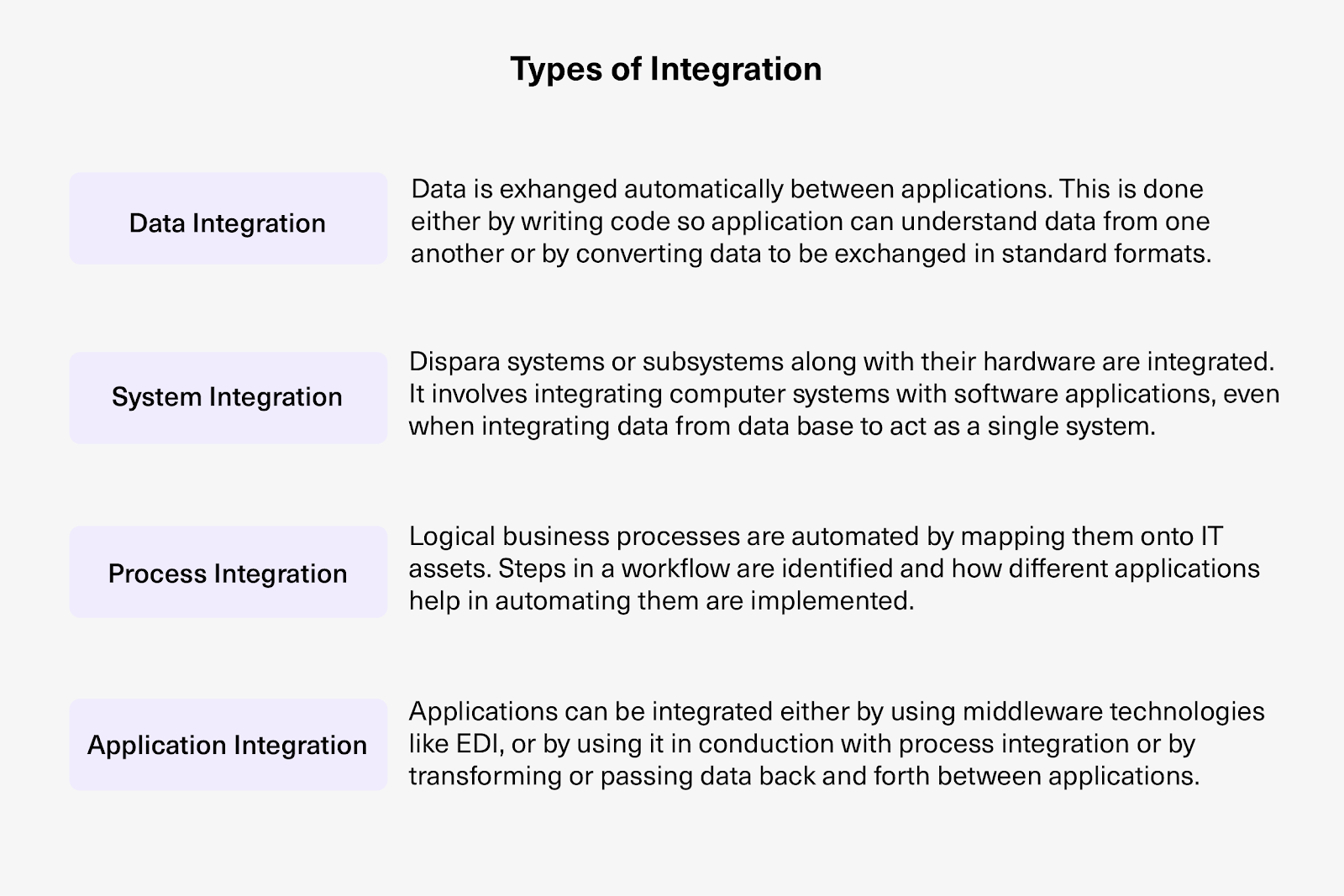
Common pricing models:

  • Per-user licensing: Pay based on how many people have access to Jira or Zendesk
  • Per-transaction (usage-based): Pay per API call or sync event (unpredictable bills, penalizes real-time sync)
  • Per-connection: Pay per integration pair (Jira ↔ Zendesk)
  • Flat pricing: Fixed rate regardless of volume (can be expensive at scale)
  • Outcome-based (sync pairs): Pay for the number of work items actively synchronized at any given time

What to look for:

  • Transparent pricing: You should be able to estimate costs before committing
  • No hidden fees: Watch for extra charges per connector, per field, or per API call
  • Scalability alignment: Cost should grow proportionally with the value received
  • ROI clarity: Calculate time saved and errors reduced against cost

Why it matters: The wrong pricing model can make an otherwise good solution financially unsustainable. Choose a model that aligns with how you’ll actually use the integration.
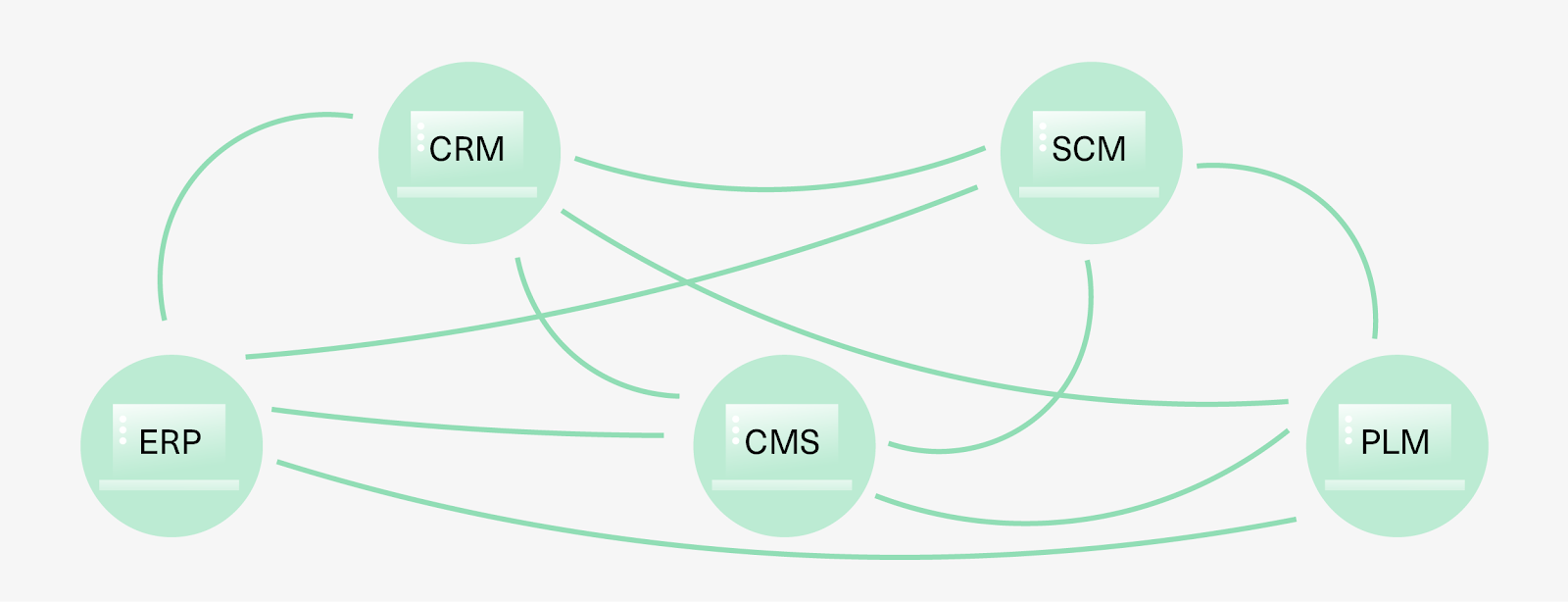
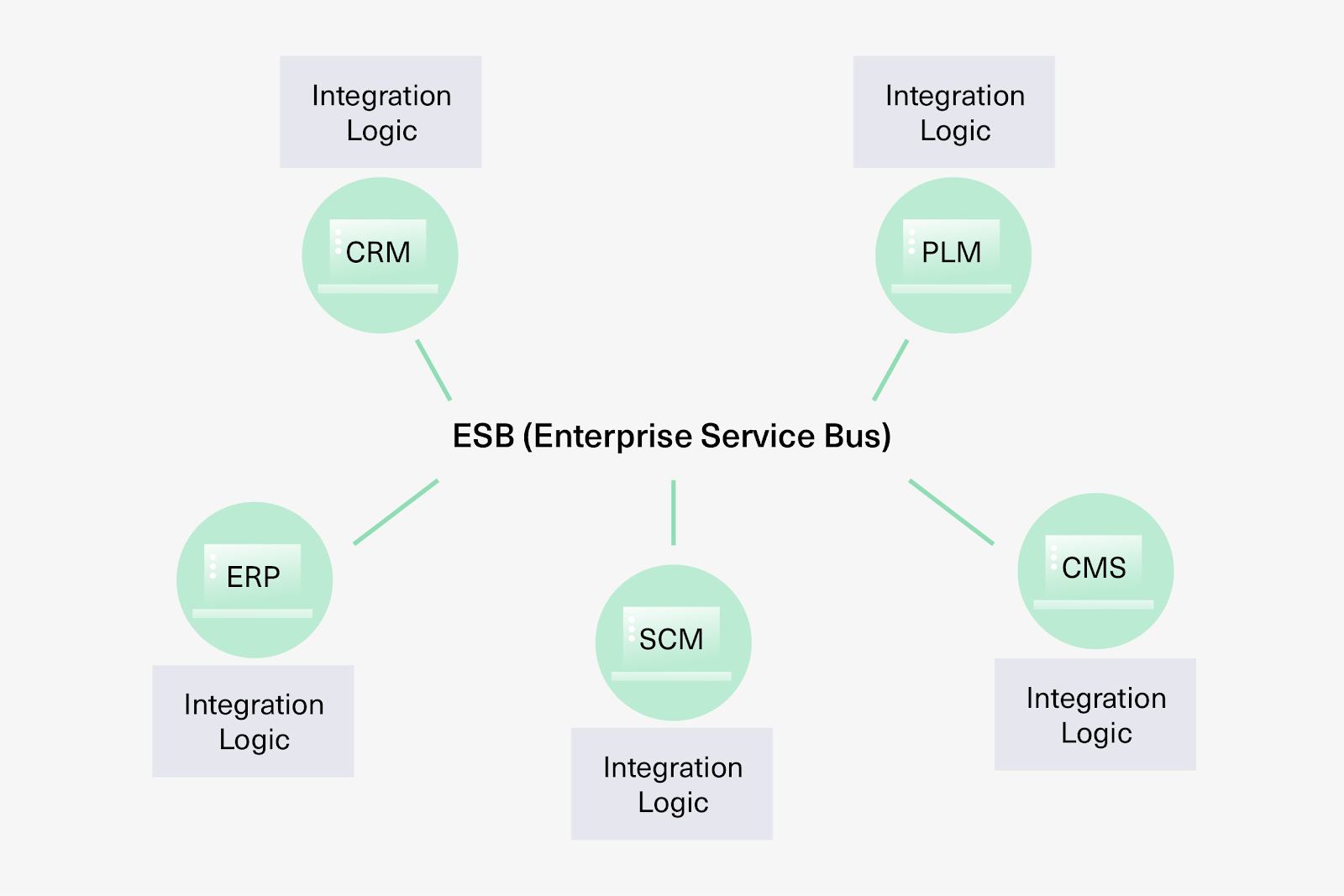
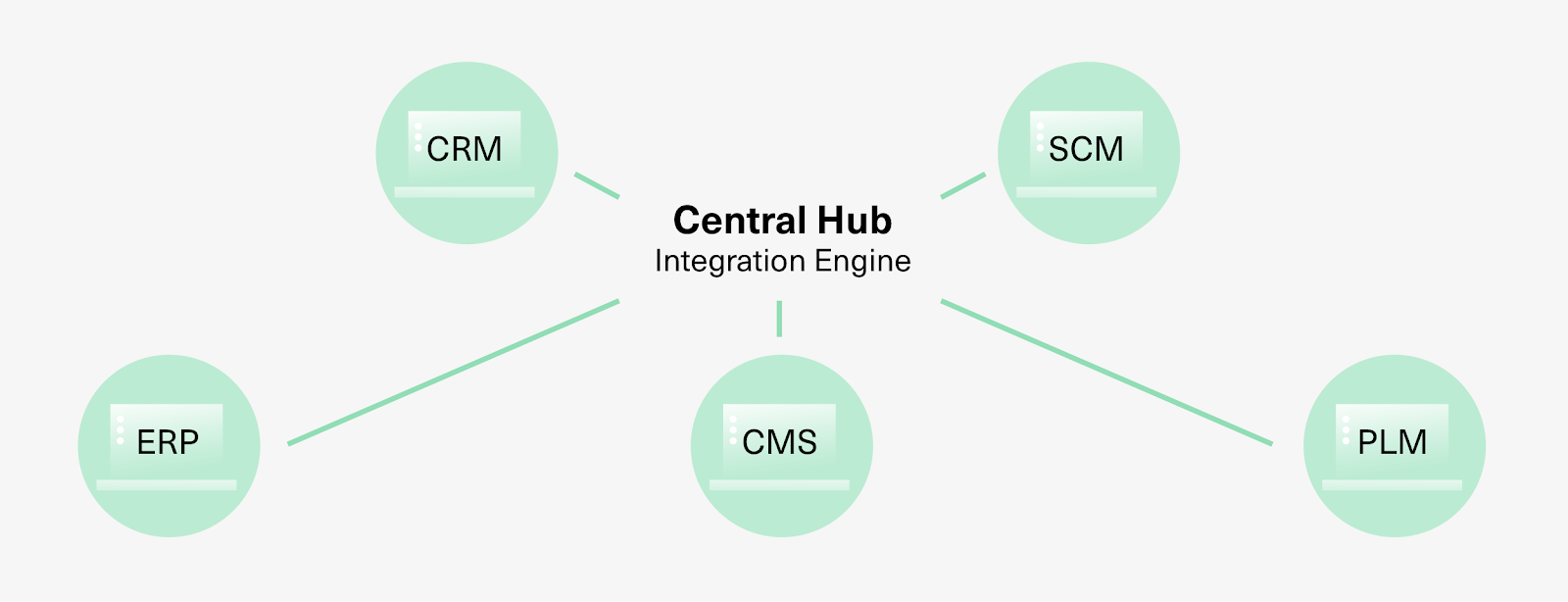
Why Use Exalate to Integrate Jira and Zendesk

Exalate combines flexibility with operational simplicity, making it suitable for both straightforward and complex Jira Zendesk integration scenarios.

Script-Based Flexibility with Operational Control

Groovy-based scripting engine: Handle any custom workflow, no matter how complex. If you can write it in Groovy, Exalate can sync it. Map fields, transform data, apply conditional logic, and implement business rules that template-based tools can’t support.

Unified console: Manage all integrations and connections from one interface. See every Jira-Zendesk connection, their status, and configuration without visiting each system individually. This eliminates context switching and reduces administrative overhead.

Network visualization: A visual representation shows how various instances are interconnected. Quickly understand integration architecture, identify dependencies, and troubleshoot issues.

AI-Assisted Configuration and Troubleshooting (Aida)

Exalate’s AI-assisted configuration, called Aida, helps you implement integrations faster without deep scripting knowledge and helps with troubleshooting.

How Aida works:

  • Script generation: Describe what you want to sync in natural language. Aida generates working Groovy scripts based on Exalate’s API and your existing configuration.
  • Context-aware suggestions: Aida understands your setup and recommends optimal approaches for your use case.
  • Error troubleshooting: When sync fails, Aida explains errors in plain language with suggested fixes, cutting troubleshooting time significantly.

Example: Instead of writing complex field mapping code manually, you can tell Aida: “Map Zendesk priority Urgent to Jira High, High to Medium, Normal to Low” and Aida generates the transformation script.

Test Run Functionality

Safe testing before production deployment: Test Run lets you validate sync scripts without creating actual entities in the destination system. Select test items, preview how replicas will transform, verify field mappings are correct, and only deploy when confident everything works.

Why it matters: This safety net prevents errors from affecting live data. Test configuration changes, see exactly how data will sync, and catch problems before they impact your teams or customers.

Script Versioning

Every time you publish a sync script change, Exalate creates a new version.

Benefits:

  • Complete audit trail: See who changed what and when
  • Rollback capability: If a configuration change causes issues, revert to the previous working version instantly
  • Draft mode: Work on script changes without affecting production sync

Why it matters: Complex integrations evolve. Version control ensures you can experiment safely and recover quickly if something breaks.

Real-Time Sync with Full Visibility

Complete sync queue visibility: Monitor outgoing and incoming synchronization messages in progress. Filter by connection name, view processing status, and identify bottlenecks immediately.

Full work item history: See every change that’s been synced for any work item or ticket. No delays, no data gaps. Both teams always see up-to-date information.

Dashboards for Integration Monitoring

Exalate provides Activity Dashboards that give you real-time visibility into your integration health:

  • Track synchronization progress across all connections
  • Identify errors quickly with centralized error reporting
  • Monitor sync performance
  • View which work items are currently syncing and their status

Security

ISO 27001 certified: Exalate meets international standards for information security management.

Encryption: Data is encrypted both in transit (TLS 1.3) and at rest, protecting sensitive information throughout the sync process.

Full operational control: Scripts remain separated by direction (incoming/outgoing) and by side (Jira/Zendesk). You control exactly what data crosses system boundaries.

Security monitoring: Exalate uses SentinelOne for advanced threat detection and response, providing continuous monitoring and protection of the integration infrastructure.

For detailed security documentation, penetration test results, and compliance certificates, visit the Exalate Trust Center.

Supported Integrations

Exalate supports extensive platform compatibility beyond just Jira and Zendesk:

Jira editions: Jira Cloud, Jira Software, Jira Service Management, etc.
Zendesk and other service desk tools: Zendesk, Freshservice, Freshdesk, ServiceNow, ServiceDesk Plus (early access)
Project management and dev tools: Azure DevOps Server, Azure DevOps Cloud, Asana, GitHub
CRM and collaboration: Salesforce
Exotic systems: Early access connectors like Ivanti, Halo ITSM, and fully managed integrations

View all supported connectors at Exalate’s connectors page.

Outcome-Based Pricing

Exalate uses outcome-based pricing: you pay for active items in sync at any given time, not user seats or API calls.

How it works:

  • Each integration (Jira ↔ Zendesk) requires its own plan
  • You’re charged based on the number of items actively synchronized
  • Within each integration, create unlimited connections and add unlimited users
  • Pricing scales with actual usage, and costs align with value received
  • As volume increases, per-item cost decreases

View detailed pricing or use the Exalate Plan Calculator to estimate your costs.

Start a free Exalate trial

How to Integrate Jira and Zendesk: Step-by-Step Guide

This tutorial demonstrates how to integrate Jira and Zendesk using Exalate. The process focuses on getting your integration running quickly while maintaining flexibility for complex scenarios.

Prerequisites

Before starting, ensure you have:

  • Admin access to both Jira and Zendesk
  • An Exalate account (or sign up for a free trial)
  • Authentication credentials for both systems

If you prefer videos, you can watch this video tutorial.

Create Your Exalate Account

Visit the Exalate app and sign up. You can create an account manually by entering your email and verifying it, or sign up using Google authentication.

Create a Workspace

Workspaces help you organize and manage integrations in a single place. Click the “+ Create Workspace” button, enter a name and description, then click “Create workspace” to confirm.

workspaces in exalate

Set Up Your First Connection

From your workspace, click “+ Add connections” then “Create new connection.”

create a new connection with Exalate

Configure System A (Zendesk or Jira, order doesn’t matter):

  • Enter the system name
  • Enter the system URL (e.g., your Zendesk subdomain URL)
  • The system validates automatically if it’s already part of the workspace
  • For new systems, enter authentication credentials:
    • Zendesk uses API token
    • Jira uses OAuth

Configure System B (the other platform):

  • Complete the same setup process for the second system
Exalate interface for setting up connections for system b

Name your connection: Give the connection a descriptive name and optional description, then click “Next.”

Review and create: Verify all details are correct, then click “Create connection.”

When the connection is created, select “Continue to configuration.”

Exalate interface for setting up connections completed flow

Configure Synchronization

You have two configuration options: Quick Sync and Edit & Test.

Exalate screen for Quick Sync and Edit & Test

Quick Sync: Publish & Test

This option lets you sync one item between Jira and Zendesk to verify your connection works properly.

Under “Item sync monitor,” enter a work item key (Jira) or ticket number (Zendesk). Click “Sync Now” to sync the item, or “Link with existing” to link two existing items.

Item to sync in item sync monitor

You’ll see status updates during sync. Once complete, you can open both synced items to verify the sync worked correctly.

Edit & Test: Advanced Configuration

For more control over what syncs and how, click “Create a new version” or “Open latest draft” to begin editing sync rules.

Activated draft mode to enable the editing of scripts in Exalate

Understanding Sync Rules

Sync rules are based on Groovy scripts. These scripts control what data is sent between systems and how it’s transformed.

Outgoing script: Defines what data leaves your system
Incoming script: Defines how incoming data is applied to your system
Replica: The message payload holding data passed between entities (exists in JSON format)

You can write sync scripts manually if you’re familiar with Groovy, or use Aida for AI-assisted configuration.

AI-Assisted Configuration with Aida

Aida is available in both outgoing and incoming script sections.

Script version interface showing incoming and outgoing scripts in Exalate

For Outgoing scripts, describe what data should leave your system:

  • “Exclude attachments”
  • “Only sync high-priority tickets”
  • “Send all comments except those tagged internal”

For Incoming scripts, describe how incoming data should be applied:

  • “Map Zendesk statuses to Jira statuses”
  • “Set default assignee if user can’t be found”
  • “Create work items as bugs if priority is urgent”

Aida generates working Groovy scripts based on your prompts. Review the suggested changes, where green highlights show new lines to add, red highlights show lines to remove. Click “Insert” to accept or “Discard” to reject.

Note: While Aida is helpful, always review the generated code before applying it to production.

Test Run: Validate Before Production

Once sync scripts are ready, click “Start Test Run” to validate them.

Select the items you want to test (you can select multiple). Click “Start Test Run” to preview how the configuration will be applied.

select items to test run

Review incoming and outgoing replicas for each test item. Verify field mappings look correct. If needed, go back, adjust scripts, and test again.

Deploy only when confident that everything works correctly. Click “Publish Version” to apply the updated configuration to live synchronization.

Add Triggers

Triggers determine which items automatically sync based on conditions you define.

Click “+ Add trigger” to create a new trigger.

add trigger screen for Exalate triggers

Platform-specific trigger syntax:

  • Jira: Use Jira Query Language (JQL)
    Example: project = SUPPORT AND priority in (High, Highest)
  • Zendesk: Use advanced search syntax
    Example: status<solved priority:high

You can create multiple triggers for different scenarios. Activate triggers by toggling them on. Save changes by publishing.

Deploy and Monitor

Your integration is now live. Synchronization starts automatically based on triggers and sync rules you’ve configured.

Troubleshooting with Aida

If errors occur, navigate to the “Troubleshooting” tab. Hover over an error and click the Aida icon to see an AI-generated diagnosis and suggested fixes.

You can also view “Error details” to copy stack traces and “Replicas” to inspect the JSON payload.

Aida diagnosis interface with error details

Click “Resolve” and retry errors as needed.

Advanced Jira Zendesk Integration Options

Exalate’s flexibility enables advanced scenarios beyond basic ticket-to-work-item sync.

Multi-Instance Connections

Connect multiple Jira and Zendesk instances simultaneously in hub-and-spoke or mesh architectures.

Examples:

  • Central Zendesk environment integrates with several departmental Jira instances
  • Multiple client Zendesk instances connect to a single MSP Jira environment
  • Multiple Jira instances connect to one Zendesk for different routing scenarios

All connections are managed from the unified console with network visualization showing how everything connects. You can perform bulk operations (updating multiple connections at once) and apply consistent script templates across similar integrations.

Custom Field Mapping

Sync virtually any field accessible through REST APIs.

In Zendesk, this includes custom ticket fields, organization fields, user fields, and any table data accessible via API.

In Jira, you can map standard fields, custom fields, multi-select fields, and any data type supported by the Jira REST API.

Example: Sync a Zendesk custom field called “Customer Tier” to a Jira custom field called “Account Priority” with value transformation:

  • Zendesk “Platinum” → Jira “P0”
  • Zendesk “Gold” → Jira “P1”
  • Zendesk “Silver” → Jira “P2”

Priority and Status Mapping

Transform data during sync using Groovy scripts.

Priority mapping example: Map Zendesk priority levels to Jira priorities:

  • Urgent → High
  • High → Medium
  • Normal → Low
  • Low → Lowest

Status mapping example: Map different workflow statuses:

  • Zendesk “Open” → Jira “To Do”
  • Zendesk “Pending” → Jira “In Progress”
  • Zendesk “Solved” → Jira “Done”

Apply conditional logic: “If Zendesk priority is Urgent AND ticket has tag ‘security’, then set Jira priority to Highest and assign to Security Team.”

Correlation Fields

Correlation fields preserve relationships between work items across systems.

Store Jira work item keys in Zendesk custom fields so users can navigate directly to the related Jira work item. Store Zendesk ticket IDs in Jira so developers can view the original customer conversation.

This creates a stable linkage for long-term auditing, reporting, and troubleshooting.

Private Comments Control

Control which comments sync and which remain private.

Example scenario: Support agents add internal notes in Zendesk that shouldn’t be visible in Jira. Developers add technical implementation notes in Jira that shouldn’t appear in customer-facing Zendesk tickets.

Use script logic to filter comments based on visibility rules:

  • Sync only public comments from Zendesk to Jira
  • Sync work notes from Zendesk as internal comments in Jira
  • Keep comments tagged “INTERNAL” from syncing at all

Tag-Based Automation

Automatically create work items based on Zendesk tags.

Example: When a support agent tags a Zendesk ticket with “feature-request,” the integration automatically creates a Story in the Jira Product Backlog. When tagged with “bug,” it creates a Bug in the Development project.

This eliminates manual decision-making about where to escalate tickets, and the integration handles routing based on classification.

SLA and Time Tracking

Sync SLA information and time-tracking data between systems.

SLA synchronization: Pass SLA due dates, breach times, and status from Zendesk to Jira so developers see urgency. Update SLA fields in Zendesk when work items change status in Jira.

Time tracking: Aggregate time spent from Jira work logs and sync back to Zendesk custom fields. Track estimated time and remaining time across both platforms for better resource planning.

Frequently Asked Questions

Why should I integrate Jira and Zendesk?

Integrating Jira and Zendesk eliminates manual data entry, reduces information silos, and keeps support and development teams aligned. Support agents can escalate tickets to developers without leaving Zendesk. Developers see the complete customer context without switching to Zendesk. Updates flow automatically both ways, reducing errors and improving incident resolution time.

What’s the difference between native Zendesk app and Exalate?

The native Zendesk Support for Jira app provides basic linking and one-way focused functionality. It requires engineer involvement to select target projects and has limited bidirectional automation. It cannot connect multiple Zendesk instances to one Jira (or vice versa).

Exalate provides:

  • Full bidirectional real-time synchronization
  • Script-based flexibility for any custom workflow
  • Multi-instance hub-and-spoke support
  • AI-assisted configuration with Aida
  • Test Run for safe validation before deployment
  • Script versioning with audit trail and rollback
  • Unified console managing all connections
  • Outcome-based pricing aligned with actual usage

Can I connect multiple Jira and Zendesk instances?

Yes. Exalate supports multi-instance architectures in any configuration:

  • Multiple Jira instances to one Zendesk
  • One Jira instance to multiple Zendesk instances
  • Multiple instances on both sides
  • Complex mesh networks across departments or MSP client environments

All connections are managed from a single unified console with network visualization.

What fields can I sync between Jira and Zendesk?

Any field accessible via REST API:

Standard fields: Work items, tickets, comments, attachments, status, priority, assignee, description, dates

Advanced fields: Custom fields, SLA information, time tracking, tags/labels, correlation fields, organization/account data, any custom entities

Learn more about the comprehensive field documentation for Jira and Zendesk.

Can I sync bidirectionally in real-time?

Yes. Exalate provides real-time bidirectional synchronization. When a work item updates in Jira, it syncs to Zendesk within seconds (and vice versa). You see complete sync queue visibility and full work item history with no data gaps.

How do I control what data is shared between teams?

You have full operational control through scripting. Define exactly which fields sync, apply conditional logic to filter data, transform values during sync, and control comment visibility (public vs. internal).

Example: Share work item summary and status with external partners, but keep internal comments and certain custom fields private by filtering them in your sync scripts.

What if I only want certain tickets to sync?

Use platform-native triggers for granular control:

Jira triggers: Use JQL (Jira Query Language)
Example: project = SUPPORT AND priority in (High, Highest)

Zendesk triggers: Use filter queries
Example: status<solved priority:high tags:escalate

Triggers ensure that only matching tickets or work items enter the sync.

How does Exalate handle formatting differences between Jira and Zendesk?

Jira uses Wiki or HTML for rich text fields while Zendesk uses Markdown. To handle these formatting differences, Exalate uses converters called Transformers. These Transformers convert the incoming and outgoing data into the format required by the destination instance. Transformers can convert HTML to Wiki, Markdown to Wiki, or Wiki to HTML.

How does Exalate pricing work?

Exalate offers subscription-based plans with transparent, predictable costs. You pay for active work items currently synchronized at any given time.

Each integration (Jira ↔ Zendesk) requires its own plan. Within each integration, you can create unlimited connections and add unlimited users. Pricing scales with actual business value, as volume increases, per-item cost decreases.

View detailed pricing at Exalate’s pricing page or use the Exalate Plan Calculator to estimate your specific costs.

Can I use this as an MSP connecting to client systems?

Yes. Exalate is designed for cross-company integration:

MSP scenario: Connect your Jira instance to multiple client Zendesk instances. Clients work in their tools, you manage everything from the unified console.

Features for MSPs:

  • Decoupled authentication (clients don’t need Jira access)
  • Unified visualization of all client connections
  • Bulk operations across connections
  • Individual sync rules per client

Explore the managed services plan to outsource the entire integration to Exalate.

What if I need a connector that’s not currently supported?

Custom connector development is available for Enterprise customers. Exalate has built connectors for proprietary in-house systems, industry-specific tools, and legacy platforms.

Contact Exalate’s team to discuss custom connector requirements.

Ready to Connect Jira and Zendesk?

Start your free trial and experience seamless collaboration between support and development teams.

Start a free Exalate trial

With Exalate, you get unified visibility, full operational control, AI-assisted setup, safe deployment with TestRun, real-time sync monitoring, enterprise security, and outcome-based pricing that scales with your business.

Integrating Jira and Zendesk eliminates manual data entry, keeps teams aligned, and accelerates incident resolution—so you can focus on delivering exceptional customer service.

Recommended Reads: