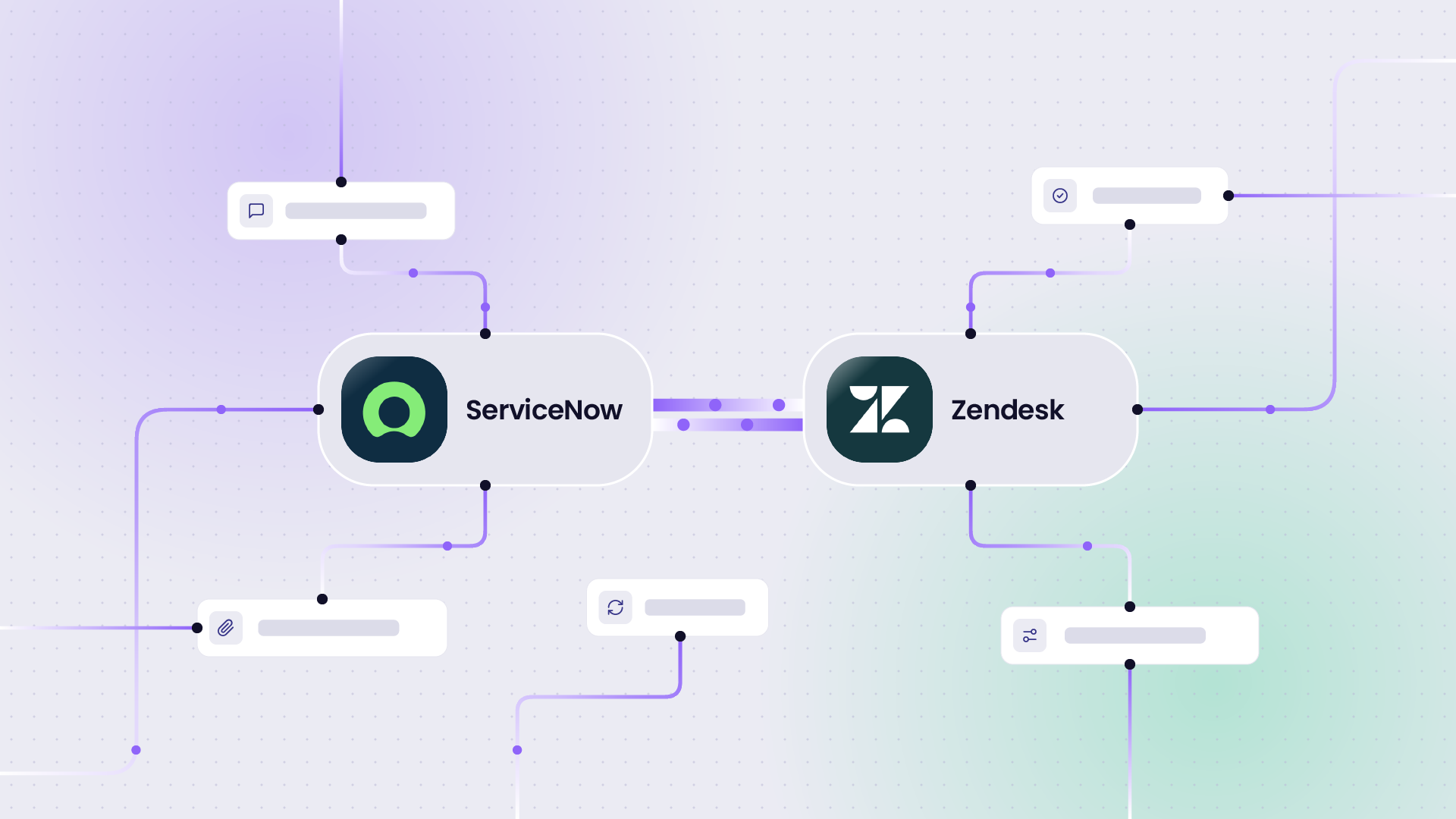
When your organization runs multiple Jira instances that need to share information, Jira issue sync is how you keep both sides aligned without manual copying. It connects work items, fields, and status updates between instances or between Jira and external platforms like ServiceNow, Azure DevOps, Salesforce, and Zendesk.
This guide covers how Jira issue sync works, the tools that support it, best practices, and four advanced configuration topics that most teams hit once they move past the basic setup: user identity mapping, conflict resolution, sync loop prevention, and audit trails.
Note: Jira now refers to issues as work items. Throughout this guide, we use “work items” to align with current Jira terminology, and “Jira issue sync” to match how most teams still search for this topic.
Key Takeaways
- Jira issue sync connects work items, fields, and custom data between Jira instances or between Jira and external platforms like ServiceNow, Azure DevOps, Salesforce, and Zendesk for real-time collaboration.
- Syncing work items reduces manual data entry, breaks down information silos, and gives stakeholders immediate access to the data they need.
- The four configuration problems most teams hit after basic setup: user identity mapping across organizations, conflict resolution when both sides update the same field, sync loop prevention in bidirectional flows, and audit trails for configuration changes.
- Common use cases include internal development-to-support workflows, cross-company collaborations with vendors and MSPs, and multi-platform orchestration across Jira, ServiceNow, Salesforce, and Azure DevOps.
- Exalate supports bidirectional Jira issue sync with full Groovy scripting control, AI-assisted configuration via Aida, and ISO 27001:2022 certification for enterprise security.
- “Manual sync between systems” was the most cited pain point across our users.

What Does a Jira Work Sync Entail?
Jira issue sync connects work items and their associated fields between Jira instances or between Jira and another platform, so updates on one side automatically reflect on the other. Supported entities include descriptions, summaries, comments, attachments, assignees, priority, statuses, custom fields, story points, and more.
Here is how it works: Team A receives a ticket on their Jira Service Management dashboard and maps some of its default and custom fields to a Task in Team B’s Jira Software instance. If the mappings and scripts are correct, the entities interact with each other and share information without either team leaving their instance.
In most cases, the mappings contain rules that determine what gets shared and what stays private on either side of the connection. You can automate this process with JQL triggers.
You can also implement Jira issue sync with non-Atlassian platforms: Zendesk tickets, ServiceNow incidents, Azure DevOps work items, Freshservice tickets, Freshdesk tickets, Salesforce cases, and Asana tasks. To get both platforms to interact, you write rules and scripts that control how the API sends and receives requests between endpoints.
If your team can’t handle the scripting, no-code third-party solutions or AI-assisted configuration tools handle it for you.
What are the Benefits of Jira Issue Sync?
Improved Collaboration Across Teams and Companies
Jira issue sync removes the coordination overhead between teams who work in separate instances.
Organizations in healthcare, manufacturing, software product development, banking, and e-commerce use it both internally between teams and externally with vendors, MSPs, and clients.
Internal teams sync tasks, epics, and bugs bidirectionally. When the service team logs a bug, it appears as a task on the development team’s Jira board. Externally, organizations implement Jira issue sync for mergers, acquisitions, and cross-company collaborations.
Less Time Spent on Manual Data Entry
“Manual sync between systems” was the single most cited pain point across our users. At a financial institution, 500 to 1,000 tickets were copied manually every month between ServiceNow, Jira, and Azure DevOps before they set up automated sync.
At a software company, teams manually routed 50 to 60 tickets per hour during peak periods.
When your organization adopts automated integration tools, the information exchange occurs in real time or in automated batches. You can also use triggers that establish the conditions required to fire a sync event, without anyone initiating it manually.

Calculate time and money savings from automated bidirectional sync.
Fewer Bottlenecks in Cross-Team Workflows
Syncing Jira issues through endpoints removes handoff delays from cross-team and cross-company collaborations. With significant differences in procedures and data structures, integrating work items lets both sides reduce manual tasks, avoid data duplication, and improve internal processes.
Enhance Workflows
Syncing Jira work through endpoints removes bottlenecks from cross-team and cross-company collaborations.
With significant differences in procedures and data cultures, integrating work items will enable both sides to reduce manual tasks, avoid data duplication, and optimize internal processes.
Access to Shared Data Without Shared Credentials
Jira issue sync gives stakeholders and authorized personnel access to the data they need without requiring them to log in to the other team’s instance. Each side authenticates independently. You define exactly what data crosses the connection and what stays private. This breaks down information silos between departments, partners, and divisions without creating security exposure.
Protection for Sensitive Data in Transit
Whether unidirectional or bidirectional, Jira issue sync can protect sensitive data with proper field mapping. This involves TLS, HTTPS, and other integration security protocols to protect data in transit. Enterprise-grade solutions like Exalate offer ISO 27001 certification, role-based access control, and encryption of data both in transit and at rest. For full security documentation, visit the Exalate Trust Center.
Potential Challenges When Implementing Jira Work Sync
Here are some technical and administrative moles you must whack when implementing Jira instance sync:
- Sync failures: Network work items or user error can cause synchronization to fail, requiring monitoring and retry mechanisms.
- API rate limits: API usage limits could restrict the synchronization solution, especially for high-volume data transfers.
- API changes: Changes to the API could push the synchronization to failure if your integration doesn’t adapt.
- Plugin dependencies: Untangling the web of plugins and dependencies could take forever in complex Jira environments.
- Mapping errors: You could map the wrong entities (wrong field name or incorrect entity), causing data to land in unexpected places.
- Bureaucratic delays: Creating a plan for integration could take time in massive bureaucracies with multiple stakeholders.
- Queue bottlenecks: Work items could get stuck in the queue during important migration scenarios.
- Cost and complexity: The synchronization tool could be too complex and expensive for your organization.
- Expertise gaps: Your in-house team might lack the expertise to set up and manage the Jira work sync.
Best Practices For Syncing Jira Work
Analyze your information architecture first. Before syncing any work items, discuss scope with all stakeholders to understand the project, team member roles, and dependencies. This tells you which entities should be mapped and which should stay private.
Set up a plan before touching the configuration. Develop a synchronization strategy based on your analysis. Find out how to map the most important entities and work types without disrupting the flow or losing critical information.
Choose the right sync tool. You can build or buy Jira sync tools depending on your budget and team capability. If you need a Jira-to-Jira integration solution that supports both custom and default mappings with AI-assisted configuration, Exalate handles both simple and complex scenarios from the same tool.
Test all endpoint mappings before going live. Use testing tools to confirm that field and entity mappings are correct. Start with non-essential fields before extending rules to sensitive data.
Monitor and maintain. Check sync queues regularly to unclog and troubleshoot failed transfers. When a team member changes their workflow configuration, you want to know before it causes a data mismatch downstream.
How Does User Identity Mapping Work in Jira Sync?
User identity mapping in Jira sync is the process of matching user accounts across two different systems so that assignees, reporters, and comment authors translate correctly when a work item crosses instances. Without it, every synced ticket lands with no assignee or gets assigned to a fallback user, and neither team knows whose ticket it actually is.
Exalate handles user identity mapping in three ways, each configurable in Groovy:
Email-based matching is the default. When a work item syncs from Instance A to Instance B, Exalate looks up the assignee’s email address in the destination instance. If a matching account exists, the user maps correctly. This works for most internal Jira-to-Jira scenarios where both instances share the same organization’s user directory.
Default user fallback assigns all synced tickets to a predefined account when no email match exists. This is common in cross-company sync where the two organizations have completely separate user directories. Rather than leaving tickets unassigned, you route them to a service account or team inbox and let the receiving team redistribute.
Full Groovy customization gives you total control over the mapping logic. You can write rules that match on username patterns, use a lookup table of account IDs, apply conditional logic based on ticket type or project, or strip the assignee field entirely for specific sync conditions.
User identity mapping issues were one of the most consistently cited pain points for multiple organizations. When teams share tickets across company boundaries, the assignee field is almost always where the first data mismatch appears.
How Does Conflict Resolution Work When Both Sides Update the Same Field?
Conflict resolution in Jira sync determines which version of a field wins when both sides make an update before the sync fires. In a bidirectional setup, this is inevitable: a developer closes a ticket in one instance at the same moment a support agent updates the priority in the other.
Exalate doesn’t enforce a built-in conflict resolution model. Instead, you define your own rules in Groovy per field. Common patterns:
Last-write wins. Whatever update happened most recently overwrites the other. This is the simplest model and works when one side is clearly authoritative for a given field. You implement it by writing a sync script that always accepts the incoming value without conditions.
Source-of-truth per field. You define which instance owns each field. Instance A owns priority; Instance B owns status. The sync script ignores incoming updates for fields the current instance owns. This prevents either side from overwriting work the other team considers final.
Conditional logic. You write rules that evaluate the incoming value before applying it. For example: “Only update the priority field if the incoming value is higher urgency than the current value.” This prevents a downstream team from accidentally downgrading a critical incident that the upstream team escalated.
The key point is that conflict resolution is a script-level decision in Exalate, not a platform-level setting. That’s a deliberate design choice: the right resolution strategy for a priority field is different from the right strategy for a status field, and neither is the same as the right strategy for a comment thread. You configure them independently.
How to Prevent Sync Loops in Bidirectional Jira Integration?
A sync loop happens when Instance A syncs a change to Instance B, which triggers a sync event back to Instance A, which triggers another sync to Instance B, indefinitely. It’s the most common technical failure in bidirectional Jira sync, and it burns through API rate limits fast.
Exalate prevents sync loops through its sync engine architecture. When Exalate receives an incoming sync update and writes it to the local instance, it marks that change as “sync-originated.” Subsequent sync triggers check this marker and skip changes that came from the remote side. The result: incoming updates don’t re-trigger outbound syncs.
For teams using Groovy scripting for advanced configurations, you can add an explicit loop check in your sync script. The pattern is: read the current field value on the local instance before applying the incoming update. If the values are identical, skip the write. This change detection pattern adds a second layer of protection for high-frequency sync scenarios where the built-in marker might not catch edge cases.
The practical implication for setup: always test bidirectional sync with a small batch of tickets in a staging environment before going live. Loop behavior at low volume is easy to catch and fix; at production volume, it’s a support incident.
Audit Trails for Jira Issue Sync: Tracking Configuration Changes
An audit trail for Jira issue sync tells you who changed the sync configuration, what they changed, and when, so you can trace data mismatches back to a specific configuration edit rather than hunting through logs.
Exalate provides an audit trail through its script versioning feature. Every time an admin edits a sync script, Exalate saves a version with a timestamp and the admin’s account. You can view the history of all configuration changes, compare versions, and roll back to a previous state if an edit caused unexpected behavior.
This matters in two specific situations. First: when a data mismatch appears in production and you need to find out what changed. Without script versioning, you’re comparing current config against whatever someone remembers. With it, you pull the version history and look at the diff. Second: compliance. For teams in regulated industries, ISO 27001 and SOC 2 auditors ask about change control for integration configurations. Script versioning gives you a documented, timestamped record.
For organizations that require a broader audit trail covering which tickets synced, when, and what data they carried, Exalate maintains N and N-1 transaction log copies in its sync engine. These cover the data payload level rather than the configuration level.
How to Implement Jira Work Sync With Exalate
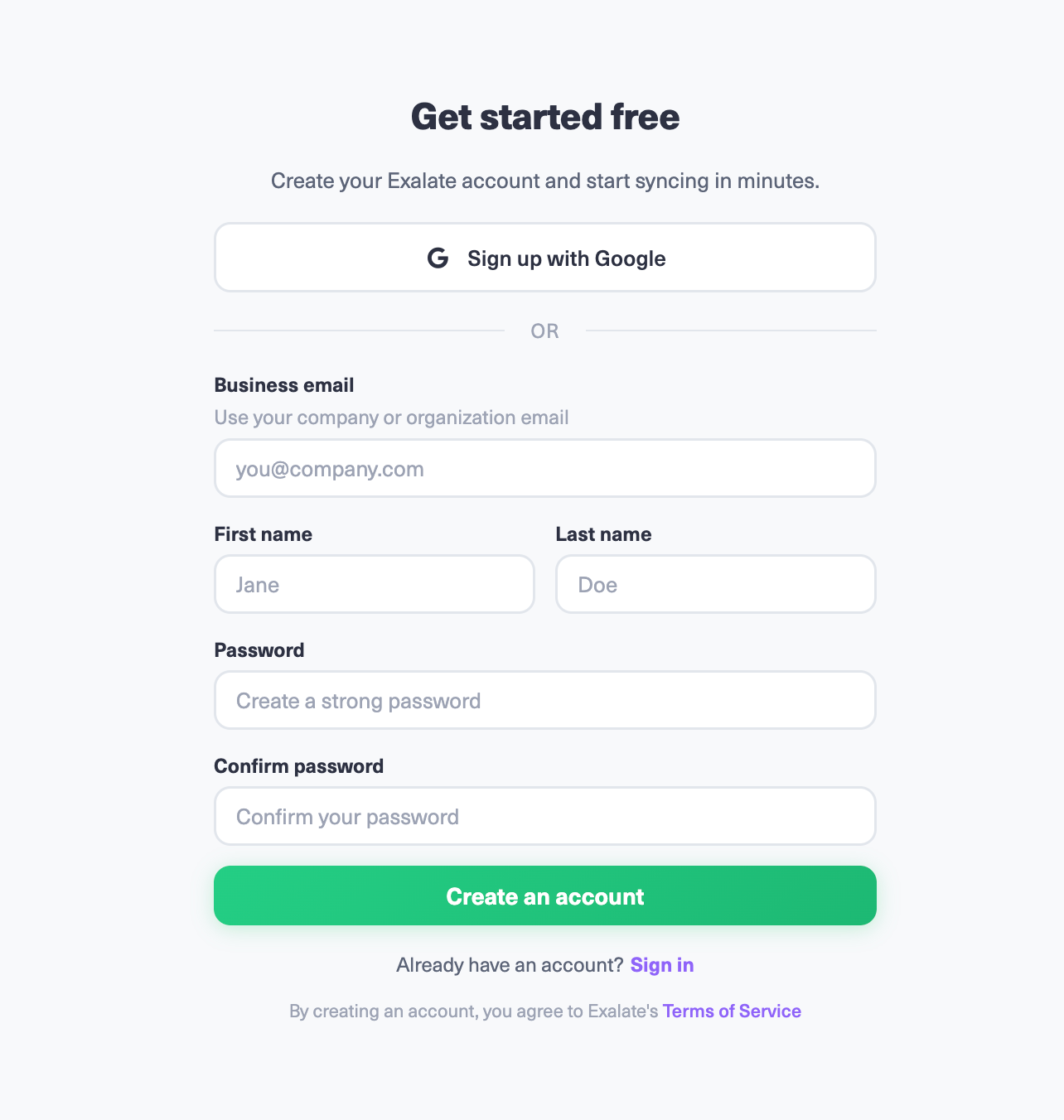
- Sign in or create your account on the Exalate app. Sign in to your Exalate console using your business email. Google sign-in is also available.
- Establish a connection between Jira instances. The Jira instances are verified using OAuth. Creating a connection is pretty straightforward. In the Exalate console, click “Create Connection”.
- Configure the connection. Use Exalate’s Groovy scripting engine to write rules that will control and define how both Jira instances will interact and share data.
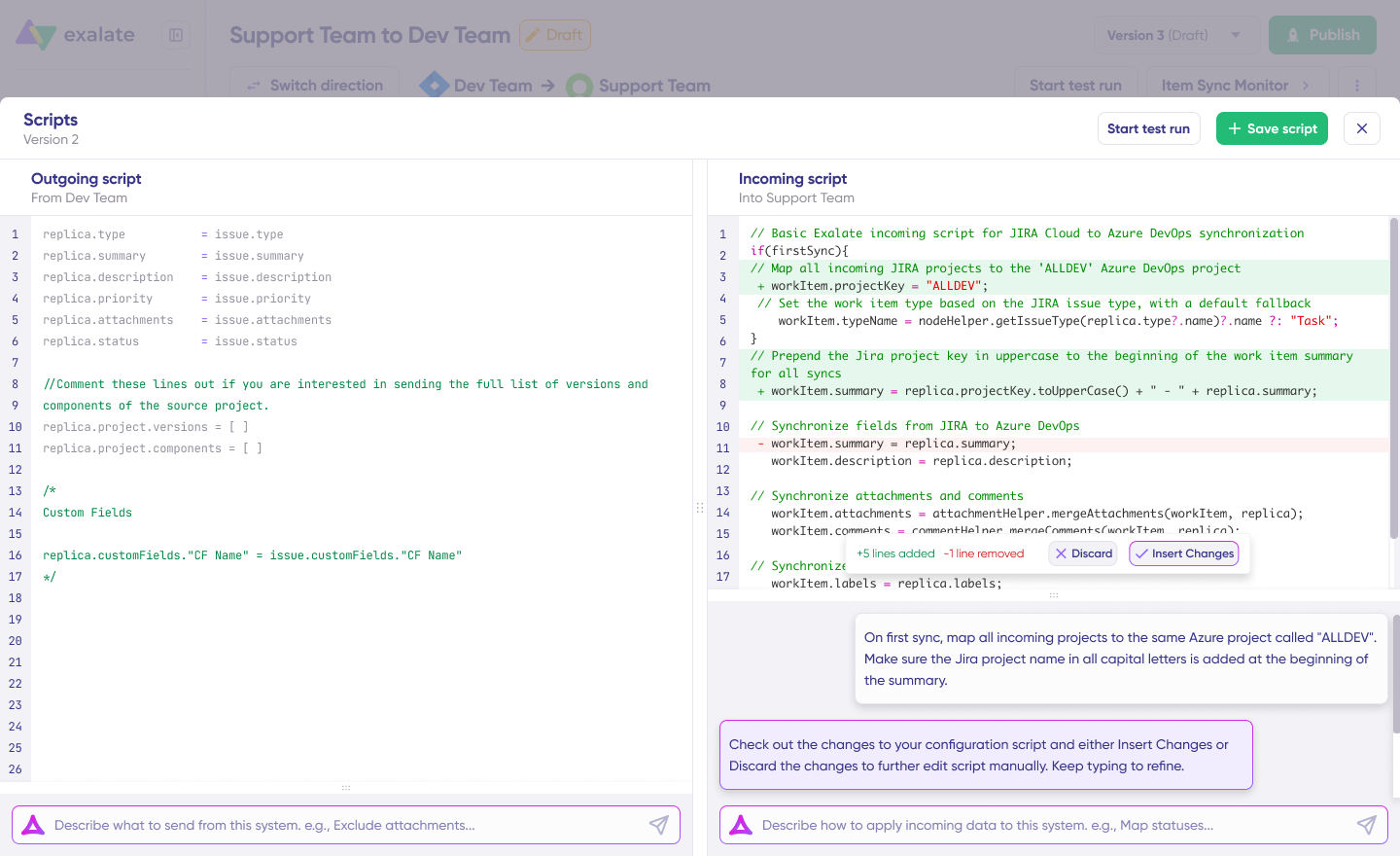
- Generate scripts using Aida. Get the best out of Exalate’s scripting engine by using the AI-powered assistant to generate scripts according to user input and text-based prompts.
- Set up triggers. Create automated triggers using JQL to determine how the Jira instances will handle the integration rules.
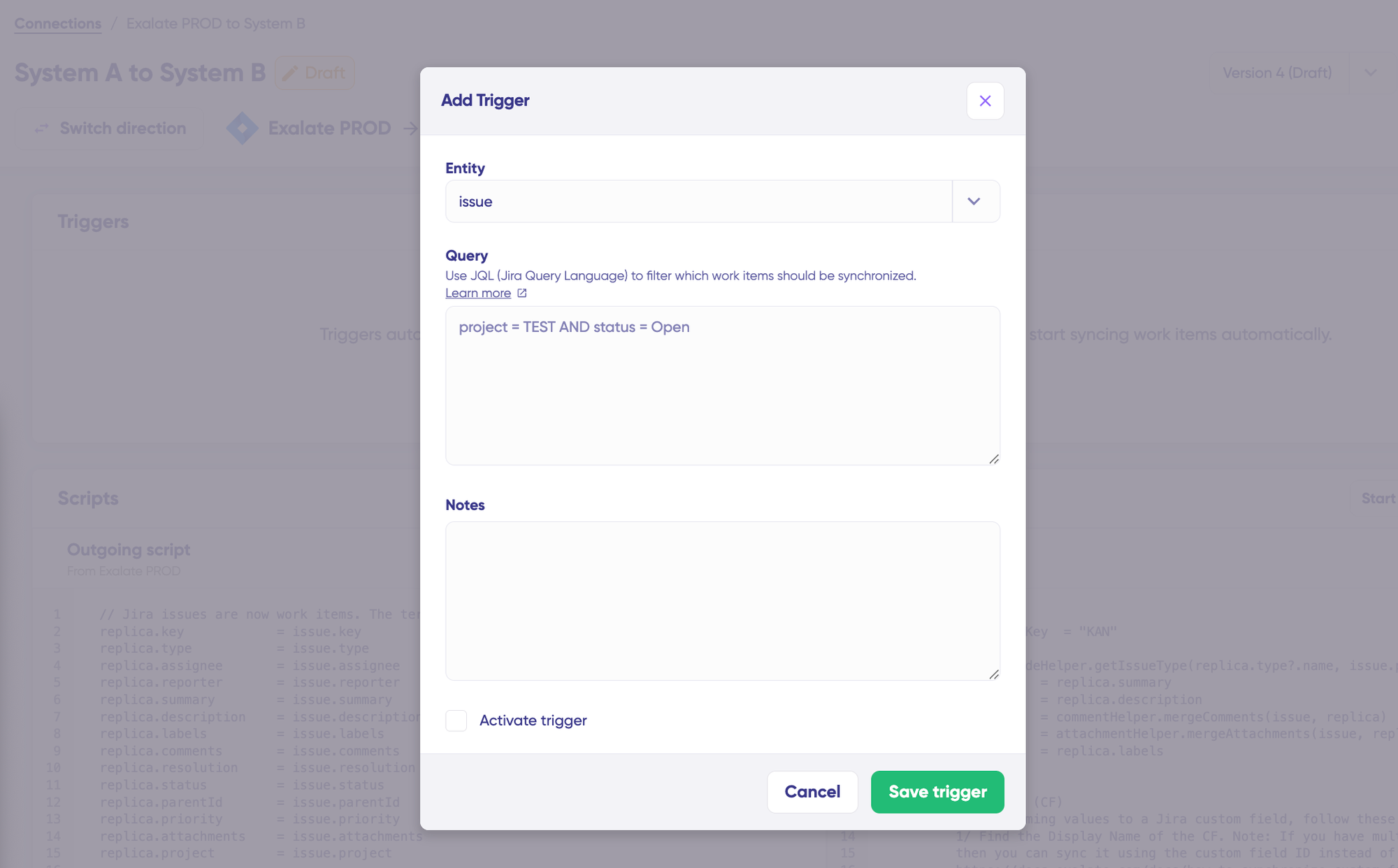
- Start syncing your tasks. You can initiate multiple Jira syncs directly from the Exalate console or from the Exalate panel within Jira work.
For a detailed breakdown of every step of integrating multiple Jira instances, read this comprehensive guide.
Jira Work Sync Use Cases
Here are practical scenarios for syncing Jira work items, broken down by challenge, solution, and real-world application.
Use Case 1: Development and Support Alignment
Challenge: Development teams working in Jira Software and support teams using Jira Service Management operate in separate instances. When customers report bugs, support agents create tickets, but have no visibility into development progress. Developers don’t see the customer impact or urgency behind their assigned tasks.
Solution: Bidirectional sync between Jira Service Management and Jira Software instances. When support logs a bug, it automatically appears as a task on the development team’s board with customer context intact. Status updates, comments, and resolution details flow back to support in real-time.
Real-World Application: A SaaS company reduced its average bug resolution time by 40% after implementing this sync. Support agents could give customers accurate ETAs without chasing developers, and developers prioritized work based on actual customer impact data visible in their instance.
Use Case 2: Cross-Company Collaboration with MSPs and Vendors
Challenge: Organizations working with managed service providers (MSPs) or external vendors need to share ticket information without granting direct access to internal systems. Manual updates through email or portals create delays and data inconsistencies.
Solution: Secure bidirectional sync where each organization maintains its own Jira instance with independent control. Work items sync automatically while each side controls what data is shared and what stays private. No credential sharing required—each organization authenticates to its own systems only.
Real-World Application: Quorum Cyber implemented deep ticket integration with their clients, making default fields and statuses appear on the remote side as comments without affecting the status on the client’s instance. This preserved client autonomy while giving Quorum Cyber the visibility needed for effective managed security services.
Use Case 3: Mergers, Acquisitions, and Organizational Restructuring
Challenge: When companies merge or acquire other businesses, they often inherit multiple Jira instances with different configurations, workflows, and data structures. Consolidating these systems takes months, but teams need to collaborate immediately.
Solution: Sync work items across instances during the transition period without requiring immediate data migration. Teams continue working in their familiar environments while leadership gains a unified view of projects across the combined organization.
Real-World Application: Vodafone used Exalate to sync the entire contents of work items (attachments, descriptions, custom fields, etc.) between organizations using Jira while maintaining both sides’ autonomy during complex organizational changes.
Use Case 4: Multi-Platform DevOps Orchestration
Challenge: Development teams use Jira, but the organization also relies on Azure DevOps for certain projects, ServiceNow for IT operations, and GitHub for code management. Information silos form when teams can’t see related work across platforms.
Solution: Create a connected ecosystem where Jira work items sync with Azure DevOps work items, ServiceNow incidents, and GitHub issues. When a developer closes a Jira work item, the related Azure DevOps task updates automatically, triggering downstream workflows.
Real-World Application: Enterprise organizations sync issue hierarchy between Jira and Azure DevOps, ensuring epics, features, and user stories maintain their relationships across platforms. This provides end-to-end traceability from business requirements through development and deployment.
Use Case 5: Epic and Hierarchy Synchronization
Challenge: Organizations managing complex projects need to maintain relationships between epics, stories, and subtasks across Jira instances. Breaking these hierarchies during sync fragments project visibility and planning.
Solution: Sync Epics with their child work items while preserving the hierarchy structure. When a story is moved under a different epic on one instance, the relationship updates on the synced instance as well.
Real-World Application: Gantner established frictionless collaboration frameworks with clients and MSPs by syncing story points fields and maintaining epic relationships across organizational boundaries.
Features to Consider When Choosing a Jira Integration Tool
Selecting the right integration tool requires evaluating several critical factors. Here’s what to prioritize:
Flexibility and Customization
Not all integration scenarios fit a template. Look for tools that offer scripting capabilities for complex field mappings, conditional logic, and custom transformations. The ability to control exactly what data flows and how it transforms is essential for enterprise scenarios.
Exalate’s scripting engine supports advanced customization through Groovy, handling complex cases like syncing issue types and select lists between Jira instances.
AI-Assisted Configuration
Modern integration tools use AI to simplify setup. Exalate’s Aida generates scripts for complex integration use cases from a plain-language description of the sync requirement. This speeds up initial configuration and helps troubleshoot errors by analyzing sync failures and suggesting fixes within the workspace.
Security and Compliance
Enterprise integration requires enterprise security. Prioritize tools with ISO 27001 certification, role-based access control, encryption in transit and at rest, no credential sharing between organizations, and independent configuration control where each side manages its own sync rules.
Exalate maintains ISO 27001:2022 certification and undergoes regular third-party security audits. For full documentation, visit the Exalate Trust Center.
Multi-Platform Support
Your integration needs may extend beyond Jira-to-Jira sync. Consider tools that support connections with:
- ITSM platforms: ServiceNow, Freshservice, Freshdesk
- Project management: Asana, Azure DevOps (including Azure DevOps Server)
- CRM systems: Salesforce
- Support platforms: Zendesk
- Developer tools: GitHub
Exalate supports integrations between Jira and multiple platforms, including ServiceNow, Azure DevOps, Salesforce, Zendesk, GitHub, Freshdesk, Freshservice, and Asana.
Real-Time vs. Batch Synchronization
Real-time sync keeps both sides immediately aligned but can hit API rate limits at high volume. Batch sync processes changes at intervals, handling larger volumes with a small delay. Exalate provides real-time synchronization that typically runs within seconds of a change, with batch options configurable for high-volume scenarios.
Operational Control and Autonomy
For cross-company integrations, each organization needs control over its side. Look for full script and operational control, independent configuration where changes on one side don’t require the other’s approval, selective field syncing, and separate authentication per organization.
Sync Panel
Exalate’s Sync Panel lets users check sync status, find errors, fire manual syncs, and unlink sync pairs directly from the browser without opening the Exalate console. It helps two groups: admins watching sync health without tab-switching, and end users confirming the remote side received their update.
Jira Issue Sync Tools: Native and Third-Party Options
Native Atlassian Options
Jira Automation comes free with Jira Cloud and automates rules within a single instance. It can’t sync data between separate Jira instances or external platforms. It is designed for workflow automation within one instance, not cross-instance sync.
Atlassian Migration Assistant handles one-time migrations between instances but isn’t designed for ongoing bidirectional synchronization.
Application Links enables basic linking between Jira instances but lacks the field mapping and transformation capabilities needed for complex sync scenarios.
Exalate
Exalate provides flexible, bidirectional synchronization for Jira instances with Groovy scripting customization. It supports connections with ServiceNow, Azure DevOps, Salesforce, Zendesk, GitHub, Freshdesk, Freshservice, and Asana. Features include Aida (AI-assisted configuration), ISO 27001:2022 certification, script versioning for audit trails, and independent control for cross-company integrations. Book a demo to see how Exalate handles your specific use case.

Backbone Issue Sync
Focuses on Jira-to-Jira integration with template-based configuration. Good for organizations with multiple Jira deployments needing standardized sync patterns, but limited for non-Atlassian platforms.
Getint
Template-driven integrations for project management workflows. Pre-built templates connect Jira with tools like Microsoft Project and Smartsheet. Supports some scripting through JavaScript for custom transformations.
Unito
No-code platform emphasizing ease of setup. Syncs Jira with project management tools like Asana, Trello, and monday.com. Better for straightforward scenarios than complex enterprise customizations.
ZigiOps
No-code platform on the Atlassian Marketplace. Connects Jira instances with instant updates on comments and tickets. Customizable per use case without storing customer data externally.
Comparison: Choosing the Right Tool
| Factor | Native Tools | Template-Based (Getint, Backbone) | Script-Based (Exalate) |
|---|---|---|---|
| Setup Complexity | Low | Low-Medium | Medium-High |
| Customization | Very Limited | Limited | Extensive |
| Multi-Platform Support | Jira Only | Limited | Extensive |
| Cross-Company Ready | No | Limited | Yes |
| AI-Assisted Config | No | Limited | Yes (Aida) |
| User Identity Mapping | No | Basic | Full Groovy control |
| Conflict Resolution | No | Basic | Configurable per field |
| Audit Trail | No | Limited | Script versioning |
| Security Certifications | Atlassian’s | Varies | ISO 27001:2022 |
| Best For | Simple workflows | Standard patterns | Complex enterprise |
What’s Next
The fastest way to identify whether your current Jira issue sync is working is to pull 5 recent tickets that crossed instances and compare the field values on both sides. Check assignee, priority, and status. If they don’t match, you have either a mapping error or a conflict resolution gap. If the assignee field is blank on the receiving side, user identity mapping isn’t configured.
If you’re setting up Jira issue sync for the first time:
- Pick one ticket type and one project pair. Don’t try to sync everything at once.
- Configure the basic fields first (summary, description, status, priority). Get those right before touching custom fields.
- Add user identity mapping before you go live. It’s easier to configure upfront than to fix after tickets start arriving with no owner.
- Test bidirectional sync in a staging environment and watch for loop behavior before going live.
- Set up script versioning from day one so you have an audit trail when something breaks.
If you’re moving from a native Atlassian tool or a template-based sync:
- Identify the 3 fields that are causing the most mismatches. Those are your first migration targets.
- For each field, define the conflict resolution strategy before writing the script.
- Map your user directories before migrating active work items. User identity mapping is the most common reason a migration looks successful but produces data mismatches.
Start with Exalate’s free tier to set up your first connection. Connect both ends, configure rules with Aida or Groovy, and records flow. For complex enterprise scenarios or multi-platform setups, book a demo and the Exalate team walks through your specific integration pattern live.
FAQs
What is Jira issue sync?
Jira issue sync is the automated synchronization of work items, fields, statuses, comments, and attachments between multiple Jira instances, projects, or external platforms like ServiceNow, Azure DevOps, or Zendesk. It keeps cross-functional teams aligned without manual data entry, runs bidirectionally or unidirectionally depending on your configuration, and handles complex field transformations between systems with different data schemas.
How do you sync two Jira instances?
To sync two Jira instances, install a sync tool like Exalate on both instances, create a connection between them, and configure sync rules that define what data flows in each direction. You can use AI-assisted configuration (Exalate’s Aida) for standard setups or Groovy scripting for complex field mappings. Most standard bidirectional syncs between two Jira Cloud instances can be configured in under an hour. For a step-by-step walkthrough, see the Jira-to-Jira sync guide.
How does Exalate handle Jira issue sync?
Exalate provides a two-way synchronization solution that exchanges data between multiple connected Jira instances or between Jira and platforms like ServiceNow, Azure DevOps, Salesforce, Zendesk, Asana, and GitHub. You can use pre-built configurations for straightforward syncs or Groovy scripting for advanced customization. Aida, Exalate’s AI-assisted configuration feature, generates sync scripts based on a plain-language description of your requirements.
What work item data can I sync with Exalate?
You can sync any data available via API. This includes standard fields (summaries, descriptions, comments, attachments, labels, assignees, priorities, statuses, work logs) and custom fields (select lists, cascading selects, checkboxes, story points, account fields). You can also sync epics and subtasks, maintain work item hierarchies, sync user mentions in comments, and sync third-party plugin data from Tempo Worklogs and Insight.
Can I sync work items in one direction only?
Yes. You can configure either one-way or two-way synchronization. One-way sync is useful when one team sends information without needing updates back. Two-way sync keeps both sides fully aligned. You can even sync different fields in different directions, for example, send priority from Instance A to Instance B but keep status updates flowing the other way. This is particularly important for cross-company collaborations where each side needs to maintain data privacy on certain fields.
What happens when both sides update the same field at the same time?
This requires an explicit conflict resolution strategy in your sync configuration. Exalate doesn’t enforce a built-in model — you define the rules per field in Groovy. Common approaches: last-write wins (always accept the incoming value), source-of-truth per field (each instance owns specific fields and ignores incoming updates for those), or conditional logic (only apply the incoming value if it meets a condition, like a higher urgency level). The right strategy depends on which team is authoritative for each field type.
How does Exalate maintain security for Jira issue sync?
Each side maintains independent control over what it sends and receives. No credential sharing between organizations is required. Exalate provides ISO 27001:2022 certification, role-based access control, and encryption of data both in transit and at rest. Each administrator independently controls outgoing and incoming sync rules. For full security documentation, visit the Exalate Trust Center.
How to move issues from one Jira instance to another?
Moving issues between Jira instances is different from syncing them. A move is a one-time migration. i.e. the issue leaves the source and appears in the destination. A sync keeps a live connection where both copies stay updated. For one-time moves, Atlassian’s Migration Assistant or CSV export/import works for straightforward cases. For ongoing work that needs to exist in both instances simultaneously (cross-team or cross-company collaboration), a sync tool like Exalate is the right approach.
Can Exalate sync Jira issues with non-Atlassian platforms?
Yes. Exalate supports integrations between Jira and ServiceNow, Azure DevOps (Cloud and Server), Salesforce, Zendesk, GitHub, Freshdesk, Freshservice, and Asana. You can sync Jira work items with ServiceNow incidents, Azure DevOps work items, Salesforce cases, Zendesk tickets, Freshservice tickets, Freshdesk tickets, or GitHub issues. The scripting engine handles formatting differences between platforms, for example, converting between Jira’s markdown and Azure DevOps’ HTML.
How much does Exalate cost for Jira issue sync?
Exalate offers a free tier with a limited number of syncs per month for straightforward synchronization. Advanced customization features require a paid plan, which includes a 30-day trial. Pricing depends on the total number of users on your Jira instance and the deployment model. Read about Exalate pricing for details, or use the build vs. buy calculator to compare the cost of building a custom integration against using Exalate.
What’s the difference between Exalate and Jira Automation?
Jira Automation handles workflow actions within a single Jira instance: triggering rules, updating fields, notifying users. It can’t sync data between separate Jira instances or external platforms. Exalate handles cross-instance and cross-platform integration with bidirectional synchronization, custom field mappings, Groovy scripting, AI-assisted configuration, user identity mapping, conflict resolution, and script versioning for audit trails, none of which Jira Automation provides.
Can I sync sprints and agile artifacts between Jira instances?
Yes. Exalate supports syncing sprints, story points, and agile-specific fields between Jira instances. You can maintain sprint assignments, sync velocity data, and keep agile boards aligned across instances. This is particularly useful for organizations running SAFe or other scaled agile frameworks where multiple teams need visibility into related work across instances. The Gantner case study covers a live implementation of this.
Recommended Reading:
- How to Synchronize Epics between 2 Jira Instances
- How to guides to implement advanced integrations
- Set up advanced use cases between multiple systems
- How to Sync Issue Types and Select Lists (Dropdown) Between Jira On-premise and Jira Cloud
- How to Synchronize User Mentions in Comments Between Jira Cloud and Jira On-premise
- Jira Integrations: Integrate Jira and Other Systems Bidirectionally
- How to Connect Multiple Jira Instances For Efficient Collaborations