
Jira Product Discovery is where product teams collect ideas, score them, and decide what’s worth building. The problem starts when the context behind an idea lives somewhere else.
The customer who asked for a feature is a record in Salesforce. The engineers who’ll build it work in Azure DevOps or Jira (Software). Your product team sits in the middle, switching tools to figure out who wants what and whether it shipped.
Exalate syncs Jira Product Discovery (JPD) with the systems on both sides of that gap. You can pull customer context into an idea, and push a prioritized idea out to a delivery team, with updates flowing both ways.
Discuss your integration setup with our experts
Get free, expert advice on your setup. We’ll reach out via email to discuss your use case.
Why Jira Product Discovery Makes This Harder Than It Looks
You’d expect Jira’s own API to cover this, since JPD sits inside Jira. The coverage stops short in a few places that matter.
JPD projects are team-managed, and team-managed fields don’t share with company-managed projects the way regular Jira fields do. There’s no dedicated public API for Jira Product Discovery either. The regular Jira Cloud API reads and updates JPD ideas as issues, but insights, views, and the newer roadmap fields sit outside that.
Atlassian’s own community forum lists this as a known limitation, and support threads on the same forum land on the same conclusion: keeping fields in sync between projects through the API alone doesn’t really work, and automations are the recommended workaround.
What Happens Without A Sync
Your team recreates the idea as an Epic in Azure DevOps manually. They copy the title, the description, maybe the acceptance criteria if required.
Then the drift starts. The engineer working the Epic in Azure DevOps updates status, adds comments, links pull requests, and these updates don’t reach back to Jira Product Discovery.
Product has to go open Azure DevOps directly to find out if something shipped, which defeats the point of tracking a roadmap in JPD to begin with.
This is one of the most common patterns across Exalate’s own pipeline. Jira paired with a second system, often Azure DevOps, is the majority case among users, and manually recreating work items between the two systems is consistently the top reason they start looking for a connector.
What You Can Sync In Jira Product Discovery
Jira Product Discovery (JPD) ideas are like Jira work items, so Exalate syncs them like any other work. The standard fields work out of the box: summary, description, status, priority, assignee, reporter, comments, attachments, and labels.
Custom fields matter most in JPD. Your impact and effort scores, RICE values, product areas, and goals all live in custom fields, and Exalate syncs those too.
Some Product Discovery-specific fields need more care. Insights, views, and roadmap fields need custom scripting, and a few aren’t fully supported out of the box.
Dynamic fields like formulas don’t come through the Jira API at all. Always check field availability in your sync rules before you build the connection.
The good thing here is that Exalate provides a Groovy-based scripting engine, which allows you to generate these scripts. Just write the code to represent the full context of the use case.
Use Case 1: Sync Customer Data to Feature Requests
Your product team prioritizes ideas in JPD, but the customer context behind each request lives in Salesforce. Who asked for it, what market they’re in, and who owns the account.
With a bidirectional sync between Salesforce and Jira Product Discovery, that context sits on the idea itself.
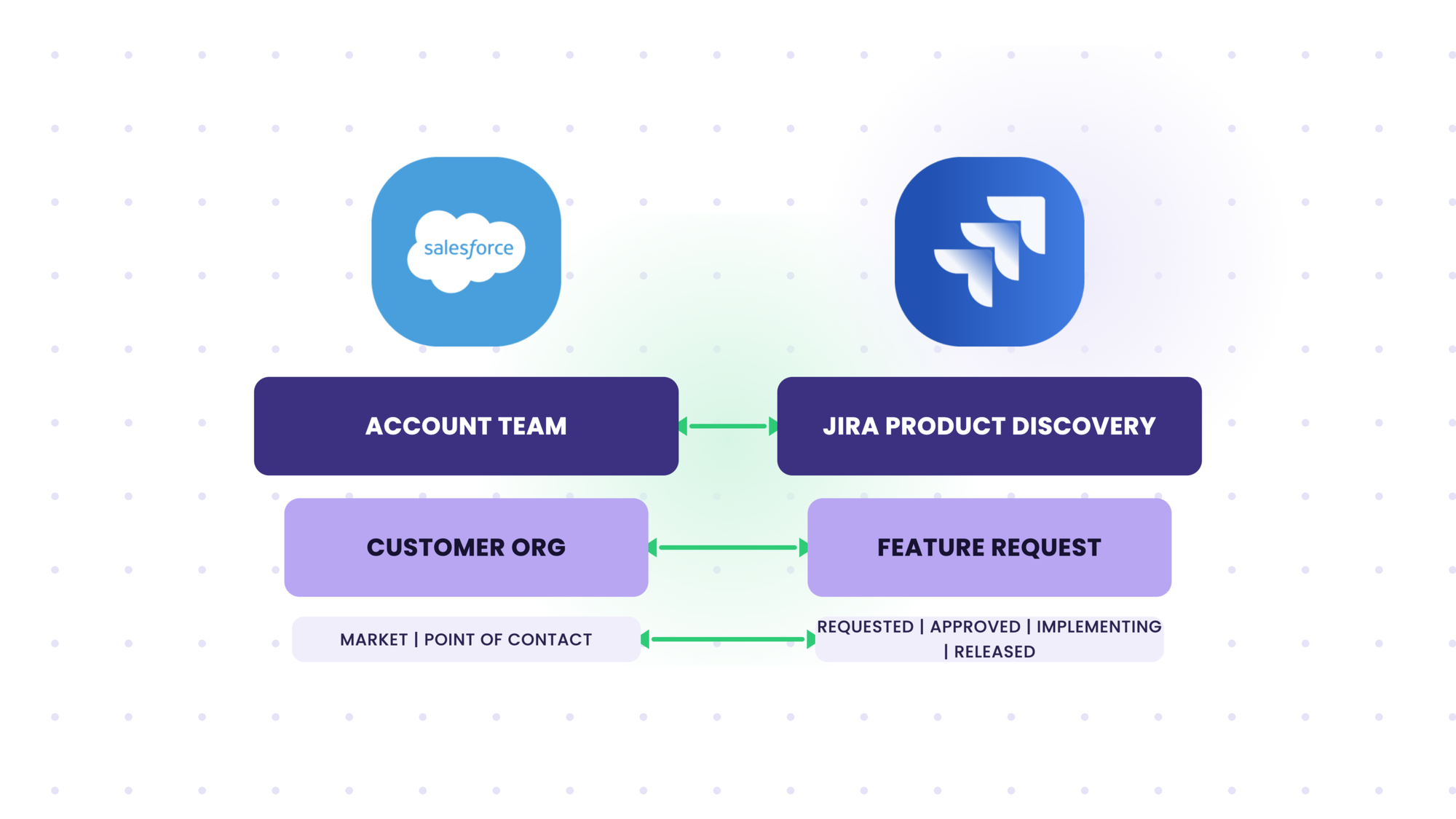
Exalate connects both systems in such a way that in a single JPD view, you see the customer organization, their market, and the point of contact tied to each feature request. The data comes from Salesforce, and when the POC changes there, the idea updates too.
The sync runs the other way as well. In Salesforce, your account team sees every feature a customer has requested and where each one stands in JPD: requested, approved, implementing, waiting for release, or released. Sales stops pinging product for status updates, and product stops digging through Salesforce to find out who wanted a feature and why.
Discuss your integration setup with our experts
Get free, expert advice on your setup. We’ll reach out via email to discuss your use case.
Use Case 2: Push Roadmap Items from JPD to Azure DevOps
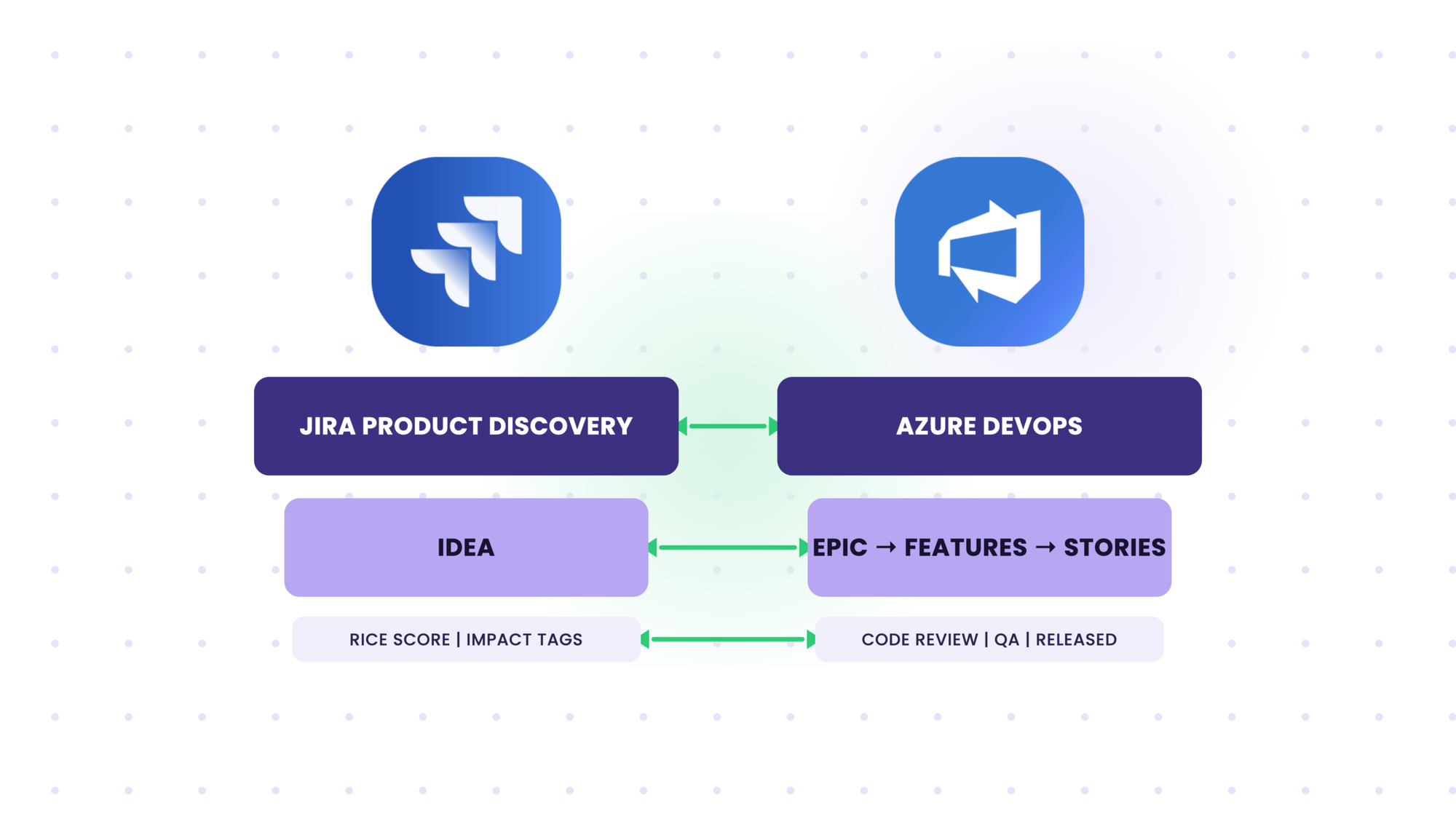
An idea maps to an Epic in Azure DevOps in most setups Exalate sees. If your Azure DevOps team splits Epics into Features and stories after that, that split happens on their side, since JPD doesn’t carry that hierarchy.
Pull up the fields your product team actually relies on in JPD before you build anything. RICE scores and impact tags almost always sync cleanly. A custom formula field or a heavily used Insight view is where you’ll want to script and test before promising anyone it works.
Getting Delivery Status Back into JPD
The sync runs both ways. Once an idea lands in Azure DevOps as an Epic, status updates flow back to JPD as the Epic moves through delivery.
Teams that build this out tend to want more than a simple done or not-done flag. One workflow Exalate has built for customers ties Jira story status directly to Azure DevOps pull request events: a story moves to Code Review the moment a PR goes up in ADO, Ready for QA once that PR is approved, and back to In Progress if QA rejects it.
At the release level, the same logic runs in reverse. Azure DevOps pushes the linked Jira release through UAT Approved, Security Approved, and CAB Approved as each gate clears, ending with a link back to the deployment pipeline once the release goes out.
None of that comes free. It has to be written into the sync rules on both sides. Once it’s there, the roadmap in JPD reflects what’s actually shipping instead of a status someone updates manually.
How to Set Up a Jira Product Discovery Integration
The setup is the same shape for both connections.
- Create an account with Exalate. Log in if you’ve already registered.
- Create a connection between the systems: Jira to Azure DevOps (ADO), Jira to Salesforce.
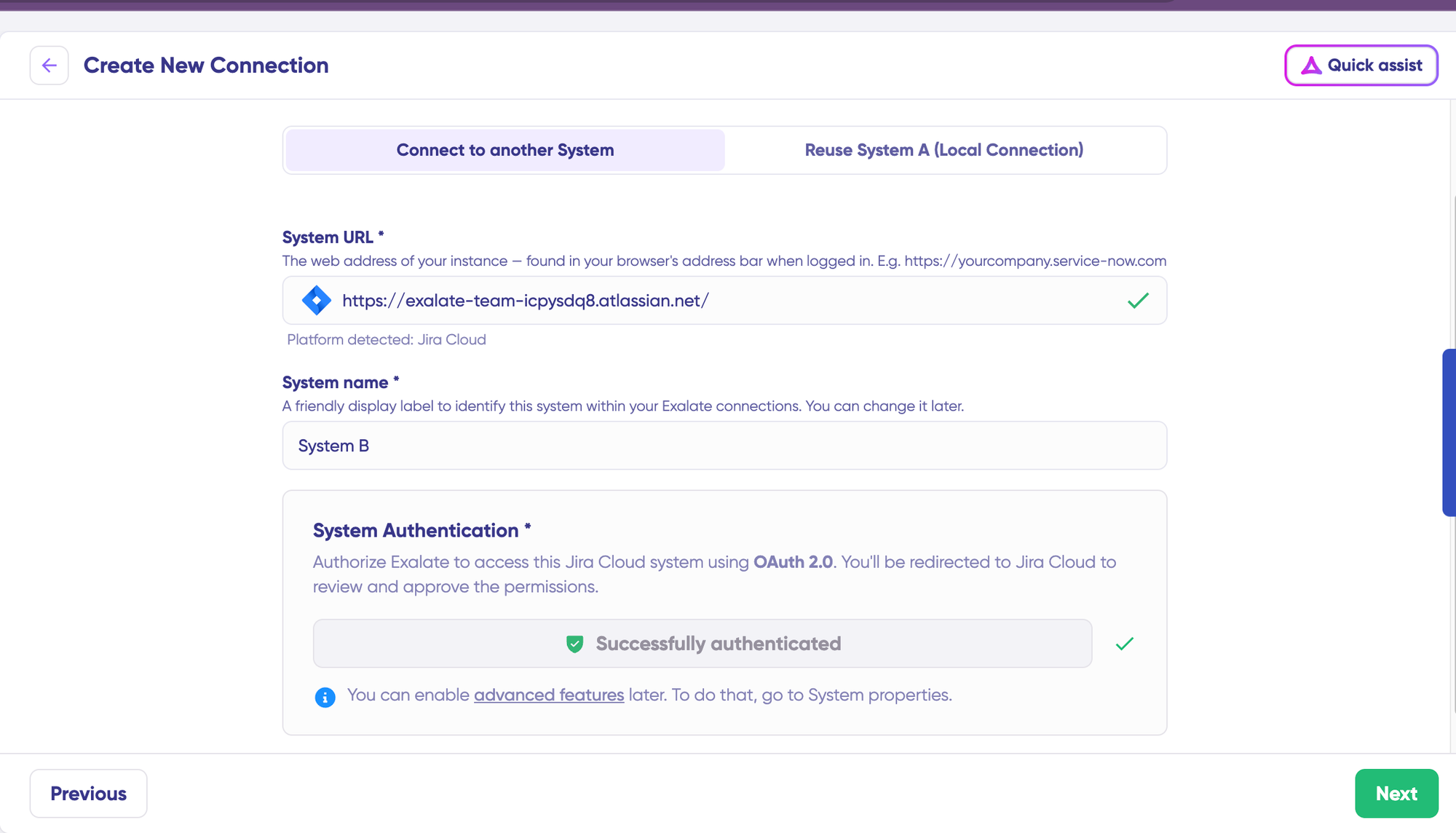
- Go through authentication steps to create your connection.
- Configure your sync rules. This is where you map fields between the two systems and decide the direction. Each side runs its own node, so your engineering team never needs Jira admin rights, and your product team never needs Azure DevOps admin rights.
- Create sync triggers. A trigger decides which items sync, using a Jira query language (JQL) on the source side (Jira). For Salesforce, that might be opportunities tied to a feature request. For Azure DevOps, it’s JPD ideas that are marked approved.
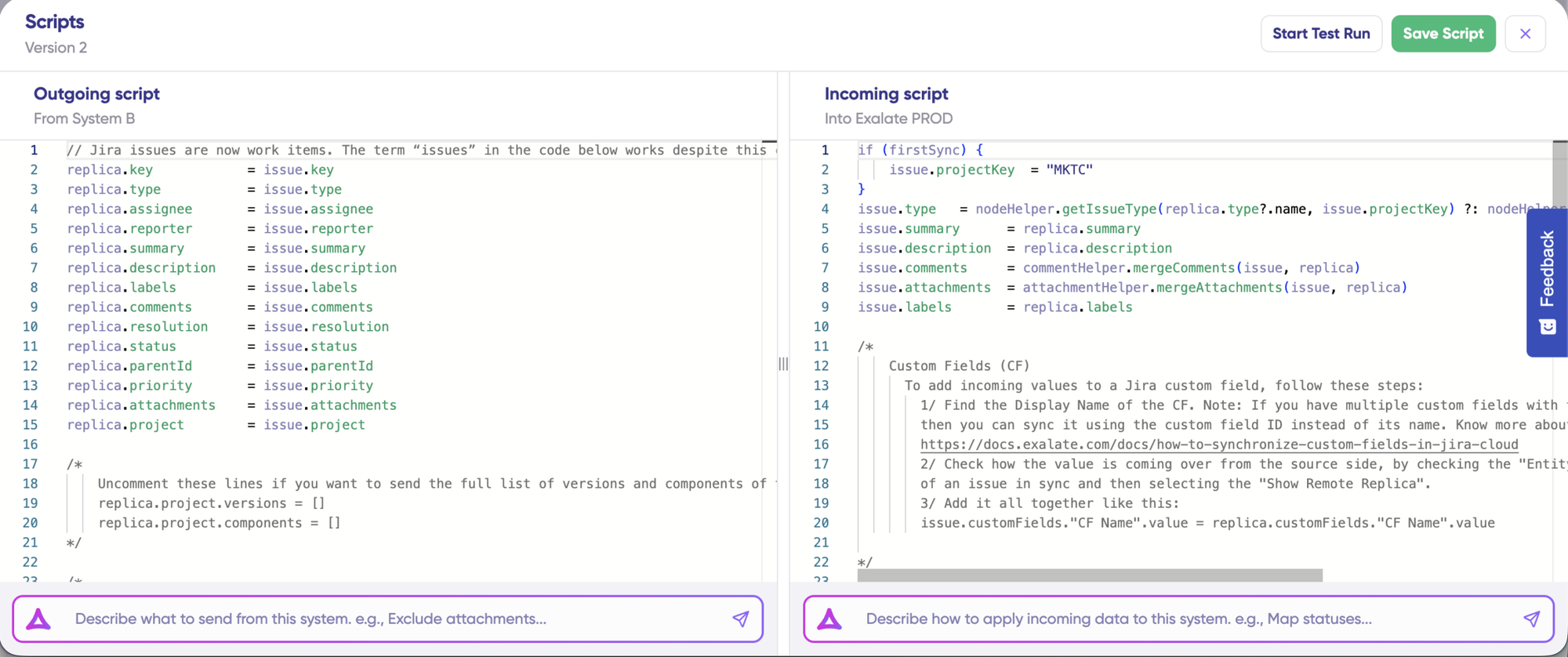
- Write the sync rules with the Groovy scripting engine based on your use case requirements.
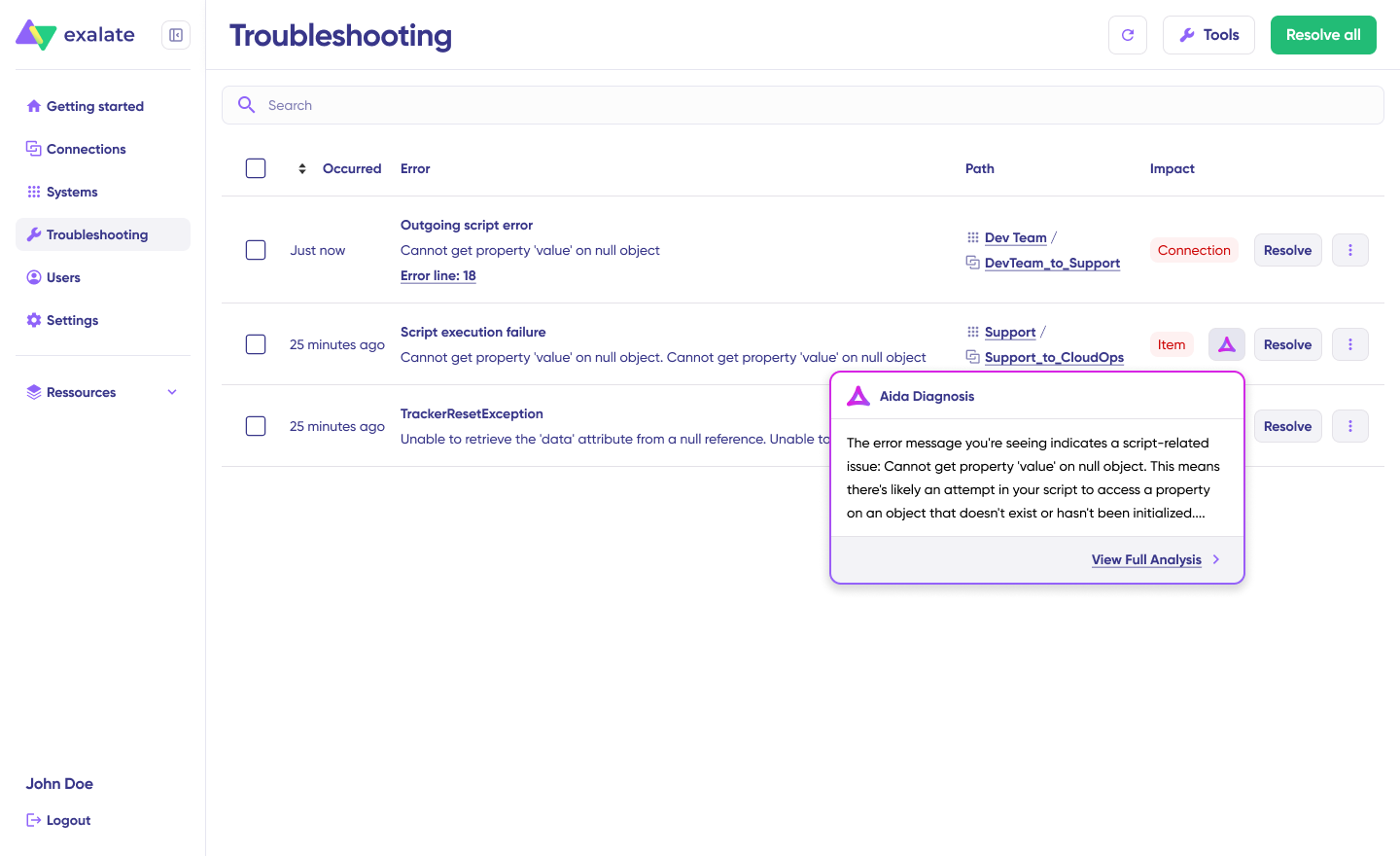
- Test the script before you go live. Run a test sync on a few items, confirm the field values land correctly on both sides, then publish.
The Access Problem This Solves along the Way
Product and engineering often don’t hold admin rights on each other’s tools, and that’s not a minor annoyance. For some teams, it’s the reason the project stalls.
One bank Exalate works with ran into this directly: their Jira admin wasn’t a super-admin in Azure DevOps, and corporate policy blocked direct access between the two systems.
Exalate’s node-based setup got around it, since neither side ever needed credentials on the other’s system to keep syncing. If your team has been stuck waiting on an access request just to test a connector, this is usually why, and it’s worth raising before the project gets shelved over it.
Rolling this out across several teams, instances, or partner companies? Talk to our sales team about an enterprise setup that fits your workflow.

FAQs
Does Jira Product Discovery have a public API?
No. The regular Jira Cloud API reads and updates JPD ideas as issues, but there’s no dedicated API for JPD-specific artifacts like insights or formula fields.
Can I sync an individual idea to Azure DevOps manually, the way I would a regular Jira issue?
No, not through JPD’s own screen. The manual Exalate Sync Panel doesn’t appear on the Idea view. A JQL-based trigger gets around this by picking up ready ideas on its own instead of waiting for a button that isn’t there.
Will RICE scores and formula fields sync?
RICE, impact, and effort scores sync without issues, since they’re standard custom fields. Formula fields don’t, since they never come through the Jira API in the first place.
Do I need Azure DevOps admin access to set this up?
No. Exalate runs a separate node on each system, so your Azure DevOps admin doesn’t have to grant your Jira team direct access, and the same holds true in reverse.
Does an idea have to become exactly one Epic?
In most setups, yes, one idea maps to one Epic. If engineering wants to split that Epic into Features and stories, that split happens in Azure DevOps after the sync, not before it.
Before You Build This
Both setups depend on which JPD fields you actually need to sync. Standard and custom fields are straightforward. Insights, views, and roadmap fields are where you’ll want to confirm support and plan for scripting if needed.
Pull up the fields your product team relies on in JPD and check each one against your sync rules before you commit to the build.
Need help setting up a JPD use case for your team? Book a call with our engineers to discuss the details or start a free trial directly.
Recommended Reads:
- How to Set Up a Jira Azure DevOps Integration: The Step-by-Step Guide
- How to Sync Custom Fields Between Jira and Azure DevOps
- How to Maintain Issue Links, Relations & Sub-task Mappings in a Jira Azure DevOps Sync
- How to Sync Sprints Between Jira Cloud and Azure DevOps
- Integration Use Cases Using Exalate