
When looking for integration tools to connect your systems, the first option is usually a native integration. This is usually a built-in connector that supports a one-way connection between a CRM, a work management system, an ERP, or a service desk.
But from what I know about native integrations, they usually come with several limitations, whether it is an Atlassian-backed Jira integration or a Salesforce-managed connector.
This piece goes through what each native option does in Jira, ServiceNow, Zendesk, Freshdesk, Azure DevOps, GitHub, Salesforce, and more.
Key Takeaways
- A native integration connects two tools that one vendor builds, ships, and maintains inside its own product.
- Some limitations of native integrations include one-to-one mapping at the instance level, a fixed set of fields, and only one record type covered properly. Plus, it doesn’t always work as a fully functional bidirectional sync tool.
- Zendesk side conversations can’t reach Jira via native integrations, since side conversations only support email, Slack, Microsoft Teams, and child tickets as channel types.
- ServiceNow’s Jira spoke is free to download but requires a paid IntegrationHub subscription to run.
- GitHub for Atlassian and Azure DevOps for Jira are visibility layers, not work item sync.
- Freshdesk’s Jira Plus app supports status sync and field mapping, but it lacks bulk or trigger-driven creation.
- MCP servers from vendors like Atlassian and ServiceNow allow an AI agent to read and write to both systems in the same session, but they lack mapping, conflict resolution, or an audit trail.

What is Native Integration?
A native integration is a way of connecting two tools like Jira and Azure DevOps such that they share data. There are native integrations provided by almost every software vendor: Atlassian (Jira), ServiceNow, Azure DevOps, Zendesk, etc. Usually, one vendor builds, ships, and maintains it inside its own product and is part of the software itself. The user can switch it on from a settings page or install it from that vendor’s marketplace without signing a new contract. Some of them are available at no extra cost, while others require additional subscriptions.
Some well-known native integrations include:
- Zendesk’s Jira app,
- GitHub for Atlassian,
- Azure DevOps for Jira (Official),
- ServiceNow’s IntegrationHub
- and Freshworks’ Atlassian Jira Plus app.
Native integrations usually work as an out-of-the-box integration or extensions of the features offered by their platform. So, each one is scoped to whatever fields, entities, and work type the vendor decides is worth supporting.
How Do Native Integrations Work?
Almost every native connector is an app installed on one side that calls the other side’s REST API using system credentials (API keys, tokens, authentication, etc.). However, every native integration works and syncs different kinds of data.
GitHub for Atlassian and Azure DevOps for Jira both read Jira work item keys out of branch names, commit messages, and pull request titles. Name your branch PROJ-123-fix-login and the commit shows up on that work item. Nothing is mapped or stored; the key in the text is the link.
Zendesk’s Jira integration helps connect Jira and Zendesk, which runs an OAuth flow against your subdomain and creates a dedicated user in Zendesk that handles all escalations, comments, and field updates. That user takes up one of your agent seats.
ServiceNow’s eBonding pattern connects two ServiceNow instances and writes the source incident number into the target record’s Correlation ID field, and the target’s number back into the source record. Each side then knows which remote record it’s paired with. Alongwith this information, it can also send some other additional data between two ServiceNow instances.
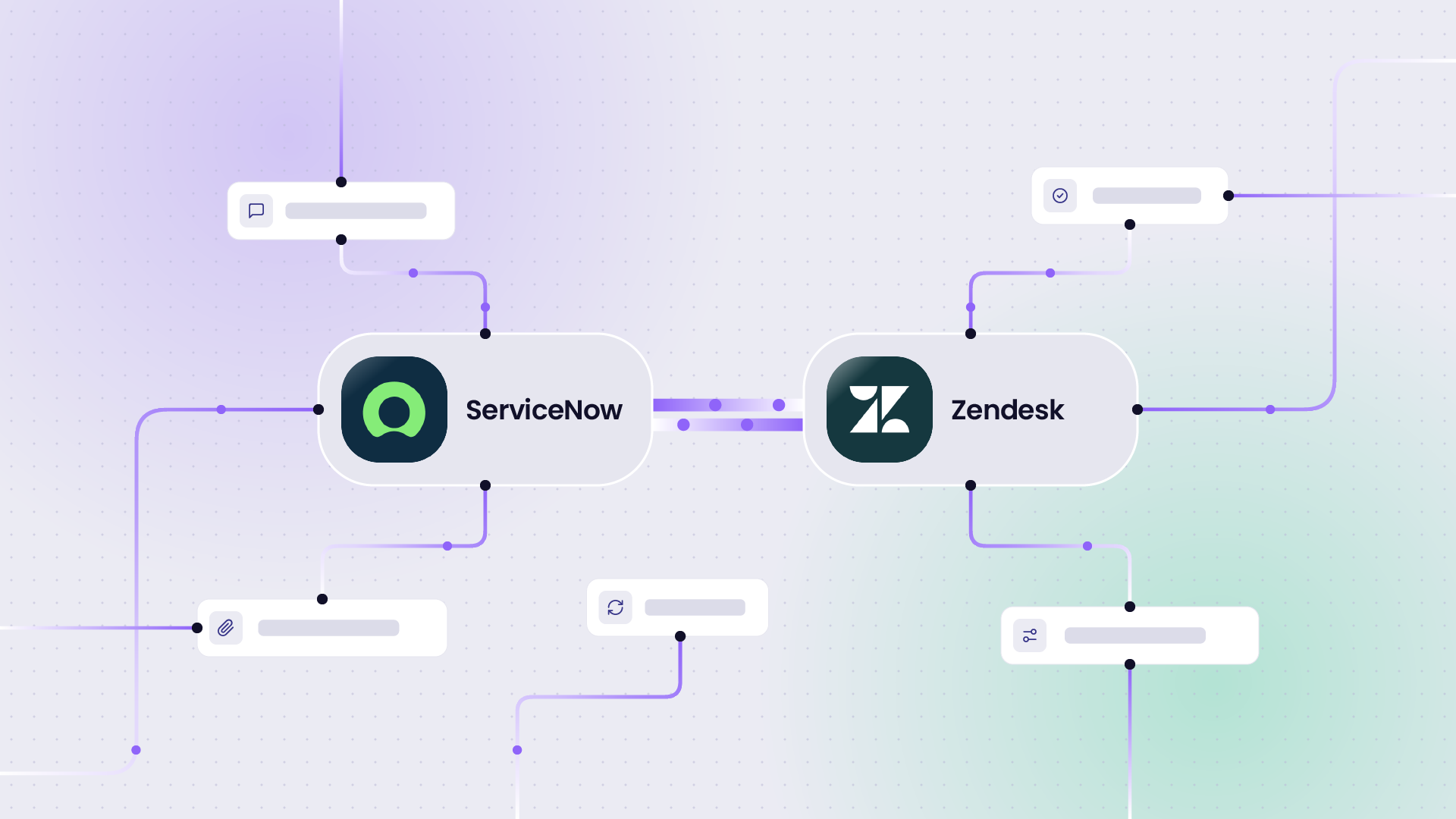
ServiceNow’s Jira spoke allows you to connect ServiceNow and Jira and gives you Flow Designer actions for the ServiceNow-to-Jira direction, and a webhook registry with routing policies for the Jira-to-ServiceNow direction. The return path has a default policy and subflow that require customization.
Freshdesk’s Jira Plus app connects Freshdesk and Jira. It is triggered when an agent searches Jira and manually links up to 5 Jira issues to a Freshdesk ticket.
So overall, the common denominator is that the data on your system can only be shared if the connector has API access and has shared credentials with the other system’s owner.
Why People Choose Native Integration
Providing some form of connection between systems has become an inevitable business need. Software vendors introduced native integrations for this exact reason. Organizations prefer them for the following reasons.
- Cost. This is the main reason because you don’t have to worry about budgeting. It ships with the product you already pay for. Project managers often introduce system integrations using native connectors because they have the lowest barrier to entry. If a single team wants a single connection between a single pair of instances, and no field-level control, native integration is the correct answer.
- Security review. Native integrations eliminate the need for a separate DPA (data processing agreement), vendor risk questionnaire, procurement cycle, and legal review of a new data processor for many enterprises.
- Setup and onboarding: The native app is usually available for download from the app marketplaces. You can also install and access them directly within the platform you’re using. So, the setup time is faster compared to third-party apps. Plus, onboarding is way easier since these apps usually give a native feel.
- Maintenance. The vendor maintains the native connector as their own API changes. For instance, when Atlassian makes a change to Jira Cloud, the Atlassian-built app is updated.
- Convenience. Native integrations are already embedded in your systems by default. The Jira app connector appears in the Zendesk ticket sidebar; the GitHub data appears in the Jira development panel. There’s no second console to learn, no separate admin to train, and no new URL for people to bookmark.
- Support. When the integration breaks, you can file a ticket with the vendor who built both the product and the connector, so neither party can blame the other.
- Limited infrastructure. With a native sync tool, you have nothing to host, nothing to patch, and your API tokens stay between vendors your security team already approved.
- Compliance. The vendor’s SOC 2 report and data processing terms usually cover the connector, so the security audit is never an issue.
- Community. Since the native connector is usually embedded in a popular system like Atlassian or Salesforce, which have massive communities, you can access vast resources and knowledge bases. GitHub for Atlassian has more than 136,000 installs. Whatever error you’re seeing, somebody has already posted about it, and somebody has already answered.
Native Integration Alternatives: Building Your Own Integration vs. an Integration Platform
Companies usually struggle deciding between these options. Let’s make it easier by understanding their differences.
Native Integration
A native integration is the vendor’s code running against the vendor’s own API. You get only the default features and nothing else. It is usually provided at no additional cost by the software vendor.
We have seen the necessary features and building blocks of native integrations in the previous section.
Building Your Own Integration
Another native integration alternative is to build the entire integration yourself, which means writing the code to connect with the system APIs, get the required data, and build custom logic for field mappings.
But, in the age-old “build vs buy” discussion, the primary concern has always been the cost. Building your own integration from scratch is an option when no connectors cover your use case, and your engineering team is capable of building and maintaining it.
Otherwise, you’d have to deal with a lot of complexities. For instance, you’d need a correlation store so both sides know which records are paired, and a retry queue for when the receiving system returns a 503 error.
When building your own integration, it has to be an API integration or any other custom connector. An API integration is your code running against both APIs (REST APIs).
You get exactly what you write, and you are also in charge of authentication, token refresh, retries, rate limits, field mapping, and error handling. Sometimes, API integration also involves API management across its entire lifecycle.
Custom API integrations are quite expensive because you have to account for the development and maintenance costs. You’d have to worry about rate limits, token refresh, and field mapping, especially for mandatory custom fields.
Some syncs also need a rule for what happens when both sides edit the same field (conflict handling), user matching between 2 directories that don’t share IDs, attachment handling, and an error log.
But here is the central focus of the native integration vs. API integration debate: most native connectors cover one-to-one mapping and one-way sync. Most allow you to sync a fixed field set, or a set you can map in one direction per field. Very few reach across company boundaries because both sides need admin access to each other’s instances. And many of them do not support many-to-one, one-to-many, or many-to-many connection scenarios.
Here are some headaches reported by different user bases:
- An integration specialist built a webhook integration between ServiceNow and Jira, then abandoned it because the cost was prohibitive: they needed additional services, and the call volume (number of calls over a specific period) created unplanned expenses.
- An Atlassian architect encountered licensing issues while creating a custom GitHub-to-Jira integration. They had to pay for licensing for GitHub, Jira Cloud, and Jira Data Center. All they needed was a selective sync of specific GitHub issues and comment sync that runs from GitHub to Jira but not the other way.
- Another service delivery manager split their integration workload between Workato and Exalate rather than building fully in-house. This option is quite common when the in-house tool cannot solve a specific problem that any available solution can provide.
- When an EU-based delivery manager hit licensing/maintenance walls while scaling a custom DC-to-Cloud setup, they had to abandon the project midway before it became a burden on the team.
The recurring pattern for all custom builds is that the connector works first, then the bill starts piling up with maintenance, licensing, and other unprecedented fees.

Calculate how much it would cost you to build your own integration from scratch.
An Integration Platform
An integration platform is usually a third-party app that holds the sync logic.
The option exists because native connectors are limited in scope, and custom builds stop scaling as requirements and work volumes expand.
One version of an integration platform comes in the form of middleware, such as an iPaaS or an eBonding tool, that sits between systems and handles sync logic, record pairing, and queuing.
It directly connects with the system APIs and enables them to exchange information. Authentication can be provided by the third-party vendor or handled by the underlying systems. The middleware already has the code and authentication set up, so you just have to tweak the configuration to get the connector working.
Instead of paying licensing fees for each additional field, entity, or system connection, you just need to purchase the integration platform.
Some solutions like Exalate help you set up cross-instance, cross-company, and bidirectional integration with field-level control and independent configuration on each side. It also comes with the option to script your integration logic at a granular level using Groovy-based scripts. Script-based tools like these give you the flexibility of building in-house while leaving the hurdles of setting up the security posture and maintaining the APIs (the bottlenecks in custom-coded integration) to a third-party vendor.
And then there’s another option. You can choose to combine native integrations with a third-party app so you get the best of both worlds.
I have discussed where this kind of setup is beneficial and when it can be an overkill in the following section.
When to Use Native Integration Alone or Combine It With an Integration Platform
| Use case | Native integration | Native integration + integration platform (Exalate) | Exalate |
| Single instance, single vendor pair, very basic use case. E.g.: When a Jira work item gets a specific label or status change, Jira Automation clones it into the target dev project | Right fit [Jira automation] | Overkill | Overkill |
| Dev activity visibility (commits, PRs). For e.g.: link ticket IDs in branches, commits, or PRs to auto-update ticket status and show code activity on the ticket. | Native only shows activity [GitHub for Atlassian] | Right fit: native app for visibility, platform for the work item sync | Works, but duplicates what the free native app already does well |
| Full bidirectional ticket or work item sync for advanced use cases. For e.g.: map and sync Jira issue links, hierarchies, and subtasks to Azure DevOps work items. | Not supported | Right fit (optional): native apps for one-way, platform for two-way work sync | Fully supported and the right fit |
| Multiple instances of the same tool (2+ Zendesk, 2+ Jira) | Most native connectors are one-to-one | Unnecessary | Right fit |
| Cross-company workflow sync where neither side gets admin access to the other’s instance | Not supported | Rare | Right fit |
| Free, manual linking or one-way automation | Right fit | Unnecessary | Overkill |
| Regulatory or data-segregation rules that need selective field sync | Most native tools sync a fixed set or nothing | Right fit (optional): native for basic visibility, platform for controlled field-level sync | Also valid alone |
| Already invested in ServiceNow IntegrationHub for other spokes (Slack, Teams) | Keep IntegrationHub for those | Right fit: add a platform for the cross-vendor pairs or advanced use cases that IntegrationHub doesn’t handle | Only if you’re replacing IntegrationHub entirely, which is a bigger decision |
Native Integration Examples
Here are some native integration examples that often come up in customer conversations.
Jump to the relevant section to view more details.
- Jira and ServiceNow: The Jira Spoke (IntegrationHub)
- ServiceNow and ServiceNow: eBonding Spoke (IntegrationHub)
- Jira and Zendesk (Zendesk Support for Jira app)
- Jira and Azure DevOps (Azure DevOps for Jira)
- Jira and GitHub (GitHub for Atlassian)
- Jira and Freshdesk (Atlassian Jira Plus app)
- Salesforce and other systems (CRM integration): MuleSoft
- Jira Automation: The Free Alternative
Jira ServiceNow Native Integration: The Jira Spoke (IntegrationHub)
IntegrationHub is ServiceNow’s native option to integrate it with other tools like Jira, Azure DevOps, etc. Jira Spoke allows you to integrate Jira with ServiceNow.
ServiceNow’s Jira spoke is a scoped app available for download from the ServiceNow Store. It adds Flow Designer actions, subflows, and webhook registries for Jira, and underneath it makes REST calls through the IntegrationHub REST action step.
It has more than 60 actions across issue management (create, update, delete, assign, transition, get, comments, attachments, watchers), project management, sprint management, and user and group lookups. Recent versions ship AI agents too.
Setting it up involves creating a Jira API token, then a credential record in ServiceNow holding the Jira username and that token, then an HTTP connection bound to the Jira connection alias. If your Jira is self-managed rather than Cloud, you also need a MID Server in the middle.
The ServiceNow-to-Jira direction is covered by those spoke actions. The Jira-to-ServiceNow direction runs on a webhook registry, which generates a callback URL you paste into Jira, plus routing policies that fire subflows when conditions match. A default routing policy and subflow ship with the spoke, and ServiceNow’s own documentation says they require customization.
Then there’s the licensing. You can download the spoke for free, but you’d need an active IntegrationHub subscription. ServiceNow’s legal addendum classifies Jira as a Professional Spoke and Jira Service Management as an Enterprise Spoke, and the entitlement table shows that an IntegrationHub Starter subscription only covers Starter spokes. So a Starter license doesn’t get you the Jira spoke.
Limitations
One service delivery manager had to abandon IntegrationHub for Exalate’s ServiceNow to Jira integration solution because they were uncomfortable with the knowledge gap required for Flow Designer, connection aliases, webhook registries, and subflow scripting.
Also, users have complained that the Jira Spoke often has limitations when updating certain reference fields, such as Assignee and Reporter, and the suggested workaround is to script around the spoke and call Jira’s API directly.
Moreover, since flows run with system privileges, comments from Jira are attributed to “System” rather than to a person or an integration user. So anyone reading the ticket loses the thread of who said what.
Jira workflow statuses and ServiceNow incident states use different values and vocabularies. This means you build the mapping yourself in system properties and flow scripts, then maintain it every time either team edits a workflow.
How Exalate Solves This Problem
A tool like Exalate provides bidirectional sync where both directions are configured the same way, so you’re not maintaining a spoke on one side and a webhook subflow on the other.
Users also get granular field-level mapping, including status vocabularies and user matching by email. Exalate also supports independent configuration on each side, especially when the ServiceNow and Jira instances belong to different companies.
If you’re comparing the two directly, check out a comprehensive evaluation of both ServiceNow IntegrationHub and Exalate, and real-world enterprise ITSM use cases cover what these integrations look like in production.
Examples:
- Sync a Jira story status with a ServiceNow change request’s approval stage.
- Sync a ServiceNow catalog request with a Jira story created in the matching project.
- Sync a Jira work’s label with an auto-created ServiceNow incident.
- Sync a ServiceNow problem record with a Jira story.
- Sync a ServiceNow Service Task, a subtask of a RITM record, with a Jira subtask.
- Sync a Jira assignee field with ServiceNow.
ServiceNow to ServiceNow Native Integration: The eBonding and Remote Instance Spokes
You can visualize this as two ServiceNow instances syncing incidents to each other, using Correlation IDs to keep records paired and Flow Designer to trigger the flow on incident creation and update.
The original eBonding spoke is described by ServiceNow as a demo spoke for syncing incidents between two production instances, and it’s deprecated for Orlando and above. The supported successor is the ServiceNow Remote Instance Spoke.
Out of the box, you get 2 actions: Create Remote Incident and Update Remote Incident. The fields supported include short description, description, state, caller, business service, category, subcategory, impact, urgency, CI, assignment group, assigned to, contact type, and correlation ID.
Limitations
The Remote Instance spoke supports Incidents only. Change requests, problems, requests, and custom tables all need custom development. Attachments and work notes aren’t included out of the box either; both need script includes and REST-based flows.
One instance owns and orchestrates the flow, so the partner org can’t govern its own mappings independently. And most importantly, it only supports ServiceNow-to-ServiceNow connections by design, so it doesn’t work for ServiceNow-to-Jira or ServiceNow-to-Zendesk.
How Exalate Solves This Problem
Choose an integration platform like Exalate if you want to connect multiple ServiceNow instances with enough flexibility to share data and scale with volumes across two or more organizations.
Check out some of the unique use cases that are supported between two ServiceNow instances.
Examples:
- Sync a customer ServiceNow instance with an MSP’s own ServiceNow instance, triggered by a “send to MSP” checkbox.
- Sync ServiceNow incidents, problems, change requests, RITMs, service requests and any ServiceNow entity accessible via tables.
The Jira Zendesk Native App: The One-to-One Limit
The two common ones are the Zendesk Support for Jira app from the Atlassian Marketplace on the Jira side, plus the Jira app inside Zendesk. It’s free and is also available on every Zendesk Suite and Support plan above Team.
Setup runs an OAuth flow against your Zendesk subdomain and creates a dedicated Jira integration service user to handle all escalation, commenting, and field-sync tasks. That user occupies one of your paid agent seats, and both the user and the admin who installed the integration must remain active, or the integration stops.
With these options, comments can only sync when an agent explicitly uses the “Notify issue” action. Zendesk tags prefixed with jira_ become Jira labels, and a jira_escalated label is applied when a ticket is escalated.
Zendesk to Jira supports priority, type, date, decimal, numeric, drop-down, text, and multi-line text. Jira to Zendesk supports description, due date, environment, priority, sprint, status, summary, and custom number and text fields, and it needs a webhook created in Jira with a secret pasted in.
Limitations
It supports only one-to-one connections between a Zendesk account and a Jira account. Connecting a second Jira account overwrites the first configuration.
So if you have 3 Jira instances that need to be synced with one Zendesk instance, say during a merger or in an MSP setup, this option will fall short of your requirements.
Also, every field is one-directional, and custom ticket status fields aren’t supported. Even Jira Data Center and Server aren’t supported for field sync. Only tickets and issues created after you configure it are covered, so there’s no historical backfill.
Zendesk’s side conversations support only email, Slack, Microsoft Teams, and child tickets. Jira isn’t one of them. So if your support team’s habit is to open a side conversation to hand something to engineering, the native integration would never pick it up.
Incidents linked to a problem ticket don’t inherit the problem ticket’s Jira link, and the priority models don’t map cleanly (Low, Normal, High, Urgent against P3, P2, P1, Blocker). For cross-company sync, you’d have to give the other system admins full admin access to your Zendesk.
How Exalate Solves This Problem
Exalate works when you have multiple instances on either side, two-way sync per field including status, scripted conditions so you decide what escalates, and separate handling of public comments and internal notes so a private investigation stays private.
Here are the specific Jira-to-Zendesk use cases covered by Exalate:
- Sync statuses and custom fields between Jira and Zendesk,
- Sync side conversations between Zendesk and Jira,
- Sync one Zendesk ticket into multiple Jira Cloud instances,
- Sync multiple Zendesk tickets into a single Jira issue,
- Sync custom dropdown and list fields,
- Append the Jira issue key to a private Zendesk comment,
- Sync three separate systems in a Salesforce, Zendesk, and Jira workflow.
Azure DevOps for Jira (Official) Native Integration: Dev Activity vs. Work Item Sync
Azure DevOps for Jira (Official) is a free Jira Cloud tool built by Atlassian to connect Jira with Azure DevOps. It feeds branches, commits, pull requests, builds, and deployments into the Jira work item view, plus deployment frequency metrics and the releases feature.
The sync can only start when there is a match with a branch named PROJ-123-something, a commit message containing PROJ-123, or a Jira key in a pull request title or description.
Caveat
There’s a second app called “Azure DevOps for Jira” that’s paid and not supported by Atlassian.
Limitations
According to users, the app only links keys added inside a pipeline’s own repository, and it won’t recognize keys from other repositories.
Neither Atlassian’s integration documentation nor the Marketplace listing describes how to create or update Azure DevOps work items from Jira issues, map custom fields, or route across projects. Nothing flows from Jira into Azure DevOps as a work item.
Which means every Azure DevOps and Jira use case that requires work item sync is currently either a manual process or a custom build.
How Exalate Solves This Problem
Exalate supports Jira to Azure DevOps two-way work item sync, field mapping including issue type and status, comment sync, and attachment handling.
You can keep the free Atlassian app for commits and deployments, and put the work item sync somewhere else.
Examples:
- Sync a Jira story status with an Azure DevOps pull request state as it moves through Code Review, Ready for QA, and Done.
- Sync a Jira work item with multiple Azure DevOps tickets, keeping the issue type, priority, status, assignee, and reporter in sync in both directions.
- Sync items from a single Azure DevOps project across multiple Jira projects (spaces).
- Sync a Jira epic’s planning fields, such as start and end date, sprint, title, and status, one-way into an Azure DevOps feature.
- Sync Azure DevOps user stories one-way into a Jira project after an acquisition, until the acquired team migrates off Jira.
Read more about Jira to Azure DevOps integration use cases supported by Exalate.
GitHub for Atlassian: Jira GitHub Native Integration
Native Option
GitHub for Atlassian (built by Atlassian) is a free Jira integration solution with more than 136,000 installs that connects GitHub and Jira.
It registers your GitHub repos into Atlassian’s Teamwork Graph, so the data reaches Jira, Compass, and Rovo rather than only a dev panel. GitHub for Atlassian syncs commits, branches, pull requests, and PR comments, workflow runs, deployment status, builds, and code scanning events. Historical data backfills asynchronously, which can take a while in large orgs.
Smart Commits give you 3 commands from a commit message: #comment, #time for work logging, and #transition for a workflow transition. Creating a branch from a Jira work item is the one write path that goes from Jira into GitHub.
Limitations
A command can’t span more than one line, and the committer’s email has to match exactly one Jira user with permission to do the action. Time tracking also has to be enabled by an admin, and a valid workflow transition has to exist.
There is no sync between Jira issues (tasks) and GitHub issues. Atlassian’s own FAQ describes development activity flowing into Jira and never mentions GitHub Issues. You also don’t get field-level mapping and have no control over which comments are visible where, which matters for support-facing work.
GitHub labels routinely contain spaces, and Jira labels can’t. On sync into Jira, a space becomes an underscore. So anything that comes in with a space is flagged as an error when creating the label anyway.
How Exalate Solves This Problem
Exalate uses bidirectional issue sync, label-based routing with label transformation, comment sync with direction control per side, and field mapping. You can sync only selected GitHub issues rather than all of them, and let all GitHub comments reach Jira without sending Jira comments back to the public repo.
Examples:
- Sync title, description, state, priority, and assignee between GitHub issues and Jira work items.
- Sync a Jira work item assigned to certain users with an auto-created GitHub repo of the same name.
- Sync Jira epics, stories, and defects with GitHub, syncing comments and status back to Jira.
Find more details in the Jira GitHub issues integration article.
Atlassian Jira Plus App: Jira Freshdesk Native Integration
Native Option
The Atlassian Jira Plus app is a free solution built and verified by Freshworks, which is available on the Free, Growth, Pro, and Enterprise plans.
An agent either searches Jira by ID or summary to link an existing issue, or creates a new Jira issue from the ticket. The cap is 5 Jira issues per Freshdesk ticket. Comments and notes sync both ways, including reflecting edits to a Jira comment back into the Freshdesk ticket.
Status sync exists, with one-to-one Jira-to-Freshdesk status mappings. You also have access to a global setting that controls what happens when a Freshdesk ticket status changes: do nothing, update status in Jira, or add a comment in Jira.
There are also field mappings for standard and custom fields, including source, group, agent, customer name, email, phone, and company name.
Limitations
There is no Freshdesk automation rule that creates a Jira issue on a trigger, so escalation is a per-ticket decision an agent makes manually. At low volume, that’s fine, but things get more complicated when your L1 team is escalating a few dozen tickets a week.
The mapping model is also fixed at one-to-one on status, so branching logic (this Freshdesk status maps to different Jira statuses depending on issue type) isn’t available.
How Exalate Solves This Problem
Exalate has a free Freshdesk Connector for Jira listed there too, which handles public versus internal notes separately and multi-level L1, L2, and L3 escalation. Additionally, you can implement a lot of advanced Jira Freshdesk use cases using Exalate.
The Freshdesk connector page has the full field list.
Examples:
- Sync a new Freshdesk ticket with an auto-created Jira Service Management alert.
- Sync inline images between Freshdesk and Jira.
- Sync Jira Service Management tickets so they can be fully managed from Freshdesk.
Salesforce and MuleSoft
MuleSoft’s Salesforce integration isn’t a native connector in the same way Zendesk’s Jira app is. Salesforce acquired MuleSoft in 2018 for an enterprise value of about $6.5 billion, and Anypoint Platform is sold on its own price list, independent of your CRM seats, with annual contracts and custom pricing.
You get the following features and products:
- MuleSoft for Flow for low-code integration inside Salesforce Flow,
- MuleSoft RPA for desktop task automation,
- MuleSoft IDP for extracting data from documents
MuleSoft Direct gives you prebuilt, industry-specific integration assets you deploy from an Industry Cloud setup menu. That covers Salesforce-to-SAP customer, product, and sales order sync in Manufacturing Cloud, and EHR and claims integrations in Health Cloud.
Use Cases for MuleSoft for Jira and Salesforce Integration
Let’s say you want users to input details only in Jira, rather than having to enter them in both Jira and Salesforce; you’d want to reduce the number of Salesforce licenses purchased.
You can also get Jira comments flowing to Salesforce Chatter and Salesforce email messages and Chatter posts flowing back to Jira.
Instead of duplicating contract data from Salesforce into Jira, you can automate the connection so that once fields are populated on one side, the changes will reflect on the other.
How Exalate Solves This Problem
Exalate supports Jira-to-Salesforce integration, which you can implement as a MuleSoft alternative.
Some use cases for Exalate in the scenario include:
- Updating a Salesforce account from a Jira custom field.
- Syncing status and custom fields between Jira and Salesforce
- Syncing a single Salesforce case to multiple Jira projects (spaces).
- Syncing multiple Salesforce cases to a single Jira Epic.
- Move Salesforce data to Zendesk and then to Jira.
- Sync a Salesforce opportunity with a Jira ticket once it reaches “Solutioning.”
Check out more Jira-Salesforce use cases if you want the specific configurations.
Beyond Jira, you also have Salesforce use cases for the following systems:
- Sync a Salesforce case with an Azure DevOps work item, so closing the DevOps item updates the linked case.
- Sync a Zendesk ticket with a Salesforce case created by a partner org.
- Sync two separate Zendesk orgs with one shared Salesforce org.
- Sync a ServiceNow incident with a Salesforce case.
Jira Automation: The Free Jira Native Integration Alternative
Jira Automation is Atlassian’s built-in rule engine: triggers, conditions, and actions, configured in Jira, running inside Jira.
It reaches outside Jira through one action: Send web request. This makes an outbound HTTP call and can capture the response for later actions, sending the payload as Jira-format work item data, automation-format data, or a custom body.
Limitations
Only certain destination ports are allowed, organization admins can restrict which domains you may call, and hidden values that mask secrets are irreversible and permanently lost if a rule is duplicated, exported, or imported.
Jira automation is also Cloud-only and requires manually created tokens and application IDs; it performs one-time creation and linking rather than ongoing sync. There’s no correlation store, no replay of a failed call, and no concept of a synced pair.
Monthly rule runs are capped at 100 on Free, 1,700 on Standard, 1,000 per user on Premium, and unlimited on Enterprise. Every rule scope counts toward that budget, including single-project rules that used to be free.
Why Customers Pick It Anyway
Jira Automation is a safe choice because it comes already embedded as a native Jira integration. It is only a viable solution for straightforward one-way syncs and automated workflows that require no configuration at all.
How Exalate Solves This Problem
Exalate extends Jira automation by providing a customizable synchronization option for users who want more control and flexibility over their connection. Some organizations use both connectors: Jira Automation for straightforward integrations and Exalate for complex scenarios that involve custom fields and different entity types.
With Exalate, you can also sync Tempo worklogs and insight objects. You can also sync user mentions within comments, as well as share data between specific Jira Epics.
AI as a Native Integration Option: Connecting Systems Through MCP Servers
Atlassian, Salesforce, ServiceNow, and other major vendors now expose their platforms through the Model Context Protocol (MCP). Any MCP-compatible AI client can search, read, and write records in natural language, scoped to the connected user’s permissions.
- Atlassian’s Rovo MCP Server covers Jira, Confluence, JSM operations, Bitbucket Cloud, and Compass. On the Jira side, you get read tools, JQL search, and write tools for creating an issue, editing an issue, adding a comment, logging work, and transitioning a task.
- ServiceNow’s MCP server is limited to Now Assist skills, as part of AI Agent Fabric. The platform-wide MCP Server Console exposes Now Assist skills, Knowledge Graph traversal with node-level ACLs, Flow Designer subflows and actions, and scripted REST APIs.
- GitHub’s MCP server supports only Entra ID auth, which means the officially supported client list is Microsoft-only; Salesforce’s hosted MCP servers are also available.
- Zendesk shipped an MCP client that lets Zendesk call out to other MCP servers, and has no server that exposes Zendesk to external AI.
What That Looks Like in Practice
An AI client can connect to both systems’ servers (e.g., ServiceNow and Atlassian MCP) in the same session. Someone asks it to check ServiceNow for new P1 incidents and create matching Jira work items with the same priority and description.
Someone writes the cross-system logic every time. Both servers give an agent single-object CRUD: get an issue, create an issue, add a comment. There’s no tool for a relationship between 2 systems, no mapping, no sync state, no reconciliation.
MCP Servers are also request-driven. You also don’t get field mapping, conflict resolution, or an audit trail. Every dimension in the next section falls to whoever writes the agent’s instructions, with no consistency guarantee across thousands of records.
ServiceNow’s MCP Server Console also exposes only synchronous Flow Designer assets and excludes async and wait-step flows, which are exactly the long-running flows that real cross-system eBonding depends on.
MCP servers struggle with interpreting data:
- what should happen when two fields have the same name;
- how are conflicts handled;
- how are fields mapped on each system;
- what happens when one side changes the configuration without informing the other.
It’s easy to connect systems using an MCP server, since it also handles authentication for you. But understanding the semantics behind those systems is where these AI agents are still immature. If they lack the proper context, interpretation fails, and they proceed with an incorrect interpretation, resulting in output that looks plausible but is wrong.
The overarching problem is that MCP Servers create a connector sprawl that continues to expand as more systems are added to the workflow. If capability is integrated per client, the work is X clients times Y systems, and it repeats every time either number changes.
Sync Characteristics To Consider In Native Integrations: Bidirectional Updates, Reclassification, and Conflicts
Here are some characteristics of a sync based on the direction of data flow, propagation, and reclassification.
How Bidirectional Update Works
Bidirectional sync often means that comments move both ways, while status and custom fields move in one direction each.
Native integrations: Bidirectional syncing of the same field is not supported. Atlassian’s GitHub app uses “two-way” to describe dev data plus branch creation from Jira. Someone has to note the changes and replicate them manually.
Integration platforms: a change on either side, whether status, field, comment, or attachment, propagates in both directions on an ongoing basis.
How a Change Propagates
Native: Most native apps fire on a single webhook event or a fixed schedule, with no retry if the event is missed or the receiving system is briefly down.
Platform: JQL or query-based triggers, incoming and outgoing sync scripts, and delta copies, so you can see what changed, when, and why. Integration enthusiasts report that syncing around 1,000 historical issues in bulk was done with a JQL trigger designed to iterate over all of them, rather than a black-box refresh.
Reclassification: When the Record Type Changes Mid-Flight
Native: Most native connectors sync a record at creation and struggle with a type change afterward. If you reclassify a Jira bug as a story or change a ticket type after the initial link, the link either breaks or you get a duplicate record.
Platform: Sync rules can treat a type change as an update rather than a new event, so the linked pair stays intact.
Conflict Handling
Native: Last write wins by default, with no visibility into what got overwritten or when.
Platform: Field-level rules let you define resolution behavior per field, rather than a single blanket overwrite rule for every field on every record.
Filters and Triggers
Native: Since native connectors are rarely built to be selectively configured, there is no way to filter out sensitive data or PII in a standard integration between systems.
Platform: Queries and default-value fallbacks control the data flow. That includes collapsing a long status list on one side into a shorter one on the other, and setting a default assignee when the source record doesn’t have one.
When Native Integration is the Right Call
- A native integration is the right call if you have only one instance of each tool, both owned by you, or you have one pair of systems for internal use only, and a workflow simple enough that a fixed field set covers it.
- You can also go native if you are the head of a budget-constrained team where manual linking is enough. If your support team escalates 5 tickets a week, Freshdesk’s Jira Plus app is the best fit.
- GitHub for Atlassian and Azure DevOps for Jira provide you with visibility into dev activity data.
What’s Next?
If you have 2 or more instances of a tool, usually after a merger or acquisition, and the native connector only supports one configuration, you need something more robust.
If you want more control over the information that flows from one system to another, you need to use a third-party integration tool or at least embed it in your stack.
Exalate is a bidirectional integration solution that provides a scripting engine equipped with an AI scripting assistant (Aida), which you can prompt to configure and troubleshoot your connections. It also comes with script versioning, a dashboard to monitor all your active syncs, and a browser extension called Sync Panel to control syncs outside the console.
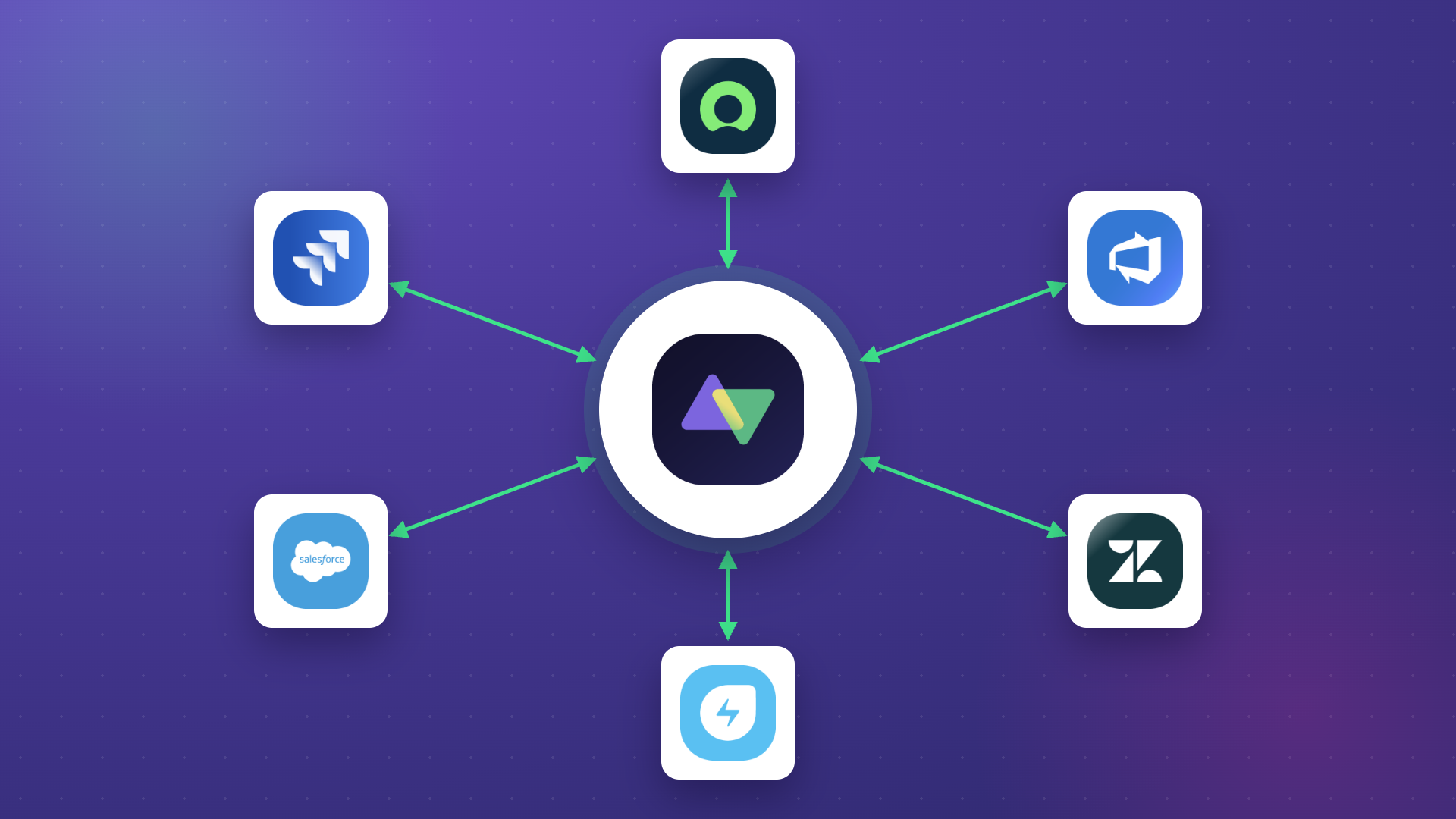
Exalate’s scripting capability allows you to implement any use case involving systems such as Jira, Azure DevOps, Zendesk, Freshdesk, Freshservice, ServiceNow, Asana, Salesforce, GitHub, and more.
If you have a use case that falls within this scope or even outside it, reach out to our team right away to discuss the details.
You can also start a free Exalate trial to explore things on your own before moving forward.
Recommended Reading: