
Work management and version control need to sync seamlessly for effective development workflows. Teams using Jira for project management and GitHub for code often struggle with visibility; developers work in GitHub Issues while project managers track progress in Jira, creating information silos that slow teams down.
A Jira GitHub Issues integration solves this by synchronizing work items, pull requests, comments, and statuses across both platforms. Teams get unified visibility without abandoning their preferred tools.
This guide covers how Jira GitHub Issues integration works, when you need it, and how to evaluate integration solutions for your team.
Key Takeaways
- GitHub Issues provides lightweight task management within repositories, while Jira offers advanced project tracking with custom workflows and estimation tools.
- Integration eliminates manual context switching by automatically syncing updates between platforms in real time.
- Bidirectional sync ensures changes in either platform reflect across both systems without manual intervention.
- Field-level mapping control lets teams customize exactly what data syncs and how it transforms between platforms.
- Security features like role-based access control and encrypted connections protect sensitive data during synchronization.
- Multi-platform integrations extend beyond Jira-GitHub to include Freshservice, Freshdesk, Asana, Azure DevOps Server, and other enterprise tools.

Jira vs. GitHub Issues
Jira is Atlassian’s project management platform designed for tracking work across development, testing, deployment, and release cycles. It provides advanced features like custom workflows, estimation through story points, sprint planning, and configurable dashboards with multiple view options (Kanban, Scrum, roadmaps).
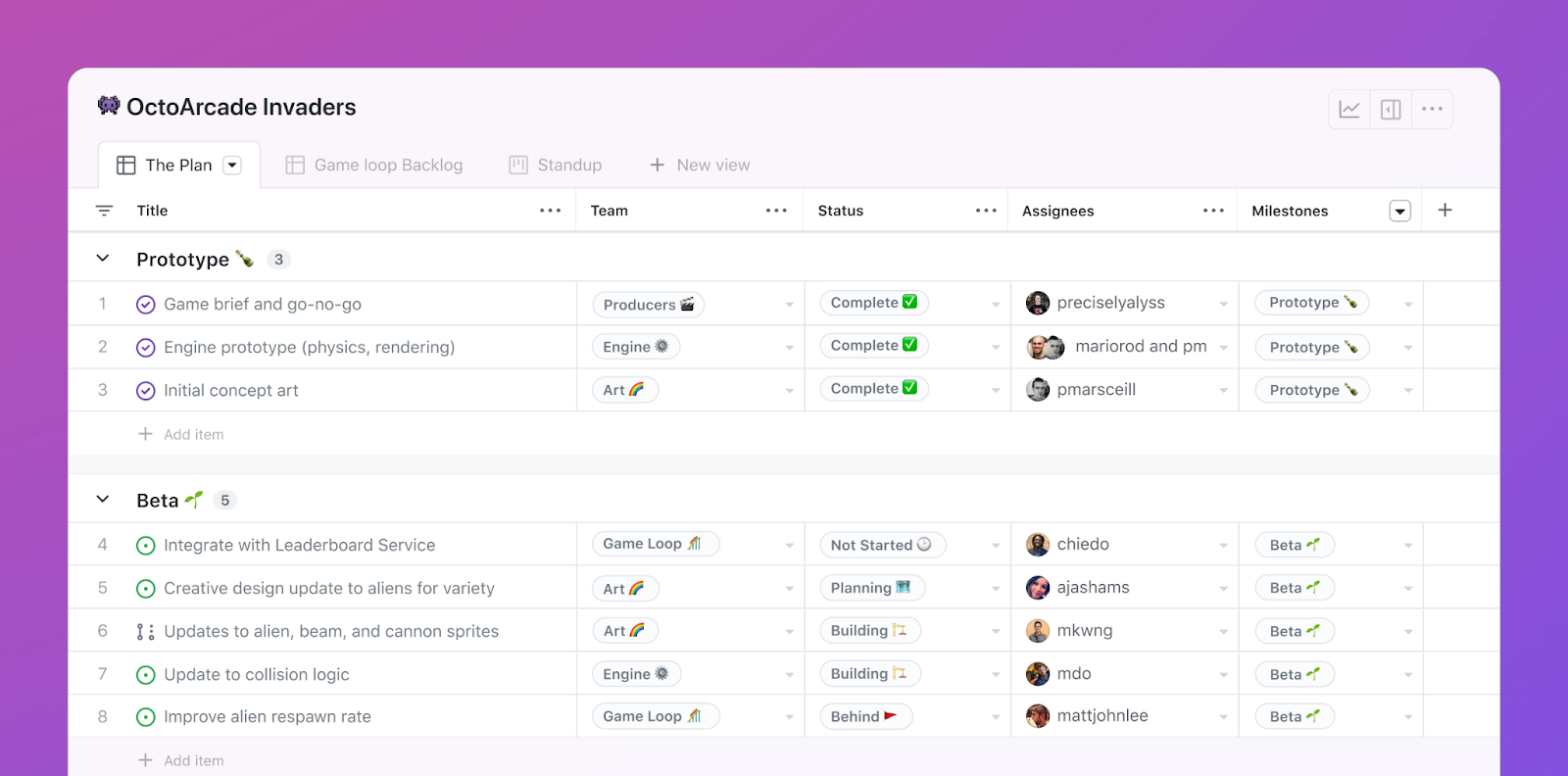
GitHub Issues is a lightweight task tracker built directly into GitHub repositories. Developers use it to track bugs, feature requests, and tasks tied to specific repositories. It links directly with pull requests, commits, and branches, making it natural for developers who live in GitHub.
Key differences:
- Unified views: Jira offers centralized views across multiple projects with custom filters and boards. GitHub Issues shows work on a repository-by-repository basis with limited cross-repo visibility, though GitHub Projects attempts to address this.
- Customization depth: Jira supports extensive customization: custom fields, issue types (now called work item types), automation rules, and third-party apps from Atlassian Marketplace. GitHub Issues provides a simpler experience with basic labels, milestones, and assignees.
- Estimation and planning: Jira tracks story points, sprint velocity, and burndown charts for agile planning. GitHub Issues lacks native estimation features, relying on external tools or manual tracking.
- Board options: Jira provides Kanban, Scrum, and custom board types with advanced filtering. GitHub offers basic Kanban boards through GitHub Projects.
While both platforms track work, they target different users. Developers prefer GitHub Issues for its tight integration with code and minimal overhead. Project managers, product owners, and cross-functional teams prefer Jira for its visibility, planning tools, and workflow flexibility.
Further Reading: How to Set Up a Jira GitHub Integration.
When You Need Jira GitHub Issues Integration
Integration makes sense when teams are split across platforms and need shared visibility. Here are specific scenarios where Jira GitHub Issues integration solves real problems:
Cross-functional development visibility
Case: Development teams work in GitHub, managing code, pull requests, and technical tasks. Meanwhile, product managers and QA teams track progress in Jira. Without integration, PMs can’t see which features are in development, and QA doesn’t know when code is ready for testing.
Solution: Bidirectional integration automatically syncs GitHub Issues to Jira work items. When developers create or update a GitHub Issue, the corresponding Jira work item updates in real time. When QA marks a Jira work item as ready for testing, GitHub receives the status change.
Real-world application: A SaaS company with separate engineering and product teams eliminated daily status meetings by implementing integration. Product managers now see development progress directly in Jira without interrupting developers, while engineers get QA feedback in GitHub without switching tools.
External collaboration with partners
Case: A software vendor collaborates with external development agencies that work in their own GitHub repositories. The vendor tracks all work centrally in Jira but needs visibility into partner progress without granting full access to internal Jira projects.
Solution: Integration creates secure connections between the vendor’s Jira instance and each partner’s GitHub repository. Partners continue working in GitHub Issues using their existing workflows, while the vendor receives synchronized updates in Jira.
Real-world application: An enterprise platform provider works with three regional development partners. Each partner maintains their GitHub repository with different conventions and processes. Integration syncs relevant work to the vendor’s Jira instance while respecting each organization’s data boundaries and access controls.
Managing work items across tool preferences
Case: Some team members prefer Jira’s robust project management features, while others want to stay in GitHub where the code lives. Forcing everyone onto one platform creates resistance and reduces productivity.
Solution: Let each team use their preferred tool while integration keeps work synchronized. Developers create and update work in GitHub Issues, project managers track progress in Jira, and both sides see the same information.
Real-world application: A fintech company’s developers strongly preferred GitHub’s developer-centric workflow, while compliance and project management required Jira’s audit trails and reporting. Integration allowed both teams to work effectively without compromise.
Automated updates from GitHub to Jira
Case: When developers merge pull requests or resolve GitHub Issues, project managers need to know immediately. Manual updates create delays and errors.
Solution: Integration automatically updates Jira work items when GitHub Issues change status, when pull requests are merged, or when commits reference specific work items. Attachments and comments sync bidirectionally.
Real-world application: A healthcare software company reduced QA cycle time by 30% because testers received automated notifications in Jira the moment developers marked GitHub Issues as resolved, eliminating the previous manual handoff process.
Custom field synchronization
Case: Teams use custom fields in both platforms to track specialized information: priority levels, customer impact ratings, deployment windows, or technical complexity scores. This data needs to flow between platforms.
Solution: Field mapping configuration lets teams specify exactly which custom fields sync and how they transform between Jira and GitHub. A Jira custom field for “Customer Impact” can map to a GitHub label or vice versa.
Real-world application: An e-commerce platform uses custom Jira fields to track the revenue impact of features. Their integration maps these values to GitHub labels so developers see business priority context without leaving their development environment.
Integration Solutions for Jira and GitHub Issues
Several approaches exist for connecting Jira and GitHub Issues, each with different capabilities and trade-offs.
GitHub for Atlassian
GitHub for Atlassian is Atlassian’s official integration app. It links GitHub development activity (branches, commits, pull requests, deployments) to Jira work items by detecting Jira work item keys in commit messages and branch names.
When developers include a Jira key like PROJ-123 in a commit message, GitHub for Atlassian creates a link that appears in Jira’s development panel. Project managers see which commits, branches, and pull requests relate to specific work items.
This integration works well for basic traceability (seeing development activity in Jira) but has significant limitations. It primarily creates one-way links rather than bidirectional synchronization. It doesn’t create or update GitHub Issues based on Jira work items, doesn’t sync custom fields, and provides limited control over what data flows between platforms.
Best for: Teams who need basic visibility into GitHub development activity from Jira and don’t require full synchronization.
Where it falls short: No bidirectional sync, limited field mapping, doesn’t create work items automatically, requires developers to remember Jira keys in every commit.
Available on the Atlassian Marketplace and GitHub Marketplace.
Exalate
Exalate provides bidirectional synchronization between Jira and GitHub Issues with granular control over field mapping, triggers, and data transformation.
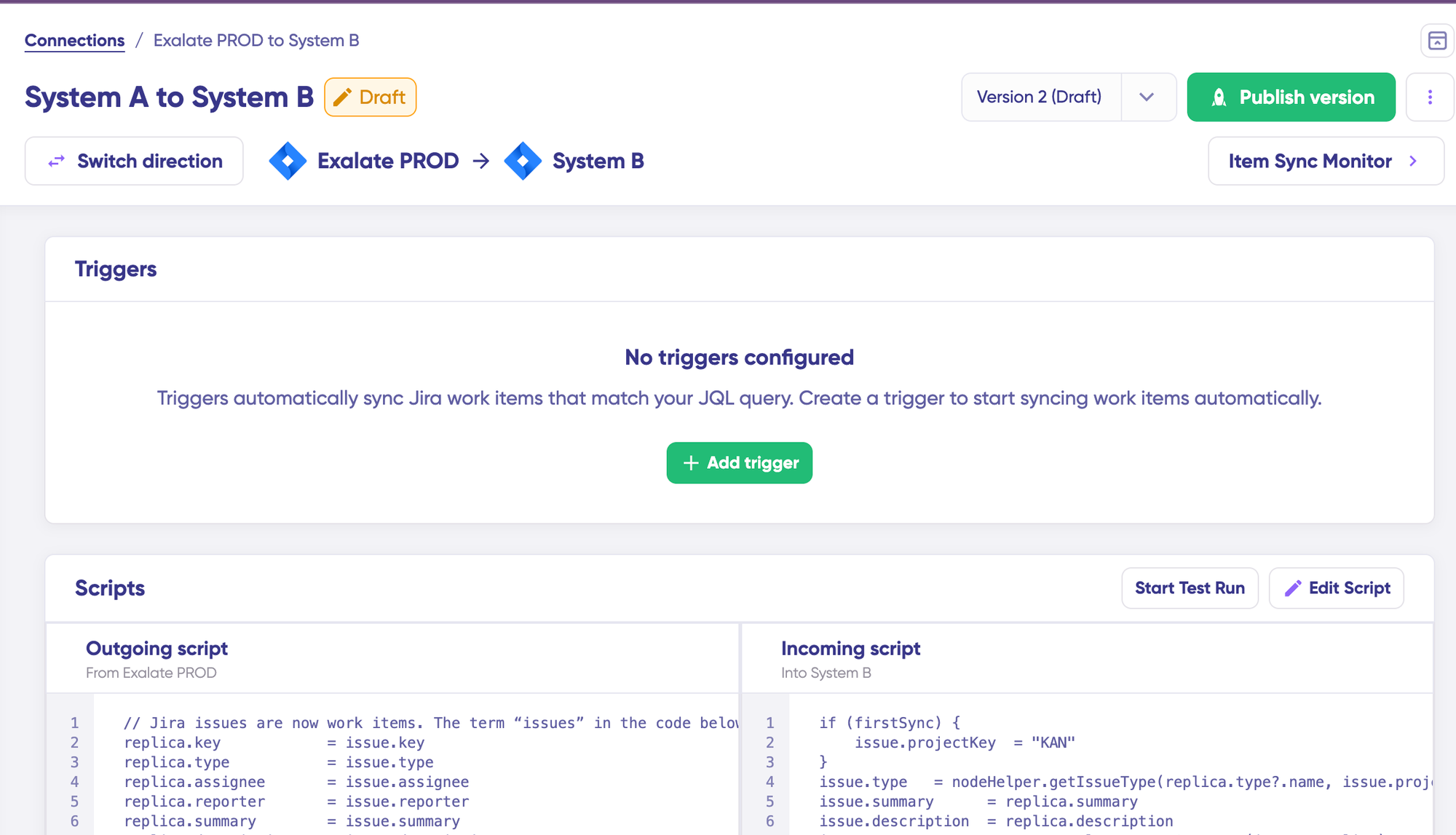
Unlike GitHub for Atlassian’s link-based approach, Exalate actively synchronizes work items. When someone creates a GitHub Issue, Exalate can automatically create the corresponding Jira work item with mapped fields. When a Jira work item status changes, the linked GitHub Issue updates accordingly.
- Field mapping goes beyond defaults. Teams control exactly which fields sync (summaries, descriptions, comments, custom fields, priorities, statuses) and how data transforms between platforms. A Jira status of “In Review” might map to a GitHub label “review-ready,” or a GitHub assignee might sync to a specific Jira custom field.
- AI-assisted configuration through Aida AI (AI-powered scripting assistant) reduces setup complexity. Instead of manually writing integration rules, teams describe what they need in plain language, and Aida generates the configuration. This makes advanced synchronization accessible to teams without dedicated integration developers.
- Script versioning allows you to make changes to scripts without losing the previous configurations. You can easily revert to the older script version after making adjustments.
- Security and compliance matter for enterprise deployments. Exalate maintains ISO 27001 certification. Connections use OAuth authentication, TLS encryption, and role-based access controls to protect data during synchronization.
- Multi-platform support extends beyond Jira and GitHub. Exalate connects to Freshservice, Freshdesk, Asana, Azure DevOps (Server and Cloud), ServiceNow, Zendesk, Salesforce, and custom REST APIs. This matters when your tech stack includes multiple tools that need to communicate.
- Cross-organization integrations work securely. Each organization maintains independent control over their sync configuration; you define what data you share, and the other party can’t override your rules. This ensures data boundaries stay intact during partner collaborations.
- Deployment flexibility accommodates different compliance requirements. Run Exalate in the cloud (fully managed), on-premise (self-hosted), or in Docker containers to match data residency requirements.
- Exalate ships with a Chrome extension called Sync Panel that lets users monitor sync status, spot errors, run manual syncs, and unlink sync pairs from the browser, no console required.
- You also get the Exalate dashboard for monitoring active syncs and connections.
Best for: Teams needing full bidirectional sync with custom field mapping, cross-organizational integrations, or multi-platform synchronization across their tech stack.
Where it falls short: More complex initial setup than simple link-based integrations (though Aida mitigates this). Overkill for teams who only need basic commit-to-work-item traceability.
Wondering whether Exalate fits your integration requirements? Use our pricing calculator to estimate impact, or book a demo with our engineers.
How to Set Up a Jira GitHub Issues Integration With Exalate
Syncing Jira and GitHub Issues with Exalate uses the same core connector workflow as other systems. The parts that shift are the authentication process for each platform and the fields that line up between a work item and a GitHub issue.
Set Up Your Account
Start on the Exalate integrations page and create an account using your work email or Google Sign-In. If you already have an Exalate account, you can simply log in instead.

Your Exalate account gives you access to all the connectors in your console. So, if you already use Jira with another connected system, you don’t have to register a separate account for GitHub.
After signing in, you’ll be taken to a welcome screen where the Getting Started checklist helps you work through the initial setup.
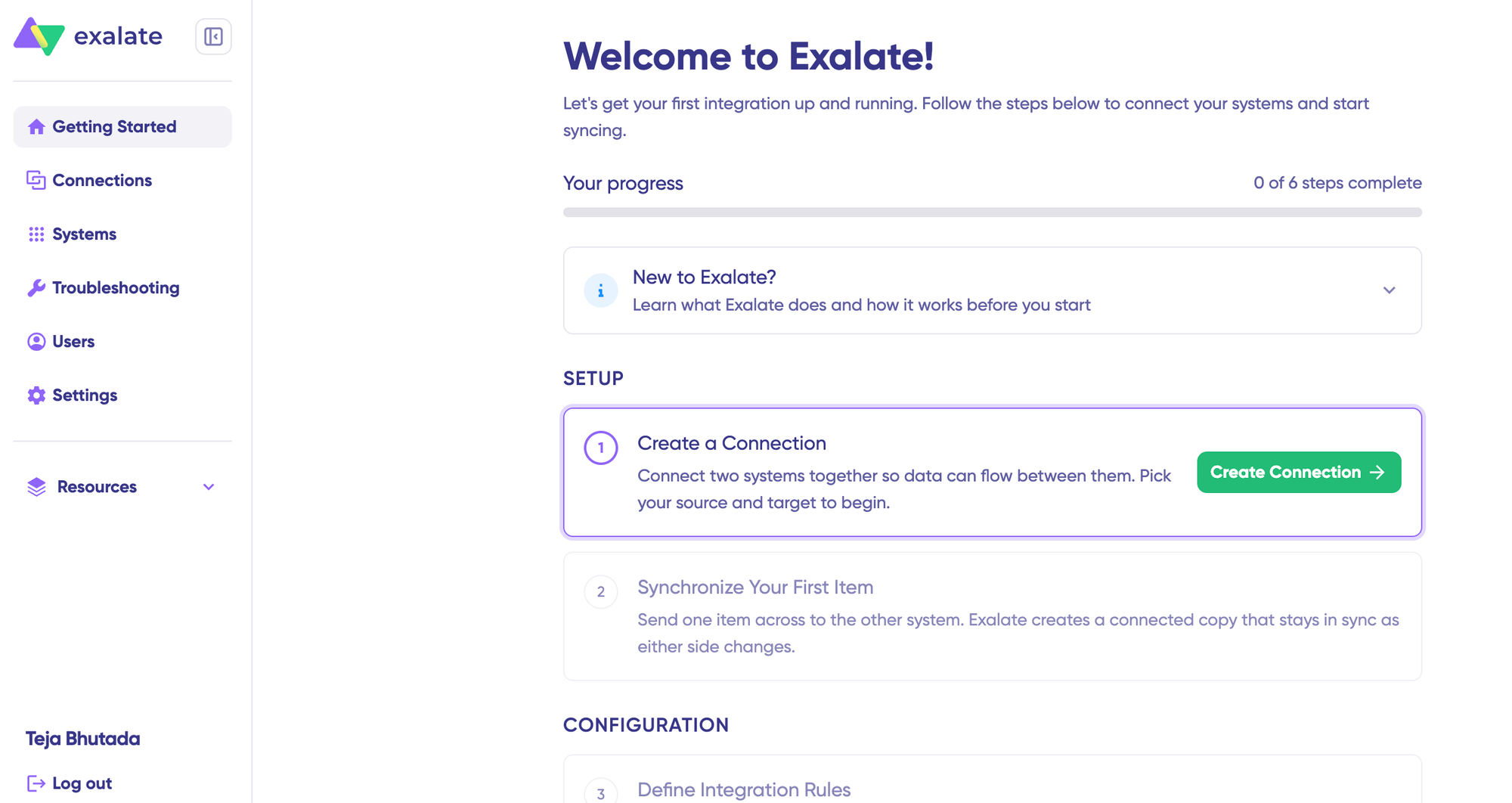
If you run into an issue while configuring your connection, the Aida Quick Assist button in the top right is available to provide immediate guidance.
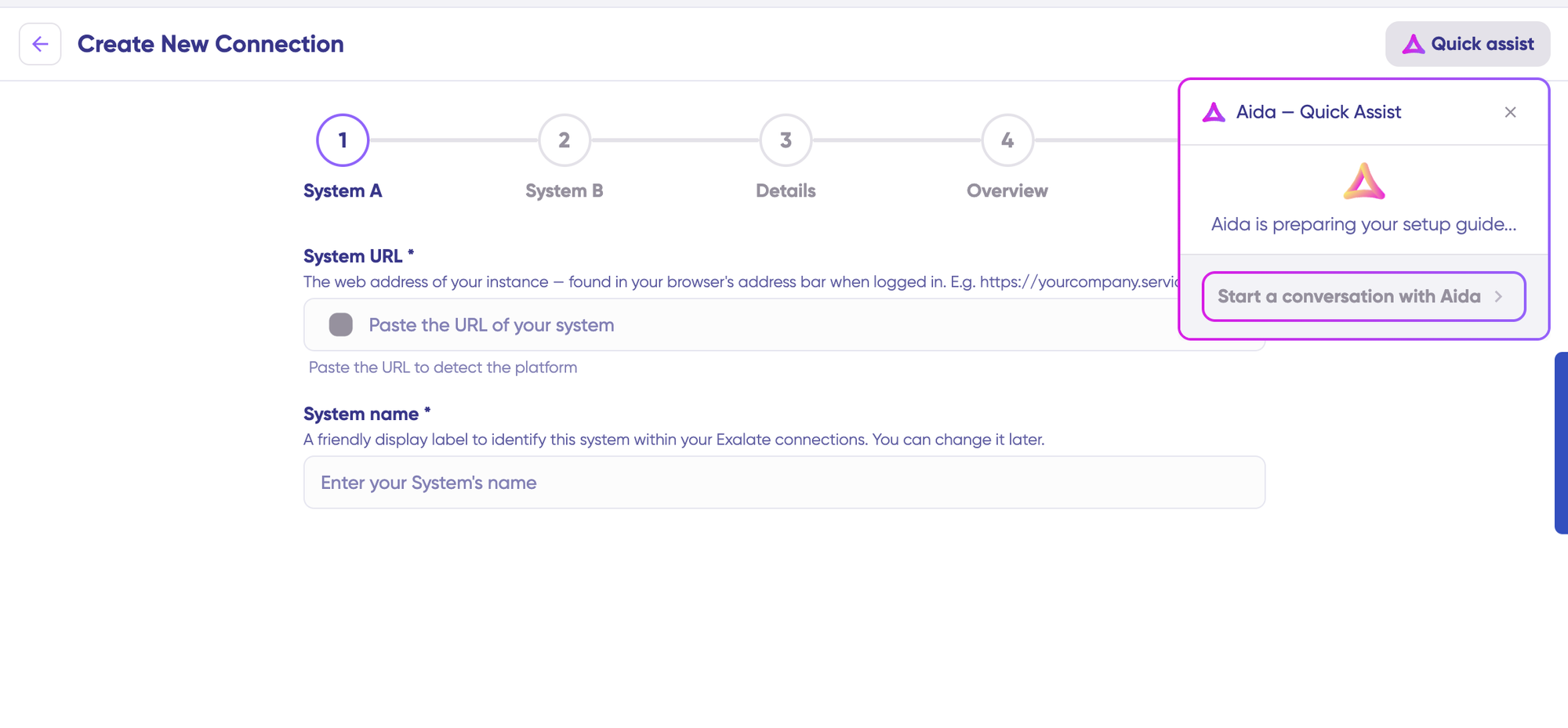
Connect and Authenticate Your Systems
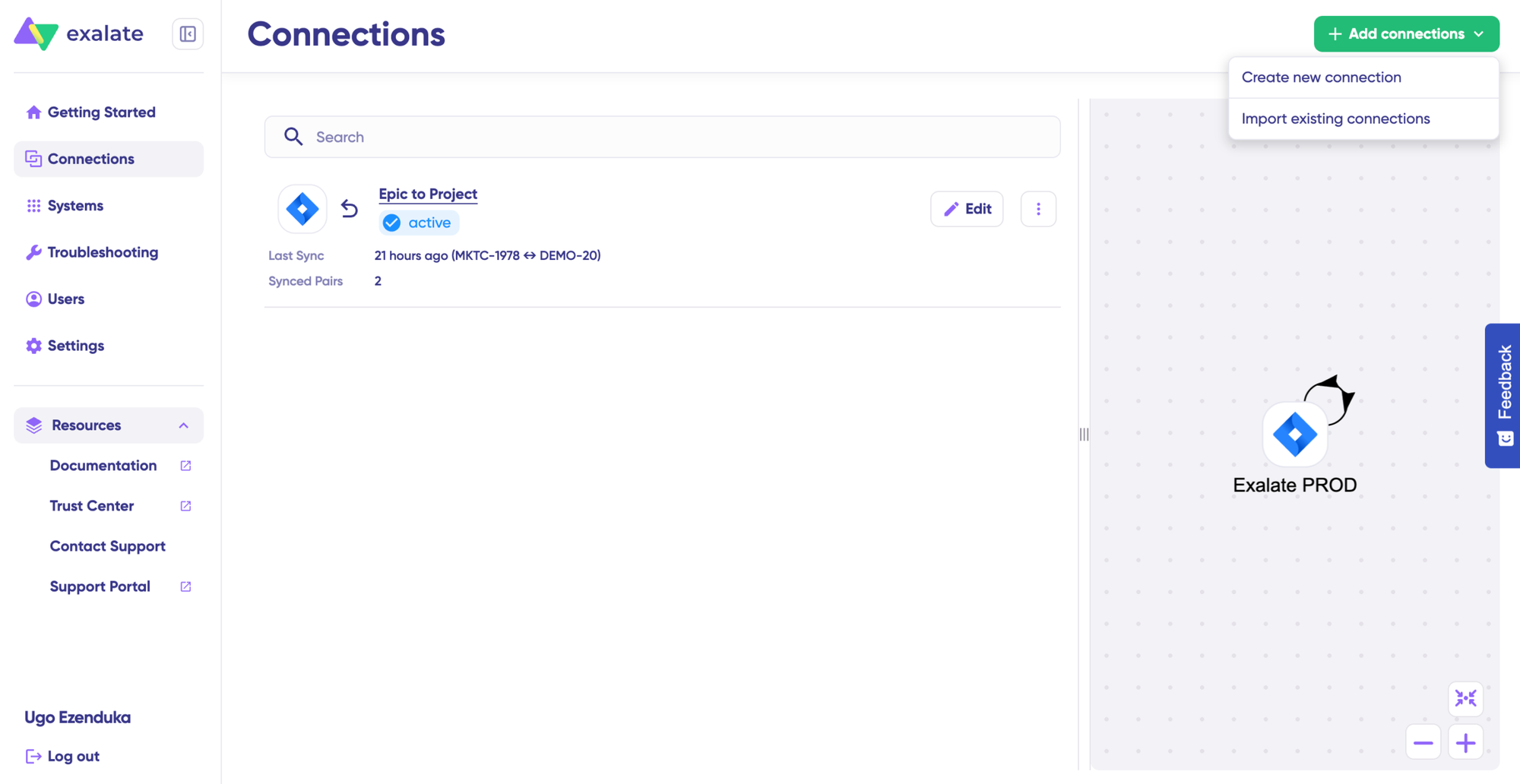
Click “+ Add connections,” select “Create new connection,” and enter the URL of your Jira Cloud site, such as xyz.atlassian.net. Exalate checks the instance before proceeding to make sure it can be reached and is running a compatible version.
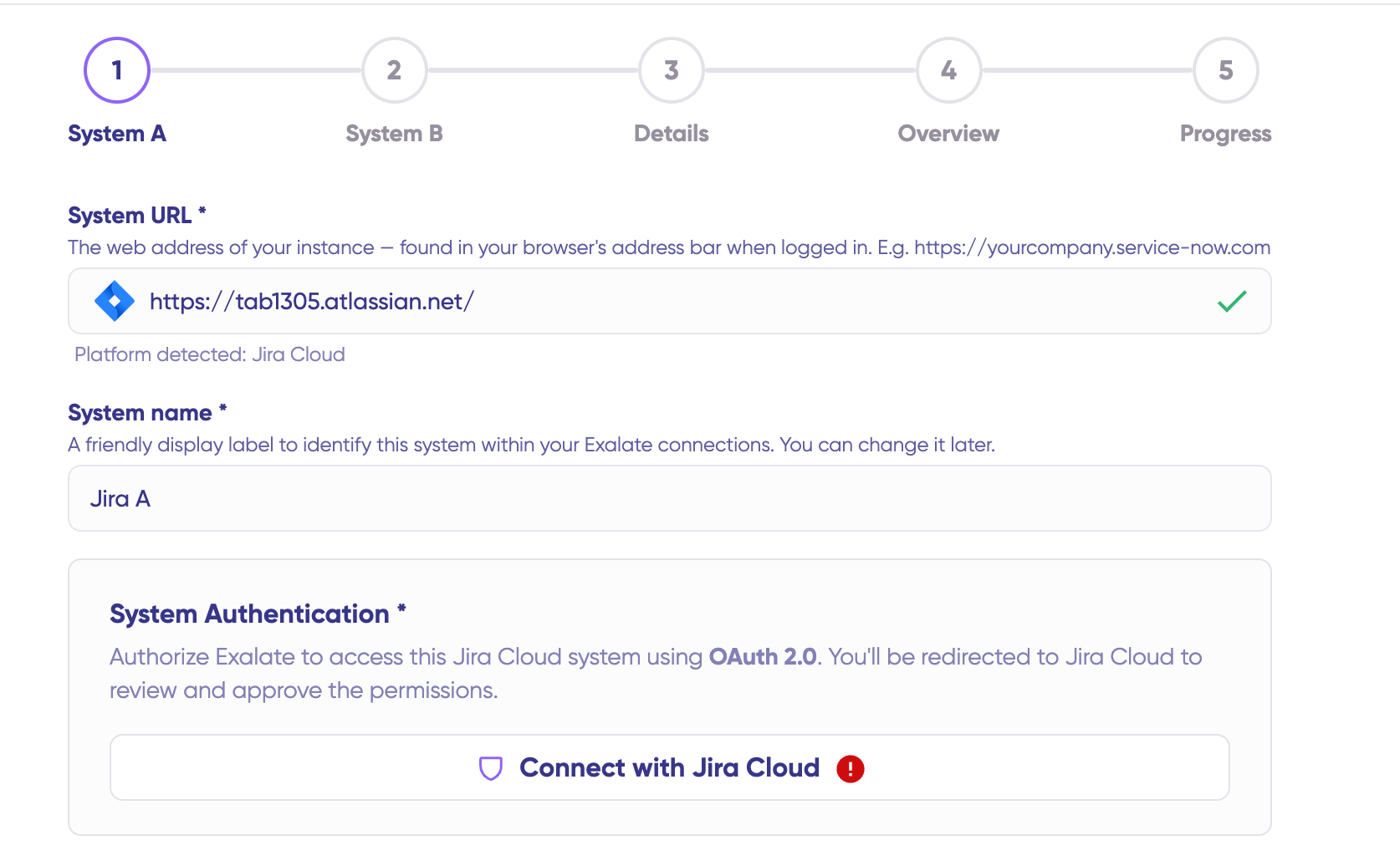
On the Jira side, authentication runs through OAuth 2.0: enter your site URL, then click “Connect with Jira Cloud”, and you’ll be redirected to log in to your Atlassian account and grant Exalate the permissions it needs to read and write work items.
The Exalate for GitHub App provides access to GitHub issues, pull requests, and metadata. Its installation must be completed by the repository or organization owner.
With your GitHub URL entered in System URL, clicking Connect with GitHub opens a pop-up containing the installation wizard. Follow its instructions to install the app.
For the installation to be detected, the organization or account you choose must match the one in System URL. Finish by clicking Authorize to authenticate.
After the installation, proceed to authorizing the GitHub instance using OAuth. Learn more about system authentication with Exalate.
Return to the Exalate console and click “Next”. Give the GitHub side of the connection a descriptive name, and consider adding a short description to explain its purpose to anyone who manages it later.
Click “Create Connection” and allow Exalate a few minutes to complete the required setup in the background.
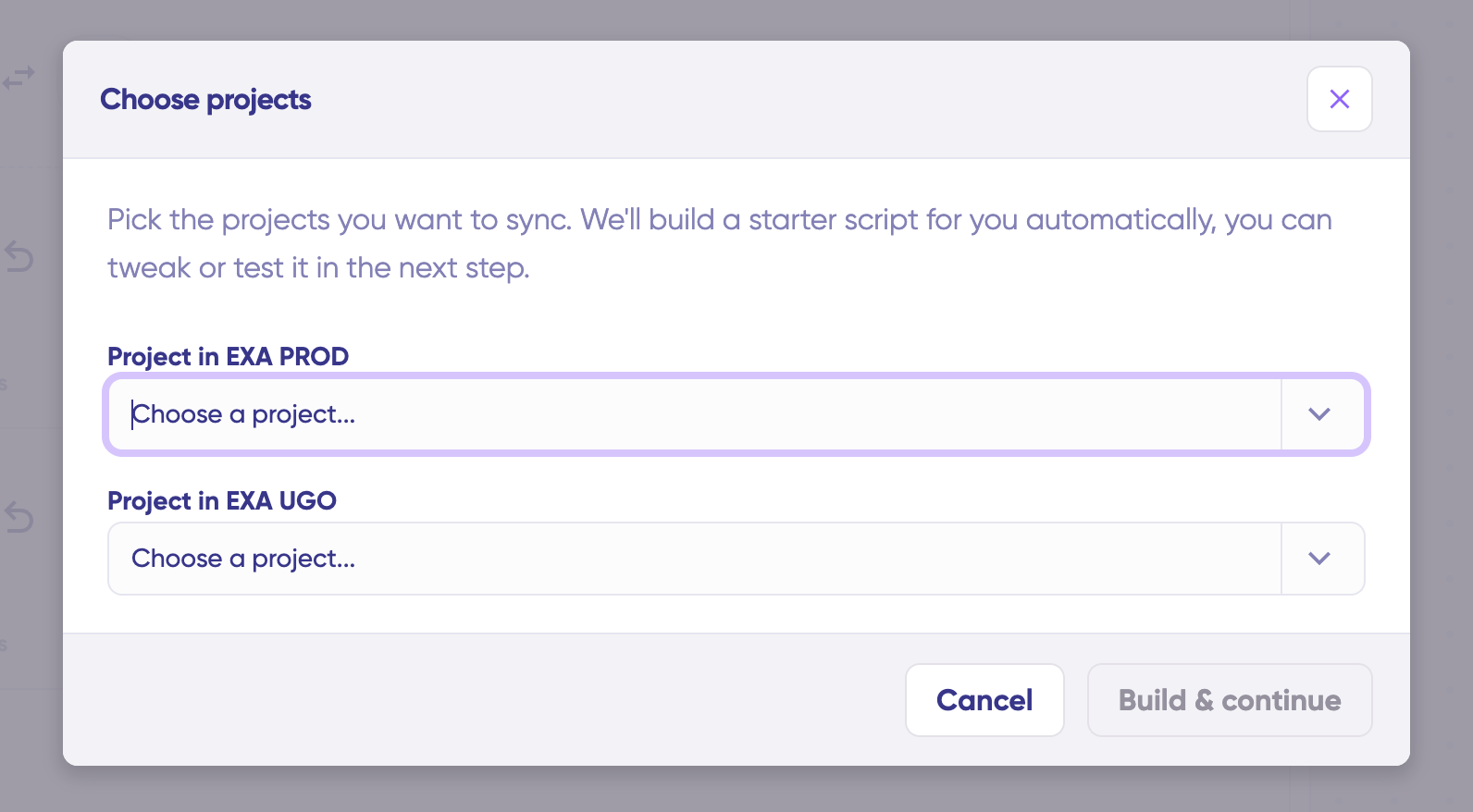
Then click “Continue,” pick a project, and click “Build and Continue.”
You’ll now see two ways forward: “Quick sync” and “Edit & Test.” Let’s cover both.
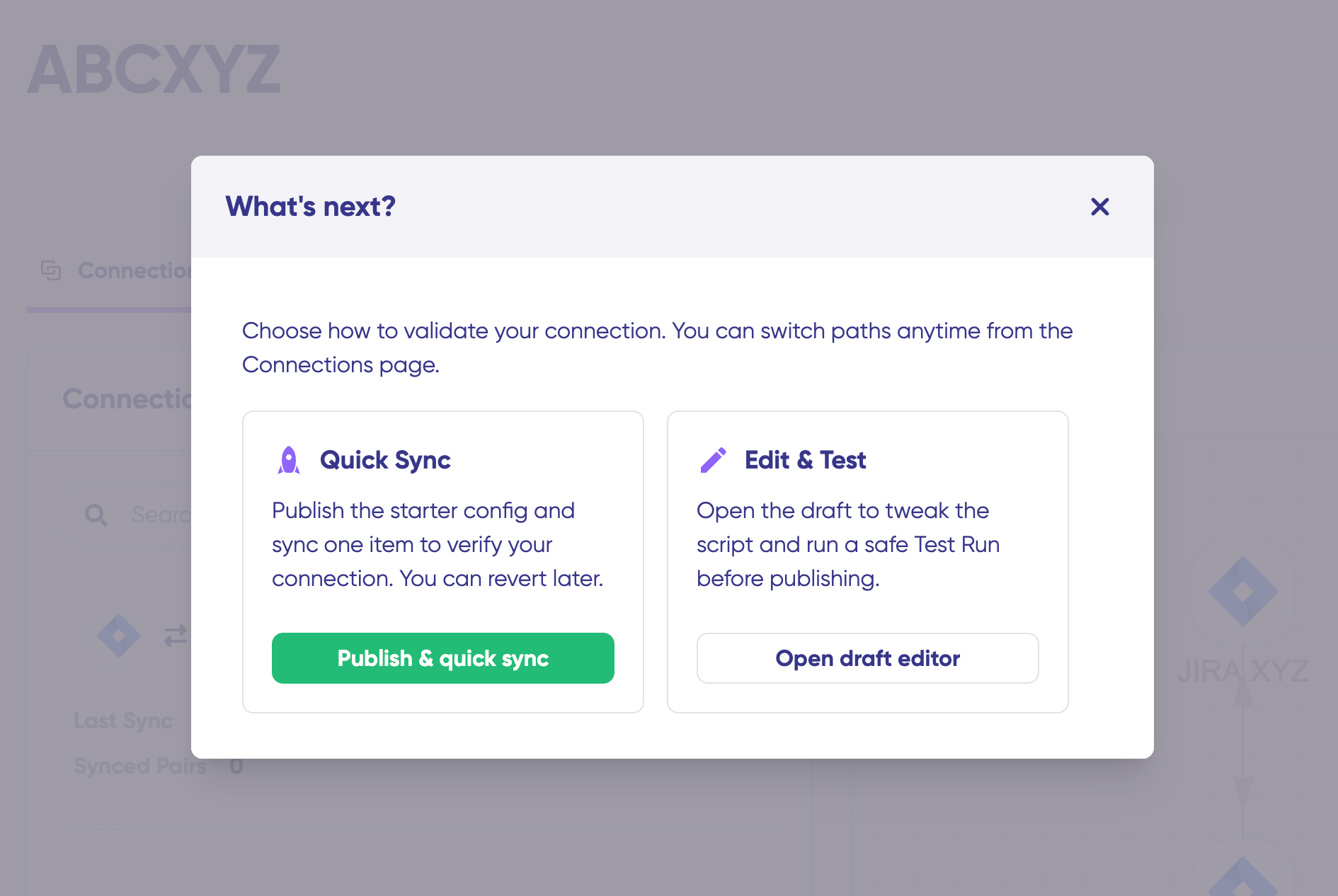
Quick Sync: Manual Sync Between Jira and GitHub
Quick Sync gives you a straightforward way to verify that Jira and GitHub can exchange information correctly. It performs a test synchronization using one work item or issue before you move on to more advanced configuration.
Click “Publish & quick sync” to get started.
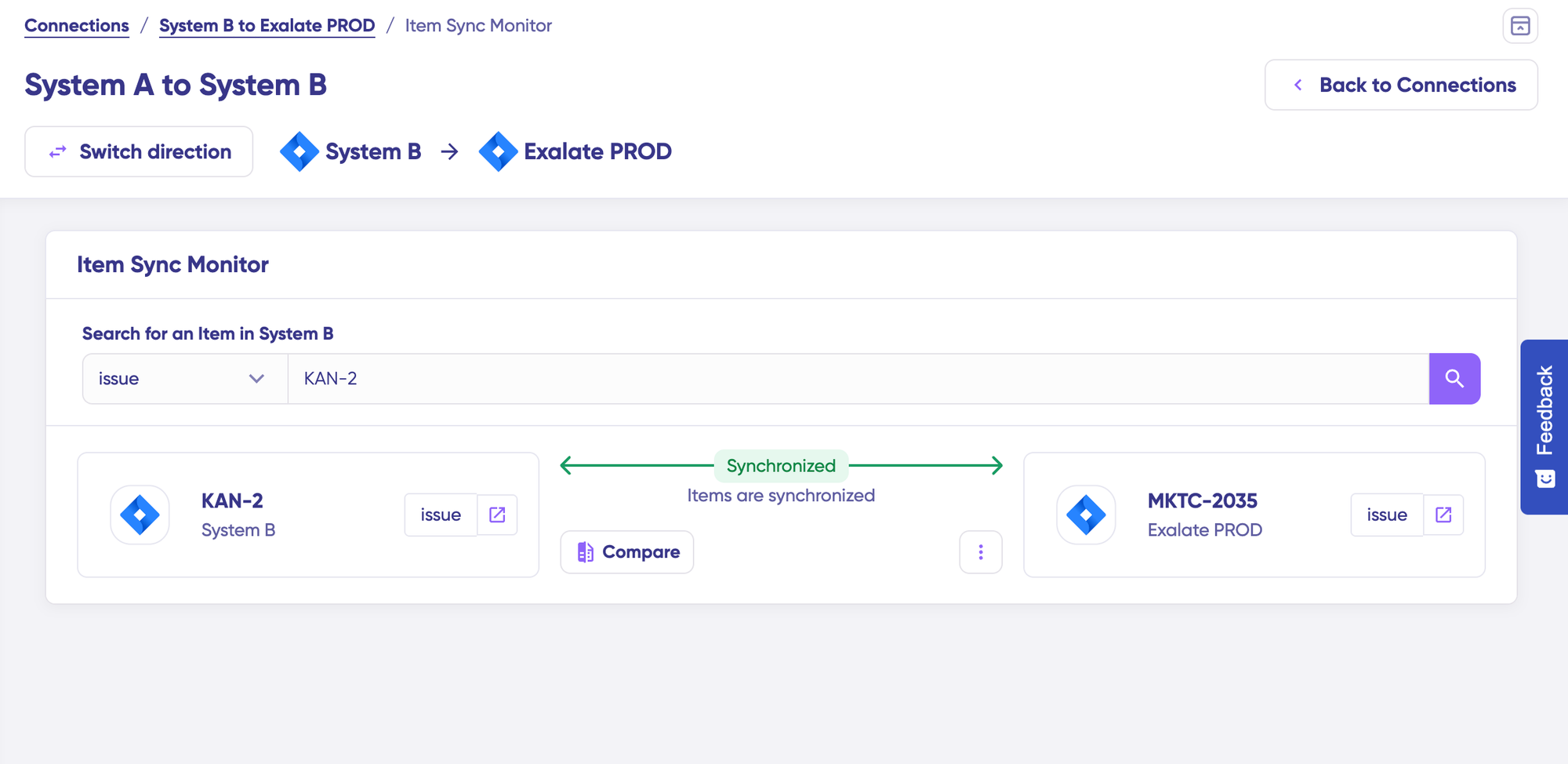
If the Jira work item and GitHub issue already exist and need to be associated with one another, choose “Link with existing” instead. After synchronization completes, both items will open in a new window so you can inspect the changes.
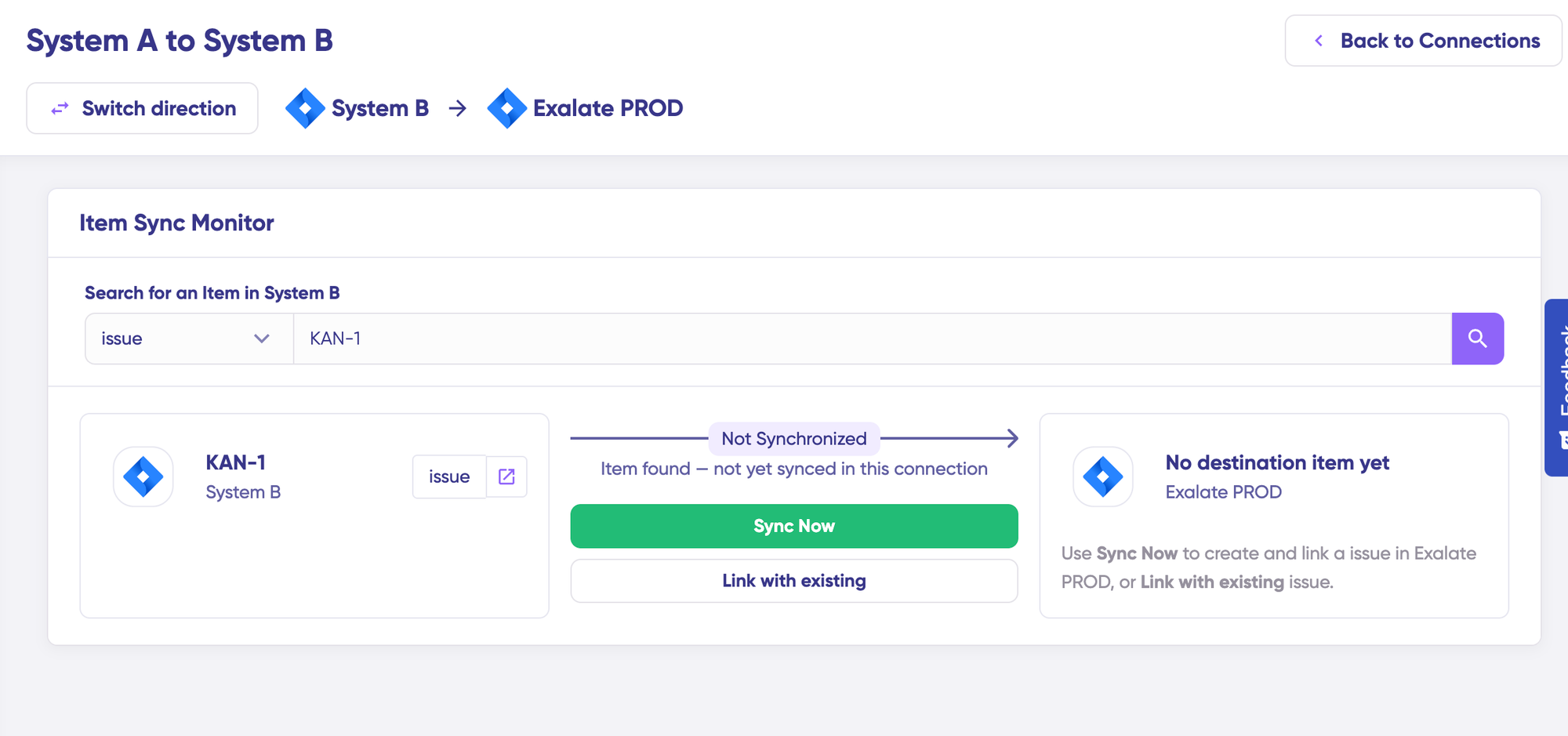
Already have a matching work item and GitHub issue you want to pair up? Use “Link with existing” instead. Once the sync finishes, both items open in a new window where you can review exactly what changed.
Edit & Test: Configure Sync Rules for Jira GitHub Issues Integration
If you need finer control over how fields map, go with Edit & Test Sync instead.
Choose Edit & Test Sync for deeper customization with detailed scripting.
Open draft editor: This option allows changes when you click “Create a new version” or select “Open latest draft”. This ensures you don’t modify the existing configuration accidentally.
Once active, open the draft editor and click “Edit Script” to reach the Groovy scripts that control the connection and mapping for complex use cases. The Outgoing script controls what leaves a system and how it’s structured; the Incoming script controls how that data gets written on the other end.
For example, if you want to change the information Jira sends to GitHub, modify the Jira Outgoing script. If you need to control how information from GitHub is processed by Jira, make the changes in the Incoming script. The correct script depends on the direction of the synchronization.
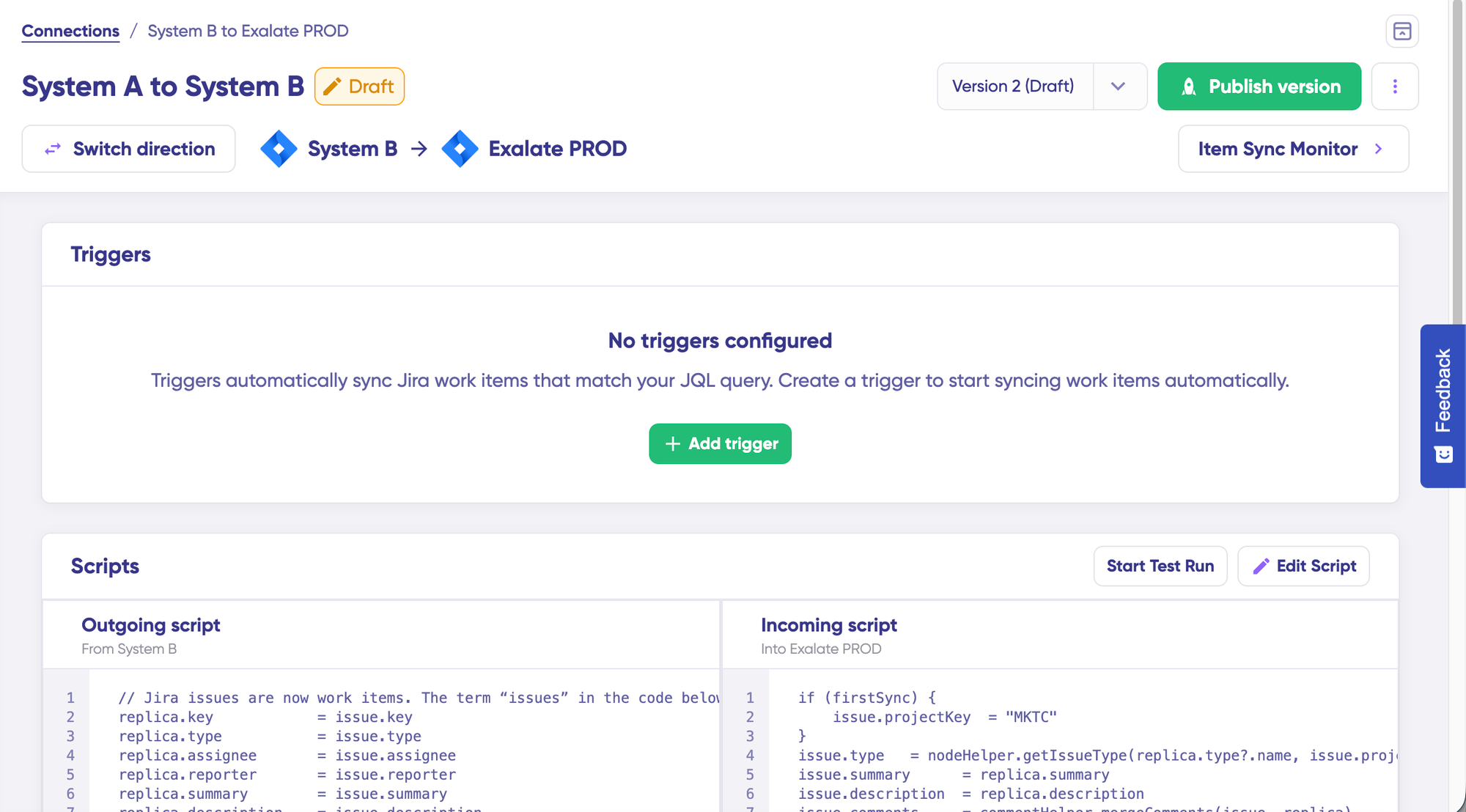
Use “Switch direction” to change the synchronization direction and switch which side is treated as outgoing or incoming.
Exalate transfers information through the Replica, which is a JSON object that carries the shared fields while the synchronization takes place.
So on GitHub’s Incoming script, you might see something like issue.summary = replica.summary, which pulls the Summary field from a Jira work item and writes it into the GitHub issue’s title.
You typically won’t need to edit the Replica itself. However, understanding its role can be useful when diagnosing why a particular field is absent, incorrectly mapped, or not being synchronized.
You can see the rest of the supported fields and entities for Jira here.
Use Aida for Sync Script Generation
If you are new to Groovy, you can skip the syntax altogether and just describe what you’re trying to do to Aida AI, something like “sync GitHub issues tagged bug to Jira as new Bug work items, and push status updates back to GitHub.“
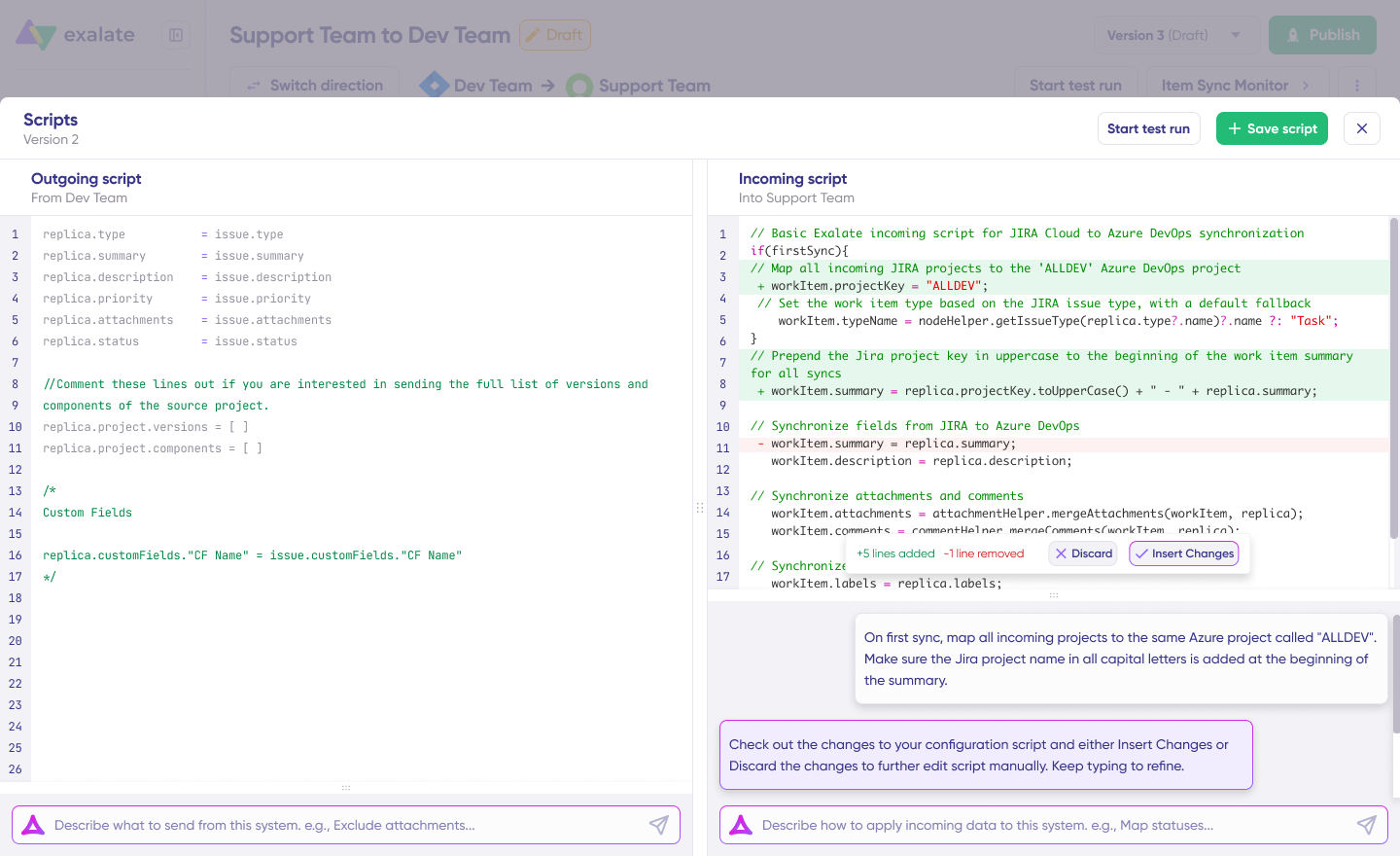
Aida AI reads your description alongside Exalate’s scripting API and your current setup to draft a script for you. Review the generated script before publishing it. Aida highlights new additions in green and proposed removals in red, making it easier to inspect the suggested changes and decide whether to accept or reject them.
Note: like any AI tool, Aida AI won’t always get it exactly right, so review the generated script before applying it to catch mistakes or hallucinated logic.
Once you’re satisfied with the result, you can “Save script” or perform a dry test before making the configuration live.
Test Before You Publish
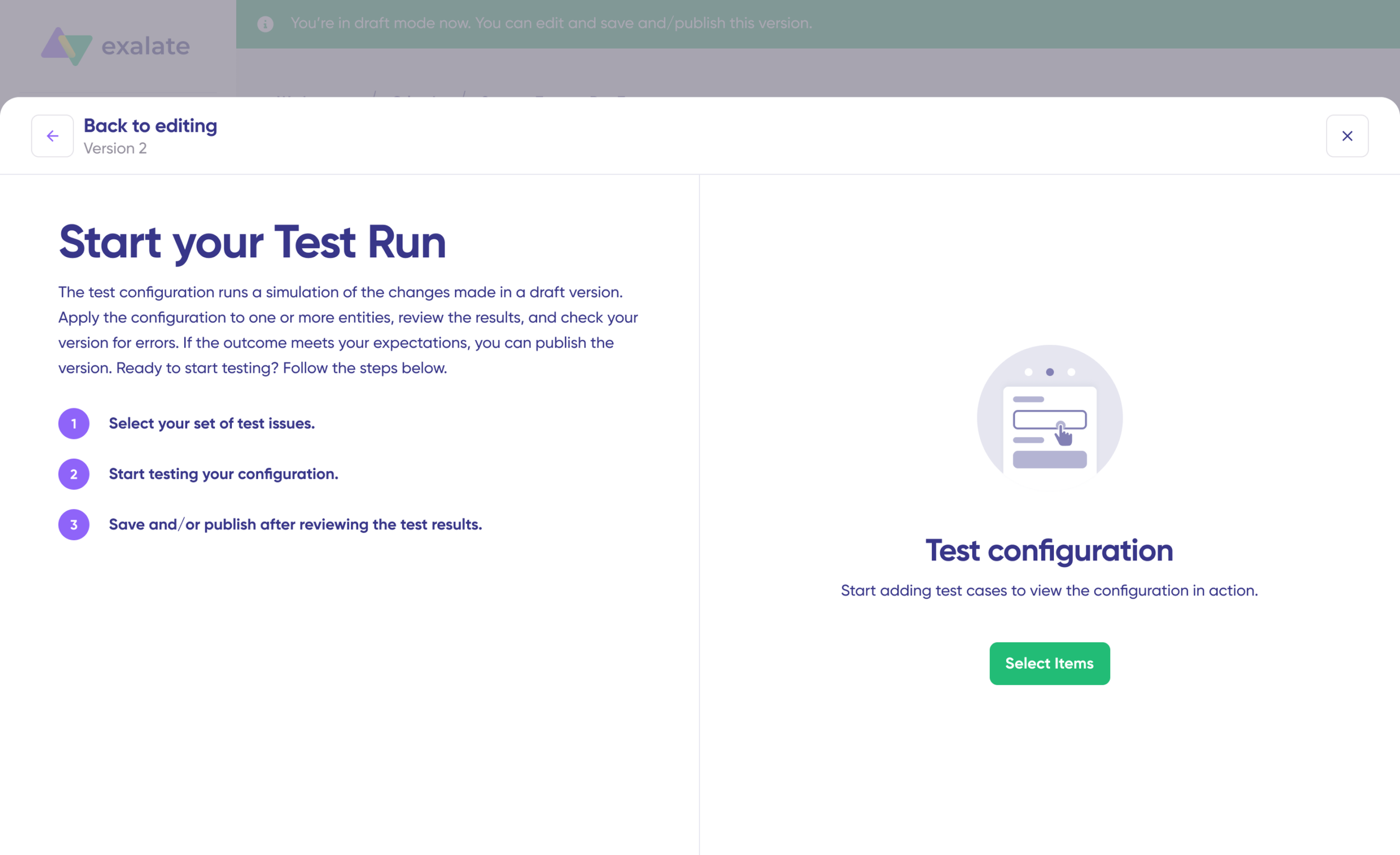
Before going live, click “Start Test Run” and “Select items” to test your setup, picking several work items or issues for a wider sample.
After the test completes, Exalate shows which fields were transferred and the payload exchanged between Jira and GitHub. If the results look correct, click “Publish Version.”
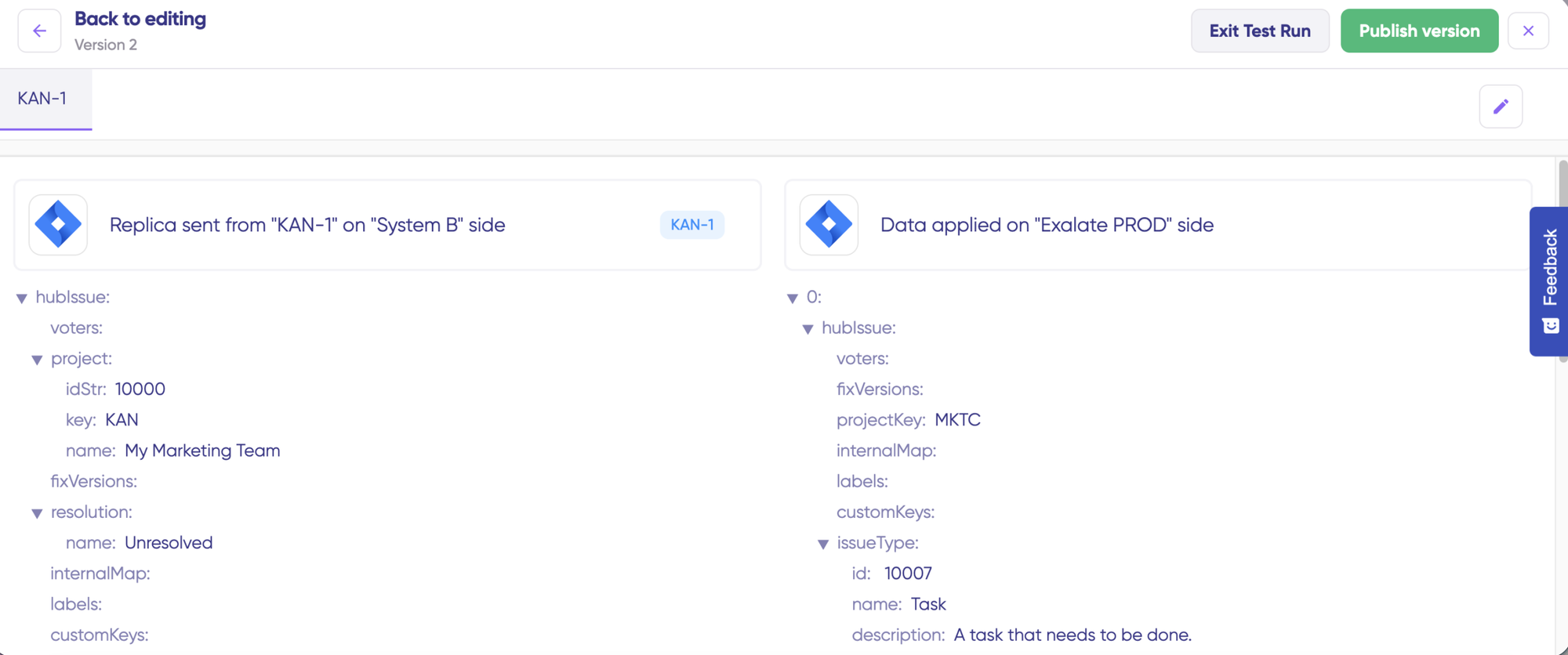
Use this stage to identify problems such as mismatched fields or incomplete identity mapping before the connection is relied upon by the wider team.
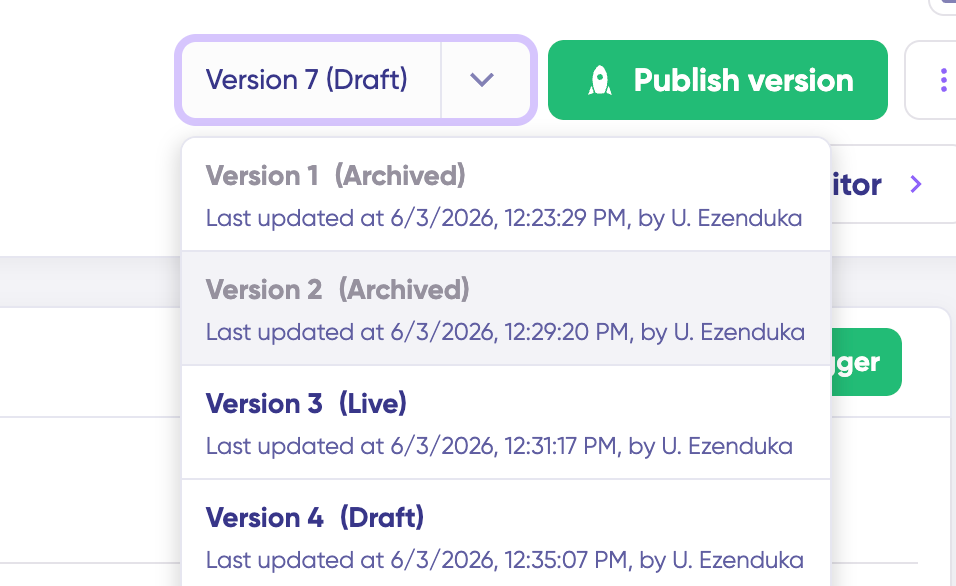
Every version you’ve published sits under the “Version” dropdown, tagged as “Live,” “Draft” (still editable), or “Archived.”
Set Your Triggers
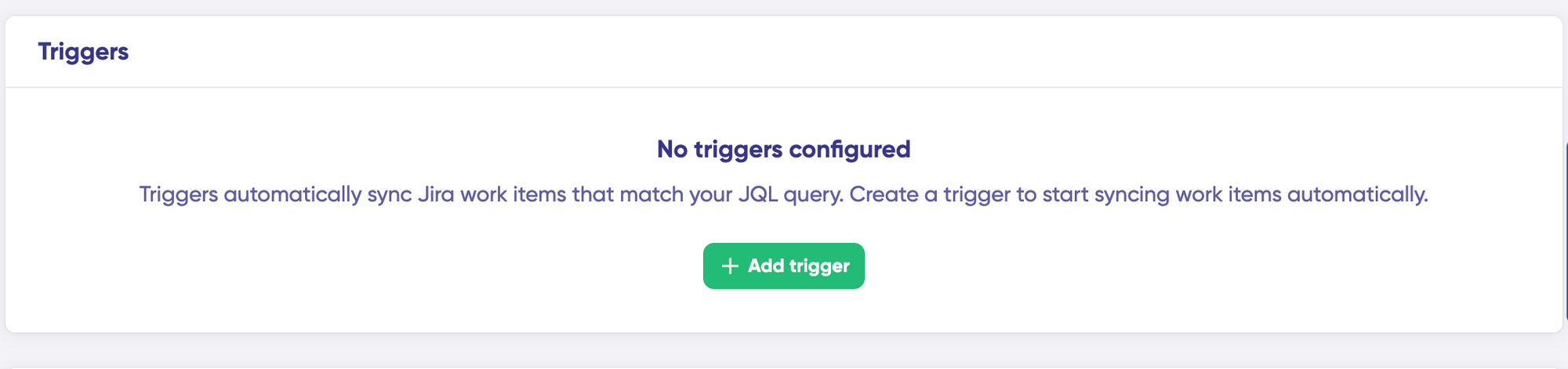
Triggers decide which items sync automatically, based on conditions you define. Click “+Add trigger” to build one.
Begin by selecting the work item type, such as Bug, Story, Task, Epic, or another Jira type. Then define the criteria using the query language supported by the relevant platform.
- On the Jira side, that’s JQL (Jira Query Language), something like priority = High AND status = “In Progress”.
- On the GitHub side, it’s GitHub’s own search syntax, such as label:bug is:open.
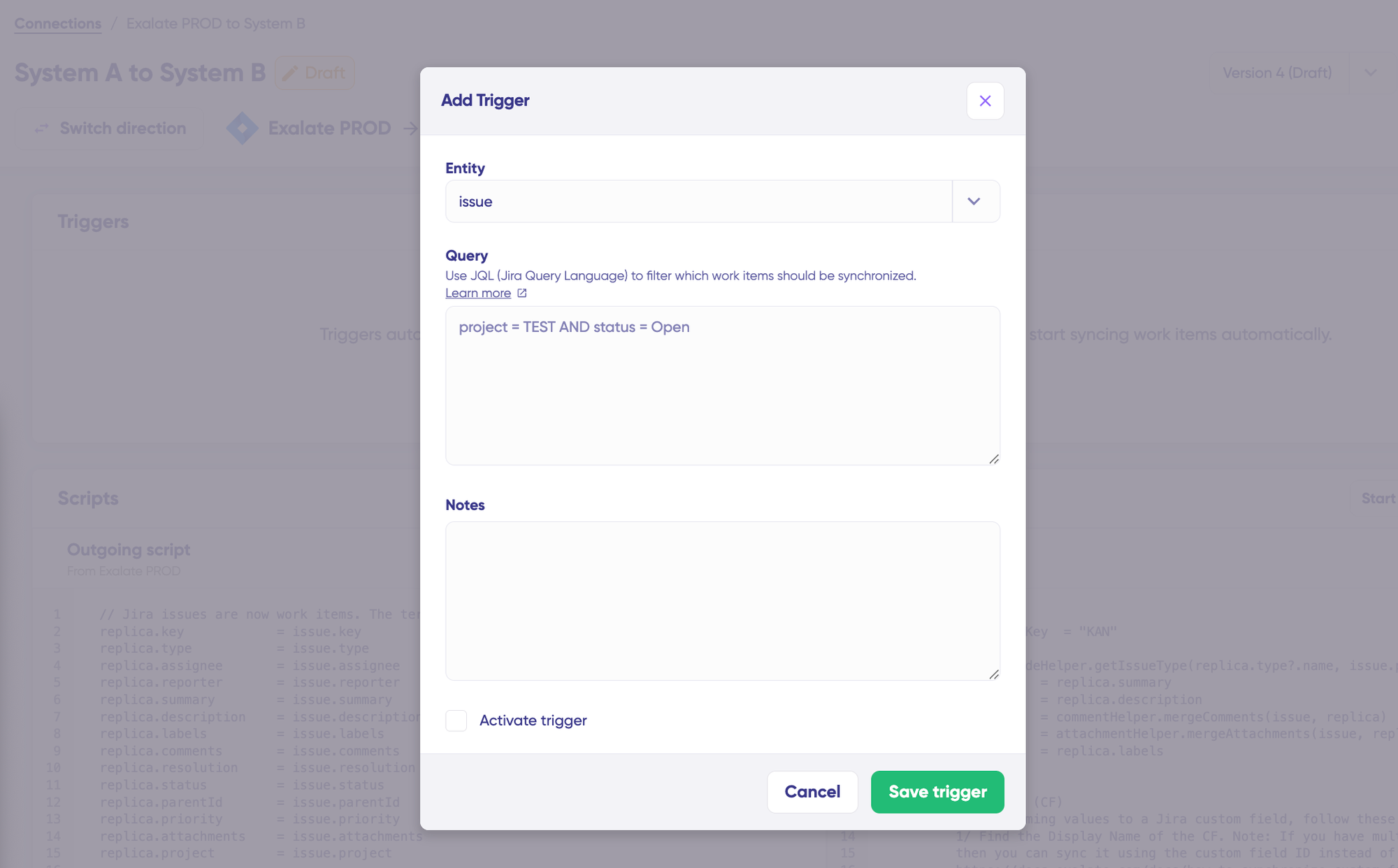
Click “Save Trigger” after setting up the sync query for the trigger. Tick the “Activate trigger” checkbox to activate it.
Troubleshoot Your Connection
If a synchronization fails, open the Troubleshooting tab to identify the affected items and connections on either side.
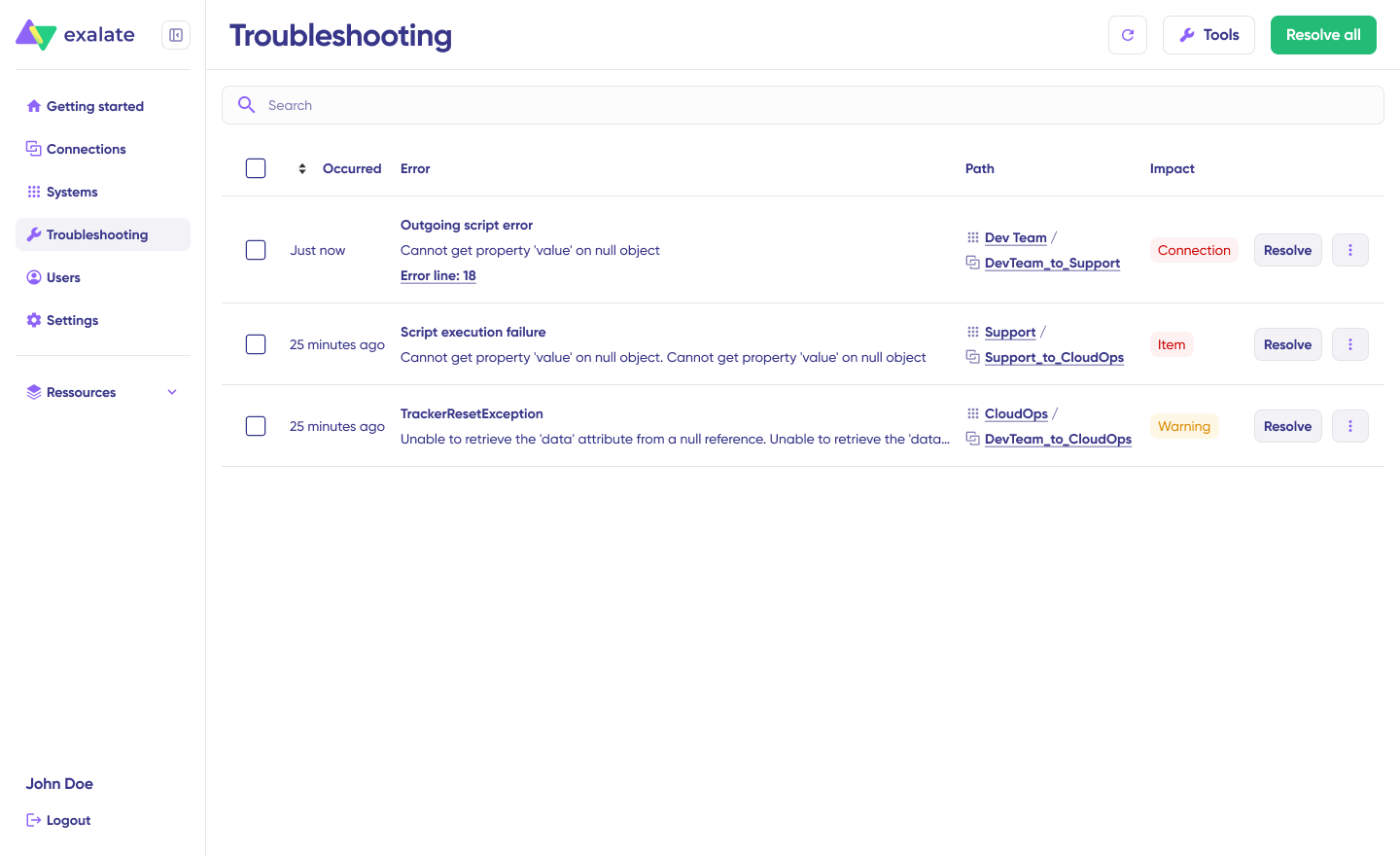
Hover over an error to see Aida’s plain-language explanation and, when available, a recommended solution.
Click “Error Details” for the full picture: impact level, stack trace, error type, and when it happened. “View Full Analysis” gives even more context if you need it. Once you’ve fixed the underlying issue, click “Resolve.”
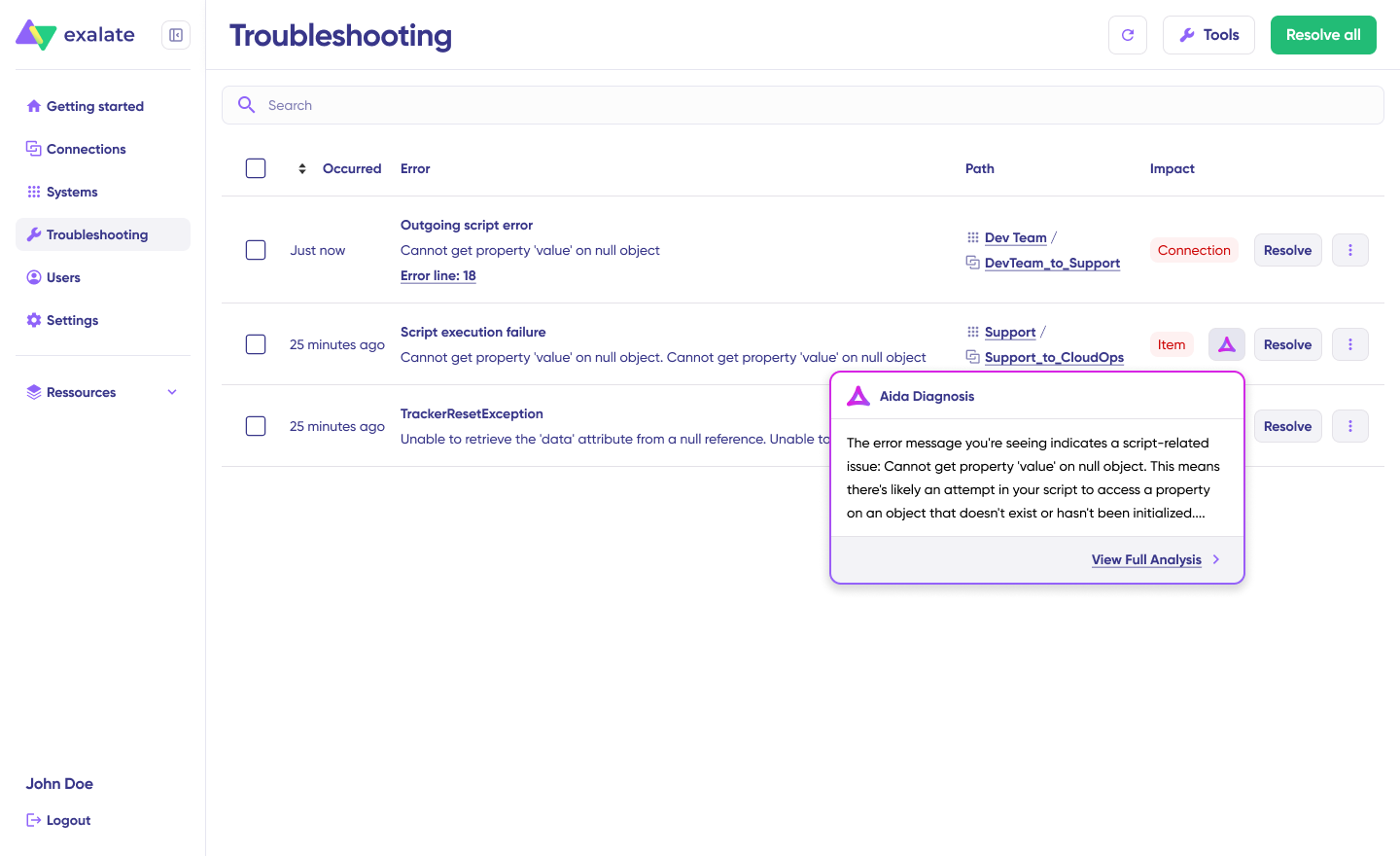
The combination of the stack trace, impact level, and timestamp can help narrow down the cause. Depending on the details, the problem may relate to permissions, field mappings, or something occurring on the GitHub side.
Monitor from the Dashboard
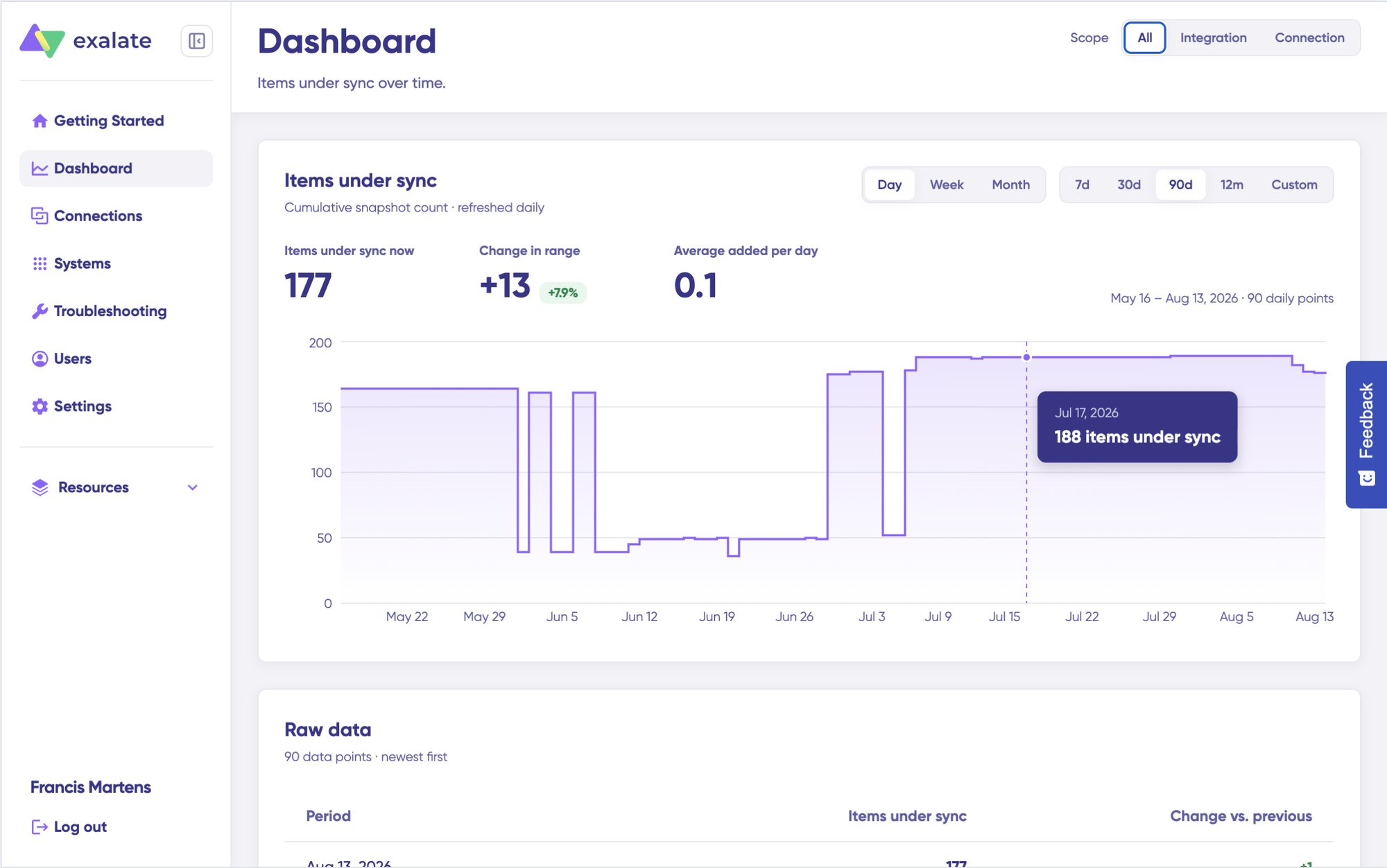
The Dashboard provides an overview of synchronization activity over time. You can use it to review all connections available to you or focus on a particular connection.
- Log in to the Exalate Console.
- Select Dashboard from the left menu.
Or, to jump straight to a specific connection’s Dashboard:
- Go to the Connections list.
- Open the Action Menu for the connection.
- Select View Dashboard.
Dashboard information is refreshed daily and displayed as cumulative snapshots. You can filter the information by integration, connection, or time period when you need a more focused view.
Check Sync Status with the Sync Panel
The Sync Panel is Exalate’s Chrome extension and lets you view a work item’s current synchronization status directly from your browser. This means you don’t need to keep the Exalate console open just to check whether an item has synced.
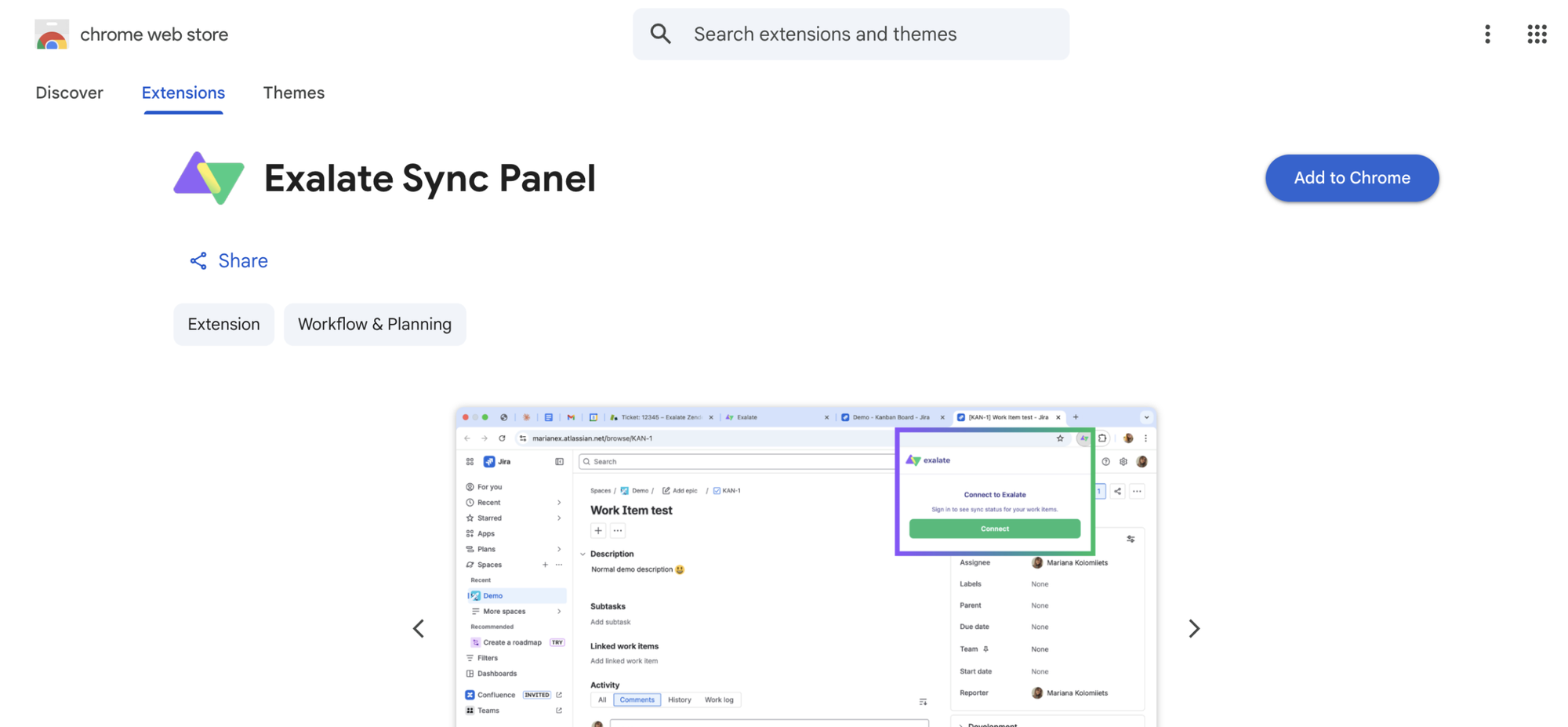
From there, you can kick off a manual sync, unlink a pairing you no longer need, and check status across several connections at once.
Features to Consider When Choosing an Integration
Not all Jira GitHub Issues integrations work the same way. Here’s what separates basic connectors from solutions that scale with your team:
Bidirectional vs. Unidirectional Sync
One-way integrations (like basic GitHub for Atlassian) create links but don’t synchronize work items. Changes in Jira don’t update GitHub Issues, and vice versa. Bidirectional sync ensures both platforms stay updated regardless of where changes occur.
Why it matters: Teams waste time manually updating both systems when integration only works one direction. Real bidirectional sync eliminates duplicate work and reduces sync errors.
Field Mapping Flexibility
Pre-configured field mappings work for simple use cases: syncing titles, descriptions, and statuses. But what about custom fields, priority levels, or platform-specific attributes that don’t have direct equivalents?
Why it matters: Flexibility in field mapping means you can sync specialized data that matters to your team without forcing it into standard fields where it doesn’t fit. Look for integrations that support custom transformations.
Trigger Configuration
Not every change should trigger a sync. Sometimes you only want work items to sync when they reach a specific status, match certain labels, or meet custom conditions.
Why it matters: Precise trigger control prevents noise. You avoid syncing draft work items or internal-only information while ensuring critical updates flow through immediately.
Error Handling and Recovery
API rate limits, network interruptions, and temporary platform outages happen. How does the integration handle failures?
Why it matters: Robust integrations queue failed sync attempts and retry automatically when connections recover. Without this, you risk data loss or manual intervention to fix broken syncs.
Security and Access Controls
Integration platforms access your work data across multiple systems. Authentication methods, encryption protocols, and access control mechanisms determine whether that access is secure.
Why it matters: Look for OAuth-based authentication (not stored passwords), TLS encryption for data in transit, role-based access controls that limit who can configure integrations, and published security certifications. Platforms with public trust centers demonstrate transparency about their security posture.
Scalability considerations
As your team grows and repository activity increases, integration must handle higher volumes without hitting API rate limits or introducing sync delays.
Why it matters: An integration that works for 10 developers and 100 work items per month might fail under 100 developers and 10,000 work items. Check whether the platform implements intelligent batching, respects API rate limits, and scales with your usage.
Common Jira GitHub Issues Integration Challenges
Even with the right integration tool, teams encounter specific challenges when connecting Jira and GitHub Issues. Understanding these upfront helps you plan accordingly.
Field Type Mismatches
Jira and GitHub Issues use different data structures. Jira’s “work item type” (Epic, Story, Task, Bug) doesn’t map directly to GitHub’s simple issue structure. Custom fields in Jira might not have equivalents in GitHub.
Solution: Use transformation rules that convert complex Jira fields into GitHub labels, or map them to issue descriptions with clear formatting. For example, a Jira Epic link might become a GitHub label epic:feature-name.
Status Synchronization Conflicts
Jira workflows often include many statuses (To Do, In Progress, Code Review, QA, Done), while GitHub Issues typically use Open/Closed. Mapping complex Jira workflows to simple GitHub states requires thoughtful design.
Solution: Map multiple Jira statuses to the same GitHub state when appropriate, or use GitHub labels to represent intermediate statuses. For instance, Jira statuses “In Review” and “QA Testing” both map to GitHub’s “Open” state, with labels distinguishing between them.
Preventing Sync Loops
When both platforms update the same work item simultaneously, poorly designed integrations create sync loops; each change triggers another update, which triggers another change, infinitely.
Solution: Quality integration platforms detect and prevent sync loops automatically by tracking which changes originated from sync operations versus user actions. Exalate handles this natively.
Managing Permissions Across Platforms
Users with different access levels in Jira and GitHub create complexity. A user might see a work item in Jira but lack permission to view the linked GitHub Issue.
Solution: Configure integration to respect existing permissions in both platforms. Role-based access controls ensure users only see data they’re authorized to access, even when work items sync across platforms.
Handling Attachments and Embedded Content
Large attachments, embedded images, or formatted content might not transfer cleanly between platforms due to API limitations or file size restrictions.
Solution: Some integrations sync attachment metadata (filename, upload date) without transferring the actual file, while others support full attachment sync within size limits. Understand these constraints before relying on attachment synchronization for critical documentation.
Best Practices for Jira GitHub Issues Integration
Getting integration working is one thing. Using it effectively requires intentional design:
Map Only Relevant Fields
Don’t sync everything just because you can. Identify which fields genuinely need to stay synchronized and leave internal-only fields isolated to their respective platforms. Over-syncing creates noise and makes it harder to find important updates.
For example, sync work item summaries, descriptions, statuses, and comments, but keep internal planning notes or estimate confidence scores in Jira where they belong. GitHub developers don’t need to see project portfolio data, and project managers don’t need to see every technical implementation detail.
Establish Clear Naming Conventions
Consistent naming makes it easy to identify synchronized work items at a glance. Decide whether GitHub Issues should include Jira keys in their titles, use specific label patterns, or follow other conventions that create visual clarity.
For instance, a synchronized GitHub Issue might follow the pattern: [PROJ-123] Implement user authentication, making the Jira connection immediately obvious. Apply these conventions automatically through your integration configuration rather than relying on manual adherence.
Document Your Integration Logic
Integration configurations aren’t self-explanatory, especially when they include custom field mappings or conditional triggers. Document which fields sync, what triggers synchronization, and how data transforms between platforms.
This documentation helps when team members troubleshoot sync issues, when new administrators need to modify configurations, or when auditors review your integration setup. Good documentation prevents situations where someone changes a sync rule without understanding its downstream effects.
Use Role-Based Access Controls
Not everyone needs permission to modify integration settings. Restrict configuration access to integration administrators while allowing broader teams to benefit from synchronized data. This reduces the risk of accidental misconfigurations that break critical workflows.
Test Configurations in Non-production Environments First
Before deploying integration changes to your production Jira and GitHub instances, test in development or staging environments. Verify that field mappings work as expected, triggers fire correctly, and edge cases (like null values or unusual characters) don’t break synchronization.
This is especially critical when implementing custom field transformations or complex conditional logic. A misconfigured rule can sync incorrect data to hundreds of work items before you notice the problem.
Monitor and Respond to Sync Failures
Even reliable integrations occasionally encounter failures: API timeouts, permission changes, or unexpected data formats. Implement monitoring that alerts administrators when sync failures occur, and establish processes for investigating and resolving issues quickly.
Many integration platforms provide sync logs showing which work items synced successfully and which failed. Review these logs regularly to catch patterns that might indicate configuration problems.
Set up a free trial on Exalate’s free tier to configure a working sync without a sales conversation. Connect both ends, write the rules with Aida or a Groovy engineer, and the records start moving.
Want a live demo on your specific scenario before you build? Book a demo, and the Exalate team will walk through the integration patterns with you.
Frequently Asked Questions
How does Exalate differ from GitHub for Atlassian?
GitHub for Atlassian creates one-way links showing GitHub development activity (commits, branches, pull requests) in Jira work items. It doesn’t synchronize GitHub Issues bidirectionally or support custom field mapping. Exalate provides full bidirectional synchronization between GitHub Issues and Jira work items, with customizable field mappings, trigger configurations, and transformation rules. You control exactly what data syncs and how it transforms between platforms.
Can I integrate GitHub Enterprise Server with Jira?
Yes. Exalate supports GitHub Enterprise Server (self-hosted), GitHub Enterprise Cloud, and GitHub.com. The OAuth connection process works the same across all GitHub deployment types. Make sure your GitHub Enterprise Server allows outbound connections to your Jira instance, or deploy Exalate on-premise if you need fully air-gapped integration.
Can I sync with multiple Jira instances and multiple GitHub repositories simultaneously?
Yes. Exalate supports connecting multiple Jira instances to the same GitHub organization, one Jira instance to multiple GitHub repositories, or complex multi-tenant scenarios. You can also integrate Jira with non-GitHub platforms like Asana, Freshservice, Freshdesk, and Azure DevOps simultaneously, creating a unified ecosystem across your tech stack.
What data should I sync and what should I leave isolated?
Sync data that improves cross-team collaboration: summaries, descriptions, statuses, assignees, comments, and relevant custom fields. Leave internal-only information isolated: confidential planning notes, budget estimates, or fields that create confusion when visible in the other platform. Use role-based access controls to ensure sensitive work stays visible only to authorized teams.
Can I control which GitHub repositories participate in integration?
Yes. Integration configuration with Exalate typically includes repository filters, allowing you to specify which repositories sync with Jira. You can also filter by labels, assignees, or other criteria to ensure only relevant GitHub Issues synchronize.
How does AI-assisted configuration work in Exalate?
Exalate includes Aida, an AI-powered assistant that helps configure integrations through natural language. Instead of manually writing sync rules, describe what you need: “Sync GitHub ‘closed’ status to Jira ‘Done’ status” or “Map Jira priority to GitHub labels.” Aida generates the configuration code, which you review and apply. This makes advanced integration accessible to teams without dedicated developers.
What’s the typical setup time for Jira GitHub Issues integration?
Setup time depends on complexity. Basic synchronization (summaries, descriptions, statuses) takes a few hours, including testing. Complex configurations with custom field mappings, conditional triggers, and cross-organizational access controls might take several days to properly design and test. AI-assisted configuration significantly reduces setup time for teams without integration expertise.
How much does Exalate cost for GitHub integrations?
Exalate pricing scales with the number of synced items. There’s a free plan for basic use cases and paid plans based on sync volume. Check out our pricing page to see which plan works best for your use case.