ServiceNow runs IT service operations: incidents, requests, changes, and assets. Asana runs project management: tasks, timelines, portfolios, and cross-functional initiatives. When these two platforms operate in isolation, the gap between them fills up with manual copying, email threads nobody reads, and status updates that arrive too late to be useful.
An Asana ServiceNow integration eliminates that gap. It syncs tasks, incidents, comments, statuses, and field data between both platforms so that project teams in Asana have visibility into IT operations, and service desk agents in ServiceNow can track the business context behind their tickets.
This guide covers every available approach, with real-world use cases, a step-by-step Exalate setup walkthrough, an honest comparison of integration methods, and answers to the most common questions.
Key Takeaways
- Asana ServiceNow integration connects project management workflows with IT service operations, eliminating manual data transfer between the two platforms.
- The native ServiceNow Asana Spoke is designed for Software Asset Management and lacks the depth needed for bidirectional task synchronization.
- Asana’s built-in ServiceNow connector (via Unito) requires a Business or Enterprise Asana plan and a Starter IntegrationHub subscription or higher on the ServiceNow side.
- Template-based automation tools work for one-way triggers but cannot handle true bidirectional sync with field transformations.
- Exalate’s AI-assisted configuration generates sync scripts from plain-language prompts, reducing the setup complexity for custom field mapping and conditional sync logic.
- Security in cross-platform integrations should include encrypted data transfer, role-based access, and audit logging to meet enterprise compliance requirements.

Why Do Teams Need an Asana ServiceNow Integration?
An automated Asana ServiceNow integration addresses this by creating a live data bridge between both platforms.
When an Asana task reaches a certain stage, a corresponding ServiceNow record gets created with all relevant context. When the ServiceNow record is resolved, the Asana task updates automatically. Comments, inline images, and attachments flow in both directions.
The practical benefits include:
- Reduced context switching. Teams stay in their preferred tool instead of logging into both platforms to check on progress.
- Faster response times. IT agents see the full business context behind requests without waiting for follow-up emails. Project managers see resolution status in real time.
- Fewer errors from manual entry. Automated sync means no more mistyped incident numbers, wrong priorities, or lost attachments when copying between tools.
- End-to-end visibility. Managers can track a work item from its origin as an Asana task through its lifecycle as a ServiceNow incident or request, and back again.
- Audit trails. Synchronized records provide a complete history of who did what, when, on both sides.
What Data Can You Sync Between Asana and ServiceNow?
The fields available for synchronization depend on which integration tool you use. Here’s what’s typically syncable between the two platforms.
| Asana Fields | ServiceNow Fields | Sync Notes |
| Task name | Short description | Direct text mapping |
| Task description | Description | Supports rich text conversion |
| Assignee | Assigned to | Requires user mapping configuration |
| Due date | Due date | Date format conversion handled automatically |
| Tags | Tags/Labels | May need manual mapping for custom tag values |
| Custom fields (text, dropdown, number, date) | Custom fields (any type) | Requires scripting for non-standard field types |
| Comments/Conversations | Work notes / Additional comments | Can be filtered (public vs. internal) |
| Attachments | Attachments | File size limits vary by platform |
| Section (within a project) | Assignment group | Mapping depends on project structure |
| Status (via custom field or section) | State | Needs explicit status-to-state mapping |
| Priority (custom field) | Priority / Urgency / Impact | ServiceNow uses a multi-field priority model |
| Subtasks | Child incidents/tasks | Hierarchy mapping varies by tool |
| Project | Table / Category | Depends on ServiceNow configuration |
One thing to note: Asana doesn’t have a native “priority” field. Priority is typically set up as a custom field (dropdown). ServiceNow, on the other hand, calculates priority from a combination of Impact and Urgency fields. Any integration between the two needs to account for this mismatch.
Similarly, Asana’s task status is often managed through sections (columns on a board) or a custom dropdown field, while ServiceNow uses a formal “State” field with predefined values like New, In Progress, On Hold, and Resolved. Mapping these correctly is essential for the sync to be meaningful.
Any field available in the REST APIs can be synced. Check out the field and entities available for synchronization in both Asana and ServiceNow when using Exalate as the integration tool.
What Are Some Asana ServiceNow Integration Approaches?
1. Native ServiceNow Asana Spoke
ServiceNow offers an Asana Spoke through its IntegrationHub Store. This spoke provides Flow Designer actions for looking up users, workspaces, and tasks in Asana, as well as deactivating user accounts.
What it does well:
- Runs natively inside ServiceNow’s Flow Designer
- No external middleware needed
- Useful for Software Asset Management workflows (tracking Asana license usage)
Where it falls short:
- Primarily designed for asset management, not task synchronization
- Requires an IntegrationHub Professional license or Software Asset Management license
- OAuth configuration is manual and poorly documented (ServiceNow community forums are filled with users unable to get past authentication)
- Limited to a handful of actions; no bidirectional task sync out of the box
- No field mapping or data transformation capabilities
For teams that only need to manage Asana software assets from ServiceNow, the Spoke works. For everything else, it’s not the right tool.
2. Asana’s Native ServiceNow Integration (via IntegrationHub)
Asana offers a ServiceNow integration that triggers task creation in Asana directly from ServiceNow workflows. This was announced in 2021 and works through ServiceNow’s Flow Designer.
What it does well:
- Triggers Asana task creation from ServiceNow incidents or workflows
- Project-level enablement in Asana
- Useful for one-way escalation (ServiceNow to Asana)
Where it falls short:
- Requires an Asana Business or Enterprise plan
- Requires a ServiceNow Starter IntegrationHub subscription or above
- One-directional: creates tasks in Asana from ServiceNow, but doesn’t sync updates back
- No bidirectional sync of statuses, comments, or custom fields
- Limited customization of which fields get mapped
This option covers the most basic use case: “When something happens in ServiceNow, create a task in Asana.” If that’s all you need, it works. But for ongoing sync where both teams need to see each other’s updates, you’ll need something more capable.
3. Template-Based Integration Platforms
Tools like Unito, Zapier, Make, and Zoho Flow offer no-code or low-code connectors for Asana and ServiceNow.
Unito is the most relevant here because Asana lists it as the official integration partner for ServiceNow on their apps page. Unito offers:
- Bidirectional sync between Asana tasks and ServiceNow records
- Field mapping with manual configuration
- Rules-based filtering (only sync certain records based on conditions)
- No-code flow builder
Limitations of template-based tools:
- Custom field mapping is limited to what the platform supports; complex transformations are not possible
- Each side doesn’t have independent control of sync rules (both sides share the same flow configuration)
- Cross-company use cases are difficult because the integration platform sits in the middle, requiring both parties to share access to the same platform
- Pricing scales with the number of synced items, which can become expensive at volume
Zapier and Make handle simpler scenarios:
- Trigger-action workflows (e.g., “When a ServiceNow incident is created, create an Asana task”)
- One-way automation is straightforward; bidirectional sync requires complex multi-step Zaps with error-prone workarounds
- No real-time sync; updates depend on polling intervals (typically 1-15 minutes)
4. Script-Based Integration Platforms
Script-based platforms like Exalate provide full programmatic control over the integration. You define exactly which fields map where, how data transforms between platforms, what triggers synchronization, and how conflicts are resolved.
What this enables:
- True bidirectional sync where each side controls its own rules independently
- Custom field transformation (e.g., mapping Asana’s custom priority dropdown to ServiceNow’s Impact + Urgency calculation)
- Conditional sync logic (only sync tasks with specific tags, from certain projects, or matching custom field criteria)
- Cross-company integration, where each organization maintains its own Exalate instance and only shares what it chooses to
- AI-assisted script generation through Aida, which converts natural language descriptions into working sync rules
Trade-off: More setup time than template-based tools. For simple one-way automations, Exalate may be more than you need. But for anything involving conditional logic, custom mappings, or cross-company scenarios, the flexibility pays off quickly.
5. Custom API Integration
Both Asana and ServiceNow expose REST APIs. Development teams can build custom integrations using these APIs combined with webhooks for event-driven sync.
Considerations:
- Full control over every aspect of the integration
- Zero licensing costs for the integration layer itself
- Requires significant development time (weeks to months for production-ready solutions)
- Ongoing maintenance burden as both platforms evolve their APIs
- You must handle bidirectional sync conflict resolution, retry logic, queue management during outages, user mapping, and error logging from scratch
- The total cost of ownership often exceeds commercial tools when factoring in developer hours
This approach makes sense if you have a dedicated integration team and highly unique requirements that no commercial tool can address. For most organizations, commercial platforms offer better ROI.

Calculate time and money savings from automated bidirectional sync.
| Criteria | ServiceNow Spoke | Asana Native | Template-Based (Unito, Zapier) | Script-Based (Exalate) | Custom API |
| Bidirectional sync | No | No | Yes (limited) | Yes (full) | Yes (custom) |
| Custom field mapping | No | No | Partial | Full | Full |
| Cross-company support | No | No | Limited | Yes | Custom |
| AI-assisted setup | No | No | No | Yes (Aida) | No |
| Requires IntegrationHub | Yes | Yes | No | No | No |
| Asana plan requirement | N/A | Business+ | Varies | Any | Any |
| Conditional sync logic | No | No | Basic | Advanced | Custom |
| Maintenance burden | Low | Low | Low | Medium | High |
Practical Use Cases for Asana ServiceNow Integration
IT Request Escalation for Marketing Campaigns
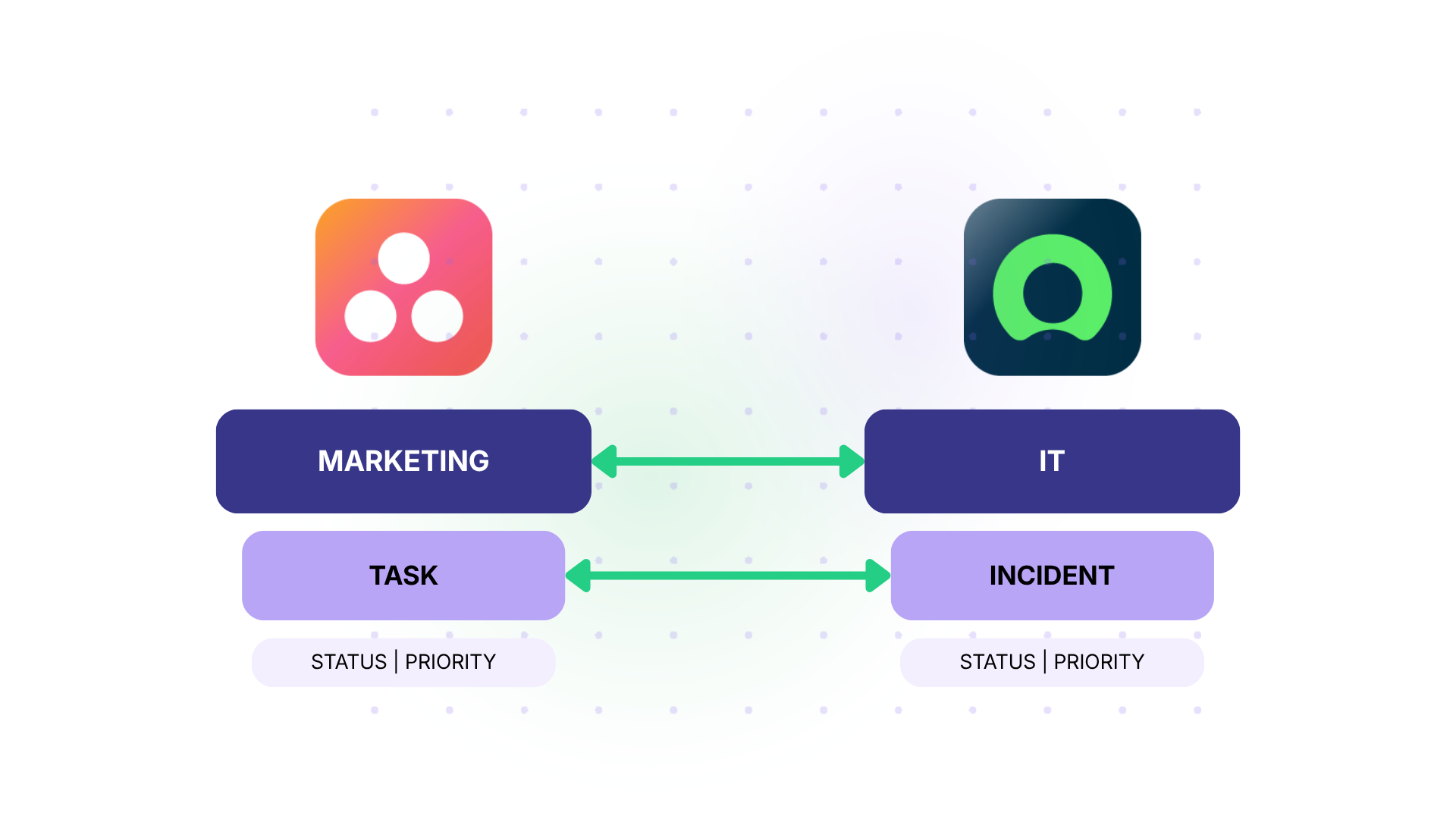
Case: A marketing team manages a product launch in Asana. The launch requires IT support: new server provisioning, SSL certificates, CDN configuration, and access permissions for external agencies. Each request needs to become a ServiceNow incident/change request with the correct category, priority, and assignment group.
Solution: Set up a bidirectional sync between a dedicated Asana project (“Q2 Product Launch – IT Requests”) and a ServiceNow catalog category. When a marketing PM creates a task in Asana with the tag “it-request” and sets the custom priority field to “High,” Exalate automatically generates a ServiceNow incident with mapped priority (Impact: 2, Urgency: 2), assigns it to the Infrastructure team’s assignment group, and includes the task description plus any attachments. When IT resolves the incident, the Asana task moves to the “Done” section automatically.
Real-World Application: A SaaS company launching a new product tier ran 35 IT-dependent tasks through this integration during a single quarter. Before integration, the marketing PM spent roughly 4 hours per week filing and tracking IT requests manually. After setup, that dropped to under 30 minutes of oversight per week, and resolution visibility went from days to real-time.
Facilities Management and Workplace Operations
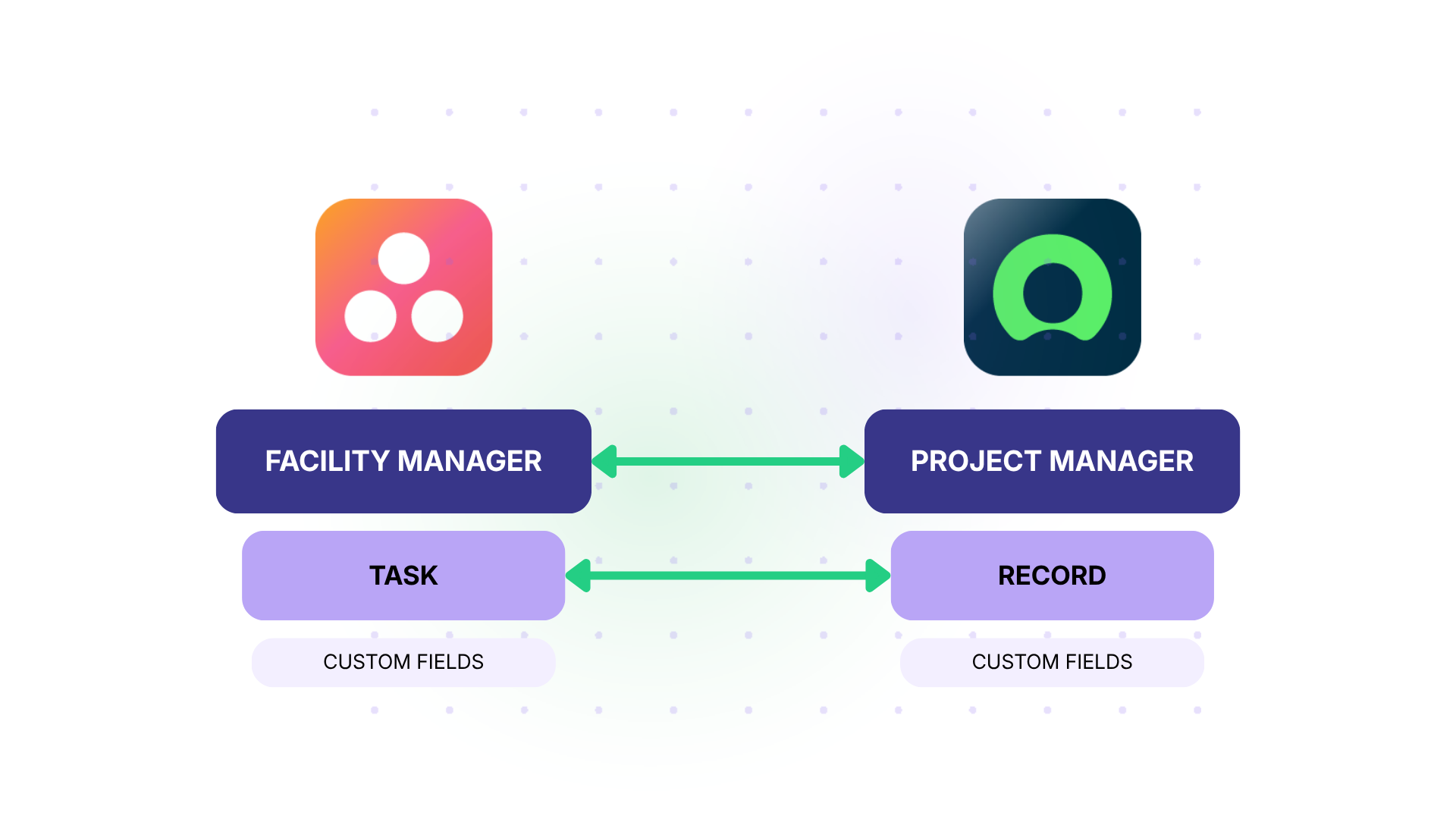
Case: A facilities team coordinates office build-outs, equipment moves, and space planning in Asana. Physical infrastructure requests (HVAC, electrical, network drops) require IT involvement through ServiceNow. The facilities PM needs to track progress without logging into ServiceNow, and IT agents need to build context (floor plans, timelines) without leaving ServiceNow.
Solution: Sync Asana tasks from the “Office Build-Out” project to ServiceNow facilities management records. Map custom fields like “Building,” “Floor,” and “Target Completion Date” from Asana to corresponding ServiceNow fields. Use conditional logic to only sync tasks where the “Requires IT” custom field is set to “Yes.” Attachments (floor plans, photos) sync automatically.
Real-World Application: A technology company opening a new regional office managed 150+ facilities tasks in Asana. Only 40 required IT coordination. By filtering with conditional triggers, the IT team’s ServiceNow queue stayed clean, and facilities managers had real-time visibility into IT progress without scheduling extra status meetings.
HR Onboarding and IT Provisioning
Case: HR manages the new-hire onboarding checklist in Asana: background checks, offer letters, orientation scheduling, and benefits enrollment. IT provisioning (laptop setup, software license allocation, account creation, badge access) happens in ServiceNow. When a new hire is confirmed, IT needs to start provisioning immediately, but the two teams work in completely separate tools.
Solution: When an Asana task in the “New Hires” project moves to the “Confirmed” section, Exalate creates a ServiceNow request with the new hire’s details (name, department, role, start date, required software list). As IT completes each provisioning step, status updates flow back to the Asana onboarding checklist. HR sees progress without pinging IT.
Real-World Application: A mid-size company onboards 15-20 new hires per month. Before integration, the HR coordinator sent individual emails to IT for each hire, often with missing information. After implementing the automated sync, provisioning requests arrived in ServiceNow with complete details on day one, and the average onboarding completion time dropped by 3 business days.
Cross-Company MSP Coordination
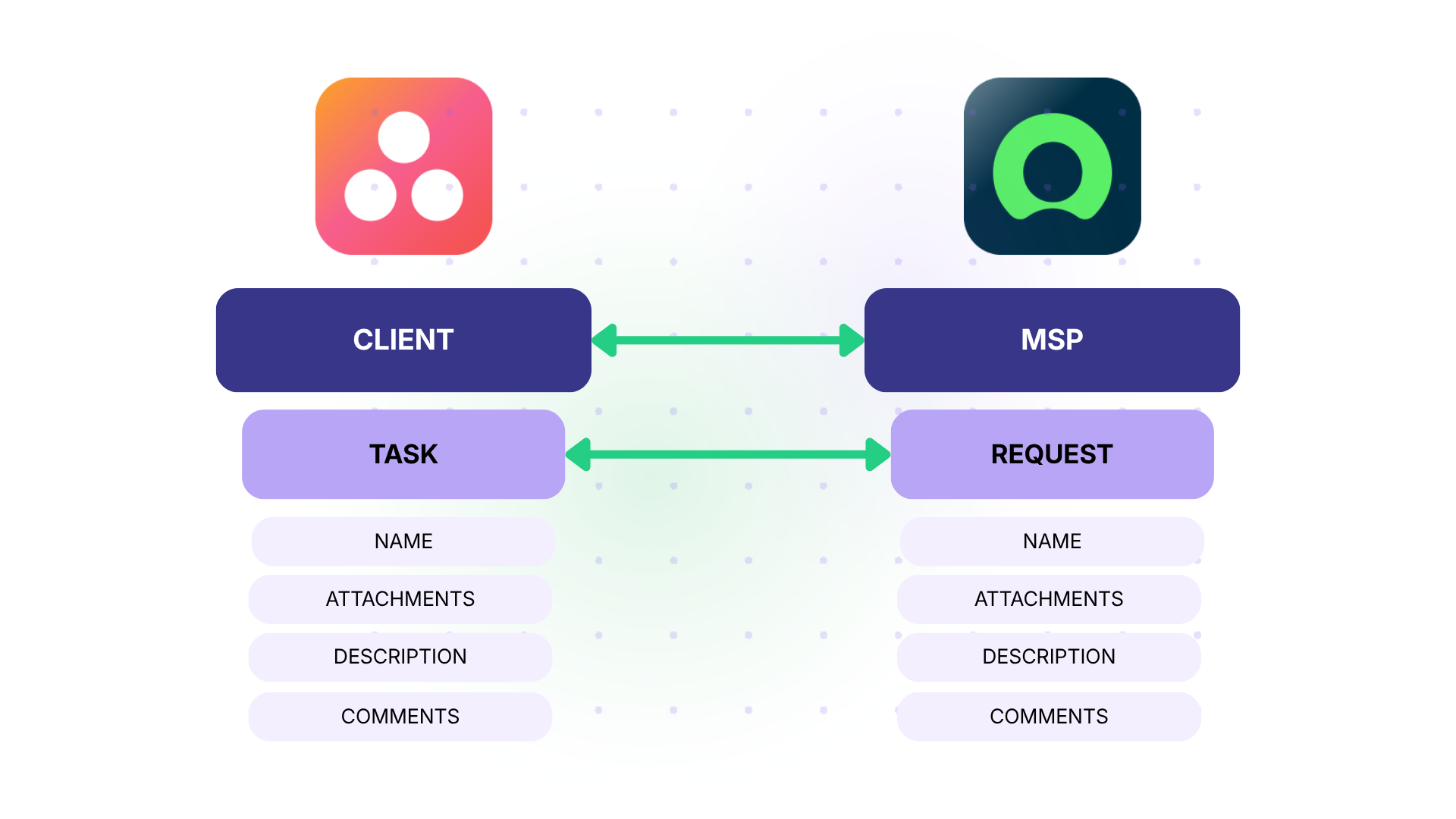
Case: A managed service provider (MSP) handles IT operations for multiple clients. The MSP works in ServiceNow. One client manages their business projects in Asana. The client wants to submit IT requests directly from Asana and track resolution progress without accessing the MSP’s ServiceNow instance. The MSP needs to keep its internal operations, pricing, and other client data completely separate.
Solution: Exalate creates an independent connection between the client’s Asana workspace and the MSP’s ServiceNow instance. Each side controls its own sync rules. The client shares the task name, description, priority, and attachments. The MSP shares status updates, resolution notes, and estimated completion dates. Internal comments, cost data, and SLA metrics stay private to the MSP.
Real-World Application: A cybersecurity MSP managing 8 client relationships used this model to eliminate the need for shared portals. Each client submitted requests from their own Asana workspace, and the MSP’s ServiceNow instance routed incidents/entities through standard ITSM workflows. Client satisfaction scores improved because they had real-time visibility without learning a new tool.
Multi-Platform Integration Hub
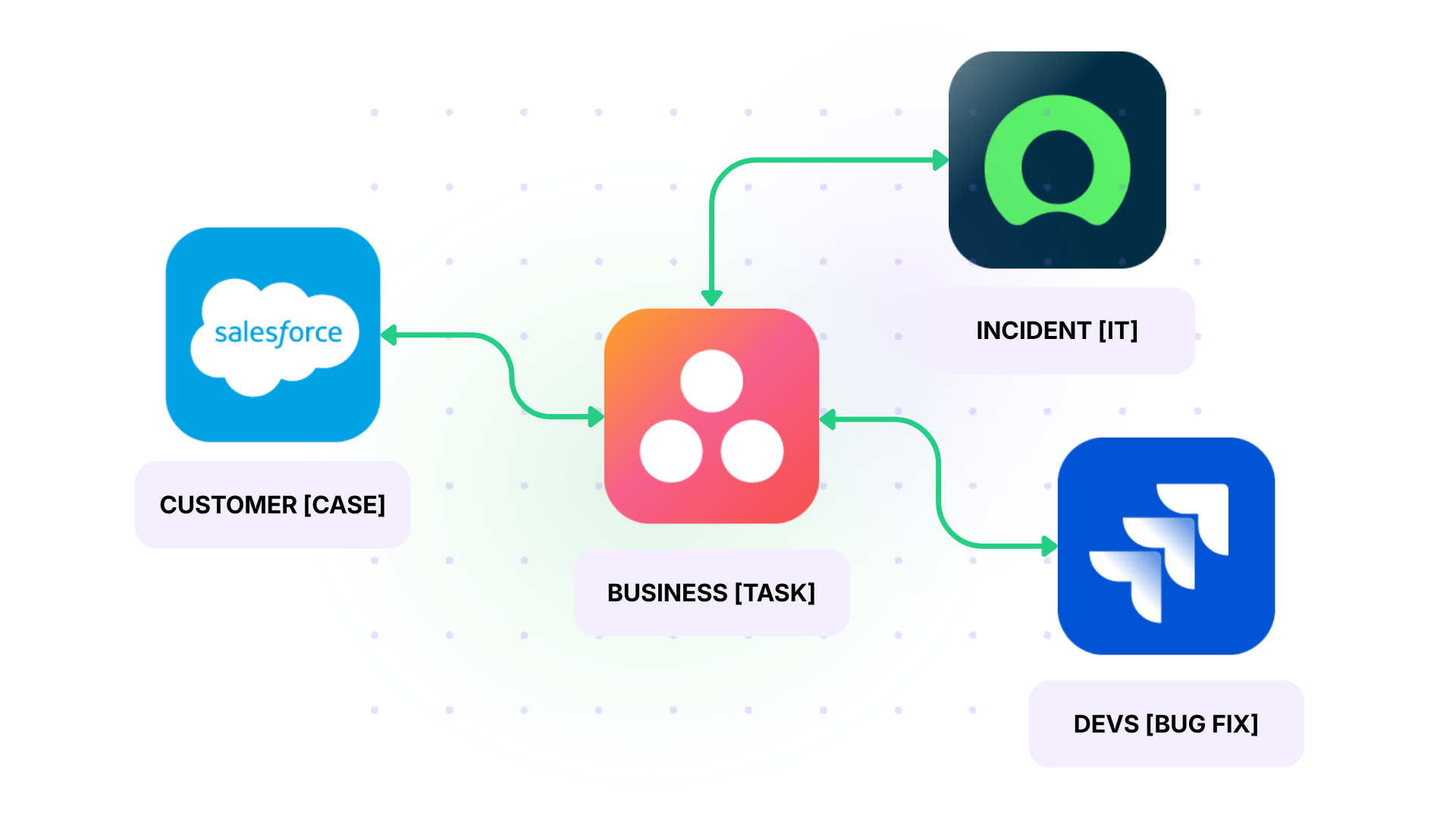
Case: A large enterprise uses Asana for business teams, ServiceNow for IT operations, Jira for engineering, and Salesforce for customer data. A customer-reported issue needs to flow from Salesforce to ServiceNow (incident), to Jira (bug fix), with business stakeholders in Asana tracking the overall response.
Solution: Exalate acts as a hub connecting all four platforms. Each connection operates independently with its own rules, field mappings, and sync direction. When a Salesforce case triggers a ServiceNow incident, the incident data syncs to Jira for the engineering fix. A parallel sync creates an Asana task for the account team to track customer communication. Updates from any platform propagate to the others based on configured rules.
Real-World Application: An enterprise software company used this hub to handle 200+ customer-reported issues per month across all four platforms. The end-to-end resolution time dropped by 40% because no handoff required manual data transfer, and every team had real-time visibility into the status without leaving their preferred tool.
Why Use Exalate for Asana ServiceNow Integration?
Customized Sync Rules With AI-Assisted Configuration
Exalate includes Aida, an AI assistant that generates sync scripts from plain-language descriptions. Instead of writing Groovy code from scratch, you describe what you want to sync, and Aida produces the script.
Example prompt: “Sync Asana tasks tagged ‘it-request’ from the Q2 Launch project to ServiceNow incidents. Map the Asana priority custom field to ServiceNow urgency. Include comments and attachments. Only sync tasks assigned to the IT Liaison.”
Aida generates the corresponding sync rules, including field mappings, triggers, and conditions. You review the output, adjust if needed, test with sample data, and deploy.
This cuts setup time significantly, especially for teams without deep scripting experience. That said, AI-generated scripts should always be reviewed before going live to confirm they match your security and data governance policies.
Independent Control
With Exalate, each side of the integration manages its own sync rules independently. The Asana side decides what to send and how to process incoming data. The ServiceNow side does the same. Neither side needs to share credentials, admin access, or configuration details with the other.
This is especially important for cross-company integrations where data governance is non-negotiable. Each organization retains full control over what gets shared and what stays private.
Supported Platforms and Connectors
Beyond Asana and ServiceNow, Exalate connects with Jira, Salesforce, Azure DevOps, Zendesk, GitHub, Freshdesk, Asana, and Freshservice. This matters because most organizations don’t operate on just two platforms. Exalate lets you build a connected integration network without stitching together multiple single-purpose tools. You can also get access to custom connectors as well as the MSP package.
Security and Compliance
Exalate is ISO 27001 certified and uses TLS 1.2/1.3 encryption for data in transit. Authentication options include personal access tokens, JWT, API keys, and OAuth. Role-based access control ensures only authorized users can configure or modify sync rules.
For detailed security documentation, visit the Exalate Trust Center.
Supported Entities and Fields
You can sync any data available through the Asana and ServiceNow REST APIs. The most commonly synced entities include:
Asana side: Task name, description, assignee, due date, tags, custom fields (all types), comments/conversations, attachments, subtasks, sections, projects, and portfolios.
ServiceNow side: Short description, description, assigned to, assignment group, state, priority, urgency, impact, work notes, additional comments, attachments, child records, categories, and custom table fields.
Custom field transformations are handled through Exalate’s Groovy scripting engine. For example, you can map a single Asana dropdown field called “Priority” to ServiceNow’s separate Impact and Urgency fields using conditional logic in the sync script.
Sync Panel
Exalate also comes with a Chrome extension called Sync Panel that lets users check sync status, spot errors, trigger manual syncs, and unlink sync pairs straight from the browser, without opening the console.
It’s useful for two groups: admins who want to keep an eye on sync status without switching tabs and end users who want to confirm that the remote side received their update.
You can access this feature via the browser. But if you want to check the sync queue status or configure your sync, you still need to log into the Exalate console.
How to Set Up Asana ServiceNow Integration With Exalate
Here’s a walkthrough for connecting Asana and ServiceNow using Exalate.
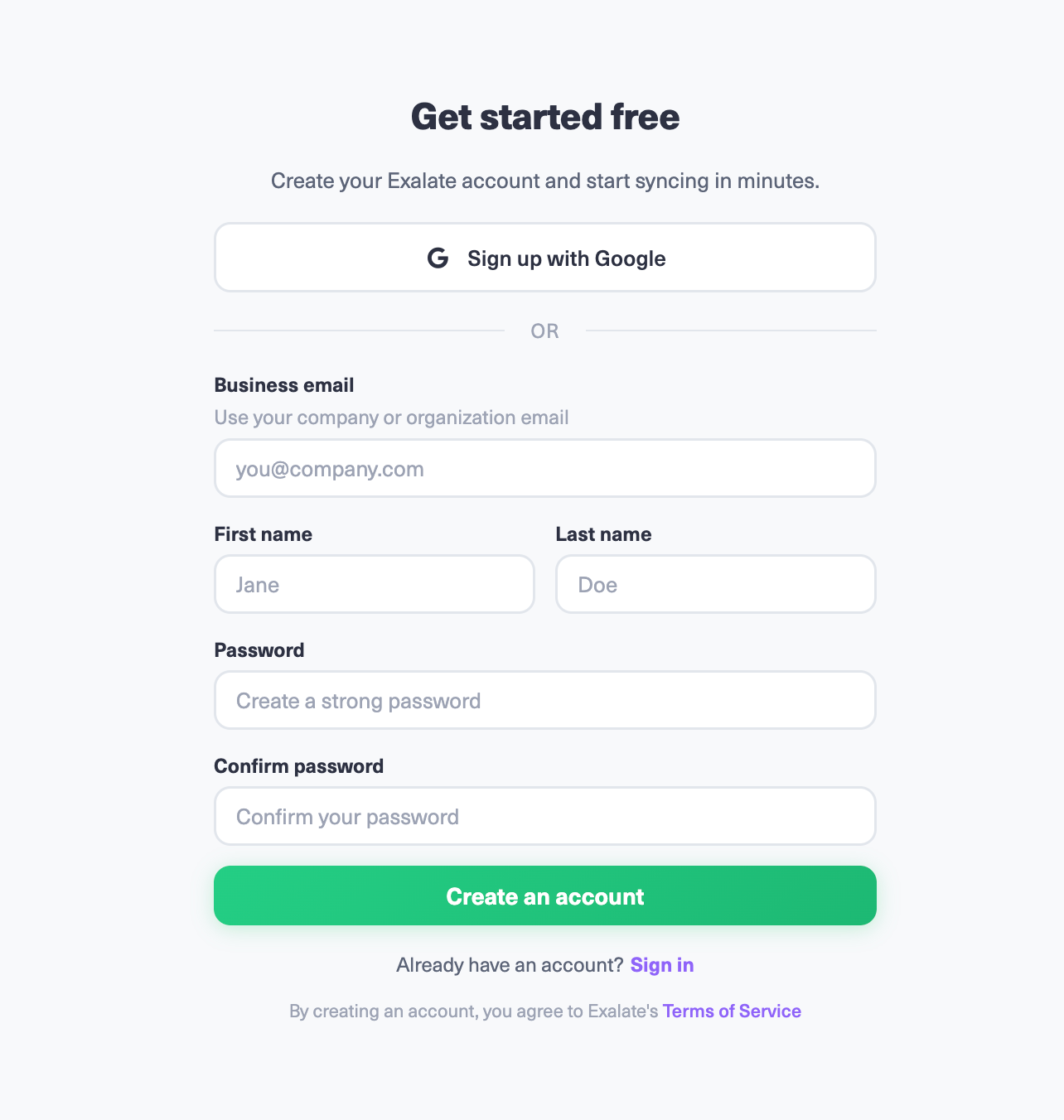
Create an Exalate Account
Go to the Exalate console. Sign up with your business email. If you already have an account, log in and start creating connections.
Set Up Your Connection
If you already have an existing account, you can view all your connections under the “Connections” tab. You can choose to edit the connection from here and view other connection details.
Note: To create a connection, you’ll need an active Exalate account and the access credentials for the systems you want to connect.
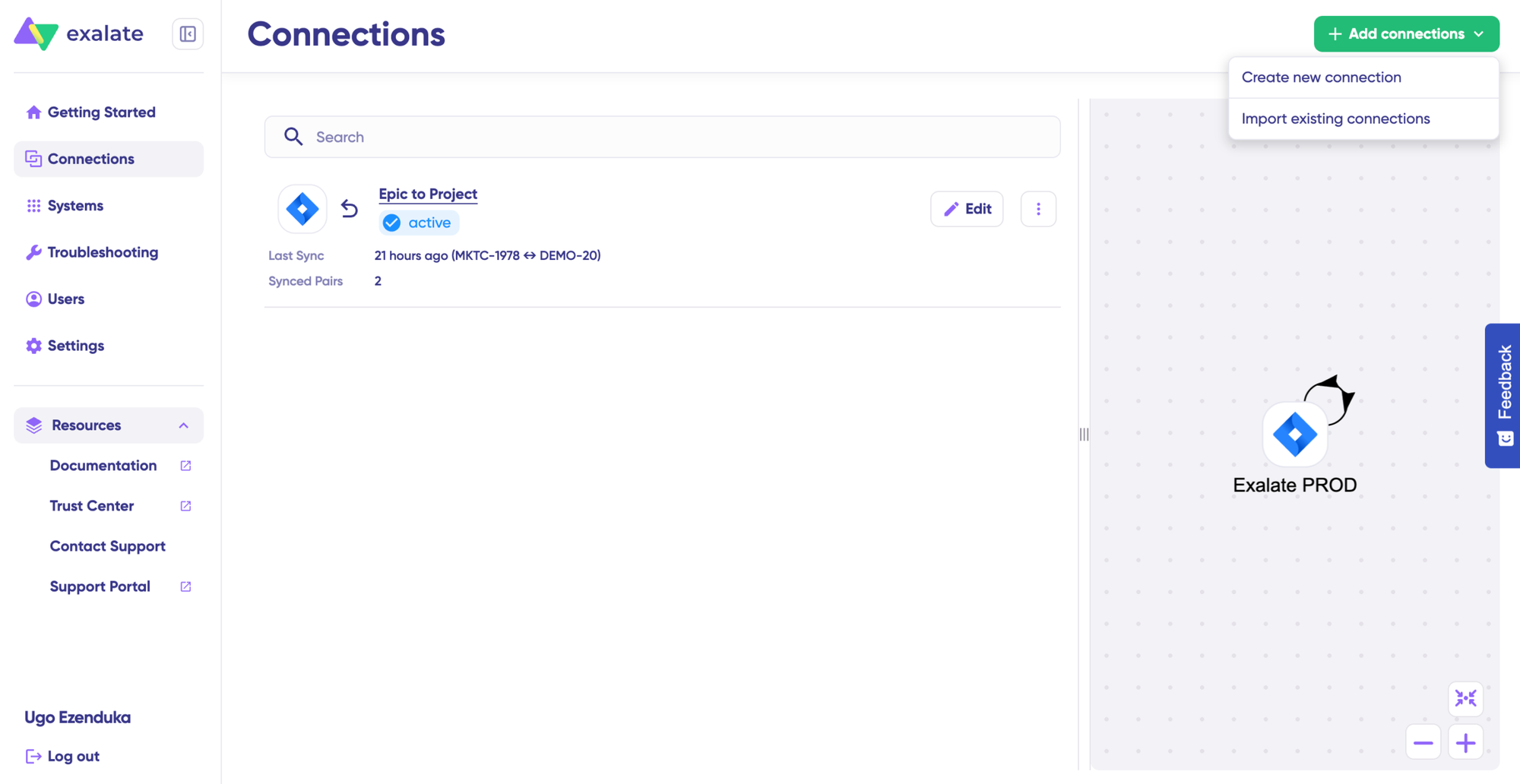
Click on “+ Add connections” > “Create new connection”.
Enter the name for your first system. Name either Asana or ServiceNow as your System A. It doesn’t matter which one goes first. Enter the URL of your system. Let’s say we start from Asana, then enter your Asana instance URL.
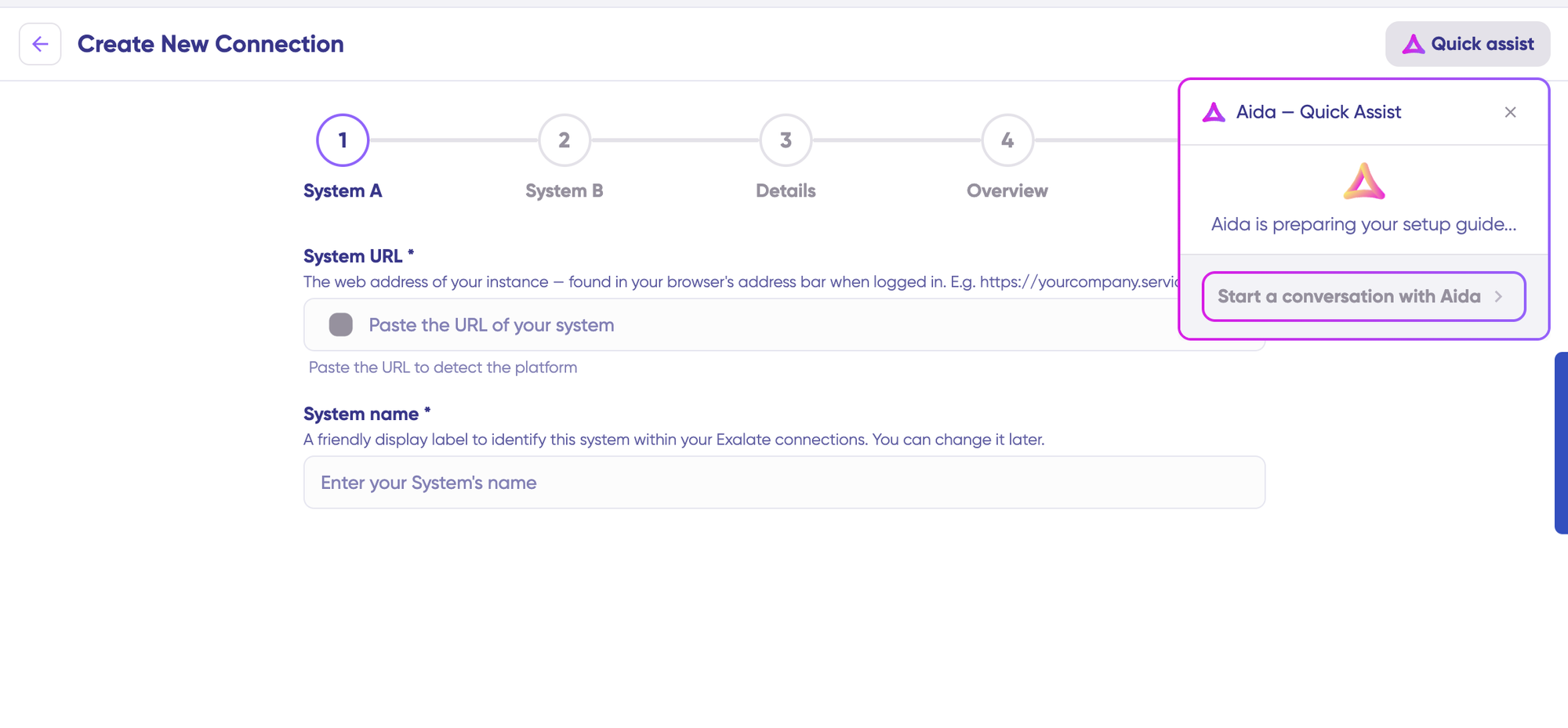
You can also speed up the process by using Aida – Quick Assist at the top right of the dashboard.
Once you enter the URL, a small check happens behind the scenes.
For a new system, you need to enter your authentication details. For Asana, you need an API Key. For ServiceNow, you need your ServiceNow username and password or you can use OAuth 2.0.
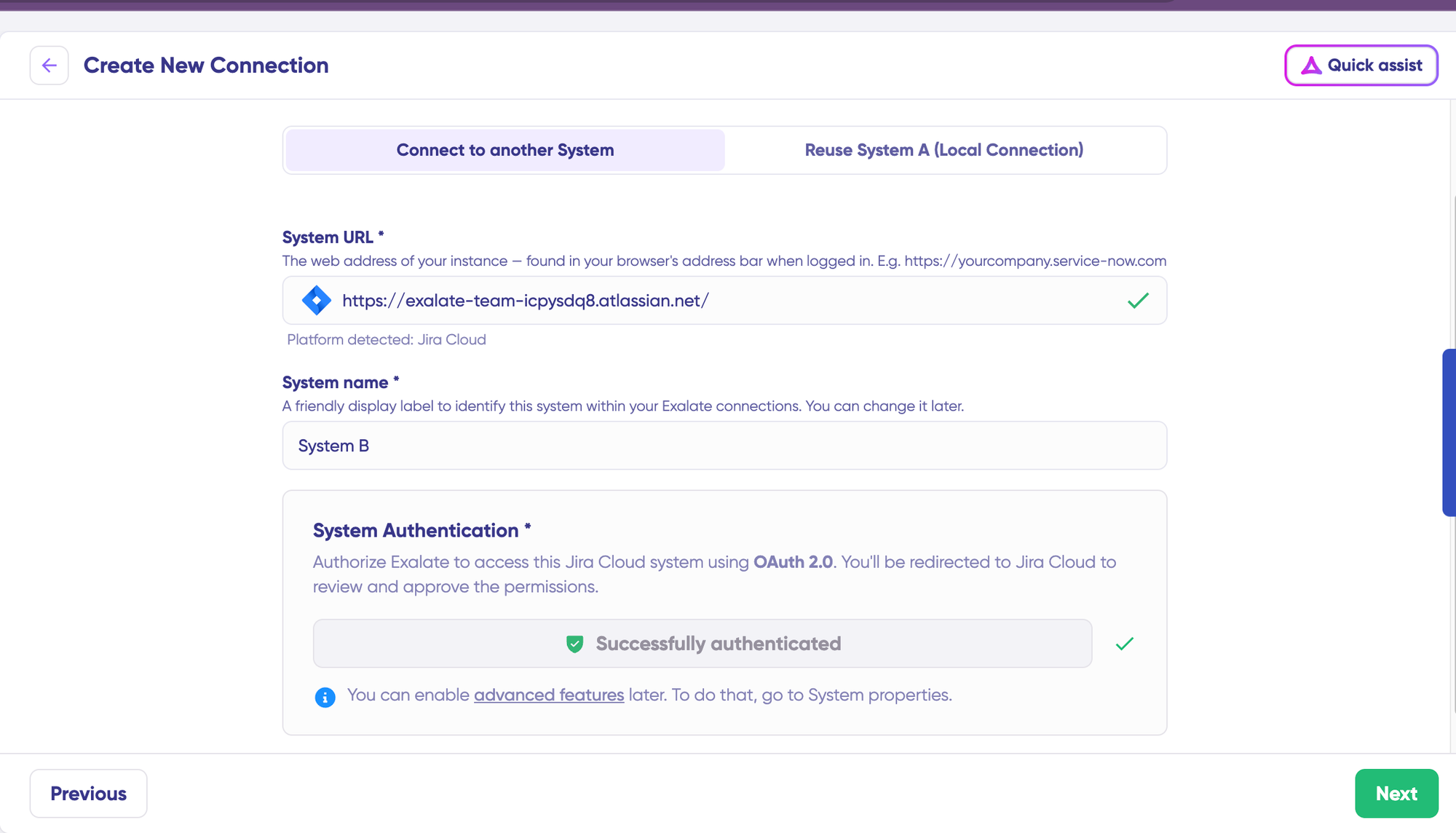
Finish this setup for the ServiceNow side as well. The same rules apply as they did for your Asana instance.
Give a name and description for your connection. Click “Next.” Review if the details are correct and click “Create connection”.
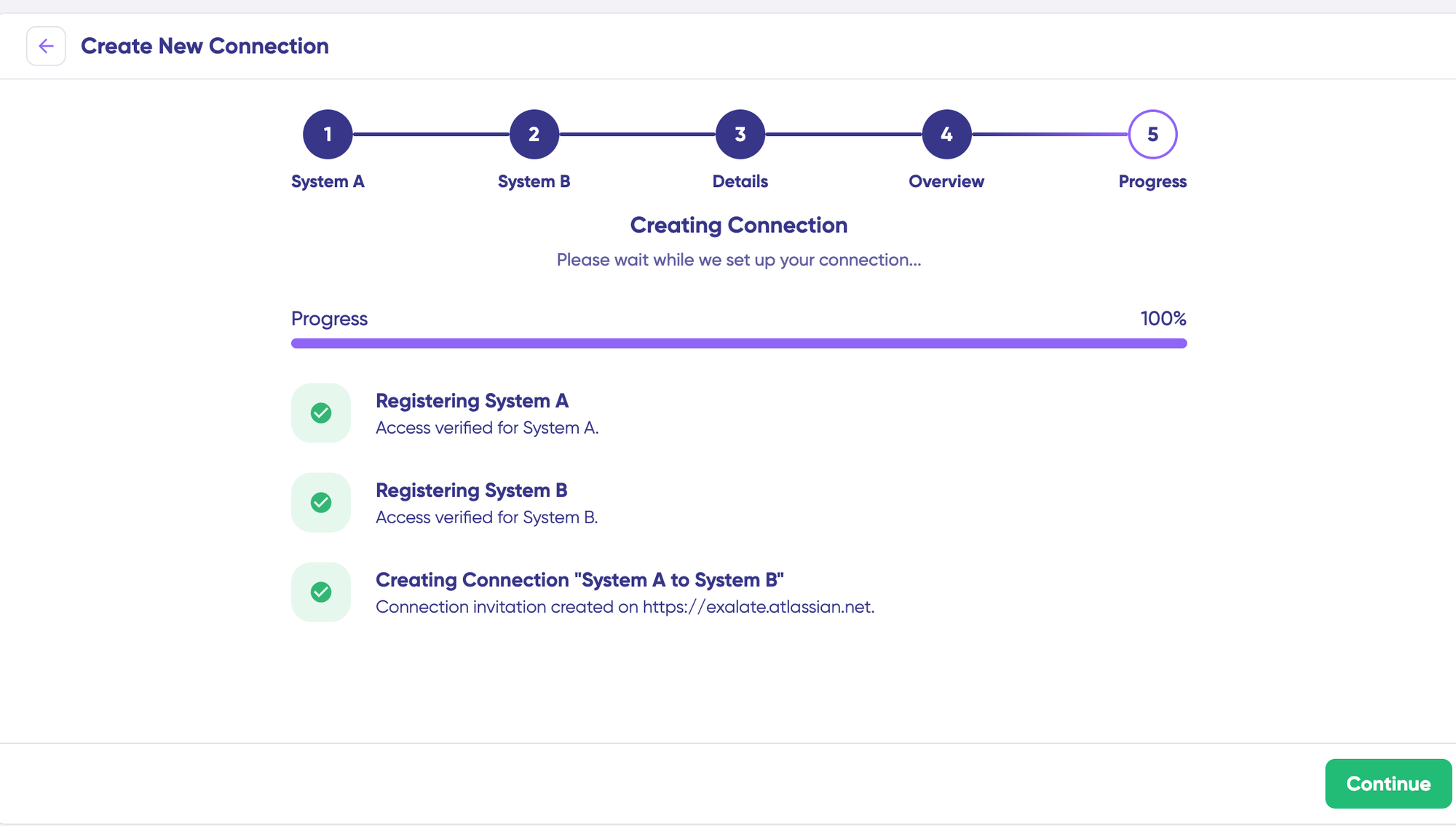
When the process is complete, you’d need to select “Continue to configuration” and choose an Asana project you want to use for synchronization.
Then click “Build & continue”.
Now, you have 2 options: “Quick sync” and “Edit & Test”. Let’s proceed with them one by one.
Choose Quick Sync or Custom Configuration
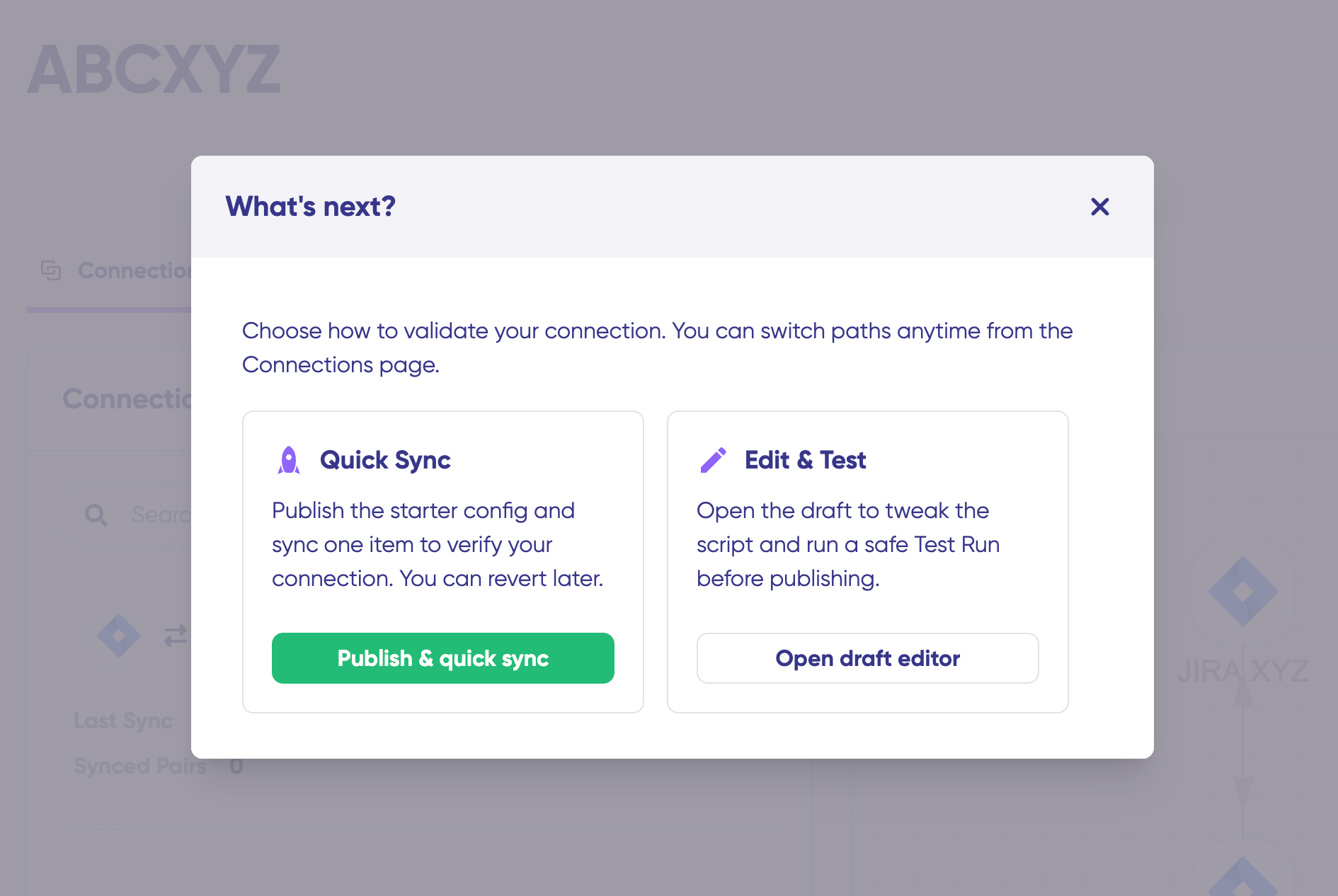
Quick Sync sets up a basic bidirectional connection with default field mappings (task name to short description, comments, status, assignee). This is useful for a proof-of-concept or simple use cases.
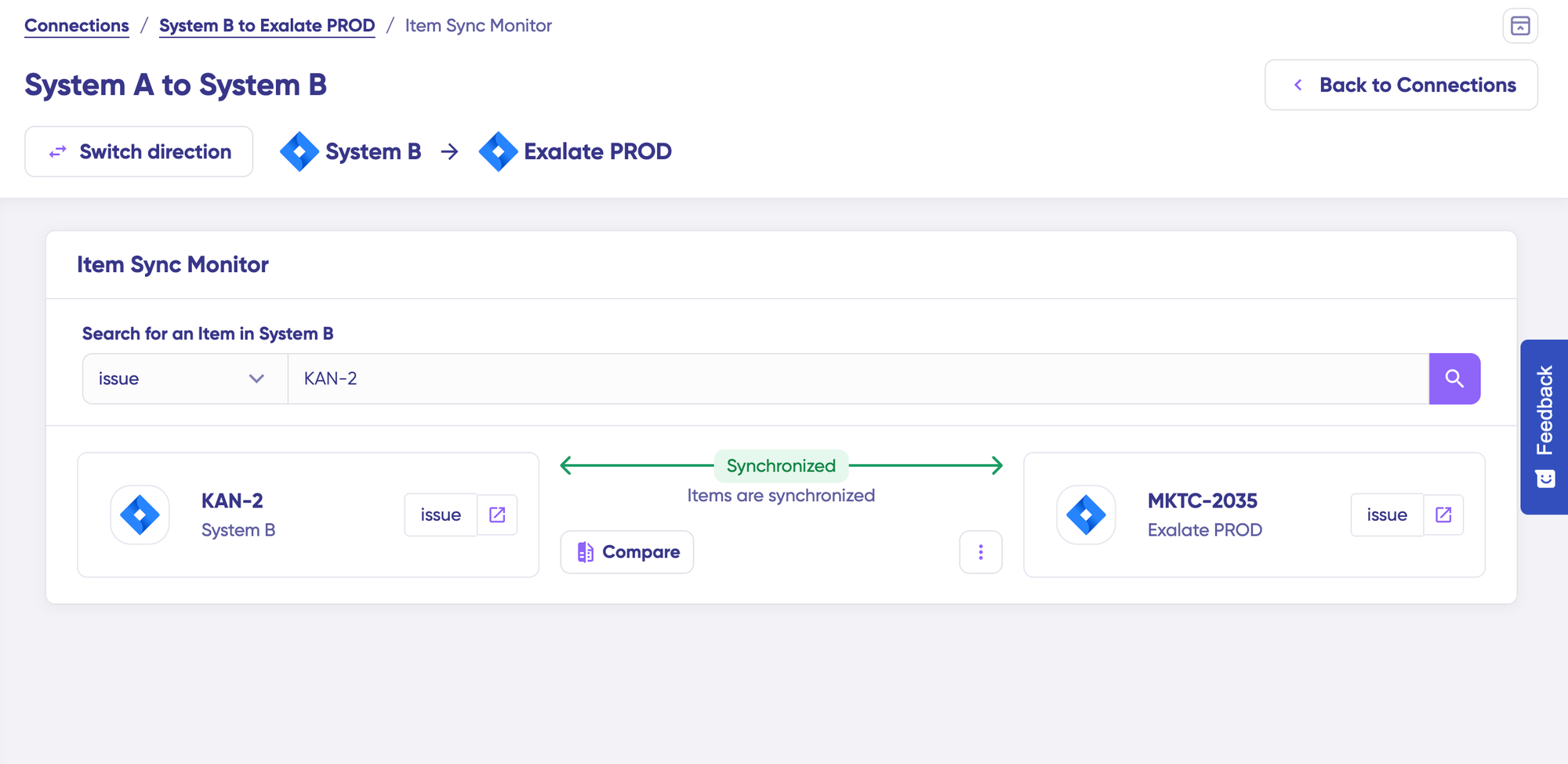
Under the “Item sync monitor,” enter the task ID in Asana, or the incident number in ServiceNow. To sync the first item, click on the “Sync Now” option.
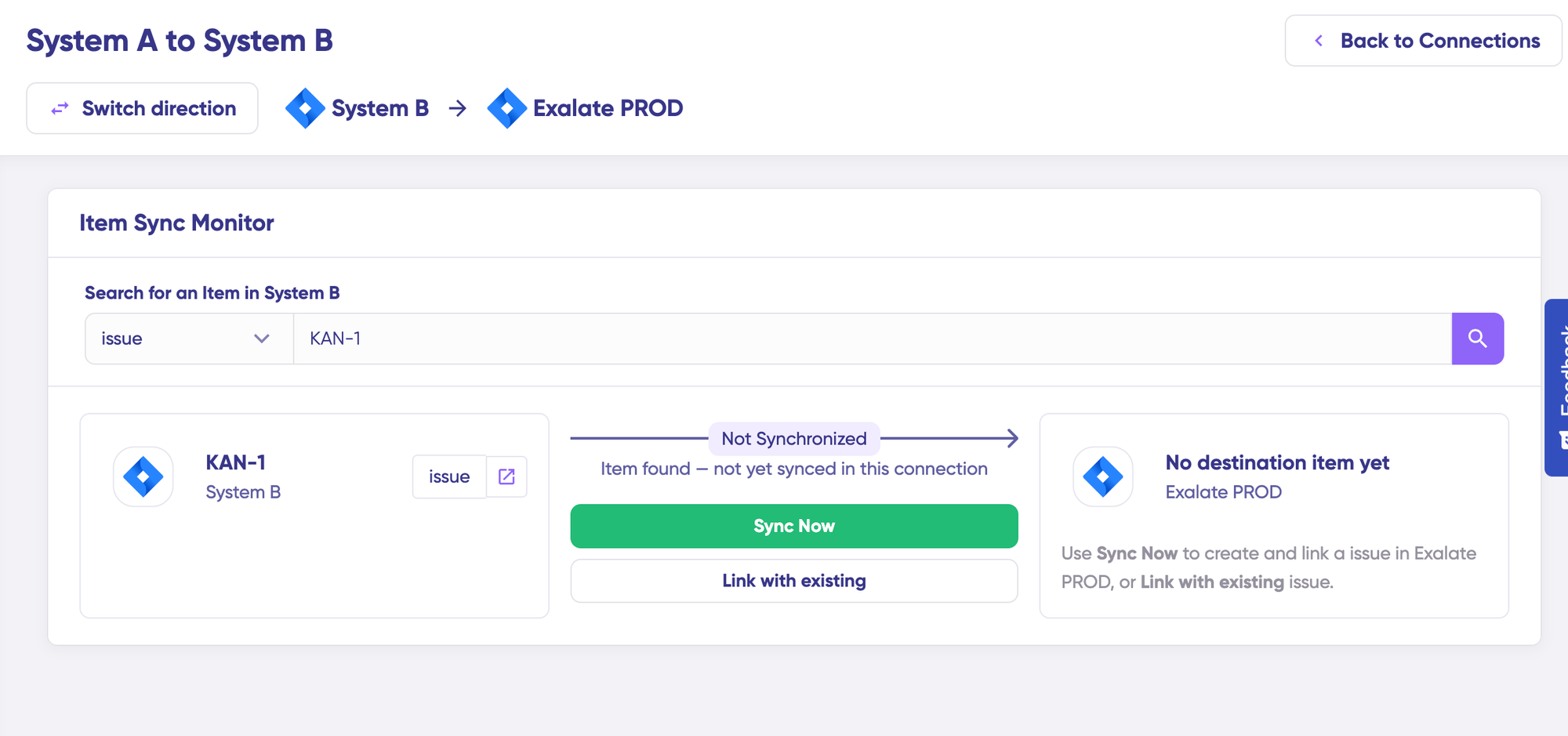
To link 2 existing items, click “Link with existing”. While the items sync, you’d get status updates. Once the sync is complete, you can view both the synced issues by opening them in a new window.
You can also choose to compare how the sync items would look and how the changes would be applied.
Custom configuration opens the sync rule editor, where you define exactly what maps where using Groovy scripts or Aida AI prompts.
For most production setups, start with Quick Sync to validate the connection, then switch to custom rules to fine-tune the mapping.
Configure Sync Rules with Aida
To start making changes, click “+ New version” or select the “Open latest draft”. This ensures you don’t modify the existing configuration accidentally. Changes in the draft are saved automatically.
Click the “Edit Script” button to open the editor and edit the sync rules.
Sync rules are based on Groovy-based scripts. With these scripts, you can choose to add custom data logic and mapping, along with conditional flows, basically allowing you to adapt for any complex or advanced use cases or workflows.
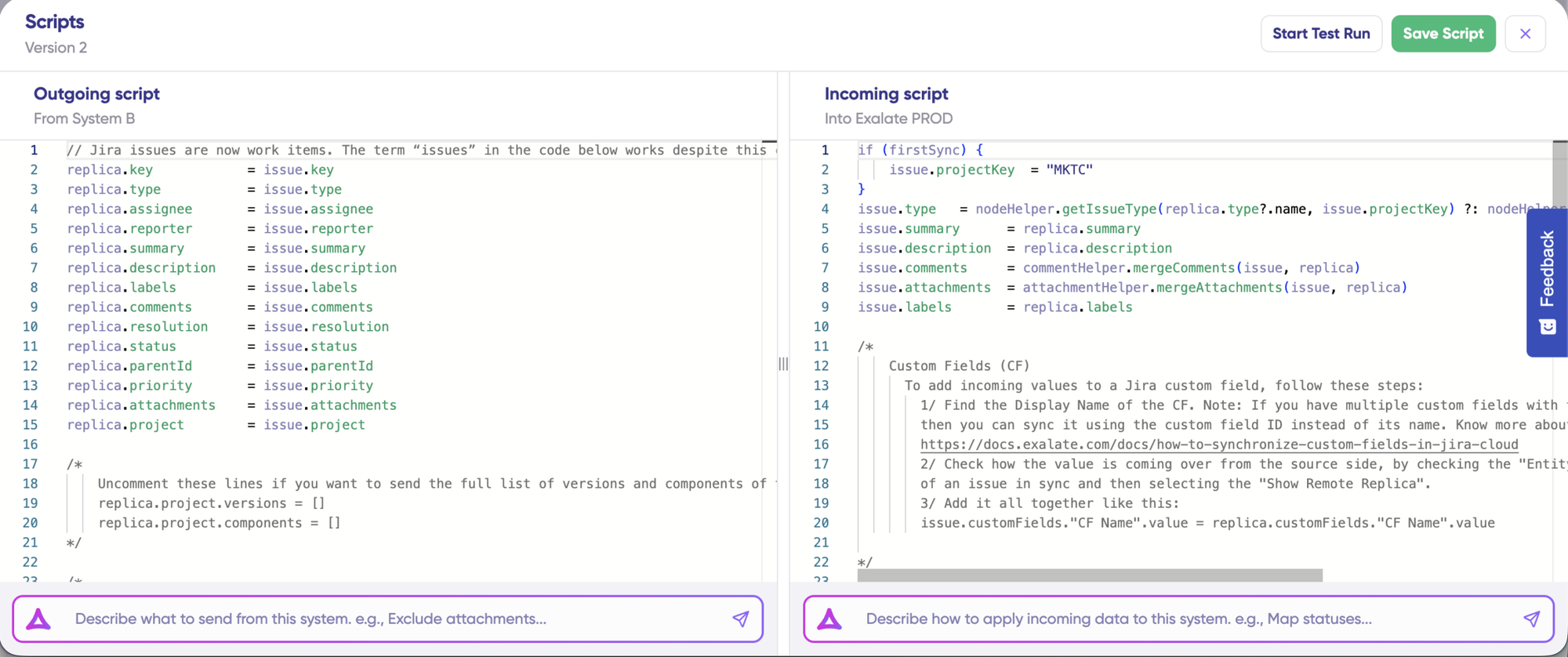
The direction of the sync can be changed by clicking the “Switch direction” button with the two arrows next to the connection name. The scripts are divided into incoming and outgoing scripts.
Replica works like a message payload and holds the actual data passed between the synced entities. It exists in the JSON format. To sync new values, you can simply enter the sync script yourself (if you are tech-savvy).
If you want to stop something from syncing, for instance, no attachments from Asana to ServiceNow, remove that script line from the outgoing Asana script.
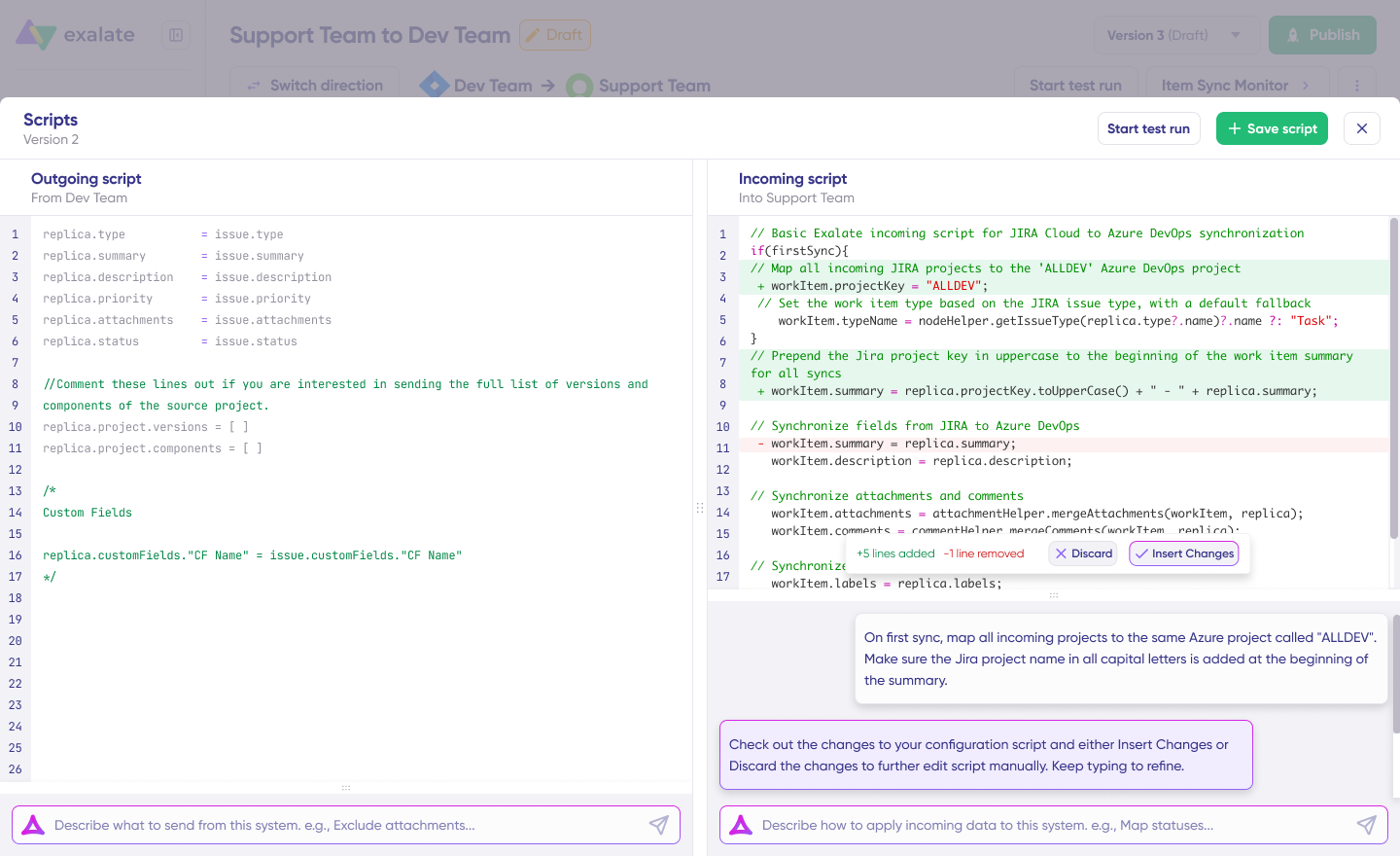
Open the sync rule editor and describe your requirements to Aida in plain language. For example:
“Map Asana task name to ServiceNow short description. Map the Asana custom field ‘Priority’ to the ServiceNow urgency. Sync comments as work notes. Include attachments. Only sync tasks from the ‘IT Requests’ section.”
Aida generates the corresponding Groovy script. Review the output to confirm field names, conditions, and data types are correct. Adjust any mappings manually if needed.
Set Up Triggers
Exalate triggers are platform-specific. Triggers define the conditions under which synchronization starts.
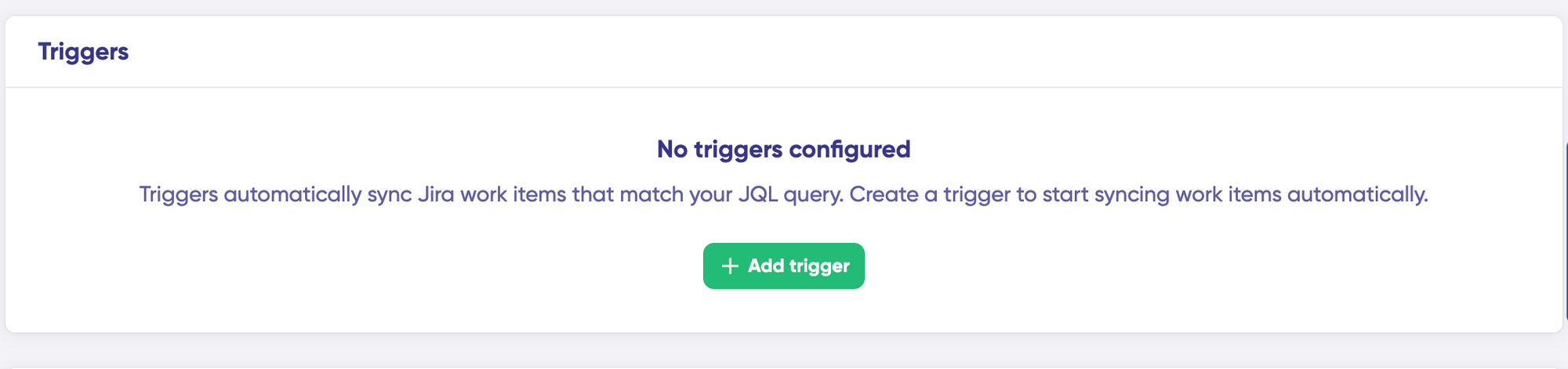
For Asana, you can use search syntax to specify conditions for work items or sprints. For ServiceNow, you can use the advanced search syntax to apply the trigger to incidents and other entities. Save your changes by publishing them.
To start your sync automatically, it’s important to add “Triggers”, which are conditions or filters you apply to specific items.
For instance, sync all Asana tasks that have a label = “dev”, or sync all entities in ServiceNow that belong to a specific assignment group. Click the “+Add trigger” button to start creating triggers.
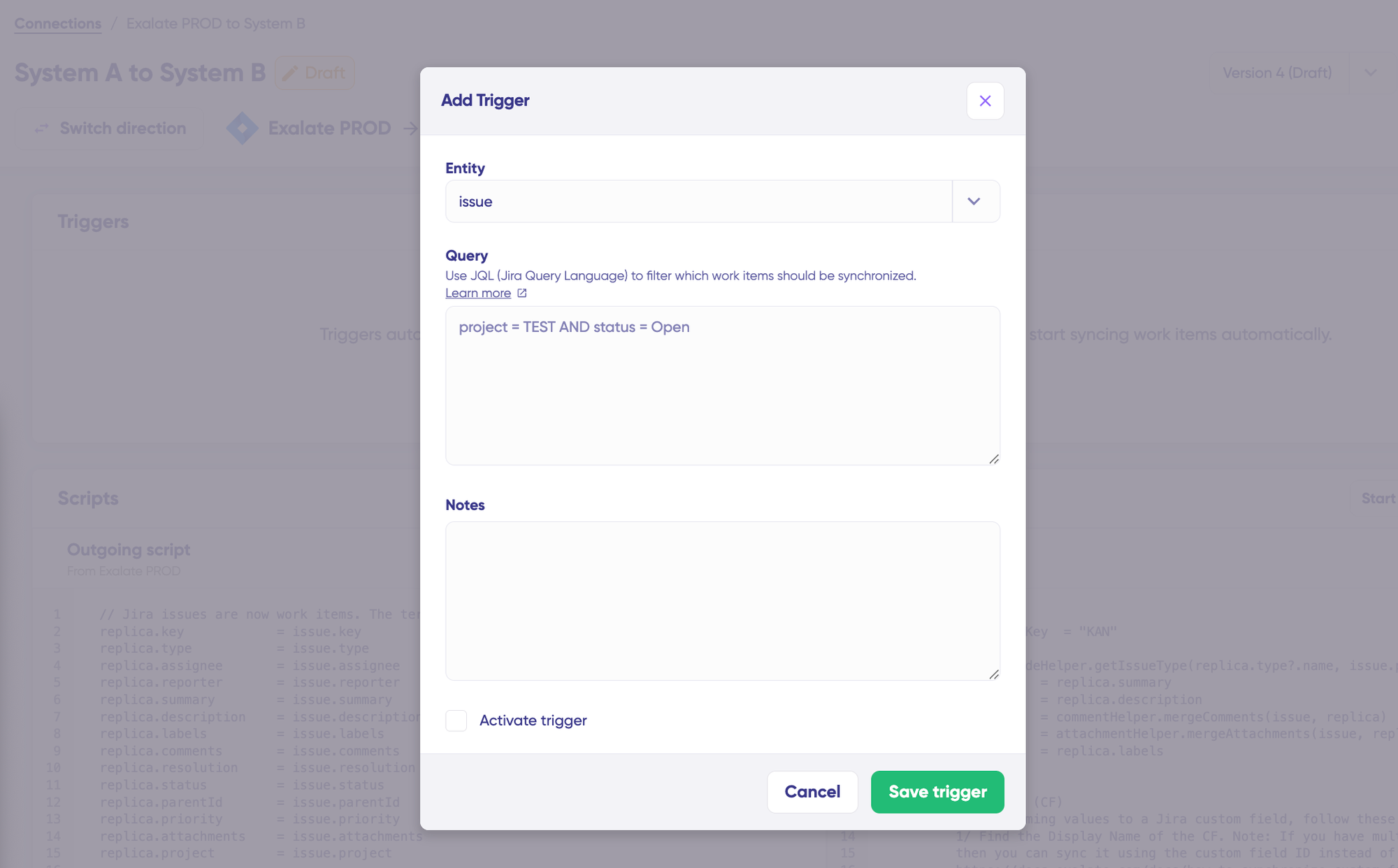
Common trigger examples for Asana ServiceNow integration:
- Sync all Asana tasks in a specific project
- Sync only tasks with a certain tag (e.g., “servicenow-sync”)
- Sync tasks assigned to a specific team member
- Sync ServiceNow incidents from a particular assignment group or category
Configure your triggers in the Exalate dashboard. Each trigger operates independently, so you can have multiple triggers for different sync scenarios on the same connection.
Test the Sync
Before going live, run a test sync with a small number of sample tasks. Create a test Asana task in the configured project and verify that:
- A corresponding ServiceNow record appears with the correct fields
- Comments sync in both directions
- Attachments transfer successfully
- Status updates propagate correctly
- Custom field values map as expected
Once you have your sync scripts ready, you can choose to “Save script” or proceed to dry run them using the “Start Test Run” option.
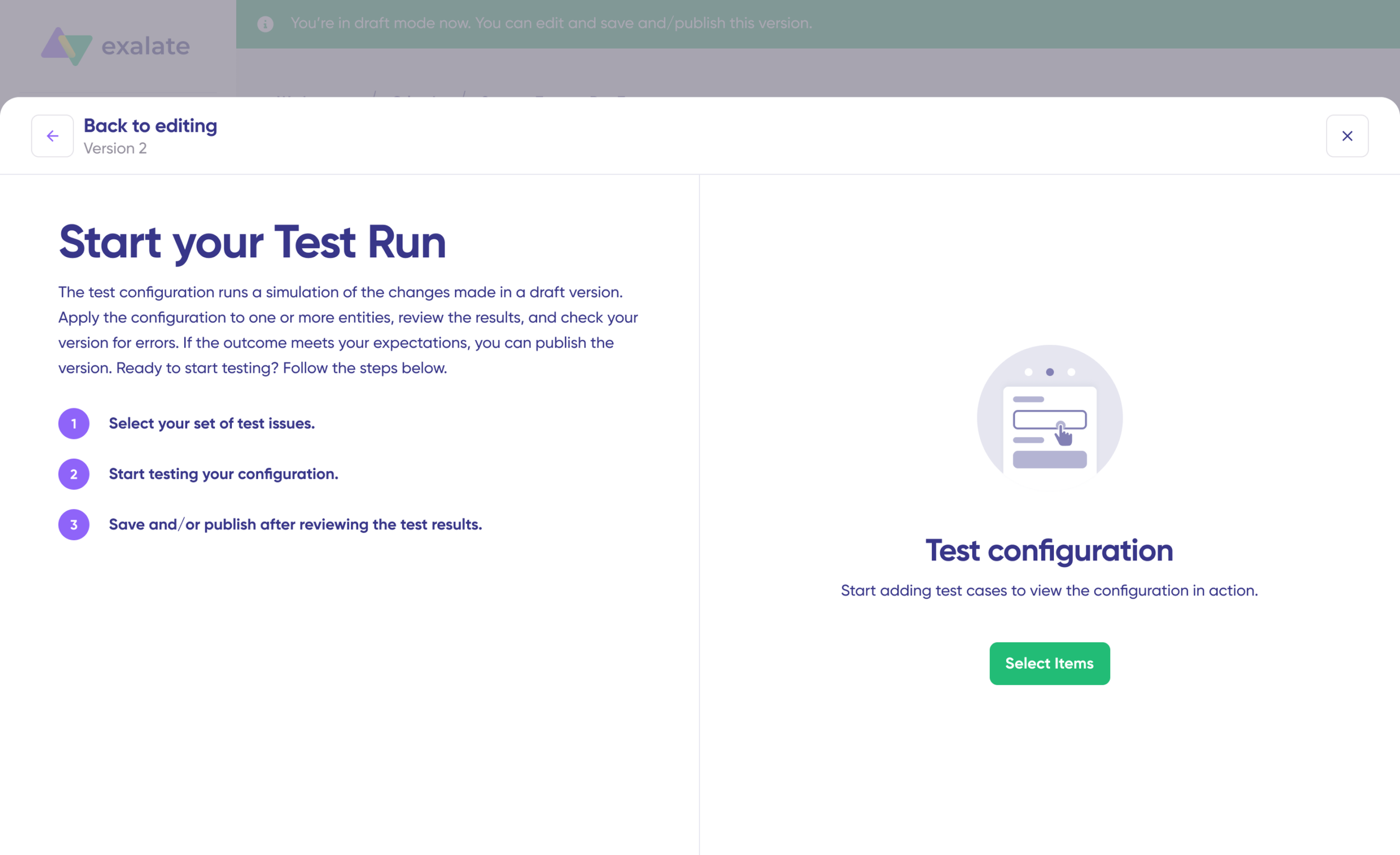
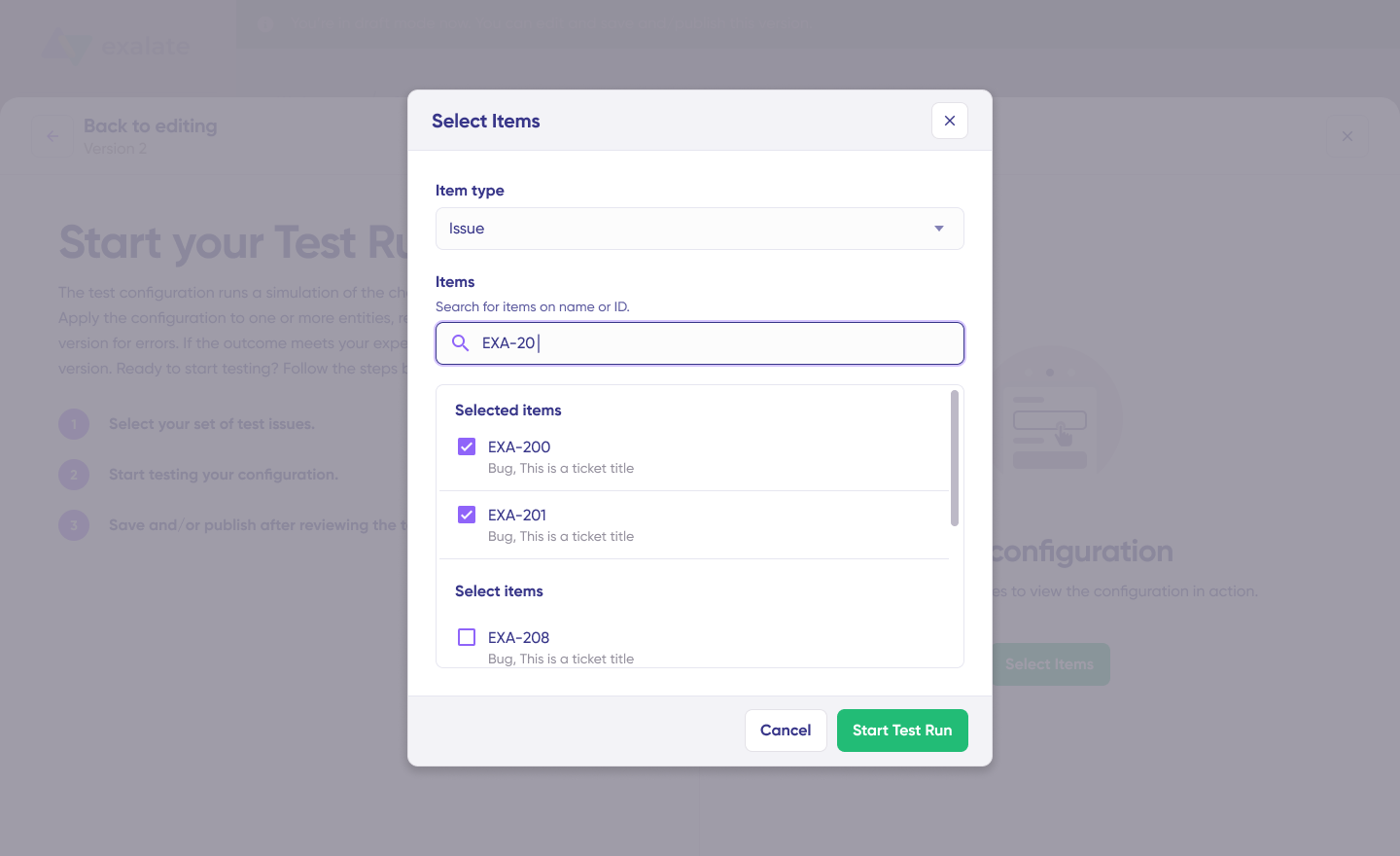
To test the configuration, “Select Items” you want to apply the sync to. You can select multiple items. Once you do that, click “Start Test Run”. You can now see all the incoming and outgoing replicas for each item you selected. You can view all of them in the respective tabs.
Fix any issues at this stage. Testing is significantly easier than debugging a live sync with hundreds of records.
Once everything matches your needs, click “Publish Version” to apply the updated configuration to your live synchronization.
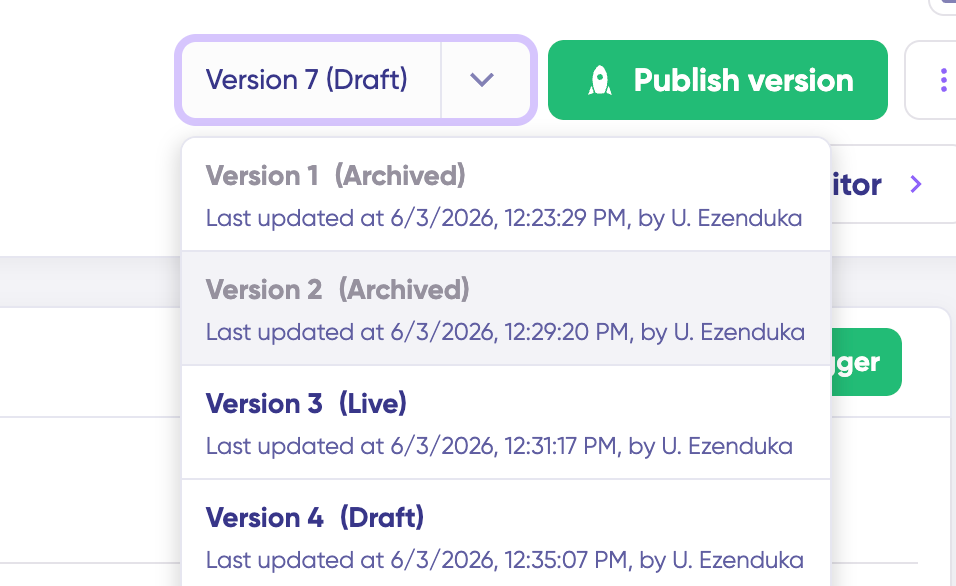
All versions for a connection are available in the “Version” dropdown. Versions can be either “Active”, in “Draft” (editable), or “Archived”.
Troubleshooting With Aida
Aida AI helps you troubleshoot errors faster. It offers clear and context-aware suggestions to resolve errors, right where you see them.
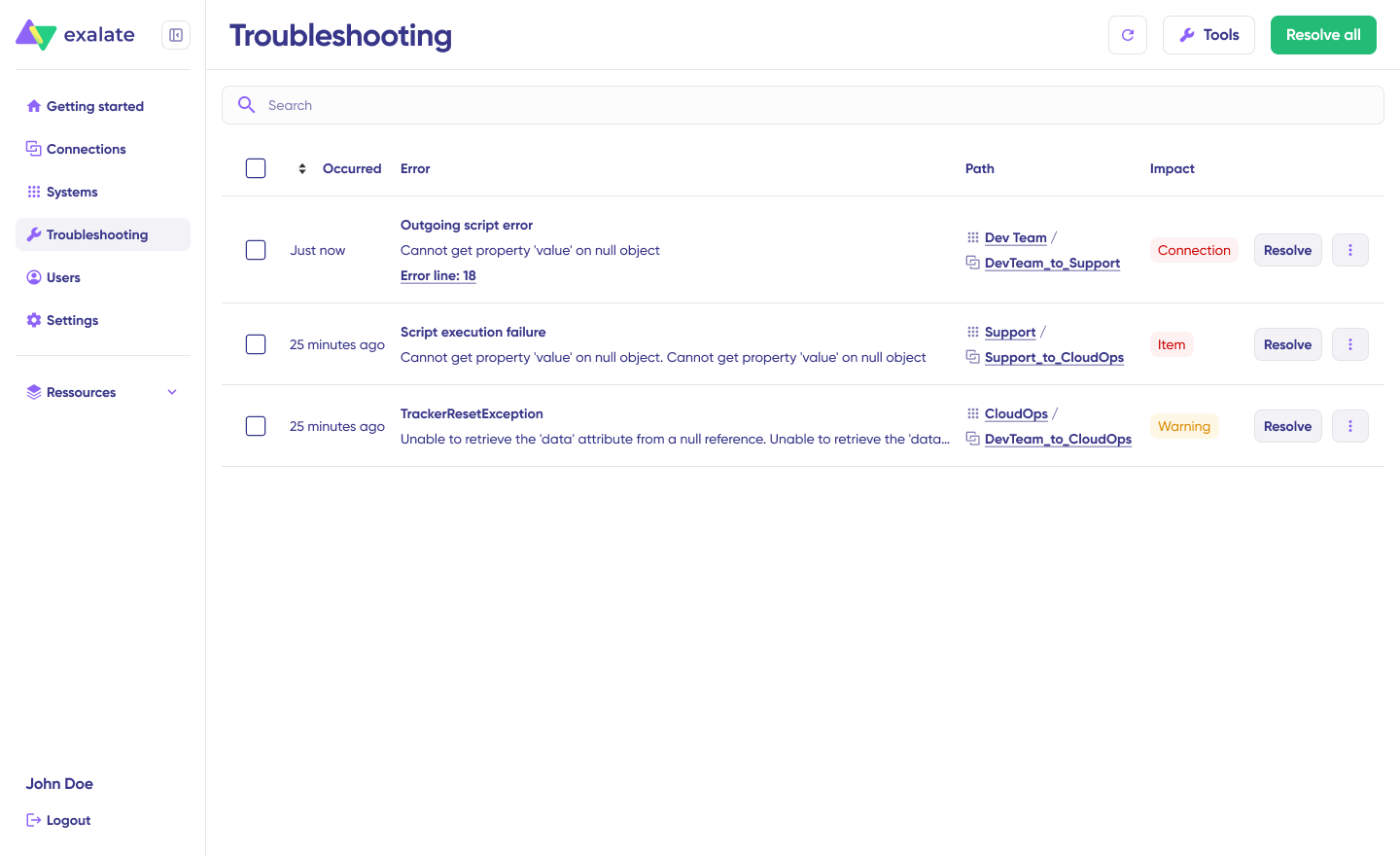
If there’s an error, go to the “Troubleshooting” tab. Hover over the error you want to diagnose and click on the Aida icon that appears next to the error. You will see the AI-generated suggestion in the modal window.
This includes a short explanation of the error and a proposed solution for it. You can also “View Full Analysis” to get more context.
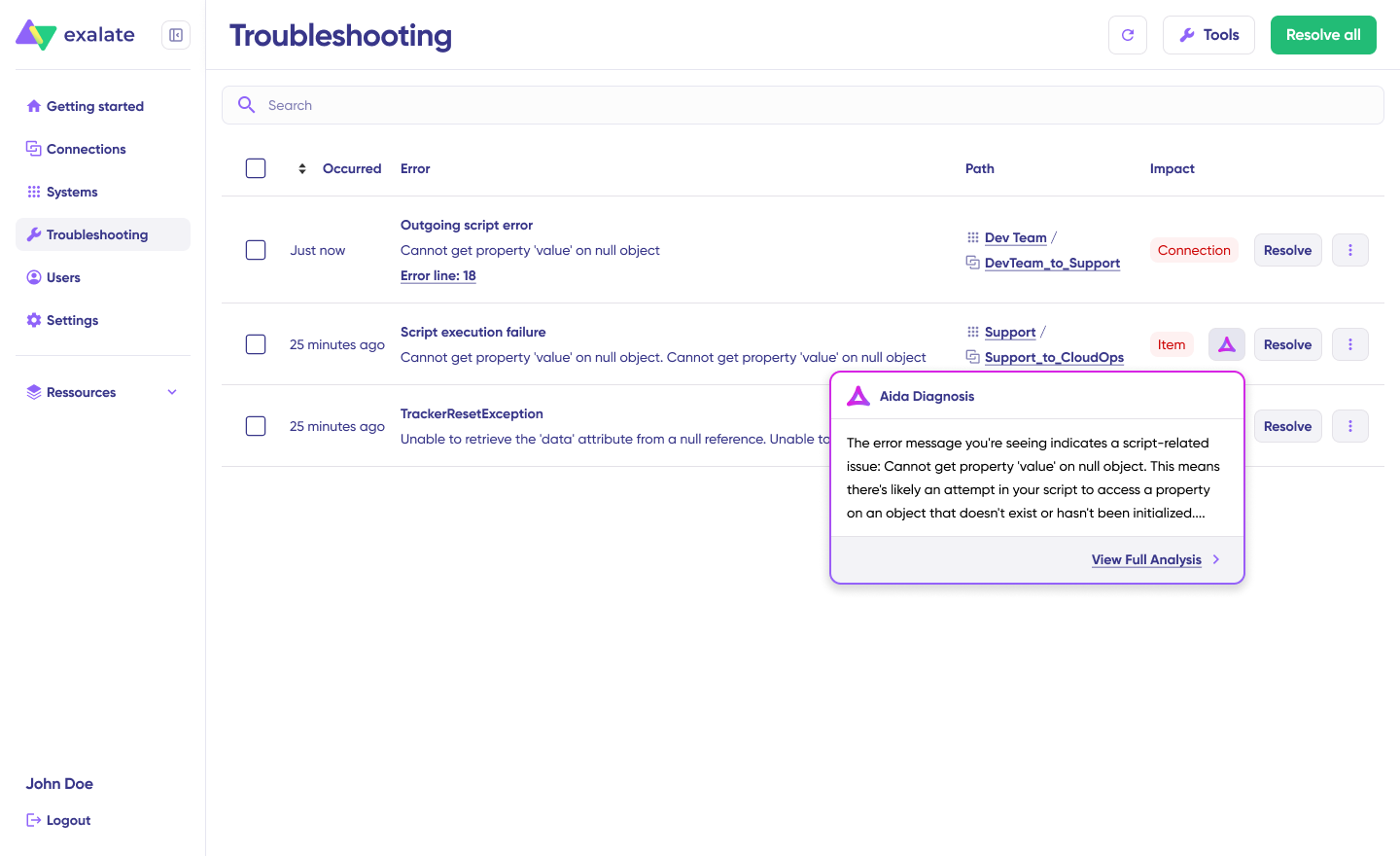
You can also view “Error details” to copy the stack trace and “Replicas” to view the JSON format, if required. Choose to “Resolve” and retry errors.
Sync Panel
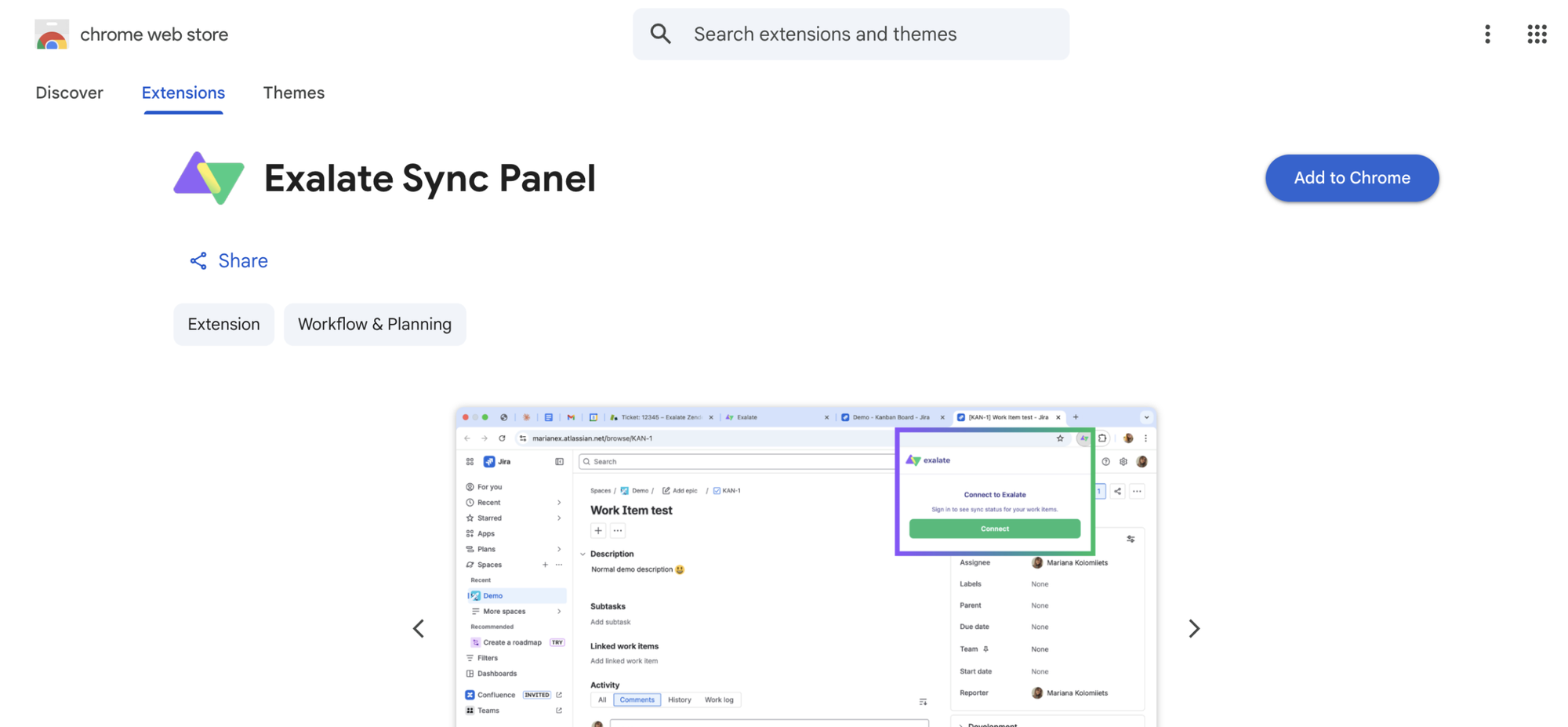
- Open the Exalate Sync Panel listing in the Chrome Web Store.
- Click Add to Chrome
- When prompted, click Add extension to confirm.
- The Exalate icon appears in your browser toolbar. Pin it for easy access.
Note: The extension works on Chrome. Other browsers are not supported at this time.
It’s useful for two groups: admins who want to keep an eye on sync status without switching tabs and end users who want to confirm that the remote side received their update.
You can access this feature via the browser. But if you want to check the sync queue status or configure your sync, you still need to log in to the Exalate console.
Dashboard
The Dashboard lets you track the number of items under sync over time. You can monitor all the connections you have access to or focus on a specific integration or connection.
- Log in to the Exalate Console.
- Select Dashboard from the left menu.
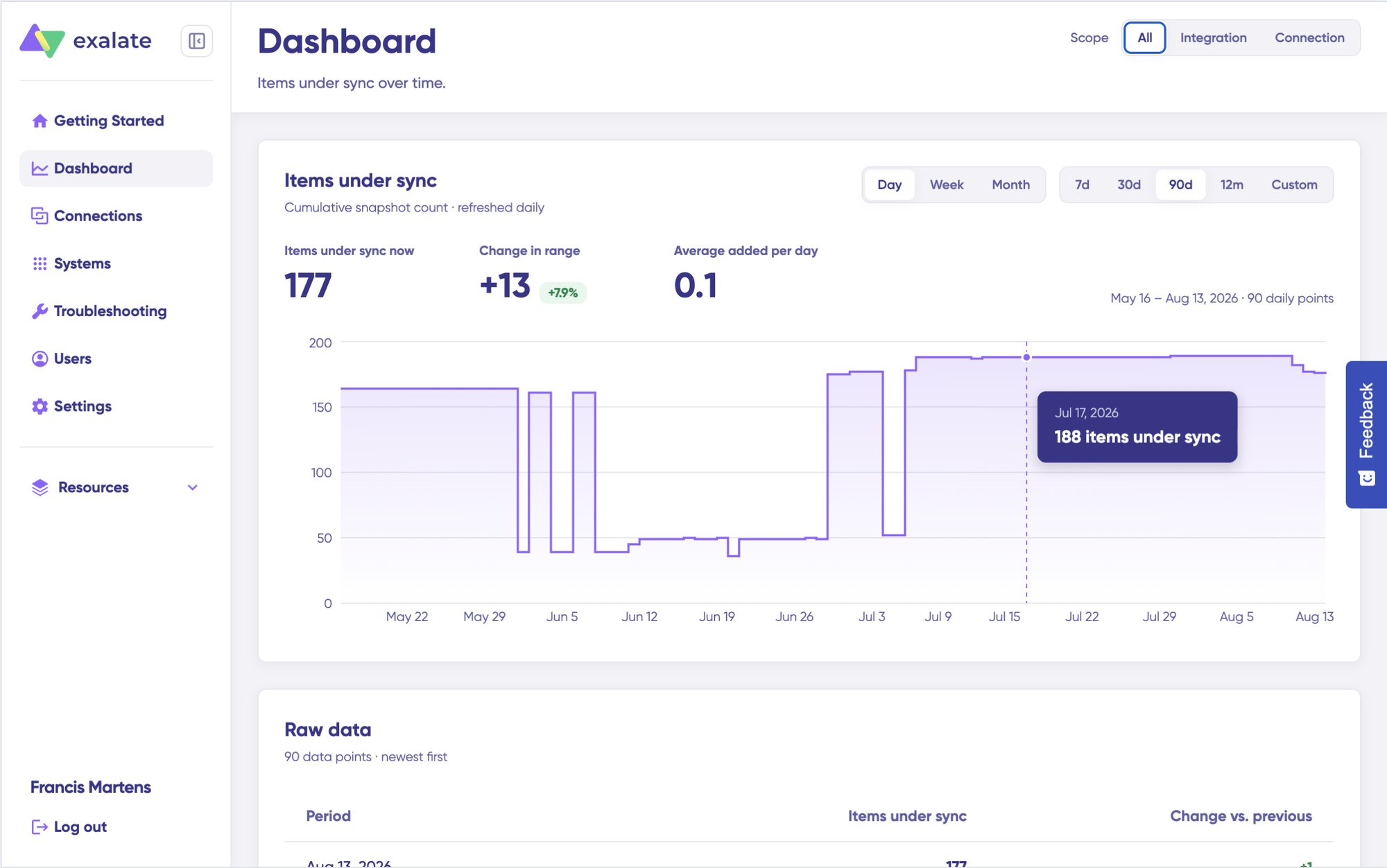
You can also open the Dashboard for a specific connection:
- Go to the Connections list.
- Open the Action Menu for the connection.
- Select View Dashboard.
Dashboard data is displayed as cumulative snapshots and refreshed daily. You can display everything or choose a specific integration or connection to be shown, as well as a time range.
Best Practices for Asana ServiceNow Integration
- Start small, then expand. Begin by syncing one project in Asana with one ServiceNow category or assignment group. Validate the mappings, confirm the triggers work, and then add more projects incrementally.
- Map statuses explicitly. Asana sections (“To Do,” “In Progress,” “Done”) don’t directly correspond to ServiceNow states (“New,” “Active,” “Resolved,” “Closed”). Document the mapping before configuring the integration. Skipping this step is the most common source of sync confusion.
- Use tags or custom fields as sync filters. Don’t sync every task in an Asana project. Use a tag like “sync-to-snow” or a custom field toggle to control which tasks enter the integration pipeline. This prevents draft items, internal notes, and irrelevant tasks from cluttering ServiceNow.
- Handle priority mapping carefully. Asana typically uses a single custom dropdown for priority (Low, Medium, High, Critical). ServiceNow calculates priority from Impact and Urgency. Your sync script should translate between these models explicitly. A “High” priority in Asana might map to Impact: 2, Urgency: 2 in ServiceNow, but that’s a decision you need to make based on your ITSM policies.
- Keep internal comments private. Both platforms support internal and external comments. Configure the sync to only share public-facing comments and keep internal work notes private. This is especially important in cross-company scenarios.
- Assign a sync owner. Designate someone on each team as the integration owner. This person monitors the sync queue, troubleshoots failures, and coordinates any changes to sync rules. Without a clear owner, integration issues go unnoticed until they cause downstream problems.
Common Pitfalls and How to Avoid Them
- Syncing too many fields at once. Start with title, description, status, assignee, and priority. Add more fields after the basic sync is stable. Overloading the initial configuration creates debugging complexity that slows the entire rollout.
- Not accounting for ServiceNow’s multi-table architecture. ServiceNow stores data across multiple tables (Incident, Request, Change, Problem, etc.). Your integration needs to target the correct table for the use case. Syncing Asana tasks to the Incident table when they should go to the Request table causes classification issues downstream.
- Ignoring Asana’s section-based workflow. Many Asana teams use board columns (sections) to represent workflow stages. If your integration doesn’t map section moves to ServiceNow state changes, tasks will appear stuck or out of sync. Build this mapping into your sync rules from the start.
- Skipping the test phase. Always test with a handful of sample records before activating the full sync. Verify that comments, attachments, custom fields, and status mappings all work correctly. Catching issues in a test environment takes minutes; fixing them in production with live data takes hours.
- Using the Asana Spoke for task sync. The ServiceNow Asana Spoke is built for Software Asset Management, not project-to-ITSM integration. Teams that install the Spoke, expecting full task synchronization, find themselves stuck configuring OAuth manually with limited documentation and no bidirectional capabilities. Choose the right tool for the right job.
Conclusion
Asana ServiceNow integration removes the manual overhead that slows down cross-functional work between project teams and IT operations. Whether it’s a marketing launch that depends on infrastructure provisioning, an HR onboarding process that requires IT to spin up accounts, or a cross-company MSP relationship that demands real-time visibility, the right integration keeps both sides aligned without extra meetings or copy-paste workflows.
If you only need one-way task creation from ServiceNow to Asana and you’re already on the required plan tiers, the native integration may suffice. For bidirectional sync, custom field transformations, conditional logic, or cross-company scenarios, a dedicated platform like Exalate provides the flexibility and control to handle it.
Start by defining what data needs to flow between the two platforms, in which direction, and under what conditions. Then choose the tool that matches those requirements without limiting your ability to scale later.
Looking to get started with your Asana to ServiceNow integration? Book a call with our engineering experts right away.
Frequently Asked Questions
Can I sync Asana tasks with ServiceNow incidents in real time?
Exalate supports real-time bidirectional sync between Asana and ServiceNow. When a task status, priority, or comment changes in Asana, the linked ServiceNow record updates immediately, and vice versa. You can also configure one-way sync if updates only need to flow in one direction.
What ServiceNow tables can I sync with Asana?
Exalate can sync Asana tasks with any ServiceNow table accessible through the REST API. The most common tables include Incident, Request, Change Request, Problem, and Task. You specify the target table in your sync configuration.
Does Exalate require a ServiceNow IntegrationHub license?
No, Exalate operates independently and does not require the ServiceNow IntegrationHub or any Spoke licenses. It connects to ServiceNow through its own integration layer using REST API authentication.
What Asana plan do I need to use Exalate?
Exalate works with all Asana plans, including Starter, Advanced, Enterprise, and Enterprise+. Unlike the native Asana ServiceNow integration (which requires Asana Business or Enterprise), Exalate does not impose Asana plan restrictions.
Can I sync custom fields between Asana and ServiceNow?
Yes, Exalate’s scripting engine lets you map any custom field available through the Asana and ServiceNow REST APIs. This includes text fields, dropdowns, multi-select fields, date pickers, number fields, and user pickers. You define the transformation logic in the sync script, so even fields with different formats on each side can be mapped accurately.
How does Exalate handle ServiceNow’s priority model?
ServiceNow calculates priority from the Impact and Urgency fields. Asana typically uses a single custom dropdown for priority. In Exalate, you write a mapping rule that translates Asana’s priority value into the corresponding Impact and Urgency combination. For example, Asana “Critical” might map to Impact: 1, Urgency: 1 in ServiceNow, while Asana “Low” maps to Impact: 3, Urgency: 3.
Can I integrate Asana with ServiceNow across different companies?
Yes. Exalate allows each organization to control its own side of the integration independently. The company using Asana decides what data to share and how to process incoming ServiceNow data. The company using ServiceNow does the same. No shared credentials or admin access is required.
Does Exalate support syncing comments and attachments?
Yes. Both internal comments (work notes) and public comments (additional comments) from ServiceNow can be synced to Asana task conversations, and vice versa. You can configure which comment types to sync and which to keep private. Attachments, including images, documents, and files, sync automatically.
Can I sync Asana subtasks with ServiceNow child records?
Yes, Exalate can map Asana subtasks to ServiceNow child incidents or child tasks, maintaining the parent-child hierarchy across platforms. The sync rules define how subtask creation, updates, and completions propagate between the two systems.
Is Exalate secure enough for enterprise use?
Exalate is ISO 27001 certified and uses TLS 1.2/1.3 encryption for data in transit. It supports multiple authentication methods (personal access tokens, JWT, API keys, OAuth) and provides role-based access control with full audit logging. For detailed security documentation, visit the Exalate Trust Center.
Can I use Exalate to connect Asana and ServiceNow with other platforms?
Exalate supports connections with Jira, Salesforce, Azure DevOps, Zendesk, GitHub, Freshdesk, and Freshservice in addition to Asana and ServiceNow. This allows you to build a multi-platform integration network where data flows between all connected systems based on your configured rules.
How much does Exalate cost for an Asana to ServiceNow integration?
Exalate uses outcome-based pricing, so you pay for active sync pairs (the items currently being synced) rather than per user or API call. There are Starter, Pro, and Enterprise tiers based on sync volume. Each integration connection requires its own plan. You can estimate costs using the pricing calculator, and there’s a 30-day free trial so you can test things before committing. Full details are on the pricing page.
Recommended Reading:
- Asana Freshdesk Integration Guide: Sync Tickets, Tasks, and Status Updates
- Asana Azure DevOps Integration: How to Connect Project Management and Development Teams
- Freshservice to Freshservice Integration: How to Sync Multiple Freshservice Instances
- Asana Zendesk Integration: How to Connect Support Tickets and Project Workflows
- How Asana Salesforce Integration Connects Sales, Projects, and Customer Operations