Many teams use Jira for project management while developers work in Azure DevOps. When these systems don’t talk to each other, teams waste time manually updating both platforms, work gets duplicated, and critical updates slip through the cracks.
You can connect the two tools in 2 ways. Atlassian’s official Azure DevOps for Jira app shows commits, branches, and pull requests inside Jira, but it doesn’t sync work items. To keep the work items themselves in sync, so your support team logs work in Jira while developers track it in Azure DevOps, you need a bi-directional Jira Azure DevOps integration.
This guide shows you how to pick between the two, then walks you through connecting Jira and Azure DevOps with Exalate: prerequisites, setup, field mapping, testing, and real use cases.
Note: Jira now refers to issues as work items. Throughout this guide, we use the updated terminology to reflect current Jira naming conventions.
Key Takeaways
- The official Azure DevOps for Jira app shows development activity in Jira. Two-way work item sync needs a dedicated integration tool.
- Developers, QA, and customer support teams can collaborate better with Jira to Azure DevOps integration.
- Exalate enables real-time bidirectional sync between Jira and Azure DevOps through AI-assisted configuration.
- The integration maintains autonomy for both teams while ensuring consistent data across platforms.
- Security features include ISO certification, role-based access control, and end-to-end encryption.
- The full scripting control allows customization for complex enterprise workflows.
Discuss your integration setup with our experts
Get free, expert advice on your setup. We’ll reach out via email to discuss your use case.
Native Azure DevOps for Jira App vs. Two-Way Sync: Which Do You Need?
The official Azure DevOps for Jira app gives Jira users development visibility: commits, branches, pull requests, and deployments show up on the Jira work item when developers include its key. It’s designed for one-way information display, not work item synchronization.
Native Azure DevOps for Jira:
- Shows development activity in Jira (branches, commits, PRs)
- Displays deployment status
- Limited to development visibility
- No bidirectional work item sync
- Cannot sync custom fields or complex data
- Requires work item keys in commit messages
Exalate:
- Full bidirectional sync of work items and all fields
- AI-assisted configuration for all scenarios
- Custom field mapping and transformations
- Conditional sync rules and triggers
- Supports Azure DevOps Cloud and Server
- Supports Jira software, Jira Service Management, and Jira Work Management
- Enterprise-grade security with full operational control
- Connects multiple Jira and Azure DevOps instances
- Integration with additional platforms (Freshservice, Freshdesk, Asana, ServiceNow, Salesforce)
Which one fits your setup?
Use the native app if your product team plans in Jira and only needs to see what’s happening in Azure DevOps Repos and Pipelines.
Use a two-way sync tool if both teams work on boards (Jira boards and Azure Boards) and need the same work item to stay current on both sides: status, comments, attachments, and custom fields.
You can also run both. The native app covers the code view, and Exalate keeps the work items in sync.
How to Set Up a Jira Azure DevOps Integration With Exalate: Step by Step
Before connecting Jira and Azure DevOps, ensure you have:
For Jira:
- Admin access to your Jira instance
- Appropriate project permissions
For Azure DevOps:
- Admin access to your Azure DevOps organization (Services or Server)
- A Personal Access Token (PAT) with read/write permissions for work items
- Organization or collection-level permissions
Create the PAT from a service account instead of a personal account. If the token belongs to one person and they leave, the connection breaks with their account. Running Azure DevOps on-premise? See what the Azure DevOps Server connector supports.
You can also watch the step-by-step video to set up an Azure DevOps Jira integration using Exalate.
1. Create Your Exalate Account
Visit the Exalate integrations or the app and create an account using your business email or Google sign-in. If you already have an account, simply log in to access the dashboard.
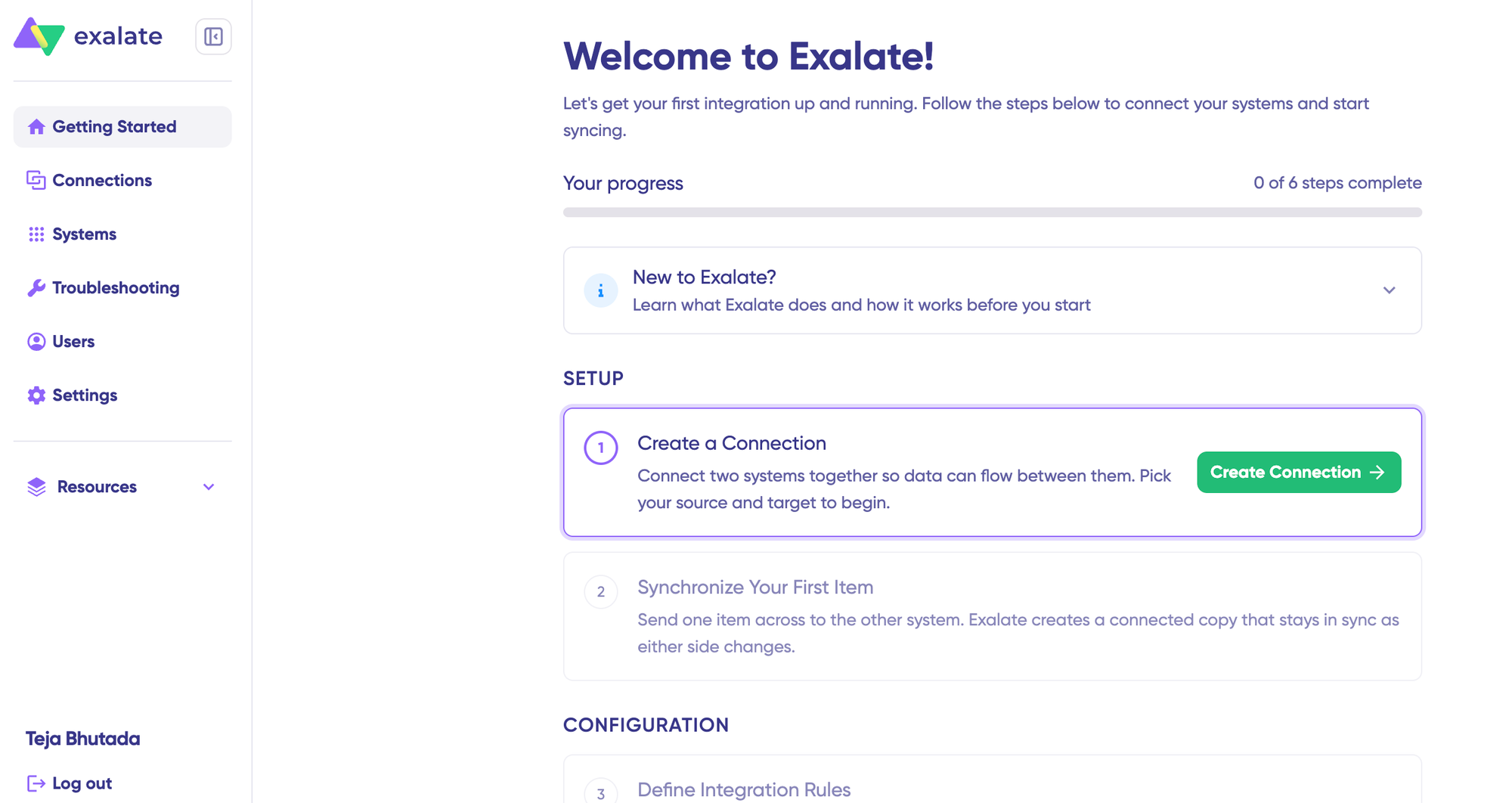
Once logged in, create and manage your integrations.
2. Connect Jira and Azure DevOps
To create a connection, you need credentials for both systems, or someone who has them. If a Jira or Azure DevOps admin holds the token instead of you, delegate authentication to them by email, and the connection launches once they’ve authenticated.
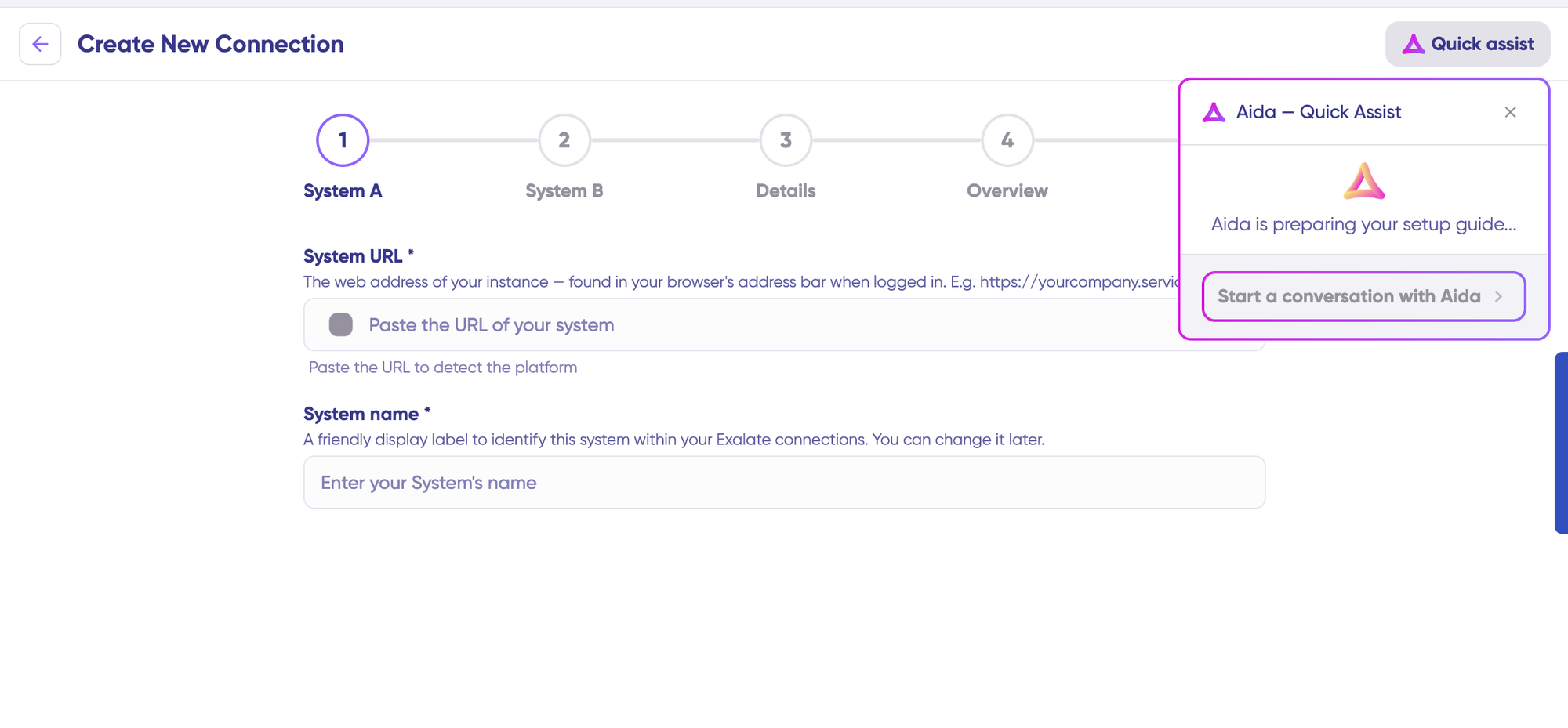
You can also speed up the process by using Aida – Quick Assist at the top right of the dashboard.
Click “+ Add connections” > “Create new connection“.
Enter the name and URL for your first system [Jira (System A)]. Exalate automatically performs authentication checks in the background.
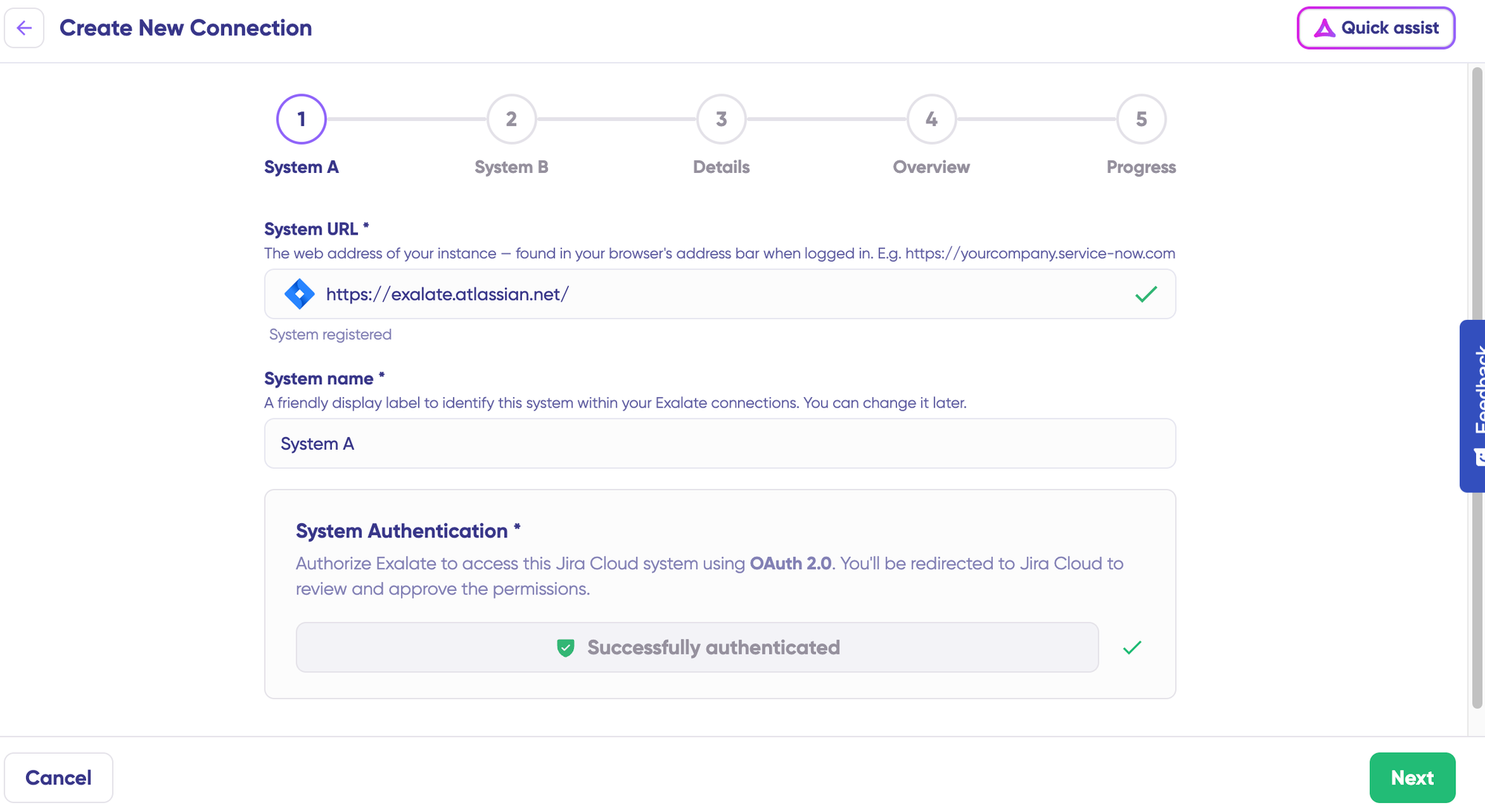
Enter the authentication details. For Jira, you need OAuth. Click on “Check Authentication”. If all is well, you’ll see “Successfully Authenticated”.
Repeat the same processes for Azure DevOps as for System B (Azure DevOps).
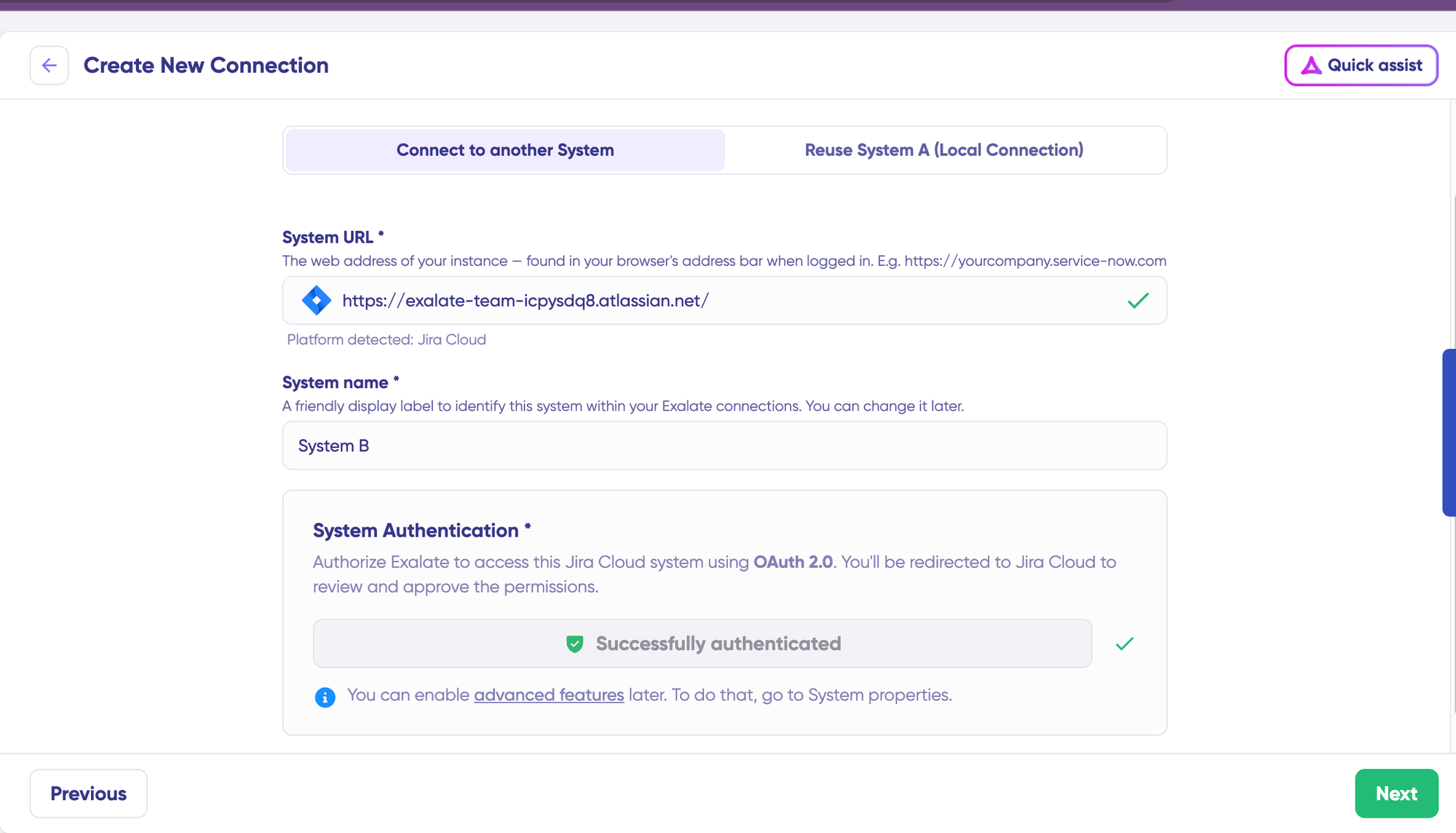
For Azure DevOps, enter a Personal Access Token (PAT) with Work Items (Read & Write) scope or authenticate with OAuth 2.0.
For Azure DevOps Server, you can only use the Personal Access Token (PAT).
Once both systems are authenticated, confirm the connection name, add an optional description, and click “Create Connection“. Wait a few minutes for background configuration to complete, then click “Continue to Configuration“.
Local connections in Jira also let you sync work items across different Jira projects (or spaces) that share the same instance.
Example: imagine your URL https://example.net/ hosting 2 Jira projects (or spaces). Project A has work item PROJA-11, project B has work item PROJB-12. Local connections in Exalate let you sync both.
3. Configure Your Sync
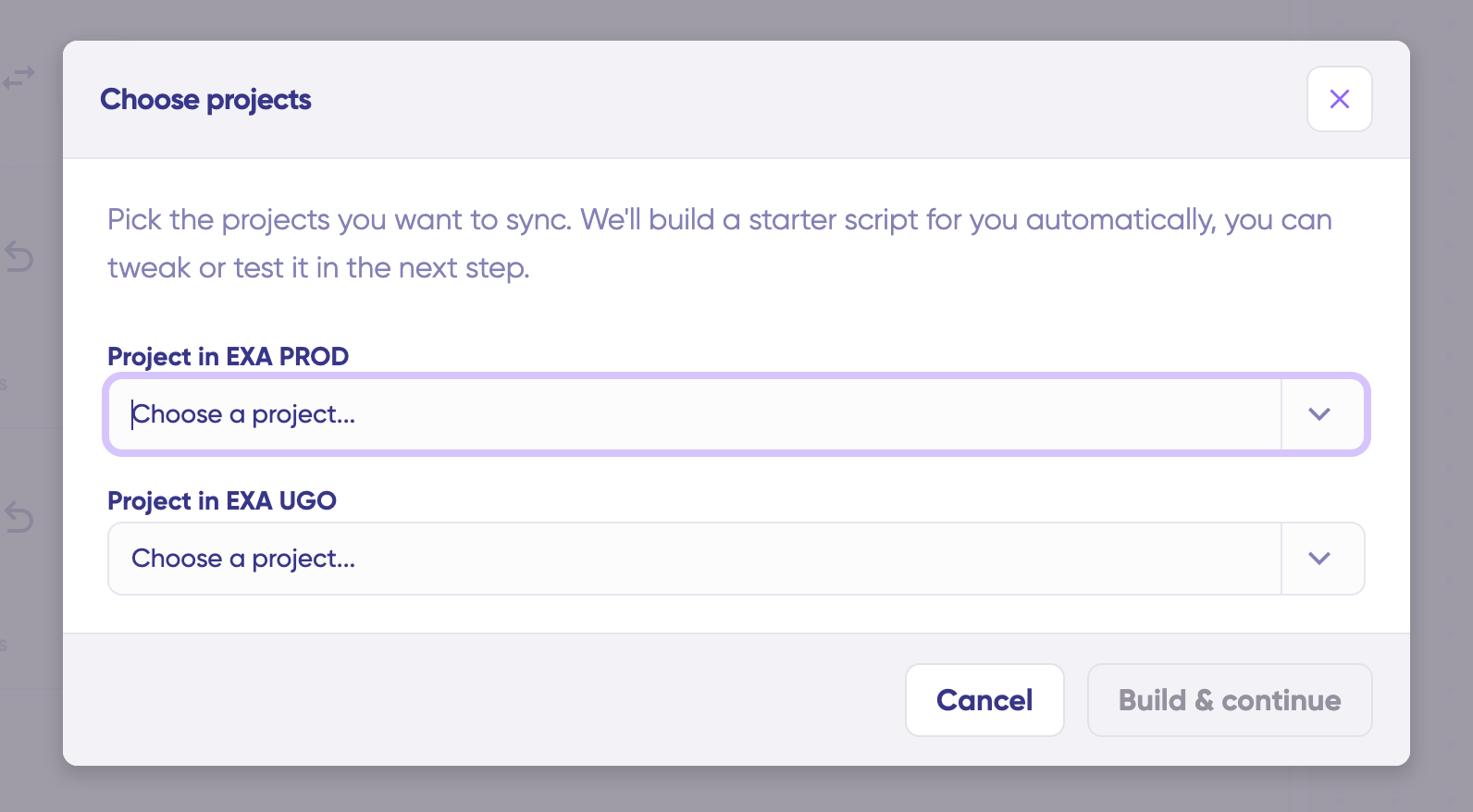
Choose the projects you want to sync from the dropdown menus on both sides, then click “Build and Continue“.
You’ll have two configuration options: Quick Sync and Edit & Test.
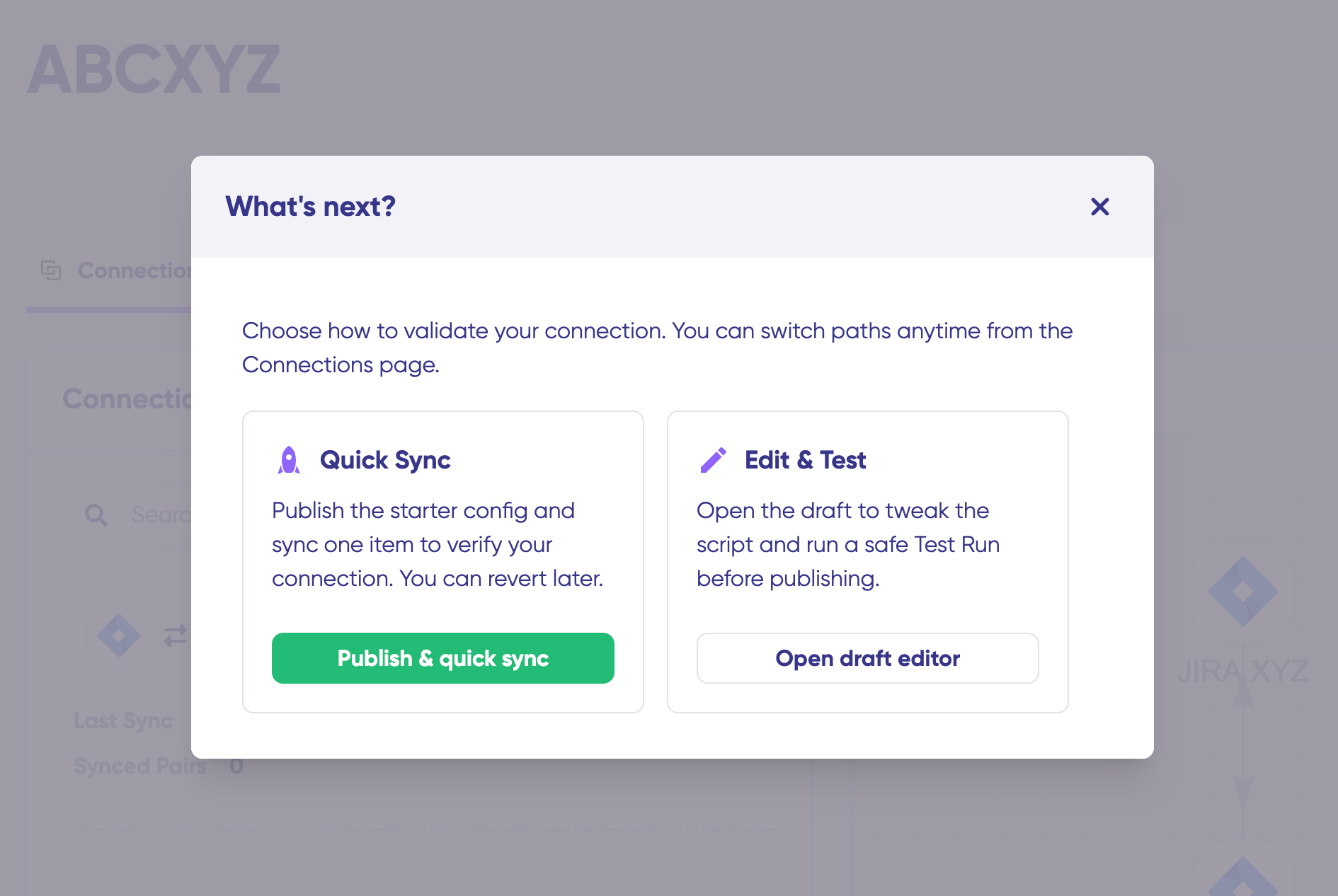
Quick Sync: Test synchronization with a single work item. Enter a work item key under “Item sync monitor” and click “Sync Now“. You can also link existing work items between systems. Once complete, view both synced items and compare changes.
Edit & Test: Customize sync rules using the draft editor. Click “Create a new version” or “Open latest draft” to modify the configuration without affecting active syncs. Use the editor to adjust Groovy-based scripts that define custom data logic and field mappings for complex workflows.
4. Use Aida for AI-Assisted Configuration
Instead of writing scripts manually, use Aida, Exalate’s built-in AI assistant, to generate Groovy-based sync rules using natural language.
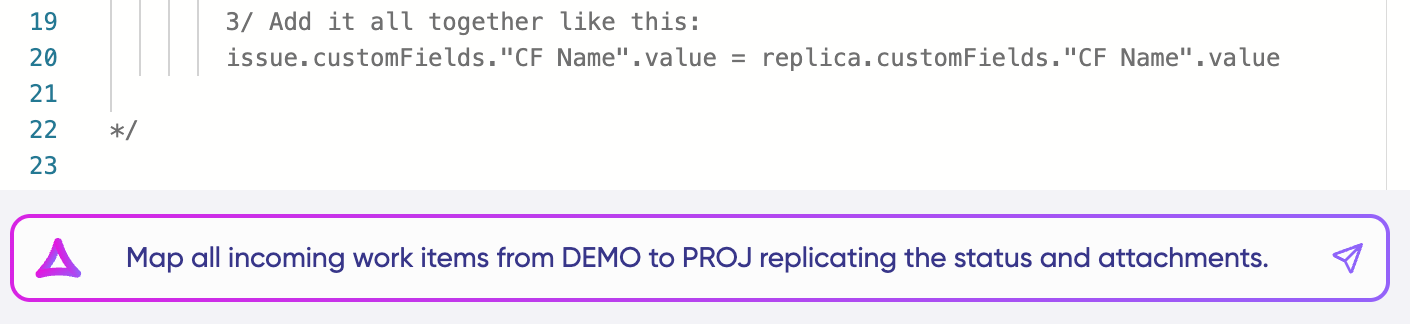
Aida appears in both outgoing and incoming script sections:
For Outgoing scripts: Describe what data should leave your system. Example: “Sync only high-priority work items.”
For Incoming scripts: Describe how incoming data should be applied. Example: “Map Jira statuses to Azure DevOps states.”
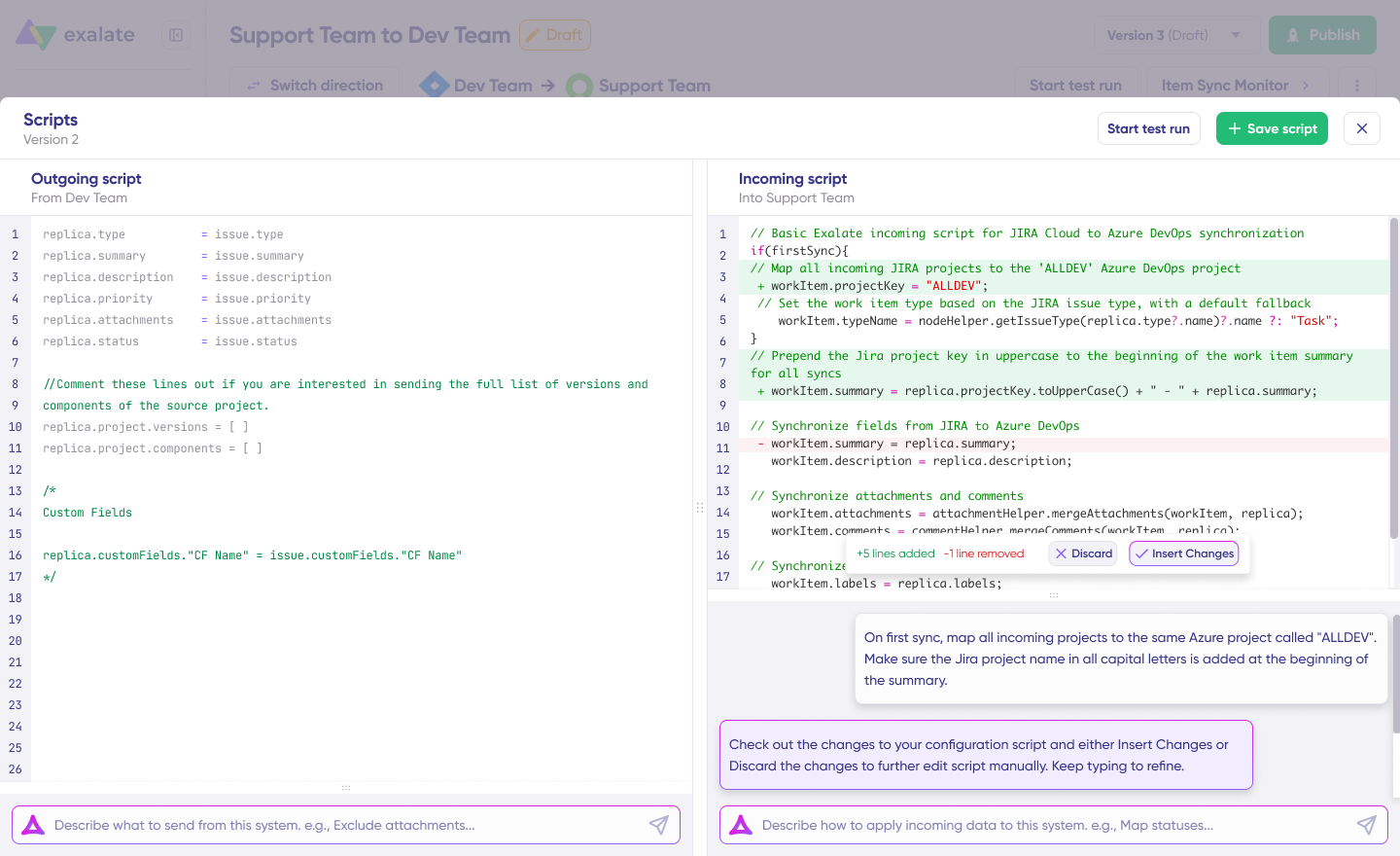
Aida generates scripts based on Exalate’s API and your existing configuration. Review the suggested changes; new lines appear in green, suggested removals in red. Choose to “Insert” or “Discard” suggestions. Always review AI-generated code before applying it.
5. Test and Publish Your Configuration
Before going live, test your sync rules with a dry run. Click “Start Test Run” and “Select items” to sync (you can choose multiple work items).
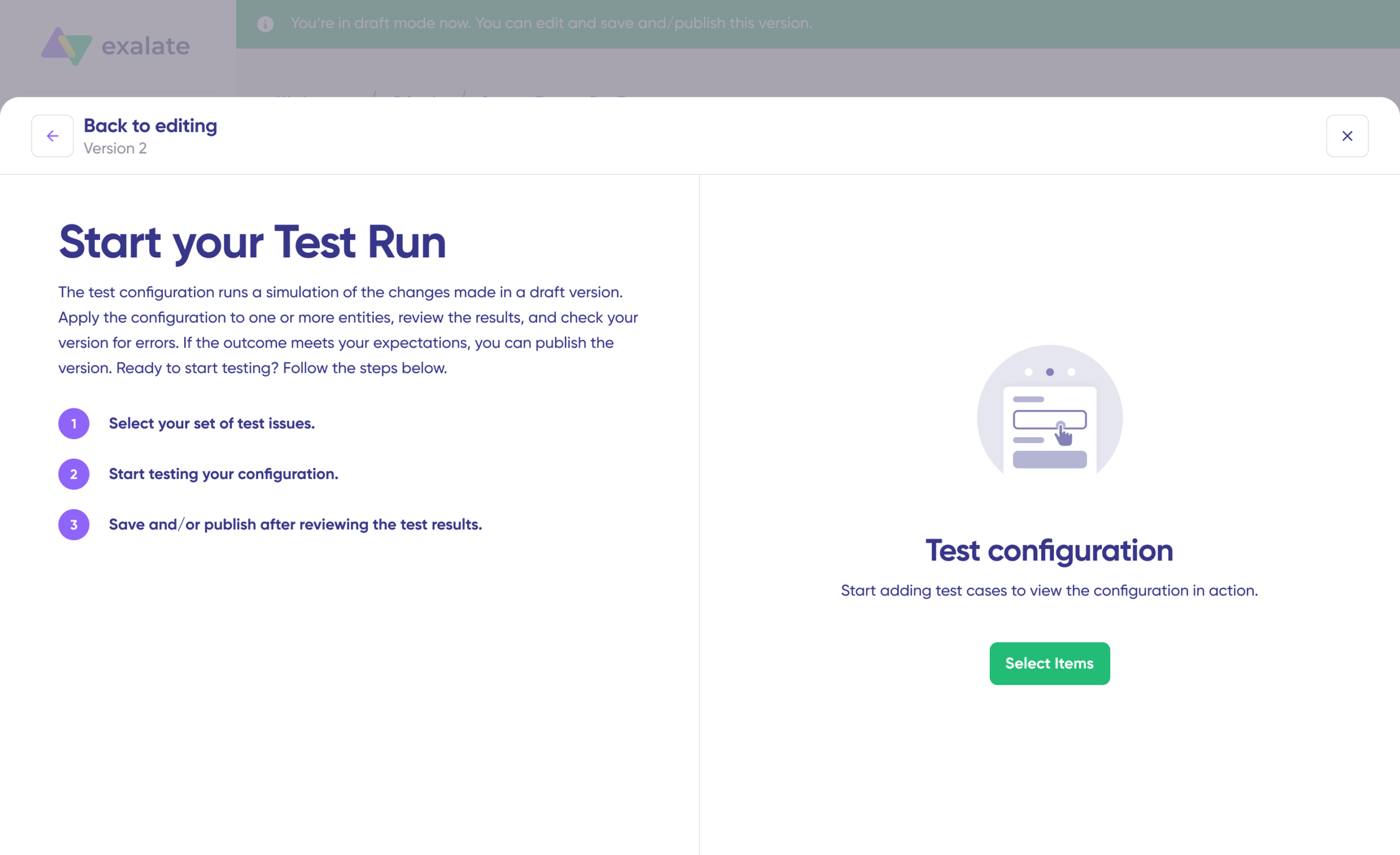
Review detailed results showing which fields synced and the payload shared between systems. If satisfied, click “Publish Version“.
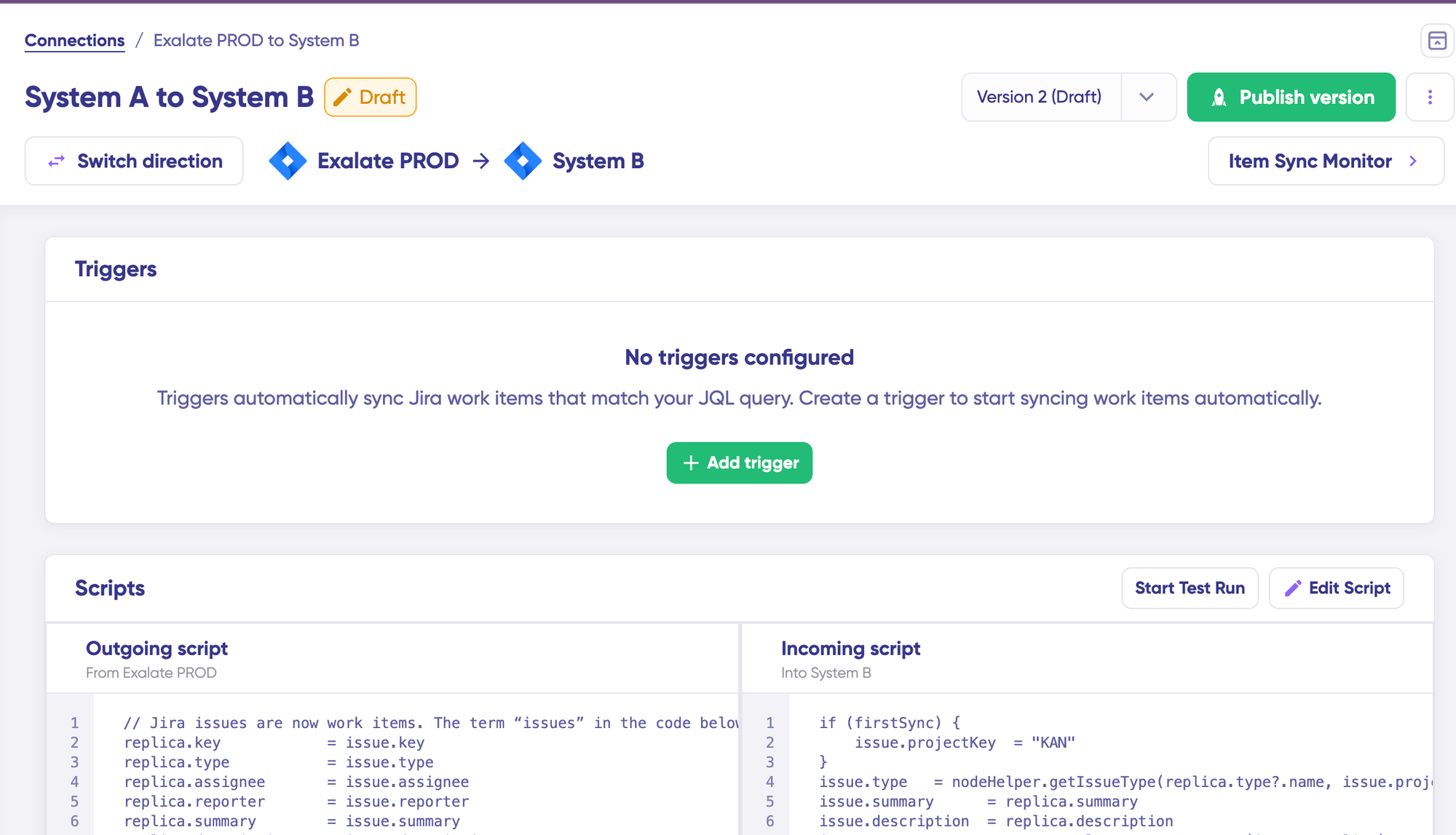
All configuration versions are accessible from the “Version” dropdown, labeled as “Active,” “Draft” (editable), or “Archived.”
6. Set Up Automated Triggers
Define conditions that automatically trigger synchronization. For example, sync all Jira work items with label = dev, or all Azure DevOps work items in a specific area path.
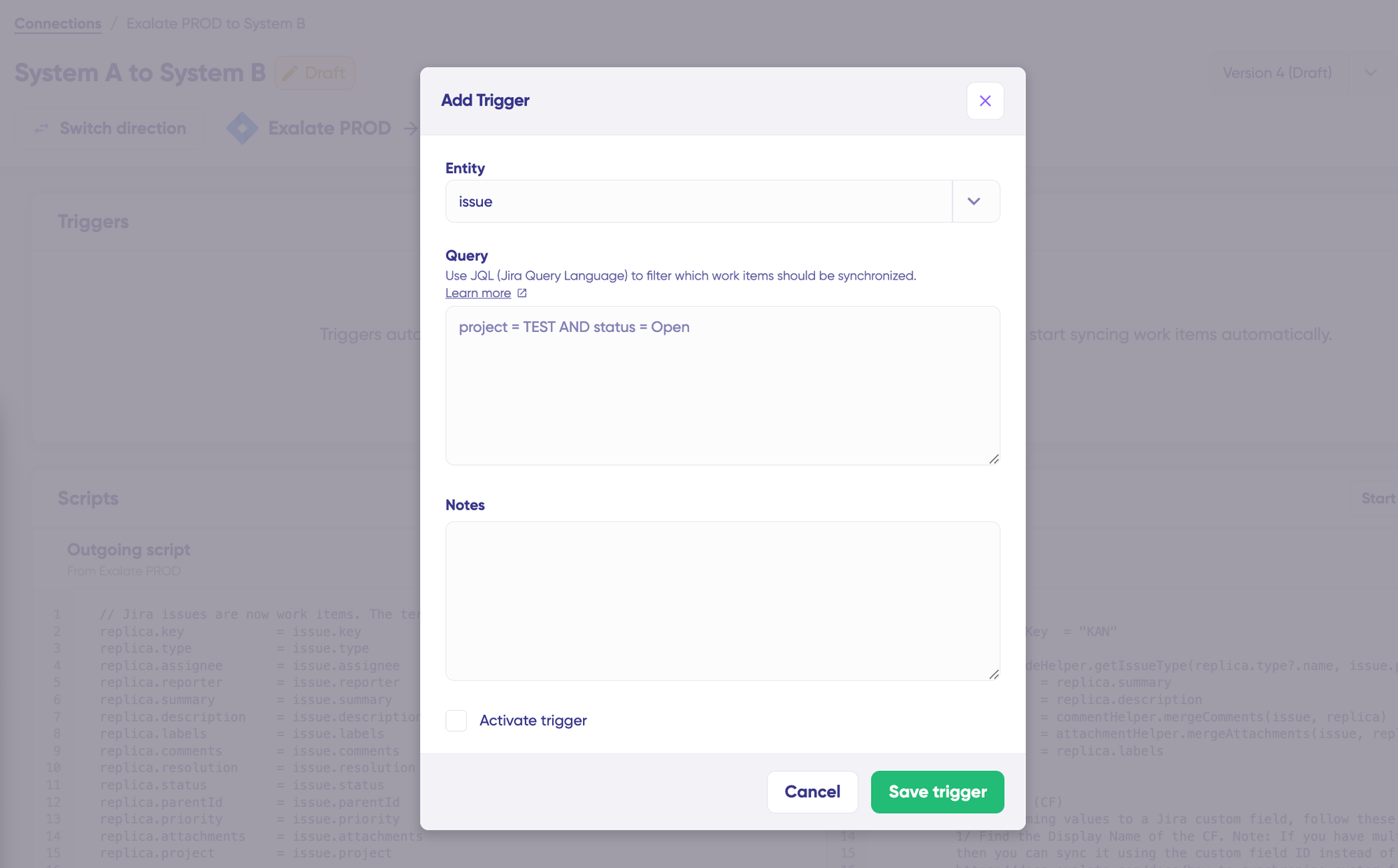
Click “+ Add trigger” to create platform-specific triggers. Choose the entity type (work item or sprint), then use platform-native query languages:
- For Jira: Use JQL (Jira Query Language). Example:
project = EXAsyncs only items in the EXA project. - For Azure DevOps: Use WIQL (Work Item Query Language) to specify conditions.
Save your trigger, and synchronization will run automatically based on these rules.
7. Troubleshoot with Aida
If connection errors occur, navigate to the “Troubleshooting” tab. Hover over any error and click the Aida icon for immediate analysis. Aida shows affected systems, connections, and work items, plus a brief explanation of the error.
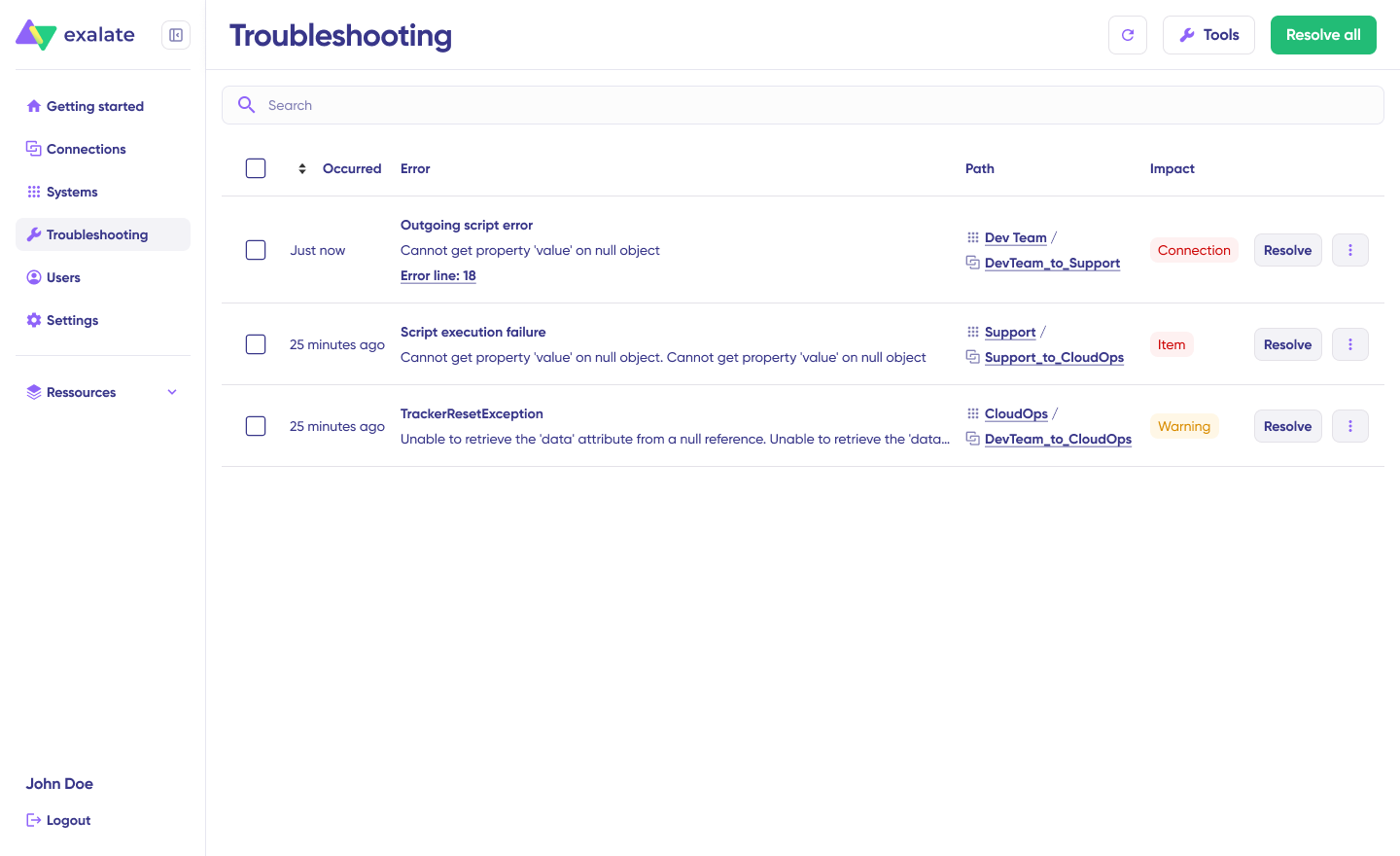
For deeper investigation, click “Error Details” to view the impact level, stack trace, error type, and occurrence date.
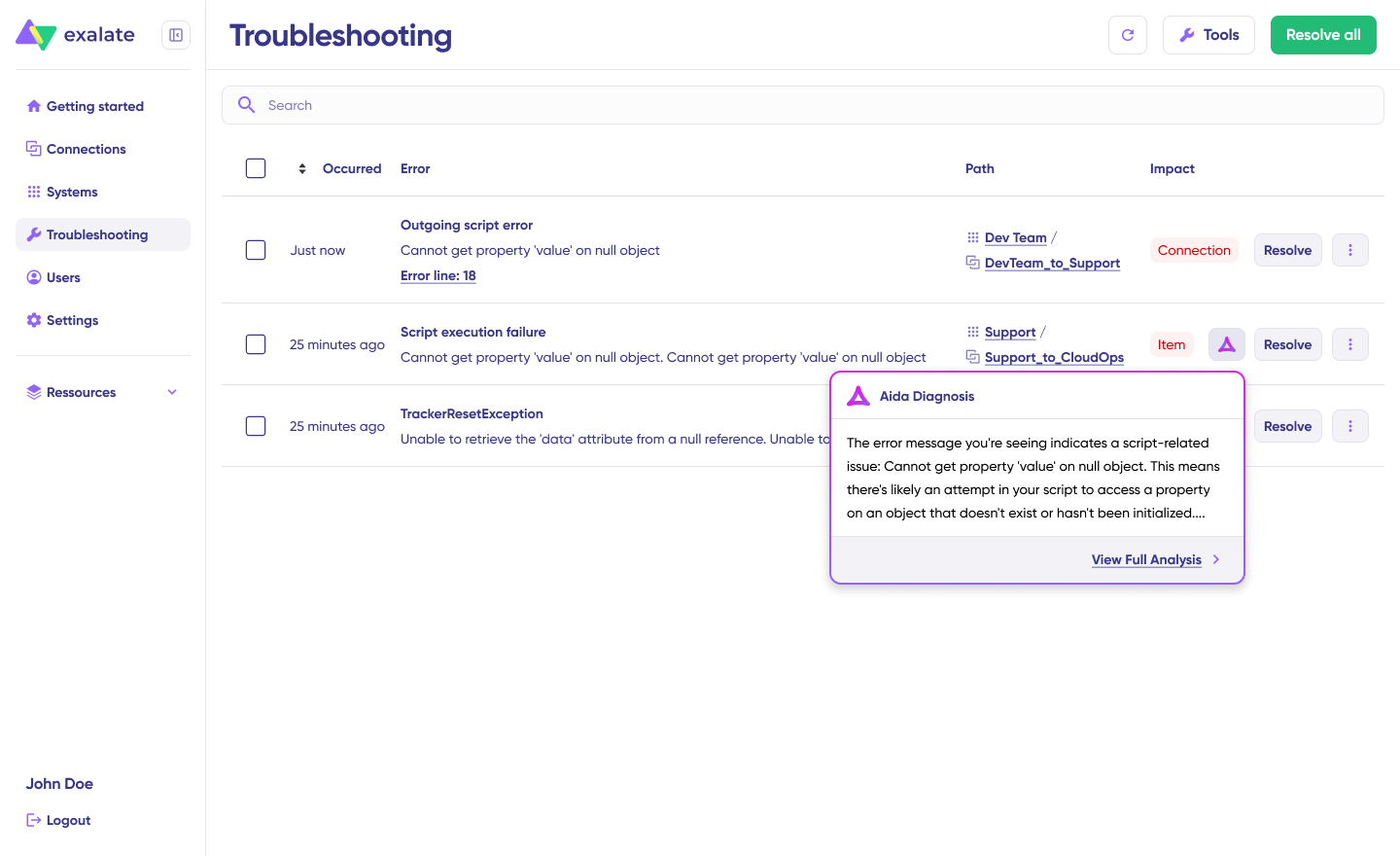
Use “View Full Analysis” for complete context. Once you’ve resolved the issue, click “Resolve” to clear the error.
Sync Panel
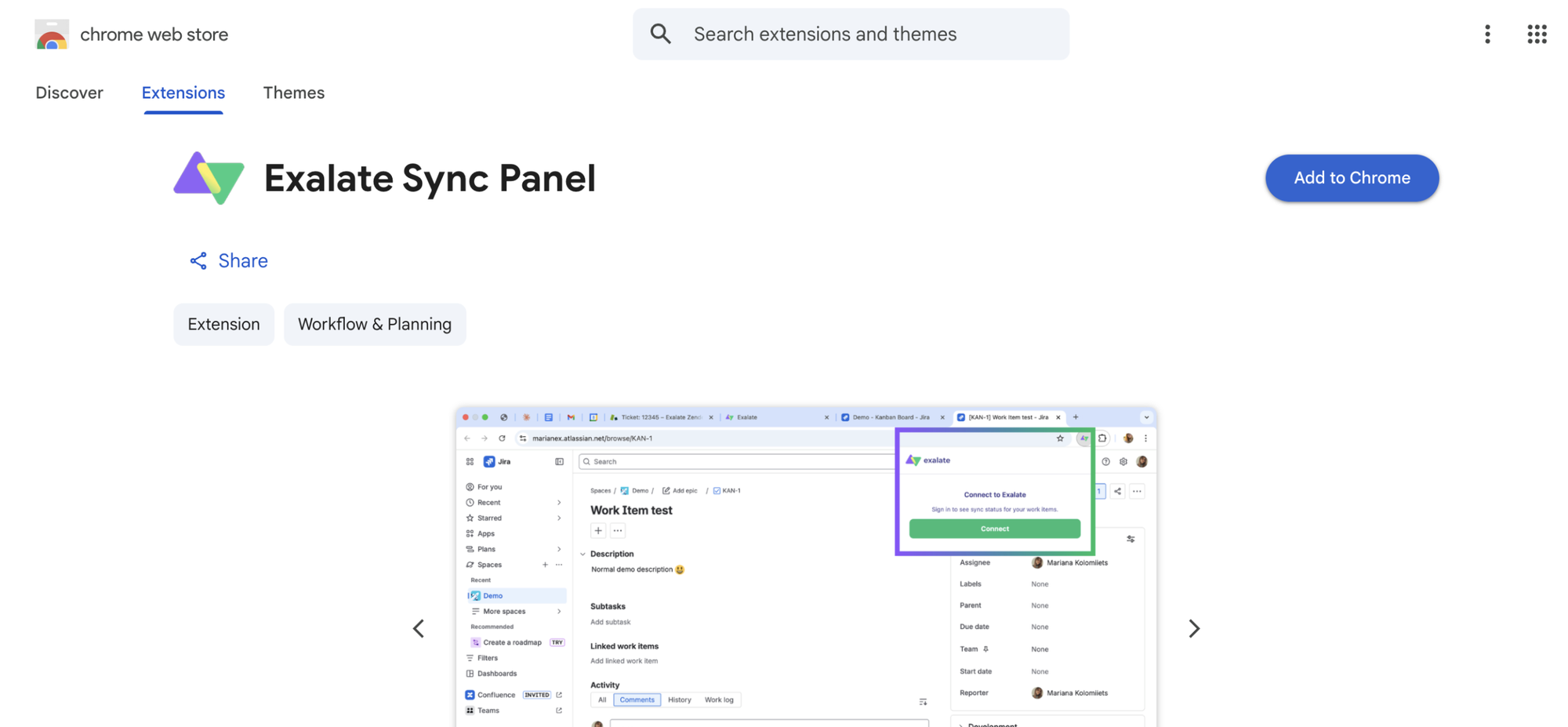
- Open the Exalate Sync Panel listing in the Chrome Web Store.
- Click Add to Chrome
- When prompted, click Add extension to confirm.
- The Exalate icon appears in your browser toolbar. Pin it for easy access.
Note: The extension works on Chrome. Other browsers are not supported at this time.
It’s useful for two groups: admins who want to keep an eye on sync status without switching tabs and end users who want to confirm that the remote side received their update.
You can access this feature via the browser. But if you want to check the sync queue status or configure your sync, you still need to log in to the Exalate console.
Dashboard
The Dashboard lets you track the number of items under sync over time. You can monitor all the connections you have access to or focus on a specific integration or connection.
- Log in to the Exalate Console.
- Select Dashboard from the left menu.
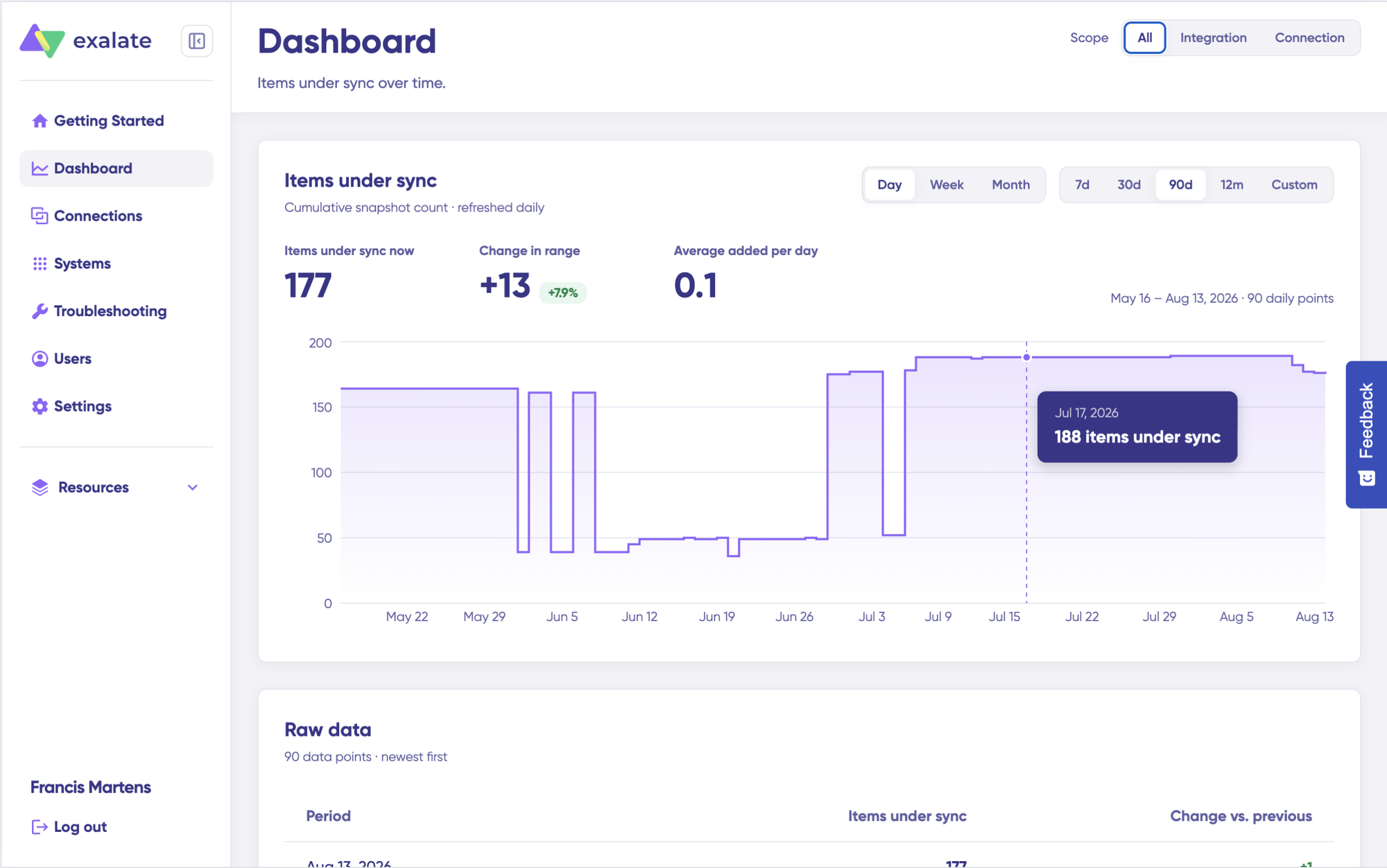
You can also open the Dashboard for a specific connection:
- Go to the Connections list.
- Open the Action Menu for the connection.
- Select View Dashboard.
Dashboard data is displayed as cumulative snapshots and refreshed daily. You can display everything or choose a specific integration or connection to be shown, as well as a time range.
Activities
Sync rules between Jira and Azure DevOps change as teams change. A new work item type gets mapped, a trigger gets a new filter, someone from another team is invited to help. The Activities tab lists each of those changes on a connection, with who made it, when, and whether it succeeded.
Open Activities from the left menu, or from a connection’s three-dot menu for a single connection. Filter by time range to line up a change with the day a sprint report stopped matching.
The log is read-only, keeps 90 days of history, and can be exported. It’s available on the Trial, Pro, and Enterprise plans. Read the Activities documentation.
Your integration is now active. Synchronization runs automatically based on your configured sync rules and triggers.
Discuss your integration setup with our experts
Get free, expert advice on your setup. We’ll reach out via email to discuss your use case.
What Data Can You Sync Between Jira and Azure DevOps?
Exalate gives you complete control over what syncs and how.
From Jira to Azure DevOps:
- Work item types (bugs, stories, tasks, epics)
- Summaries and descriptions
- Comments and internal notes
- Attachments and documents
- Assignees and reporters
- Labels and tags
- Priorities and due dates
- Work logs and time tracking
- Custom fields (text, select lists, dates, numbers)
- Components and versions
- Work item links and hierarchies
- Sprint information
- Organizations and teams
From Azure DevOps to Jira:
- Work item types (user stories, tasks, bugs)
- Titles and descriptions
- States and workflows
- Comments and discussions
- Attachments
- Area paths and iteration paths
- Tags
- Priorities
- Custom fields
- Parent-child relationships
- Team assignments
- Build information
- Pull request status
- Deployment data
Inline images in descriptions and comments can be copied to the other side as they are, or synced as links back to the original. To keep relations between work items intact, see how to map work item links between Jira and Azure DevOps.
You can also sync priority and picklists. Check out the comprehensive list of Jira fields that Exalate supports, as well as work item fields available for Azure DevOps integration.
With Exalate’s scripting capabilities, you can implement complex transformations, conditional logic, and custom mappings for any field type.
Advanced Configuration Options For Exalate
- Conditional sync rules: Sync only specific work item types, or trigger syncs based on labels, priorities, or custom field values.
- Field transformations: Map Jira priorities to Azure DevOps severity levels with custom logic. Convert date/time formats, concatenate text fields, or split data into multiple target fields.
- Workflow automation: Automatically assign work in Azure DevOps based on Jira assignee mappings. Transition work items through statuses based on pull request approvals or deployment success.
- Pull request driven statuses: Move a Jira story to Code Review when a pull request opens in Azure DevOps, and to Ready for QA once it’s approved. Your developers keep working in Azure DevOps, and the Jira board stays current without anyone updating it by hand.
- One project to many: Route work items from a single Azure DevOps project into different Jira projects by area path, tag, or work item type.
- Hierarchy synchronization: Maintain parent-child relationships between epics, stories, tasks, and subtasks across both platforms. Link related work items automatically based on custom business logic.
- Custom field mapping: Connect unique custom fields between platforms with type conversions and validation. Handle complex field types like cascading select lists, multi-select fields, and formula fields.
- Trigger configuration: Define what events should start a sync: work item creation, status changes, field updates, or custom conditions. Set up different sync behaviors for different work item types or projects.
Full scripting control means you’re not limited to predefined templates. Build sync behavior that matches your exact workflow.
Exalate Integration Pricing
Exalate offers subscription-based plans based on items under sync, designed to scale with your integration needs.
Planning to connect several Jira sites to multiple Azure DevOps organizations? Get in touch with our team, and we’ll help you size the rollout.
What Are Some Common Use Cases For Jira-Azure DevOps Integration?
Explore more Jira Azure DevOps integration examples here.
Case 1: Support Ticket Escalation to Development
The Challenge: Support teams in Jira Service Management receive customer-reported bugs, but developers work exclusively in Azure DevOps. Critical issues get lost in email threads, delays occur while waiting for manual ticket creation, and support teams lack visibility into fix progress.
The Solution: High-priority support tickets automatically create corresponding bugs in Azure DevOps with full context: descriptions, attachments, customer impact details, and urgency levels. When developers update the bug status, add comments about the root cause, or commit fixes, that information flows back to Jira in real time.
Real-World Application: In a common setup, support runs Jira Service Management for SLA-bound tickets while engineering runs Azure DevOps for project work. When a ticket needs engineering, the only link between the two is often an email or a Teams message, so support chases developers for every status update. In other teams, engineers create an Azure DevOps ticket for each Jira request, copy the details over, and keep comments and updates matching by hand. With priority mapping like the one below, the bug lands in the right Azure DevOps queue with the right urgency.
def priorityMapping = [
    "Highest": "1",
    "High": "2",
    "Medium": "3",
    "Low": "4"
]
def mappedPriority = priorityMapping[replica.priority?.name]
if (mappedPriority) {
    workItem.customFields."Priority".value = mappedPriority
}Code language: Groovy (groovy)
When developers mark a bug as resolved and deploy the fix, the support ticket updates automatically with the resolution and fix version, so support can tell affected customers before they ask. For the full service desk setup, see the Jira Service Management Azure DevOps integration guide.
Case 2: Cross-Team Sprint Planning and Execution
The Challenge: Product managers plan work in Jira with business context, customer requirements, and ROI justification. Developers need this same work in Azure DevOps for sprint planning, capacity management, and technical breakdown. Manual copying wastes time and loses critical context.
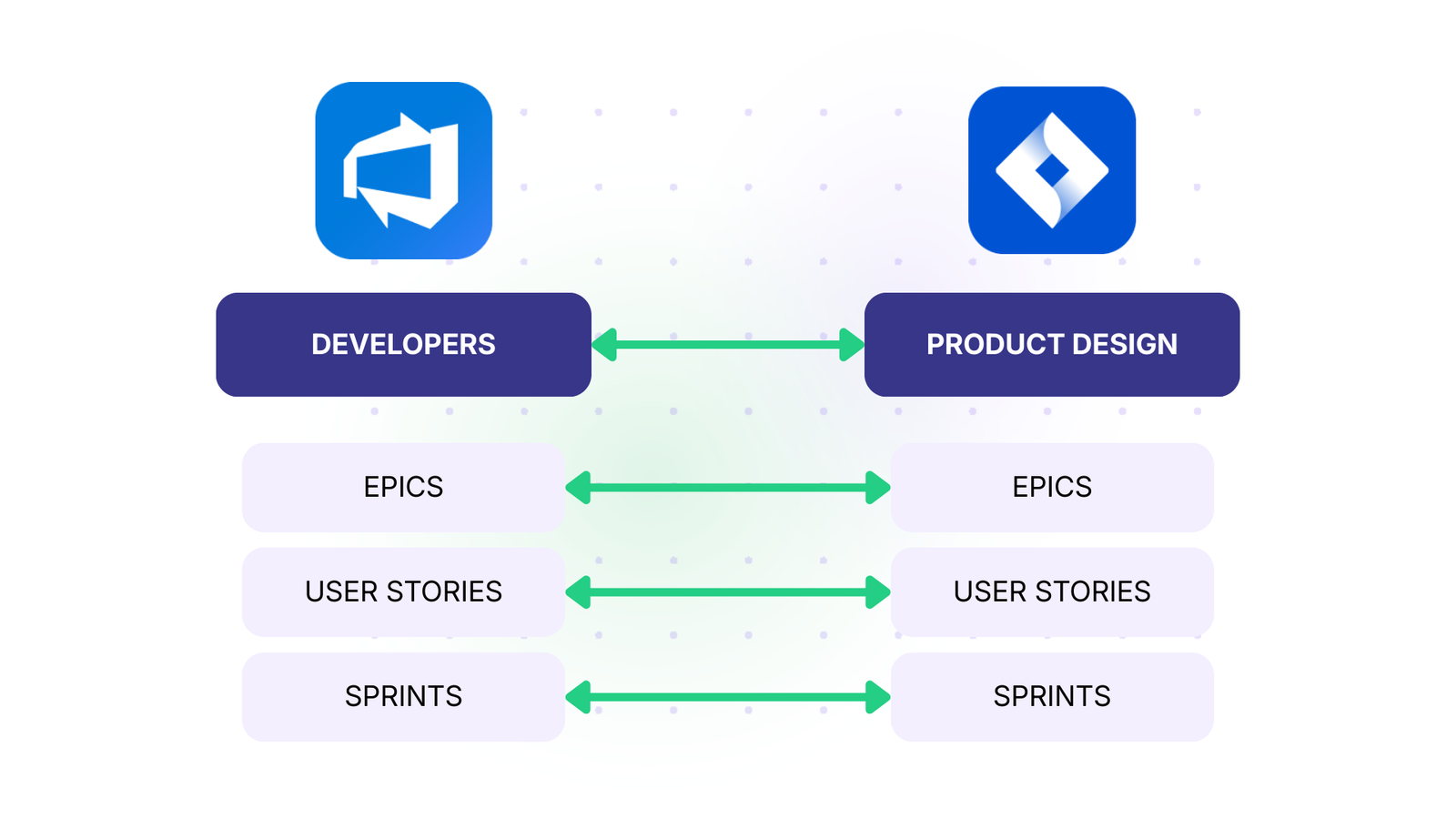
The Solution: Epics and user stories created in Jira automatically sync to Azure DevOps, where developers can link them to tasks, bugs, and technical work items. Sprint assignments, story points, and acceptance criteria flow bidirectionally. Both teams see real-time progress without context switching.
Real-World Application: A public media company has product managers who work exclusively in Jira for roadmap planning and stakeholder reporting. Their development team uses Azure DevOps for sprint management. When PMs adjust priorities or add requirements in Jira, developers see changes immediately in their Azure DevOps backlog. Similarly, when developers complete work and merge code, PMs see updated progress in their Jira dashboards.
Case 3: External Partner and Vendor Collaboration
The Challenge: Your internal team uses Azure DevOps, but external agencies, contractors, or vendors work in their own Jira instances. Granting full Azure DevOps access creates security risks, but email updates and status meetings don’t scale.
Azure DevOps Incoming:
def typeMapping = [
    "Story": "User Story",
    "Bug": "Bug",
    "Task": "Task"
]
def mappedType = typeMapping[replica.type?.name]
if (mappedType) {
    workItem.type = mappedType
}Code language: Groovy (groovy)
The Solution: Share specific work items bidirectionally without exposing your entire codebase or infrastructure. External partners see relevant work in their Jira instance with controlled field visibility. Updates they make flow back to your Azure DevOps environment automatically.
Real-World Application: A company working with a supplier on Azure DevOps may only need the planning data synced (start and end dates, sprint, title, content, and status), with work items created in Jira so they connect to its own epics. The supplier, in turn, may only want to see the details of those epics, with nothing pushed into its own instance. Each side’s sync rules decide what it sends and accepts, so both setups run on the same connection.
Neither side hands its credentials to the other. Each admin connects their own instance through delegated authentication, and both sides read the same Activities history afterward.
Case 4: Multi-Instance MSP Operations
The Challenge: Managed service providers (MSPs) handle IT operations for dozens of clients, each with their own Jira instance for ticket tracking. The MSP’s internal development team works in a centralized Azure DevOps environment. Manually checking multiple Jira instances and creating development work is unsustainable.
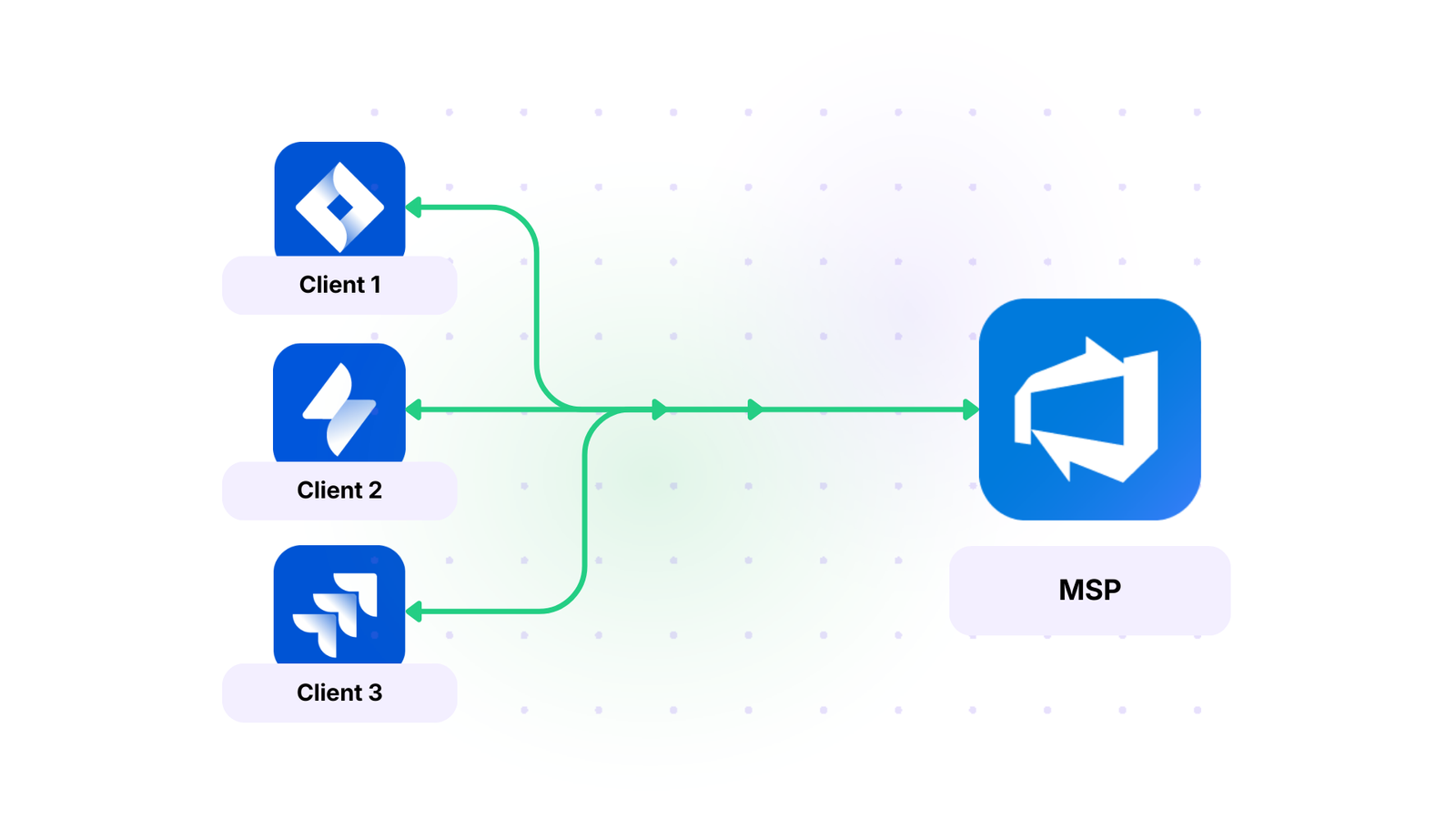
The Solution: Connect multiple client Jira instances to a single Azure DevOps organization. Work items from different clients automatically route to appropriate Azure DevOps projects with client-specific tags and area paths. Development teams get consolidated visibility while maintaining clear boundaries between client data.
Real-World Application: In a typical setup, several large clients, each running its own Jira Service Management, send bug reports and service requests into one Azure DevOps organization, often a few hundred a month. Without sync, every follow-up question arrives as a new ticket, and nobody has the full picture. Read how an MSP manages integrations with its enterprise clients.
Case 5: QA and Testing Workflow Integration
The Challenge: Developers complete work in Azure DevOps and mark it ready for testing, but QA teams manage test cases, test execution, and bug reports in Jira. Manual handoffs cause delays, and developers don’t know when their work has been validated.
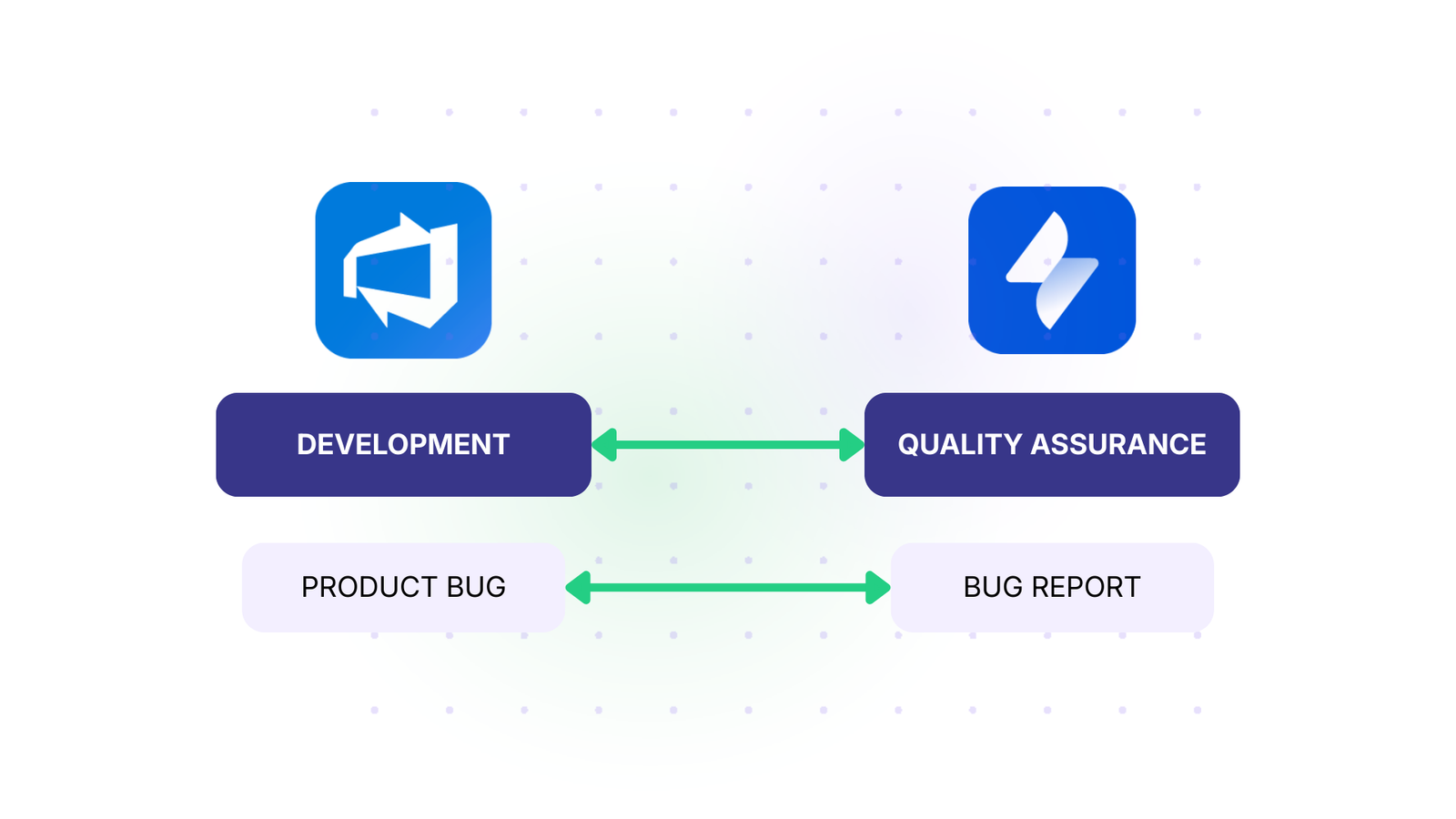
The Solution: Development work marked as “Ready for QA” in Azure DevOps automatically creates test execution work items in Jira for the QA team. Bugs discovered during testing automatically sync back to Azure DevOps as linked work items. Test results, pass/fail status, and validation notes flow bidirectionally.
Real-World Application: A typical flow looks like this. A developer creates a branch named after the Jira key and links the pull request to the story. When the PR is raised in Azure DevOps, the Jira story moves to Code Review. When it’s approved, the story moves to Ready for QA and the build deploys to the test environment. If QA sends it back for rework, nothing changes in Azure DevOps until a new PR comes in.
Case 6: Agile Transformation Across Tools For M&A
The Challenge: During mergers and acquisitions, companies often find themselves with teams using different tools. One company uses Jira exclusively, while the acquired company has standardized on Azure DevOps. Forcing immediate tool consolidation disrupts productivity.
The Solution: Integrate both systems to allow teams to continue using their preferred tools during the transition period. Gradual migration of teams becomes possible while maintaining business continuity and cross-team collaboration.
Real-World Application: After an acquisition, the acquired team often keeps running Jira while the parent company runs Azure DevOps, and both stay in sync until there’s time to migrate. Companies that end up with several Azure DevOps environments after a few takeovers can sync them all into one Jira instance, so product managers can plan across every team. When the migration does happen, the volume can be quite high, and regulated teams need the full traceability chain kept for audits. See how migrations work with Exalate.

Case Study: Explore how Nevaris, a construction tech company, implemented a Jira Azure DevOps integration to decrease work handling times and optimize workflows.
Key Features to Consider When Choosing a Jira to Azure DevOps Integration
- Bidirectional vs. one-way sync: Determine whether you need changes to flow both ways or just in one direction. Support tickets might only need to go from Jira to Azure DevOps, while development work requires full bidirectional sync.
- Field-level control and mapping: Control exactly what syncs at a granular level. Script-based integration tools like Exalate let you map individual fields, apply transformations (like converting Jira priorities to Azure DevOps severity levels), and implement conditional logic for any data accessible through REST APIs.
- Trigger customization: Define when syncs occur using platform-native query languages. Automatically prompt the system to create work items only when specific conditions are met.
- AI-assisted configuration: Describe your requirements in plain language instead of writing complex scripts. Use an AI Assistant to translate natural language prompts into working sync scripts, dramatically reducing setup time.
- Encryption and certifications: Ensure data is encrypted in transit (TLS 1.2/1.3) and at rest. ISO 27001 certification indicates the solution meets international security standards for enterprise requirements.
- Automatic error recovery: Network issues and temporary downtime cause sync failures. Your integration should automatically retry failed syncs from the point of interruption without losing data.
- Multi-instance support: Connect multiple Jira instances to multiple Azure DevOps organizations, essential for MSPs, enterprises with multiple business units, or complex tool landscapes.
- Performance at scale: Ensure the solution handles your expected load, whether that’s 10 or 10,000 work items. Look for intelligent API rate limit management and caching to maintain performance as volume grows.
- Additional platform connections: If you use other tools beyond Jira and Azure DevOps, choose a solution that connects them. Exalate supports Freshservice, Freshdesk, Asana, ServiceNow, Zendesk, Salesforce, GitHub, and more.
- Sync Panel: Exalate also gives you a Chrome extension called Sync Panel for checking sync status, finding errors, running manual syncs, and unlinking sync pairs straight from the browser, no console needed.
Your choice should align with your specific requirements. If you only need basic development visibility (branches, commits, PRs) without work item sync, the native Azure DevOps for Jira app might suffice.
Exalate stands out by combining AI-assisted configuration with unlimited scripting flexibility, enterprise-grade security with operational autonomy, and proven reliability with automatic error recovery.
Why You Need Jira to Azure DevOps Integration: Problems Solved and Benefits Gained
Jira excels at project tracking, workflow management, and Agile methodologies. Azure DevOps provides powerful development pipelines, repos, CI/CD automation, and deep Microsoft ecosystem integration.
Organizations choose both because each tool genuinely solves different problems, but using them separately creates friction that costs time, money, and team morale.
Visibility Gaps Give Way To Real-Time Transparency
Product managers tracking work in Jira have no visibility into development progress without constantly switching to Azure DevOps. Developers coding in Azure DevOps miss critical business context, customer impact details, and priority changes stored in Jira.
Connecting both systems fixes this information asymmetry by giving everyone real-time visibility from their preferred system.
Product managers now see development progress, deployment status, and actual work completion in Jira without logging into Azure DevOps. Developers also have access to customer context and priority changes in Azure DevOps without switching to Jira.
Manual Data Entry Turns into Hours Saved Every Week
A developer finishes a task in Azure DevOps, then manually updates the corresponding Jira ticket. Support logs a critical bug in Jira, then someone recreates it in Azure DevOps with all the attachments and context.
Your team can stop doing this entirely: work items, status updates, comments, and attachments sync automatically. If each person spends 5-10 hours a week on manual updates, a 20-person team gets back 100-200 hours a week. That’s roughly 2.5 to 5 full-time employees.
Cleaning up mismatched records alone can take up most of a working day each week.
Delayed and Partial Updates Become Complete, Instant Context
By the time someone copies a status change from one system to the other, it’s already outdated. Support can’t answer “What’s the status on my bug?” without interrupting developers, and stakeholders get updates from the last manual sync, which might have been days ago.
Manual copies also lose detail. A support ticket in Jira has customer context, business impact, and urgency. Recreated by hand in Azure DevOps, it often becomes a bare task called “Fix login issue”, with no customer name, no revenue impact, and no steps to reproduce.
When you map the required fields between Jira and Azure DevOps, the full context moves with the work item. When a developer deploys a fix, the customer ticket updates. When support changes a priority, the development backlog reflects it right away, and developers have what they need without asking follow-up questions.
Duplicated Work Translates to Coordinated Effort
Without synchronized data, teams unknowingly work on duplicate tasks. One development team fixes a bug in Azure DevOps, while another team addresses what looks like a different problem in Jira, only to discover later that they were the same issue reported twice in different systems.
Integration eliminates this waste by maintaining a unified view of all work. When someone creates a work item in either system, everyone sees it, preventing duplicate efforts and ensuring teams coordinate effectively.
Context Switching and Silos Give Way to Focused Teams
When data sits in two systems, developers break their flow to check Jira, product managers tab over to Azure DevOps, and support hunts through both for a status update. In siloed organizations, teams even schedule meetings just to move information from one tool to the other.
With both systems in sync, each team keeps working in its own tool and still sees the shared context. Developers skip the admin work, and support can follow a customer issue all the way to resolution.
Your Next Steps For Jira to Azure DevOps with Exalate
You’ve now seen how to connect Jira and Azure DevOps with Exalate. The integration eliminates manual duplication, keeps both teams aligned, and lets everyone work in their preferred tools.
Ready to sync your Jira workflow with Azure DevOps? Start your free trial today and see the difference integrated systems make.

Frequently Asked Questions
Are Jira and Azure DevOps the same thing?
No. Jira is a work management tool built around work items, boards, and configurable workflows. Azure DevOps bundles Boards with Repos, Pipelines, and Test Plans, so a lot of teams plan in Jira and ship code from Azure DevOps. That split is why most teams look for an integration in the first place.
Can I connect Jira and Azure DevOps without a third-party app?
Partly. Atlassian’s official Azure DevOps for Jira app shows branches, commits, pull requests, and deployments inside a Jira work item when developers include its key. It doesn’t sync work items between boards. For two-way work item sync, you’ll need a tool like Exalate, and you can start a free trial to build a working connection first.
What’s the difference between the official Azure DevOps for Jira app and Exalate?
The official app gives Jira users a view of development activity. Exalate syncs the work items themselves in both directions, including custom fields, comments, attachments, states, and area and iteration paths. You can run both: the native app for the code view and Exalate for board-to-board sync.
Can I sync Jira and Azure DevOps in one direction only?
Yes. Quite a few teams only push ADO user stories into a Jira project for reporting, or send Jira stories to ADO Features and get only the state back. Each side’s sync rules decide what it sends and what it accepts, so a status can flow back while descriptions and comments stay put.
Can Azure DevOps pull requests update a Jira work item’s status?
Yes. You can move a Jira story to Code Review when a pull request opens in Azure DevOps, and to Ready for QA once it’s approved. These transitions live in the incoming sync rules, and Aida can draft them from a plain-language description.
Do inline images in Azure DevOps descriptions and comments sync to Jira?
Yes. Exalate can copy inline images into the Jira work item as they are, or sync them as links that point back to the original in Azure DevOps. You pick the behavior in the sync rules, and the same options work from Jira to Azure DevOps.
Can one Azure DevOps project sync with several Jira projects or instances?
Yes. You can route work items from one ADO project into different Jira projects by area path, tag, or work item type. You can also connect several Jira instances to one or more Azure DevOps organizations. This comes up a lot after acquisitions, and with MSPs that keep each client’s data separate while engineers work from a single ADO organization.
What data can I sync between Jira and Azure DevOps?
You can sync work item types, titles, descriptions, comments, attachments, states, priorities, assignees, custom fields, area and iteration paths, sprints, tags, work logs, and parent-child links. Check the full lists of Jira fields and Azure DevOps fields Exalate supports.
Does Exalate support Azure DevOps Server (on-premise)?
Yes, in any combination with Jira. Azure DevOps Server connections use a Personal Access Token, since OAuth isn’t available there. Create that token from a service account. If it belongs to one person and they leave, the connection breaks with their account.
Can I use Exalate to migrate between Azure DevOps and Jira?
Yes. Teams move work items, comments, and attachments while both systems stay live, so nobody freezes work during the cutover. If repos and pipelines stay in Azure DevOps afterward, the official app can still show PR and build links on the migrated Jira work items. See how migrations work with Exalate.
How is Exalate priced for a Jira Azure DevOps integration?
Pricing is based on the number of items under sync. See the current plans, or use the build vs. buy calculator if you’re comparing against a custom REST API integration. If you’re connecting several Jira sites or Azure DevOps organizations, talk to sales about Enterprise pricing.
Do I need to know Groovy to set this up?
No. Aida writes sync rules from prompts like “map Jira statuses to Azure DevOps states,” and you review the diff before inserting it. Someone comfortable with Groovy helps with edge cases, such as routing across several projects or rules that depend on more than one field.
How do I test the sync before it touches live work items?
Use Test Run. Pick a few work items, run your draft rules against them, and check the payload before you click Publish Version. Drafts don’t affect the active configuration, so your live sync keeps running while you edit.
How does Exalate handle security reviews?
Each side controls its own sync rules, so only the data you choose to send leaves your system. Exalate is ISO-certified, with role-based access control and encryption in transit and at rest. The Trust Center has the compliance documents and penetration test results your security team will ask for.
Is there a change log for Jira Azure DevOps connections?
Yes. The Activities tab records script versions, trigger changes, user invitations, and actions like bulk sync or unlink. Each entry has a name and timestamp, can’t be edited, stays for 90 days, and can be exported.
Recommended Reads:
- Jira Azure DevOps Integration Examples
- The Complete 2026 Guide to Jira Service Management and Azure DevOps Integration
- Jira to Jira Integration: The Comprehensive Guide to Jira Sync
- How to Set up an Azure DevOps Salesforce Integration
- Jira ServiceNow Integration: How to Set up an Integration in 6 Steps
- How to Set Up an Azure DevOps ServiceNow Integration
- How to Set up an Azure DevOps GitHub Integration
- Jira Integrations: Integrate Jira and Other Systems Bidirectionally