
A support agent picks up a ticket from an enterprise customer. Before replying, they have to establish three things: the customer’s product line, their contract status, and whether engineering has fixed the issue reported a while back.
None of that is in Zendesk. The account data sits in Salesforce, where the agent has no seat, and the fix status sits in Jira or Azure DevOps (ADO), where they have no access either. The agent asks sales, pings engineering, and waits, as the customer waits with them.
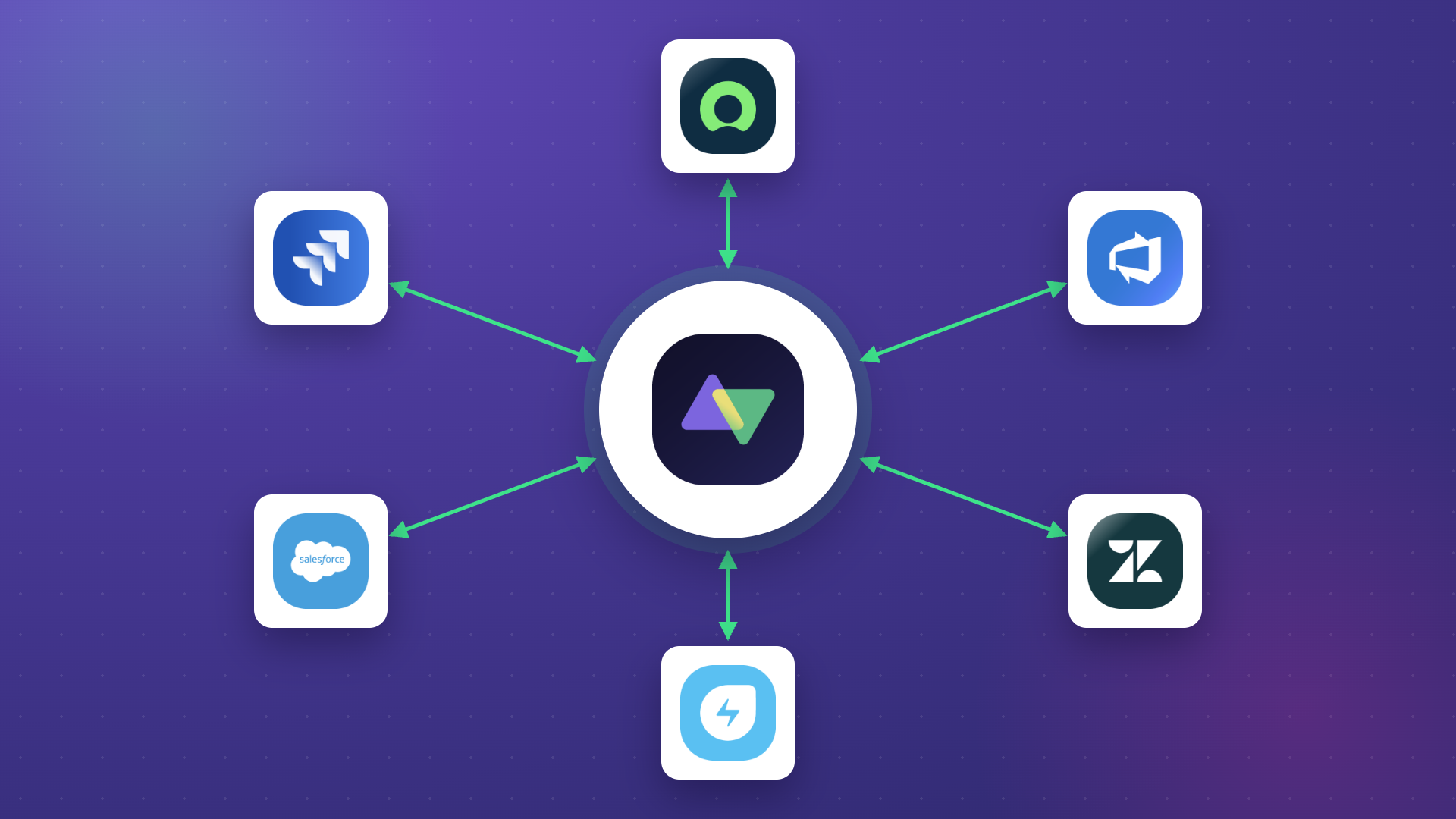
Solving this takes four sync directions across three systems, and the native Salesforce-Zendesk connector was not designed to cover most of them.
This guide walks through the whole workflow.
What The Workflow Looks Like End to End
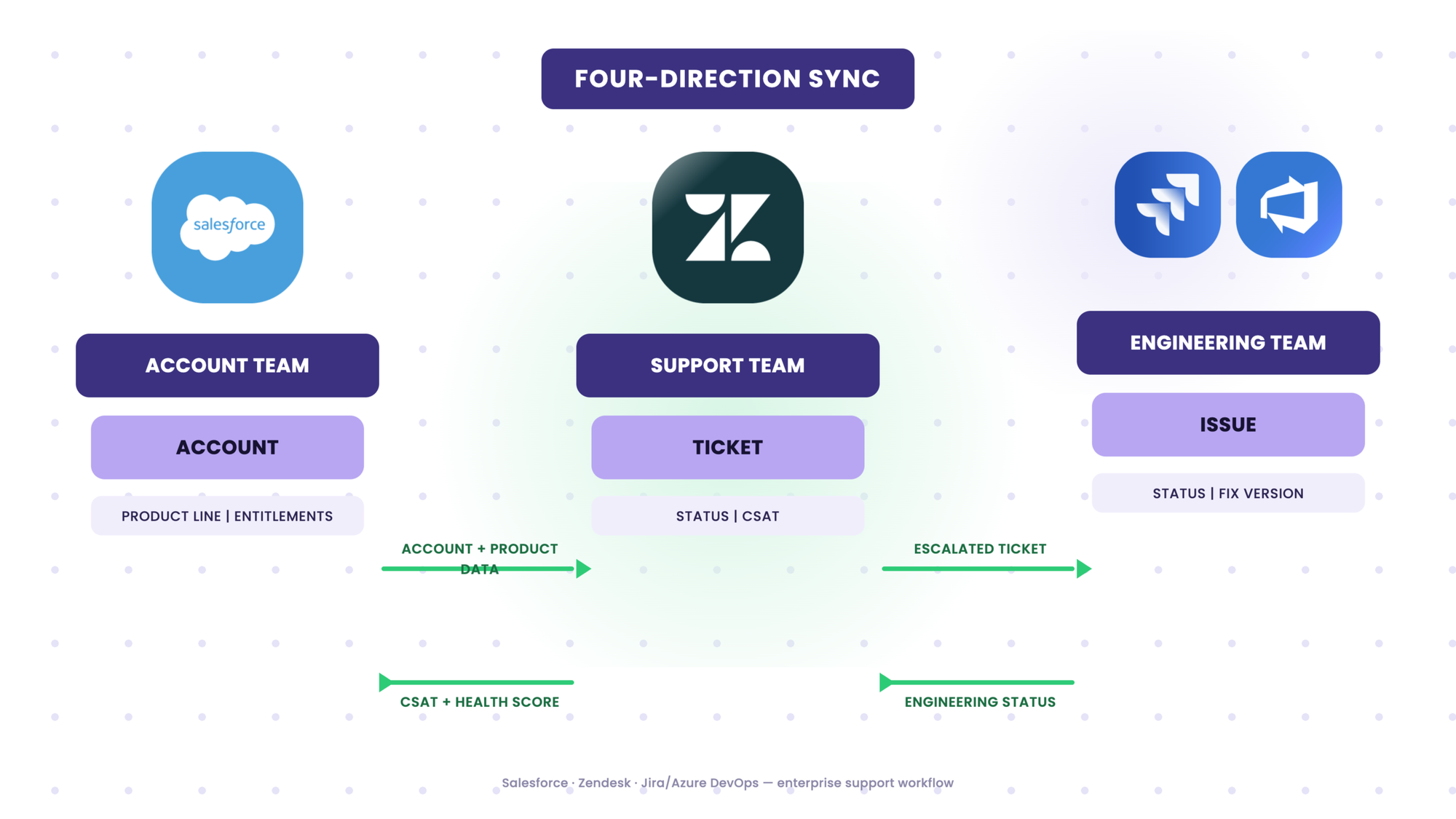
Four directions, each carrying a different kind of data:
- Step 1: Salesforce account and product data into Zendesk, giving agents context without Salesforce seats.
- Step 2: Escalated Zendesk tickets to the right Jira or ADO project, selected by product, team, or ticket type.
- Step 3: Engineering updates from Jira or ADO back into Zendesk as visible status, without the two systems sharing a lifecycle.
- Step 4: CSAT and health scoring from Zendesk to Salesforce, where account and success teams read it.
What The Native Salesforce-Zendesk Connector Does
The native connector maps Salesforce Accounts to Zendesk Organizations and Salesforce Contacts to Zendesk Users, matching records on standard fields. In the Zendesk ticket view, it adds a sidebar app that displays Salesforce account and contact data next to the conversation.
Agents get account name, owner, and standard field values without leaving the ticket. Ticket activity can also sync into Salesforce, where it appears on the account record for sales and success teams.
For teams whose requirements end at standard account fields next to the ticket, this is often enough, and the Salesforce Zendesk integration guide covers that setup in full.

What The Native Salesforce Zendesk Connector Can’t Do
Each of the four directions above runs into a specific limitation of the native connector.
1. Custom Objects Don’t Come Across
Mapping in the native connector is defined on standard Salesforce objects, with no mechanism for syncing custom ones. The product line and entitlement context that the agents need usually lives in exactly those structures. The sidebar ends up showing everything except the information they opened the ticket for.
2. Jira and Azure DevOps Are Out of Scope Entirely
When a ticket has to reach engineering, the connector offers no routing, no escalation path, and no visibility after the handover.
3. Lifecycle Separation Doesn’t Exist in the Usual Workarounds
Connecting Zendesk and Jira through webhook automations or a tool like Zapier relies on event-based rules: an event on one side triggers an action on the other. When the Jira issue closes, the action most teams configure is to resolve the Zendesk ticket. A developer closing the Jira issue ends the customer conversation, even though the agent has no idea whether the customer considers it resolved.
4. There Is No Write Protection
Fields that Salesforce owns and fields that Zendesk is allowed to update look identical to the native connector. An agent edit can overwrite data that account teams, finance, and reporting depend on, and an update landing on the wrong record across multiple brands is a costly error.
What Exalate Is, and Why It Handles This Differently
Exalate is a two-way integration platform built for exactly the case this guide describes: syncing data between systems that don’t share a data model, a lifecycle, or an admin.
Instead of a fixed field-mapping template, each connected instance- Zendesk, Salesforce, Jira, Azure DevOps runs its own sync script that decides what it sends out and what it accepts in. That per-side control is what makes field-level write protection, custom object sync, and status decoupling possible in the first place; none of it depends on a shared schema between the two systems.
For teams evaluating whether this is overkill for their setup: if the requirement is “show standard Salesforce fields in a Zendesk sidebar,” the native connector covers it.
Exalate earns its place when custom objects, multi-project routing, or lifecycle independence are non-negotiable, which, per this guide, is most enterprise setups past a certain size.
Step 1: Salesforce Data in Zendesk, Including What’s in Custom Objects
Every integration tool syncs the basics: Salesforce Accounts become Zendesk Organizations, Contacts become Zendesk Users. That tells the agent which account the ticket came from and little else.
In enterprise setups, product line, entitlements, and contract terms live in custom Salesforce objects, while standard fields identify the account without describing it.
Exalate has no centralized template for what a connection syncs, and each side runs two independent scripts instead. The outgoing script on the Salesforce side picks which fields to send and puts them into a replica – a neutral copy of the record that travels between the two systems. The incoming script on the Zendesk side then decides where each value from the replica goes.
A custom product line object is sent like any Account, and it lands where the incoming script puts it: an organization field, a ticket field, or a dedicated custom structure if the setup uses one.
Giving Zendesk Support Agents Salesforce Context Without Salesforce Licenses
Licensing is the obvious objection: if agents have to see Salesforce data, buy them seats. Cost is the visible problem, since per-seat pricing scales with headcount, and enterprise contracts negotiated around specific user counts leave little room for a support team mid-cycle.
Agents want less than a full seat: read-only account context inside the ticket they already have open. Syncing that data into Zendesk gives them the visibility without adding licenses and without letting agents write back into Salesforce.
The Overwrite Problem, and How Field-Level Protection Works
If Zendesk can write back to Salesforce, then any field synced in both directions is a field an agent can change: account hierarchy, product classification, contract dates. In a setup with multiple brands and accounts, an edit can land on the wrong organization record, and the sync completes normally, since nothing about it looks like an error. The value then sits in Salesforce until someone preparing a renewal notices that the account data no longer matches what the customer has.
Protection comes from directional sync at the field level. Each side controls its own incoming script, so the Salesforce side decides what it accepts: fields Salesforce owns are populated on the outgoing side and never read on the incoming one, which means a Zendesk-side edit has nowhere to go.
Zendesk-owned fields stay writable and sync outward where needed, and the ownership boundary is defined once, per field, in the sync rules. The configuration takes care of interpreting which fields are safe to touch on every sync.
Step 2: Routing Zendesk Tickets to the Right Jira or ADO Project
A support ticket that requires engineering work has to land in a specific place because enterprise setups run multiple Jira projects or ADO areas, one per product, per team, sometimes per region.
A ticket about Product A belongs in Project A’s backlog, while one that lands in the wrong project sits untouched in another team’s queue. By the time the agent notices and changes its status, the customer has been waiting on an issue that was never in front of the team responsible for it.
Native tooling leaves this open: the Salesforce-Zendesk connector works between those two systems only, with no concept of a Jira issue and no way to create one from a ticket. The Zendesk-Jira apps ask for a target project during setup and send every linked ticket to it.
Both options stop short of reading a value from the ticket to decide where the issue belongs, and that is the part automation has to cover, since handing it to agents means manual triage on every escalation.
What Routing Logic Looks Like in Practice
A routing rule connects one field on the Zendesk ticket to one Jira project or ADO area, and both sides of that rule multiply quickly. Zendesk gets split by product line, geography, or brand, and engineering runs a separate project per team, leaving the integration to pick the destination on every escalation.
The decision itself happens in the replica, where the ticket’s product tag travels alongside the rest of the values. The incoming script on the receiving side reads that tag against a lookup table of project keys and creates the issue in the project the table returns. Adding a product line means adding one entry to that table rather than building a new integration.
Connections stay independent of one another as well, since each Zendesk instance runs its own pair of scripts. A new instance comes online without reconfiguring the ones already live, and the same tag-to-project convention applies across all of them.
Escalation itself can be narrowed with triggers, where a query on tag, priority, or ticket type decides which tickets reach engineering at all.
The Jira Zendesk integration guide covers the setup for one connection, and a separate walkthrough covers linking several Zendesk tickets to one Jira work item.
Step 3: Engineering Status in Zendesk, Without Mirroring the Ticket Lifecycle
Routing a Zendesk ticket to Jira gets work to the right engineering team, but that’s where the native integration usually stops, leaving agents without visibility into the fix itself.
Many teams solve this with status sync, and it breaks down for a structural reason: each status answers a question belonging to a different team. Jira closes when the fix ships, while Zendesk stays open until the customer confirms the issue is resolved.
When statuses are mirrored, engineering ends up controlling the customer conversation. A developer resolves the Jira issue, the Zendesk ticket closes automatically, and the agent finds out when the customer replies to a closed ticket.
The Decoupled Model: Status as Data, Not as a Trigger
Decoupling treats Jira status as information for the agent, not as an instruction to the ticket. In Exalate, the arriving status is a value in the replica, and the incoming script on the Zendesk side decides what happens to it: written into a custom field, appended as a timestamped internal comment, or both. If that script never calls a workflow transition, the ticket state doesn’t move.
Three values carry nearly all of the signal support teams need: picked up by engineering, fix in progress, and shipped in a named version. The incoming script collapses Jira’s intermediate transitions into the nearest of those three.
Agents track the fix from inside the ticket and close it once the customer confirms, without a Jira seat and without chasing anyone for an update.
Step 4: Getting Zendesk Data Back to Salesforce
The first three directions move data toward the people working the ticket. The fourth sends it back to the CRM, and it behaves differently.
CSAT responses and health scores originate in Zendesk, from satisfaction surveys, workflow triggers, or a scoring model the support team maintains. That data has to reach the Salesforce account record, where customer success reads it alongside renewal dates and account status.
Complications start when the data doesn’t sit on the ticket. Ticket-level fields sync the same way any Zendesk field does, and a CSAT score attached to the ticket travels to Salesforce through the outgoing script without special handling.
When the scoring lives in a separate Zendesk custom object, two things have to be established before anyone commits to a delivery date: whether the API returns that object in a form the integration can read, and what event triggers the push. Most integration guides skip this direction entirely, and buyers discover it mid-project instead.
What to Scope Before You Start
Multi-system integrations don’t usually fail on the technical side. They stall because something structural surfaces through the build: a second Zendesk instance, a field two teams both consider theirs, a routing rule that turns out to have exceptions.
Ask yourself:
- What’s in scope for phase one? How many Zendesk instances, Salesforce orgs, Jira projects, and ADO areas the first delivery actually covers.
- Which fields does Salesforce own, and which can Zendesk update? A data governance call for the Salesforce admin, and the answer defines the sync direction for every field in the mapping.
- What determines the routing? The Zendesk field value that picks the Jira project, plus the exceptions: an empty field, or a value that matches nothing in the routing table.
- How should engineering status appear in Zendesk? A custom field, an internal comment, or both. Fields are easier to filter and report on; comments carry timestamps and read as history, and it’s worth asking the agents who work the tickets.
- Which Zendesk object holds the data going back to Salesforce, what triggers the push, and where does it land? The reverse direction is the one most likely to warrant a technical call before anything gets committed.
If you’re working through something similar, talk to our integration engineers and map the workflow out before anything gets configured
Frequently Asked Questions
Can Zendesk sync custom Salesforce objects, not just standard Accounts and Contacts?
Yes, with Exalate. The native Salesforce-Zendesk connector only maps standard objects. Exalate uses a script on each side, so a custom object such as a product line or entitlement record can be sent the same way a standard object is, and the incoming script decides where the values land in Zendesk.
Does closing a Jira issue automatically close the Zendesk ticket?
Not with a decoupled setup, and this is deliberate. Webhook-based connections often mirror status directly, which lets engineering close the customer conversation without the agent’s knowledge. Exalate treats the Jira status as data written into a Zendesk field or comment, so the ticket stays open until the agent or customer confirms resolution.
Can one Zendesk ticket route to different Jira or Azure DevOps projects depending on the product?
Yes. Routing is handled by matching a value on the ticket, such as a product tag, against a lookup table of project keys in the sync script. Adding a new product line means adding a row to that table rather than rebuilding the integration.
Do agents need a Salesforce or Jira license to see this data in Zendesk?
No. The sync brings read-only Salesforce and Jira/ADO data into Zendesk fields or comments, so agents see account and engineering context without a seat on either system.
Recommended Reads