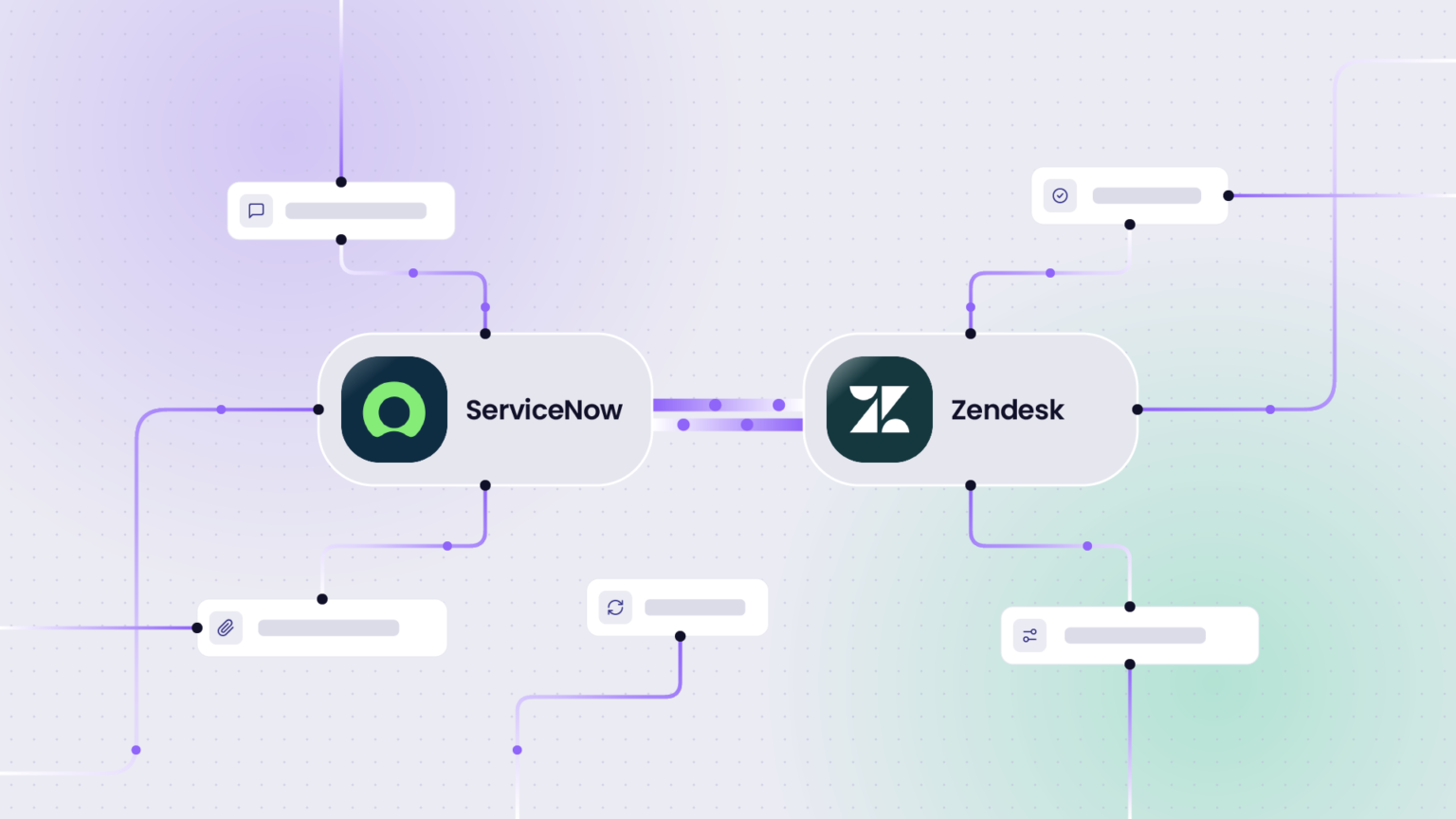
Your biggest customer logs every incident in their own ServiceNow, and your support team works in Zendesk. To get all the necessary incident context, the support agent has to copy the ticket from one system to another manually.
We’ve heard this setup in a few calls this year from very different businesses: a messaging platform provider, a SaaS vendor selling into large enterprises, and an audio-visual services team supporting a hospital group. Different products, same gap.
ServiceNow admins often call this kind of cross-company ticket exchange eBonding. If your customer’s admin uses that word, this is what they mean.
Before we dive into the details, let’s quickly look at how you can manage data between ServiceNow and Zendesk without an integration.

Three Ways To Manage Data Between ServiceNow and Zendesk
Support Agents Log In To Customer’s ServiceNow
Your support agents log in and access the customer’s ServiceNow instance. The customer issues credentials, and your agents work the ticket there.
One vendor we spoke with could only put about five people on their largest customer because only five people had access. Their agents were set up as the customer’s own employees in ServiceNow. Their tiered support team across the Americas and EMEA couldn’t touch those tickets at all.
Manually Recreate ServiceNow Ticket In Zendesk
Your support agent manually recreates a ticket in Zendesk. The customer opens an incident in ServiceNow, then sends an email or messages the team working in Zendesk about it.
Your support agent creates a matching Zendesk ticket and tags it with the ServiceNow incident number so both sides can find each other later.
Many fields won’t match between the two unless someone copies them manually, so updates don’t flow back and forth. In a similar setup between two other tools, a team estimated 5 to 10 minutes of copy and paste per ticket, and still missed a defect that sat unattended until the customer escalated it.
Open Two Incidents Both In ServiceNow and Zendesk
The customer opens two incidents. One goes into their ServiceNow instance for their records, and one goes into your Zendesk instance so your support team can work on it. But this clearly is an inefficient way forward.
None of the three options is the best. They aren’t feasible when your Zendesk instance runs on one SLA clock, and the ServiceNow instance on another. If updates don’t pass when required, both teams have zero visibility into the ticket status.
There is a clear need to connect these systems such that data passes between them. For this, you can set up a ServiceNow Zendesk integration.
Why “Just Build An API Sync” Stalls
While setting up an integration, a customer’s first instinct is to ask for an API integration, because building it themselves seems plausible. An API integration allows teams to access data via the platform’s built-in REST APIs.
Sync logic is generated based on the data fetched. So, you define the sync rules, i.e., what crosses between ServiceNow and Zendesk, and a team codes it for you. This custom-coded integration (or sync logic) must also include setting up a security mechanism and ensuring all API updates are handled correctly.
We’ve covered why building such an integration in-house rarely pays off in detail.
One support director we spoke with had some questions for their internal team: who pays for this integration, who maintains it, and what happens when it breaks.
These are the right questions to ask. A custom integration between two companies has two sets of admins, two change calendars, and two security reviews. This becomes an overhead to maintain.
Plus, configurations keep getting modified; for instance, the customer changes a workflow, or ServiceNow ships an update. Unless these things are built into the integration, teams don’t find out until the tickets stop syncing.
To avoid this, your synchronization should follow some guidelines.
What The Sync Needs To Do
Create Tickets Only On Escalation
The customer’s ServiceNow holds plenty of incidents, and not all of them are relevant to the Zendesk team.
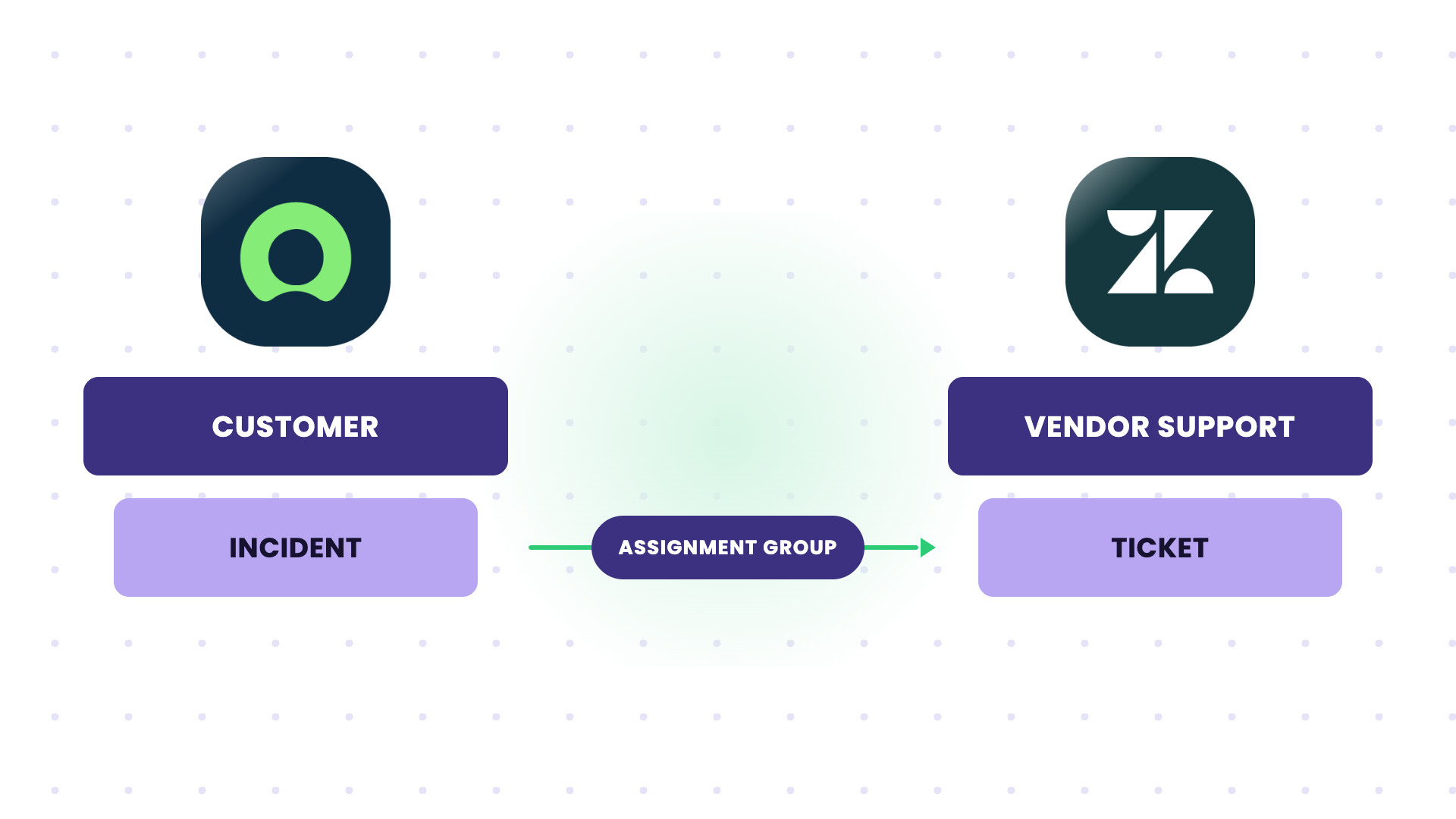
The sync should create a Zendesk ticket only when an incident reaches a specific condition, for example, when it’s assigned to a ServiceNow “Assignment Group” or moved to an “escalated to vendor” state.
Sometimes, teams want ticket creation to run in one direction only (ServiceNow to Zendesk) and updates to run both ways after that.
Keep Each Side’s Internal Notes Internal
There’s a lot of internal chatter on both instances that is not necessary for the other team.
So, your developers’ internal Zendesk comments shouldn’t appear in the customer’s ServiceNow. The customer’s work notes shouldn’t appear in your Zendesk. Only public comments cross.
Exalate treats ServiceNow work notes as internal comments, and Zendesk has its own comment visibility rules, so filtering on each side takes one line. We’ll discuss Exalate in a while.
Map Priorities And Statuses On Each Side
The customer’s ServiceNow P2 and your support team’s “High” may not mean the same thing, so each side keeps its own mapping.
You also decide whether priority syncs once at creation or keeps updating.
Sometimes, vendors want priority set only on the first sync, so the partner can’t change the SLA-driving field afterward.
For statuses, give every transition one owner.
Two-way status sync without owners is the number one reason why tickets get missed.
| ServiceNow state | Zendesk status | Who moves it |
| In Progress, assigned to your group | New | Customer (the assignment creates the Zendesk ticket) |
| In Progress | Open | Your agent picks it up |
| On Hold (awaiting caller) | Pending | Your agent, when waiting on the customer |
| Resolved | Solved | Your agent, with resolution notes |
| Closed | Closed | Customer |
| In Progress (reopened) | Open | Customer reopens |
Out of the box, ServiceNow asks for an on-hold reason when an incident goes On Hold, and a resolution code plus resolution notes when it goes to Resolved. If your sync sets the state without those fields, the update fails on the customer’s side.
Send Updates Back
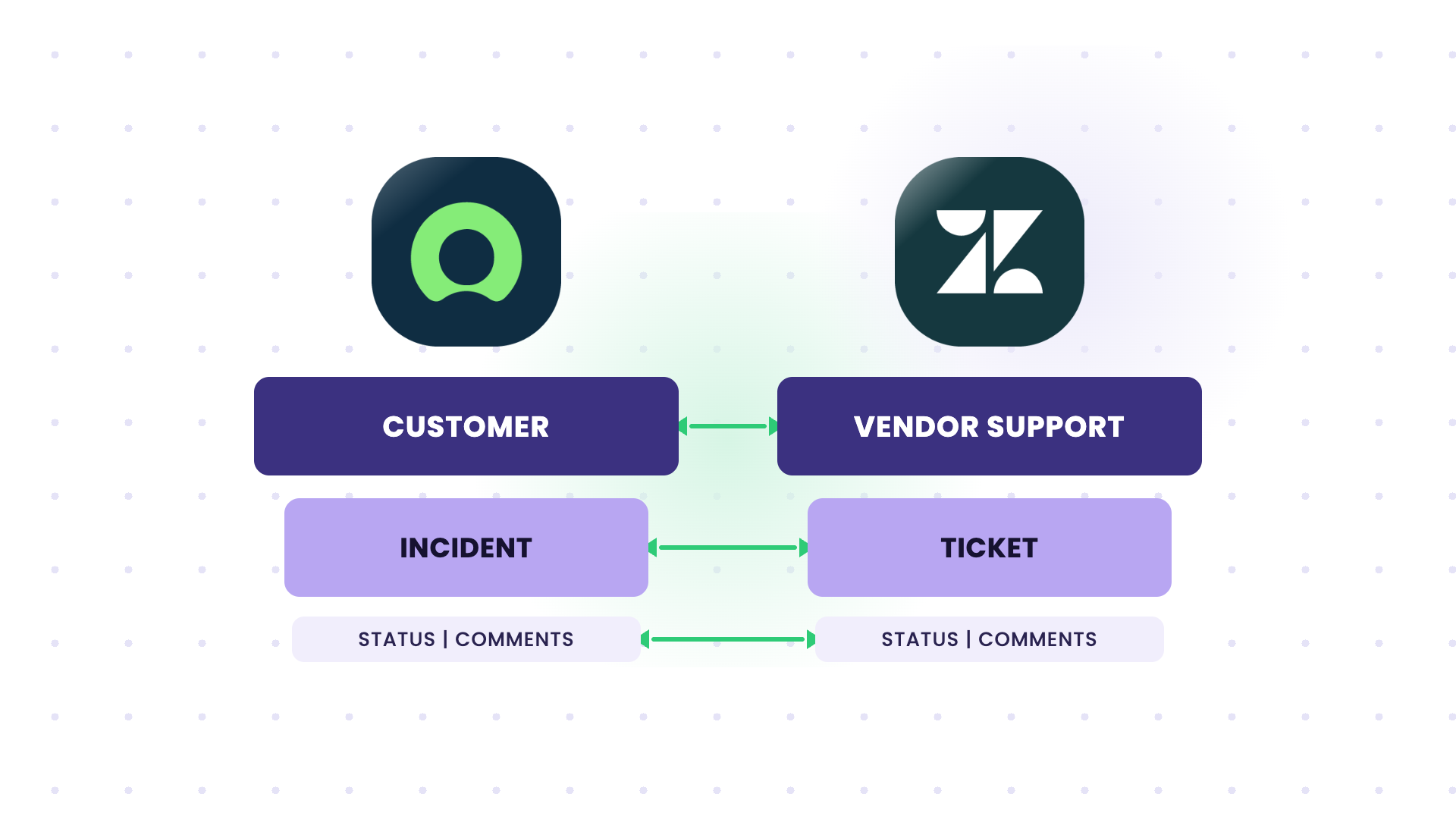
When the support agent in Zendesk replies in a ticket or resolves it, the ServiceNow incident must receive those updates.
The customer’s requester would like to see the progress in their own ServiceNow, without having to chase someone in the Zendesk team.
Carry Attachments, Screenshots & Other Custom Fields For Context
Additional context is useful to resolve tickets. Screenshots and logs are often the whole reason the ticket exists, so they need to sync in both directions. Also, make sure inline attachments cross over properly. Or if your support team in Zendesk likes to talk in side conversations, make sure they reach (or are restricted from reaching) the ServiceNow team.
Consider beforehand what other things need to be synced to complete the context, like syncing additional custom fields.
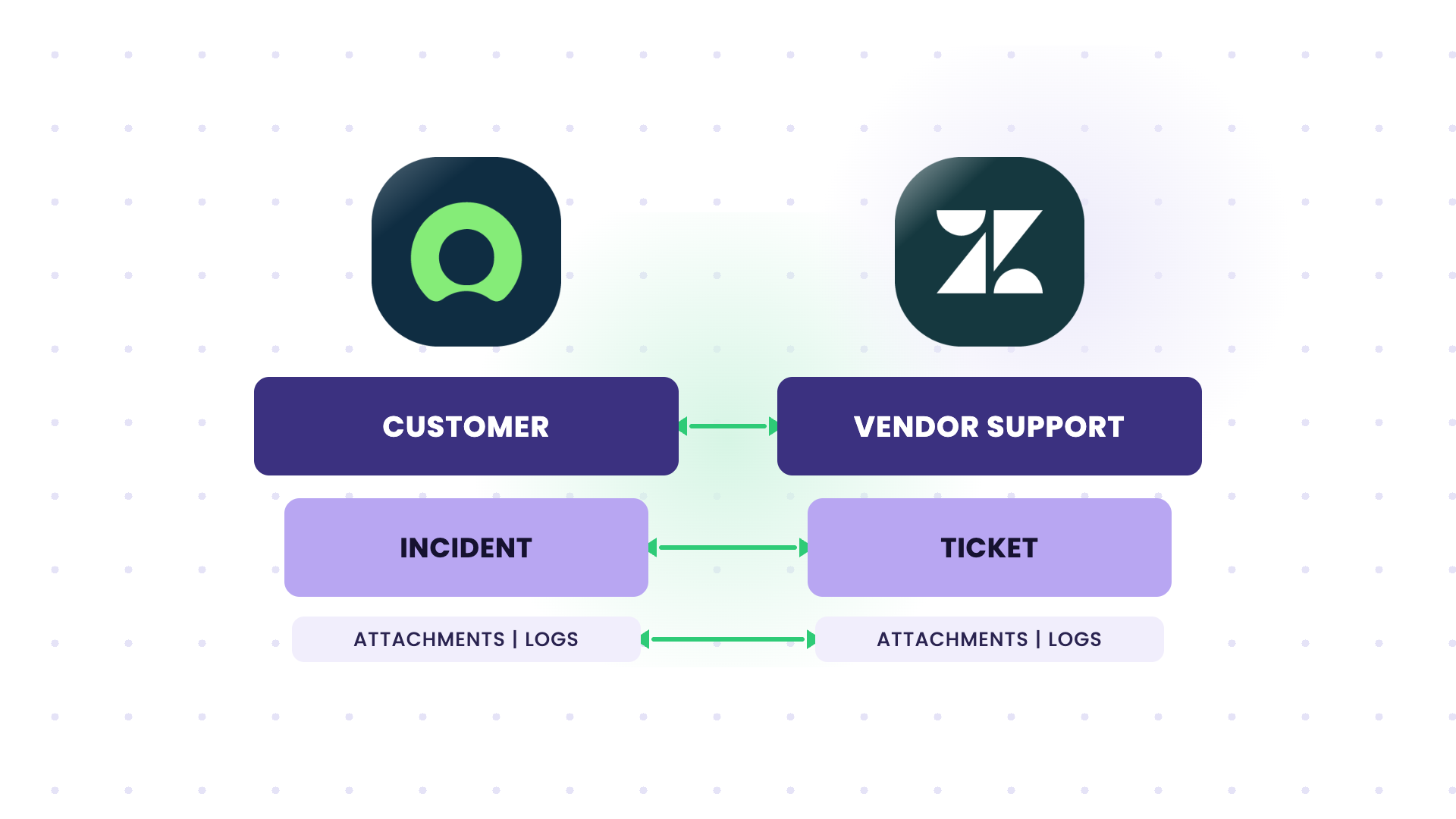
Best Practices For Vendor Support Teams With a ServiceNow Zendesk Integration
ServiceNow and Zendesk are configured individually by the teams working in these platforms. Here are some practical tips for admins setting up this integration.
The Zendesk Caller Doesn’t Exist
People from two companies live in two separate user directories. When a user doesn’t exist on the receiving side, the reporter field can end up empty, the assignee unassigned, and @mentions arrive as raw user IDs.
Sync the caller’s name into a custom text field in Zendesk, and decide which shared contact should act as the requester on synced tickets. If you use a real customer contact, they’ll get notification emails from Zendesk on top of the ones ServiceNow already sends.
Ticket Closure in Zendesk Doesn’t Reach the Customer in ServiceNow
Zendesk automations close solved tickets after a set number of days, and there’s no clean way for the ServiceNow side to know about this.
A closed Zendesk ticket also can’t be reopened, so the agent’s next comment has nowhere to land. Keep synced tickets at Solved until the customer closes the incident in ServiceNow, and exclude them from your auto-close automation.
The Customer’s ServiceNow Isn’t Out Of The Box
Large ServiceNow customers often run extended incident tables, catalog item variables on requested items, and custom reference fields.
Ensure your integration can handle extended incident tables without hardcoded table names. The right authentication methods should be supported, for instance, enabling OAuth for ServiceNow instead of Basic Auth.
Ask your customer for their table names, the fields that matter, and their authentication requirements before anyone writes a sync rule.
The Incident Table Is Shared With Other Vendors
Your customer’s ServiceNow incident table holds tickets for every vendor and internal team they work with.
Scope the trigger to your assignment group, and test it against incidents that get reassigned to you after creation, since that’s how most escalations arrive. Also agree on what happens when the customer reassigns an incident away from you.
One Failed Update Holds Up The Rest
When one update fails, for example because of a missing mandatory field, the updates behind it on that ticket wait in the queue until the error is fixed.
Turn on error notifications on both sides and name an owner for each.
Unlinking And Relinking Creates Duplicates
Stopping the sync on a ticket removes the link and leaves both tickets in place. If the sync starts again later, for example because someone re-applies the trigger condition, it can create a brand-new Zendesk ticket instead of reconnecting to the old one.
Store the ServiceNow incident number in a Zendesk custom field from day one, so your sync rules can use it to find and reconnect the original ticket.
Nobody Agreed Who Edits Which Side
In a cross-company setup, your customer’s security team will want to know who can change the sync rules on their side. Confirm that your admins can edit only your side and their admins only theirs.
How Exalate Handles It
Exalate is a script-based integration solution that connects multiple ITSM, CRM, and work management systems. So, you can connect systems like Jira, Zendesk, ServiceNow, Salesforce, Azure DevOps, etc., using Exalate.
With Exalate, each company configures its own side and sync rules. Your Zendesk admin decides what leaves Zendesk and how incoming data lands in it. The customer’s ServiceNow admin does the same on their side.
This means your Zendesk agents no longer have to log into the customer’s ServiceNow instance, and no passwords or credentials need to be exchanged.
You can configure sync rules in Exalate using Groovy-based scripts. These scripts are split into an outgoing part (what you send) and an incoming part (how you apply what you receive).
You can write them yourself or describe the behavior in plain language and let the built-in Aida AI draft them for you.
A trimmed example of the outgoing Zendesk side. Here, the ticket summary, description, attachments, and status are passed over to ServiceNow. However, only internal comments cross over. You can ensure this with the following line of code: replica.comments = issue.comments.findAll { !it.internal }
// Zendesk outgoing: only public comments leave your instance

replica.summary     = issue.summary

replica.description = issue.description

replica.comments    = issue.comments.findAll { !it.internal }

replica.attachments = issue.attachments

replica.status      = issue.status

// Zendesk incoming: apply what the customer's ServiceNow sends

if (firstSync) {

  issue.summary = replica.summary

}

issue.description = replica.description

issue.comments    = commentHelper.mergeComments(issue, replica)

issue.attachments = attachmentHelper.mergeAttachments(issue, replica)Code language: JavaScript (javascript)
On the ServiceNow side, the customer sets a trigger so only incidents that meet the escalation condition sync. Triggers are automatic events in Exalate that start the sync process. You can set them in the platform-specific language. For instance, for both ServiceNow and Zendesk, you can use the advanced search syntax to set up these triggers. They exist on both sides to give you granular decision-making powers.
What To Sort Out Before You Start
Your customer’s ServiceNow admin has to be part of the integration setup. They connect their instance with admin credentials or a proxy user that has create and update permissions on the tables you sync, and they own their half of the rules. Involve them from the start.
Expect a security review. Enterprise customers will run vendor onboarding before anything touches their ServiceNow, so ensure you have your inputs handy when you send it to them.
Estimate how many tickets will be in active sync at once. One team expected a few hundred tickets a month; another expected far fewer. This number drives plan selection, so pull it from real data before the pricing conversation.
Before You Go
Pull last month’s tickets from your ServiceNow customer. Count how many exist twice, how many updates someone copied by hand, and how many people on your team can’t work those tickets because they don’t have customer credentials. Take those numbers into the internal conversation.
If you have any other doubts or want to discuss your specific Zendesk ServiceNow setup, get in touch with us and our team will help you through, or try Exalate yourself to see how it works in practice.
Recommended Reads
- How Vodafone Automated Cross-Company Integration With Its Vendors: a large-scale example of two companies syncing tickets while each keeps control of its own side.
- Integration Security: Key Measures And Best Practices For Enterprises: what your customer’s security team will check before approving a cross-company sync.
- What Is eBonding?: a primer on the ServiceNow term your customer’s admin may use for this setup.
- ServiceNow Data Integration: IntegrationHub Or A Third-Party Tool: useful if your customer’s admin suggests building it with IntegrationHub instead.