
Back again to share some insights from conversations with enterprise teams running multiple Azure DevOps orgs alongside ServiceNow.
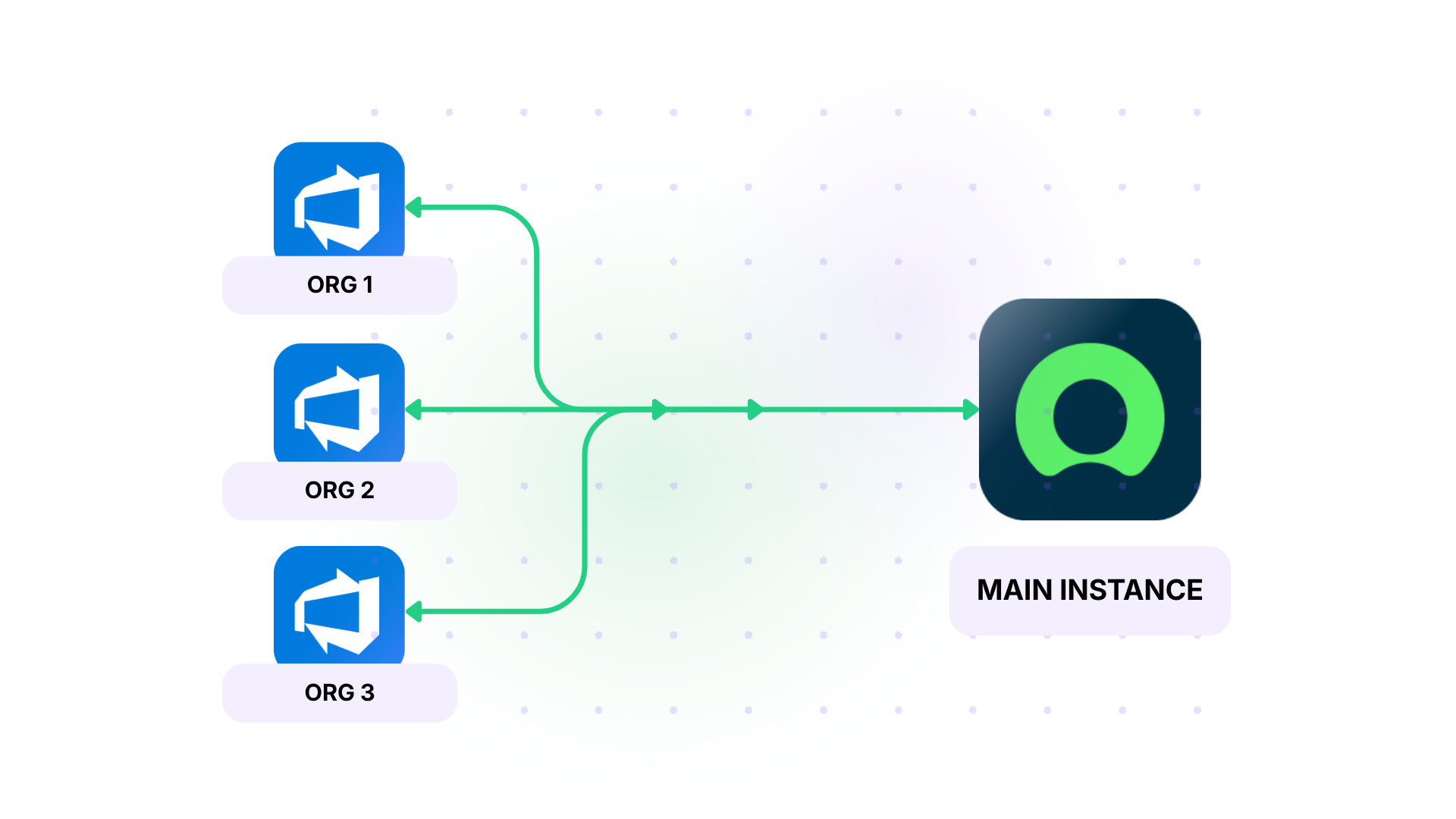
The challenge is pretty consistent: each business unit owns its own Azure DevOps environment, but the central ServiceNow layer needs to see what’s going on across all of them.
Without a sync in place, someone ends up manually pulling data between systems, chasing updates, and trying to keep everything aligned. It gets messy fast, and it definitely doesn’t scale.

How Exalate Approaches This
With Exalate, each Azure DevOps org gets its own connector, and sync rules are configured independently per side. No shared middleware, no central broker. Each team controls what goes out and what comes in, so the data boundaries are theirs to define.
You can set up trigger logic, scope your field mapping, and choose whether the sync runs one way or both ways, depending on the scenario.
It’s script-based, so you’re not locked into a rigid template if your setup is more complex than the average use case.
Even if you don’t fancy writing scripts from scratch, Exalate’s AI assistant Aida can help you turn your prompts into actual sync rules to control how your integration works on a granular level.
Setting Up the Connection
Getting a single Azure DevOps org connected to ServiceNow through Exalate follows a consistent path.
- Create or log in to your Exalate account. Everything runs from the Exalate app. New users can sign up with a business email or Google sign-in.
- Create the connection. In your console, click “+ Add connections,” then “Create new connection”, and configure each side. You can start with either Azure DevOps or ServiceNow as System A, then repeat for System B.
- Authenticate each side. Authorize each system with its own credentials, so your Azure DevOps org and ServiceNow instance stay independently controlled. This is what keeps the orgs autonomous when you add more of them later.
- Name the connection and review. Give it a clear name like “BU-1 ADO to Central ServiceNow”, add an optional description, then review the details and create the connection.
- Start with simple configs. Once the connection is live, use Quick Sync to sync a single work item before you build out full rules. You can sync a new item across or link two existing ones, then compare how they appear on both sides.
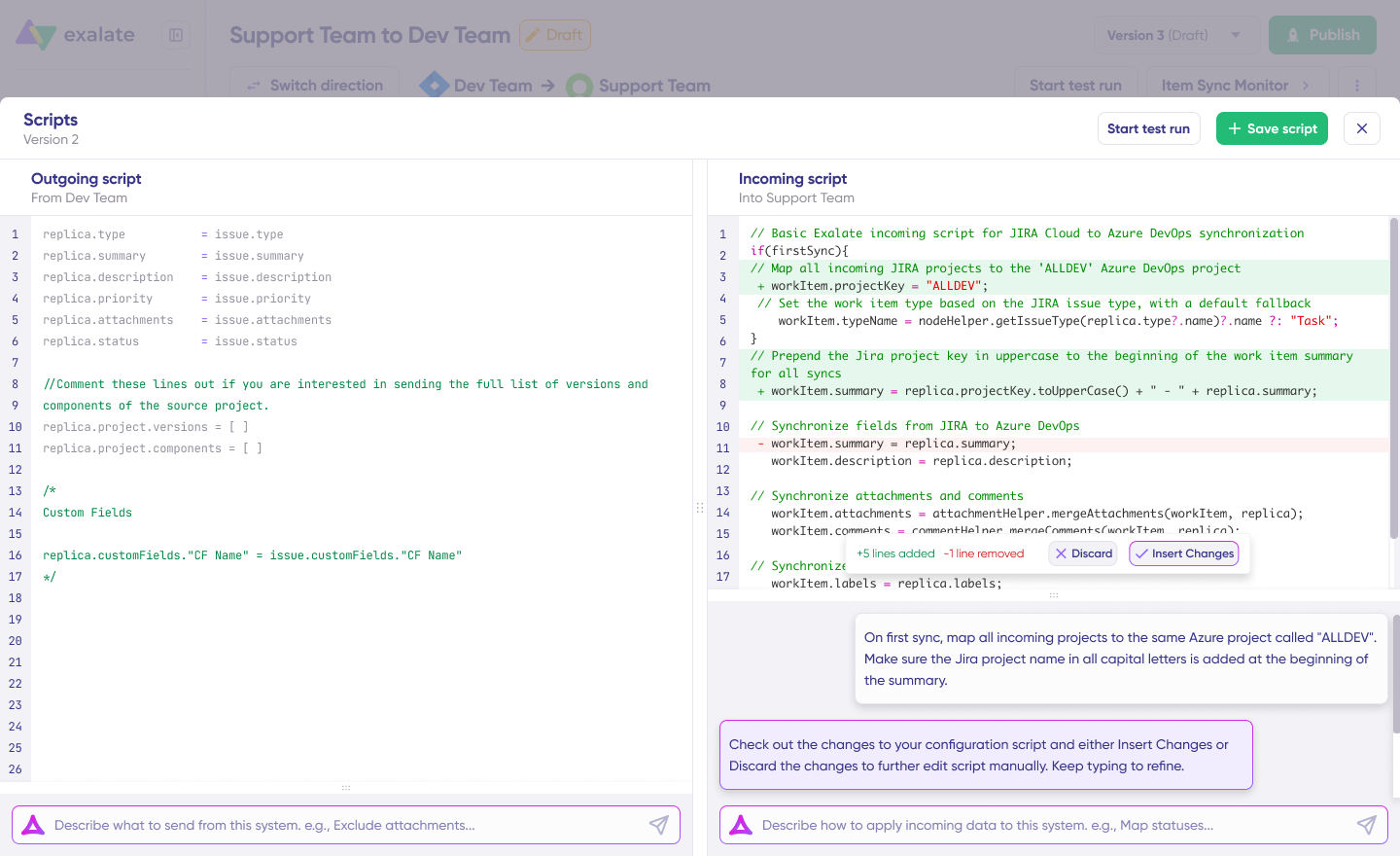
- Move to advanced sync rules. Open the draft editor to configure your real sync logic. Draft mode saves automatically and keeps you from touching any live configuration while you work.
- Set your field mapping and sync direction. Use the incoming and outgoing Groovy scripts to define what data leaves each side and set whether updates flow one way or both ways. You can write the code yourself or let Aida generate it from a plain-language prompt.
- Do a Test Run before going live. Test Run validates your scripts against real items without affecting production data, so you can check field mappings and transformations.
- Add triggers. Use WIQL (for Azure DevOps) or advanced search syntax (for ServiceNow) queries on each side to filter which items qualify, and you can stack multiple triggers on one connection for different item types.
- Publish and repeat per org. Publishing creates a new script version, which gives you a full audit trail and instant rollback if something breaks. Because each Azure DevOps org has its own connection and its own rules, you can bring on a second or third org later without touching the first one’s setup.
Common Patterns We See
- Distributed Azure DevOps orgs feeding a central ServiceNow tracker, without a shared workflow. Teams with multiple Azure DevOps environments (often through acquisitions or separate supplier setups) still need one place to see and plan everything. Since Exalate’s sync logic runs independently on each side, every Azure DevOps org keeps its own states, fields, and processes.
- Bi-directional sync between delivery teams and central support, so both sides stay current. Support lives in ServiceNow, developers live in Azure DevOps, and the handoff between them is complicated. Exalate keeps status, comments, and updates flowing both ways so neither side has to re-key anything or chase the other for an update.
- Selective field sharing, where each org decides exactly what gets exposed. The concern for buyers is what fields they can share without exposing sensitive data. Exalate’s outgoing and incoming sync scripts put that control on each side: you decide what leaves, and the other side decides what it accepts.
- Connecting separately-hosted environments securely, without network-level access. Regulated buyers can’t open network access between systems since security is non-negotiable. Exalate sits on each side and communicates over its own secured channel.
- Handling closed and read-only tickets cleanly. ServiceNow ACLs block updates to closed incidents, so a basic sync piles up errors every time it tries to write to a ticket that’s already shut. Customers are usually split on whether to filter closed tickets out entirely or keep the errors visible. Exalate lets you choose: filter closed states out of the sync, or let the errors surface.
- Triggered escalation from multiple ServiceNow instances to a single Azure DevOps instance. Not every ticket should be escalated; sometimes only the ones that meet a specific condition should automatically escalate. Exalate supports a conditional event-based trigger, so an agent pushes only the tickets that actually need dev work, rather than flooding the Azure DevOps board.
How Exalate Keeps Your Data Secure
Worth flagging since this comes up a lot in enterprise conversations:
- Async and resilient: Queue-based delivery with built-in retry, recovery, and idempotent processing. If something goes down, sync picks back up.
- TLS 1.3 in transit, AES-256 at rest, RBAC, audit logs, ISO 27001-compliant. Find all security docs on our Trust Center.
- Decentralized sync, especially useful for multiple independent Azure DevOps (ADO) orgs, giving you full operational control and scalability over your own side of the sync.
Teams use Exalate for exactly this kind of federated sync across Azure DevOps and ServiceNow.
If you’re dealing with something similar, or if you’ve found a different approach that works, we’re curious to hear about it.
Recommended Reading
- How to Set up a ServiceNow Azure DevOps Integration
- ServiceNow to ServiceNow Integration [A Step-by-Step Guide]
- How To Map and Sync Statuses and Correlation Details Between Azure DevOps and ServiceNow
- How MSPs Can Route ServiceNow Incidents to Jira and Azure DevOps Automatically
- How to Maintain Issue Hierarchy When Integrating Jira On-premise & Azure DevOps