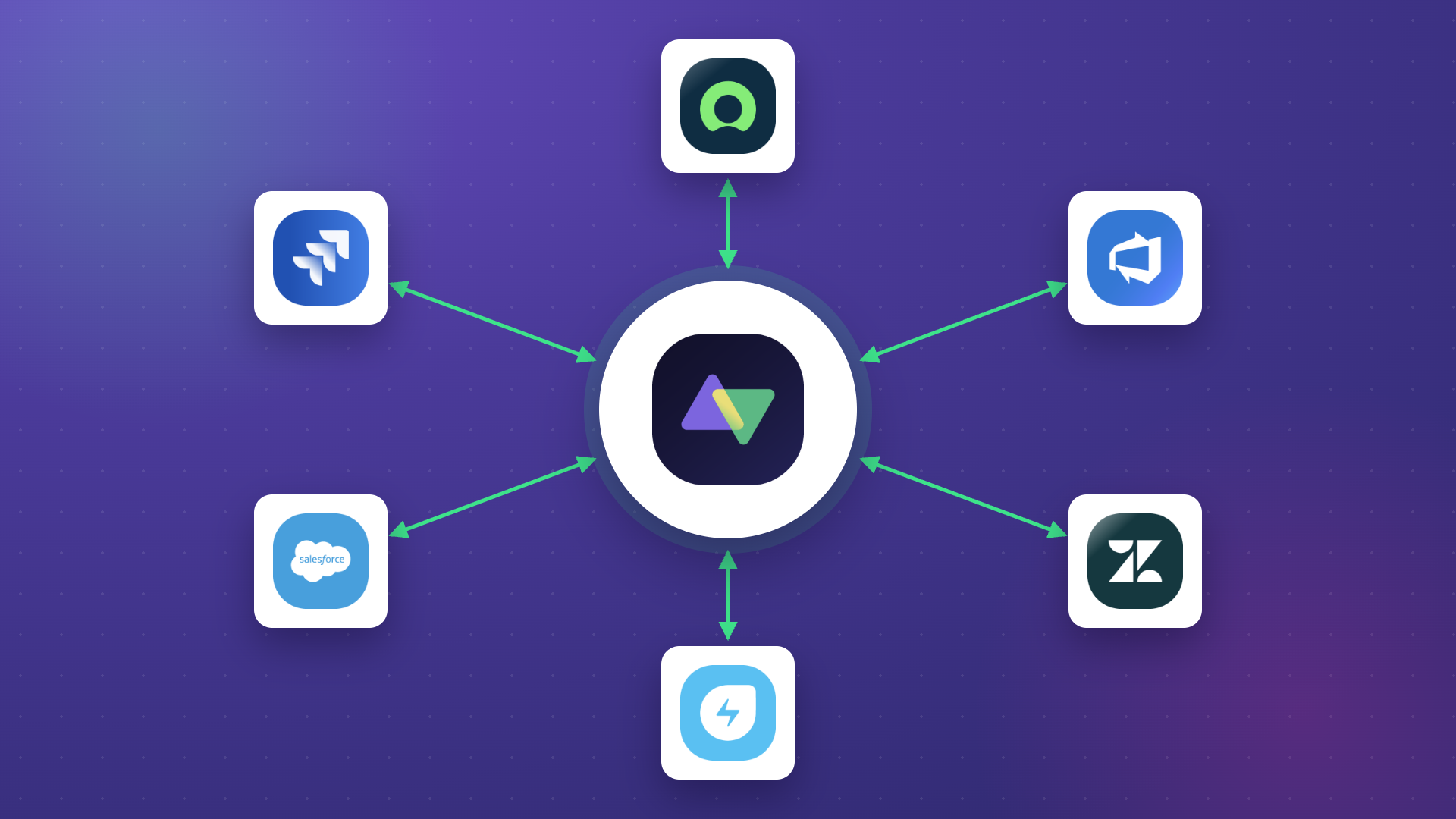
Most Jira Service Management to Jira Service Management integration requests come down to the same underlying situation: two separate companies are each running their own Jira Service Management tenant, and a ticket raised on one side needs to be visible, actionable, and resolvable on the other side without forcing either team to leave their own portal.
This pattern shows up in vendor-customer relationships, in parent companies that need visibility into how their subsidiaries handle service requests, in managed service providers coordinating with clients who run their own Jira Service Management, and in tiered support setups where a first-line desk hands off complex cases to a specialist second-line desk.
Across all of these, neither side wants to give the other admin access, buy more agent licenses, or work in someone else’s portal.
In this guide, we’ll discuss how to make tickets flow specifically between two Jira Service Management instances running portals, queues, approvals, and SLA clocks that need to behave like a single ticket flow.
Key Takeaways
- You need Jira Service Management to Jira Service Management integration because request types, SLAs, approvals, and portals don’t map cleanly onto a generic Jira sync.
- Independent Jira Service Management tenants need integration when contracts, billing, automations, or compliance rules block instance merging.
- The right topology depends on whether you’re an MSP, a vendor with multiple customers, or a multi-subsidiary enterprise that needs selective parent-level visibility.
- Cross-tenant sync rules decide what stays private and what crosses, down to per-comment, per-field, and per-request-type granularity.
- Exalate connects two or more Jira Service Management tenants bidirectionally with independent control on each side, so neither tenant has to expose its admin console to the other.
- Aida generates Groovy sync scripts from plain English, including approval mirroring, request-type mapping, and SLA field handling.
- Common use cases include vendor-customer ticket exchange, parent-subsidiary integration, MSP-client onboarding, first-line to second-line escalation, and license-free external collaboration.

Why Jira Service Management to Jira Service Management Integration is not the Same as Jira to Jira Sync
The two products share a parent platform but behave very differently once you look closely at how they handle tickets.
Jira Software runs on spaces (formerly projects) as work items (formerly issues), sprints, story points, releases, and boards, whereas Jira Service Management runs on requests, request types, queues, SLAs, approvals, organizations, customer portals, satisfaction ratings, and participants.
At the same time, these entities don’t have direct equivalents in Jira Software. Meanwhile, Jira Software’s sprint fields, story points, and release tracking don’t exist in Jira Service Management.
That distinction matters even more when both sides are Jira Service Management. Now the question isn’t how to translate a ticket into a development task, but how to preserve the service-desk shape of a ticket as it crosses tenant boundaries.
This includes keeping the request type meaningful on the receiving side, deciding which SLA clock applies (the originating tenant’s, the receiving tenant’s, or both), and mirroring approvals without losing the approver context.
It also focuses on handling organizations and request participants that may not exist as users in the other tenant, and preserving the line between portal-visible comments and internal agent notes.
When Teams Actually Need Jira ServiceNow Management Integration
These situations are pulled from real customer questions, and they describe the actual conditions that drive the connection between instances.
- A vendor runs their own Jira Service Management instance, but some of their customers also run Jira Service Management and, due to contract clauses or internal policy, refuse to raise tickets in the vendor’s portal. The vendor ends up logging into three or four customer Jira Service Management instances every morning to check for new requests, which doesn’t scale past a handful of customers.
- A parent company operating alongside subsidiaries that each run their own Jira Service Management for autonomy, billing, or regional compliance reasons. The parent company needs visibility into specific request types like security incidents, change approvals, or executive escalations, but doesn’t want to force subsidiaries onto a single tenant.
- Managed service providers (MSPs) run into this frequently because their central Jira Service Management handles service delivery while each client they support runs their own Jira Service Management. Tickets need to flow between the client’s portal and the MSP’s queue without the MSP getting admin rights on the client’s tenant or vice versa.
- A public portal sits on one Jira Service Management instance, and complex requests get triaged to a second Jira Service Management instance owned by a specialist team. The public users would submit requests via the help portal, which would then either be resolved on the first-level Jira Service Management instance or be triaged to the second/third-level Jira Service Management instance for further investigation.
- License cost containment also drives integration requests. External contractors, vendor support staff, or partner agents shouldn’t need agent seats on your Jira Service Management just to resolve tickets that belong to your organization. Integration lets them work in their own Jira Service Management while still picking up your tickets.
- Cross-cluster integration (cross-company) between unrelated tenants is its own category. Two unrelated companies sit on separate Atlassian clouds with no shared Atlassian access and no trust relationship between the sites.
Use Cases for Jira Service Management to Jira Service Management Integration
Case 1: Vendor Receiving Tickets From Customer Jira Service Management Instances
Case: A software vendor supports several customers who each run their own Jira Service Management instance. Contractually, some of those customers must log support tickets in their own portal rather than the vendor’s. The vendor’s agents currently log into three customer Jira Service Management instances every morning to check for new requests, which is unsustainable as the customer base grows.
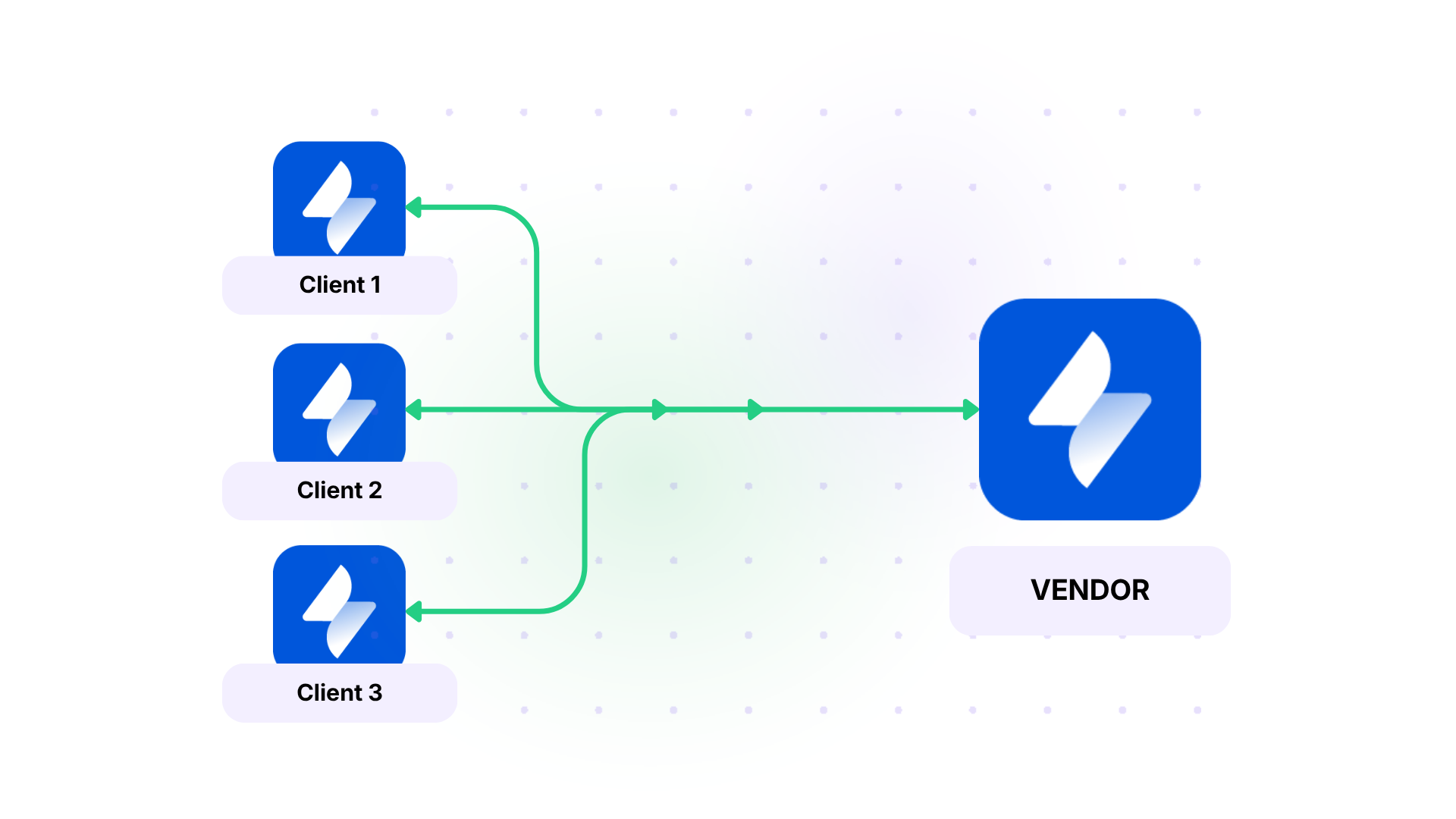
Solution: Each customer’s Jira Service Management connects to the vendor’s Jira Service Management through an independent Exalate connection. A JQL trigger on the customer side, like project = SUPPORT AND labels = vendor-X, selects which tickets sync. New tickets on the customer side automatically appear in the vendor’s queue with the customer’s name as the organization, and when the vendor agent resolves the ticket, the customer ticket auto-closes.
Real-world application: A cybersecurity vendor consolidated incoming tickets from four customer Jira Service Management instances into a single internal queue, so agents now work entirely in the vendor’s tenant. Average response time dropped because no one waits to be told a new ticket exists.
Case 2: First-Line to Second-Line Service Desk Handoff
Case: A government department runs a public-facing Jira Service Management for citizen requests, but complex cases involving legal review or technical investigation need to go to a second Jira Service Management owned by specialist teams. Today, first-line agents copy-paste ticket details into the second Jira Service Management and have to check both systems for updates.
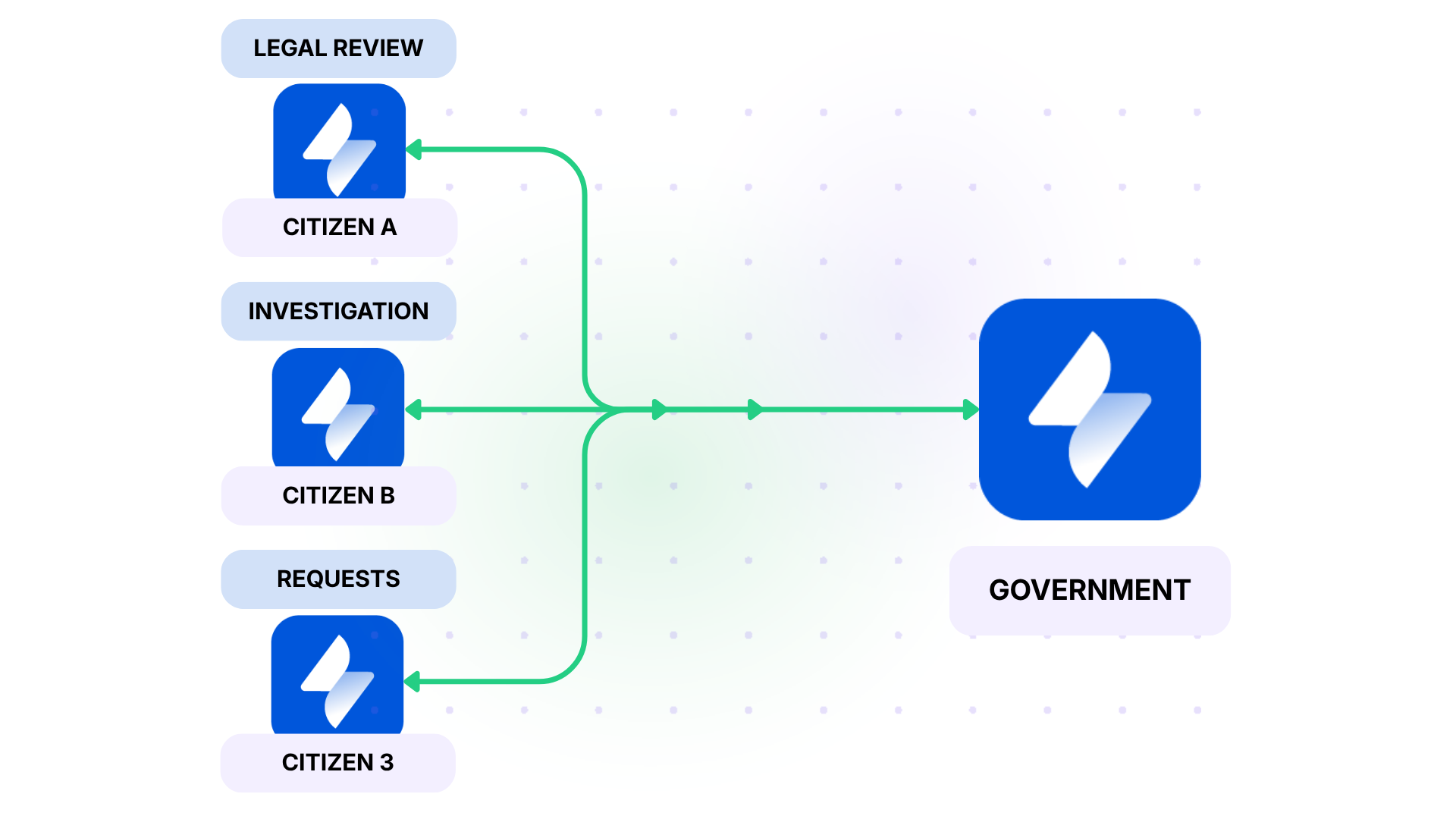
Solution: A triage-required label on a first-line ticket triggers a sync that creates a mirror in the second-line Jira Service Management. Comments flow both ways, but only comments prefixed with (external) are visible to the original citizen on the public portal. When the second-line team resolves the ticket, the first-line ticket auto-transitions to “Resolved” and the citizen sees the update in their portal.
Real-world application: Operational delays dropped because no first-line agent has to remember to check the second Jira Service Management for status, and the citizen gets one consistent portal view, even though two separate desks are working on their case.
Case 3: MSP Onboarding Multiple Client Jira Service Management Instances
Case: An MSP supports more than 20 clients, many of whom run Jira Service Management internally. The MSP wants new client onboarding to take days rather than weeks, and they want every client ticket to land in their central Jira Service Management with consistent priority mapping and assignment regardless of which client raised it.
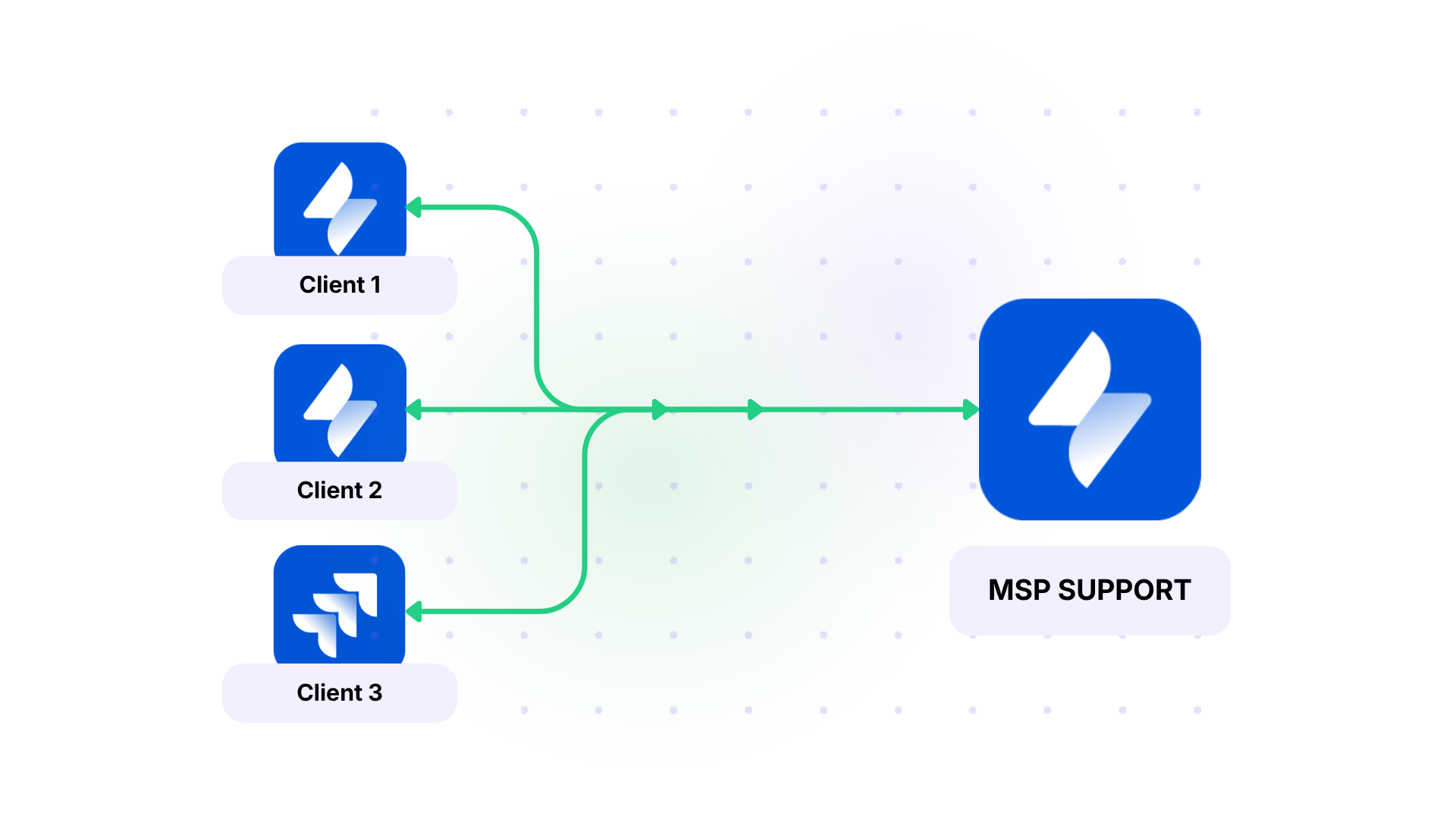
Solution: Each client Jira Service Management gets its own Exalate connection to the MSP’s central Jira Service Management. Sync rules normalize each client’s priority field into the MSP’s standard scale, so “Urgent” from one client and “Critical” from another both map to “P1” in the MSP’s queue. Custom field mapping carries the client name and contract reference so the queue can be filtered per client, and client data never crosses between clients because each connection is isolated.
Real-world application: The MSP cut onboarding time from three weeks to under a week. Engineers now resolve tickets from any client in the same console, with priority normalization handled by sync rules rather than memory.
Case 4: Cross-Company Cost Avoidance Without Extra Agent Seats
Case: An e-commerce company uses an external development firm that runs its own Jira Service Management. The e-commerce team currently has agent seats on the firm’s Jira Service Management, which means paying for licenses on a system they don’t own and losing access if the partnership ends.
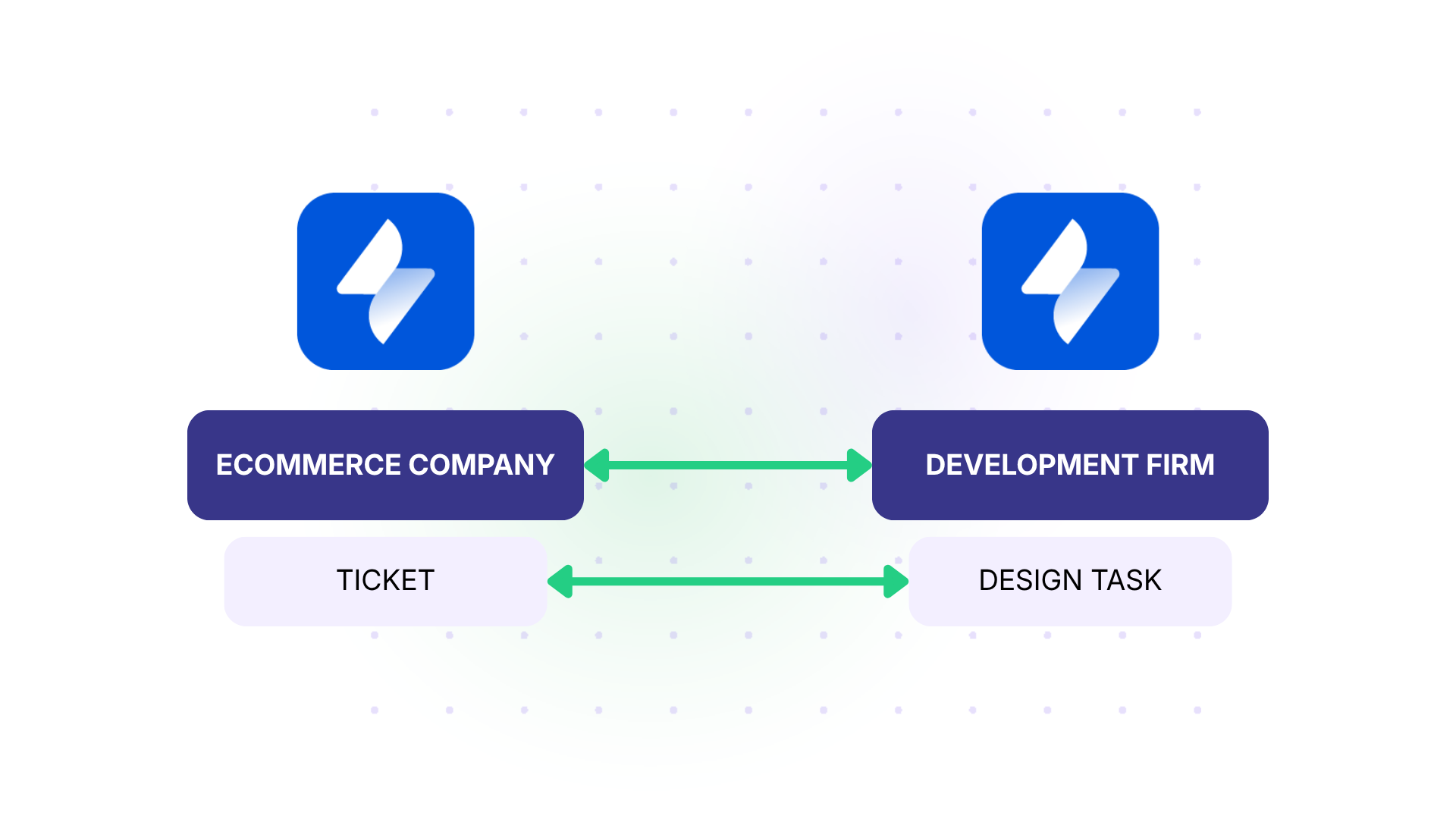
Solution: The e-commerce company sets up its own Jira Service Management and federates ticket flow with the firm’s Jira Service Management. New tickets are created on the e-commerce side and selectively synced to the firm, and the firm’s agents work in their own Jira Service Management. The e-commerce team keeps the system of record, and no one pays for cross-tenant agent licenses.
Real-world application: The e-commerce company retained historical ticket data when they later switched development partners. The new partner connected to the same Jira Service Management with a fresh sync configuration, and continuity was preserved without any data migration.
Case 5: Selective Integration Between Subsidiaries
Case: A multinational corporation runs separate Jira Service Management tenants for its European, North American, and Asian subsidiaries due to data residency and regional compliance requirements. Most tickets stay within their region, but a small number involving security incidents, executive escalations, or cross-region change requests need to be visible at the parent level.
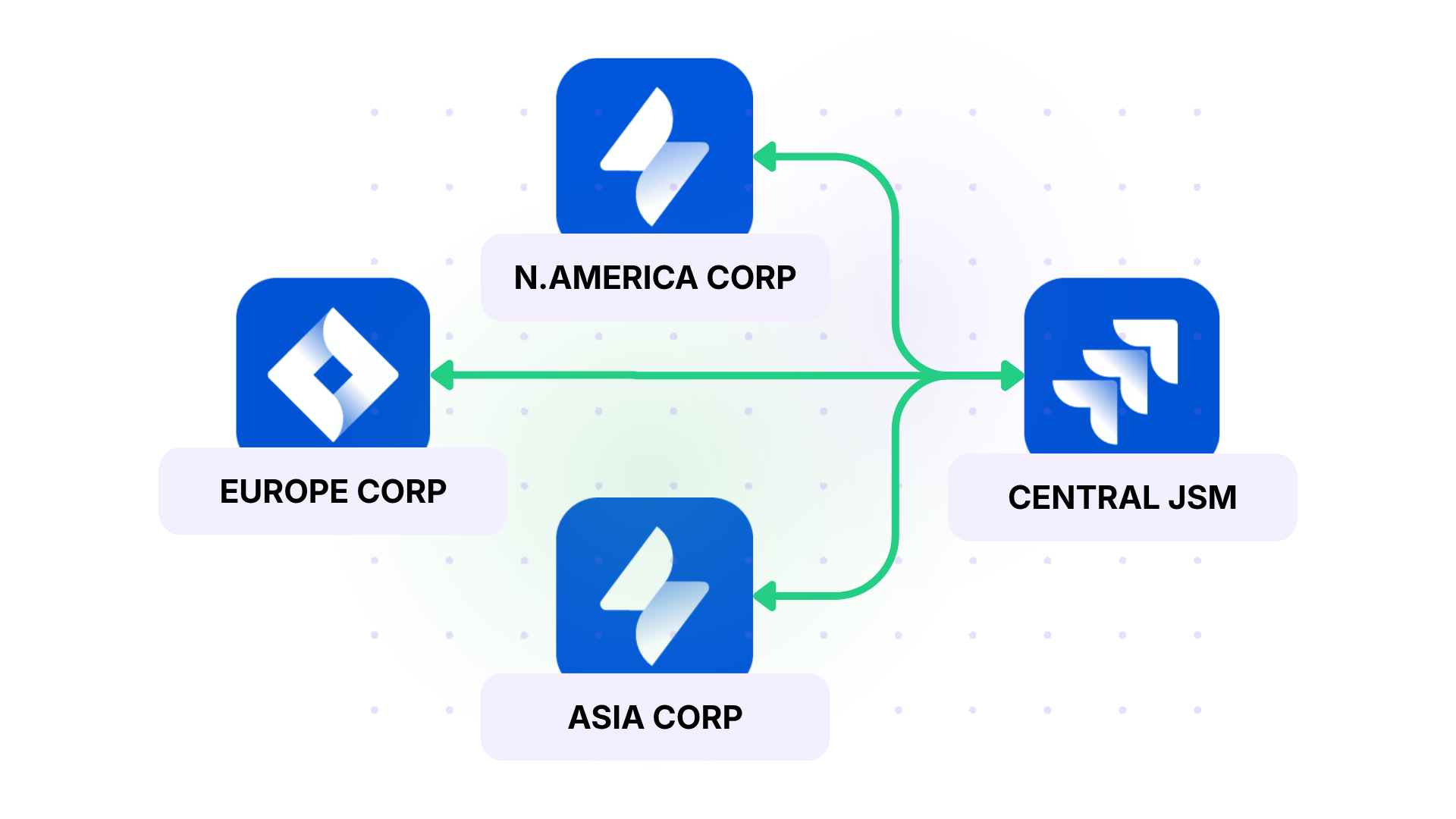
Solution: Each regional Jira Service Management connects to a parent Jira Service Management, and a trigger on each regional side, like labels = "group-visibility" or priority = Highest AND "Request Type" = "Security Incident" selects which tickets sync. The parent Jira Service Management sees only the federated subset, and regional autonomy is preserved.
Real-world application: The parent’s risk team now has a single queue showing every security incident across regions without forcing subsidiaries to move to a single tenant or breach regional data rules.
Why Choose Exalate for Jira Service Management to Jira Service Management Integration
Exalate’s approach to Jira Service Management to Jira Service Management is built around three properties that matter specifically for cross-tenant service desks.
- Complete sync control on each side. Each side writes its own incoming and outgoing sync rules. Neither side depends on the other’s configuration, and changes on one side don’t affect the partner’s setup. A customer changing their Jira Service Management workflow doesn’t break the vendor’s sync, and an MSP onboarding a new client doesn’t require the other clients to coordinate around it.
- Aida, Exalate’s built-in AI assistant, writes Groovy sync scripts from natural-language descriptions. Generated scripts can also be reviewed in the console before publishing, so nothing goes live without a human check.
- Native Jira Service Management field coverage. Exalate handles Jira Service Management entities like request types, organizations, request participants, approvals, SLA fields, customer portal visibility, internal vs public comments, satisfaction ratings, and queue assignment. Custom fields are mappable across tenants even when their names or types differ between the two sides.
Supported entities you can sync between Jira Service Management instances:
| Default fields | Jira Service Management-specific entities | Custom field types |
| Summary, description, status, priority, assignee, reporter, due date, labels, components, fix versions, attachments, time tracking, links, comments (public and internal) | Request type, organizations, request participants, approvals, SLA fields, customer portal visibility, satisfaction ratings, queue assignment, knowledge base linkage | Text (single and multi-line), number, date and datetime, single and multi-select, cascading select, checkbox, radio, user picker, labels, URL |
Note: Exalate also comes with Sync Panel, which is a browser extension for checking sync status, spotting errors, triggering manual syncs, and unlinking sync pairs without opening the console.
Setting Up a Jira Service Management to Jira Service Management Connection With Exalate
This walkthrough assumes two separate Jira Service Management tenants belonging to different teams or companies, but the process is identical when both tenants live within the same organization.
Create an Account
Sign up for Exalate using your business email or log in if you already have an account.

From the dashboard, click + Add connection > Create new connection. Enter the URL of your first Jira Service Management tenant.
Exalate registers the system and runs authentication checks in the background.
Authenticate Your Systems
For Jira Service Management Cloud, use OAuth.
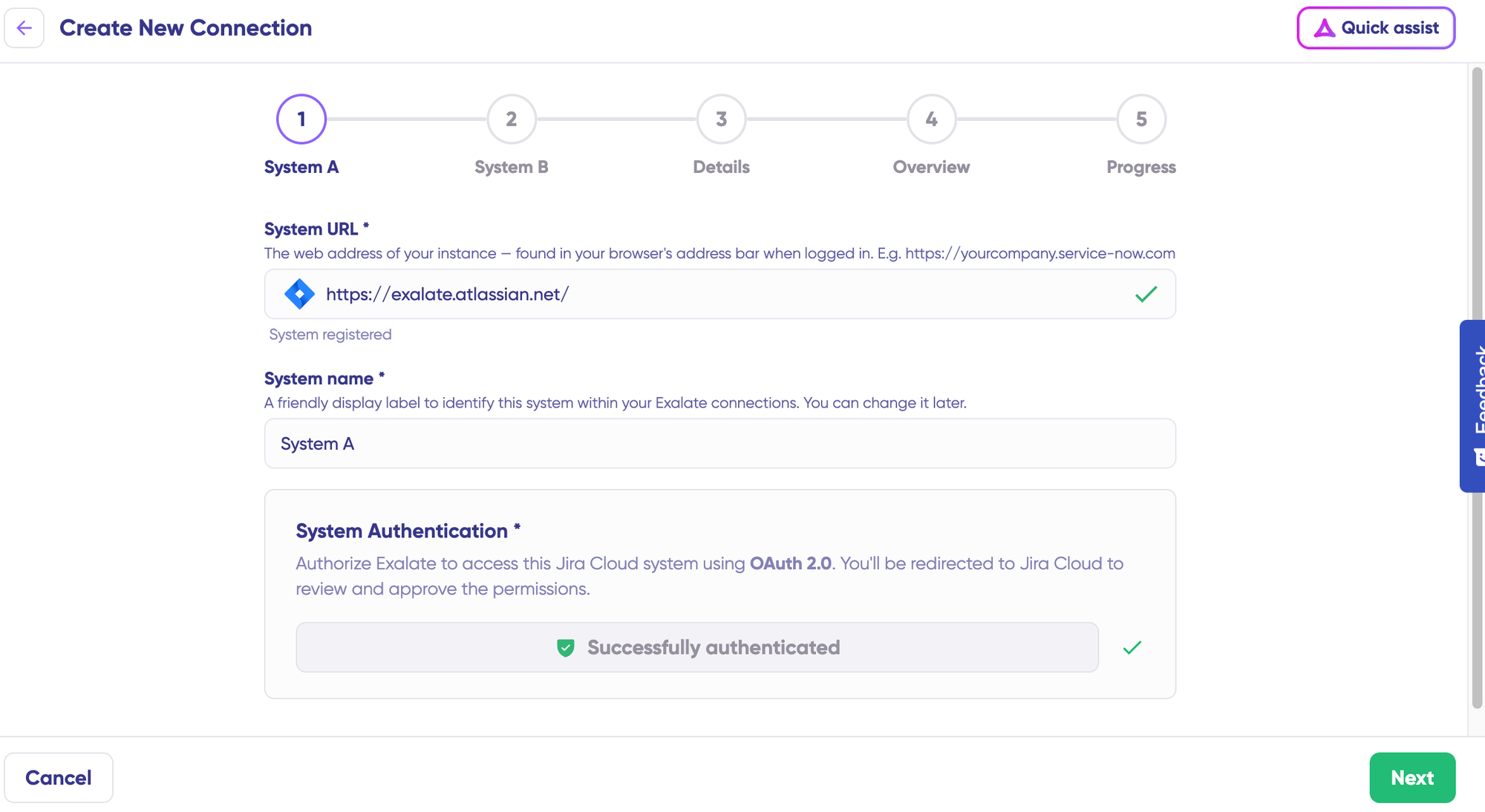
Click Check Authentication, and when you see “Successfully Authenticated,” click Next to add the second Jira Service Management tenant.
Add the second Jira Service Management and confirm the connection.
Follow the same steps for the partner’s instance. Each side authenticates independently with its own credentials.
Confirm the connection name, add an optional description, and click Continue to create the connection.
Exalate finishes background setup in a couple of minutes.
Pick the projects to integrate.
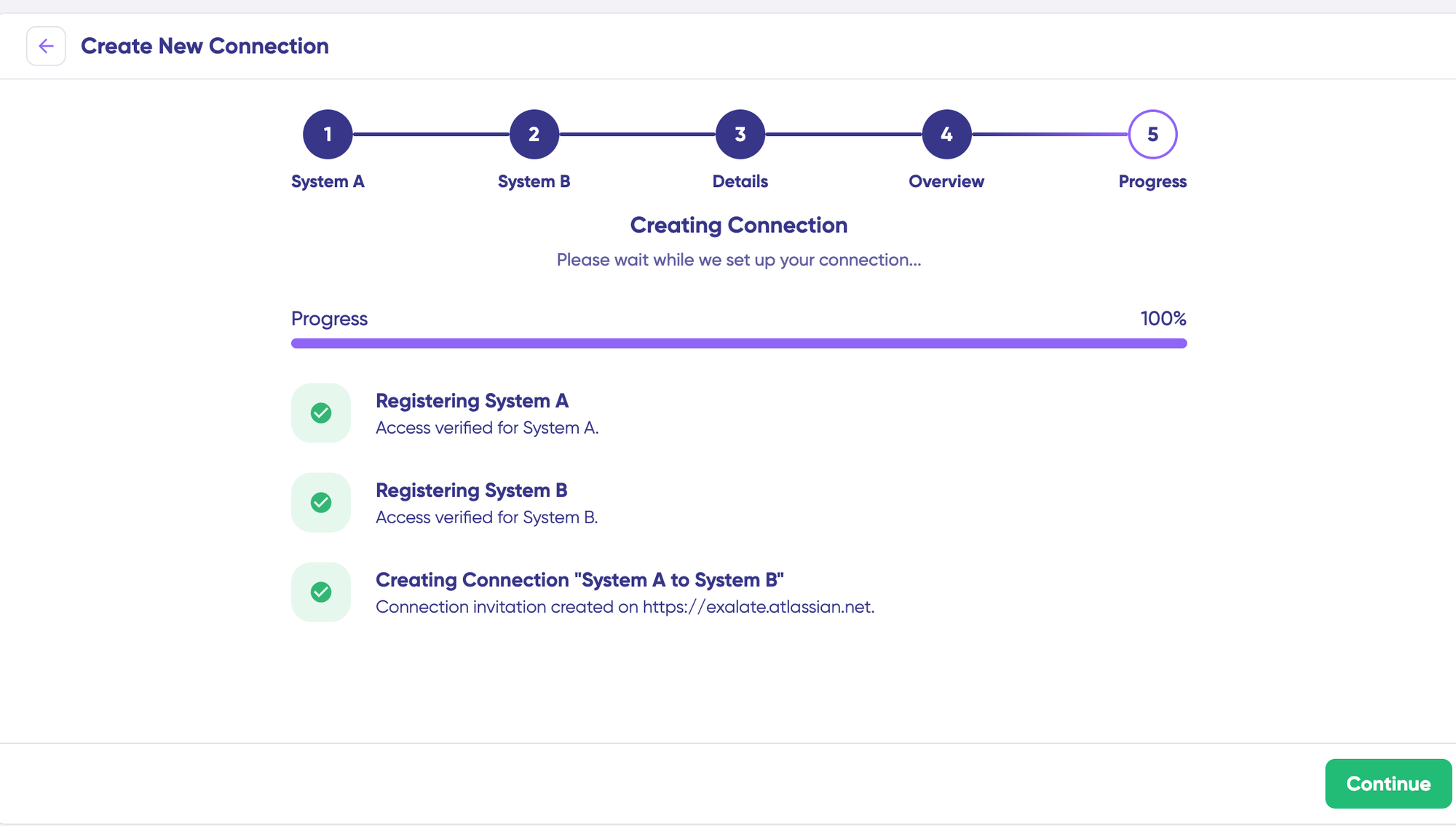
Click Continue to Configuration. Select a Jira Service Management project on each side, then click Build and Continue. You’ll see two options: Quick Sync and Edit & Test.
Choose Quick Sync or Edit & Test.
Quick Sync links one ticket between tenants immediately, which is useful for a first sanity check. Enter a request key, click Sync Now, and watch the linked ticket appear on the other side.
For complex integrations, use Edit & Test. This opens the script editor, where you define what flows.
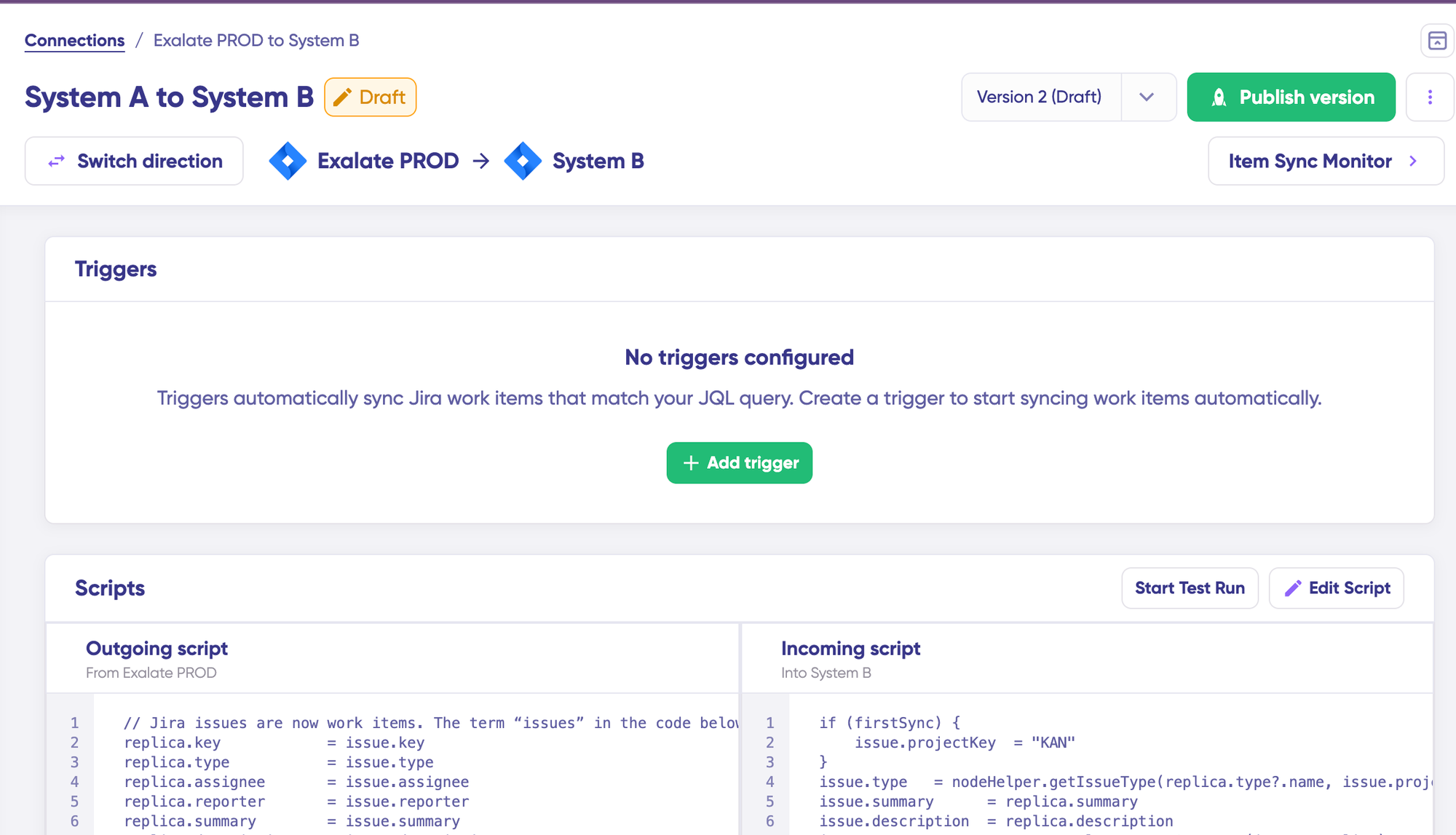
Open the draft editor.
Click + New version or Open latest draft. Editing happens on the draft, not the active version, so you don’t accidentally break a live sync while making changes.
Configure Outgoing and Incoming Sync Rules
The outgoing script defines what leaves your Jira Service Management, and the incoming script defines how data arriving from the other Jira Service Management lands in yours. The data itself is passed as a JSON payload called the Replica.
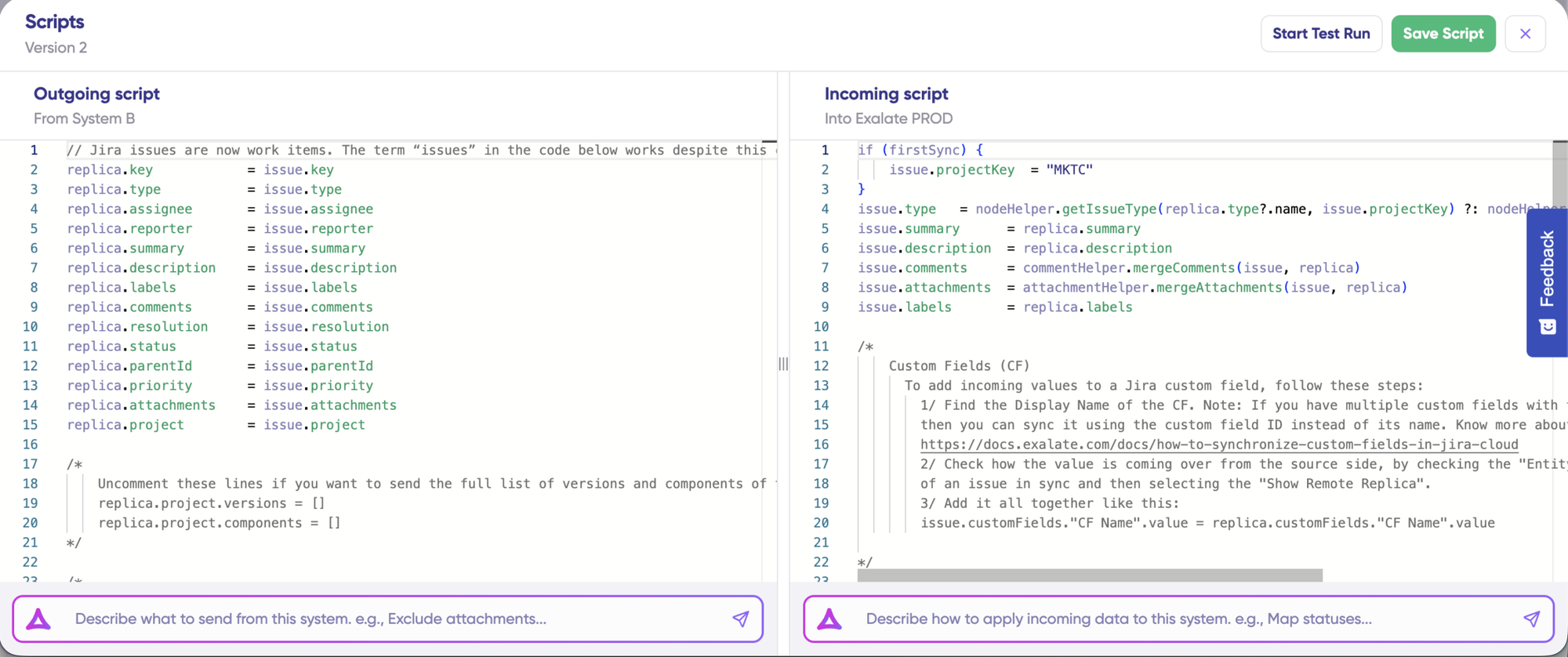
You can swap the direction at any time by clicking the “Switch direction” button with the arrows next to the connection name.
Use Aida to Generate Sync Rules
In either the outgoing or incoming script panel, describe what you want in plain English. Some examples for Jira Service Management to Jira Service Management:
- “Sync request type, summary, description, priority, and public comments only. Skip internal notes.”
- “Map our ‘Critical’ priority to their ‘P1’ priority. Map status ‘Waiting for support’ to ‘In Progress’ on the other side.”
- “Only sync approvals where the approver email matches our partner’s domain.”
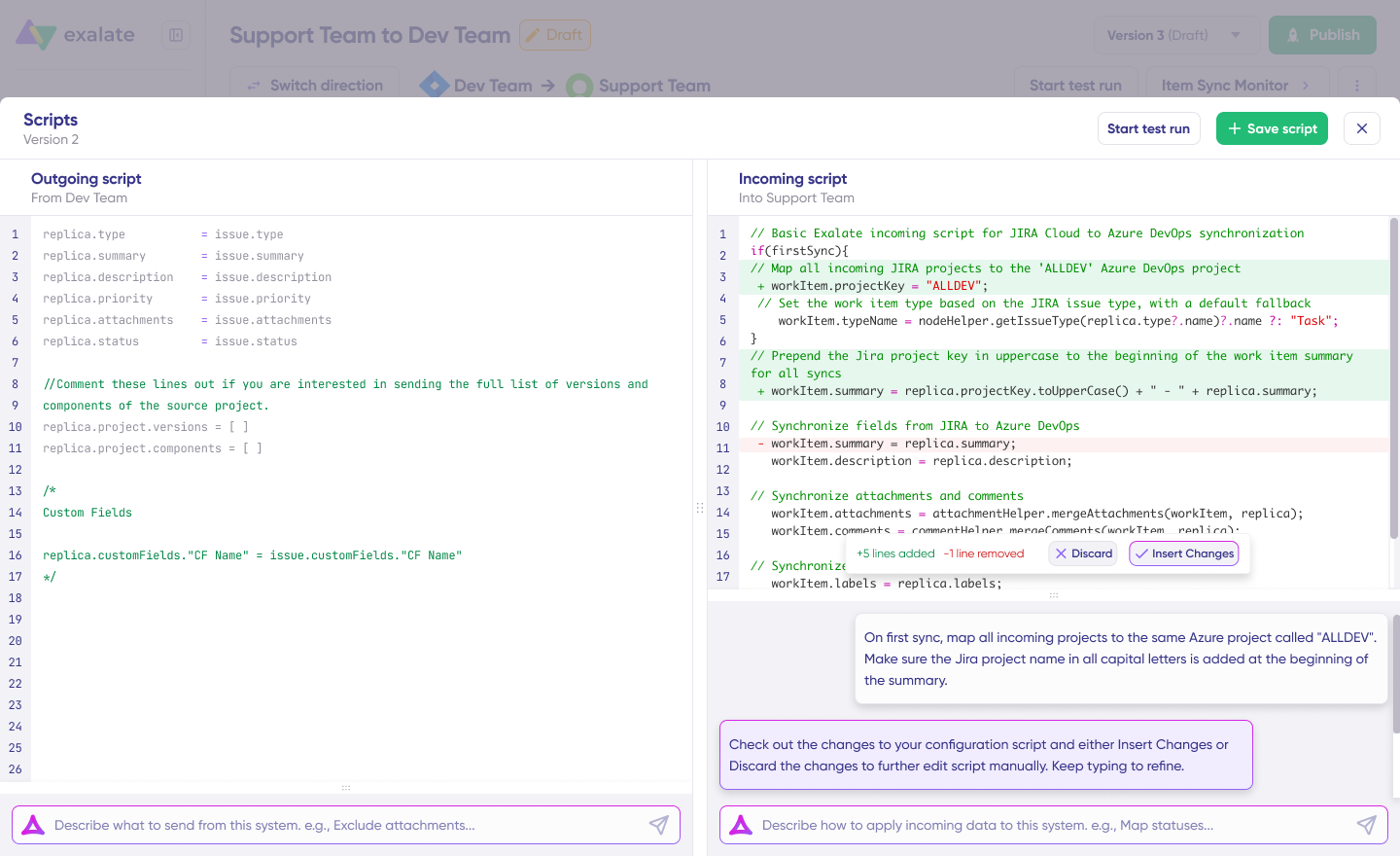
Aida writes the Groovy script from these prompts. New lines appear in green and removals in red. Review the suggestions and click Insert or Discard. Always check the generated code before publishing it.
Run a Test Sync
Click Start Test Run and pick a few tickets. You’ll see field-by-field results and the Replica payload that crossed. If the output looks right, click Publish Version.
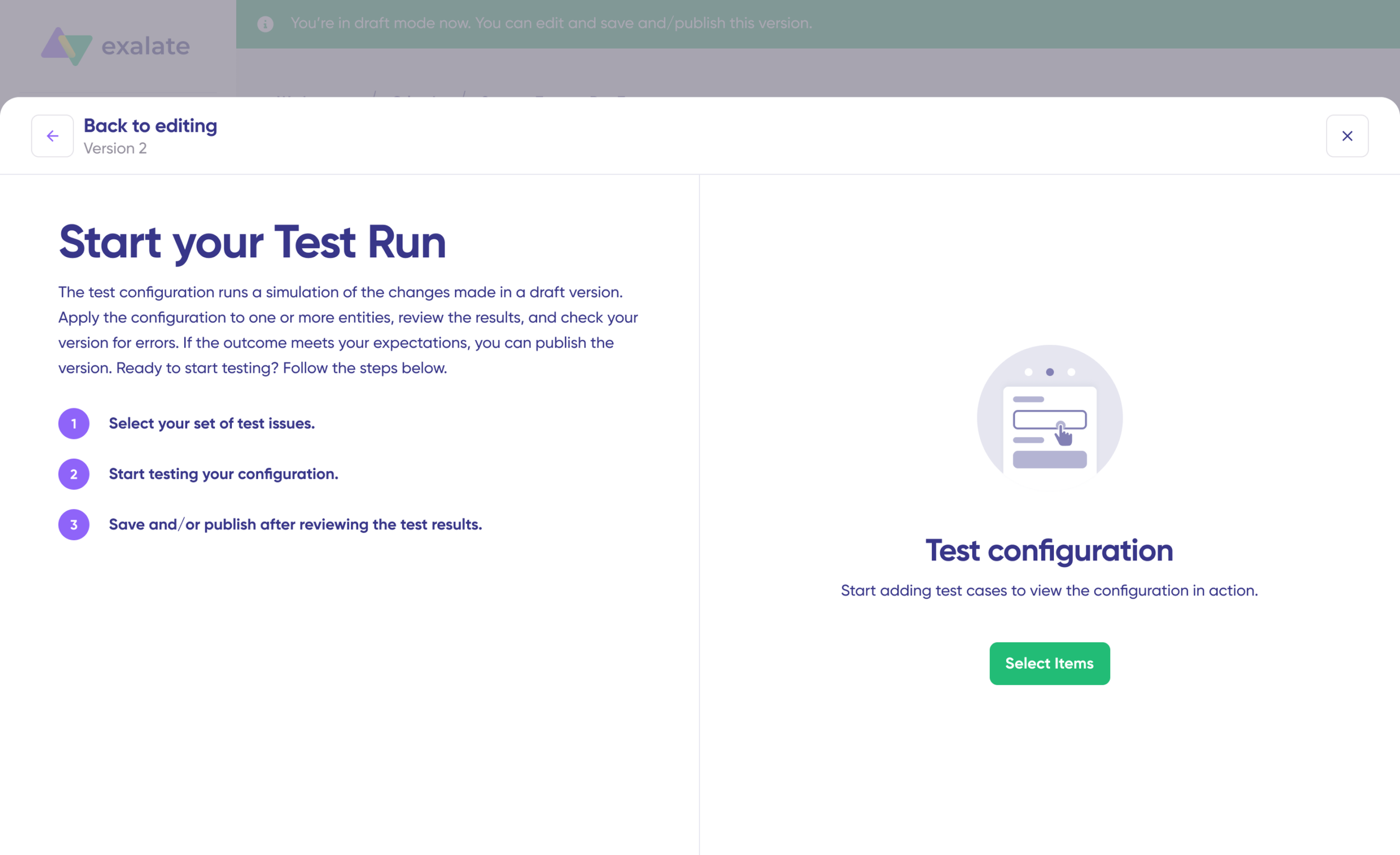
Versions are tracked so you can roll back if needed.
Add Triggers to Automate the Flow
Click +Add trigger. Choose the entity (request or sprint, though sprints rarely apply in Jira Service Management to Jira Service Management). Use JQL to scope the trigger:
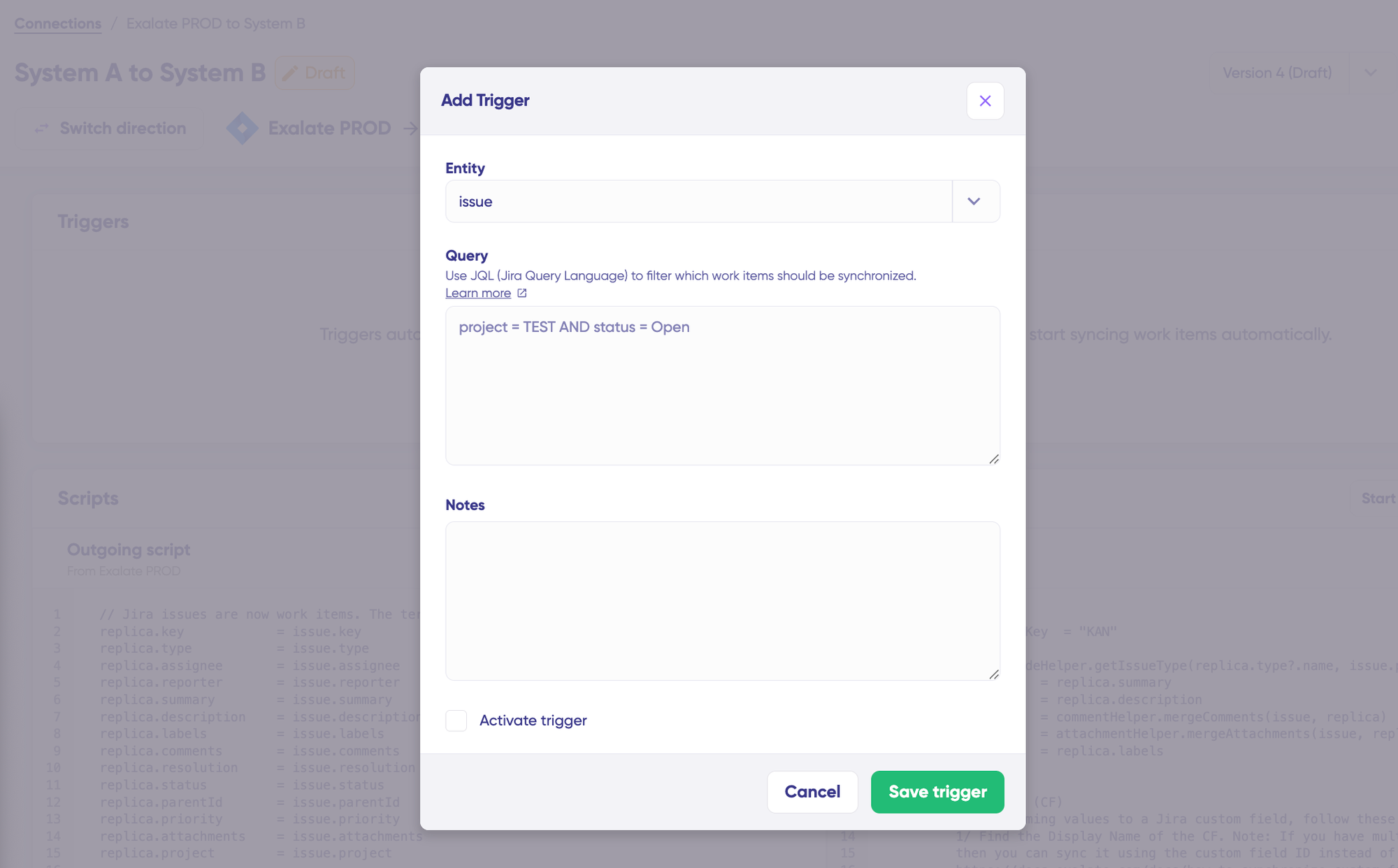
project = "Customer Support" AND labels = "vendor-handoff"to sync only vendor-tagged tickets"Request Type" = "Incident" AND priority in (Highest, High)to sync only high-priority incidentsproject = SD AND created >= -1dto sync all new tickets in the last day
Save the trigger. Sync starts running on the schedule and conditions you defined.
Troubleshoot with Aida
Sync errors show up in the Troubleshooting tab.
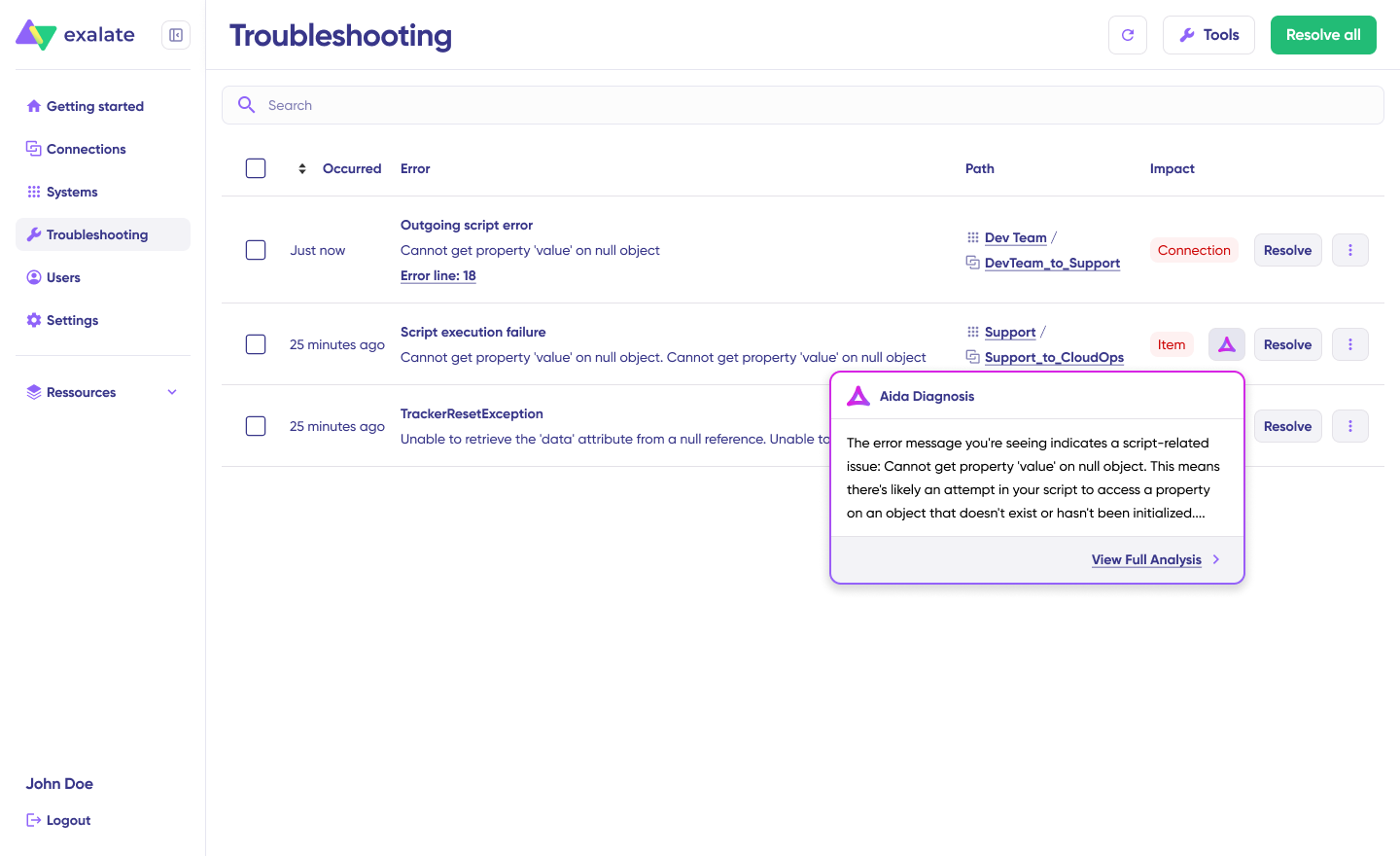
Hover over an error and click the Aida icon for a natural-language diagnosis. Click Error Details for the stack trace and View Full Analysis for context. Fix the issue and click Resolve.
That completes the process. Both sides keep their own portals, their own agents, and their own configurations, and tickets flow according to the rules each side wrote independently.
Wrapping Up
Jira Service Management to Jira Service Management integration is its own category of integration work. It’s the specific problem of two service desks (often belonging to different companies) that need to behave like one ticket flow without merging into one tenant.
The patterns that matter for this category are independent control on each side, full coverage of native Jira Service Management fields, granular sync rules that respect what stays private, and topology flexibility for MSPs, vendors, and federated enterprises that need parent-level visibility without forcing consolidation.
Sign up for Exalate to set up a Jira Service Management connection without a sales call, or book a demo to walk through your specific topology with the team.
Frequently Asked Questions
Can Exalate connect two separate Jira Service Management Cloud tenants belonging to different companies?
Yes, Exalate works across unrelated Atlassian Cloud sites with no shared Atlassian Access or platform-level trust between them. Each tenant authenticates separately, and neither side needs admin access to the other.
How does Exalate handle request types, SLAs, and approvals?
Request types, SLAs, approvals, organizations, request participants, and customer portal visibility are all available for sync with Exalate. You define how they map in your sync rules, and Aida can generate the mapping logic from a description like “treat our ‘Incident’ request type as their ‘Security Event’.”
What about internal versus public comments?
Exalate’s sync rules can distinguish between internal agent notes and public customer comments, and you control which kind crosses and how it appears on the other side. A common pattern is to sync only public comments by default and use a tag or prefix to opt internal notes into the sync when needed.
Can I sync tickets across regions if my Jira Service Management data has residency requirements?
Exalate supports Docker self-hosting and private connections for tenants behind firewalls or with residency requirements. For data residency concerns or other regional constraints, contact the Exalate team to confirm the deployment model that fits.
What about Jira Service Management Data Center to Jira Service Management Cloud?
Exalate connects Jira Service Management Cloud and Jira Service Management Data Center deployments to each other. Authentication and trigger mechanics differ slightly (Jira Service Management Data Center uses the same JQL syntax and can authenticate with personal access tokens), but the integration model is the same.
Can I use this for an MSP scenario where I have to keep client data isolated from other clients?
Yes, each client connection is independent, and sync rules are written per connection, so Client A’s tickets never appear in Client B’s view because they cross different connections with different scopes.
How does Exalate handle Atlassian Cloud rate limits on high-volume Jira Service Management syncs?
Exalate is designed to operate within Atlassian’s points-based rate limit model. For high-volume environments, contact the Exalate team for specifics on tier placement and throughput.