When your support and development teams work across ServiceNow and Jira, one of the trickier workflows to handle is this: a new ServiceNow ticket comes in for work that already has an open Jira ticket.
The default behavior with Exalate as a sync tool is to create a brand new Jira work item. But for this smarter integration setup, you can specify what you want to do. If you already have the Jira ticket, you just need the ServiceNow ticket to connect to it.
This use case walks you through exactly how to handle that.

The Problem This Solves
Let’s say your customer support team logs incidents in ServiceNow. Meanwhile, your dev team is already tracking the same underlying bug in Jira under BUGA-42. A new ServiceNow ticket comes in related to the exact same bug.
By default, Exalate creates a fresh Jira work item. Now you’ve got duplicate tickets, fragmented context, and two dev threads for the same problem.
What you actually need is for that new ServiceNow ticket to link up with BUGA-42 and sync updates back and forth from there.
This problem shows up more often than teams expect. In customer conversations, one of the most common complaints about ServiceNow-Jira integrations isn’t about sync failing; it’s about sync doing the wrong thing. Teams say they want control over how a ticket syncs, not just whether it does. Out-of-the-box connectors don’t give them that. Exalate’s scripting layer does.
How the Solution Works
The approach here is simple: add a custom field in ServiceNow (let’s call it Jira work key) where the support agent can manually enter the Jira ticket key when raising a ServiceNow ticket.
When the sync kicks in, Exalate checks that field:
- If a Jira key is entered → Exalate connects the ServiceNow ticket to that existing Jira work instead of creating a new one.
- If the field is left blank → Exalate creates a new Jira work as usual.
This gives your team full control without overengineered automation, just a simple field-based decision that covers both scenarios cleanly.
The ServiceNow Jira Integration Sync Scripts That Work
Here’s the code that makes this work.
ServiceNow Outgoing Script
// Pass the Jira work Key entered by the user to the replica
replica.u_jira_id = entity.u_jira_id
This tells Exalate to include the custom field value (u_jira_id) in the data it sends over to Jira.
Jira Incoming Script
if (firstSync) {

    work.projectKey = "BUGA"

    work.typeName = nodeHelper.getworkType(replica.type?.name, work.projectKey)?.name ?: "Task"

    def remoteworkUrn = replica.u_jira_id

    if (remoteworkUrn) {

  // A Jira key was provided — try to find and link to that work

     def localwork = httpClient.get("/rest/api/2/work/" + remoteworkUrn)

     if (localwork == null)

         throw new com.exalate.api.exception.workTrackerException(

         "work with key " + remoteworkUrn + " was not found"

          )

        work.id = localwork?.id

        work.key = localwork?.key

        return

    }
Code language: PHP (php)
// No key provided — create a new Jira work
work.summary = replica.summary

    work.description = replica.description

}
On the first sync, the script checks if a Jira key was passed through. If it finds one, it looks up that work via the API and attaches the sync to it.
If the work doesn’t exist, it throws an error so the agent knows something went wrong, rather than silently creating a duplicate. If no key is entered, a new Jira ticket is created as normal.
Setting Up The Integration Using Exalate
- Create a custom text field in ServiceNow ( e.g., u_jira_id), where agents can enter the target Jira work key (e.g., BUGA-42).
- Sign up for Exalate or log in to your console if you already have an account.
- Set up a connection and authenticate both your Jira and ServiceNow environments.
- Use Aida to configure the outgoing script on the ServiceNow side to pass the custom field value. If you understand Groovy, you can also script the sync on your own.
- Add the incoming script on the Jira side to handle both the “link to existing” and “create new” paths.
- Set up a trigger in Exalate to define which ServiceNow tickets should be synced (e.g., tickets of a specific category or priority).
- That’s all. You can also test-run the connection and troubleshoot it to take care of errors.
See the entire configuration and connection steps in our comprehensive ServiceNow to Jira integration guide.
Practical Applications and Use Cases
In our experience, a lot of teams opt to sync multiple ServiceNow tickets with one Jira ticket. Here are three real scenarios where it fits naturally.
1. Incident Escalation for an Ongoing Bug
Your dev team has been tracking a critical performance bug in Jira for two weeks, and customers keep submitting ServiceNow incidents about it.
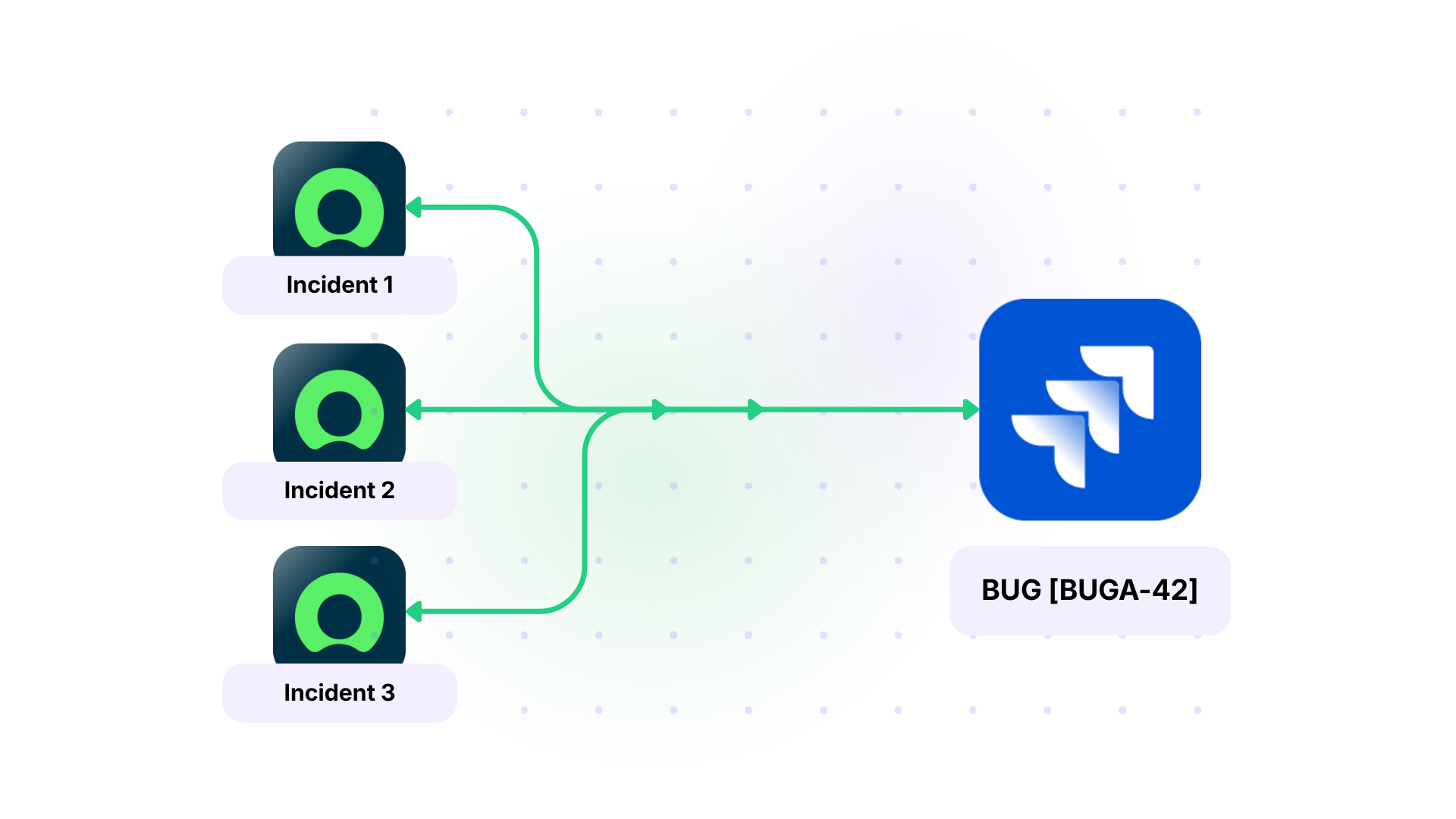
Instead of the dev team getting flooded with new Jira tickets every time, support agents can reference and escalate the existing bug key in their ServiceNow ticket. All those incidents get linked to the one Jira work, and the dev team works from a single, consolidated thread.
This use case mirrors what Exalate enables in syncing multiple Zendesk tickets to a single Jira work, where multiple customer-facing tickets all funnel into one development work.
There’s a real pattern here from high-volume environments. Teams running tens of thousands of tickets through a ServiceNow-Jira sync, and a few of Exalate’s customers are at that scale, run into this problem constantly when a recurring bug generates a wave of incidents. Without a way to funnel those into one Jira ticket, the backlog fills up with near-identical work items, and developers lose the consolidated thread they need to actually fix the problem.
2. Change Request Tracking Across Teams
An IT team using ServiceNow submits a change request that ties to a larger initiative already scoped out as a Jira Epic. Rather than creating a parallel ticket, the ServiceNow agent enters the Epic key in the custom field.
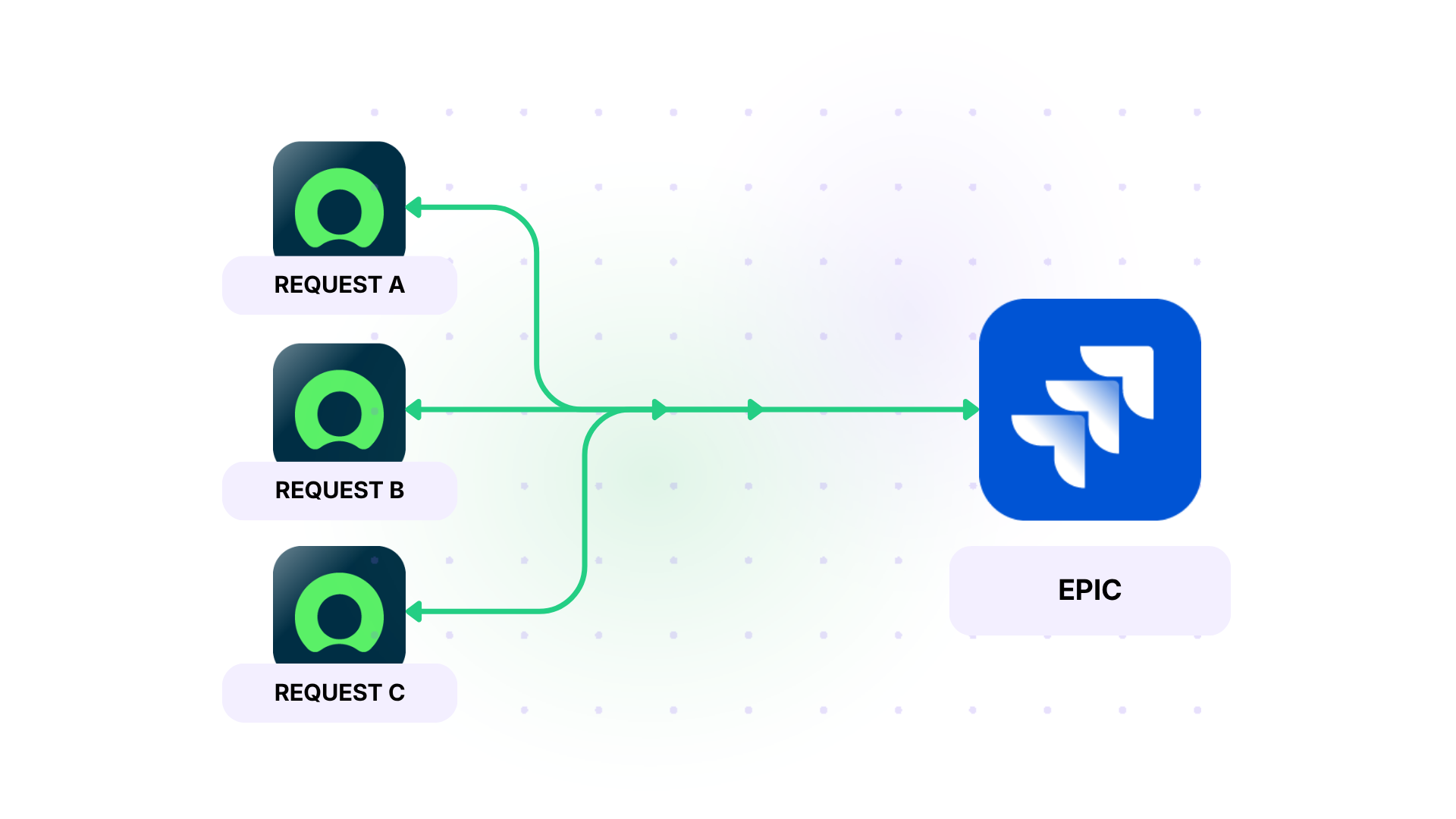
The change request syncs directly to that Epic, keeping all change-related updates visible to both teams in real time.
Exalate uses this same logic for syncing Salesforce cases to a single Jira Epic, where multiple external records all feed into one parent work item on the development side.
3. Cross-Team Handoffs on Long-Running Work
Some works take weeks to resolve and pass through multiple teams using ITSM in ServiceNow and engineering in Jira.
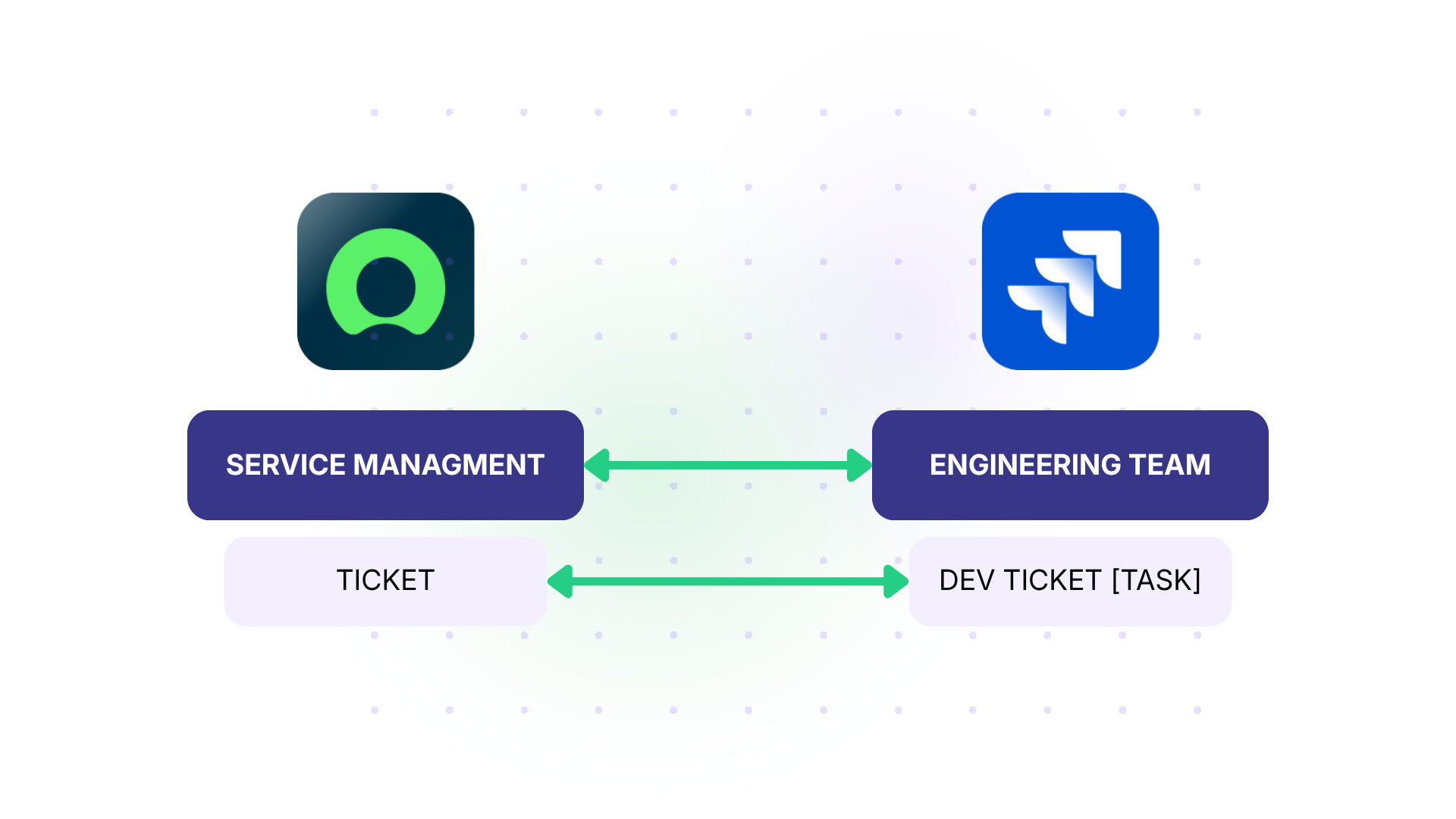
When a new ServiceNow ticket comes in as part of a long-running work, agents can reference the original Jira ticket. The new ticket syncs into the existing Jira workflow, picks up all the existing context, and keeps the history intact.
Why This Matters
The beauty of this approach is that it’s flexible without being complicated. Your support team doesn’t need to understand how Exalate works under the hood. They just fill in a field when they know the Jira ticket already exists.
It also prevents one of the most common pain points in cross-tool setups: duplicate work clogging up your dev backlog.
Teams at organizations using both Jira and ServiceNow integrations have flagged the inability to control how a ticket syncs, not just whether it syncs.
With Exalate’s scripting assistant, Aida, you get all that control, and the sync also happens in real-time based on your trigger conditions.
Wrapping Up
This use case is a good example of what makes Exalate different from out-of-the-box sync tools. The sync logic adapts to your workflow, not the other way around.
A single custom field and a few lines of Groovy script give you the flexibility to either link to an existing Jira work or spin up a new one, depending entirely on what the agent decides.
And if scripting is an issue for you, Aida is always there to simplify the entire process with the help of natural language prompts.
If you want to see how this applies to your specific setup, book a call with an Exalate expert or start a free trial yourself.