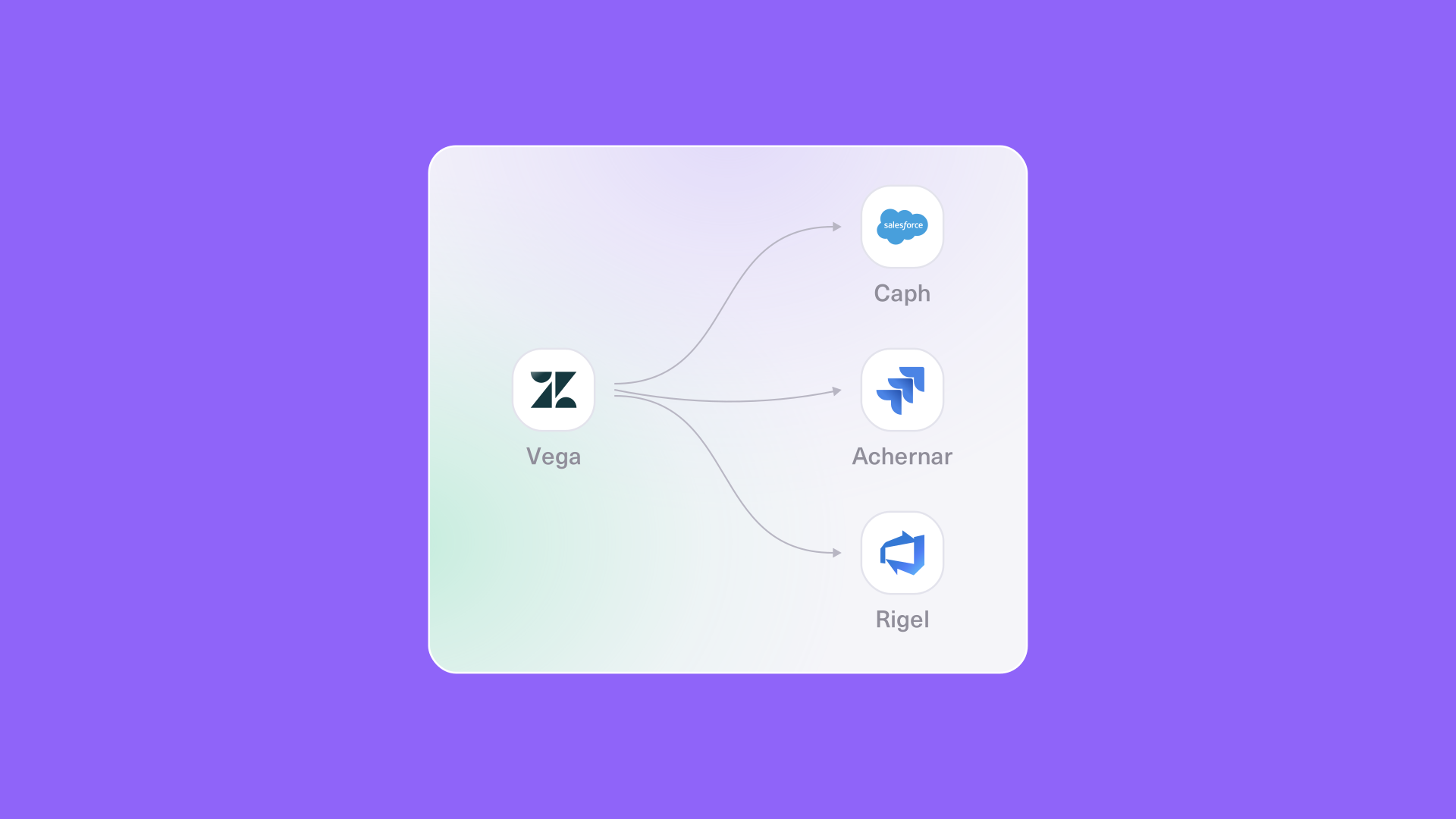
In most enterprises, support agents work in Zendesk, account structure lives in Salesforce custom objects, and engineers split their work between Jira and Azure DevOps. When a ticket has to go through all four systems, it creates extra work for the system admin who keeps everything escalated.
This setup runs on 3 Zendesk instances, each with its own connections to Salesforce, Jira, and Azure DevOps. Exalate handles three jobs here: syncing the custom objects, routing escalations by product, and sending engineering status back to the agents who own the customer conversation.
Key Takeaways
- Salesforce custom objects, including child-account structures, sync with their Zendesk counterparts so every ticket carries the right account context.
- Each Zendesk instance runs separate connections to Salesforce, Jira, and Azure DevOps, each with its own triggers and sync rules.
- Escalations land in the right Jira or Azure DevOps project based on team, project, ticket type, and field values.
- Engineering status flows back into a Zendesk field, so agents without Jira access can see whether work is in review, in testing, waiting on support, waiting on a patch, or needs more information.
- The CSAT custom object stays owned by the outside workflow that writes it, and the sync only reads from it.
Discuss your integration setup with our experts
Get free, expert advice on your setup. We’ll reach out via email to discuss your use case.
The Current Setup
Support runs on 3 Zendesk instances. Each one connects to Salesforce, Jira, and Azure DevOps through its own set of connections, so the integration is a group of connections with a Zendesk instance at the center of each.
Salesforce holds the account model, and its custom objects are a non-negotiable part of the workflow. Some of those objects have been rebuilt as Zendesk custom objects, including child-account structures that sit under a parent account and need to be attached to tickets.
Zendesk also holds a CSAT custom object, whose data comes from a workflow that runs outside both Zendesk and Salesforce.
On the engineering side, routing is product-specific. A ticket’s team, project, ticket type, and a few field values decide whether it goes to Jira or Azure DevOps, and which project it lands in.
Where the Setup Breaks Down
The support lead’s main ask is visibility after escalation. Engineering work moves through clear stages (in review, in testing, waiting on support, etc.), but none of that shows up in Zendesk.
Not every agent has Jira access, so most of the team can’t check the work item directly. Agents ping engineers for updates, and the customer waits while support chases the answer.
Custom objects create another problem. When a Salesforce child account and its Zendesk record stop matching, agents attach the wrong record to a ticket or skip the association, and any reporting built on that link stops being reliable.
With 3 Zendesk instances and routing rules that change per product, one shared script becomes a long list of exceptions nobody wants to edit.
We’ve also seen a similar setup where a CSAT survey workflow wasn’t part of the original integration design, and the team had to rework its scripts after go-live to include it.
How Exalate Handles This Setup
Each Exalate connection has an outgoing sync (what leaves a system), an incoming sync (how the other side applies it), and triggers that decide which records sync. The rules are Groovy scripts, so each connection can carry logic that’s specific to one Zendesk instance and one product team.
All connections across the 3 Zendesk instances sit in Exalate’s unified console. Admins can see which instance talks to which Salesforce org, Jira project, and Azure DevOps project without opening each one separately.
Sync Salesforce Custom Objects With Zendesk Tickets
On the Zendesk-to-Salesforce connection, the Salesforce outgoing script reads the child account linked to the Case and adds it to the replica (the payload Exalate sends to the other side). The query runs through Exalate’s httpClient using SOQL (Salesforce Object Query Language):
// Salesforce outgoing sync

def childId = entity.Child_Account__c

if (childId) {

    def res = httpClient.get("/services/data/v54.0/query/?q=SELECT+Id,Name,Parent_Account__c,Region__c+FROM+Child_Account__c+WHERE+Id=%27${childId}%27")

    def child = res?.records ? res.records[0] : null

    if (child) {

        replica.customKeys."childAccount" = [

            sfId    : child.Id,

            name    : child.Name,

            parentId: child.Parent_Account__c,

            region  : child.Region__c

        ]

    }

}Code language: JavaScript (javascript)Child_Account__c, Parent_Account__c, and Region__c are placeholder API names, so swap in your own object and field names.
On the Zendesk side, the incoming script matches the Salesforce ID against the external ID stored on the Zendesk custom object record, then sets the ticket’s lookup relationship field to that record. When the child account’s name or region changes in Salesforce, the same match updates the Zendesk record, so agents pick from current data.
The replica also carries the parent account ID. This lets the Zendesk record keep its link to the right parent, so agents see the full account structure without leaving the ticket.
Keep the CSAT Object Read-Only
The CSAT custom object needs a different rule. An outside workflow writes those records, so the sync reads them and never writes back.
If account owners want satisfaction data in Salesforce, the Zendesk outgoing script can read the CSAT record linked to the ticket and add the score to the replica. Salesforce then stores it on the Case or a related custom object, and the outside workflow stays the only source for the number.
Route Escalations to Jira or Azure DevOps by Product
Each Zendesk instance gets one connection per destination. Each connection uses Zendesk search syntax to pick up its tickets; for example, type:ticket tags:eng_payments for the Jira connection that serves the payments team, and type:ticket tags:eng_mobile for the Azure DevOps connection that serves the mobile team.
Inside a connection, the incoming script picks the project and work item type from the ticket’s fields:
// Jira incoming sync (from Zendesk)

if (firstSync) {

    def projectByTeam = [

        "Payments" : "PAY",

        "Platform" : "PLAT",

        "Reporting": "REP"

    ]

    def team = replica.customFields."Engineering team"?.value

    issue.projectKey = projectByTeam[team] ?: "SUPESC"

    issue.typeName   = replica.customFields."Escalation type"?.value == "Defect" ? "Bug" : "Task"

}

issue.summary     = replica.summary

issue.description = replica.description ?: "No description"Code language: JavaScript (javascript)
The Azure DevOps connection follows the same pattern, with the area path set from the team field so the work item shows up on the right board.
Adding a new product team means adding a mapping entry or a new connection, and the scripts that serve the other teams stay untouched.
Send Engineering Status Back to Zendesk
Based on requests from support leads, on the Jira and Azure DevOps connections, the Zendesk incoming script translates the work item’s status into a Zendesk dropdown field called Engineering status and stores a link to the work item:
// Zendesk incoming sync (from Jira or Azure DevOps)

def engineeringStatus = [

    "In Review"          : "In review",

    "In Testing"         : "In testing",

    "Waiting for Support": "Waiting on support",

    "Waiting for Patch"  : "Waiting on patch",

    "Needs Info"         : "Needs more information"

]

def remoteStatus = replica.status?.name

issue.customFields."Engineering status".value = engineeringStatus[remoteStatus] ?: "In progress"

issue.customFields."Engineering link".value   = remoteIssueUrl

// Engineering comments arrive as internal notes, never as public replies

issue.comments = commentHelper.mergeComments(issue, replica, { comment ->

    comment.internal = true

    comment

})Code language: JavaScript (javascript)
Jira projects and Azure DevOps boards rarely share status names, so each connection gets its own status map. The Zendesk values stay the same everywhere, which keeps agent views consistent across all 3 instances.
| Status in Jira or Azure DevOps | Engineering status in Zendesk | What the agent does next |
| In Review | In review | Lets the customer know a fix is under review |
| In Testing | In testing | Shares the expected timeline if engineering added one |
| Waiting for Support | Waiting on support | Picks the ticket back up, since the next step is support’s |
| Waiting for Patch | Waiting on patch | Sets expectations around the next release |
| Needs Info | Needs more information | Goes back to the customer with engineering’s question |
Zendesk views can filter on the Engineering status field. A view for “Waiting on support” and “Needs more information” gives agents a queue of tickets engineering is waiting on.
Discuss your integration setup with our experts
Get free, expert advice on your setup. We’ll reach out via email to discuss your use case.
Give Agents Context Without Jira Access
With the status field, the work item link, and engineering comments as internal notes, the Zendesk ticket carries enough context for an agent to answer the customer. Agents with Jira access can follow the link, and everyone else works from the ticket.
Comments going the other way get a filter too. Public replies and internal notes that start with a tag like #eng go to engineering, while customer PII and the rest of the internal discussion stay in Zendesk.
This also keeps Jira licensing tied to the people who work in Jira, since support doesn’t need seats just to check on progress.

What’s Next?
List every custom object on both sides and note which system owns it. In this setup, Salesforce owns the account and child-account model, the outside workflow owns CSAT, and Zendesk owns the ticket.
Pick a shared key for each object pair. Storing the Salesforce record ID as the external ID on the Zendesk custom object record gives the sync a stable way to match them.
Agree on the engineering status list with support and engineering before you write the status maps. Then sketch the connection matrix: which Zendesk instance connects to which Salesforce org, Jira project, and Azure DevOps project.
Test each connection with Test Run before you publish. If your admins don’t want to write Groovy scripts every day, then they can use Aida AI, Exalate’s scripting and troubleshooting assistant to draft a mapping from a natural language prompt, and you can adjust it from there.
If your support stack spans several Zendesk instances like this one, talk to our team about scoping the connections.