Most IT teams hit the same wall. Change management lives in Freshservice, where the CAB approves, risk gets assessed, and ITIL compliance gets enforced. But the actual deployment work happens in Jira, where developers, QA, and SREs already track everything in sprints.
When both systems are isolated from each other, every approved change turns into a manual handoff. Someone copies the change ticket into a Jira work item, the dev team executes, and then a release manager copies the release notes back into Freshservice for closure documentation.
That copy-paste loop is where SLAs slip, audit trails break, and the watermelon effect kicks in: the dashboard shows green while the underlying handoff is a mess.
This isn’t a niche problem. Across hundreds of integration evaluations, manual sync between systems is the single most frequently cited pain point. Some teams are copying 500–1,000 tickets per month between platforms. Others have a release manager spending hours daily just moving data between tools; time that compounds with every sprint cycle and every new change type added to the workflow.
This guide walks through how a Freshservice-to-Jira change management integration actually works, what data needs to flow in each direction, and how to set it up using Exalate’s Freshservice Jira integration, with help from Aida (the AI scripting assistant).
Key Takeaways
- A Freshservice to Jira change management integration turns approved change requests into Jira deployment work items automatically, then pulls release info, deployment status, and post-implementation notes back into Freshservice for closure documentation.
- Native Freshservice integrations handle basic Jira sync but fall short on bidirectional attachment sync, advanced field mapping, multi-instance setups, and cross-company DevOps flows.
- Exalate supports bidirectional sync for default and custom fields, attachments, inline images, priority mappings, comments, and approval status, with each side owning its own configuration.
- Aida lets you describe what you want in plain English and generates the sync logic for you. No Groovy, no scripting background required.

What Is Freshservice to Jira Change Management Integration?
Freshservice to Jira change management integration is a sync setup that connects ITIL change records in Freshservice with deployment work items in Jira. When a change request gets approved in Freshservice, a corresponding work item shows up in the right Jira project with all the context the dev team needs. When the deployment is done, the release information flows back to Freshservice so the change can be closed with proper documentation.
For example, a Freshservice change request approved by the CAB for a database migration would trigger a Jira Epic in the platform team’s project, with linked stories for schema changes, app updates, and rollback testing.
Once the release goes out, the Jira version number, deployment timestamp, and post-implementation review notes sync back to the original Freshservice change record so the change manager has everything needed to close it.
Why Freshservice Jira Change Management Integration Matters
Running change management in Freshservice and deployment work in Jira without a sync layer creates predictable problems.
- Approval bottlenecks. The CAB approves a change in Freshservice, but the dev team doesn’t know until someone Slacks them. Or worse, they start working on the change before approval and have to roll back.
- Closure documentation chaos. Post-implementation review notes, release version, deployment date, and rollback status all live in Jira. Pulling them into Freshservice for proper closure means manual copy-paste every time.
- SLA breaches you can’t explain. Change implementation SLAs run in Freshservice, but the work is invisible until someone updates the ticket. By the time the SLA timer flags it, the deployment has already shipped.
- Custom field drift. Risk level, change type (standard, normal, emergency), affected services, planned start and end times; all of this lives in Freshservice change forms. Without proper mapping, the dev team in Jira is missing the context that drives priority.
The teams that solve this don’t standardize on a single tool. They keep Freshservice for ITIL governance, keep Jira for execution, and put a sync layer between them.
For a broader look at connecting these platforms across all ticket types, see the complete guide to Freshservice Jira integration.
What Data Can I Sync Between Freshservice and Jira?
A working change management integration between Freshservice and Jira covers more than just creating a work item when a change gets approved. Here’s what actually needs to flow in each direction.
Freshservice to Jira (outbound):
- Change subject, description, and planned change details
- Change type (standard, normal, emergency) mapped to Jira issue type or label
- Priority and risk level mapped to Jira priority
- Planned start time, planned end time, and affected services
- CAB approval status
- Requester and change owner information
- Attachments (architecture diagrams, runbooks, test plans)
- Custom fields (impacted CIs, business justification, rollback plan)
Jira to Freshservice (inbound):
- Implementation status updates (In Progress, Done, Failed)
- Deployment timestamp and release version number
- Linked work item IDs for traceability
- Post-implementation review comments
- Failure or rollback notes if the deployment didn’t go as planned
- Attachments from QA, logs, or screenshots tied to the deployment
This bidirectional flow is what closes the loop. Without the reverse direction, closure documentation in Freshservice stays incomplete, and the change manager has to chase the dev team for every detail.
Business Use Cases for Freshservice to Jira Change Management Integration
Different teams hit this integration from different angles. Here are the patterns that come up most often in customer conversations.
Approved Change Requests Triggering Deployment Tasks
A change request approved in Freshservice automatically creates a deployment work item (Story, Task, or Epic) in the right Jira project. The dev team picks it up in their next sprint, executes it, and updates the status as they go. The change manager in Freshservice sees real-time progress without leaving their tool.
Release Information Syncing Back for Closure
Once the Jira work item is marked Done, the release version, deployment date, and any post-implementation notes sync back to the Freshservice change record. The change manager closes the change with full evidence attached, which keeps the audit trail clean for ISO 27001 or internal compliance reviews.
Emergency Change Coordination
Emergency changes (E-changes) need to move fast. When a Freshservice E-change is logged and gets expedited approval, the integration creates a high-priority Jira work item immediately and notifies the on-call team. Updates flow both ways in real time, so the incident bridge has one source of truth without three Slack channels duplicating status.
MSP to Client Change Coordination
A managed service provider running its operations in Freshservice handles change management for a client whose dev team works in Jira. The client raises a change request in their Freshservice instance, the MSP coordinates approval, and execution flows into the client’s Jira. Each side keeps full control over its own data without granting the other admin access.
Standard Changes With Pre-Approved Templates
For standard, low-risk changes (like a quarterly patching cycle), the integration can auto-create Jira deployment tasks the moment the request comes in, skipping the CAB queue. This frees the CAB to focus on normal and emergency changes while routine work moves through the pipeline without delay.
Mapping Multiple Jira Work Items to One Change Request
Large changes (a platform migration, a major feature rollout) usually involve multiple teams in Jira: backend, frontend, infra, and QA. The integration can link several Jira work items to a single Freshservice change record, so the change manager sees the consolidated view while each Jira team works on its piece.
Freshservice Native Jira Integration vs Third-Party Sync
Freshservice gives you a couple of native ways to connect Jira, and it helps to understand each before deciding whether they cover change management end-to-end.
One of them includes this native connector that allows users to sync comments, statuses, and attachments between Freshservice and Jira.
The most direct option is to build custom code with Jira and Freshservice’s REST API. This lets you wrap the Freshservice API into reusable actions that you can drop into automation flows.
What Native Integrations Handle Well:
- Create a Jira work when a Freshservice incident meets a condition.
- Update Jira work fields from Freshservice changes.
- Display linked Jira work items inside the Freshservice request view.
- One-way push from Freshservice to Jira for basic field updates.
Where Native Integrations Fall Short for Change Management
- Limited bidirectional sync. Pulling rich data back from Jira (release versions, post-implementation notes, attachments) usually requires custom logic per flow.
- Restricted attachment handling. Native flows do not natively shuttle attachments and inline images back and forth in real time. You typically have to build a separate REST step per attachment field.
- Template-based custom field mapping. If your Freshservice change form has custom fields for risk level, impacted CIs, or rollback plan, mapping these to Jira custom fields hits limits fast.
- Priority mappings are not configurable end-to-end. Freshservice priorities are not a 1:1 match with Jira priorities, and you do not get full control over the translation without writing transformation logic by hand.
- No script layer for edge cases. When your change workflow needs conditional logic (“only sync emergency changes during business hours”), the recipe-based model runs out of room.
- Multi-instance setups are not supported cleanly. If you run multiple Jira instances (per region, per business unit, per acquired company), native flows treat them as separate one-off connections.
- No cross-company isolation. For MSP-to-client scenarios, both sides need to trust the same configuration, which is a non-starter for most enterprise security teams.
In practice, teams that built custom webhook or REST API integrations for similar ITSM-to-Jira workflows consistently report the same ceiling: attachments don’t transfer, maintenance becomes a recurring engineering cost, and race conditions emerge under load. One team described their homegrown sync workaround as functional until it wasn’t, and by the time it broke, the audit trail had gaps that took weeks to reconcile.
This is where a script-based, side-controlled integration, such as Exalate, fits. Each side keeps its own configuration, custom field mappings are fully flexible, attachments flow both ways, and AI-assisted configuration through Aida means no Groovy expertise is required for the common patterns.
This pattern is especially common among MSSPs standardizing their client onboarding. Without a proper sync layer, MSP engineers report spending upwards of 14 hours per week duplicating tickets across their platform and client systems, time that multiplies with every new client they add.
How to Set Up Freshservice to Jira Change Management Integration With Exalate
Here’s how the setup works in practice. No code in this walkthrough. For more advanced transformations, the same approach applies, with Aida generating the sync logic for you.
Step 1: Sign Up for Exalate
Head to Exalate and start a free trial. If you already have an Exalate account, prepare to set up your connection.
Step 2: Set Up a Connection Between Freshservice and Jira
In your Freshservice Exalate console, open Connections and initiate a new connection to your Jira instance. Paste the URL of your Jira instance, and run the authentication on the Jira side. Do the same thing for Freshservice as well.
- For Jira, use the standard OAuth.
- For Freshservice, enter your API key.
The connection now has two ends. Each end controls what it sends out (outgoing sync) and what it accepts (incoming sync).
Step 3: Use Aida to Configure What Gets Synced
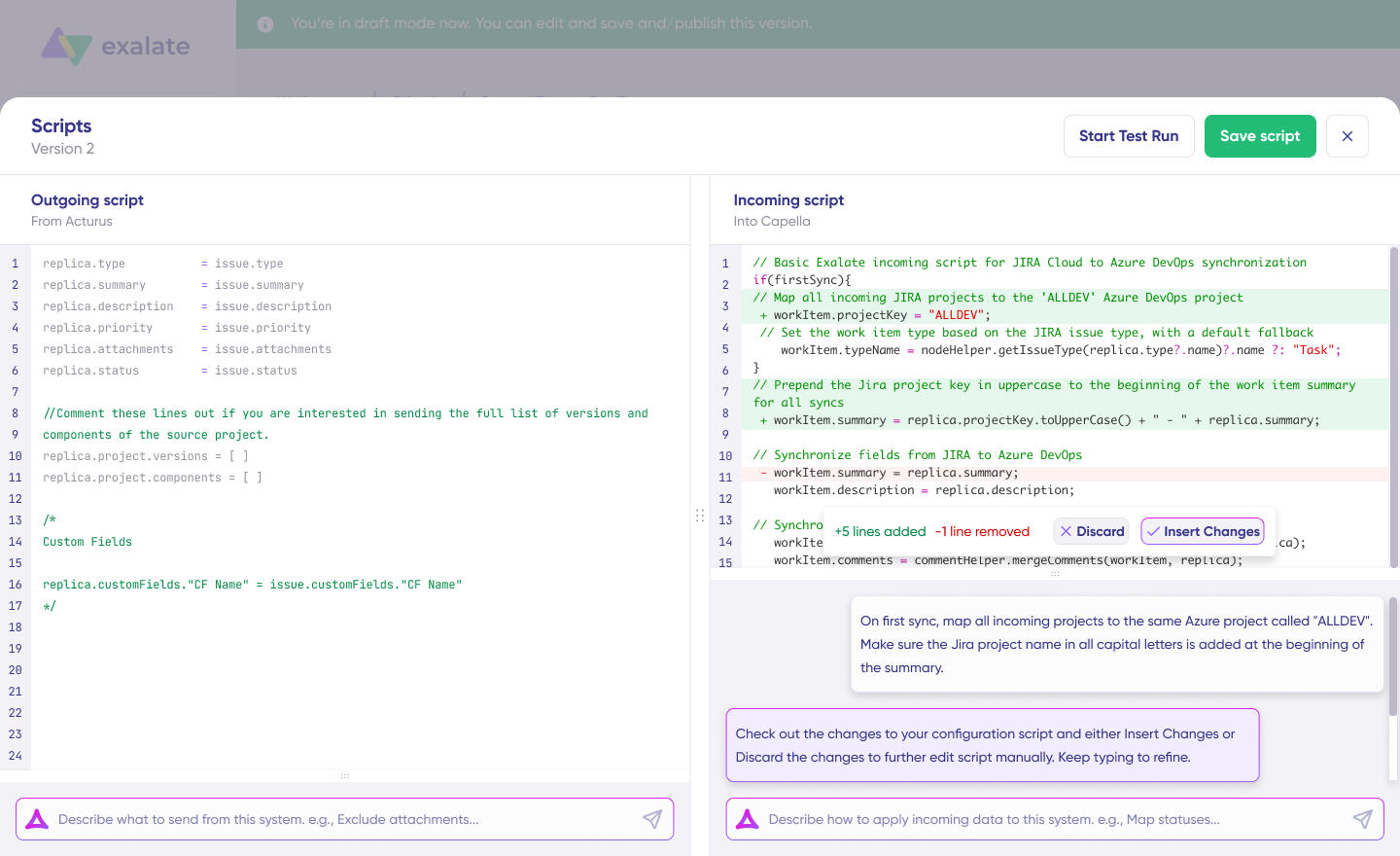
Instead of writing scripts, open the sync Editor and describe what you want in plain English. For example:
“When a change request is approved in Freshservice, create a corresponding work item in the DEVOPS project in Jira. Map subject to summary, description to description, priority to priority, and change type to issue type. Sync all attachments. Set the work item type to Task by default, but use Epic for major changes.”
Aida generates the sync logic for both outgoing (Freshservice) and incoming (Jira) directions. You review it, tweak the field names if needed, and save.
For the reverse direction (Jira to Freshservice):
“When the Jira work item moves to Done, push the status, the release version, and any comments back to the Freshservice change record. Include attachments. If the Jira work item has a label ‘rollback’, flag the Freshservice change as failed.”
Aida handles the field mappings, status transformations, and conditional logic. If something does not behave as expected, Aida also helps debug and troubleshoot it by walking through what each rule does.
Step 4: Configure Triggers to Automate the Sync
Create a trigger using the Freshservice query syntax to fire the sync when a change request hits an approved status.
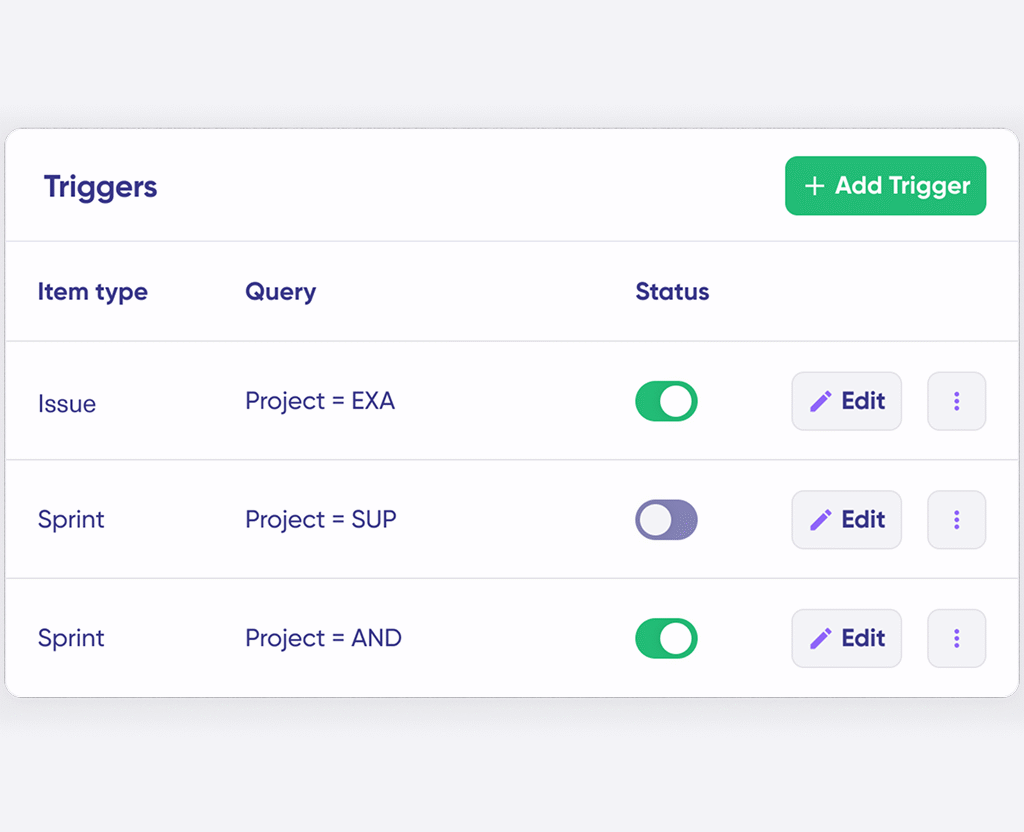
Activate the trigger. From now on, every approved change in Freshservice creates a Jira work item automatically.
On the Jira side, set a trigger that fires when the work item moves to Done, so the closure data flows back without manual action.
Step 5: Test Run Before Going Live
Use Exalate’s Test Run feature to simulate the sync in a sandbox before it touches production data. Run a few sample changes through the pipeline, confirm the field mappings work as expected, and check that attachments arrive intact. Once you’re confident, switch the connection live.
To get the full details about setting up a Jira to Freshservice integration, read the complete guide right here.
How Aida (AI) Simplifies Freshservice Jira Change Management Setup
Aida is Exalate’s AI scripting assistant, and it does three things that matter for change management specifically.
- Generates sync logic from plain English. You describe the rule, and Aida writes the script. No Groovy knowledge required to get started.
- Debug sync errors. When a sync fails, Aida explains what went wrong in human terms and suggests a specific fix. For change management, this matters because the cost of a missed sync is a missing audit entry, not just a delayed ticket.
- Suggests improvements. As your change workflow evolves (new field on the Freshservice form, new Jira project for a different team), Aida can recommend how to update the sync logic without breaking what already works.
For a change manager who needs the integration to be reliable but does not want to maintain custom code, Aida is the difference maker.
Best Practices for Freshservice Jira Change Management Sync
- Keep Freshservice as the source of truth for the change record itself. The Jira work item should be a child of the Freshservice change, not the other way around. This keeps the ITIL audit trail clean.
- Map all priority and risk levels explicitly. Never let a sync fall through to a default value for something that drives SLA timers.
- Sync attachments both ways for change management. Auditors ask for evidence, and a deployment without screenshots, logs, and the rollback plan attached is incomplete.
- Treat audit trail completeness as a compliance requirement, not just a best practice. In security-sensitive environments, ISO 27001 and internal compliance teams need to see not just that a change was approved, but exactly when the sync occurred, what data moved, and who acted on it. A change record in Freshservice that’s missing release notes or deployment timestamps because that data only lives in Jira is a gap auditors will find at closure.
- Use selective sync for emergency changes. Emergency changes should bypass the normal CAB queue and trigger immediately. Selective triggers handle this without overcomplicating your standard change pipeline.
- Test in a sandbox first. Run several historical changes through the test pipeline to confirm field mappings hold up across edge cases.
- Plan for multi-instance and cross-company growth from day one. Even if you start with one Freshservice and one Jira, the second connection (acquisition, partner, MSP client) shows up faster than expected.
Next Steps for Your Freshservice Jira Integration
Connecting Freshservice change management with Jira deployment work is the practical version of the ITIL-to-DevOps promise. Approvals stay where governance lives. Execution stays where engineering already works.
Exalate handles this with bidirectional sync, full control over field mappings, attachment sync, and Aida-driven configuration so you can set it up without writing code. Each side keeps its own configuration, which matters for compliance, for MSP scenarios, and for any setup where one team should not have admin access to the other’s tool.
If you want to see how this works for your specific change workflow, book a demo with one of our integration experts. We’ll walk through your CAB process, your Jira project structure, and how the sync would map onto both.
FAQs
What is change management integration between Freshservice and Jira?
Freshservice to Jira change management integration is a sync setup where approved change requests in Freshservice automatically create deployment work items in Jira, and release information flows back from Jira to Freshservice for closure documentation. It connects the ITIL governance layer in Freshservice with the execution layer in Jira, so teams don’t have to copy tickets manually.
Can I sync attachments between Freshservice change requests and Jira work items?
With Exalate, attachments and inline images sync bidirectionally between Freshservice change records and Jira work items. This is important for change management because auditors expect to see architecture diagrams, runbooks, test plans, and post-deployment evidence attached to the change record.
What happens if a Freshservice change request is rejected after a Jira work item is already created?
If a change is rejected in Freshservice after the Jira work item has been created, you can configure a trigger in Exalate to sync the updated status back to the Jira work item automatically. This can set the Jira issue to a cancelled or on-hold status, or add a comment flagging the rejection reason, so the dev team is notified without needing a manual message. Aida can generate this conditional logic from a plain-English description of the rule.
Can this integration support MSPs or cross-company change management?
With Exalate, each company configures its own end independently. An MSP can run change management in its Freshservice instance and sync approved changes to a client’s Jira without granting either side admin access to the other. Field-level filtering keeps sensitive data on the right side of the boundary. This is the same pattern that works for post-merger ITSM consolidation and federated multi-supplier setups.
How long does it take to set up Freshservice to Jira change management integration?
For a standard setup with default fields, attachment sync, and basic priority mappings, most teams have the integration live in a few hours using Aida. More complex setups (multiple Jira instances, custom change types, cross-company isolation) usually take a few more hours, mostly spent on validating the field mappings against the actual change workflow. Compared to building custom REST API integration in-house (typically 100 to 250 development hours), the time savings are significant.
Does this integration work if I have multiple Jira instances?
Yes. Unlike native Freshservice connectors, Exalate supports multi-instance setups, for example, routing changes to different Jira instances by region, business unit, or acquired company. Each connection is independently configured, so a change targeting the EMEA infrastructure team goes to a different Jira instance than a change targeting the US platform team.
Can I sync custom fields between Freshservice and Jira?
Yes. Exalate lets you map custom fields from Freshservice change forms, such as risk level, impacted CIs, business justification, and rollback plan, to corresponding custom fields in Jira, and vice versa. The mapping is defined in the sync script on each side, so you control exactly how custom data is transformed, displayed, or filtered before it reaches the other system. Aida can generate the mapping logic from a plain-English description if you’d rather not write it manually.
Does this integration work with Jira Data Center or On-Premise?
Yes. Exalate supports Jira Cloud and Jira Data Center (on-premise), so the integration works regardless of how your Jira instance is deployed. For on-premise setups behind a firewall, Exalate supports private connections. This is a key limitation of native Freshservice connectors, which are designed primarily for Jira Cloud.
Recommended Reading:
- Freshservice Jira Integration For Service Management
- Freshservice to Freshservice Integration: How to Sync Multiple Freshservice Instances
- How to Sync Inline Images Between Freshdesk and Jira
- Freshdesk Jira Integration for Customer Satisfaction
- Jira to Jira Sync: How to Synchronize Multiple Jira Instances