We’ve been listening. One of the recurring friction points for Exalate users, admins, and non-admins alike is the back-and-forth of checking sync status.
You’re in the middle of your workflow, something feels off, and instead of getting an instant answer, you have to stop, open a new tab, log into the Exalate console, navigate to the right connection, and then, finally, figure out what’s happening.
That’s a lot of steps for what should be a quick check.
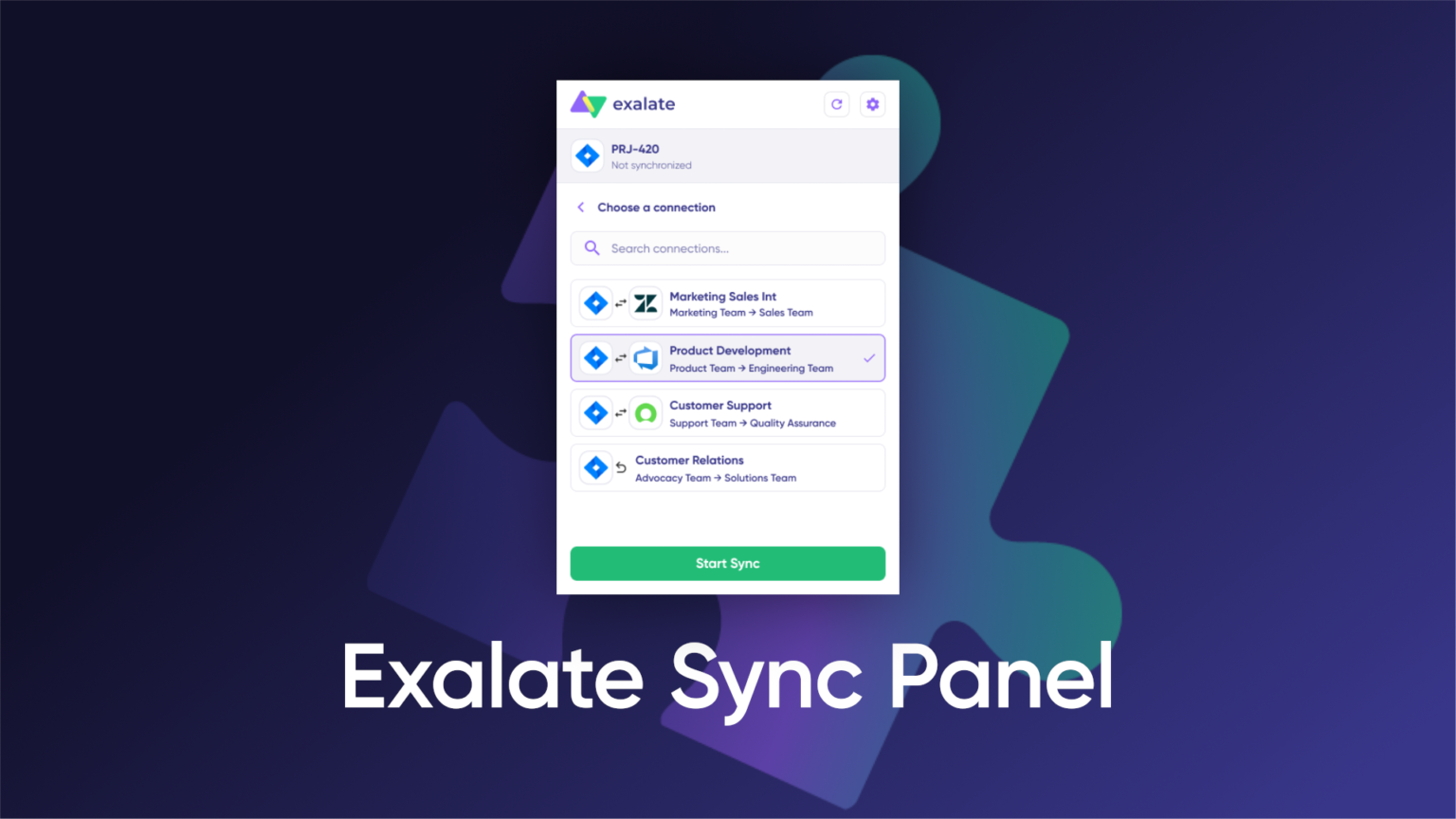
Today, we’re introducing the Exalate Sync Panel, a browser extension (available on Chrome, presently) that gives you real-time visibility into your active syncs, right from your work management system. No console required.
What Is the Exalate Sync Panel?
The Sync Panel is a browser companion for Exalate users. It’s not a replacement for the Exalate console. You’ll still use the console to configure and set up your connections. But once your integrations are running, the Sync Panel lets you keep an eye on them without switching context.
With the extension, you can:
- See the real-time status of your active syncs across any Exalate connector
- Spot stuck or failed syncs at a glance: you no longer need to guess whether something went through
- Manually trigger a two-way sync when you need a push, without going into the console
- Unlink a sync pair directly from the extension if needed
It works across all Exalate connectors: Jira, ServiceNow, Azure DevOps, Salesforce, Zendesk, and more.
Who Is It For?
The Sync Panel is built for two kinds of users:
Exalate console admins who manage integrations day-to-day and want a faster way to monitor connection health without navigating through the full Exalate console every time something looks off.
Exalate Sync Panel users who work with synced items daily: developers updating tickets in Jira, support agents tracking escalations in Zendesk, or Ops teams managing records in ServiceNow. These users don’t have the Exalate console access, but they do need to know whether their syncs are working. Now they have a way to check.
Why We Built This
The Exalate console is purpose-built for configuration and troubleshooting at depth. But not every sync check warrants that full experience. The Sync Panel removes the overhead for the simple, frequent question: Is this sync working right now?
No other integration tool or provider currently offers a dedicated browser extension for sync monitoring. Every alternative still sends you back to an actual integration console. The Sync Panel is a first-in-category move, and it reflects where we think integration tooling needs to go: closer to where you already work.
Getting Started with the Exalate Sync Panel
Getting set up takes a few minutes:
- Create or sign in to your Exalate account at exalate.com.
- Install the Exalate Sync Panel from the Chrome Web Store.
- Click the extension icon and select a connection to monitor.
Note: You’ll need an active Exalate account with at least one existing connection configured in the Exalate console. The Sync Panel is a monitoring and control companion: connections are still created and configured in Exalate.
What’s Next
The Sync Panel launches as part of the New Exalate version 3.4.0. We’re treating this as the foundation of a broader set of in-browser capabilities.
For now, install the extension, connect it to your active integrations, and let us know what you think.
→ Start a free trial for Exalate
→ Install the Exalate Sync Panel on the Chrome Web Store
→ Learn more in Sync Panel documentation