Any organization using more than one Jira instance understands the struggle of connecting them between interdependent teams. The same problem pops up when connecting your organization’s Jira instance with a partner’s or MSP’s instance.
The question remains: how can companies get access to multiple instances and consolidate the data?
As someone with experience working with Jira, I’ll show you how to consolidate multiple Jira instances using different applications and integration methods.
Note: Jira now refers to “issues” as “work items.” Throughout this guide, we use Jira’s updated terminology.
Key Takeaways
- Your Atlassian Enterprise plan allows up to 150 Jira instances, while Free, Standard, and Premium plans limit you to a single instance per product.
- Consolidating multiple Jira instances reduces licensing costs, simplifies administration, and provides a unified view for stakeholders to make better decisions.
- Integration tools fall into two categories: migration tools (for permanent consolidation) and sync tools (for ongoing bidirectional data exchange between separate instances).
- When choosing an integration approach, prioritize security certifications, scripting flexibility, real-time sync capabilities, and compatibility with your existing tech stack.
- For cross-company integrations where full consolidation isn’t possible, bidirectional sync tools like Exalate maintain data exchange while preserving each organization’s autonomy.

How Can You Get Multiple Jira Instances?
Your Atlassian plan determines the number of Jira instances your organization can get.
Under the Free, Standard, and Premium plans, users only have access to single instances of every Atlassian product (Jira, Confluence, Opsgenie, etc.). So, you have to set up a new plan in order to add an extra instance to your organization.
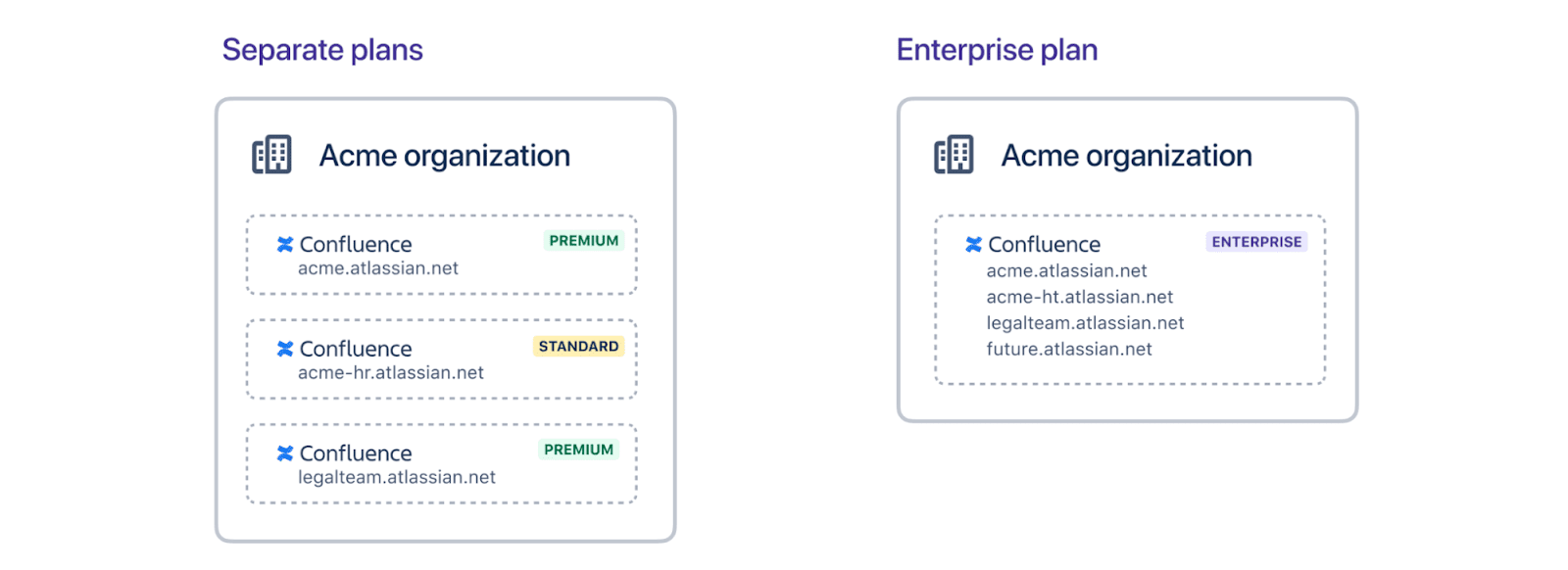
However, adding multiple individual instances under different subscription plans is a management nightmare. It leads to data duplication, silo formation, and limited visibility. You’ll also end up paying more in total.
But with the Enterprise Plan, you get up to 150 individual instances for your teams or divisions. This makes it easier for managers to keep track of subscriptions and overall costs.
To determine the number of instances you need, factor in the following: your organization’s budget, the purpose of each instance, the number of users or teams, and the apps and dependencies you need for each instance.
Who Needs to Integrate Several Jira Instances?
Entities and organizations that need to merge Jira instances include:
- large corporations and enterprises with multiple divisions and teams,
- organizations from separate cultures going through a merger or acquisition,
- organizations providing external service desk solutions and software support,
- small organizations and startups with teams that require separate Jira environments,
- managed services providers and vendors connecting with partners and clients.
Why Consolidate Multiple Jira Instances?
Here are the financial and administrative benefits of consolidating multiple Jira instances.
Simplifies Project Management
Integrating multiple Jira instances helps project managers by keeping all relevant data under one umbrella. It also makes it easier for managers and team leads to track progress updates across teams and departments.
Also, the integration of multiple Jira projects creates a unified view for stakeholders to make better decisions about ongoing initiatives.
Reduces Cost
When you unify multiple Jira instances, it reduces your company’s expenses in several ways. First, the Enterprise plan offers cheaper pricing than multiple paid options.
For instance, if your company (with over 1000 users) gets 2 Jira instances under the Premium plan, they’ll end up paying $188,000 annually. However, the Enterprise plan is $141,000 for the same number of users, and you get up to 150 sites as well as other perks.

Calculate time and money savings from automated bidirectional sync.
Provides Administrative Autonomy
Even though integrating several Jira instances unifies the data, it still gives each entity the freedom and autonomy to configure its instance as desired. This reduces the workload of IT teams since they no longer need to tweak the central Jira multiple times.
For example, developers can configure Jira Software with Marketplace apps geared towards higher performance, while support teams can set up their Jira Service Management to improve service delivery and quality.
Secures Sensitive Data
With autonomous control over instances, admins can establish role-based access controls (RBAC) to determine who can view, edit, or copy the data from each Jira site.
IT teams can also apply all-encompassing security protocols and guidelines for all Jira instances under the same license. This will also cover updates and dependency monitoring to ensure every department is following the best data protection practices.
Improves Collaboration
Interconnected Jira instances improve cooperation between teams and companies. With access to relevant data, all stakeholders and dependent teams will work together with a transparent view of each other’s instances based on permissions.
Also, collaboration involves exchanging ideas about each side’s data management culture, which fosters cooperation, transparency, and trust.
Streamlines Mergers and Acquisitions
Companies involved in mergers and acquisitions must integrate multiple Jira instances as part of the general migration process. This will help them consolidate data, merge systems and processes, and plug all communication gaps.
Improves Reporting and Analytics
Consolidating Jira instances makes it easy for your organization to analyze data and generate detailed, accurate, and actionable reports. It provides access to analytical tools that can collate and synthesize valuable insights.
Challenges of Merging Multiple Instances of Jira
Unifying multiple Jira instances is fraught with challenges that you must address before even setting up any connection.
These challenges include:
- keeping track of important work items,
- determining high-priority projects to merge early on,
- replicating transferred entities on the destination side,
- getting the right IT team to handle the integration process,
- choosing the right migration method or integration solution,
- providing different levels of permissions and access to users,
- working with third-party applications, dependencies, and plugins,
- and avoiding version incompatibility between different versions of Jira.
Best Practices for Integrating Multiple Jira Instances
To avoid the challenges associated with consolidating several Jira sites, here are some best practices to follow.
- Start with a plan. You must define the scope of the merger or integration, starting with the most important entities and working down to the least relevant. This means developing an integration strategy that factors in your current workflows and the dependencies within each Jira instance.
- Involve all stakeholders. Conduct extensive discussions and planning sessions with stakeholders for internal and external integration scenarios. This will help you understand every member’s role, responsibility, and priority. It will also create a collaborative environment that encourages shareholders to voice their concerns and suggestions before the integration kicks off.
- Choose the right tool. You can connect multiple Jira instances using custom API connectors, native Jira solutions, or third-party integrations. From the results of analyzing your system, you will be able to choose the solution that can integrate your Jira systems without needing extensive manual configurations, and with fewer errors and data discrepancies.
- Test rigorously. Connecting your Jira instances involves getting the right endpoints to share data accurately and promptly. So, after setting up the integration rules and mapping out the data transfer strategy, you need to test the endpoints to determine if everything is working as intended.
- Carry out maintenance and updates. For custom solutions built in-house, you need to carry out regular maintenance updates to make sure the endpoints are working as intended. Changes in the API can affect how the data is transferred between systems. Alternatively, you can choose third-party integration tools that carry out updates automatically.
How to Sync Multiple Jira Instances With Exalate
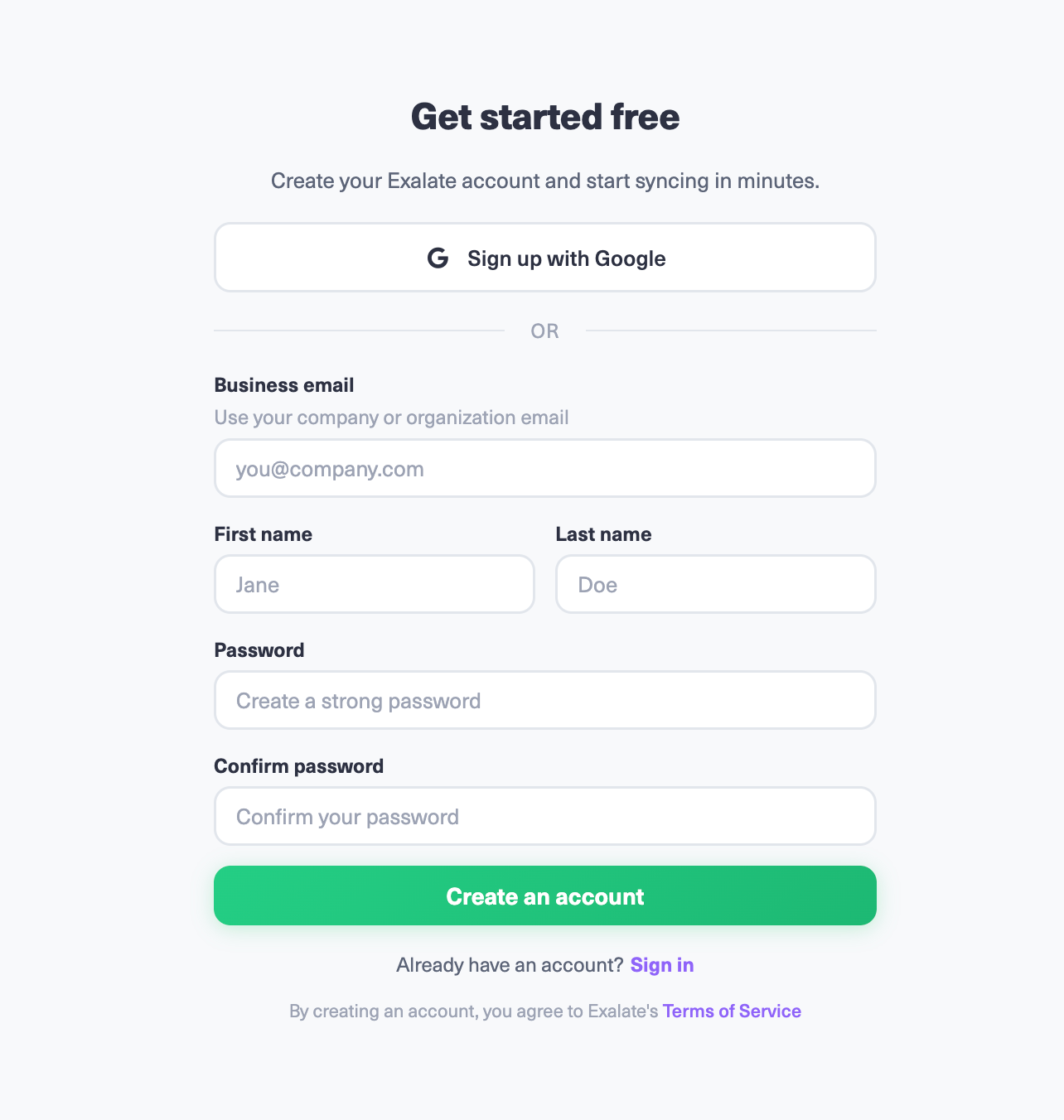
- Go to the integrations page and find your Jira connector. You can also create an account and sign in to your Exalate console using your personal credentials. Google sign-in is also available.
- Establish a connection between Jira instances. Give them a descriptive name and pass the authentication process.
- Configure the connection. Use Exalate’s Groovy scripting engine to write rules that will control and define how both Jira instances will interact and share data.
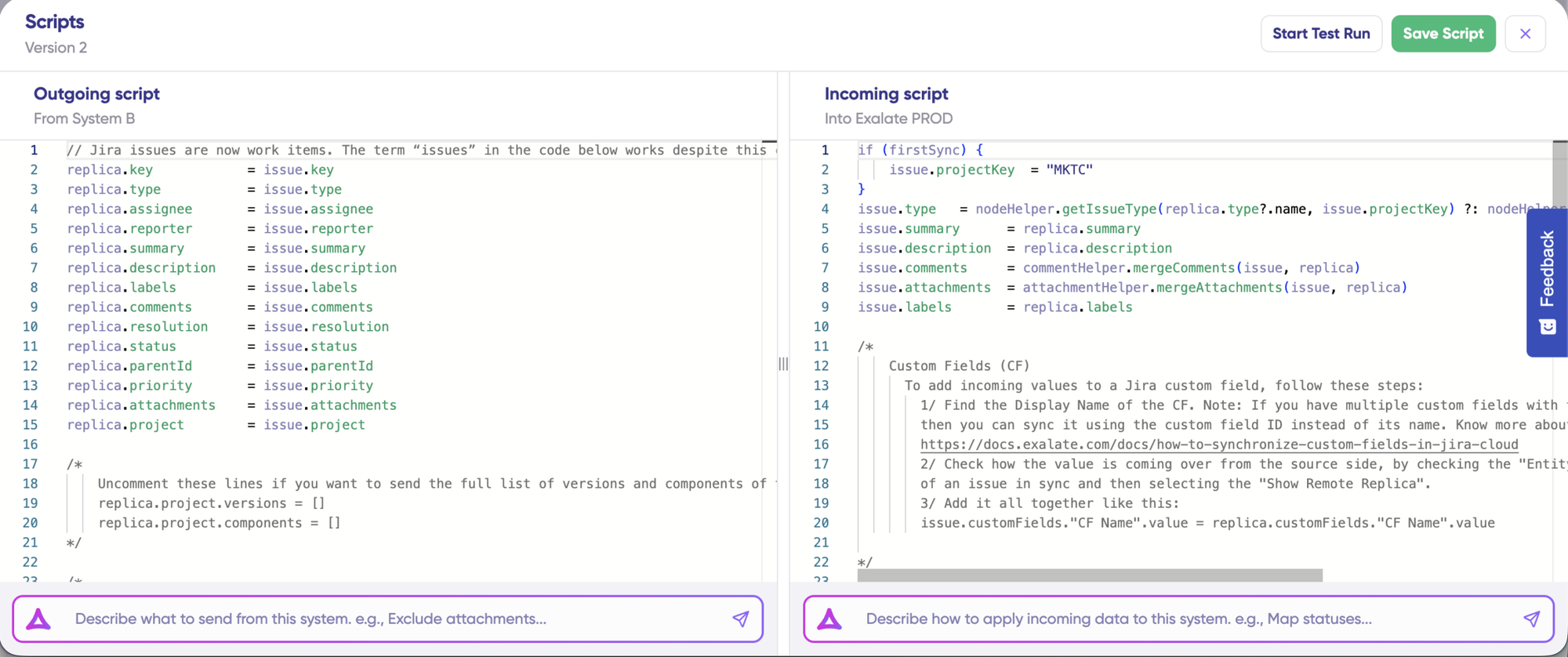
- Generate scripts using Aida. Get the best out of Exalate’s scripting engine by using the AI-powered assistant to generate scripts according to user input and text-based prompts.
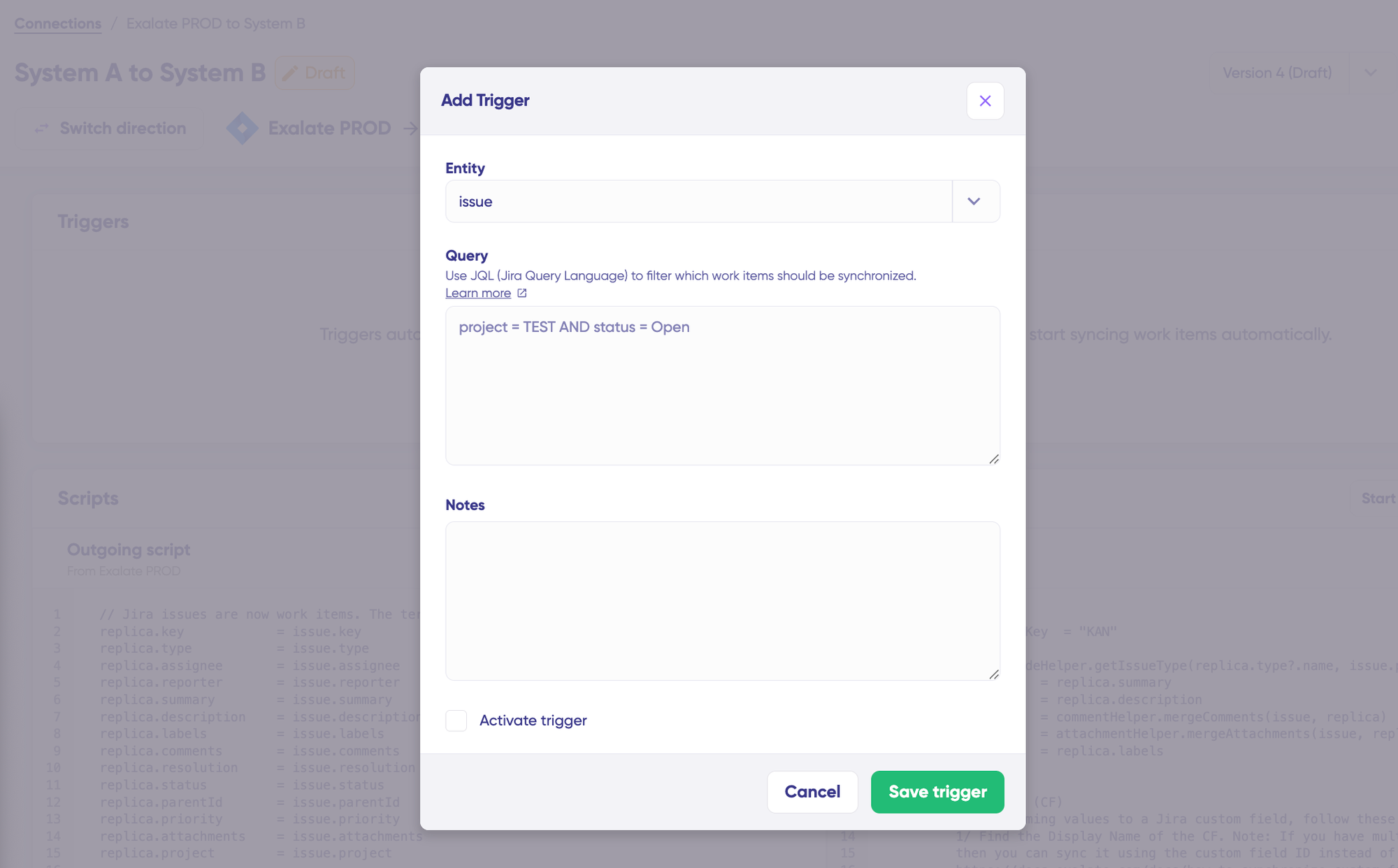
- Set up triggers. Create automated triggers using JQL to determine how the Jira instances will handle the integration rules.
- Start syncing your tasks. You can initiate multiple Jira syncs directly from the Exalate console or from the Exalate panel within Jira work.
For a detailed breakdown of every step of integrating multiple Jira instances, read this comprehensive guide.
Use Cases: When and How to Connect Multiple Jira Instances
Understanding specific scenarios helps you choose the right integration approach. Here are practical use cases broken down by challenge, solution, and real-world application.
Internal Cross-Department Collaboration
Challenge: Development teams using Jira Software need to coordinate with support teams using Jira Service Management. Manual ticket transfers create delays, and context gets lost when work items move between systems.
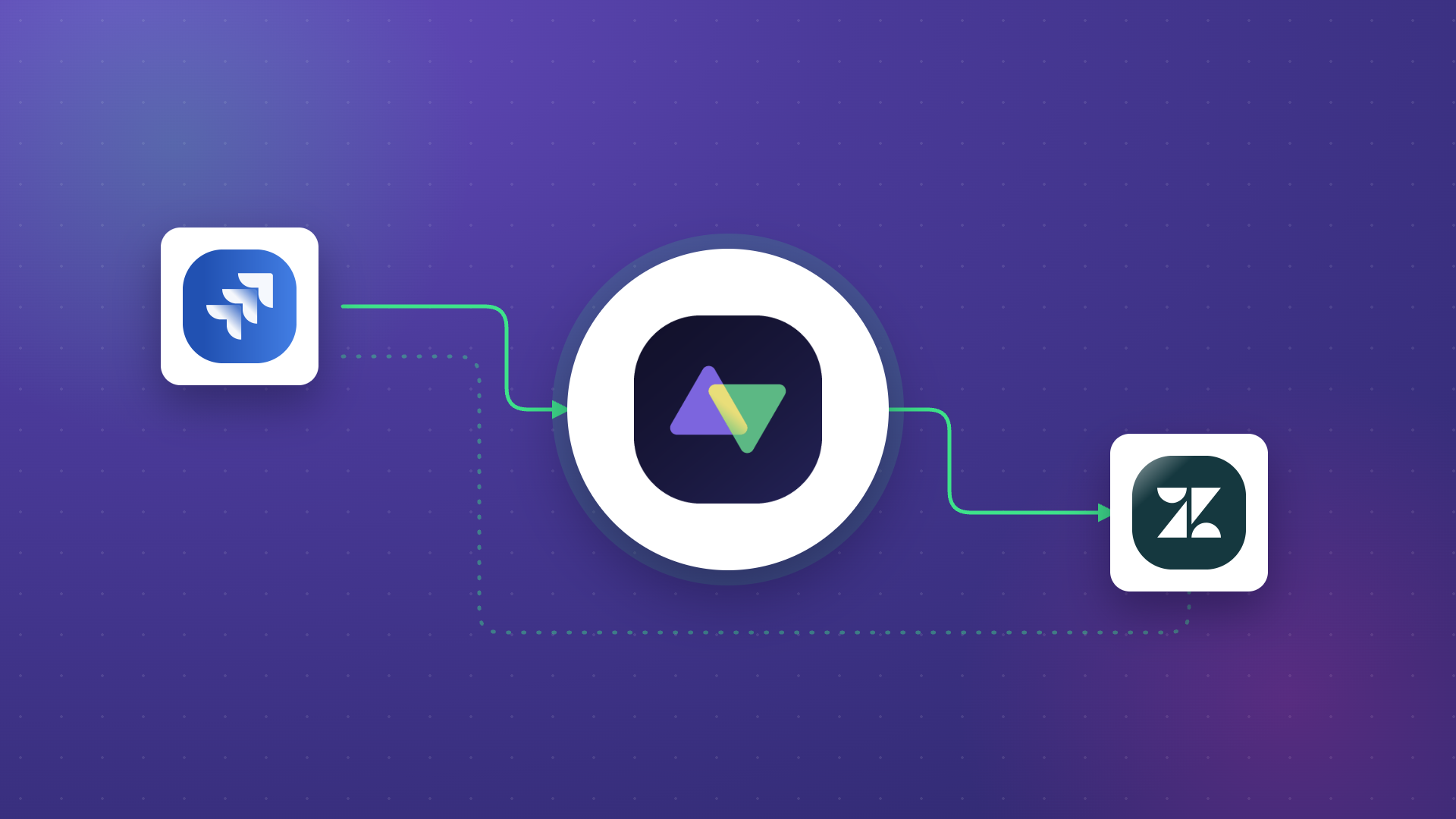
Solution: Bidirectional sync automatically replicates relevant work items between instances. When a support agent escalates a ticket, the development team sees it immediately with full context. Status updates flow back so support knows when fixes are deployed.
Real-World Application: A SaaS company connects its customer support instance with its engineering instance. Bug reports from enterprise customers trigger automatic work item creation in the dev backlog, complete with customer priority levels and reproduction steps. When developers push fixes, support agents see updated statuses without checking a separate system.
Merger and Acquisition Integration
Challenge: Two companies merging operate separate Jira environments with different workflows, custom fields, and work item types. Full consolidation would disrupt both organizations during a critical transition period.
Solution: Sync selected projects while maintaining separate instances during the transition. This preserves existing workflows while enabling cross-company visibility. Teams gradually align processes before eventual full consolidation.
Real-World Application: A manufacturing firm acquires a smaller competitor. Rather than forcing immediate system changes, they sync key product development projects between instances. This gives leadership unified reporting while allowing each team to continue using familiar workflows. Over 18 months, they identify best practices from both systems before consolidating into a single instance.
MSP Multi-Client Management
Challenge: Managed service providers handle multiple client Jira instances. They need visibility across all clients without accessing each system individually, and clients require strict data isolation.
Solution: Sync relevant work items from client instances to an internal MSP instance. Each client connection remains separate, maintaining data boundaries while providing the MSP with a unified view of all active work.
Real-World Application: An IT services provider manages Jira environments for 30 clients. They sync support tickets and service requests to their internal instance, enabling account managers to track SLA compliance across all accounts from a single view. Client data remains isolated—Client A never sees Client B’s information.
Service Desk and Development Alignment
Challenge: Support teams and developers working in different Jira products. Support agents don’t know which reported bugs are being fixed, and developers don’t understand the customer impact of work items they’re assigned.
Solution: Sync escalated support tickets to development backlogs with customer impact data attached. When developers update work items, customers see status changes through their original support tickets.
Real-World Application: An e-commerce platform connects Jira Service Management to Jira Software. High-priority customer-reported bugs auto-create development work items with customer details and business impact scores. The development team prioritizes based on customer impact, and support agents track progress without pinging developers for updates.
Global Team Coordination
Challenge: Teams across different time zones and regions operate separate Jira instances due to data residency requirements. Project managers need unified visibility without moving data across borders.
Solution: Sync work item metadata and status information while keeping primary data in regional instances. Project dashboards aggregate information without violating data residency requirements.
Real-World Application: A multinational corporation has EU data in a Frankfurt-hosted instance and US data in a Virginia instance. They sync project summaries and sprint progress to enable global project management while keeping detailed customer data in the appropriate region.
Contractor and Agency Partnerships
Challenge: Marketing and creative agencies need access to work item briefs and deliverable tracking without full Jira access. Sharing admin credentials creates security risks.
Solution: Sync specific projects to agency instances (including platforms like Asana or Freshservice) with controlled field visibility. Agencies work in their preferred tools while clients maintain oversight.
Real-World Application: A retail brand works with multiple creative agencies. Each agency receives synced campaign briefs in its preferred project management tool. Deliverable status flows back to the brand’s Jira instance without agencies needing Jira licenses or the brand needing accounts in each agency’s system.
Features to Consider When Choosing an Integration Solution
When evaluating tools to connect multiple Jira instances, these capabilities separate basic solutions from enterprise-ready platforms.
- Bidirectional Real-Time Sync. One-way integrations create data gaps. Look for solutions that sync changes in both directions within seconds, not hours. When a developer updates a work item status in one instance, dependent teams should see that change immediately.
- Flexible Field Mapping and Transformation. Your instances probably use different custom fields, workflows, and work item types. The integration tool should map fields intelligently and transform values where needed, converting “High” priority in one system to “P1” in another, for example.
- Selective Sync Controls. Not everything should sync everywhere. Look for granular filtering based on project, work item type, labels, custom fields, or any criteria relevant to your workflow. Customer payment details and proprietary estimates should stay in their source systems.
- Security and Compliance Features. For enterprise deployments, verify ISO 27001 certification, role-based access control, and encryption of data both in transit and at rest. Full script and operational control over your sync configuration ensures you maintain governance over what data leaves your systems. The integration platform should support your compliance requirements without workarounds. Visit the Exalate Trust Center for detailed security documentation and compliance certifications.
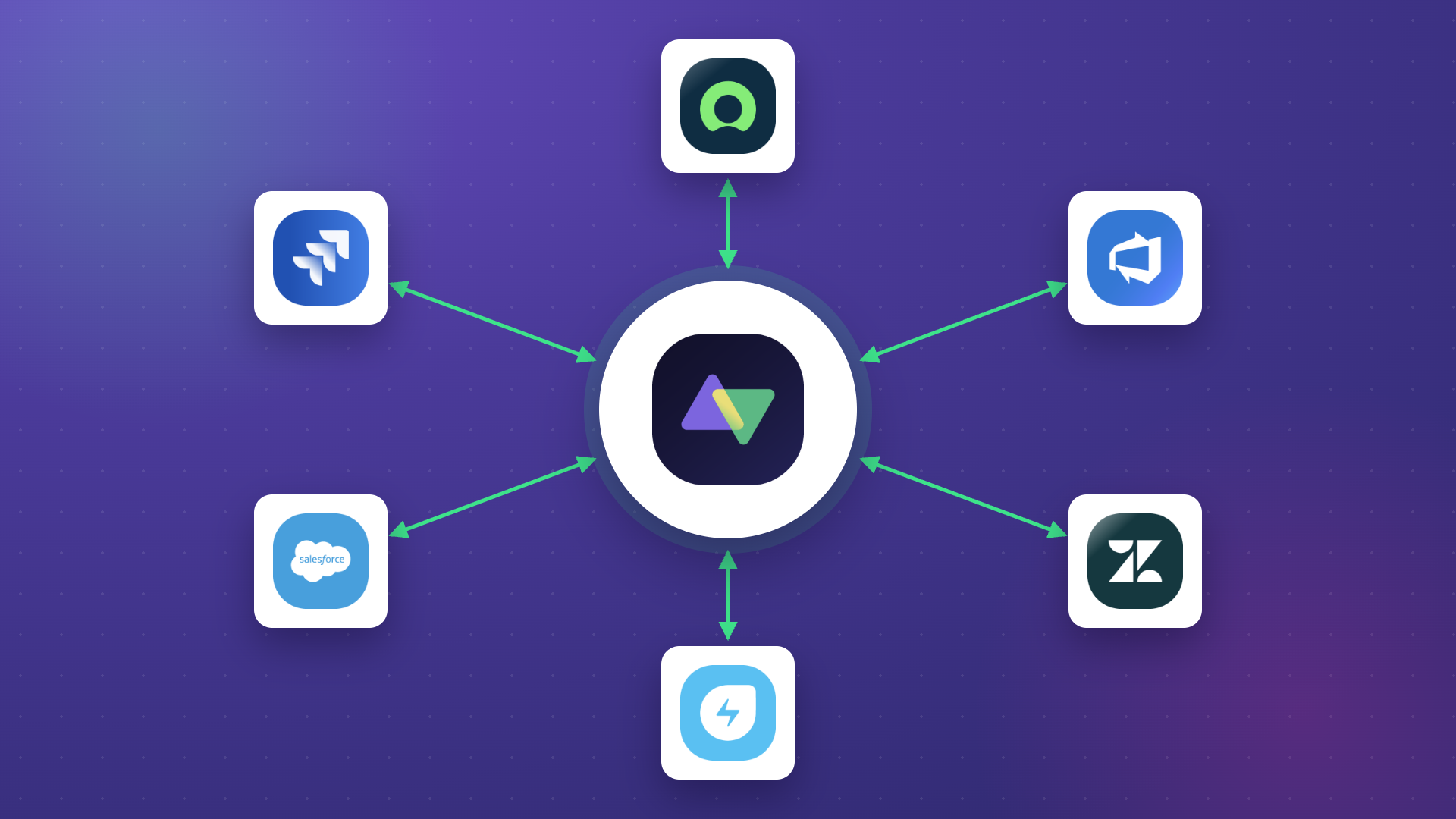
- Cross-Platform Compatibility. If your organization uses tools beyond Jira—ServiceNow, Salesforce, Azure DevOps, Zendesk, Freshservice, Freshdesk, Asana, or custom systems—the integration platform should support those connections too. This prevents tool sprawl and creates a unified integration layer.
- AI-Assisted Configuration. Modern integration platforms offer an AI-assisted setup that generates field mappings and sync rules from natural language descriptions. Aida, Exalate’s AI-assisted configuration, analyzes your requirements and creates scripts automatically, reducing implementation time from days to hours while maintaining full customization capabilities.
- Scripting Capabilities for Complex Scenarios. Template-based tools work for simple integrations, but enterprise scenarios require scripting flexibility. Look for Groovy-based or similar scripting engines that let you handle edge cases, conditional logic, and complex transformations without vendor involvement.
- Error Handling and Recovery. Integrations fail sometimes: network issues, API limits, temporary outages. The platform should handle failures gracefully with automatic retries, clear error logging, and manual intervention options when needed.
- Sync Panel: Exalate also ships a Chrome extension called Sync Panel that lets users check sync status, catch errors, fire off manual syncs, and unlink sync pairs from the browser.
Native Integration Options Between Jira Instances
I’ve highlighted various ways to connect Jira instances. Let’s review them to determine which one best suits your use case.
- Jira Cloud Migration Assistant (JCMA). This app helps users migrate data from one Jira environment to Jira Cloud. Before the migration, JCMA assesses Marketplace apps, email addresses, and domains. It also carries out pre-migration checks and generates error logs and reports regarding the migration’s status.
- Jira cloud-to-cloud migration. Also known as Copy product data, this tool allows organizations to move data between Jira Cloud instances. It also gives you detailed reporting and updates about the migration progress.
- Jira REST API. Experienced Atlassian developers can create custom connectors using Jira REST APIs. Although working directly with the API gives you more flexibility and customization options, the process is tedious compared to using ready-made solutions.
Third-Party Integration Solutions
If the options above don’t work for you, consider adding third-party integration solutions such as Exalate. These tools provide Jira to Jira integrations for internal and cross-company integration.
- Exalate offers bidirectional sync between Jira instances and other platforms, including ServiceNow, Salesforce, Azure DevOps, Zendesk, Freshservice, Freshdesk, and Asana. AI-assisted configuration with Aida speeds up implementation. The Groovy scripting console handles complex transformations. Designed for both internal and cross-company integrations with security features including ISO 27001 certification, role-based access control, and encryption. Book a demo to see how it handles your specific use case.
- Getint focuses on project management tool integrations with a template-driven setup. Good for connecting Jira with Azure DevOps, Monday.com, and similar tools. The template approach works well for standard scenarios but may require workarounds for complex requirements.
- Backbone Issue Sync provides Jira-to-Jira synchronization within the Atlassian ecosystem. Straightforward setup for basic sync scenarios. Limited cross-platform support compared to more comprehensive solutions.
- Unito offers no-code integrations between Jira and various work management tools. Quick setup for simple use cases. May not handle complex enterprise scenarios requiring custom logic.
- Zapier connects Jira with thousands of apps through trigger-action workflows. Works well for simple automation like notifications and basic data passing. Not designed for bidirectional sync or complex field transformations.
Exalate: An Integration Option for Multiple Jira Instances
Exalate is an AI-powered bidirectional integration solution that allows you to sync multiple Jira instances to share data from default entities and custom fields. You can also use Exalate to sync private comments and story points between separate Jira instances.
Companies like Gantner and Netguru use Exalate to improve internal workflows, reduce license costs, and enhance collaborations with clients. The solution also helps teams sync work types and select lists in Jira and other advanced integration configurations.
Exalate supports connections across different platforms. So if your organization also uses ServiceNow for IT service management, Salesforce for CRM, Azure DevOps for development, or Freshdesk and Freshservice for support, you can manage all those integrations through a single platform.
Want to find out how Exalate fits your advanced use case? Book a demo with our customer success experts.
Frequently Asked Questions
Why would I need to connect multiple Jira instances?
Several scenarios make connecting multiple Jira instances necessary. Different departments might use separate instances: development on Jira Software, support on Jira Service Management. Working with external partners, vendors, or MSPs who have their own Jira environments creates integration needs. Mergers and acquisitions leave companies needing to share data across existing systems. Security requirements sometimes demand that public-facing service desks stay separate from internal development environments. Teams using different Jira products also need communication channels between systems.
What data can I sync between Jira instances?
You can sync anything available in Jira. This includes work items and sub-tasks, comments and attachments, custom fields like select lists and checkboxes, workflow statuses and transitions, and sprint and epic information. Third-party plugin data like Tempo Worklogs also syncs, along with user mentions in comments, change history, and work logs. If it’s accessible via Jira’s REST APIs, you can typically sync it.
Can I sync only specific projects or work item types?
Yes. Integration platforms let you filter what syncs based on project, work item type, priority, labels, custom fields, or any other criteria. You configure sync rules to ensure only relevant data flows between systems, keeping internal notes, cost estimates, or sensitive customer data in their source instances while sharing what teams need.
Can I connect more than two Jira instances?
Yes, you can create a connected network where multiple instances sync with each other. This is useful for large organizations with many departments or MSPs managing multiple client instances. Each connection remains independent, so changes to one don’t affect others. Plan your integration architecture carefully to avoid complexity; too many interconnected syncs can become difficult to maintain.
How does AI help with Jira integration setup?
AI-assisted configuration (like Aida in Exalate) generates field mappings and sync rules from natural language descriptions of your requirements. Instead of manually writing scripts for every field transformation, you describe what you need, and the AI creates the initial configuration. This reduces setup time while maintaining full customization capability; you can always refine the generated scripts for edge cases.
What security features should I look for?
Prioritize platforms with ISO 27001 certification, role-based access control, and encryption of data both in transit and at rest. For cross-company integrations, verify that the platform doesn’t require sharing admin credentials; each organization should authenticate independently. Look for granular permission controls and the ability to exclude sensitive fields from synchronization.
Can Jira connect with non-Jira platforms?
Yes. Integration platforms like Exalate support connections between Jira and other systems, including ServiceNow, Salesforce, Azure DevOps, Zendesk, Freshservice, Freshdesk, and Asana. This means you can sync Jira work items with ServiceNow incidents, Salesforce cases, or Azure DevOps work items in order to maintain data consistency across your entire tool ecosystem.
What’s the difference between migration and synchronization?
Migration moves data permanently from one instance to another—typically used for consolidation projects. After migration, the source instance may be decommissioned. Synchronization maintains ongoing bidirectional data exchange between instances that both remain active. Choose migration when you’re consolidating instances permanently. Choose synchronization when both instances need to remain operational with shared data.
How do I handle different field names between instances?
Integration platforms support field mapping to translate between different schemas. “Priority” in one instance can map to “Urgency” in another. “High” values can transform to “P1” automatically. Custom fields with different names but similar purposes map to each other. Good platforms also handle scenarios where fields exist on one side but not the other.
Recommended Reading:
- How to Sync Tempo Worklogs Between Two Jira Cloud Instances
- How to Implement Jira Issue Sync For Smooth Collaborations Between Teams
- How to Set up an End-to-End ServiceDesk Plus Jira Integration
- How to guides to set up two-way synchronization between multiple systems
- Advanced technical integration use cases
- Jira Integrations: Integrate Jira and Other Systems Bidirectionally
- How to Implement Jira Issue Sync For Smooth Collaborations Between Teams