This article was originally published on the Atlassian Community.
If your organization uses both Jira Cloud and Jira on-premise, syncing user mentions in comments between these two systems can be tricky. The main reason? They handle mentions in completely different formats.
With Exalate, you can synchronize user mentions bi-directionally, so teams collaborate seamlessly across both Jira instances without worrying about broken @mentions or missing context.
In this post, we’ll walk through the use case, the challenges, and the exact scripts you need to make this work.

The Use Case
Here’s what we need to achieve:
- Synchronize summary, description, attachments, and other fields between Jira Cloud and Jira on-premise.
- Synchronize comments bi-directionally between both instances. This includes:
- Simple text comments.
- User mentions where the mentioned user exists in both systems.
- User mentions where the user does not exist in one system. In that case, a custom fallback message with the user mention gets synced instead.
There are a few challenges to work through.
The Challenges
Jira Cloud and Jira on-premise handle comments differently. They also use different internal formats for user mentions:
- Jira Cloud uses the format [
~accountid:account-id-string] to represent mentions. More details in the Atlassian community. - Jira on-premise uses the format [
~username] to represent mentions. More about this here.
Because these formats are fundamentally different, a direct sync would break the mention entirely. You need an integration solution that can transform mentions on the fly while keeping the bidirectional sync intact.
Why This Matters for Cross-Instance Teams
When teams split across Jira Cloud and on-premise, broken user mentions mean missed notifications, lost context, and slower response times. A developer tagged in a comment on Cloud needs that mention to carry over accurately to the on-premise side, and vice versa. Without proper handling, mentions either render as plain text or get dropped entirely.
Exalate: A Bi-Directional Integration Solution
Exalate is a fully customizable bi-directional synchronization solution. It supports integrations for popular platforms like Jira Cloud, Jira on-premise, Azure DevOps Cloud and Server, Zendesk, ServiceNow, Salesforce, GitHub, Freshservice, Freshdesk, Asana, and custom connectors.
The Groovy scripting engine makes it an ideal solution for advanced use cases like this one. You also get an intuitive visual interface with pre-built sync rules and mappings for simpler setups.
Key features that make this use case easier:
- Unified console for managing all connections from one place
- Aida (AI-assisted configuration) to help generate and troubleshoot sync scripts
- Test Run to validate your sync scripts against real data before going live
- Script versioning with full audit trail, rollback, and draft mode
- Real-time sync with complete queue visibility
Get Exalate on the Atlassian Marketplace | Start a Free Trial
Let’s see how to implement this use case.
How to Synchronize User Mentions Between Jira Cloud and Jira On-Premise
Prerequisites
To get started, go to the Exalate app. If you already have an account, log in directly. New users can create an account by entering their email and verifying it, or by signing up with Google.
Creating a Workspace

Workspaces help you organize and manage your integrations and connections in one place. You can find all your existing workspaces under the “Workspaces” tab.
Setting Up the Jira Cloud and Jira On-Premise Connection
- Click “+ Add Connections” > “Create new connection”.
- Enter the name for your first system (System A). You can name either Jira Cloud or Jira on-premise as System A. It doesn’t matter which one goes first.
- Enter the URL of your system. A validation check runs automatically. If your system is already part of the existing workspace, authentication happens automatically. If the system belongs to a different workspace, it gets imported into your current one.
- For new systems, you’ll need to enter your authentication details. Jira uses OAuth authentication.
- Complete the same setup process for the Jira on-premise side.
- Give your connection a name and description.
- Click “Next”.
- Review the details to confirm they’re correct, then click “Create connection”.
When the process is complete, select “Continue to configuration” and choose a Jira project for synchronization.
Then click “Build & continue”.
Configuration Options
After creating your connection, you have two configuration options: “Quick Sync” and “Edit & Test”.
- Quick Sync applies a default configuration and starts syncing immediately.
- Edit & Test lets you customize the sync scripts before going live. For the user mentions use case, you’ll want this option.
Implementation: The Sync Scripts
After setting up the connection, configure the sync rules to control what information gets sent and received at both ends. Then set up triggers to enable automatic exchange of information.
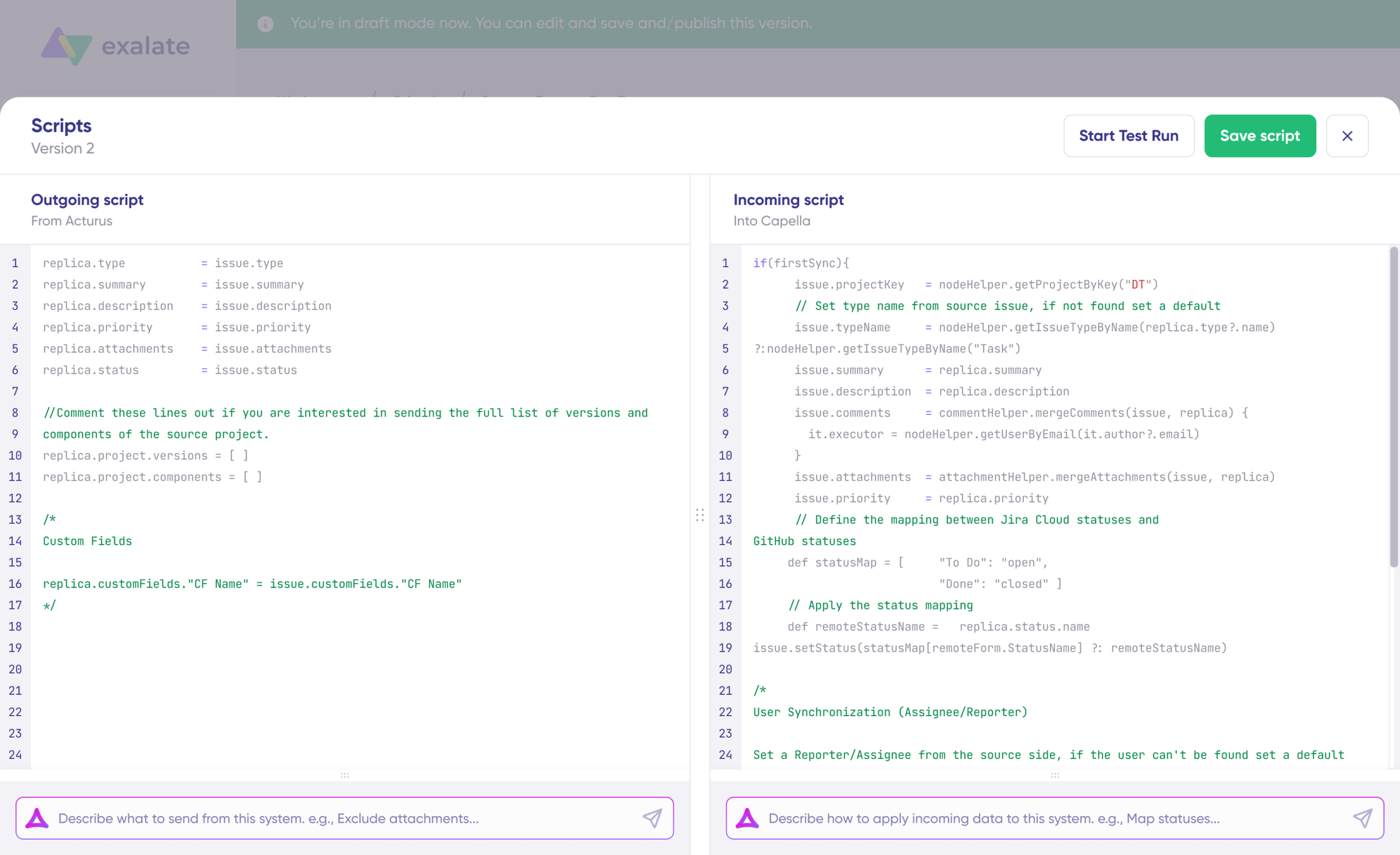
The sync rules (“Rules”) tab has two sections: the Incoming sync and the Outgoing sync.
In Jira Cloud:
- The “Outgoing sync” controls what information leaves Jira Cloud heading to Jira on-premise.
- The “Incoming sync” controls how to interpret information coming from Jira on-premise.
These syncs exist on the Jira on-premise side as well.
Scripts to Implement the Use Case
Let’s look at how to handle user mentions when information flows from Jira Cloud to on-premise.
Jira Cloud Outgoing Sync Script
replica.comments = issue.comments.collect {

    comment ->
    def matcher  = comment.body =~ /\[~accountid:([\w:-]+)\]/
    def newCommentBody = comment.body
    matcher.each {
    target = nodeHelper.getUser(it[0])?.email ?: "Stranger"
    newCommentBody = newCommentBody.replace(it[0],target)
    }
    comment.body = newCommentBody
    comment
}Code language: JavaScript (javascript)
A regular expression finds comments with user mentions in them. For each mention, we replace the account ID format with the email address of the corresponding user using the nodeHelper.getUser() method. So the replica sent to the on-premise instance contains the actual email address instead of the Cloud-specific mention format.
Note: A replica in Exalate is the data payload (in JSON format) used to transfer information between the two systems.
Jira On-Premise Incoming Sync Script
for(comment in replica.addedComments){
    def newCommentBody=comment.body
    def matcher  = comment.body =~ /[a-zA-Z0-9+._-]+@[a-zA-Z0-9._-]+\.[a-zA-Z0-9_-]+/
matcher.each {
    x->
    if (nodeHelper.getUserByEmail(x)){
        def target = "[~" + nodeHelper.getUserByEmail(x).username + "]"
        newCommentBody = newCommentBody.replace(x,target)
    }
    else
            newCommentBody = newCommentBody.replace(x,"[External user with email ${x} mentioned]")
  }
    comment.body=  newCommentBody
}

issue.comments     = commentHelper.mergeComments(issue, replica)Code language: JavaScript (javascript)
Once the information arrives at the on-premise instance, we run a reverse process. A regular expression checks whether an email address is present in the comment body. If a match is found, we use the nodeHelper.getUserByEmail() method to look up the corresponding user account. Then the email address is replaced with the on-premise username format [~username].
If the on-premise instance doesn’t find the user, it replaces the email with a custom message like [External user with email example@company.com mentioned].
Now let’s look at the other direction: from Jira on-premise to Jira Cloud.
The logic is the same. Only the mention format we search for changes.
Jira On-Premise Outgoing Sync Script
replica.comments = issue.comments.collect {
    comment ->
    if (comment.roleLevel != "Developers"){
        def matcher  = comment.body =~ /\[~(\w+)\]/
        def newCommentBody = comment.body
        matcher.each {
            target = nodeHelper.getUserByUsername(it[1])?.email ?: "Stranger"
            newCommentBody = newCommentBody.replace(it[0],target)
        }
        comment.body = newCommentBody
        comment
    }
}Code language: JavaScript (javascript)
A regular expression finds comments with user mentions in the on-premise format [~username]. For each mention, we replace it with the email address using the nodeHelper.getUserByUsername() method. The replica now contains the email address instead of the actual mention.
Jira Cloud Incoming Sync Script
for(comment in replica.addedComments){
    def newCommentBody=comment.body
    def matcher  = comment.body =~ /[a-zA-Z0-9+._-]+@[a-zA-Z0-9._-]+\.[a-zA-Z0-9_-]+/
     matcher.each {
        x->
        if (nodeHelper.getUserByEmail(x)){
            def target = "[~accountid:" + nodeHelper.getUserByEmail(x).key + "]"
            newCommentBody = newCommentBody.replace(x,target)
        }
        else
                newCommentBody = newCommentBody.replace(x,"[External user with email ${x} mentioned]")
        }
    comment.body=  newCommentBody
}
issue.comments = commentHelper.mergeComments(issue, replica)Code language: JavaScript (javascript)
Once the replica arrives at Jira Cloud, we use a regular expression to check for email addresses in the comment body. If found, we use the nodeHelper.getUserByEmail() method to look up the corresponding Cloud user. The email address is then replaced with the Cloud format [~accountid:account-id-string].
If the Jira Cloud instance doesn’t find the user, it replaces the email with a custom fallback message.
Validating with Test Run
Before pushing your scripts to production, use the Test Run feature. Select the work items you want to test, click “Start Test Run”, and review the incoming and outgoing replicas for each item. Check that the field mappings look correct. If something’s off, go back, tweak the scripts, and test again.
Only publish when you’re confident everything works correctly. Click “Publish Version” to apply the updated configuration to your live sync.
All versions for a connection are available in the “Version” dropdown. Versions can be “Active”, in “Draft” (still editable), or “Archived”, so you always have a rollback option.
Conclusion
Exalate provides a powerful, script-based solution for synchronizing user mentions bi-directionally between Jira Cloud and Jira on-premise. The Groovy scripting engine lets you transform mention formats on the fly, handle missing users with fallback messages, and keep your sync clean and reliable.
If you want to explore more advanced sync scenarios beyond user mentions, book a demo with Exalate engineers and see it in action!
Start a Free Trial | Get Exalate on the Atlassian Marketplace
Recommended Reading:
- How to Sync Comment Threads and User Mentions in Comments between Jira and Salesforce
- How to Sync Multiple Related Salesforce Objects (Contact & Account Linked to a Case) to Jira
- How to Synchronize a ServiceNow Customer Case to a Jira Epic
- How to Sync Custom List Fields Bi-Directionally Between Jira and Zendesk