
Managing multiple Jira instances across teams or even organizations is a massive challenge. Critical updates get lost, dependencies go missing, and duplicate work clogs up the workspace.
To get rid of all this mess and streamline data exchange between Jira instances, you need integration solutions that fit what you’re trying to do.
Note: Jira now refers to “issues” as “work items.” This guide uses the updated terminology throughout.
Here are proven methods to unify your scattered Jira instances, from simple automation you can implement today to enterprise-grade integrations. But first, let’s discuss some use cases for connecting multiple Jira instances.
Key Takeaways
- Connecting multiple Jira instances eliminates data silos by enabling real-time, bidirectional sync of work items, comments, attachments, and custom fields across teams and organizations.
- Native Atlassian tools like Jira Automation and Application Links handle basic internal workflows but lack the customization needed for cross-company or multi-platform integrations.
- Custom connectors built with webhooks or REST APIs offer full control but require significant development resources, ongoing maintenance, and API expertise.
- Third-party script-based tools like Exalate and ScriptRunner Connect provide granular customization through scripting engines, with Exalate offering AI-assisted configuration and independent control per instance.
- Automation platforms like Zapier, Make, Tray.ai, and n8n work well for simple, one-directional workflows but fall short on bidirectional sync and advanced field mapping.
- The most flexible approach combines automated triggers with script-based customization, allowing teams to define exactly what data syncs, how it transforms, and under what conditions.

What Does Connecting Multiple Jira Instances Mean?
Connecting multiple Jira instances is the process of establishing a sync between two or more separate Jira environments so that data flows between them automatically. This can mean syncing work items, comments, attachments, statuses, custom fields, or any combination of these across instances that would otherwise operate in complete isolation.
The goal is straightforward: eliminate the manual copying, context switching, and information gaps that happen when teams work in different Jira instances without a shared data pipeline.
This kind of integration can happen within a single organization (for example, a development team on one Jira instance collaborating with a QA team on another) or across companies (like an MSP syncing client-facing tickets with their internal project tracking).
The scope of what you sync depends entirely on your use case. Some teams only need status updates to flow between instances. Others need full bidirectional sync of work items with all associated data, including transitions, priorities, and linked artifacts.
Common Challenges of Managing Multiple Jira Instances
Before jumping into the tools, it helps to understand why connecting Jira instances is harder than it looks.
- Data silos and information gaps. When teams work in separate Jira instances, work items exist in isolation. A bug reported in one instance might be actively worked on in another, but neither side has visibility into the other’s progress. This leads to duplicate work, missed dependencies, and delayed resolutions.
- Permission and access complexity. Granting cross-instance access means managing user permissions across environments with potentially different configurations, workflows, and field schemas. Without a proper integration layer, teams often resort to manual workarounds like exporting CSVs or copy-pasting between instances.
- Workflow mismatches. Different teams configure Jira differently. One instance might use a simple To Do / In Progress / Done workflow while another has a 12-step process with custom statuses and approval gates. Mapping these workflows during integration requires careful planning, especially for status transitions and field transformations.
- Maintaining data integrity. When data flows between instances, you need to ensure that updates don’t create conflicts, overwrite critical information, or trigger infinite sync loops. This is especially important for bidirectional syncs where both sides can modify the same work item.
- Scalability concerns. A solution that works for syncing 50 work items between two instances might break down when you’re dealing with thousands of work items across five or more instances. Rate limits, sync latency, and error handling become critical factors at scale.
Understanding these challenges helps you pick the right tool. A simple automation might solve a data silo problem between two internal teams, but cross-company integrations with workflow mismatches need something more robust.
Why Connect Multiple Jira Instances?
Integrating Jira instances can enhance collaboration and improve efficiency by enabling seamless information sharing. It also helps managers maintain control over what data is shared and with whom.
Here’s how integrating Jira instances benefits different use cases:
Support-to-Development Escalation
Case: Customer support agents log tickets in their Jira instance, but developers working on fixes operate in a completely separate instance. Without integration, support agents manually copy ticket details, developers miss critical customer context, and resolution times suffer.
Solution: A bidirectional sync between the support and development Jira instances automatically creates corresponding work items with full context (descriptions, attachments, priority levels) when tickets meet specific criteria. Status updates flow back to support automatically.
Real-world application: A SaaS company routes high-priority support tickets to their engineering team’s Jira instance. When a developer changes the status to “Fix Deployed,” the support agent’s ticket updates automatically, letting them notify the customer without checking a separate system.
Cross-Team Feature Collaboration
Case: Marketing, design, and product teams each maintain their own Jira instances. When marketing identifies a feature request from customer feedback, getting that information to design and product requires emails, Slack messages, or meetings since there is no direct pipeline between instances.
Solution: Sync specific work item types (like feature requests) across instances while maintaining each team’s control over their own data. Only relevant fields sync, so marketing doesn’t see design sprint details and design doesn’t see marketing campaign data.
Real-world application: A product team tags a feature request as “Approved for Design” in their instance, which automatically creates a design task in the design team’s Jira. The design team works independently, and when they mark it complete, the product team’s work item updates with the final deliverables.
MSP-to-Client Integration
Case: Managed Service Providers (MSPs) juggle work across multiple client Jira instances. Each client expects visibility into their tickets without seeing other clients’ data, and the MSP needs a unified view of all work without logging into each client’s instance separately.
Solution: Independent, bidirectional connections between the MSP’s central Jira and each client’s instance. Each connection has its own sync rules, so Client A’s data never touches Client B’s environment. The MSP controls what information flows in each direction per client agreement.
Real-world application: An IT services provider syncs incident tickets from 15 client Jira instances into their own operational instance. Each client only sees updates related to their own tickets, while the MSP’s internal team has full visibility across all clients for resource allocation and SLA tracking.
Outsourcing and Vendor Management
Case: Companies working with outsourcing partners need to share project work without exposing internal processes, proprietary code references, or strategic priorities. Manual handoffs slow everything down and increase the risk of information leakage.
Solution: A filtered sync that shares only essential work item details (task descriptions, acceptance criteria, deadlines) with the vendor’s Jira instance while keeping internal notes, cost data, and strategic context on the company’s side. Each party maintains full autonomy over their own instance.
Real-world application: A financial services company outsources front-end development to an external agency. They sync feature specifications and acceptance criteria to the agency’s Jira while keeping architecture decisions, security assessments, and internal priority rankings private.
Employee Onboarding and Progress Tracking
Case: HR and team leads need to monitor new hire onboarding tasks, but the onboarding process lives in a different Jira instance from the team’s day-to-day project management.
Solution: Sync onboarding milestones and task completion status from the HR instance to the team lead’s Jira, giving supervisors real-time progress visibility without needing access to the full HR system or overburdening the new employee with check-in meetings.
Real-world application: A tech company syncs onboarding task completions from their HR Jira to the engineering manager’s instance. The manager can see that the new hire has completed security training and environment setup without asking for status updates directly.
With a better understanding of why teams need to integrate Jira instances, let’s go through the tools that make this integration possible.
1. Native Integrations (Atlassian Apps)
Atlassian provides several native apps and products for connecting multiple Jira instances. These work best for internal, same-organization scenarios where the integration requirements are relatively straightforward.
Here’s a breakdown of what’s available and when to consider each one:
- Application Links connect Jira with other Atlassian products or external systems (Confluence, Bitbucket, Bamboo, etc.), enabling a flow of information across different platforms. This is useful when your integration stays within the Atlassian ecosystem and you need tools to reference each other’s data. However, Application Links don’t provide granular control over what specific fields or work items sync, and they’re not designed for Jira-to-Jira instance sync in the way most teams need.
- Jira Automation lets you configure automatic actions, conditions, triggers, and branching to reduce manual intervention, such as closing stale work items or assigning work automatically. You can set up rules that trigger across connected Jira instances, but the logic is limited to what Jira’s automation engine supports natively. For cross-instance syncs involving custom fields, complex mappings, or bidirectional data flow, Jira Automation alone won’t cut it. This feature is supported by default in Jira Cloud.
- Jira Cloud Migration Assistant (JCMA) helps migrate data to Jira Cloud. It’s useful for consolidating instances, but it’s a migration tool, not an integration solution. Once data is moved, there’s no ongoing sync.
- Jira Cloud-to-Cloud Migration (Copy Jira Data) allows you to transfer Jira Service Management (JSM) data to different Jira Cloud instances. Like JCMA, this is a one-time data transfer rather than a continuous integration.
Each method has its advantages depending on your technical requirements and team resources. But native tools share a common limitation: they lack the customizability needed for complex, ongoing integrations. You’re stuck with default options, and once your requirements go beyond basic automation or one-time migration, you need something more flexible.
When evaluating native tools, pay attention to whether they support bidirectional sync and how they handle field mapping. For most cross-team or cross-company scenarios, these two capabilities are essential, and native tools don’t cover them well.
2. Custom Connectors (Webhooks or REST APIs)
Webhooks are user-defined callbacks over HTTPS that notify your app or web application when certain events occur in Jira. Custom connectors leverage these webhooks to create real-time integrations. They can be triggered by work item creation, updates, comments, and transitions.
By connecting to the Jira REST API, developers can create integrations that are fully tailored to specific requirements, allowing you to sync Jira with other tools or instances exactly the way you need.
This approach gives you maximum control. You define the data flow, the transformation logic, the error handling, and the retry mechanisms. If you have a highly specific integration requirement that no off-the-shelf tool can meet, a custom connector built on Jira’s REST API is the way to do it.
However, while custom connectors offer full control, they come with significant tradeoffs.
- The development effort is substantial. Building custom connectors requires a solid understanding of Jira’s API, webhook configuration, authentication flows (OAuth 2.0 for Cloud), and data serialization. A simple one-directional sync might take a few weeks; a robust bidirectional integration with error handling, conflict resolution, and retry logic can take months.
- Maintenance costs add up fast. APIs change, Jira releases updates that affect endpoint behavior, and edge cases surface over time. You need dedicated development resources, not just for the initial build but for ongoing upkeep. When something breaks at 2 AM, your team is on the hook.
- Scaling is manual. Each new instance connection requires its own integration code, testing, and deployment. If you’re managing five or more Jira instances, the complexity multiplies with every new connection.
If you’re looking for something that’s fast to set up, flexible, and doesn’t require a dedicated engineering team to maintain, custom connectors might not be the most cost-effective option. Third-party tools solve many of these problems out of the box.
3. Third-Party Jira Integration Tools (Script-Based, Highly Flexible)
Script-based integration tools give you the customization power of custom connectors without the overhead of building and maintaining everything from scratch. These tools provide scripting engines that let you define exactly how data transforms and flows between instances, combined with infrastructure that handles the heavy lifting of sync reliability, error recovery, and connection management.
When evaluating script-based tools, look for independent control per instance (so each side manages its own sync rules), support for the specific Jira field types your teams use, and the ability to handle complex status mapping between different workflows.
Exalate
Exalate connects multiple Jira Cloud instances as well as other platforms like Salesforce, Zendesk, ServiceNow, GitHub, Azure DevOps (Cloud and Server), Freshdesk, Freshservice, Asana, and more through custom connectors. It’s designed for teams that need to sync across instances or work with multiple apps in the mix.
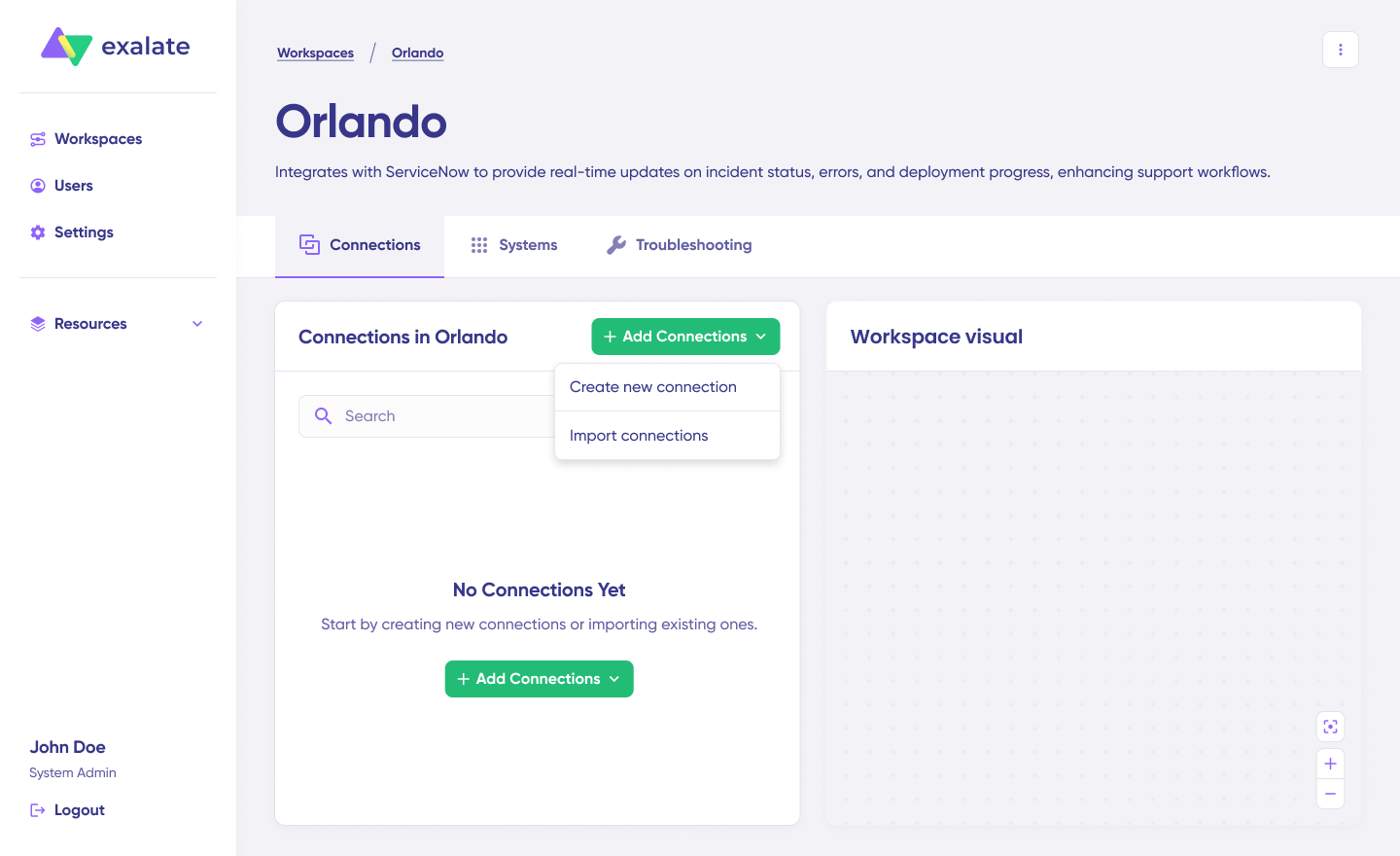
Exalate is AI-powered, which means you can set up integrations using natural language prompts. Describe what you want to sync, and the AI generates the Groovy-based sync scripts for you. You can then review and refine the scripts for full control over the logic.
Some key capabilities of Exalate:
- Platform-native triggers. Automate syncs with granular triggers and conditions using each platform’s native query language (JQL for Jira). Define exactly which work items should sync based on project, status, priority, labels, or any combination of criteria.
- AI-assisted script generation. Exalate uses Groovy-based scripts to handle data transformation between instances. The AI-assisted configuration layer generates these scripts from natural language prompts, reducing implementation time significantly. You describe a sync like “sync all critical bugs with attachments and comments from Instance A to Instance B, and map the ‘Urgent’ priority to ‘Highest'” and get a working script to deploy or customize further.
- Aida. Exalate’s AI scripting assistant helps you generate, troubleshoot, and refine sync scripts. Aida can answer questions about scripting logic, suggest solutions for specific mapping scenarios, and guide you through complex integration planning. It’s built to reduce the scripting learning curve and speed up implementation.
- Independent sync control. Each Jira instance in an Exalate connection maintains its own incoming and outgoing sync scripts. This means Instance A can decide what data it sends and how it processes data from Instance B, completely independently. Neither side is the “master.” This is critical for cross-company integrations where each organization needs autonomy over its own data.
- Robust error handling. A queuing mechanism tracks every sync operation, so if a sync fails due to a temporary network issue or API rate limit, it retries automatically. You get visibility into sync status without needing to build your own monitoring.
Exalate is ISO 27001:2022 certified, with detailed security documentation available at trust.exalate.com. For teams dealing with sensitive data in cross-company integrations, this level of compliance matters.
In short, Exalate works well if you need a customizable, secure way to integrate Jira with other tools and instances while maintaining independent control on each side.
ScriptRunner Connect
ScriptRunner Connect allows you to connect projects and workflows between different Jira instances and Atlassian tools like Bitbucket, Confluence, and Monday.com.
Some key features of ScriptRunner Connect:
- Script Console Log for error handling and debugging, giving you visibility into what your scripts are doing and where they fail.
- Event Listeners and Scheduled Triggers to automate actions based on specific events in Jira, running your integration logic when conditions are met.
- AI assistant (ChatGPT 4o-based) that helps with script generation, though usage is credit-based and limited depending on your plan.
- Intuitive IDE with IntelliSense for writing TypeScript and JavaScript-based integration scripts with code completion and syntax checking.
- Connection templates and managed APIs that provide pre-built starting points for common integration scenarios, reducing initial setup time.
It offers a range of no-code and low-code features that let you automate processes and customize workflows with Jira Cloud.
Exalate vs. ScriptRunner Connect: Key Differences
Although both support scripting, their integration architectures are fundamentally different.
- Sync model. Exalate treats each Jira instance as an independent peer. Each side has its own Groovy scripts for incoming and outgoing data, and neither instance controls the other. ScriptRunner Connect handles Jira-to-Jira integrations through REST API calls from one instance to another, which makes it more of a push/pull model where one Jira actively manages the sync.
- AI-assisted scripting. Exalate provides unlimited access to AI-assisted script generation and Aida, the scripting assistant. ScriptRunner Connect’s AI usage is capped based on available credits.
- Language. Exalate uses Groovy (Java-based). ScriptRunner Connect uses TypeScript and JavaScript.
- Cross-platform reach. Exalate supports a broader range of platforms out of the box, including ServiceNow, Salesforce, Zendesk, Freshdesk, Freshservice, Asana, Azure DevOps (Cloud and Server), and GitHub. ScriptRunner Connect is more tightly coupled with the Atlassian ecosystem.
For cross-company integrations where each party needs independent control over their data, Exalate’s peer-to-peer model is the stronger fit. For internal Atlassian-heavy environments where one team manages all the integrations, ScriptRunner Connect is a viable option.
4. Third-Party Jira Automation Tools (Fire and Forget)
Automation tools are built for simplicity. They’re the right choice when you need a quick connection between Jira and another tool, the data flow is mostly one-directional, and you don’t need to transform data in complex ways. Think of these as set-it-and-forget-it solutions.
The tradeoff is flexibility. Most automation tools don’t support bidirectional sync, advanced field mapping, or the kind of granular control that script-based tools offer. If your integration requirements grow beyond basic triggers and actions, you’ll outgrow these tools.
Tray.ai
Tray lets you build AI-powered agents to seamlessly connect communication tools, work management systems, online databases, payment solutions, and more.
Here are some of Tray’s key features:
- Merlin Agent Builder for creating production-ready AI agents to automate tasks and improve efficiency across your tool stack.
- API Management through a visual, low-code development environment where you create integrations, automations, or APIs without needing to code from scratch.
- Merlin AI-powered Chat that uses AI to help with automation and provide better user interactions across your tools.
With its Jira connector, you can automate data transfer and speed up ticket resolution by integrating Jira with other systems like ERPs, CRMs, and more. Tray is designed for teams that want visual workflow building with AI enhancement, but it doesn’t offer the scripting depth needed for complex Jira-to-Jira integrations with bidirectional sync.
Zapier
Zapier is an automation tool that helps you integrate Jira with a massive library of platforms like CRMs, work management tools, and databases.
Key features:
- Zaps create trigger-and-action chains between apps. When something happens in Jira (a new work item is created, a status changes), Zapier can automatically perform an action in another tool or vice versa.
- Tables store and manage data for workflow automation, useful for staging information between steps.
- Interfaces let you build custom workflow pages without coding, for creating forms or approval flows that feed into your Jira integrations.
- Canvas visualizes and maps workflows using AI to simplify process planning.
Zapier excels at connecting Jira to other tools for simple, unidirectional workflows. Need to auto-create a Jira work item when a form is submitted? Zapier handles that in minutes. But it doesn’t support deep customization, advanced scripting, or bidirectional sync between two Jira instances. It’s best for teams that need basic, set-and-forget automation.
Make
Make is a visual-first integration solution that helps you synchronize data between Jira and over 2,000 other platforms, from social media apps and CRM tools to design platforms and databases.
Key features:
- Flow control and data filtering for managing exactly what data moves through your workflows and what gets filtered out.
- Error handling with built-in mechanisms for handling failures gracefully, so automations don’t break silently.
- Visual Workflow Editor uses drag-and-drop to create and configure scenarios with no code, making integration setup accessible for non-technical users.
- 2FA and Company-Wide SSO for securing access to your integration workflows.
Make’s visual approach makes it easy to see what your integration does at a glance. It’s stronger than Zapier for multi-step workflows with branching logic, but like other automation tools, it’s not designed for complex bidirectional sync or deep data transformation between Jira instances.
n8n
n8n is an open-source workflow automation platform that allows you to automate tasks and integrate Jira with different apps, services, and systems without needing to write code for basic scenarios.
Key features:
- Visual workflow builder for setting up workflows with a node-based interface where each node represents a specific action.
- AI nodes and chatbots for incorporating AI capabilities directly into your automation flows.
- Transformers for looping, filtering, and manipulating data and lists within workflows.
- Code-based automation using JavaScript and Python for when visual nodes aren’t enough and you need custom logic.
- Event triggers and webhooks for kicking off workflows when specific events happen in Jira or other connected services.
n8n stands out from other automation tools because it supports code-based scripting alongside its visual builder. This makes it more flexible than Zapier or Make for complex workflows. It’s also self-hostable, which appeals to teams with strict data residency requirements. However, its Jira integration is still primarily trigger-and-action-based rather than a deep, bidirectional sync solution.
How to Choose the Right Method for Your Use Case
Picking the right tool depends on three things: the complexity of your integration, whether you need bidirectional sync, and how much control you need over data transformation.
For simple, internal automation: If you just need to auto-assign work items or close stale tickets within Jira Cloud, native Jira Automation handles this without any third-party tools.
For basic cross-tool connections: If your Jira integration is one-directional (Jira to Slack notifications, form submissions creating Jira work items), Zapier, Make, or n8n get the job done quickly.
For bidirectional, cross-instance sync: If two or more Jira instances need to share data in both directions with independent control, script-based tools like Exalate or ScriptRunner Connect are the right category. This is especially true for cross-company scenarios.
For full custom control with unlimited scope: If no off-the-shelf tool covers your exact requirements, custom connectors via Jira’s REST API give you total control but at a significant development and maintenance cost.
Here’s a comparison of the tools discussed and the capabilities they support for Jira instance integration:
| Tool | Automation | Custom Integration | Bidirectional Sync | Cross-Platform Support |
| Exalate | Yes (Triggers) | Yes (Groovy scripting) | Yes | Jira, ServiceNow, Salesforce, Zendesk, Azure DevOps, Freshdesk, Freshservice, Asana, GitHub, and more |
| ScriptRunner Connect | Limited | Yes (TypeScript/JS scripting) | Partial | Jira, Bitbucket, Confluence, Monday.com |
| Zapier | Yes (Zaps) | No | No | 6,000+ apps (broad but shallow) |
| Tray.ai | Yes (Workflows) | No | No | 600+ connectors |
| Make | Yes (Modules/Scenarios) | No | No | 2,000+ apps |
| n8n | Yes (Nodes) | Yes (Python/JS scripting) | Partial | 400+ integrations |
| Application Links | Yes | No | No | Atlassian ecosystem only |
| Jira Automation | Yes | No | No | Jira Cloud native |
The Bottom Line
Connecting multiple Jira instances doesn’t have to be a nightmare. Pick the method that solves your biggest pain point today, then scale up as your integration needs grow.
Native integrations are a good starting point for basic internal workflows, but they can only take you so far. Jira Automation and Application Links don’t offer the customization or cross-instance sync capabilities that most growing teams eventually need.
Building your own custom Jira integration gives you total control but comes with real costs: dedicated development resources, ongoing maintenance, and the engineering overhead of handling API changes, error recovery, and scaling.
Automation tools like Make, Zapier, and n8n connect Jira instances quickly for simple, mostly one-directional workflows. They’re perfect for fire-and-forget scenarios but limited when you need bidirectional sync or complex data transformation.
Third-party integration tools like Exalate and ScriptRunner Connect give you granular customization through scripting engines, automated triggers, and AI-assisted configuration. Exalate’s independent control model makes it particularly well-suited for cross-company integrations where each party needs to manage its own sync rules.
Stop letting fragmented instances slow down your projects. Choose your connector, sync your data, and get back to managing work instead of wrestling with tools.
Frequently Asked Questions
Can You Connect Two Jira Cloud Instances?
Yes. You can connect two Jira Cloud instances using native Atlassian tools (like Jira Automation for basic triggers), third-party automation platforms (like Zapier or Make for simple workflows), or dedicated integration tools like Exalate for bidirectional sync with full control over what data moves and how it transforms between instances. The right choice depends on whether you need one-directional automation or a continuous, bidirectional sync.
What Is the Best Way to Sync Work Items Between Jira Instances?
The best approach depends on your complexity requirements. For basic, one-directional syncs, automation tools like Zapier work fine. For bidirectional sync where both instances need to stay in sync with independent control over the data flow, script-based tools like Exalate are the better fit. Exalate lets each instance define its own incoming and outgoing sync rules using Groovy scripts, and offers AI-assisted configuration to generate those scripts from natural language prompts.
Does Exalate Support Jira-to-Jira Integration?
Yes. Exalate supports Jira Cloud-to-Jira Cloud integration, including sync of work items, comments, attachments, statuses, priorities, labels, custom fields, and work item links. Each Jira instance maintains independent sync scripts, so you control what data leaves your instance and how incoming data gets mapped. Exalate also connects Jira with platforms like ServiceNow, Salesforce, Zendesk, Azure DevOps (Cloud and Server), Freshdesk, Freshservice, Asana, and GitHub.
Can I Sync Custom Fields Between Jira Instances?
Yes, but the method matters. Native Jira tools don’t handle custom field mapping well. Script-based tools like Exalate and ScriptRunner Connect let you map custom fields explicitly in your sync scripts. With Exalate, you define how a custom field on Instance A maps to a field on Instance B in the Groovy sync rules. This includes text fields, select lists, multi-select fields, date fields, and number fields. Aida, Exalate’s scripting assistant, can help generate the mapping logic if you describe what you need.
Is Bidirectional Sync Possible Between Jira Instances?
Bidirectional sync is possible but not all tools support it. Native Atlassian tools and most automation platforms (Zapier, Make, Tray.ai) are primarily one-directional. Exalate and, to a lesser extent, ScriptRunner Connect support true bidirectional sync where changes on either side propagate to the other. With Exalate, each instance has its own sync scripts, preventing conflicts and giving both sides independent control over data flow.
Can I Connect Jira With Non-Jira Platforms Using the Same Tool?
Yes. One of the advantages of using a cross-platform integration tool like Exalate is that the same tool handles both Jira-to-Jira and Jira-to-other-platform connections. So if you’re already syncing two Jira instances with Exalate, adding a connection to ServiceNow, Salesforce, Zendesk, Freshdesk, Freshservice, or Azure DevOps doesn’t require a separate tool or different setup methodology. The Groovy scripting engine and AI-assisted configuration work the same way across all supported connectors.
What Triggers Can I Use to Automate Jira-to-Jira Sync?
With Exalate, you use JQL (Jira Query Language) to define which work items trigger a sync. For example, you could set a trigger like project = "DEV" AND priority = "Critical" AND status changed to "In Progress" to only sync critical work items that have entered active development. This granular control means you’re not syncing everything, only the work items that actually need to flow between instances.
How Long Does It Take to Set Up a Jira-to-Jira Integration With Exalate?
Setup time depends on the complexity of your requirements. For a straightforward sync (work items, comments, attachments, statuses between two instances), AI-assisted configuration can generate the initial scripts in minutes. Reviewing and refining those scripts, testing the sync, and deploying typically takes a few hours to a day. More complex integrations with multiple field mappings, conditional logic, and multi-instance connections take longer but are still significantly faster than building a custom connector from scratch.
Can Exalate Connect More Than Two Jira Instances?
Yes. Exalate supports multi-instance configurations where you can create connections between any number of Jira instances. Each connection is independent, so the sync rules between Instance A and Instance B don’t affect the rules between Instance A and Instance C. This is particularly useful for MSPs managing multiple client Jira instances or large organizations with department-specific Jira environments that need selective data sharing.