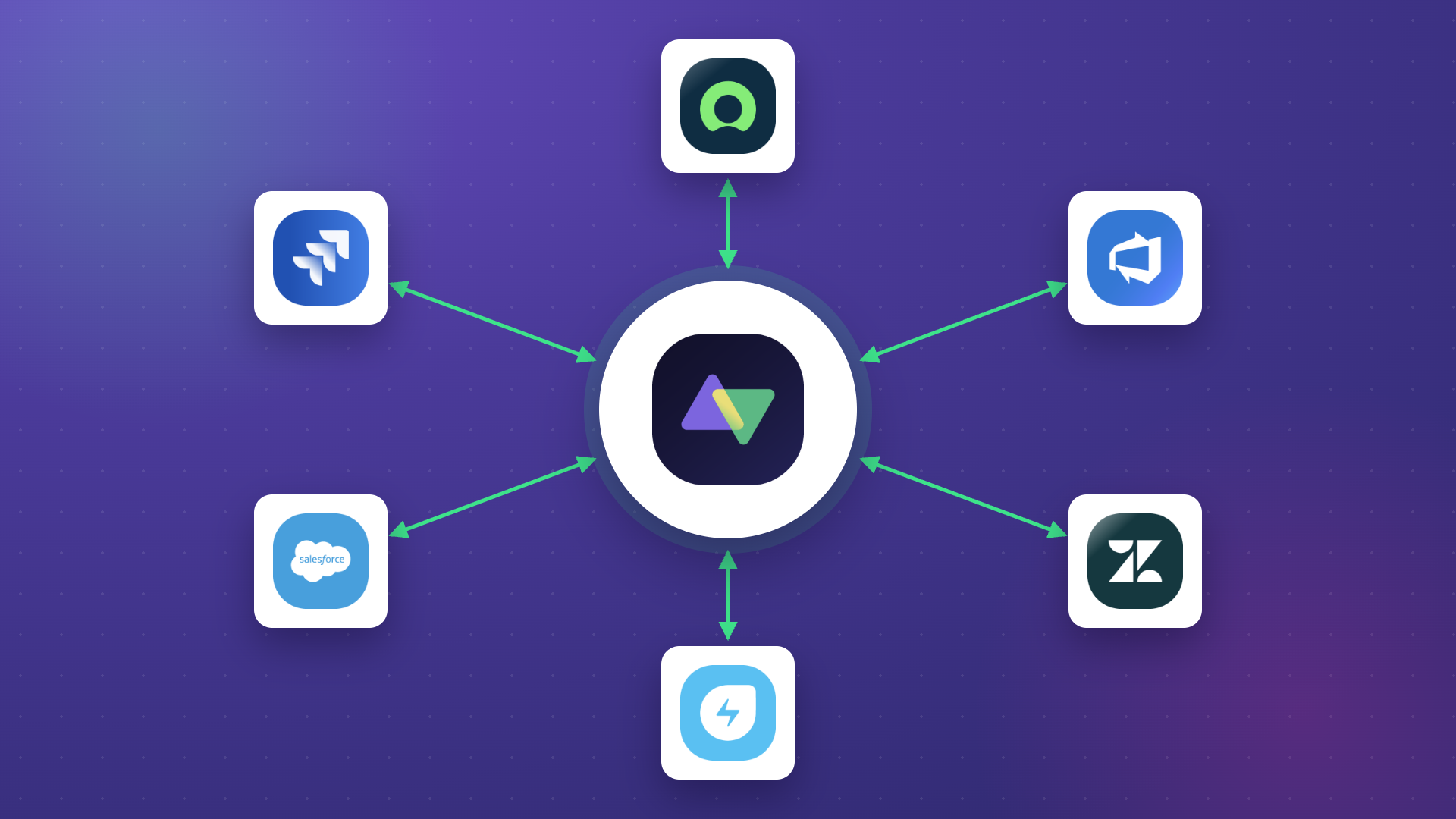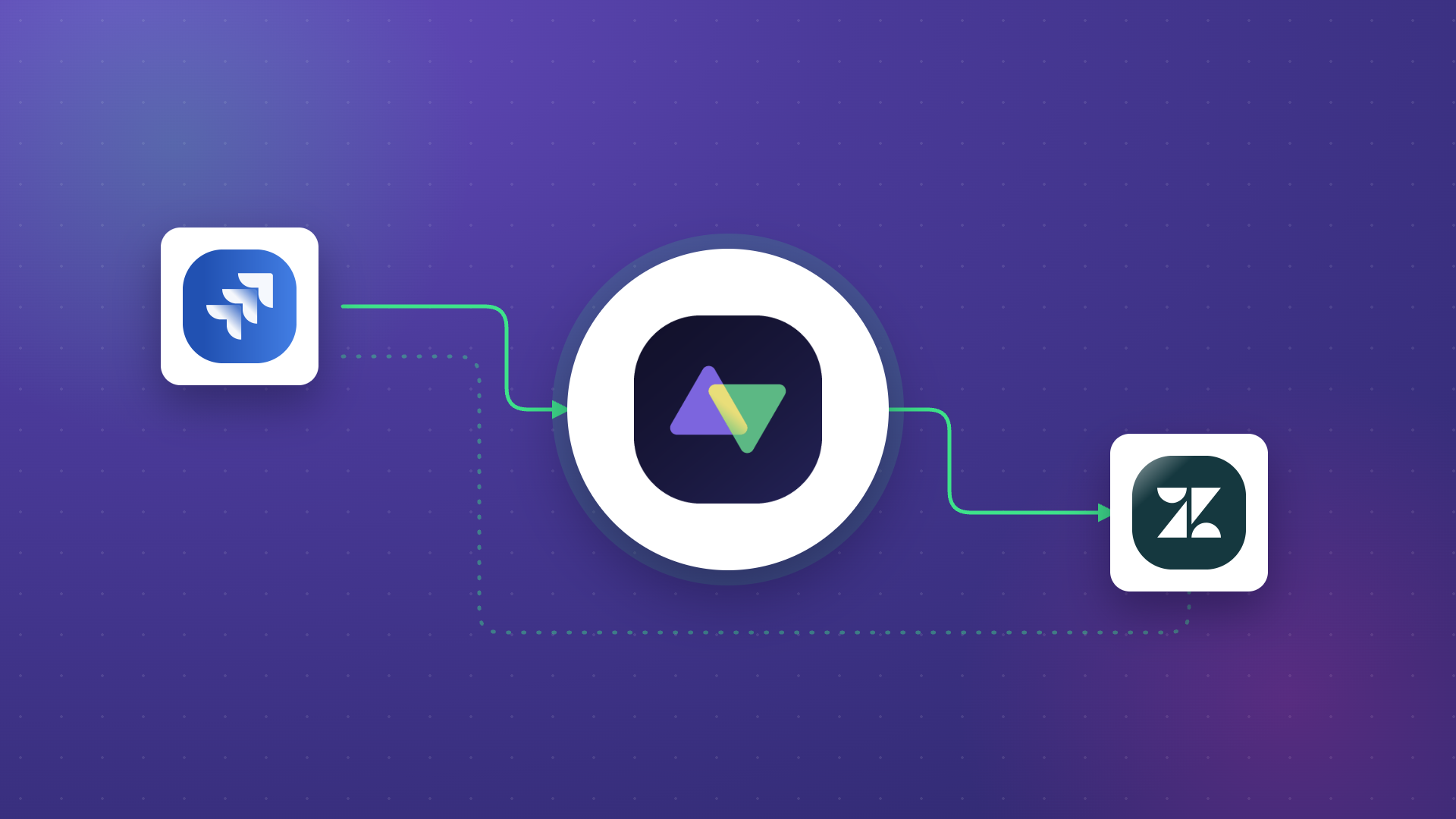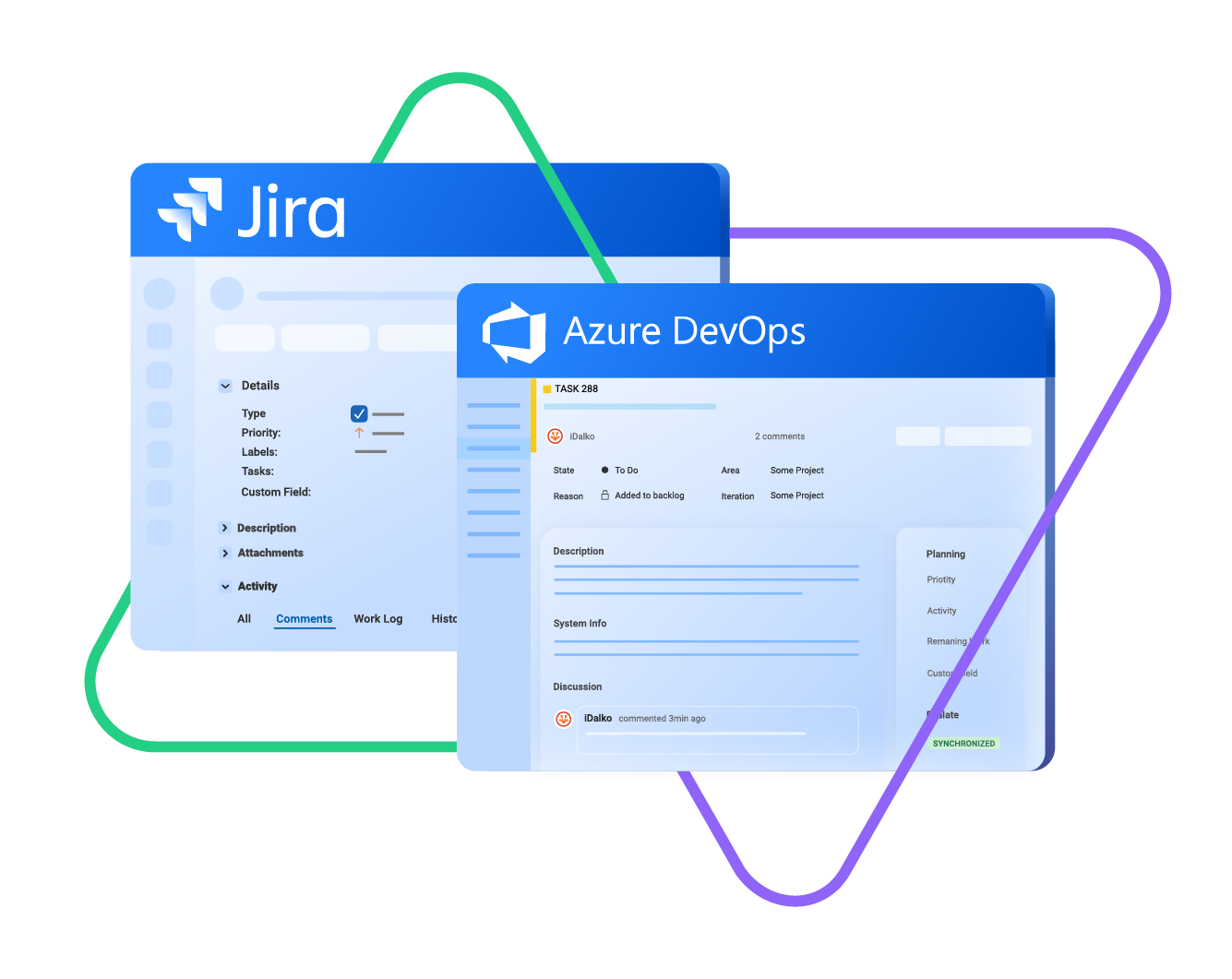
MSPs managing multiple clients lose hours each week to manual ticket transfers and status mismatches. This guide covers how to build a live, bidirectional integration between ServiceNow, Jira Cloud, and Azure DevOps with automated routing and AI-assisted script generation using Exalate.
Key Takeaways
- A working ServiceNow-to-Jira bridge takes under 5 minutes to set up in Exalate.
- The connection is bidirectional by default: comments, status changes, and field updates flow both ways in real time.
- Aida, Exalate’s AI assistant, generates custom field mapping and status alignment scripts from plain-language prompts.
- Automated routing sends incidents to the right client system based on ServiceNow assignment groups.
- Adding a second client system is simple and efficient, and reuses the existing ServiceNow connection.

What is ServiceNow-to-Jira integration?
ServiceNow-to-Jira integration is an automated, bidirectional bridge that keeps incident data in sync between your ITSM platform and your client’s project management system. When an incident is created or updated in ServiceNow, the change is reflected in Jira Cloud automatically, and the same applies in reverse.
For MSPs and MSSPs, this removes the manual handoff between your team’s workflow and your clients’. Your engineers stay in ServiceNow. Your clients’ teams stay in Jira or Azure DevOps. Exalate keeps both sides aligned without either party leaving their own system.
The Structural Problem
ServiceNow is your operational layer. Jira and Azure DevOps are your clients’ delivery layers. Without an automated bridge, every incident update creates a manual handoff, and manual handoffs create blind spots, duplicated effort, and delayed resolutions.
Why Manual Ticket Transfers Break at Scale
Manual processes work for two or three clients. They fail at twenty. The failure points are consistent: an engineer resolves a ServiceNow incident but forgets to update the Jira ticket. A comment gets added on one side and never reaches the other. A status stays at In Progress in Jira long after ServiceNow shows Resolved.
These are not process failures; they are structural ones. The systems are siloed, and there is no automated flow between them. As client volume grows, the gap between what your team knows and what your clients see gets wider.
A properly configured integration eliminates these bottlenecks entirely. Status changes sync automatically. Comments mirror within seconds. Field data, like the original ServiceNow incident number and URL, is written into the client ticket at creation time.
Setting Up the ServiceNow to Jira Connection in Exalate
Exalate uses a unified console, a hub that holds all your authenticated system connections, helping you visualize how they are connected in real time. Once a system is registered, it can be reused across multiple integrations without re-authenticating.
Here is the exact setup sequence:
- Register an account on the Exalate app.
- Add your instance URL and authenticate with your username and password. Exalate validates the credentials and confirms the connection. Register ServiceNow.
- Click Connect with Jira Cloud. Exalate uses OAuth. You approve access on the Atlassian authorization page. No API tokens to manage manually. Register Jira Cloud.
- Create the connection: name the connection, select both systems, and Exalate builds the bridge. The integration is live and bidirectional at this point, before any custom configuration.
- Choose which Jira project incoming ServiceNow incidents should land in. Multi-project routing is handled via scripting if your setup requires it. Select a target Jira project.
- Enter a ServiceNow incident number and trigger a manual sync. A Jira ticket is created immediately. Comments added in Jira appear in ServiceNow within seconds, and vice versa. This works as a test sync.
Note
By default, both internal and public ServiceNow notes sync to Jira. You can configure the outgoing script to filter out internal notes, ensuring only client-facing updates cross the bridge.
View how Exalate creates a registered, authenticated, bidirectional connection between ServiceNow, Jira Cloud, and Azure DevOps in this video.
Custom Field Mapping and Status Alignment
Mapping Custom Fields with Aida
Custom field mapping is handled through Exalate’s scripting layer: an outgoing script (what data leaves ServiceNow) and an incoming script (how Jira processes it).
A common requirement is populating Jira custom fields such as Remote Number and Remote Link with the original ServiceNow incident number and URL. You describe this in plain language to Aida, Exalate’s built-in AI assistant. Aida generates the script. You review it, run a dry-run test against a real incident, and publish.
Test Run catches errors before they affect live tickets. After publishing, every future incident that crosses the bridge carries the remote reference data automatically.
Syncing Attachments Across Systems
Attachments follow the same logic as field data. Screenshots, log files, and diagnostic exports added to a ServiceNow incident can be configured to sync across to the corresponding Jira or Azure DevOps ticket automatically. This is handled through the scripting layer: you define which attachment types cross the bridge and in which direction. For MSPs, this matters most during incident escalation, where the client’s engineering team needs the same evidence your team is working from, without having to request it manually.
Aligning Statuses Across Systems
ServiceNow and Jira use different status vocabularies. ServiceNow typically uses New, In Progress, and Resolved. Jira workflows commonly use To Do, In Progress, and Done. Without a status mapping, a resolved ServiceNow incident stays at In Progress in Jira indefinitely.
You prompt Aida: Map New to To Do, In Progress to In Progress, and Resolved to Done. Aida generates the mapping script. You publish it. From that point, any status change on the ServiceNow side triggers the corresponding Jira transition automatically, covering the full incident lifecycle from creation to resolution.
With Aida
You do not need to know how APIs or Groovy scripts work. You need to understand the two systems and be able to describe the relationship between them in plain English. Aida does the translation. This opens integration configuration to business-side team members, not just developers.
Automated Incident Routing from ServiceNow
Automation removes the last manual step: the sync trigger. Instead of entering an incident number each time, you set a filter in ServiceNow and Exalate watches for it continuously.
Example
Set a ServiceNow filter for assignment group = Database. Copy the query string. Paste it into Exalate as a trigger. Publish. Every new ServiceNow incident assigned to the Database group now flows into Jira automatically.
The routing logic can be as specific as your setup needs. You can filter on assignment group, category, priority, configuration item, or any combination of ServiceNow fields.
Scaling to a Second Client: ServiceNow to Azure DevOps
Once the Jira integration is running, adding Azure DevOps as a second client system takes minutes. Exalate already holds your ServiceNow authentication; you only register the new system.
Add your Azure DevOps instance URL and authenticate with a Personal Access Token (PAT). Exalate creates a new connection. You select a target ADO project and set a separate routing trigger, for example, assignment group = Networks.
The result: Database incidents route to Jira. Network incidents route to Azure DevOps. Both connections are bidirectional. Comments from Jira land on the Jira-linked ServiceNow incident. Comments from Azure DevOps land on the Azure DevOps-linked one. No crossover.
Live Test Demo
In a live demo, two incidents were created simultaneously: one per assignment group. Both landed in the correct systems within seconds. Comments added from Jira and Azure DevOps each appeared on their respective ServiceNow incidents, with no data mixing between the two streams.
What This Integration Replaces in an MSP Workflow
- Manual ticket creation in client systems after a ServiceNow incident is raised
- Copy-pasting comments between platforms during incident resolution
- Chasing clients for status updates because their Jira ticket is out of sync
- Developer time spent maintaining brittle point-to-point API scripts
- Onboarding delays when a new client uses a system your team has not integrated before
Summary
ServiceNow-to-Jira and ServiceNow-to-ADO integrations are a core operational need for MSPs managing multi-client environments. Exalate builds these connections in a few minutes, supports bidirectional sync out of the box, and uses Aida, its AI scripting layer, to handle custom fields and status mapping without code. Automated routing via ServiceNow filters removes the last manual step. Adding a second client system reuses the existing ServiceNow connection and takes minutes to configure.