This article was originally posted on the Atlassian community.
With Exalate, you can sync inline images from Freshdesk to Jira Cloud. Whenever you add an inline image in a note or the description of a Freshdesk ticket, it gets automatically forwarded to Jira.
Similarly, when you add an inline image to a work item description or comment in Jira, it will appear as an actual inline image in the Freshdesk public note or as an attachment.
The important part: images stay inline and don’t clutter the work item as separate attachments. But to understand how that works, let’s first cover the difference between inline images and attachments.
Then we’ll walk through how to sync them between Freshdesk and Jira Cloud using Exalate.
Get Exalate on the Atlassian Marketplace

What is the Difference Between Inline Images and Attachments?
Inline images are embedded directly into the ticket description or comment. Think of them as “in-text” images. They render within the flow of the text, making the message more readable and self-explanatory.

Attachments, on the other hand, are files listed separately from the main message body, usually below it. They’re meant for download and long-term reference.
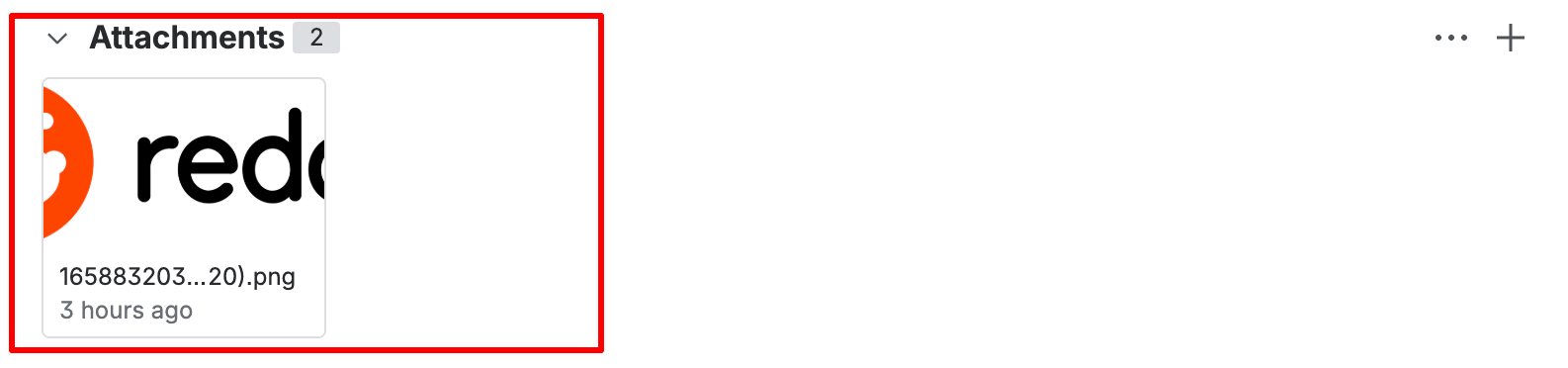
In Jira, attachments appear in the work item as a separate field for download.
The core difference comes down to user experience: inline images provide context directly within a ticket or work item, while attachments are better for storage and download. For support-to-dev workflows, inline images are typically more useful because screenshots, error messages, and visual references stay right where the conversation is.
Why Sync Inline Images Between Freshdesk and Jira?
When support and development teams work across Freshdesk and Jira, screenshots and visual context often get lost in translation. A support agent might paste a customer screenshot directly into a Freshdesk note, but if that image doesn’t carry over to Jira, the developer ends up asking for the screenshot again or working without it.
Syncing inline images solves this by keeping visual context intact as tickets move between systems. This is especially useful for scenarios like bug reports with UI screenshots, security incidents with log captures, or change management requests with configuration visuals.
What to Consider When Syncing Inline Images Between Freshdesk and Jira
When syncing inline images with Exalate, Jira Cloud sends data as Markdown, and Freshdesk sends data as HTML.
Due to these format differences, some formatting errors for text, images, and comments might appear after the sync. You can handle this with Exalate’s Groovy scripting engine, which comes with built-in transformers and converters specifically designed for HTML-to-Markdown and Markdown-to-HTML conversion.
Key things to keep in mind:
- Freshdesk supports HTML formatting by default for descriptions and comments, so you don’t need to strip HTML on the outgoing side.
- Jira Cloud uses Markdown, so incoming HTML content needs to be converted using Exalate’s nodeHelper methods.
- Rich text formatting (bold, italic, lists, links) is preserved during conversion when using the correct scripts.
- Multi-line custom fields in Freshdesk do not support rich text, so inline images only work in descriptions and comments.
How to Sync Inline Images
Let’s look at the use case closely. When you add an inline image to a Jira comment:

The comment will appear on the Freshdesk ticket alongside the image.

This feature requires a connection between Jira Cloud and Freshdesk, which allows you to write custom scripts to map inline images. You can also use Aida, Exalate’s AI-assisted configuration, to generate these scripts from a plain language prompt.
After setting up the connection, go to the scripting console and add the following code snippets on either side.
Jira Cloud Outgoing
Use the following scripts to convert data from Markdown to HTML:
replica.description = nodeHelper.getHtmlField(issue, "description")

replica.comments = nodeHelper.getHtmlComments(issue)Code language: JavaScript (javascript)
The getHtmlField and getHtmlComments methods fetch the descriptions and comments from the Jira work item and send them out in HTML format.
Jira Cloud Incoming
The following code converts incoming HTML data from Freshdesk to Markdown for Jira:
issue.description = nodeHelper.toMarkDownFromHtml(replica.description)

issue.comments = nodeHelper.toMarkDownComments(commentHelper.mergeComments(issue, replica))
The toMarkDownFromHtml and toMarkDownComments methods fetch the description and comments from the incoming Freshdesk payload and convert them into Markdown.
Freshdesk Outgoing
Add this code snippet to the Freshdesk outgoing side:
replica.description = entity.description

replica.comments = entity.comments
This is an alternative to using the stripHtml method in Exalate for Freshdesk since HTML is supported by default. Replace the replica for both descriptions and comments with this snippet.
Freshdesk Incoming
The following code snippet fetches image attachments from the incoming payload:
entity.attachments = attachmentHelper.mergeAttachments(entity, replica)
This code fetches all the incoming images as attachments for Freshdesk.
Once you’ve added the scripts, use the Test Run feature to validate the sync against real data before publishing to production. Select one or more work items, run the test, and review the incoming and outgoing replicas to make sure inline images are rendering correctly.
When everything looks good, click “Publish Version” to apply the configuration to your live sync. Script versioning keeps a full history of changes, so you can always roll back if needed.
Summing Up
Syncing inline images between Jira Cloud and Freshdesk keeps collaboration between support and development teams tight. Instead of screenshots getting lost as separate attachments or dropped entirely, visual context stays right in the ticket where it belongs.
This reduces back-and-forth between teams, speeds up resolution for bug reports and incidents, and ensures both sides are looking at the same information. Whether you’re dealing with security incidents, technical issues, or change management workflows, inline image sync makes the whole process smoother.
Exalate also supports syncing inline images and rich text across other platforms like ServiceNow, Zendesk, Azure DevOps, Salesforce, Freshservice, Asana, and GitHub, so you can extend this setup to other tools in your stack.
Recommended Reading:
- Freshdesk Jira Integration in the Age of Customer Satisfaction
- How to Sync Issue Types and Select Lists (Dropdown) Between Jira On-premise and Jira Cloud
- How to Synchronize User Mentions in Comments Between Jira Cloud and Jira On-premise
- Jira Integrations: Integrate Jira and Other Systems Bidirectionally