
This article was originally published on the Atlassian community.
Azure DevOps area and iteration paths don’t have a direct equivalent on the Jira side. So to sync this information between both systems, the area and iteration path data needs to be mapped to a custom field in the Jira work item.
For this to work, you need a customizable AI-powered integration solution like Exalate. Exalate lets you generate the scripts for mapping paths and maintaining the relationships between the work item on Azure DevOps and the corresponding work item on Jira.
Get Exalate on the Atlassian Marketplace

What is an Area Path?
An area path establishes a hierarchy for work items related to a specific project. It helps you group work items based on team, product, or feature.
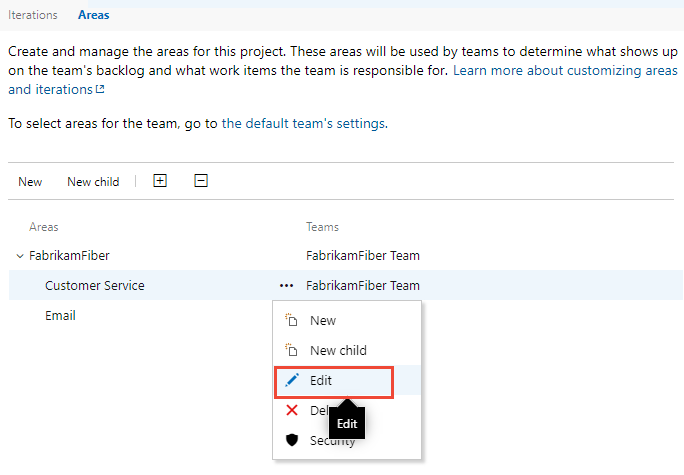
Organizations working on a product or feature can use area paths to establish a hierarchy between teams at every level of involvement. You can assign the same area path to multiple teams.
For example, a project with separate front-end, back-end, and QA teams could have area paths like ProjectName\FrontEnd, ProjectName\BackEnd, and ProjectName\QA. This lets each team filter and manage their own backlog while leadership sees everything at the project level.
What is an Iteration Path?
An iteration path assigns work items at the project level based on time-related intervals. Teams can share them to keep track of ongoing projects, specifically for sprints, releases, and subreleases.
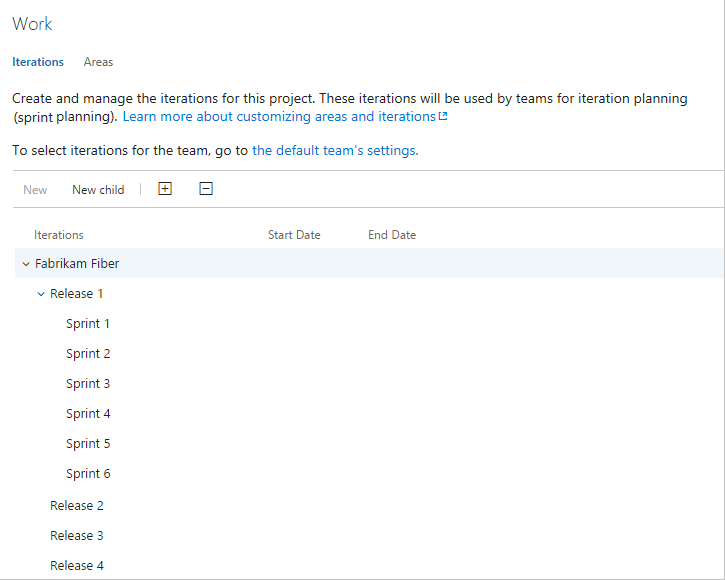
When new work items are added to the Sprint backlog, they become accessible via the existing iteration path. You can add up to 300 iteration paths per team.
A common structure looks like ProjectName\Release1\Sprint1, ProjectName\Release1\Sprint2, and so on. This helps teams track which sprint a work item belongs to and plan capacity across releases.
Why Sync Area and Iteration Paths Between Jira and Azure DevOps?
You can create a custom field in your Jira instance to reflect the data from the iteration and area paths. Here’s how this helps your organization:
Cross-team visibility: Syncing area path data gives Jira users context about which Azure DevOps teams are working on what, without needing to log into Azure DevOps separately.
Sprint and release tracking: Iteration path data provides context about timelines, sprint progress, and release stages for mapped projects and entities. Teams working in Jira can see exactly where work stands on the Azure DevOps side.
Better planning: When project managers can see both area ownership and sprint assignments from within Jira, they can make more informed decisions about resource allocation and cross-team dependencies.
Primary Requirements
Before configuring the sync, make sure you have:
- Access to the right API information on both sides.
- The correct sync rules written or generated for both the incoming and outgoing data.
- Triggers to update the custom fields on Jira automatically.
- The right string extracted from the area or iteration path.
How Exalate Handles Jira to Azure DevOps Syncs
Exalate supports one-way and two-way integration between Jira and Azure DevOps, along with other platforms like Zendesk, ServiceNow, Salesforce, GitHub, Freshservice, Freshdesk, Asana, and more.
Here’s what Exalate brings to the table for this kind of sync:
- Groovy scripting engine: Full script-based control for custom mapping logic, including area and iteration paths.
- Aida (AI-assisted configuration): Describe what you need in plain language, and Aida helps generate the Groovy scripts. Useful if you’re not comfortable writing sync rules from scratch.
- Test Run: Test your sync scripts against real data before deploying to production. This is especially useful when mapping paths, since getting the string format wrong can break the sync.
- Script versioning: Every script change creates a new version with a full audit trail. If a path mapping script causes issues, you can roll back instantly.
- Real-time sync: Changes to area or iteration paths sync as they happen, with complete queue visibility.
Since this use case requires scripting, you’ll need to use the Script mode when configuring your connection. Open the Exalate console, go to the connection you want to edit, and click the “Edit connection” icon.
You have two sides to configure:
- Outgoing sync (on the Azure DevOps side) controls the data being sent over to Jira.
- Incoming sync (on the Jira side) controls how the data coming from Azure DevOps is received and stored.
Outgoing Sync (Azure DevOps): Send Area and Iteration Path Details to Jira
To send the area and iteration paths from the Azure DevOps work item, add the following code to your outgoing sync rules:
replica.areaPath = workItem.areaPath

replica.iterationPath = workItem.iterationPath
The replica retrieves the values of the area and iteration paths from the work item and saves them as a string.
On the Jira side, you can store the area/iteration path in a custom field using a type string or select list.
Incoming Sync (Jira): Set Area Path from Azure DevOps as a Custom Field
Let’s start with the area path.
The area path starts with the name of the project. For example, an Azure DevOps project called AzureProject handled by Exalate’s dev team could have an area path: AzureProject\ExalateDev.
To set the area path based on the value received from the remote side text field, add this to your incoming sync rules:
issue.customFields."Area Path".value = replica.areaPath
The issue.customFields.”Area Path”.value retrieves data from the work item and stores it in the designated custom field on Jira.
Tip: If you’re using a select list instead of a text field, you’ll need to adjust the script to match the select list format. Aida can help you generate the correct syntax for your specific custom field type.
Incoming Sync (Jira): Set Iteration Path from Azure DevOps as a Custom Field
The iteration path shows the name of the project as well as the specific sprint.
For example, an Azure DevOps project called AzureProject in the first sprint could have an iteration path: AzureProject\Sprint1
If you don’t set the value for the Area field in the Sync Rules, Exalate uses the default area that has the same name as the project.
To set the iteration path based on the value received from the remote side text field, add this code:
issue.customFields."iPath".value = replica.iterationPath
The issue.customFields.”iPath”.value retrieves data from the work item and stores it in the designated custom field on Jira.
Common Troubleshooting Tips
Custom field not updating: Double-check that the custom field name in your script matches the exact field name in Jira (including capitalization and spaces). A mismatch here is the most common reason the sync runs without errors but doesn’t actually populate the field.
Path string format issues: Area paths use a backslash (\) as a separator, while iteration paths may use a forward slash (//) depending on your Azure DevOps configuration. Make sure the string format you’re receiving matches what Jira expects.
Sync running but no data appearing: Verify that your trigger is set up correctly and that the work items you’re testing with match the trigger conditions. Also check that the custom field exists on the Jira work item type you’re syncing to.
If something still isn’t working, you can use Aida’s troubleshooting feature in the Exalate console to diagnose sync errors and get fix recommendations.
That’s it. You’ve successfully mapped the area and iteration path to a Jira custom field.
If you still have questions or want to see how Exalate is tailored to your specific use case, book a call with one of our experts.
Start a free trial | Get Exalate on the Atlassian Marketplace
Recommended Reading:
- Jira Azure DevOps Integration: The Complete Step-by-Step Guide
- How to Sync and Maintain Issue links, Relations, and Sub-task Mappings between Jira and Azure DevOps
- How to Sync Text, Date, and Picklist Custom Fields Between Jira and Azure DevOps
- How to sync priority in Jira to a Picklist custom field in Azure DevOps
- How Companies Benefit from AI-Powered Jira Azure DevOps Integration