This article was originally published on the Atlassian Community and the Trailblazer Community.
A Jira Salesforce integration brings together business and technical teams in a powerful way. When sales work in Salesforce Cases while development tracks work in Jira, keeping comments in sync becomes essential.
This guide covers an advanced comment sync use case: syncing threaded replies and user mentions between Jira and Salesforce so both teams stay aligned without switching platforms.
The Use Case
This implementation connects Jira Cloud with a Salesforce instance. Here are the key requirements:
A work item created in Jira syncs to Salesforce as a Case (or any other Salesforce object). Basic fields like summary, description, and comments sync between Jira Cloud and Salesforce. Threaded replies to comments (Salesforce chatter feed capability) sync to Jira. Comments from Jira are reflected in Salesforce. User mentions in Jira tag the correct corresponding user in Salesforce (if the user exists on both systems). Comment formatting is maintained throughout the sync.
The Challenges
There are two main transformation challenges between these platforms.
First, Salesforce uses HTML internally to represent comments while Jira uses Wiki Markup. These formatting differences must be addressed correctly during sync.
Second, Salesforce has full “chatter feed” functionality that allows threaded replies to comments. Jira does not have similar functionality natively. The challenge is reflecting these threaded replies back in Jira in a readable format.

The Solution: Exalate
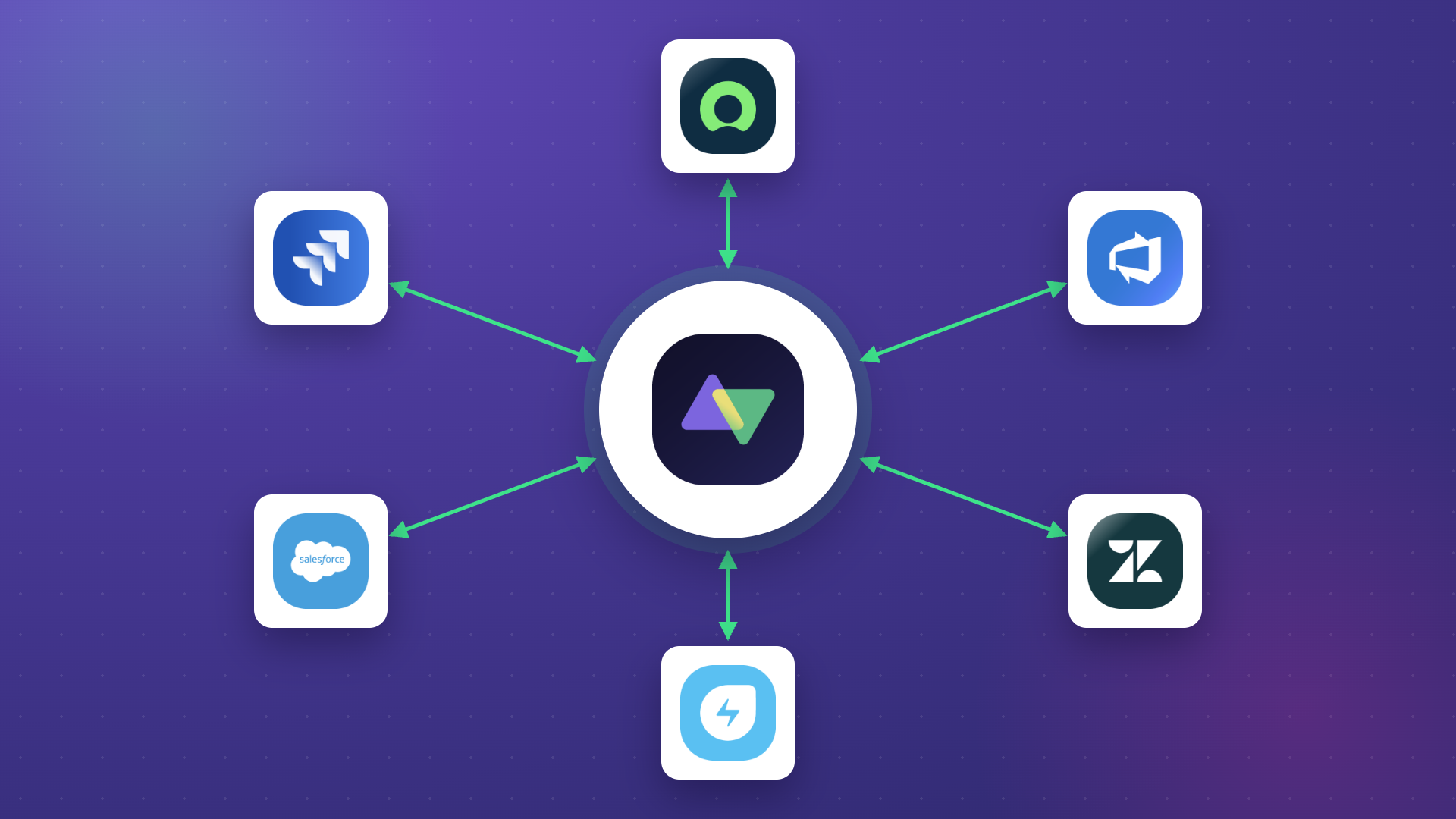
Exalate is a bidirectional synchronization solution that connects multiple platforms, including Jira, Salesforce, Azure DevOps, ServiceNow, GitHub, Zendesk, Freshservice, Freshdesk, Asana, and more.
Its Groovy-based scripting engine lets you implement advanced use cases like this one. Sync rules can be modified for deeper integrations, and you can set up triggers for advanced automatic synchronization.
Key capabilities for this use case include Aida (AI-assisted configuration) to help generate and troubleshoot sync scripts, Test Run functionality to validate scripts before production deployment, script versioning with full audit trail and rollback capability, and real-time sync with complete queue visibility.
How to Implement Advanced Comment Sync Using Exalate
Step 1: Access the Exalate Console
Go to exalate.app and log in. If you are a new user, create an account by entering your email or signing up with Google.
Step 2: Create a Workspace
Workspaces help you organize and manage your integrations and connections in a single place. Navigate to the “Workspaces” tab to find existing workspaces or create a new one.
Step 3: Authenticate Your Systems
Within your workspace, add your Jira and Salesforce instances. For Jira, use OAuth authentication. For Salesforce, use an API token. Once you enter the instance URL, a validation check occurs. If your system is already part of the existing workspace, authentication happens automatically.
Step 4: Create a Connection
Give your connection a name and description, then click “Create connection.” Exalate will register both systems and create the connection automatically.
Step 5: Configure Sync Rules
After creating your connection, select “Continue to configuration.” You have two options: “Quick Sync” for basic configurations or “Edit & Test” for custom scripting.
For this advanced comment sync use case, click “Create a new version” or “Open latest draft” to access the script editor. Click the “Edit” button to modify the sync rules.
The scripts are divided into incoming and outgoing scripts. The outgoing script holds values passed from one system to the other. The incoming script defines how those values are mapped in the destination system. The replica works as a message payload and holds the actual data passed between synced entities in JSON format.
The Implementation Using Exalate
Once the connection has been created, configure the sync rules. These rules are Groovy-based scripts that control what information to send and receive between the two platforms.
You can click the “Configure Sync” button after the connection has been set up, or edit the connection in the “Connections” tab in the Exalate Console.
Rules exist at both ends of the synchronization. The “Outgoing Sync” on the Jira side determines what information goes from Jira to Salesforce. The “Incoming Sync” determines what and how information is received from Salesforce. The same applies to the Salesforce instance.
The scripts generated by default when the connection is created include common fields like summary, description, and comments that can sync out-of-the-box. Now edit them to accommodate the comment sync requirements.
Jira: Outgoing Sync
replica.key        = issue.key
replica.type       = issue.type
replica.assignee   = issue.assignee
replica.reporter   = issue.reporter
replica.summary    = issue.summary
replica.description = issue.description
replica.labels     = issue.labels
replica.comments = issue.comments.collect {
    comment ->
    def matcher  = comment.body =~ /\[~accountid:([\w:-]+)\]/
    def newCommentBody = comment.body
    matcher.each {
        target = nodeHelper.getUser(it[1])?.email
        newCommentBody = newCommentBody.replace(it[0],target)
    }
    comment.body = newCommentBody
    comment
}

replica.resolution = issue.resolution
replica.status     = issue.status
replica.parentId   = issue.parentId
replica.priority   = issue.priority
replica.attachments = issue.attachments
replica.project    = issue.project

//Comment these lines out if you are interested in sending the full list of

//versions and components of the source project.

replica.project.versions = []
replica.project.components = []Code language: JavaScript (javascript)
Here is what happens in this script:
- The collect method iterates over the comments array of the Jira work item and transforms them before assigning them to the replica (to be sent to the other side).
- The transformation extracts user mentions in the comment body and replaces them with the email address of that user instead. The replica now contains the comment, not with the Jira-specific mention, but with an email address corresponding to the mentioned user.
Salesforce: Outgoing Sync
if(entity.entityType == "Case") {
replica.key        = entity.Id
replica.summary    = entity.Subject
replica.description = entity.Description
replica.attachments = entity.attachments
replica.Status     = entity.Status
replica.comments = entity.comments.inject([]) { result, comment ->

    def res = httpClient.get("/services/data/v54.0/query/?q=SELECT+Name+from+User+where+id=%27${comment.author.key}%27")
    comment.body = nodeHelper.stripHtml(res.records.Name[0] + " commented: " + comment.body)

    result += comment

    def feedResponse = httpClient.getResponse("/services/data/v54.0/chatter/feed-elements/${comment.idStr}")
    def js = new groovy.json.JsonSlurper()
    def feedJson = groovy.json.JsonOutput.toJson(feedResponse.body)

    feedResponse.body.capabilities.comments.page.items.collect {

        res = httpClient.get("/services/data/v54.0/query/?q=SELECT+Name+from+User+where+id=%27${it.user.id}%27")
        def c = new com.exalate.basic.domain.hubobject.v1.BasicHubComment()
        c.body = res.records.Name[0] + " commented: " + it.body.text
        c.id = it.id
        result += c
        }
    result
    }
}Code language: JavaScript (javascript)
Here is what happens in this script:
The inject method iterates over all comments and performs several operations.
- For each Salesforce comment, the script first fetches the username of the comment author and appends it to the comment body (so it reflects on Jira). The script uses the stripHtml() method to transform the HTML-formatted Salesforce comments into plain text for the Jira side. The main comment is added to the result variable.
- For each Salesforce main comment, the script then fetches associated threaded replies and populates them in the feedResponse. Each threaded reply is sanitized by removing HTML and appending the author’s name to the comment body, then added to the result variable.
- Once iterations are complete, the result contains the main comments and threads that have been transformed. It is then assigned to the replica to be sent to the Jira side.
Salesforce: Incoming Sync
if(firstSync){
        entity.entityType = "Case"
}

if(entity.entityType == "Case"){
  entity.Subject  = replica.summary
  entity.Description  = replica.description
  entity.Origin   = "Web"
  entity.Status   = "New"
  entity.attachments  = attachmentHelper.mergeAttachments(entity, replica)

def commentMap = [
  "user1@company.com" : "0058d000004df3DAAQ",
  "user2@company.com" : "0057Q000006fOOOQA2"
  ]

def flag = 0
replica.addedComments.collect {
    comment ->
    def matcher  = comment.body =~ /([a-zA-Z0-9._-]+@[a-zA-Z0-9._-]+\.[a-zA-Z0-9_-]+)/
    def newCommentBody = comment.body
    matcher.each {

        newCommentBody = newCommentBody.replace(it[0],"")
        def res = httpClient.post("/services/data/v54.0/chatter/feed-elements", \
        "{\"body\":{\"messageSegments\":[{\"type\":\"Text\", \"text\":\"${newCommentBody} \" },{\"type\":\"Mention\", \"id\":\"${commentMap[it[0]]}\"}]},\"feedElementType\":\"FeedItem\",\"subjectId\":\"${entity.Id}\"}")
        flag = 1
    }
}

if (flag == 0)
    entity.comments = commentHelper.mergeComments(entity, replica)
}Code language: JavaScript (javascript)
Here is what happens in this script:
Remember that when sending comments from the Jira side, user mentions were replaced with email addresses. In Salesforce, create a mapping called commentMap that maps email addresses to corresponding Salesforce User IDs.
The script iterates over comments in the replica. For each comment, it extracts the email address, maps it using commentMap, and replaces the email address in the comment with the Salesforce mention of the mapped user.
Jira: Incoming Sync
No modification is needed here since the default behavior is sufficient for this use case.
Step 6: Test Your Configuration with Test Run
Before deploying to production, use the Test Run feature to validate your sync scripts. Select the work items you want to test against, click “Start Test Run,” and view all incoming and outgoing replicas for each item. This lets you verify the comment transformation logic works correctly without affecting live data.
Step 7: Publish and Monitor
Once testing is complete, publish your configuration. Use the Activity Dashboard to monitor sync status across all connections and track synchronization progress in real time.
Output
Once the code is inserted into the respective outgoing and incoming syncs, comments and threaded replies automatically reflect in Jira.
When you insert a threaded comment in Salesforce, all of them get reflected in Jira as individual comments with the author’s name prepended.
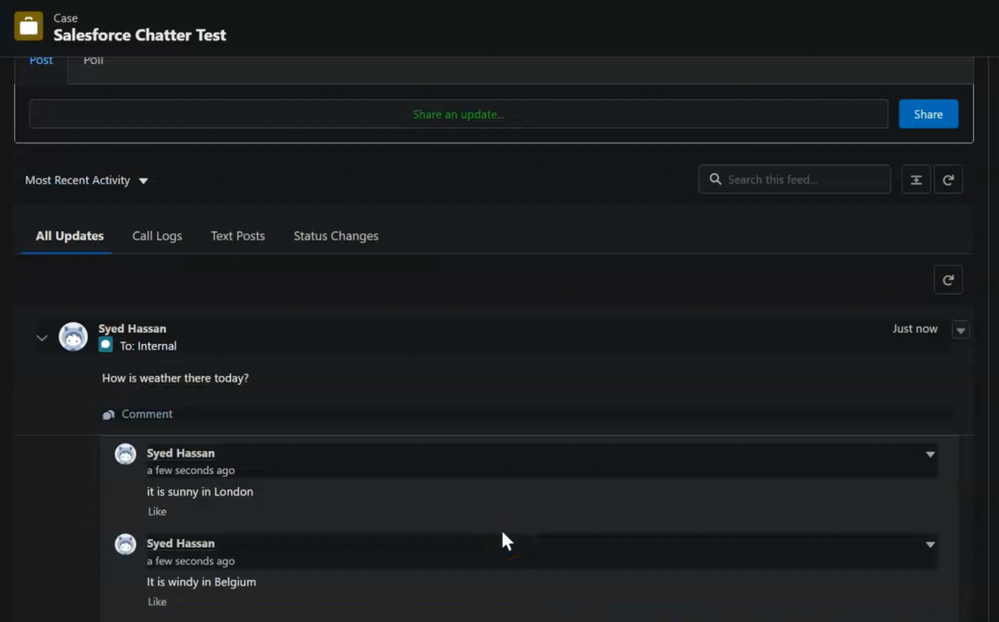
User mentions in Jira tag the corresponding user in Salesforce, if they exist.
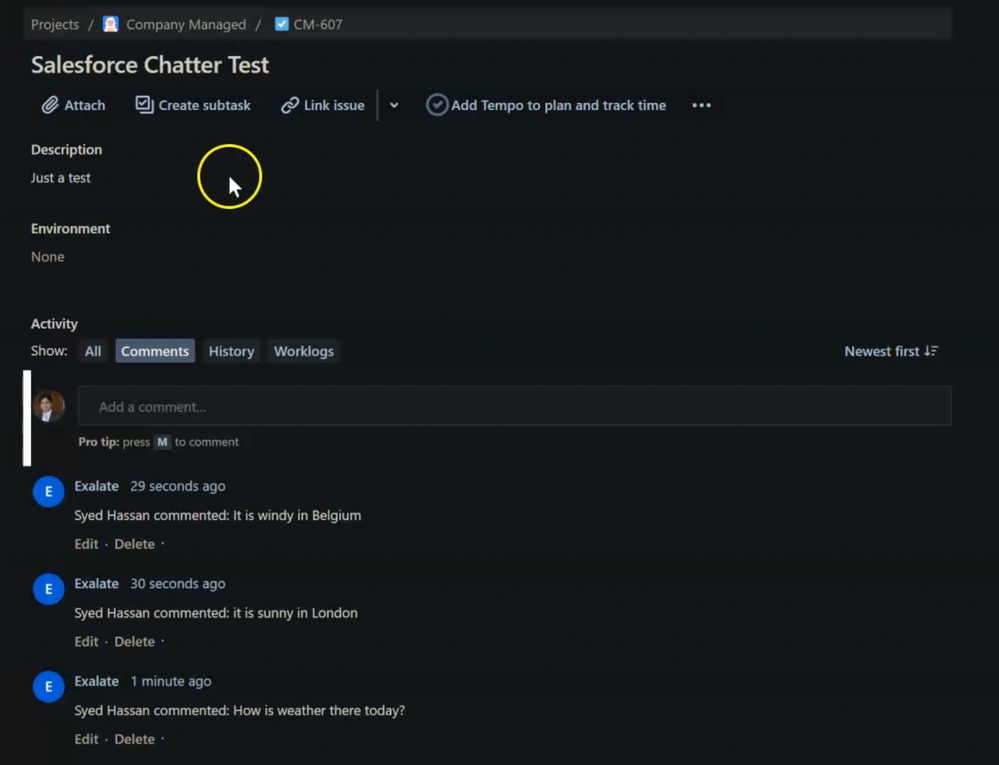
Mention a user in Jira and see the corresponding user tagged in Salesforce.

Conclusion
This article demonstrated an advanced comment sync between Jira and Salesforce. Many other advanced sync requirements can be implemented using Exalate because of its support for Groovy-based scripts.
Exalate provides unified visibility across all your integrations, AI-assisted configuration through Aida, safe deployment with Test Run and script versioning, real-time monitoring via the Activity Dashboard, and enterprise security with ISO 27001 certification.
Start a free trial or book a demo to learn more about how Exalate can be customized for your specific scenario.
Recommended Reading:
- How to Sync Multiple Related Salesforce Objects (Contact & Account Linked to a Case) to Jira
- How to Synchronize User Mentions in Comments Between Jira Cloud and Jira On-premise
- Advanced Integration Use Cases
- How to Use Exalate to Synchronize Insight Objects
- How to Sync Tempo Worklogs Between Two Jira Cloud Instances