This article was originally published on the Zendesk and Salesforce communities.
Syncing data between Zendesk and Salesforce allows organizations to unify sales and support data without context-switching or manual data entry. Since neither platform can share data natively, you need an integration solution to bridge the gap and handle data transformation across platforms.
In this post, I’ll show you how to map and sync Zendesk and Salesforce custom fields and statuses using Exalate, a bidirectional integration solution.
Status and Custom Field Sync: Zendesk to Salesforce Use Case
You can create a custom field in your Salesforce Case to reflect data from a custom field in a Zendesk ticket. Here’s why this matters:
- Syncing user data from Zendesk to Salesforce gives more context about customer accounts.
- Support ticket statuses from Zendesk can stay visible to teams working in Salesforce Cases.
- Customer service teams can pull account data from Salesforce custom fields directly into their Zendesk workflow.
For this example, we want to:
- Fetch the day of the week from a “Weekday” picklist on Salesforce and have it appear as text in a custom “Weekday” field in Zendesk.
- Change the status of a Salesforce Case and have it reflected on the corresponding Zendesk ticket.
Primary Requirements
- Fetching the correct API name from fields and entities on both sides.
- Mapping the right statuses and custom fields on both Salesforce and Zendesk.
- Establishing sync rules for the incoming and outgoing data in custom fields.
- Setting triggers to update the field on the Salesforce side automatically.
If you prefer a video walkthrough, check it out here:
Why Use Exalate for Zendesk Salesforce Custom Field Sync
Exalate is a two-way integration solution that connects Zendesk, Salesforce, Jira, Jira Service Management, ServiceNow, Azure DevOps Cloud, Azure DevOps Server, Freshservice, Freshdesk, Asana, GitHub, and more through custom connectors.
Here’s what makes it a solid fit for this use case:
- It supports trigger-based sync and bulk operations across connections.
- It comes with a Groovy scripting engine for complex Salesforce Zendesk integration scenarios, like custom field transformations and conditional status mapping.
- Aida (AI-assisted configuration) helps generate and troubleshoot sync scripts using plain language.
- Test Run lets you validate your sync scripts against real data before deploying to production.
- Script versioning keeps a full audit trail of every change, with rollback capability and draft mode.
- It provides an integration as a service (IaaS) option for MSPs.
- Security is built in: ISO 27001 certified, role-based access control (RBAC), encryption in transit (TLS 1.2/1.3) and at rest. Visit the Exalate Trust Center for more details.
How to Set Up Exalate for Zendesk and Salesforce
This section walks you through connecting Zendesk and Salesforce using Exalate, then configuring sync rules for custom fields and statuses.
Go to the Exalate app. If you already have an account, log in directly. New users can create an account by entering their email and verifying it, or by signing up with Google.

Creating Your First Connection
Once you have a workspace, you can start creating connections between Zendesk and Salesforce.
Note: You’ll need an active Exalate account with at least one workspace and the access credentials for the systems you want to connect.
When the process is complete, select “Continue to configuration”.
Configuring Sync Rules for Custom Fields
After creating your connection, you have two configuration options: “Quick Sync” and “Edit & Test”.
For custom field and status mapping, select “Edit & Test” to access the full scripting engine.
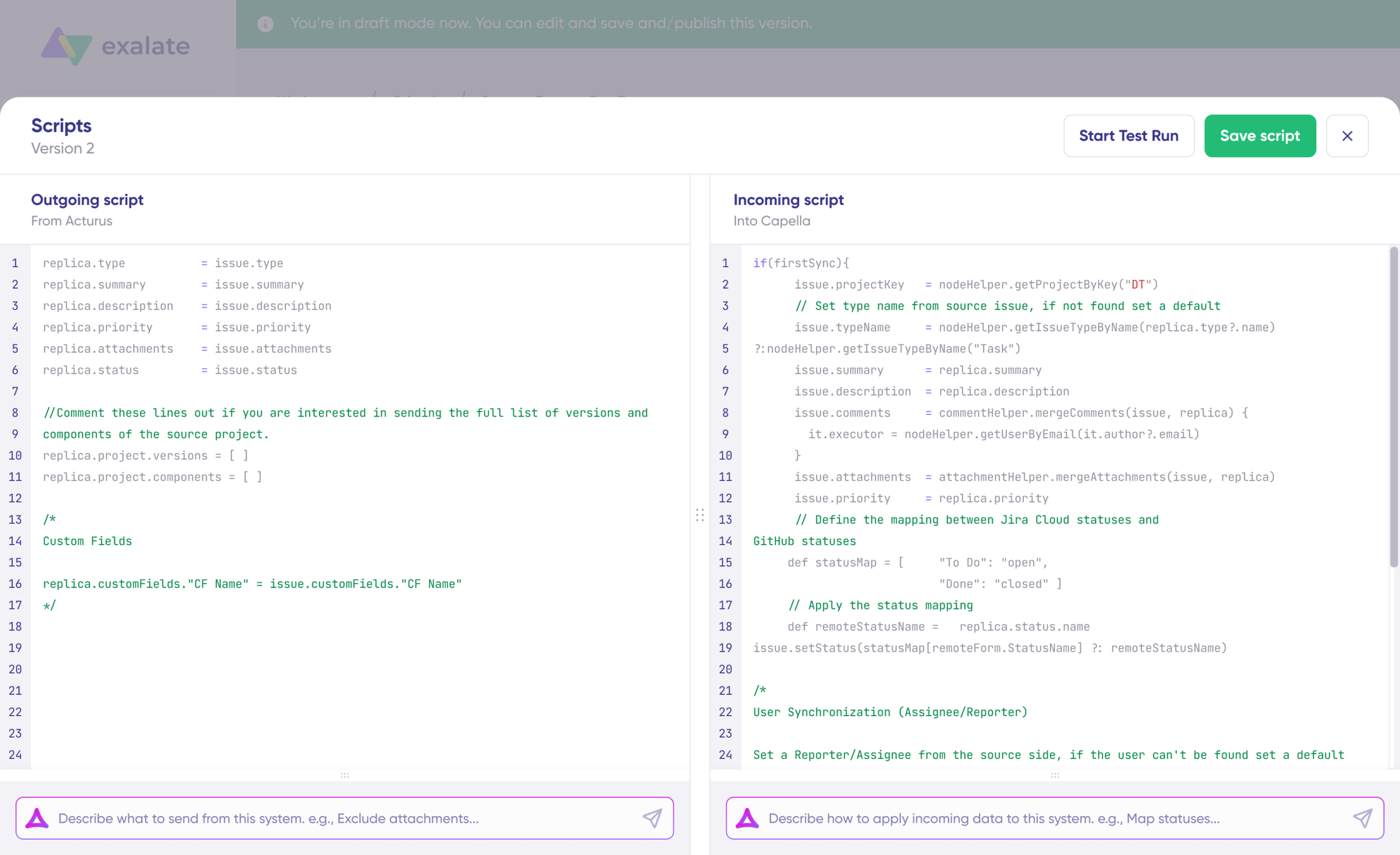
You have two sync directions to configure:
- Outgoing sync (on the Salesforce side): the data being sent from Salesforce to Zendesk.
- Incoming sync (on the Zendesk side): the data being received from Salesforce.
Outgoing sync (Salesforce side)
Under the “Rules” tab, enter the following code snippet into the “Outgoing sync” text area:
replica.Weekday__c = entity.Weekday__c
The entity.Weekday__c points to the custom field name in the Salesforce Case. The replica works as a payload or a message containing the information you want to pass between the two systems.
Status mapping (Zendesk incoming sync)
For the status mapping between Zendesk and Salesforce, enter the following code snippet in the Zendesk incoming sync:
def statusMap = [
    "open"   : "New",
    "pending": "Working",
    "Solved" : "Escalated"
]
def remoteStatusName = replica.status.name
statusName           = statusMap[remoteStatusName]
entity.Status        = statusNameCode language: JavaScript (javascript)
The statusMap variable maps different statuses by fetching the replica.status.name and assigning it to the statusName variable of the corresponding entity.Status. Make sure the names match the statuses configured in your Salesforce Case.
Once done, click “Publish” to save and apply the changes.
Custom field incoming sync (Zendesk side)
Now go to the Zendesk “Incoming sync” text area and add the following line:
issue.customFields."Weekday".value = replica.Weekday__c.value
The issue.customFields.”Weekday”.value fetches the string value of the field by name. The replica carries the value from the Salesforce Case.
Click “Publish” to save.
You can use Test Run at this point to validate your scripts against real data before they affect your production environment. This is especially useful when mapping custom fields for the first time.
Setting Triggers
Now it’s time to set event triggers to control when the sync runs.
Salesforce uses Salesforce Object Query Language (SOQL), while Zendesk uses Zendesk search syntax.
To set an event trigger:
- Go to “Triggers” and click “Create trigger”.
- Enter the trigger condition. For example, to trigger the sync when an admin sets the Case status to “Working”:
Status = "Working"
- Click “Add” to complete the trigger configuration.
Testing the Sync
Back in Salesforce, select a day from the “Weekday” picklist and change the status to “Working”.
Now check Zendesk. You should see that:
- The status has changed to “Pending” (matching the rules you set up earlier).
- The “Weekday” field has been populated with the same value selected from the Salesforce picklist.
You’ve now set rules and triggers to update statuses and sync custom Salesforce Case fields with Zendesk tickets. Monitor the sync queue to adjust rules according to the demands of specific projects and workflows.
Common Zendesk Salesforce Custom Field Sync Scenarios
Beyond the Weekday example above, here are some practical scenarios where custom field and status sync adds value:
- Ticket priority to Case urgency mapping: Map Zendesk ticket priority levels (Low, Normal, High, Urgent) to Salesforce Case urgency values so both teams see consistent prioritization.
- Customer tier sync: Sync a “Customer Tier” custom field from Salesforce to Zendesk so support agents see account-level context (Enterprise, SMB, Free) without leaving their workspace.
- SLA status tracking: Push SLA breach status from Zendesk into a Salesforce custom field, giving account managers visibility into support performance for their accounts.
- Escalation routing: Use status mapping combined with triggers to auto-escalate tickets. When a Zendesk ticket moves to “Escalated”, the linked Salesforce Case updates to “Engineering Review”, routing it to the right team.
Next Steps
If you want to see how Exalate handles your specific custom field or status mapping use case, book a demo with one of our integration experts.
Recommended Reading: