A Jira-Salesforce integration connects your development and project management workflows in Jira with your customer relationship management data in Salesforce. This integration eliminates manual data entry, automates work item creation, and keeps sales, support, and development teams synchronized in real time.
During conversations with customers, we’ve gathered 10 common use cases that come up when integrating Jira with Salesforce. These use cases focus on real challenges teams face and how integration helps sales, support, and delivery teams work together more effectively.
But before jumping into those, it helps to understand why teams integrate these two platforms in the first place, what to look for in an integration tool, and where most setups go wrong.
A note on Jira terminology: Jira now refers to what were previously called “issues” as “work items.” This blog uses the updated terminology throughout.
Key Takeaways
- Automating opportunity-to-work-item handoffs eliminates the manual data copying that stalls project delivery after deal closure.
- Syncing Jira time logs to Salesforce gives finance and customer success teams accurate billing data without manual timesheets.
- MSPs can maintain data isolation across multiple client environments while running bidirectional case sync through a single Jira Service Management instance.
- Real-time alert routing from Salesforce to Jira Service Management eliminates the gap between critical case creation and on-call team notification.
- Linking RFP requests to Salesforce Opportunities replaces manual status tracking with automated bidirectional updates.
- Product release coordination ensures sales teams learn about shipped features before their next customer conversation, not weeks after.
- Cross-platform reporting alignment between Jira and Salesforce reduces the time teams spend reconciling data across systems.

Why Integrate Jira with Salesforce?
Jira and Salesforce serve fundamentally different teams, but those teams depend on each other. Sales closes the deal, support manages the customer relationship, and development builds and fixes the product. Without integration, the handoff between these groups relies on emails, Slack messages, spreadsheets, or someone remembering to update two systems.
That’s where things break down.
A sales rep closes a deal in Salesforce, but the delivery team doesn’t find out until someone manually creates work items in Jira. A customer reports a bug through a support case, but the developer working on the fix has no idea what the customer actually said. A feature ships in Jira, but sales doesn’t hear about it for weeks.
Integration fixes this by creating a persistent, automated connection between the two platforms. Data flows where it needs to go, when it needs to get there. No one has to switch tools or copy-paste information between systems.
The value scales with complexity. A small team might manage with manual updates, but once you’re dealing with multiple projects, dozens of Salesforce Cases per week, or cross-company collaboration scenarios, integration isn’t optional. It’s the only way to keep both systems reliable.
What to Look for in a Jira-Salesforce Integration Tool
Not all integration tools handle the Jira-Salesforce connection the same way. Some are built for simple, one-directional data pushes. Others support complex, bidirectional sync with independent configuration on each side. The right choice depends on what you’re actually trying to accomplish.
Here are a few capabilities that matter most for this specific integration pair:
- Bidirectional sync with independent control. The most common frustration with integration tools is that one side controls the rules for both. In cross-company scenarios or when different teams own Jira and Salesforce, you need each side to define independently what data it sends and what it accepts. This prevents one team’s configuration changes from breaking the other team’s workflow.
- Flexible field mapping and data transformation. Jira and Salesforce structure data differently. Jira uses work item types, custom fields, sprints, and components. Salesforce uses Cases, Opportunities, custom objects, and picklist values. Your integration tool needs to map between these structures accurately, including handling custom fields, multi-select values, and object relationships.
- Conditional triggers and filters. You don’t want every Salesforce Case creating a Jira work item. Triggers that evaluate conditions (like Case Type, Priority, or record type) before syncing keep noise out of both systems.
- Support for attachments, comments, and rich content. Syncing just the work item title and status is rarely enough. Teams need attachments, internal comments (without exposing private notes), and formatted descriptions to flow between systems.
- AI-assisted configuration. Tools that offer AI-assisted setup reduce the time between “we need this integration” and “it’s running.” Exalate’s Aida, for instance, generates sync scripts from plain-language descriptions, which is particularly useful when you’re configuring complex field mappings or conditional logic for the first time.
- Scalability under load. If you’re syncing hundreds of Salesforce Cases per week or running integrations across multiple Jira projects, the tool needs to handle volume without dropped syncs or performance degradation. Transactional sync queues that process changes in order and retry automatically on failure are critical here.
Use Case 1. Automating Opportunity to Work Item Creation
One of the most frequent requests we see is automating the creation of Jira work items when Salesforce Opportunities reach specific stages.
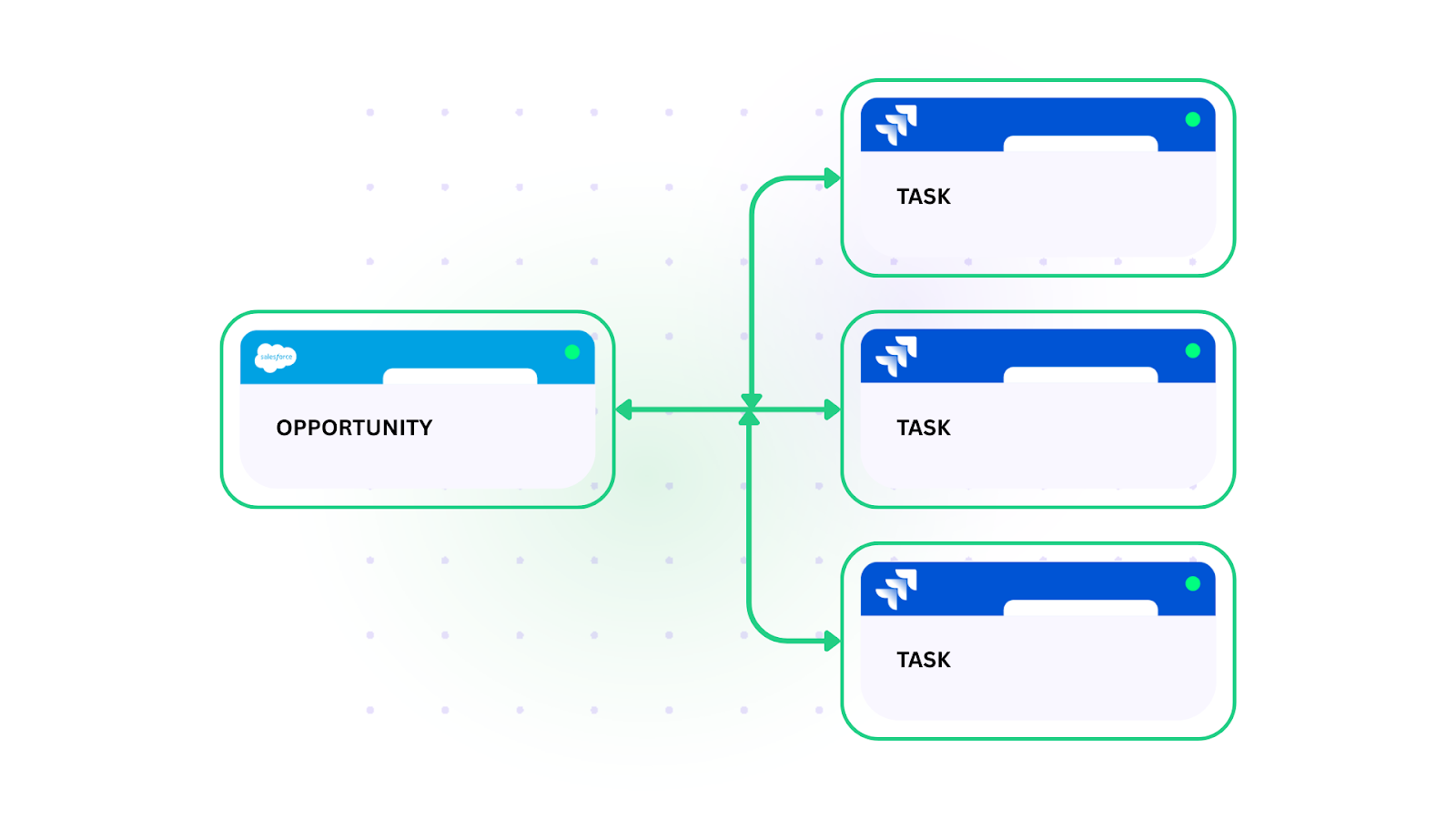
Case: Sales teams close deals in Salesforce, then someone manually creates corresponding work items in Jira for delivery teams to start working. A proposal team runs daily Salesforce reports for new opportunities, then manually copies data into Jira. They might create 4 campaign-level tickets, each spawning 25 downstream tasks. When this manual step fails, entire projects stall.
Solution: Automatic Jira work item creation when Salesforce Opportunities reach stages like “Proposal” or “Closed Won.” Bidirectional field updates ensure changes in either system stay in sync in real time, so delivery teams can start planning immediately. With Exalate, each side controls its own sync rules, meaning the sales team configures what Opportunity data leaves Salesforce while the delivery team defines how incoming data maps to Jira work item fields, projects, and assignees.
Real-world application: A professional services firm uses this setup to trigger project kickoffs the moment deals close. When an Opportunity moves to “Closed Won,” Exalate creates a parent Epic in Jira with account details, contract value, and delivery timeline pulled from Salesforce custom fields. The project manager sees the new Epic in their backlog within minutes, not days. Status updates in Jira flow back to Salesforce, so the account executive always knows where the delivery stands.

We were losing track of opportunities in the handoff between sales and delivery. Now, when an opportunity hits the Proposal stage, a Jira ticket automatically pops up with all the account data our RFP team needs to get started.
— SALES OPERATIONS MANAGER
Use Case 2. Routing Salesforce Cases to Different Jira Work Item Types
Not all Salesforce Cases should become the same type of Jira work item. Teams need intelligent routing based on case attributes.
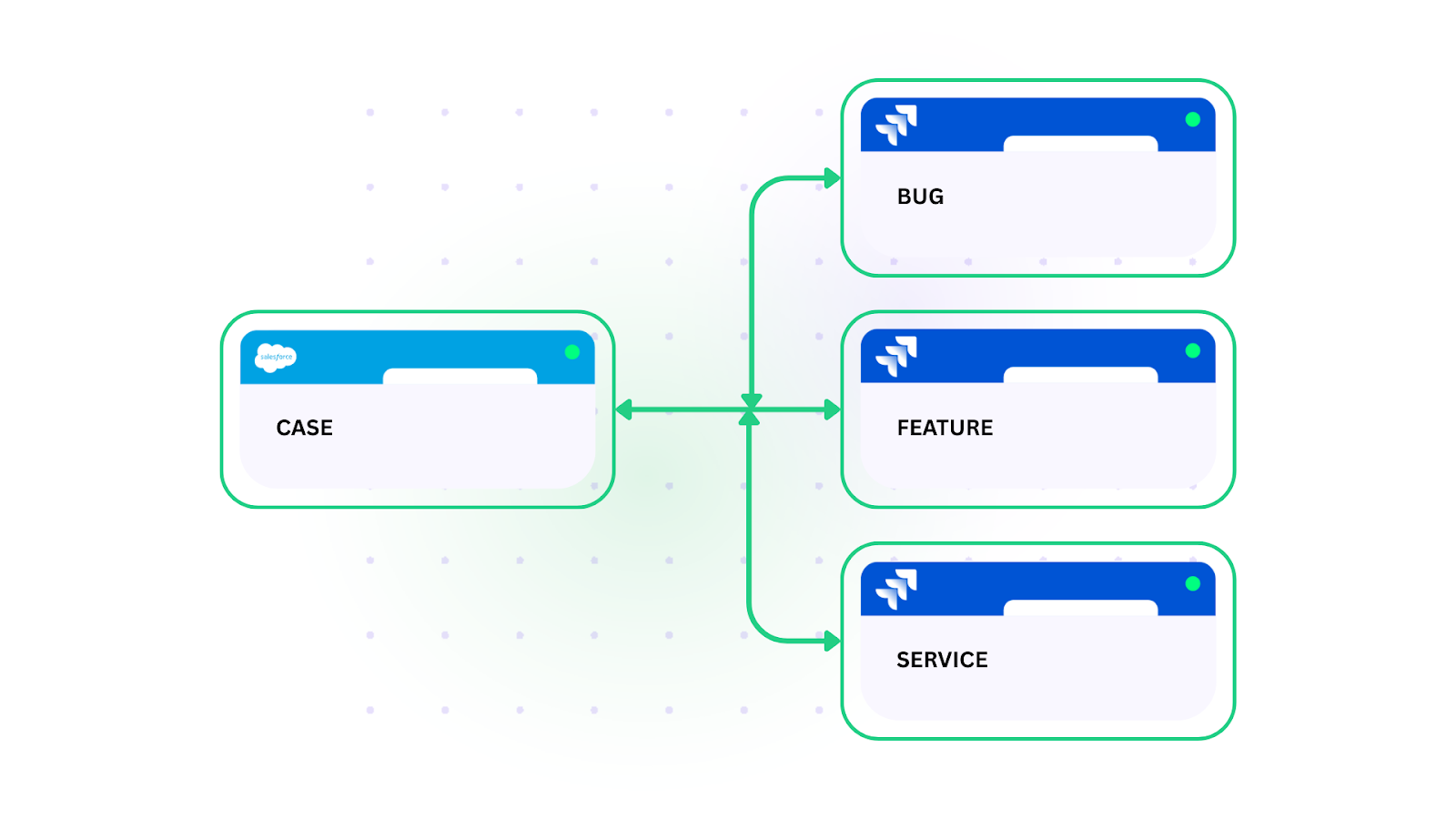
Case: Salesforce Cases flow into Jira, but they represent different types of work: support requests, bugs, and feature requests. Without filtering, everything gets dumped into a single queue, making prioritization and workflow management chaotic. Development teams waste time triaging and re-categorizing work items that should have been routed correctly from the start.
Solution: Conditional filters route Salesforce Cases to specific Jira work item types. Support Cases become Support work items. Technical issues become Bugs. Enhancement requests become Feature Requests. Each type follows the appropriate workflow from the start, with priority levels, labels, and component assignments carried over from Salesforce Case attributes.
Real-world application: An IT services company routes Salesforce Cases to three different Jira projects based on Case Type and product line. Critical bugs go directly to the engineering sprint board with “Highest” priority. Feature requests land in the product backlog for grooming. Support requests route to the service desk team. The conditional logic runs on Exalate’s Groovy scripting engine, which gives the team full control over routing rules, including edge cases like escalating a support request to a bug when specific keywords appear in the case description.
Our development team works exclusively in Jira and honestly prefers not to touch Salesforce. With this integration, they have all the customer context they need right where they work, and we didn’t have to buy a bunch of extra licenses.
— IT SERVICES DIRECTOR
Use Case 3. Syncing Time Tracking for Billing and Resource Management
Teams track time in Jira but need that data in Salesforce for billing, forecasting, or customer success management.
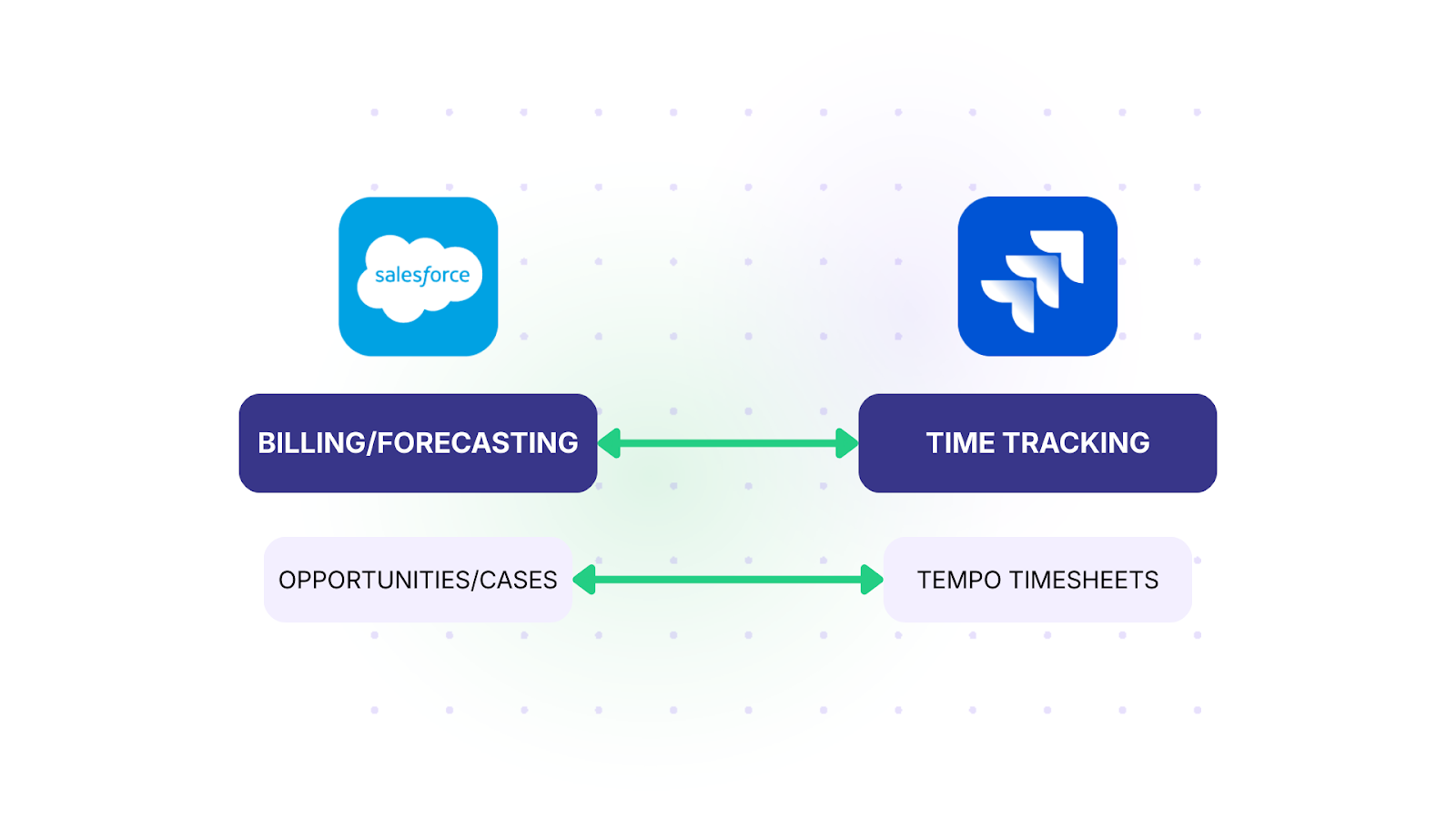
Case: A company offers 2 days of free training with product purchases. They master customer data in Salesforce but need to track the actual time spent in Jira. Without integration, there’s no way to know if they’ve exceeded the free hours or how to bill for additional work. Finance teams end up reconciling timesheets manually at the end of each month.
Solution: Jira time logs (including Tempo Timesheets) sync to Salesforce objects like Opportunities, Cases, or custom objects. Teams can track effort against free support hours, retainers, or billable work, with automatic updates flowing back to Salesforce. When logged hours approach a threshold, Salesforce can trigger alerts to account managers before free hours are exhausted.
Real-world application: A SaaS company with a tiered support model uses this to track billable hours per customer. Each Salesforce Account has a custom “Support Hours Remaining” field that decreases as Jira time logs sync over. When the balance hits zero, a Salesforce workflow notifies the customer success manager to initiate a renewal conversation. The integration eliminated a weekly 3-hour reconciliation process that previously required pulling reports from both systems and matching them in a spreadsheet.
Use Case 4. MSP Multi-Tenant Scenarios with Restricted Access
Managed Service Providers face a unique challenge: they use Jira Service Management internally, but their vendors and customers use different systems.
Case: An MSP uses JSM to manage operations. Their partners use Salesforce, Zendesk, Freshservice, Freshdesk, and other platforms. They need bidirectional case sync with multiple external parties, but each party should only see their own data, not other customers’ information.
Solution: Secure, segregated sync between the MSP’s Jira Service Management and multiple client environments. Each connection operates independently with its own sync rules, field mappings, and access controls. One client’s Salesforce instance syncs support cases using one configuration, while another client’s Freshservice environment uses a completely different setup. Data isolation is maintained because each integration connection is a separate entity with its own scope.
Real-world application: A managed IT provider serving 15 clients runs separate Exalate connections for each client environment. Three clients use Salesforce, four use ServiceNow, and the rest use various platforms, including Zendesk, Freshservice, and Azure DevOps. When a client submits a case in their Salesforce instance, it appears in the MSP’s JSM queue with the client’s account context. The MSP’s internal notes and triage decisions stay in JSM. Only the resolution details and status updates sync back to the client’s Salesforce.
Use Case 5. RFP and Proposal Tracking with Opportunity Linkage
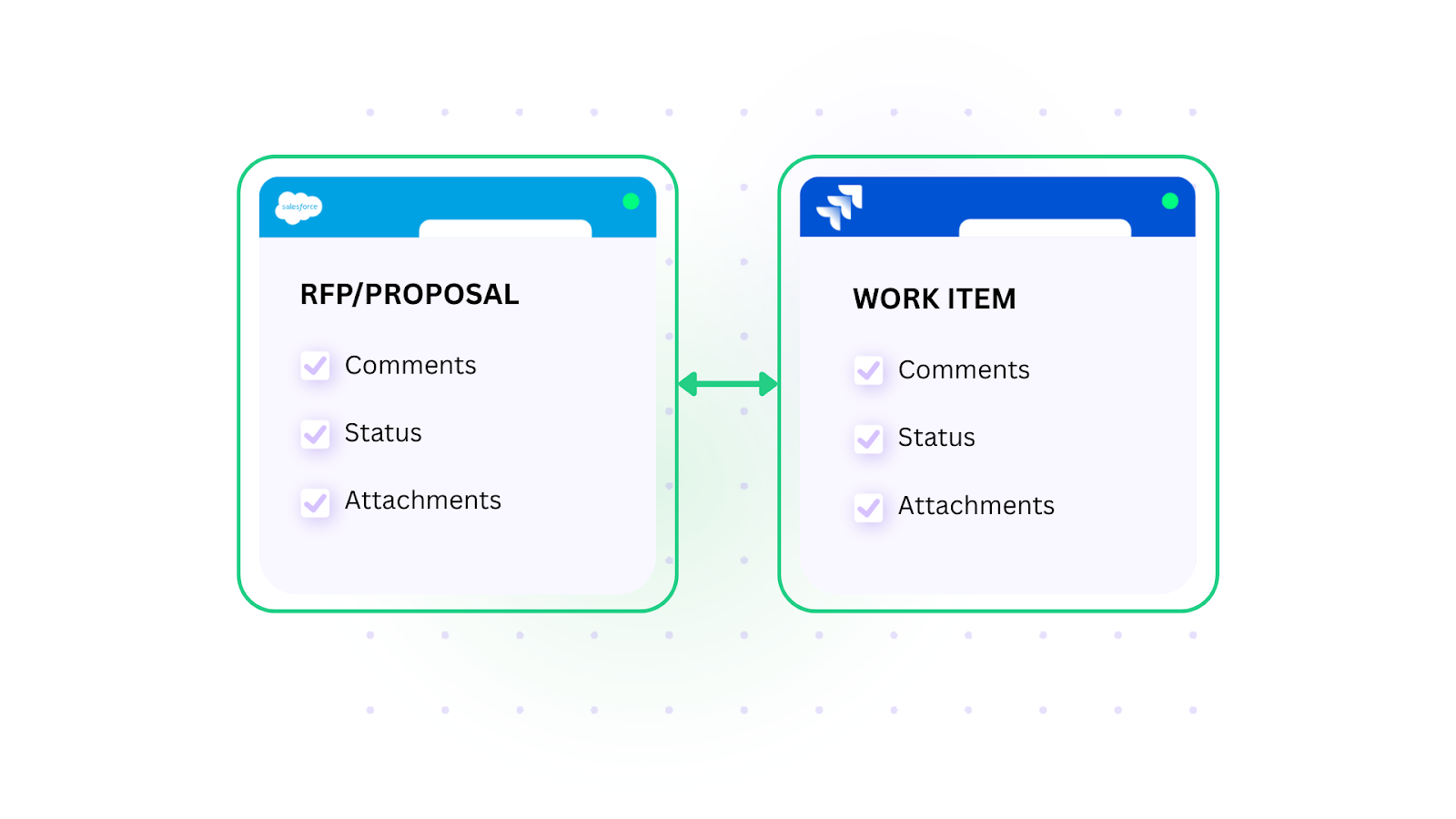
When sales submits RFP requests, teams need to link them to Salesforce Opportunities and keep the status in sync as proposals progress.
Case: Sales submits RFP requests through various channels, but the proposal team needs those linked to actual Salesforce Opportunities. Manually tracking which Jira work items correspond to which Opportunities, then updating status in both systems, is error-prone and time-consuming. Proposal managers spend more time on administrative tracking than on actual proposal content.
Solution: The RFP request in Jira automatically links to the Salesforce Opportunity. As Opportunity stages change, connected Jira work items get updated. As Jira work items progress, related Salesforce fields get updated as well. The bidirectional link means neither team has to manually check the other system for status changes.
Real-world application: A technology vendor processes around 40 RFP requests per quarter. When a sales rep tags an Opportunity as “RFP Requested” in Salesforce, Exalate creates a work item in the RFP team’s Jira project with the Opportunity name, account details, deal value, and submission deadline. As the RFP team progresses through their workflow (Draft, Review, Submitted, Won/Lost), the Opportunity stage in Salesforce updates automatically. The sales rep sees real-time progress without sending a single “where are we on this?” message.
When someone submits an RFP request in Jira, we can link it directly to the Salesforce opportunity. It’s saved us so much time.
— PRE-SALES MANAGER
Use Case 6. Bug Escalation from Support to Development
When customers report bugs through Salesforce, support teams need to escalate them to development in Jira Service Management without losing context or creating duplicate work.
Case: Customer support uses Salesforce to manage customer cases. When a case turns out to be a product bug, it needs to be escalated to the development team working in Jira Service Management. Support agents manually create bug reports in Jira, copying information from Salesforce Cases. Customers and case owners have no visibility into bug fix progress, leading to repeated “any update on this?” requests.
Solution: Automatic work item creation in Jira Service Management when Salesforce Cases meet specific criteria (like Case Type = "Bug" or Priority = "High"). All case details, attachments, and customer information flow to Jira automatically. As developers update the Jira work item status, those updates sync back to Salesforce, keeping the case owner and customer informed without anyone manually relaying updates.
Real-world application: A B2B software company processes roughly 200 support cases per month through Salesforce. About 15% turn out to be legitimate bugs. Before integration, support agents spent 10 to 15 minutes per bug manually creating Jira work items and copying case details.
With Exalate, when an agent changes the Case Type to “Bug,” a corresponding work item appears in the engineering team’s Jira board within seconds. The bug report includes the original case description, customer environment details, reproduction steps from the support notes, and all attachments. When engineering marks the bug as “Resolved,” the Salesforce Case updates to “Solution Provided” and the customer receives an automated notification.
Use Case 7. Real-Time Alert Routing for Salesforce Cases
When critical customer issues come through Salesforce, the right people need to be notified immediately, not when someone checks their queue.
Case: Cases come into Salesforce, but the on-call development or operations team works primarily in Jira Service Management with established alerting and escalation processes. High-severity cases sit in Salesforce queues while the technical team waits for someone to manually escalate them. By the time the right people get involved, SLA clocks have been running and customer dissatisfaction has grown.
Solution: Integration between Salesforce and Jira Service Management automatically creates alerts based on case criteria. When a high-severity case is created or escalated in Salesforce, a corresponding alert triggers in Jira Service Management, which then routes to the on-call system. When the case status changes in Salesforce (like moving to “Working” or “Closed”), the corresponding alert in Jira Service Management updates automatically.
Real-world application: A financial services provider handles tier-1 customer support in Salesforce. Previously, critical cases that came in overnight sat unnoticed until the morning shift. Now, when a Salesforce Case with Priority “Critical” or “Urgent” is created, Exalate immediately creates an alert in Jira Service Management. The alert triggers the on-call rotation through the team’s existing incident management process. The on-call engineer gets paged within minutes, regardless of the time. Status changes flow bidirectionally, so the Salesforce support team sees the engineering response without switching tools.
Before this integration, critical Salesforce cases would come in overnight, and nobody would see them until morning. Now those cases trigger our on-call system immediately, and the right person gets alerted within minutes.
— OPERATIONS LEAD FOR A FINANCIAL SERVICES PROVIDER
Use Case 8. Product Release Coordination Between Teams
When development ships new features in Jira, sales and customer success teams in Salesforce need to know immediately so they can promote those features to customers.
Case: The product development team tracks feature releases in Jira. Sales and customer success teams work in Salesforce and need to stay informed about what’s new. But features get released, and salespeople don’t know about them for days or weeks. By the time they’re informed, they’ve already had customer conversations where they could have mentioned new capabilities.
Solution: When development marks features as “Released” or “Deployed” in Jira, the integration automatically updates related Salesforce Opportunities or creates tasks for account managers to notify relevant customers. Release notes and feature descriptions flow from Jira to Salesforce, ensuring sales teams have accurate information about what shipped and when.
Real-world application: A product company releases features in two-week sprint cycles. Each release contains 5 to 15 features tracked as Jira work items under a Release version. When the release manager marks the version as “Released” in Jira, Exalate syncs the release notes, feature descriptions, and impacted product areas to a custom “Product Updates” object in Salesforce. Account managers get a Salesforce task for each major feature relevant to their accounts, with talking points pulled directly from the Jira work item description. Sales reps walk into customer meetings knowing exactly what shipped and when.
Use Case 9. Customer Feedback Loop from Salesforce to Product Development
Product teams need direct visibility into what customers are asking for, without relying on intermediaries to relay and interpret feature requests.
Case: Customer-facing teams in Salesforce hear feature requests daily, but that feedback rarely reaches the product team in a structured way. Feature requests get buried in case notes, lost in email chains, or summarized in quarterly reviews that strip out the context product managers need to prioritize effectively.
Solution: When a Salesforce Case or custom “Feature Request” record meets specific criteria (like being linked to high-value accounts or receiving multiple submissions), the integration automatically creates or updates a corresponding work item in the product backlog in Jira. Customer context, account value, request frequency, and verbatim feedback sync from Salesforce, giving product managers the data they need to make informed prioritization decisions.
Real-world application: A B2B platform company creates a custom “Feature Request” object in Salesforce where customer success managers log requests with account context and business impact. When a request is submitted, Exalate creates a Story in the product team’s Jira backlog with the request details, the requesting account’s ARR, and the number of customers who’ve made similar requests. Product managers can sort their backlog by customer impact without ever logging into Salesforce. When the product team updates the work item status (Planned, In Progress, Shipped), the Salesforce record updates automatically, and the CSM can proactively inform the customer.
Use Case 10. Cross-Platform Reporting Alignment
Teams that report from both Jira and Salesforce need consistent data across systems to avoid spending hours reconciling numbers.
Case: Leadership wants a unified view of delivery performance, customer satisfaction, and support metrics. But the data lives in two systems that don’t talk to each other. Project managers pull reports from Jira while account managers pull from Salesforce, and the numbers never quite match because of sync delays, manual entry errors, or different naming conventions.
Solution: Bidirectional field sync keeps key reporting fields aligned between both systems. Work item status in Jira maps to a corresponding stage in Salesforce. Priority levels stay consistent. Custom fields for project codes, customer segments, or product lines sync automatically, so reports generated from either system tell the same story.
Real-world application: A consulting firm tracks project delivery in Jira and client relationships in Salesforce. Before integration, their monthly executive review required two days of data reconciliation. Delivery managers would export Jira data, map it to Salesforce Accounts, and manually cross-reference statuses. With Exalate syncing project status, hours logged, and milestone completion between systems, both the Jira-based delivery report and the Salesforce-based client report now reflect the same data. The monthly reconciliation dropped from two days to a 15-minute spot check.
Common Jira-Salesforce Integration Mistakes (and How to Avoid Them)
Even with the right tool, integration implementations can go sideways. Here are the most common mistakes we see in Jira-Salesforce setups:
- Syncing everything instead of what matters. The temptation is to sync every field between Jira and Salesforce. This creates noise, increases sync volume, and makes troubleshooting harder. Start with the minimum viable sync: work item status, priority, key identifiers, and the specific fields each team actually uses. You can always expand later.
- Not defining ownership of shared fields. When the same field (like Priority or Status) is editable in both systems, you need clear rules about which system is the source of truth for that field at each stage. Otherwise, you get sync loops where both systems keep overwriting each other’s updates. Decide upfront: does Salesforce own the priority until the work item reaches the development team, then Jira takes over? Document these decisions before configuring.
- Ignoring data model differences. Jira’s work item types, workflows, and custom field structures don’t map one-to-one to Salesforce objects. A Salesforce Case might correspond to different Jira work item types depending on the case attributes. An Opportunity might map to an Epic, a Story, or a custom work item type. Spending time on data model mapping before configuration prevents rework later.
- Skipping error handling planning. Syncs fail. APIs time out. Fields get renamed. The question isn’t whether something will break, but what happens when it does. Integration tools with transactional sync queues, automatic retries, and clear error notifications (like Exalate’s queue-based processing) prevent data loss during disruptions. Assume things will break and plan accordingly.
- Treating integration as a one-time setup. Both Jira and Salesforce evolve: new custom fields, workflow changes, new projects, and reorganized teams. Integration configurations need periodic review. Build a quarterly check-in into your process where you verify that sync rules still match current workflows and that no new fields or work item types need to be added.
Choosing the Right Integration Approach for Jira and Salesforce
There are several ways to connect Jira and Salesforce. The right approach depends on what you’re syncing, how many teams are involved, and whether you need cross-company capabilities.
- Native connectors and marketplace apps. Salesforce AppExchange and Atlassian Marketplace both offer integration apps. These work for straightforward, one-directional syncs or basic field mapping. They’re quick to set up but tend to hit limitations when you need conditional routing, complex field transformations, or bidirectional sync where each side controls its own rules.
- iPaaS platforms (Workato, MuleSoft, Zapier). These general-purpose integration platforms can connect Jira and Salesforce along with hundreds of other apps. They excel at multi-step automation workflows and internal system orchestration. However, they typically use a shared configuration model where one team controls the entire integration, which can be a challenge when different organizations or departments own each side.
- Purpose-built integration platforms. Tools like Exalate are designed specifically for complex, bidirectional sync scenarios. Exalate connects Jira, Salesforce, ServiceNow, Azure DevOps, Zendesk, GitHub, Freshservice, Freshdesk, Asana, and other platforms through a connector-based architecture. Each side of the integration maintains its own sync rules independently, meaning the Salesforce admin configures what data leaves Salesforce, while the Jira admin controls how that data maps into their environment. This is particularly useful for MSPs, cross-company collaboration, and scenarios where different teams or organizations manage each system.
- For complex field mapping or conditional logic, Exalate provides a Groovy scripting engine with full control over data transformations. For teams that want faster setup, Aida generates sync scripts from natural-language descriptions, reducing the time from requirements to working integration. Exalate also supports cloud, on-premise, and Docker deployments, which matters for organizations with strict data residency requirements. Security is handled through JWT authentication, TLS encryption, and role-based access controls.
- API-based custom integrations. Both Jira and Salesforce have robust APIs. If your integration needs are highly specific and you have development resources, building a custom integration gives you complete control. The trade-off is ongoing maintenance: every API change, field addition, or workflow modification requires development work to keep the integration running.
Have you come across any of these use cases while integrating Salesforce with Jira or JSM? Share your challenges and insights with us. If you want to learn more, simply hop on a call with our engineers.
Frequently Asked Questions
Can Exalate sync Salesforce custom objects with Jira work items?
Yes. Exalate supports syncing between Salesforce custom objects and Jira work items, including custom fields on both sides. You define the mapping through Groovy scripts, which gives you control over how custom object fields translate to Jira work item fields, components, labels, or custom field values. This is useful when your Salesforce org uses custom objects for things like product feedback, implementation tracking, or partner requests that don’t fit standard Case or Opportunity structures.
Does the Jira-Salesforce integration support real-time sync?
Exalate processes sync events as they occur. When a Jira work item is updated or a Salesforce Case changes, the sync triggers and processes the update through a transactional queue. Processing time depends on payload complexity and volume, but updates typically appear in the other system within seconds to a couple of minutes. The queue-based approach ensures changes are applied in the correct order, even during high-volume periods.
Can I sync Jira work items with Salesforce Opportunities and Cases at the same time?
Yes. You can set up separate sync connections or use conditional logic within a single connection to map different Salesforce objects to different Jira projects or work item types. For example, Salesforce Opportunities at “Closed Won” can create Epics in a delivery project, while Salesforce Cases create Bugs or Support work items in a service desk project. Each mapping has its own rules and field configurations.
How does Exalate handle attachments and comments in the Jira-Salesforce sync?
Exalate syncs attachments, comments, and rich-text content between Jira and Salesforce. You can configure whether internal comments (visible only to agents) stay private or sync across. Attachments transfer with their original file names and formats. This is important for bug escalation scenarios where screenshots, logs, and customer-uploaded files need to follow the work item from Salesforce to the development team in Jira.
Can Exalate connect Jira and Salesforce with other platforms in the same integration setup?
Exalate supports multi-platform integration. You can connect Jira to Salesforce, ServiceNow, Azure DevOps, Zendesk, GitHub, Freshservice, Freshdesk, Asana, and other platforms simultaneously. Each connection is configured independently, so your Jira-to-Salesforce sync rules don’t affect your Jira-to-ServiceNow sync. This is especially relevant for MSPs or organizations with heterogeneous tech stacks.
Do I need scripting knowledge to set up the Jira-Salesforce integration with Exalate?
Not necessarily. Exalate’s Aida generates sync scripts from plain-language descriptions, so you can describe what you want to sync and how, and Aida produces the Groovy script. For teams that need more control, you can edit the generated scripts directly or write custom logic from scratch. The scripting engine supports conditional routing, field transformations, default value assignments, and complex mapping scenarios.
How does Exalate handle Jira workflow transitions triggered by Salesforce updates?
You can configure Exalate to trigger Jira workflow transitions based on incoming Salesforce data. For example, when a Salesforce Case status changes to “Escalated,” the corresponding Jira work item can automatically transition from “Open” to “In Progress.” The mapping between Salesforce field values and Jira workflow transitions is defined in the sync rules, giving you precise control over which Salesforce changes trigger which Jira transitions.
Can I limit which Salesforce Cases or Opportunities sync to Jira?
Yes. Exalate supports trigger-based filtering that evaluates conditions before initiating a sync. You can filter by any Salesforce field: Case Type, Priority, Record Type, Account, custom field values, or combinations of these. Only records that meet your criteria will create or update work items in Jira. This keeps unnecessary data out of Jira and ensures your development and support teams only see relevant work.
Is the Jira-Salesforce integration secure for cross-company use?
Exalate is designed for cross-company integration scenarios. Each side of the integration controls its own sync rules independently, so no organization has to expose its internal configuration to the other party. Data in transit is encrypted with TLS, authentication uses JWT tokens, and access is managed through role-based controls. For organizations with compliance requirements, Exalate holds ISO 27001:2022 certification.
Reading Recommendations:
- Jira Salesforce Integration: Sync Teams Bidirectionally
- Salesforce Integrations: Integrate Salesforce & Other Tools
- Jira Service Management ServiceNow Integration
- Keeping Customers and Partners Satisfied with Jira Service Management Salesforce Integration
- The Complete Guide to Jira Service Management and Azure DevOps Integration