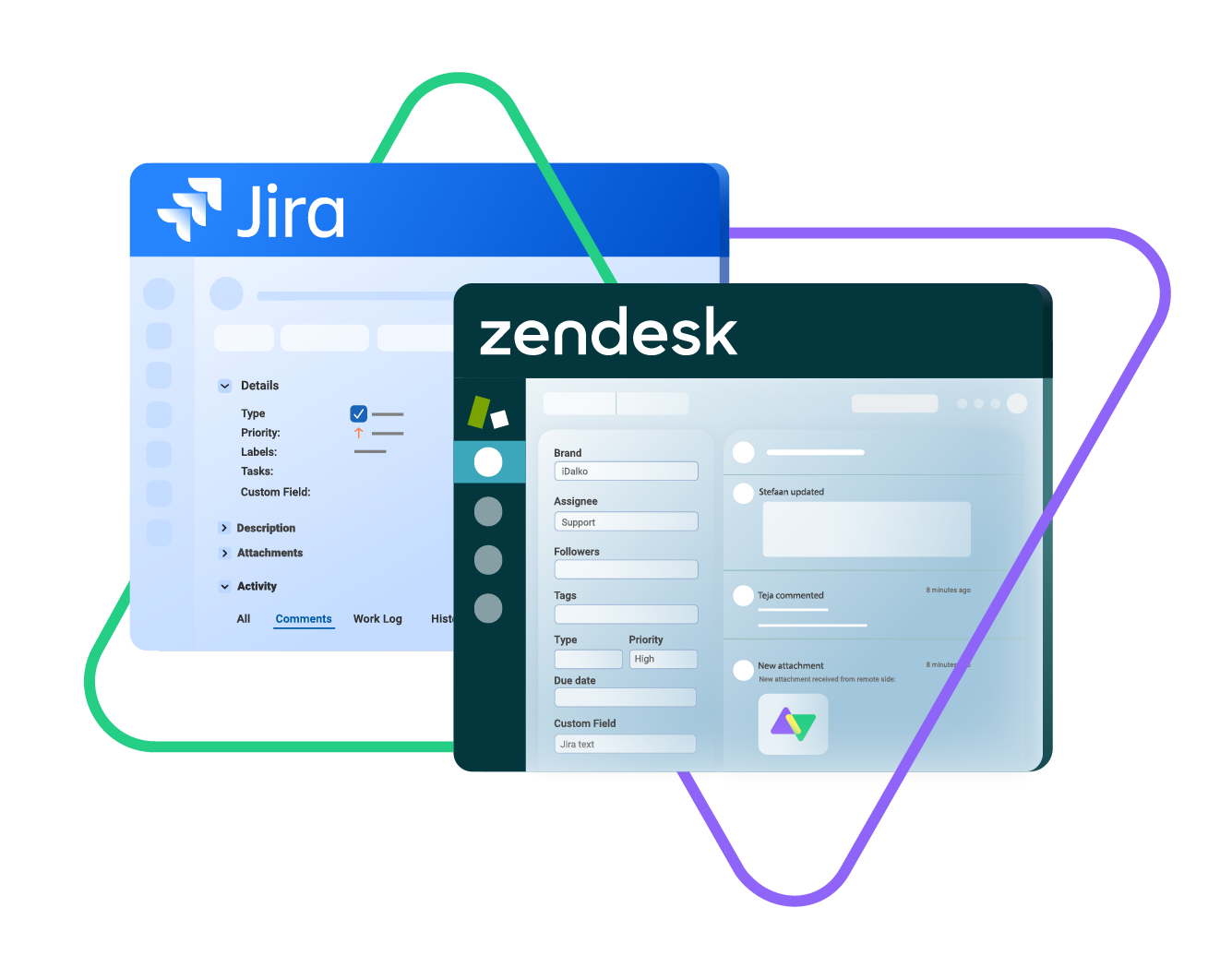
Exalate uses AI-assisted scripting to simplify custom integrations between Jira and Zendesk. With Aida, Exalate’s AI configuration engine, you can generate scripts and mapping rules using plain language prompts, so both systems exchange the data you need without manual coding from scratch.
Here’s a practical use case: syncing status information and custom field data bidirectionally between Jira and Zendesk.
Use Case: Bidirectional Status and Custom Field Sync
When the status of a Jira work item changes, the mapped Zendesk ticket should reflect that change, and vice versa.
For example, opening a ticket in Zendesk also opens a work item (task or bug) in Jira with a status of “Open”. Once the assignee marks the work item as “Done”, the Zendesk ticket status changes to “Solved”.
At the same time, Exalate fetches information from a custom field in Jira and maps it to a default or custom field in Zendesk.
Why Sync Statuses and Custom Fields?
Keeping statuses and custom fields in sync between Jira and Zendesk helps teams work faster and stay aligned. Here is what it enables:
- Both support and development teams can access real-time status updates without switching tools.
- MSPs and partners can collaborate more efficiently by sharing relevant field data across platforms.
- Organizations retain full control over their own environments while still accessing essential data from the other side.
- Service delivery speeds up because the communication gap between the IT team on Jira and the customer support team on Zendesk is eliminated.

How to Sync Statuses and Custom Fields between Jira and Zendesk
To get started, go to exalate.app and log in or create a new account. New users can sign up with their email or use Google authentication.
Configuring the Sync Rules
The sync rules are based on Groovy scripts divided into outgoing and incoming scripts:
- Outgoing script: Defines what data leaves your system (e.g., Jira sends status and custom field values to Zendesk).
- Incoming script: Defines how incoming data is applied in your system (e.g., Zendesk receives and maps Jira status values).
Using Aida to Generate Status Mapping Scripts
Instead of writing scripts manually, you can use Aida to generate them from a plain language prompt. Aida is available in both incoming and outgoing script sections.
On the Jira incoming side, your prompt could be something like:
“Map the status of Zendesk to Jira as ‘Open’ to ‘Open’, ‘In Progress’ to ‘Pending’, and ‘Done’ to ‘Solved’.”
Aida will generate a code snippet similar to this:
def statusMap = [
  "Open" : "Open",
  "In Progress" : "Pending",
  "Done" : "Solved"
]
def remoteStatusName = replica.status.name
issue.setStatus(statusMap[remoteStatusName] ?: remoteStatusName)Code language: JavaScript (javascript)
Review Aida’s suggestions. Green highlights indicate new lines to be added, and red highlights show lines to be removed. You can choose to “Insert” or “Discard” the changes.
Syncing Custom Fields with Aida
Now, let’s say you have a Jira custom field named “Color” and want to send it to a Zendesk field named “Demo”.
On the Jira outgoing side, prompt Aida with:
“Send over the custom field called Color.”
The output will look like:
replica.customFields.'Color' = issue.customFields.'Color'
This retrieves the value of the “Color” field from the work item and passes it as part of the replica payload.
Next, go to the Zendesk incoming side and enter a prompt like:
“I have a custom field named ‘Demo’. Can you map the value from the Jira custom field named ‘Color’?”
The generated code:
issue.customFields.'Color' = replica.customFields.'Color'.value?.value
Validating with Test Run
Before publishing your configuration, use the Test Run feature to validate everything works correctly. Select the work items you want to test against, click “Start Test Run”, and review the incoming and outgoing replicas for each item. Check that the field mappings look correct.
If something is off, go back, adjust the scripts, and test again. Only publish when you are confident the configuration is correct. This safety net prevents errors from affecting live data.
Once everything looks good, click “Publish Version” to apply the sync rules to your live connection.
What Else Can You Sync?
Beyond statuses and custom fields, Exalate supports syncing comments, attachments, priorities, assignees, due dates, labels, time logs, and more between Jira and Zendesk. Exalate also allows you to sync multiple Zendesk instances with a single Jira, and vice versa.
If you need assistance setting up your Jira to Zendesk integration, book a discovery call with the team.
Recommended Reading:
- How to Sync Text, Date, and Picklist Custom Fields Between Jira and Azure DevOps
- How to sync priority in Jira to a Picklist custom field in Azure DevOps
- Jira Zendesk Integration: Connect Jira and Zendesk Bidirectionally
- How to Sync Multiple Zendesk Tickets to a Single Jira Issue
- How to Synchronize a Zendesk Ticket to Multiple Jira Cloud Instances
- How Companies Benefit from AI-Powered Jira Azure DevOps Integration