
Asana Freshservice integration helps independent teams to sync tickets, tasks, statuses, comments, and attachments between both platforms automatically.
But the integration landscape for this pairing is uneven. Some tools cover the basics. Others fall apart the moment requirements get specific. This gets even more complicated when you have to connect custom fields and fetch data from REST APIs.
This guide breaks down what actually works in Asana to Freshservice integration, where each approach hits its limits, and how to implement the right solution for your team.
Key Takeaways
- The operational gap between Freshservice (IT service delivery) and Asana (business work management) creates delays, duplicated effort, and missed dependencies that integration eliminates.
- Freshservice ships a native Asana Connector App with five pre-built sync recipes, but it lacks task template support, custom field transformation, and cross-company capabilities.
- Users on the Asana Community Forum have reported abandoning the native connector because it cannot apply task templates to synced items.
- Script-based platforms like Exalate offer AI-assisted configuration, full Groovy scripting, and multi-platform connectivity for scenarios that outgrow recipe-based tools.
- Security for ITSM integrations requires encrypted data transfer, token-based authentication, and compliance certifications since IT tickets frequently contain sensitive operational data.

What is The Real Cost of Disconnected IT and Business Teams?
When Freshservice and Asana don’t talk to each other, every cross-functional workflow that touches IT creates friction. Here’s how it plays out in practice:
- Incident blind spots. A P1 infrastructure incident gets logged in Freshservice. Three Asana projects depend on the affected service. The project managers managing those timelines don’t find out until someone pings them on Slack hours later. By then, deadlines have slipped, and stakeholders are asking questions nobody prepared for.
- Onboarding bottlenecks. HR manages new hire onboarding in Asana. IT handles equipment provisioning and account setup in Freshservice. Both teams work on overlapping timelines in separate systems. HR sends a Slack message asking if the laptop is ready. IT checks the ticket, sends a reply, and the whole exchange takes 20 minutes for information that should have been visible automatically.
- Change management misalignment. IT plans infrastructure changes through Freshservice’s change management module. Business teams need to prepare for the downstream impact: customer notifications, process adjustments, and training schedules. Without integration, the change window gets communicated through email chains that people miss.
- Service request dead ends. Freshservice’s self-service portal receives requests that extend beyond IT: office supplies, facilities maintenance, and event logistics. These requests need to reach non-IT teams working in Asana, but the native Freshservice portal doesn’t route into Asana automatically.
Each of these scenarios costs time, creates confusion, and erodes trust between teams. Integration doesn’t just save effort. It removes the entire category of problems that exist only because two systems aren’t aware of each other.
How Does the Native Freshservice Asana Connector Work?
Freshservice ships an Asana Connector App that uses a recipe-based system with five pre-built sync templates:
- Asana Task to Freshservice Service Request (creation and update)
- Asana Task to Freshservice Incident (creation and update)
- Freshservice Service Request to Asana Task (creation and update)
- Freshservice Incident to Asana Task (creation and update)
- Freshservice Notes to Asana Comment (creation and update)
Each recipe has configurable triggers with AND/OR conditions, field mapping, and date filters for controlling which records get processed. There’s a dashboard for monitoring job success/failure rates and a dependency graph for visualizing integration components. You can test recipes before activating them.
For straightforward scenarios, like syncing every new Freshservice incident to an Asana task with a few standard fields, this works. Install the app, authenticate with your Asana account, start a recipe, and you’re running.
Here’s where it breaks down:
- No task template support. When the connector creates a task in Asana, it creates a blank task with mapped field values. It cannot apply an Asana task template to that task. If your Asana workflows rely on templates for standardized processes (and many do), the connector can’t accommodate that.
- Limited field transformation. The recipe editor doesn’t offer a scripting layer for complex transformations. If Freshservice’s priority model (Low, Medium, High, Urgent) needs to map to a differently structured Asana custom field, or if you need conditional logic, the recipe system won’t handle it cleanly.
- No cross-company capability. The connector assumes both Freshservice and Asana belong to the same organization. If you’re an MSP syncing service requests from a client’s Freshservice to your internal Asana, or if two companies need to share data without giving each other admin access, this connector doesn’t support that scenario.
- Task-based billing. The connector bills based on task consumption. At low volumes, this is fine. At scale, the cost becomes unpredictable, especially if you’re syncing high-volume ticket categories.
- One recipe per direction per entity. Bidirectional sync requires setting up paired recipes (one for each direction) for each entity type. Managing multiple recipe pairs increases complexity and the surface area for sync conflicts.
The native connector is a reasonable starting point for simple, internal, low-volume scenarios. It’s not built for the complexity that most growing organizations eventually need.
Users on the Asana Community Forum have reported abandoning the native connector because it cannot apply task templates to synced items.
So for that reason, we’re going to look at some third-party options available out there.
Third-Party Integration Tools: What They Offer and Where They Fall Short
Zapier
Zapier connects Asana and Freshservice through trigger-action workflows. The most common template: when a new Freshservice ticket is created, create an Asana task. Or when an Asana task completes, add a note to the corresponding Freshservice ticket.
The setup is fast and code-free. For simple one-directional triggers, Zapier gets the job done. The limitations emerge when you need more:
Bidirectional sync requires multiple Zaps with loop-prevention logic that Zapier doesn’t natively handle. Field mapping is manual per Zap with no scripting for transformations. There’s no conflict resolution mechanism. And per-task pricing escalates quickly with high ticket volumes.
Make (formerly Integromat)
Make provides visual workflow builders with branching logic, data transformation modules, and error handling. It’s more flexible than Zapier for multi-step workflows.
Still fundamentally a trigger-action tool. Bidirectional sync requires careful scenario design to prevent infinite loops. Complex scenarios with many branches become difficult to maintain and debug.
Unito
Unito is purpose-built for two-way sync and offers field mapping, filtering rules, and historical data sync between Asana and Freshservice. It’s SOC 2 Type 2 certified.
The trade-off: limited scripting capabilities for complex data transformations, and less suitable for cross-company scenarios where each organization needs independent control over its sync configuration.
Exalate
Exalate takes a different approach. Instead of recipes or trigger-action workflows, it uses a scripting engine (Groovy-based) that gives you code-level control over how data transforms between Asana and Freshservice.
- AI-assisted configuration (Aida). You describe what you want in plain language. Aida generates the sync script, which you review and adjust.
- Full scripting control. When AI-generated scripts need fine-tuning, you edit the Groovy code directly. Conditional logic, multi-object routing, value transformations, and custom field handling: anything available through the Freshservice and Asana APIs can be scripted.
- Cross-company sync. The Asana team controls what enters and leaves Asana. The Freshservice team does the same. Neither party needs admin access to the other’s platform.
- Multi-platform connectivity. Beyond Asana and Freshservice, Exalate connects to Jira, ServiceNow, Zendesk, Freshdesk, Salesforce, Azure DevOps, Azure DevOps Server, and GitHub.
The trade-off with Exalate is the learning curve. It’s more powerful than recipe-based tools, but that power means there’s more to configure.
However, Aida reduces the initial barrier significantly, and for simple syncs, you can be running in under an hour.
How to Choose: A Decision Framework
Instead of a feature comparison matrix, here’s a practical way to decide:
- Your sync is internal, involves standard fields, and runs at low volume? Start with the native Freshservice Asana Connector App. It’s already in your Freshservice instance and handles basic incident-to-task and service-request-to-task scenarios without an additional tool.
- You need simple one-directional triggers, and already use Make for other automations? Add an Asana-Freshservice Zap or Make scenario to your existing stack.
- You need reliable two-way sync with moderate field mapping but no scripting? Unito is built specifically for this. Two-way sync is its core capability, and setup is straightforward.
- You need real-time intra or cross-company bidirectional sync with tailored customization for intricate workflows & full control over your sync logic? Exalate will be your best bet, thanks to its complex scripting capabilities.
If you want all these combined into one, move to a script-based platform like Exalate. You’ll get:
- Custom field transformations beyond basic mapping
- Cross-company sync where each side needs independent control
- Task template application through scripting logic
- Integration with more than just Asana and Freshservice
- Conditional routing (e.g., route by Freshservice category to different Asana projects)
What Are Some Use Cases For Asana Freshservice Integration?
IT Incident Escalation to Project Teams
Case: A critical infrastructure incident is logged in Freshservice. It affects services that multiple Asana projects depend on. Project managers don’t learn about the outage until hours later.
Solution: A trigger fires when a Freshservice incident hits P1 or P2 priority. The integration creates a task in the affected project’s Asana board with the incident summary, impacted services, current status, and a link to the Freshservice ticket. Status changes propagate in real time.
Real-World Application: A SaaS company syncs critical infrastructure incidents from Freshservice into its engineering program portfolio in Asana. Program managers see blockers the moment they’re filed and adjust timelines before stakeholders start asking.
Employee Onboarding Handoffs
Case: HR tracks onboarding milestones in Asana. IT handles provisioning in Freshservice. Both teams operate on the same deadline but in separate systems, and neither knows where the other stands.
Solution: When HR creates an onboarding project in Asana, specific tasks (laptop provisioning, email setup, VPN access, software licenses) generate corresponding Freshservice service requests. IT fulfills them in their normal workflow. Completion statuses sync back to the Asana project.
Real-World Application: A consulting firm cuts new hire setup time from five days to two by linking Asana onboarding templates to Freshservice service catalog items. IT provisioning triggers automatically, and HR sees progress without sending follow-up messages.
Service Catalog Routing Beyond IT
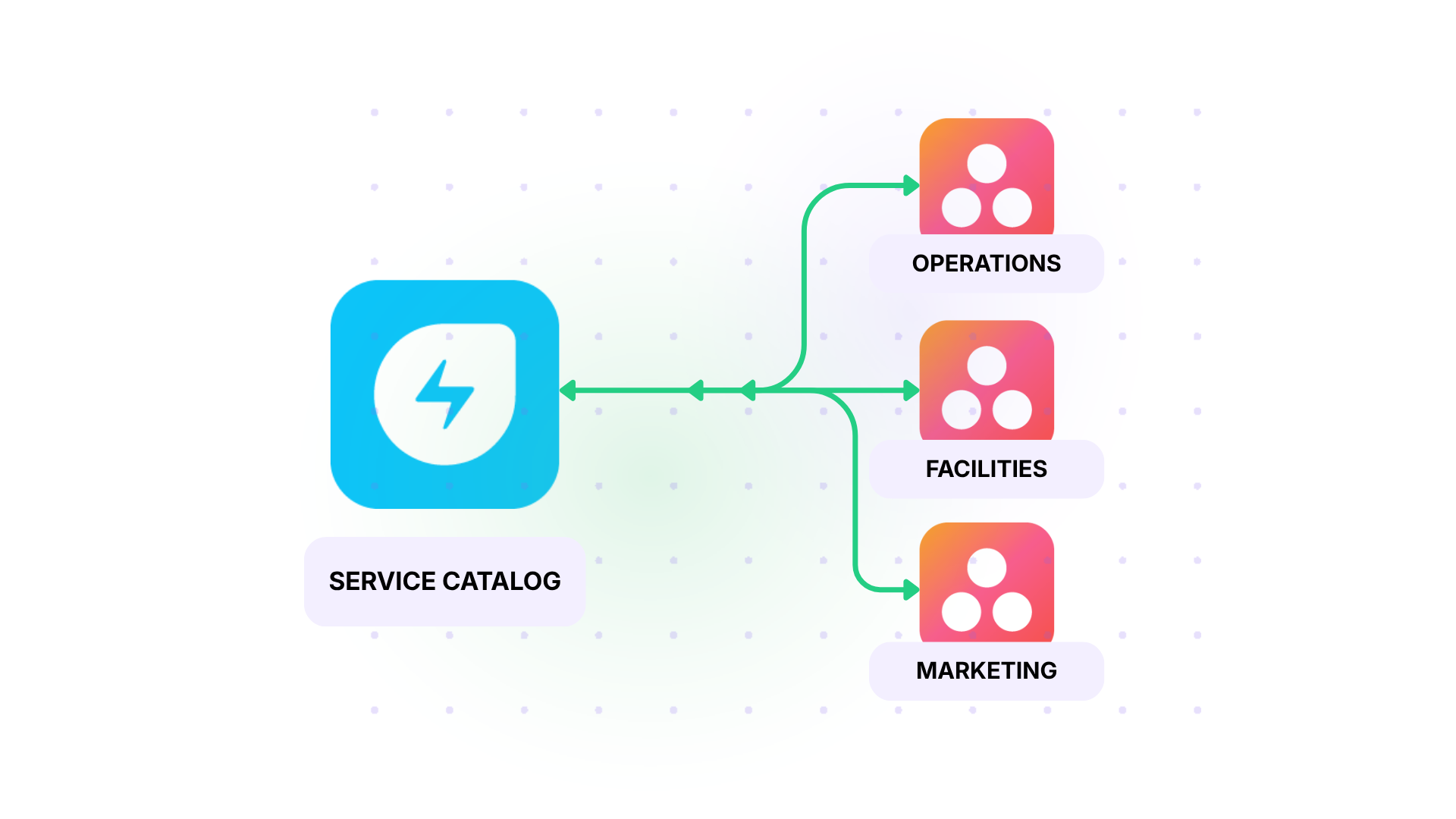
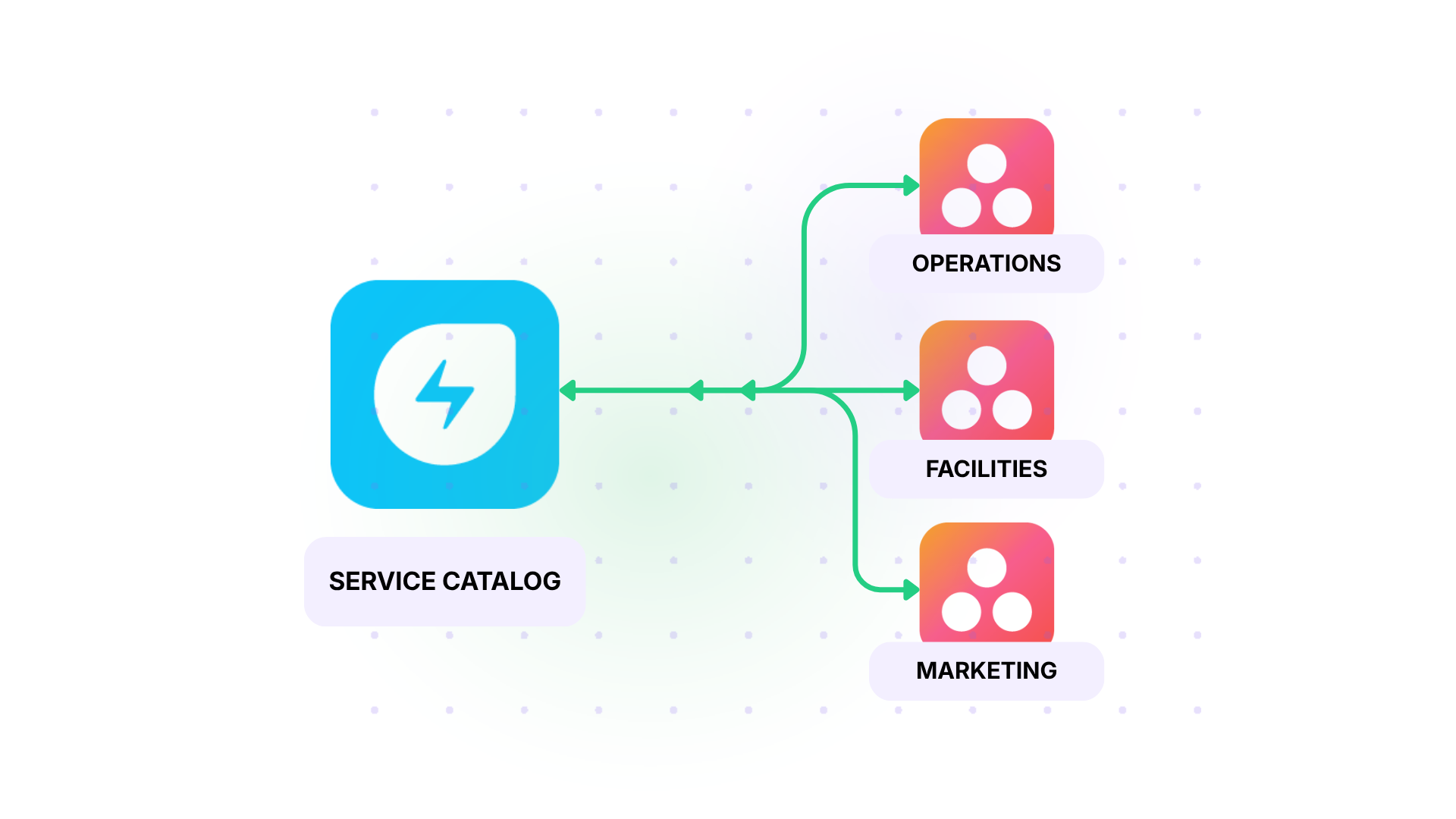
Case: Freshservice’s self-service portal receives requests that aren’t IT-related: office supply orders, facilities work, and event logistics. These requests need to reach non-IT teams who work exclusively in Asana.
Solution: Conditional triggers route by the Freshservice service catalog category. “Facilities” requests create tasks in the Facilities team’s Asana project. “Marketing Requests” go to the marketing operations board. Each category maps to a specific Asana project and a default assignee.
Real-World Application: A university IT department routes non-IT requests from Freshservice to Asana teams across campus operations, facilities, and student services. Staff submits everything through one portal. Automation handles the routing.
Change Management Readiness
Case: IT plans infrastructure changes in Freshservice. Business teams need to prepare for downstream impact (customer communications, process adjustments, training). The change schedule reaches business teams too late for proper preparation.
Solution: When a change request is approved in Freshservice, a task appears in a dedicated “Change Readiness” Asana project with the change window, affected services, risk assessment, and rollback plan. Project managers assign downstream tasks tied to the change timeline.
Real-World Application: An e-commerce company synchronizes approved changes from Freshservice into Asana. Marketing, customer support, and operations see upcoming changes weeks in advance and flag scheduling conflicts before they become production issues.
What Data Can Move Between Asana and Freshservice?
The scope depends on your integration tool. Here’s the general picture.
- Freshservice to Asana: incident details (subject, description, priority, status, category, assigned agent, due date), service request fields and approval statuses, conversations and notes (public and private, filterable), inline attachments, images, change request details (type, risk, impact, scheduled window), and asset information (name, type, status, assigned user).
- Asana to Freshservice: task details (name, description, assignee, due date, completion status), subtasks with parent-child hierarchy, custom fields (text, dropdown, number, date, multi-select), comments, attachments, project membership, tags, and section assignments.
Exalate allows users to sync any field available through the Asana and Freshservice REST APIs. This includes transformed values, calculated fields, and fields that don’t have a direct counterpart on the other side.
How to Set Up Asana Freshservice Integration With Exalate
This walkthrough follows the same process whether you’re connecting Asana to Freshservice, Jira, ServiceNow, or any other supported platform. The steps below are specific to the Asana-Freshservice pairing.
Step 1: Create Your Exalate Account
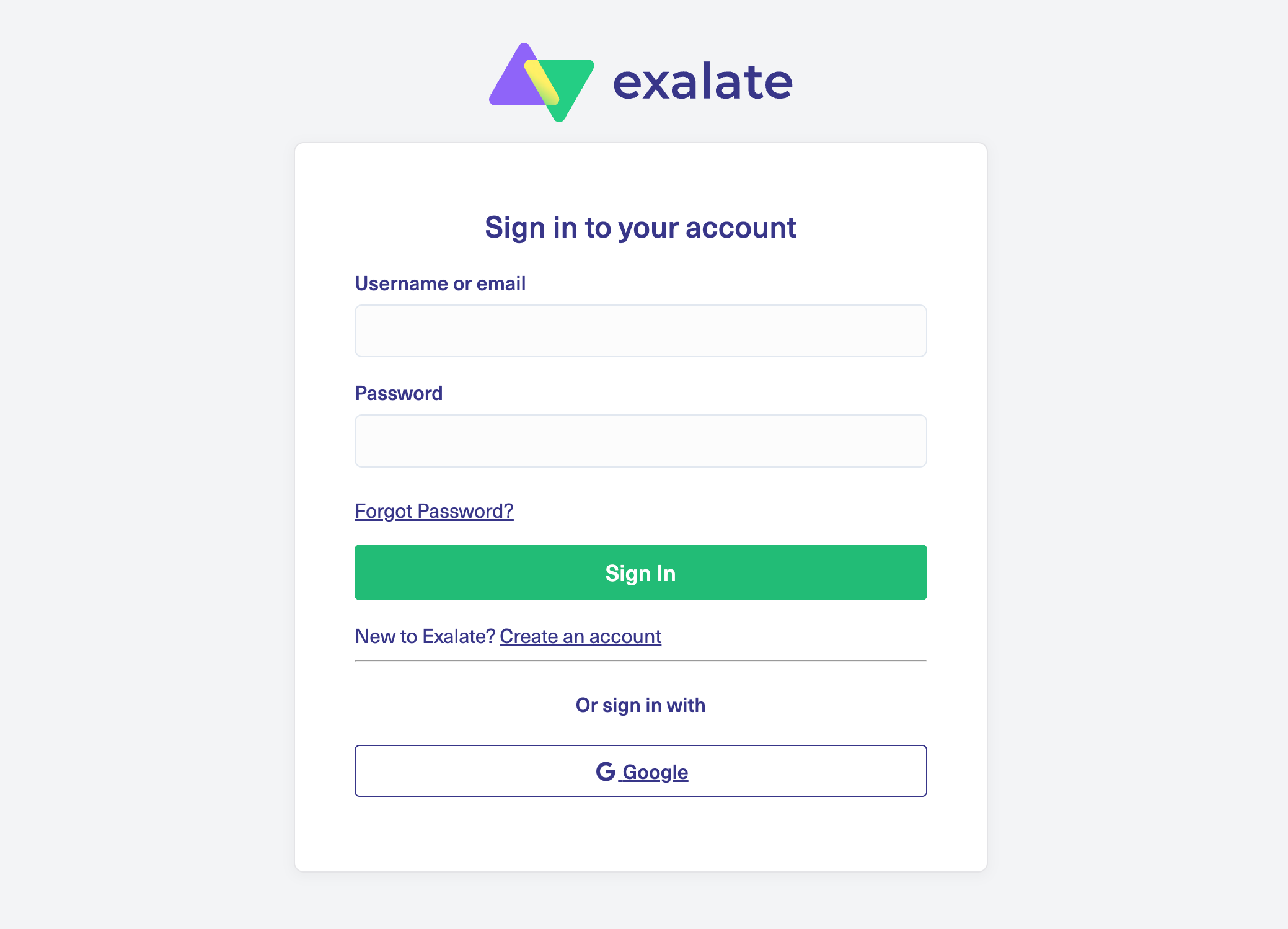
Create a new Exalate account by registering on the console. You can sign up by entering your business email and verifying it, or use Google sign-in. If you already have an account, log in with your existing credentials.
Step 2: Create a Workspace
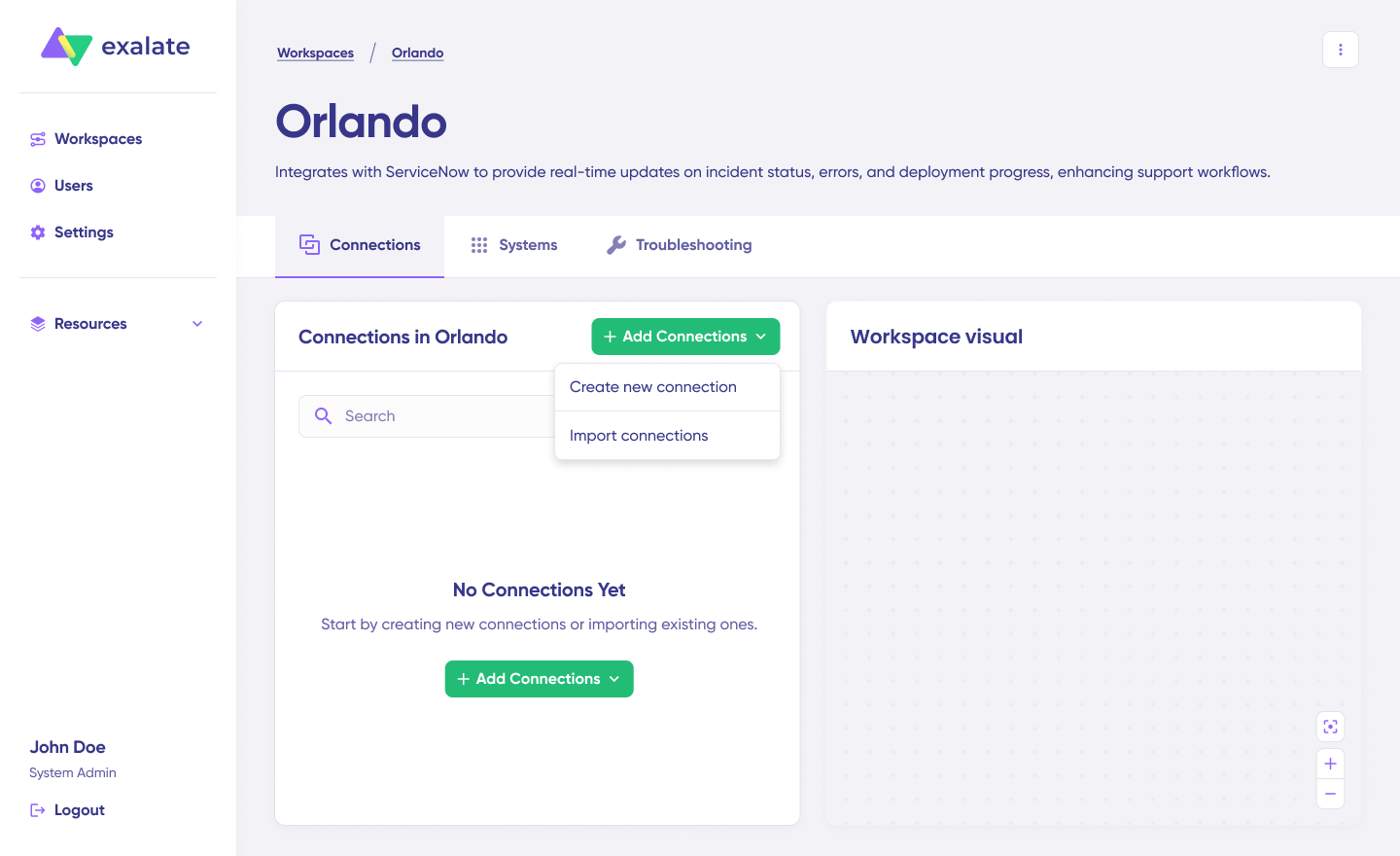
Workspaces help you organize and manage your integrations and connections in a single place. You can find all your existing workspaces under the “Workspaces” tab. If this is your first time, click the “+ Create Workspace” button. Enter a name and description, then click “Create workspace.”
Step 3: Create a Connection Between Freshservice and Asana
Click “+ Add connections” > “Create new connection.” Enter the name for your first system. It doesn’t matter whether you start with Freshservice or Asana.
Enter the URL of your first system (e.g., your Freshservice domain URL). A check happens behind the scenes. If your system is already part of the existing workspace, authentication happens automatically. If it’s a new system, you’ll need to enter your authentication details.
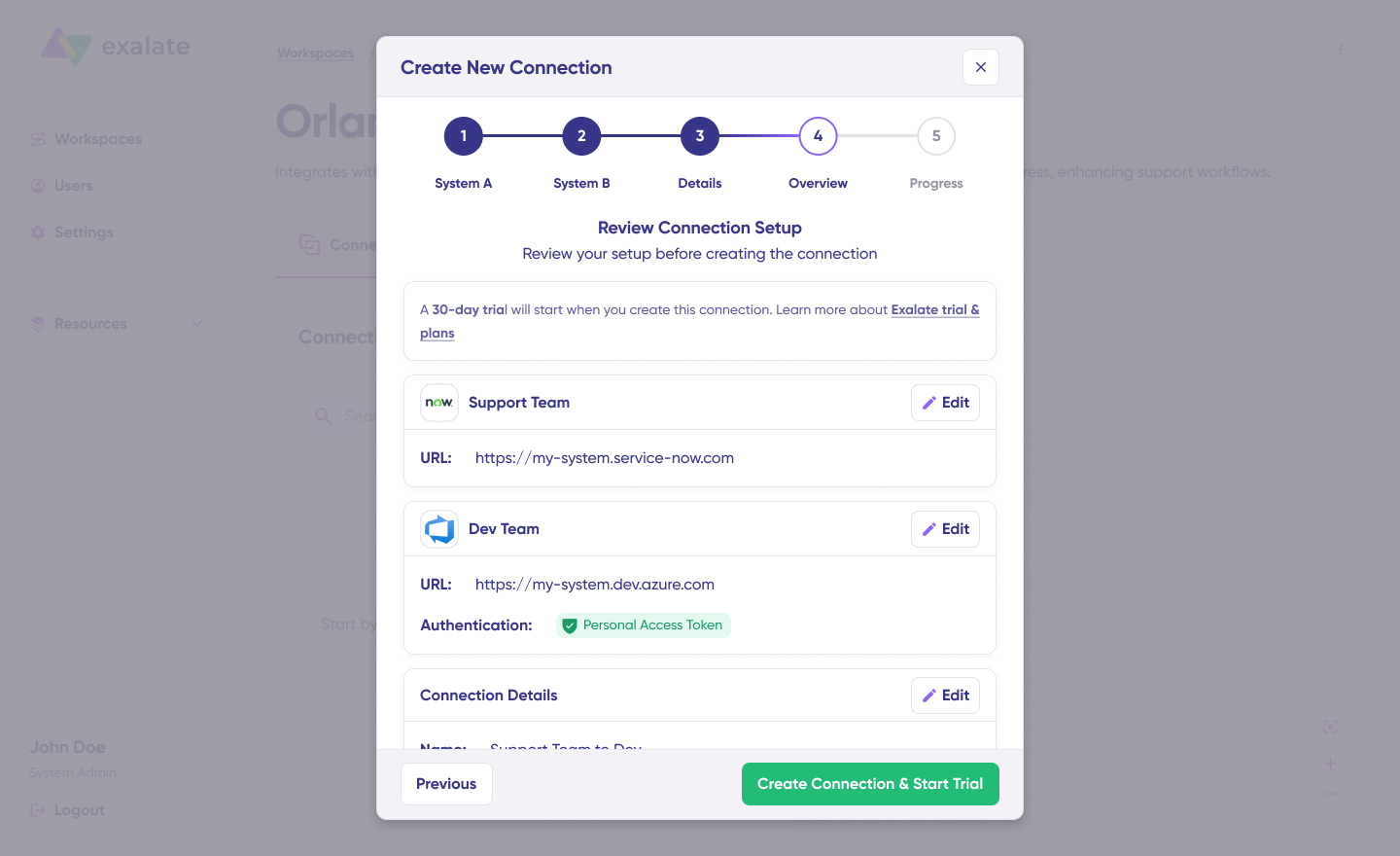
For Freshservice, use your API key. For Asana, you’ll authenticate using a personal access token (PAT). Follow the entire authentication steps to make sure your system is ready to start working with Exalate.
Complete the same setup for the second system. Give the connection a name and description (e.g., “IT Incidents to Project Board”), click “Next,” review the details, and click “Create connection.”
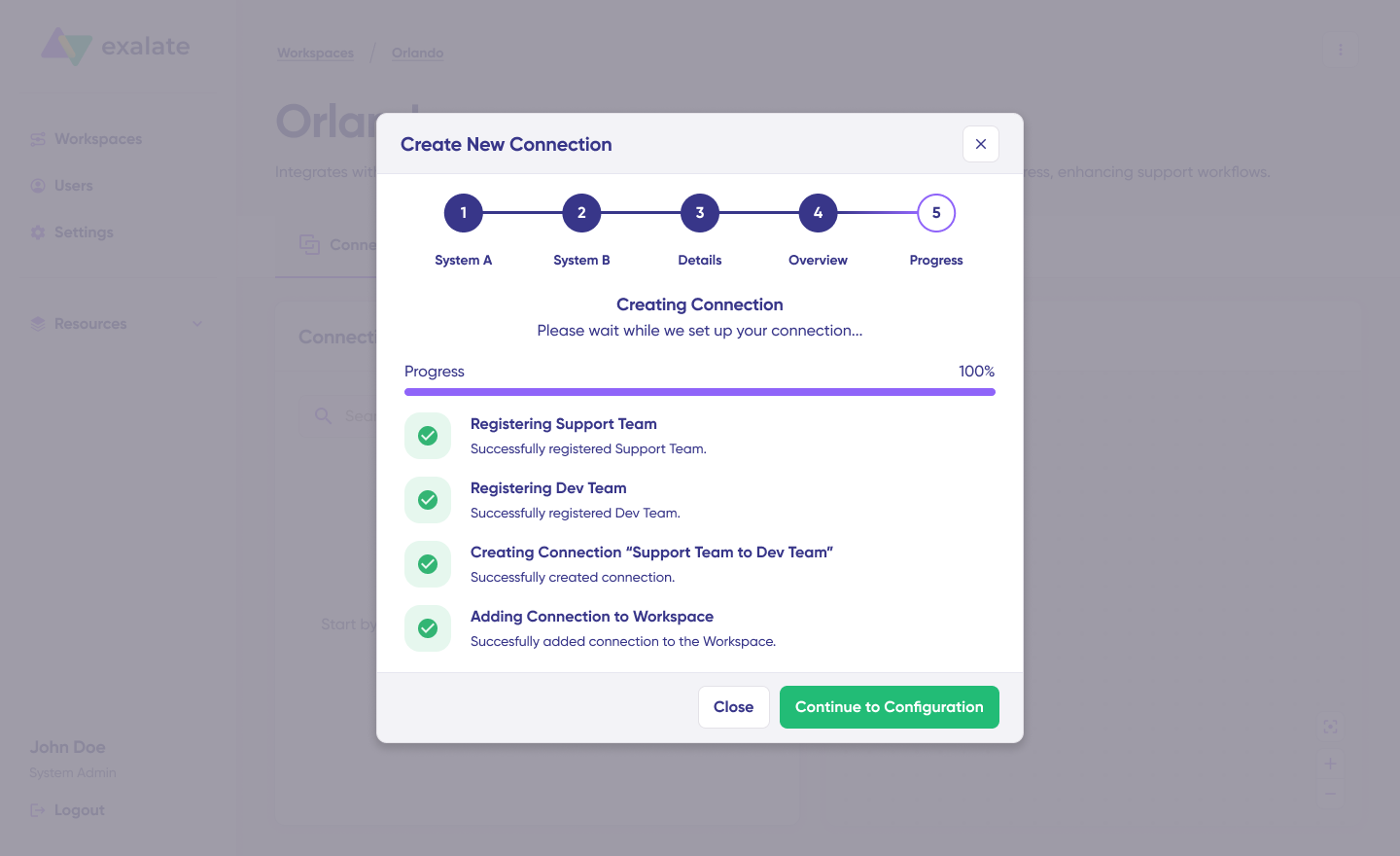
When the process is complete, select “Continue to configuration” and choose the Freshservice ticket type or Asana project you want to use for synchronization. Click “Build & continue.”
Step 4: Quick Sync (Manual Setup)
You now have two options: “Quick sync” and “Edit & Test.”
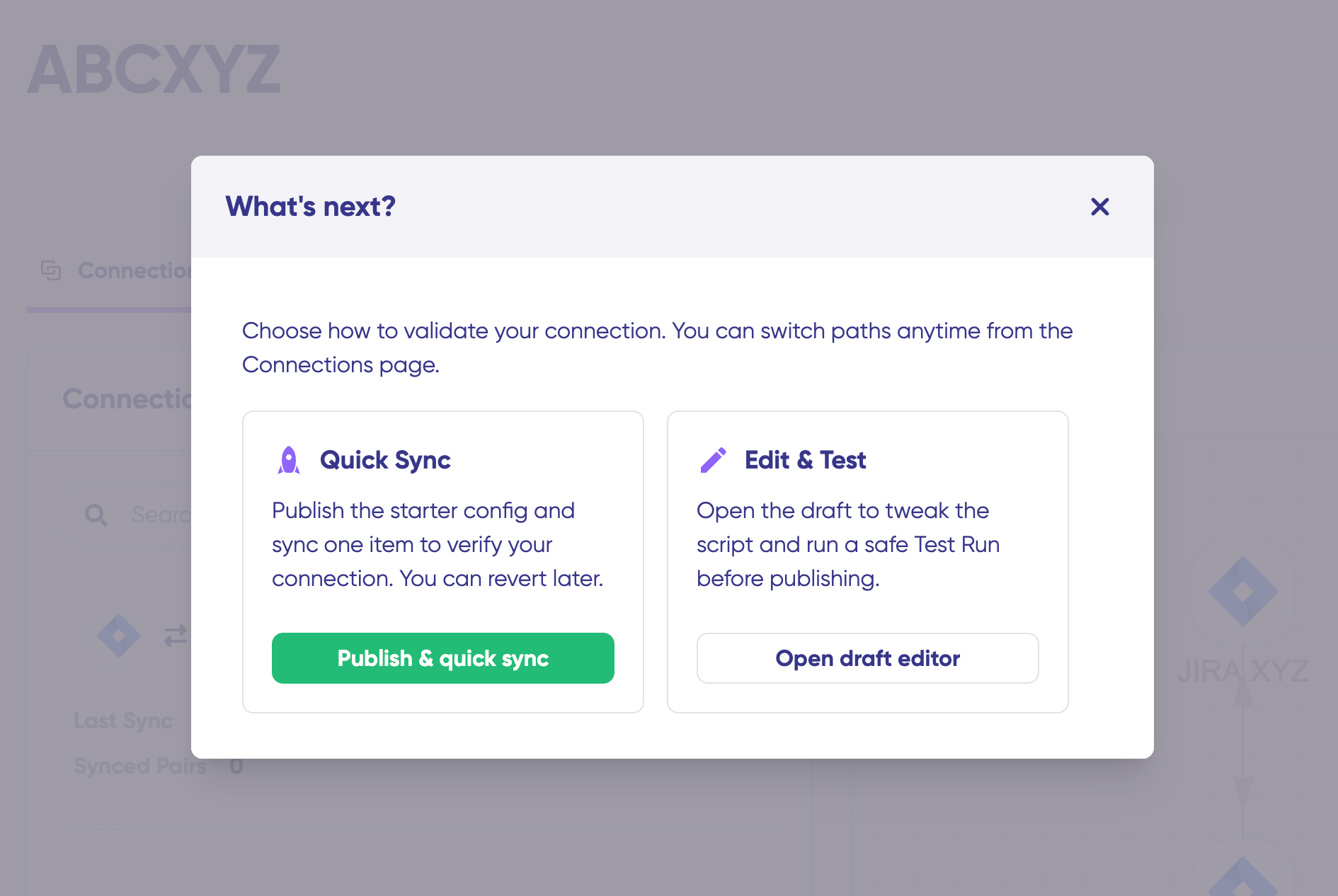
Quick Sync lets you verify the connection works by syncing a single item. Under the “Item sync monitor,” enter a Freshservice incident number or an Asana task ID. Click “Sync Now” to sync it, or “Link with existing” to link two items that already exist in both systems.
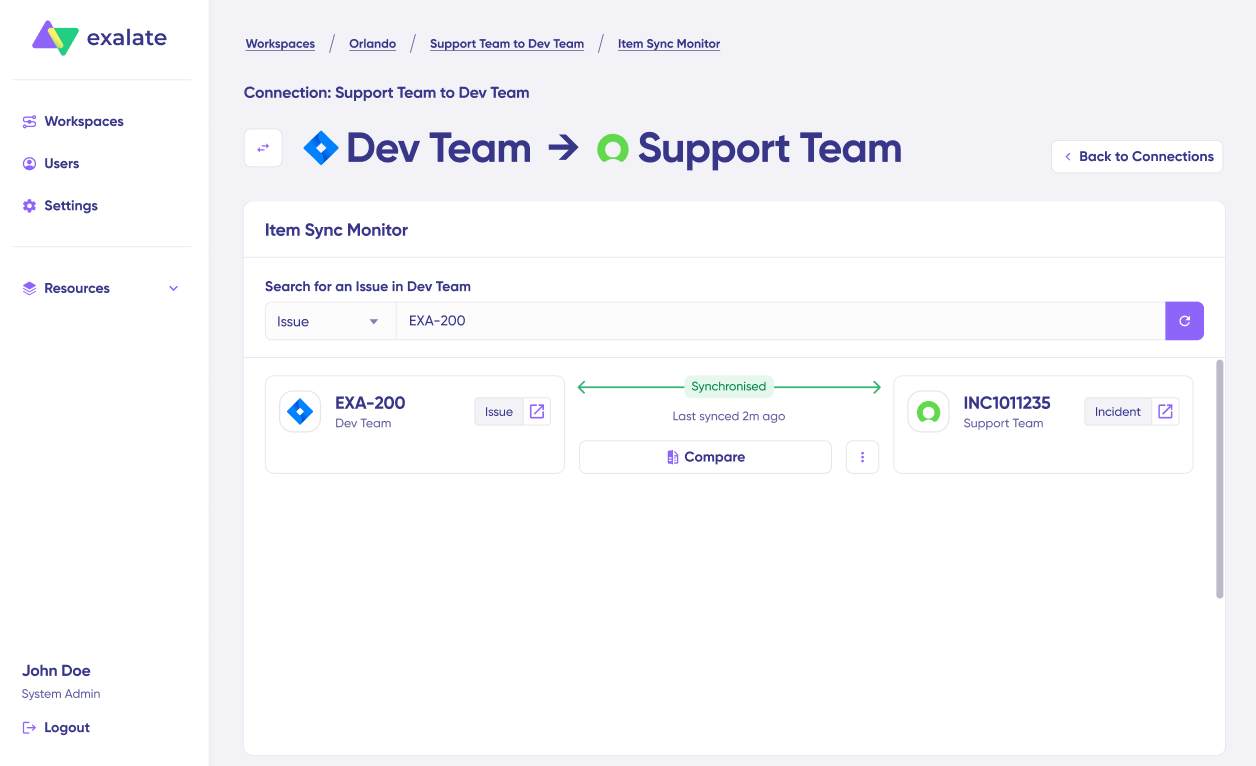
You’ll get status updates while the sync runs, and once complete, you can open both items in new windows to compare how the data is mapped.
Step 5: Edit Sync Rules/Scripts
Click “Open latest draft” or “Create a new version” to start editing. This ensures you don’t modify your live configuration accidentally. Changes in the draft are saved automatically.
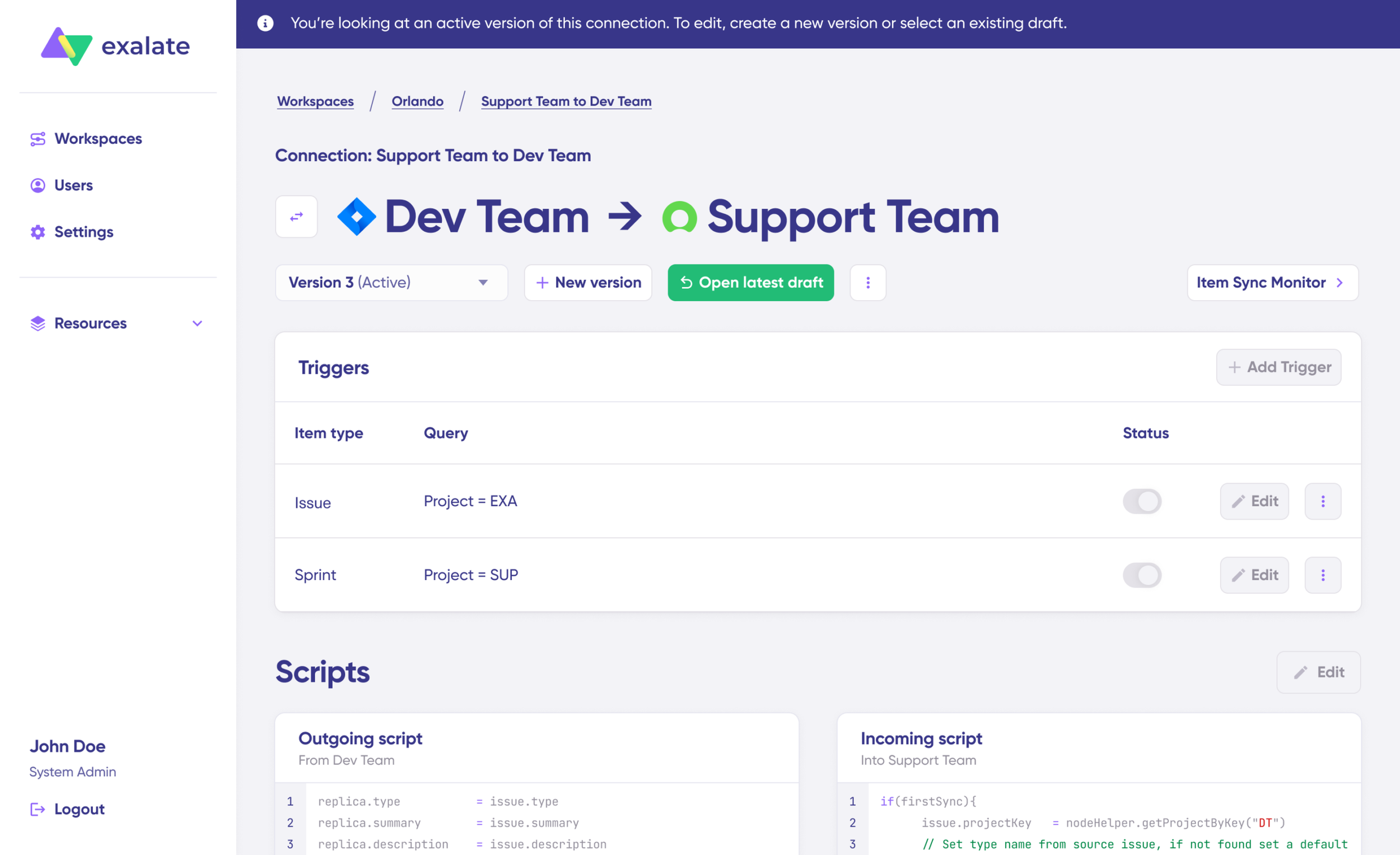
Click “Edit” to open the script editor. Sync rules are Groovy-based scripts that define what data flows and how it transforms. The scripts are split into outgoing (what data leaves the source system) and incoming (how that data maps in the target system). The direction can be changed by clicking the arrows next to the connection name.
You have two paths for building your rules:
Path A: Use Aida (AI-assisted configuration). Aida exists in both the incoming and outgoing script sections. Describe what you need in plain language:
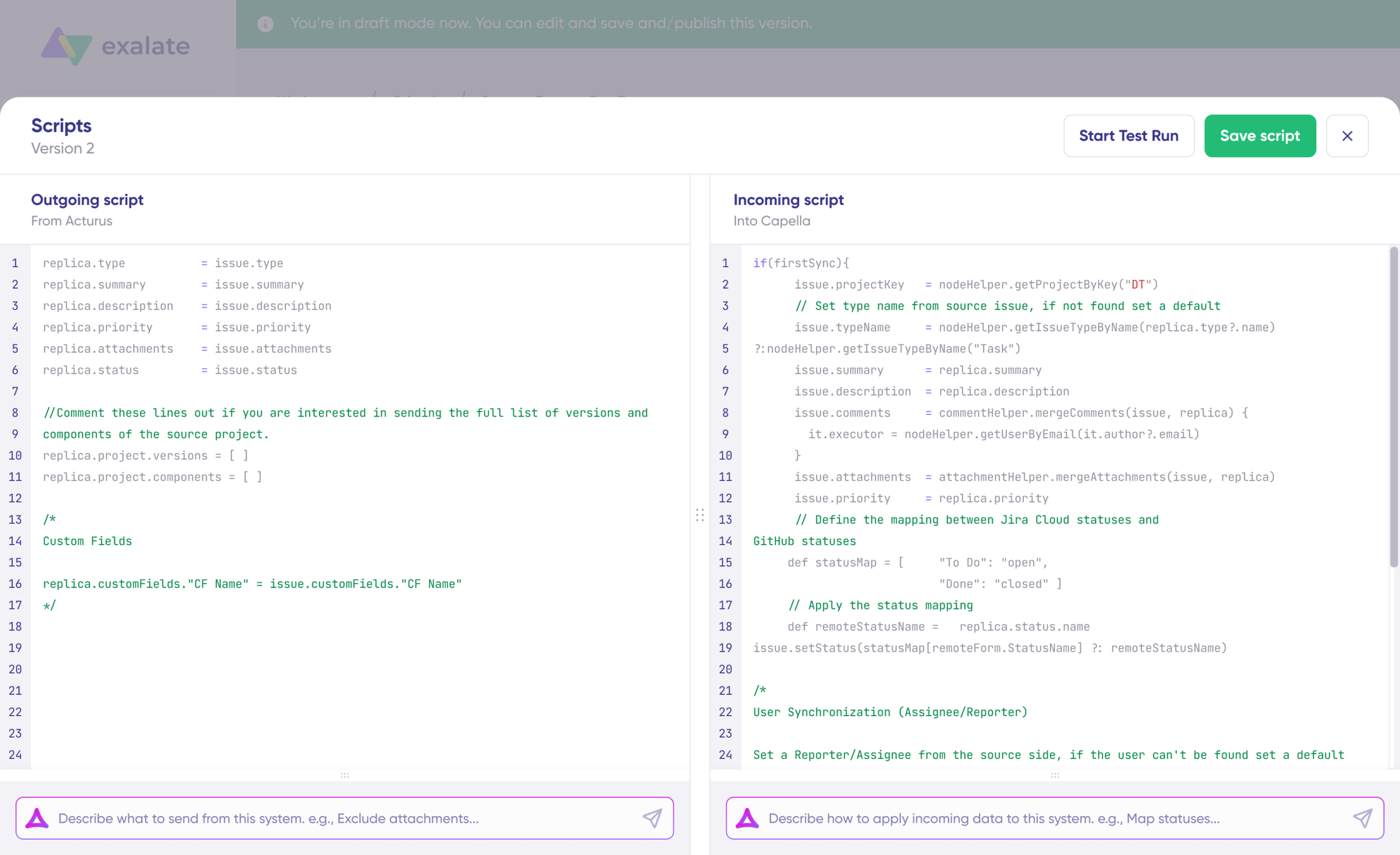
For outgoing scripts (Freshservice side): “Only sync incidents with priority High or Urgent. Include the subject, description, priority, status, conversations, and attachments.”
For incoming scripts (Asana side): “Map the subject to the task name, description to task notes. Map Freshservice priority to an Asana custom dropdown called ‘Severity’. Set the assignee based on email. Include comments and attachments.”
Aida generates working Groovy scripts with proper field mappings. Review the suggestions: green highlights show new lines being added, red shows lines being removed. Choose to “Insert” or “Discard” each suggestion. The outgoing and incoming scripts work independently, so maintain separate context and direction for each prompt.
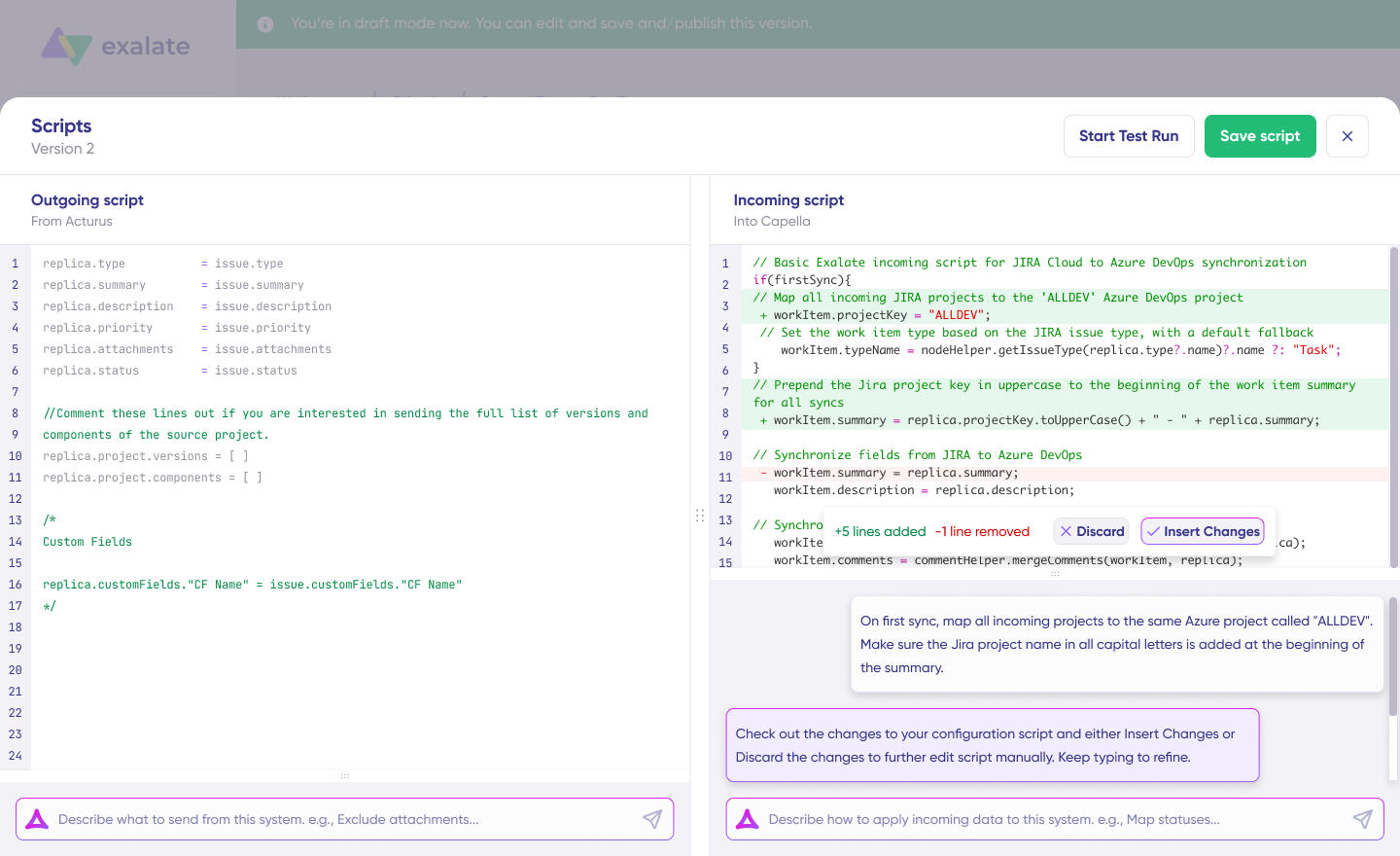
Note: Aida is helpful, but like any AI tool, review the generated code before applying it.
Path B: Write Groovy scripts directly. Example outgoing script on the Freshservice side:
if (entity.priority?.name in ["High", "Urgent"]) {

    replica.summary = entity.subject
    replica.description = entity.description
    replica.priority = entity.priority?.name
    replica.status = entity.status?.name
    replica.comments = entity.conversations
    replica.attachments = entity.attachments

}Code language: JavaScript (javascript)
Incoming script on the Asana side:
task.name = replica.summary
task.notes = replica.description
task.customFields["Severity"] = replica.priority
task.assignee = nodeHelper.getUserByEmail(replica.assignee?.email)
task.comments = replica.comments
task.attachments = replica.attachmentsCode language: JavaScript (javascript)
The replica works like a message payload and holds the actual data passed between synced entities in JSON format. To stop something from syncing (e.g., no attachments from Freshservice to Asana), remove that script line from the outgoing script.
Step 6: Test Run
Once your scripts are ready, click “Start Test Run” instead of publishing immediately. Select the items you want to test against (you can pick multiple). Click “Start Test Run.”
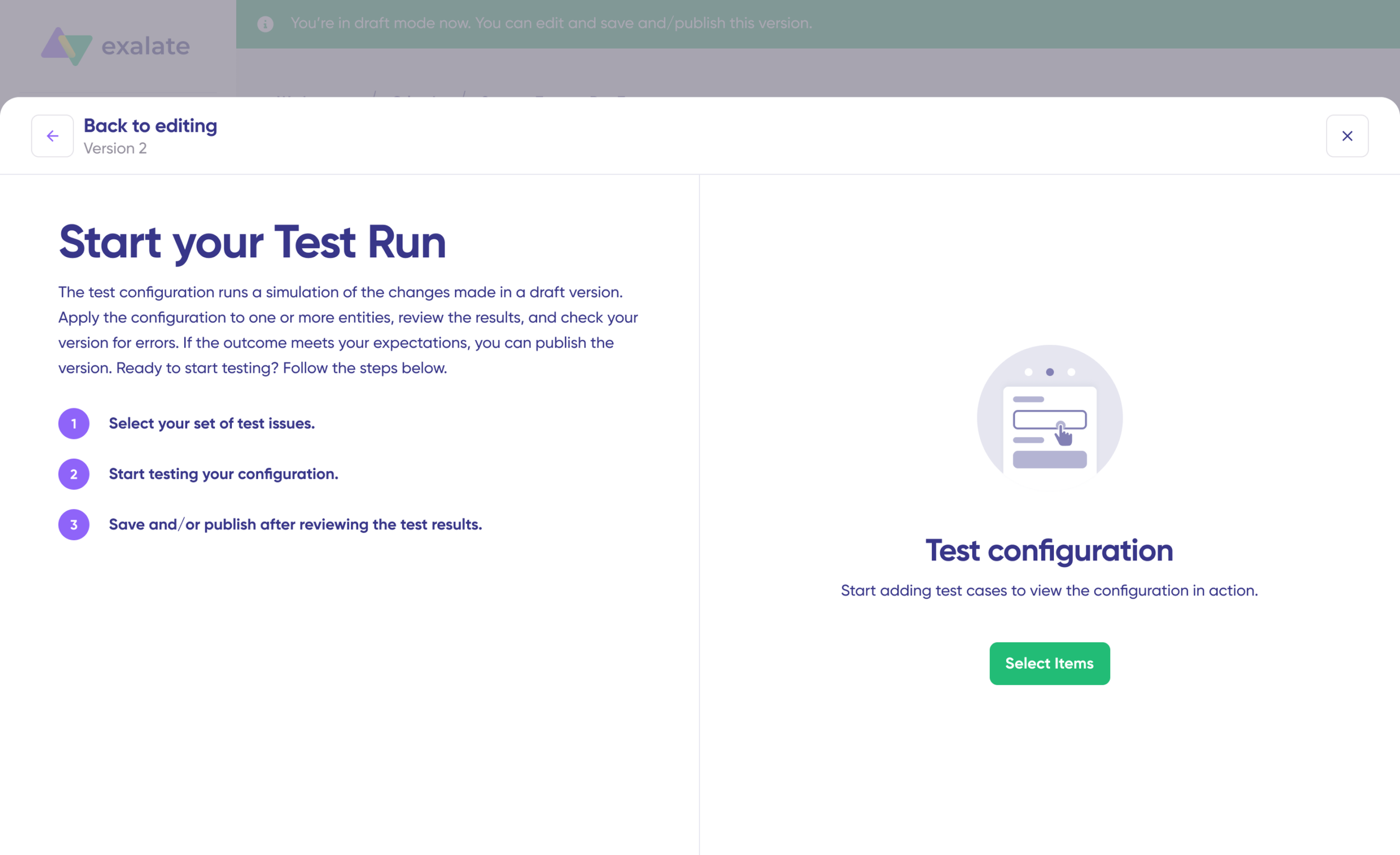
You can view the incoming and outgoing replicas for each test item in their respective tabs. Preview how the sync configuration would be applied, check the replica data, and verify field mappings.
If something looks wrong, go back, adjust the scripts, and test again. Deploy only when you’re confident it works. This safety net prevents errors from hitting live data.
Step 7: Publish and Set Triggers
Once the test run confirms everything maps correctly, click “Publish Version” to apply the configuration to your live sync. All versions for a connection are available in the “Version” dropdown and can be “Active,” in “Draft” (editable), or “Archived.”
Next, add triggers. Triggers are conditions or filters that determine which items sync automatically. Click “+Add trigger” to create them.
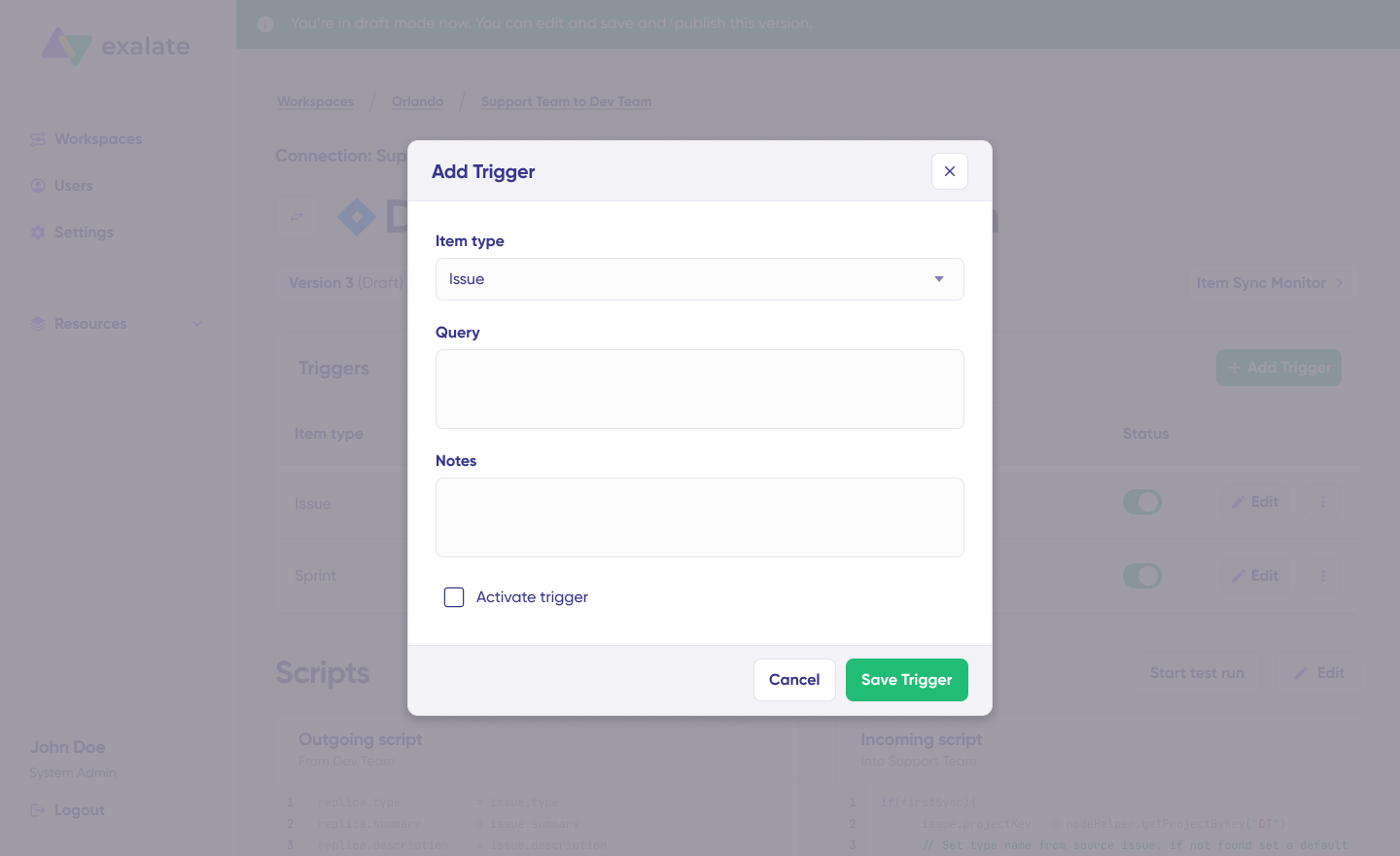
For Freshservice, use the advanced search syntax to target specific ticket types, priorities, categories, or assignment groups. For Asana, set triggers based on project membership, tags, or custom field values.
Example Freshservice trigger: sync all incidents where priority is “High” or “Urgent” AND category is “Software.”
Save your changes by publishing them.
Step 8: Deploy and Monitor
Your synchronization starts automatically based on the sync rules and triggers you’ve set.
A significant part of ongoing integration work is troubleshooting, especially with script-based tools that allow complex workflows. Exalate’s Aida helps here too.
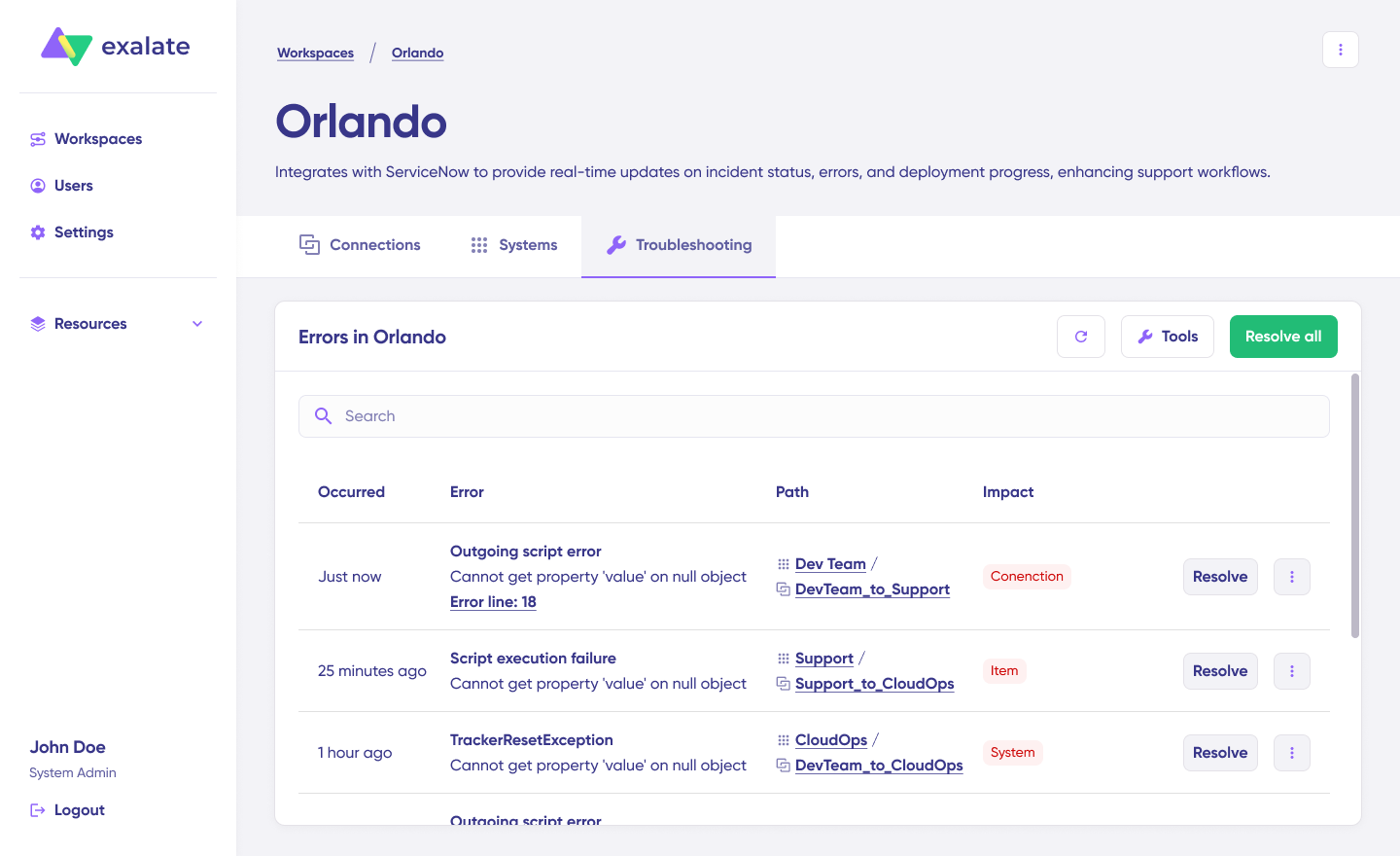
If an error occurs, go to the “Troubleshooting” tab of your workspace. Hover over the error and click the Aida icon next to it. Aida provides a short explanation of the error and a proposed solution.
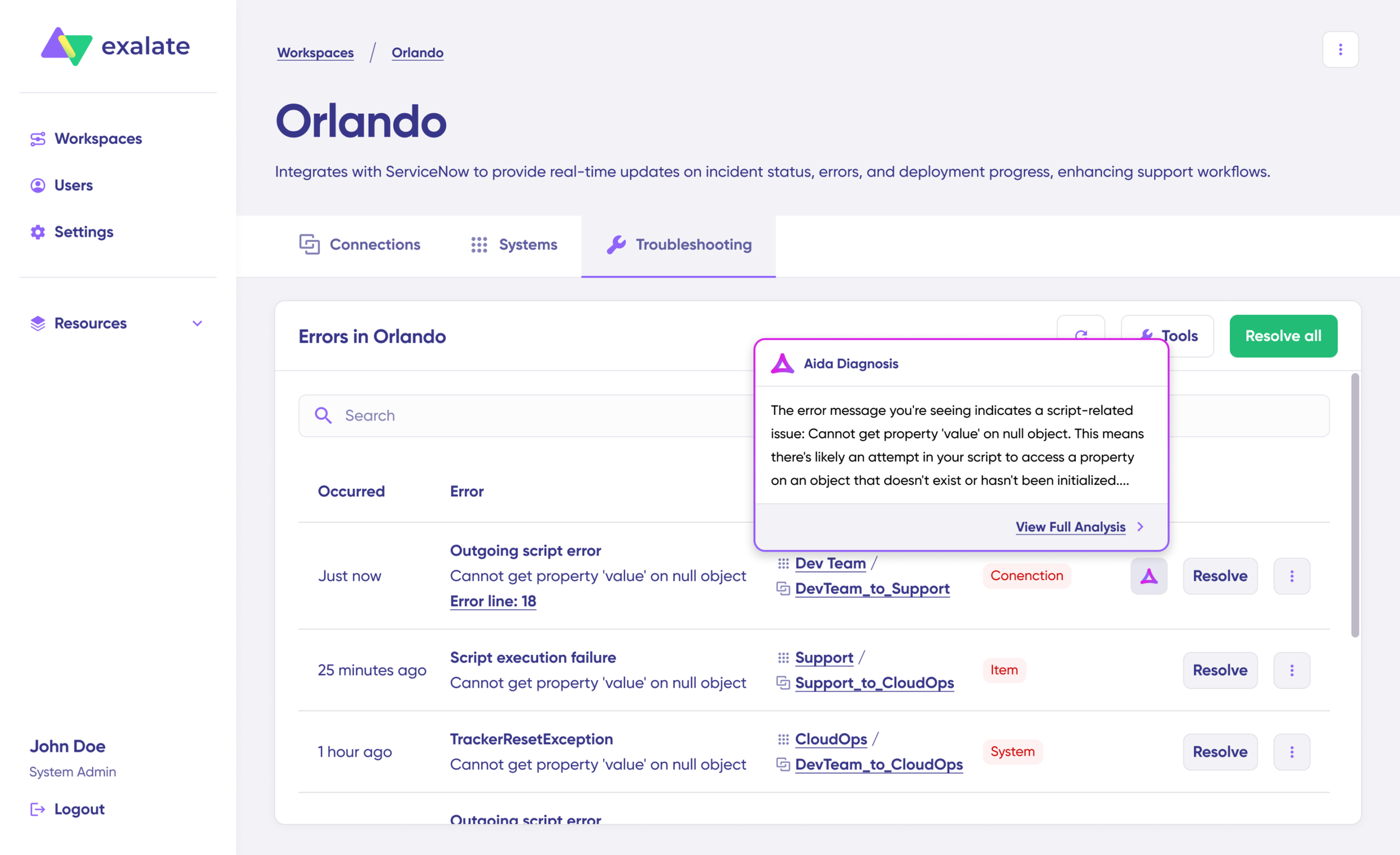
You can “View Full Analysis” for more context, check “Error details” for the stack trace, or view “Replicas” in JSON format. Choose “Resolve” to retry errors once you’ve applied the fix.
What Are Some Best Practices For Setting Up Asana to Freshservice Integration?
- Don’t sync everything. Use filters to limit which tickets flow into Asana. Without filters, your Asana projects become a noisy mirror of the entire Freshservice queue. Sync based on priority, category, department, or tags.
- Map fields before you build. Document source fields, target fields, data types, and transformation rules in a spreadsheet before touching any configuration. This prevents trial-and-error debugging later.
- Establish naming conventions. Prefix synced Asana tasks with the Freshservice ticket number (e.g., “FS-4521: VPN connectivity issue”) or store the cross-reference ID in a custom field. Makes it easy to trace items across both platforms.
- Set up failure alerts. Configure email or Slack notifications for sync errors. The Freshservice Connector App supports email alerts for recipe failures. Exalate provides error logging and notifications through its console. Small failures caught early don’t become big data drift problems.
- Clean your source data. If Freshservice tickets frequently have blank required fields, those gaps propagate into Asana as malformed tasks. Add validation rules in Freshservice to enforce minimum data standards before sync triggers.
- Document the integration. Maintain a living record of which workflows are integrated, what triggers them, who owns the integration, and what the escalation path is when something breaks. This becomes critical as your integration footprint grows.
- Start with one workflow, then expand. Pick a single high-impact process (incident escalation, onboarding handoffs, change readiness) and build, test, and stabilize it before adding more connections.
Conclusion
The gap between IT service management and business work management is one of those problems that every organization recognizes, but few solve systematically. Asana Freshservice integration closes it by making the data flow between both platforms automatic and reliable.
If your needs are straightforward, the native Freshservice Connector App or a Zapier workflow will get you started. When you outgrow those tools, whether because of custom field requirements, cross-company scenarios, task template needs, or multi-platform connectivity, Exalate gives you the scripting control and AI-assisted configuration to match the integration to your actual processes.
If you think your Asana to Freshservice workflows need more than Zapier or the native connector app, then book a call with our engineers to see how Exalate can be helpful.
Frequently Asked Questions
Can Exalate handle bidirectional sync between Asana and Freshservice?
Yes, Exalate supports native bidirectional sync between both platforms. Changes made in Freshservice, such as status updates, new comments, and field edits, propagate to Asana automatically, and changes in Asana flow back to Freshservice. The sync engine includes conflict resolution logic to prevent infinite loops.
What Asana plan do I need to use Exalate?
Exalate works with any Asana plan that provides API access. It connects through the Asana REST API using a personal access token, so there are no Asana-side plan restrictions imposed by Exalate.
What Freshservice plan do I need to use Exalate?
Exalate requires API access on the Freshservice side, which is available across Freshservice plans. You generate an API key from your Freshservice admin settings.
Can I sync custom fields between Asana and Freshservice?
Yes, Exalate’s scripting engine can map any field available through the Asana and Freshservice APIs. This includes custom dropdowns, text fields, date fields, number fields, and multi-select fields. You define the transformation logic in the sync script, so even fields with different formats or value sets on each side can be mapped accurately.
How does Freshservice priority mapping work in Exalate?
Freshservice uses built-in priority values like Low, Medium, High, and Urgent, while Asana does not have a native priority field and typically relies on a custom dropdown. With Exalate, you write a mapping rule that translates Freshservice priority values to the corresponding Asana custom field values. The mapping is fully configurable and works in both directions.
Can I integrate Asana and Freshservice across different companies?
Yes, Exalate is designed for cross-company scenarios. Each organization controls its own sync rules independently, deciding what data it shares and how it processes incoming data from the other side. Neither party requires admin access to the other’s platform.
How does Exalate pricing work?
Exalate pricing is based on the number of items in active sync, not the number of users. Each integration connection is billed separately. Go to the Exalate pricing page to find out more. You can estimate costs using the pricing calculator, and there’s a 30-day free trial so you can test things before committing.
Does Exalate sync conversations and attachments?
Yes, Freshservice conversations, both public replies and private notes, can sync to Asana task comments, and Asana comments can sync back to Freshservice. You configure which conversation types to include and which to keep private. Attachments, including inline images, documents, and files, sync automatically as part of the configured rules.
What happens if Asana or Freshservice experiences downtime?
Exalate uses a transactional sync engine that queues all changes during outages. Once connectivity resumes, the queued changes are applied in chronological order from the exact point of interruption. No data is lost, and no manual re-sync or intervention is required.
Can I connect Freshservice to platforms beyond Asana through Exalate?
Yes, Exalate supports Freshservice integration with Jira, ServiceNow, Zendesk, Freshdesk, Salesforce, Azure DevOps, Azure DevOps Server, GitHub, and Asana. You can run multiple integrations from the same Exalate workspace, and each connection operates independently with its own sync rules, triggers, and field mappings.
How long does it take to set up Asana Freshservice integration with Exalate?
Simple one-directional syncs with basic field mapping can be configured in under an hour using Aida’s AI-assisted setup. Bidirectional integrations with custom field transformations, conditional triggers, and multi-project routing typically take a few hours, depending on the complexity of your requirements.
Recommended Reads