An Asana Azure DevOps integration closes that gap by syncing tasks, work items, statuses, comments, and custom fields between the two platforms in real time.
There is no native connector between Asana and Azure DevOps. Every integration method relies on a third-party tool, whether that is a no-code automation platform or a script-based platform that offers full control over field mapping, conditional logic, and cross-company collaboration.
This guide covers why the integration matters, what data can move between both platforms, how to evaluate your options, practical use cases, and a full step-by-step walkthrough for setting up the connection with Exalate.
Key Takeaways
- The right integration approach depends on sync direction, field complexity, cross-company needs, and whether you need scripting control.
- Common use cases include sprint planning visibility, release coordination, outsourced development handoffs, and compliance audit trails.
- Automation platforms handle basic triggers but cannot sync comments or maintain true two-way field updates between both tools.
- AI-assisted configuration through Aida converts natural language prompts into working Groovy sync scripts, reducing setup time significantly.

What Is Asana?
Asana is a project management platform built for teams that need to plan, coordinate, and track work across departments. It is commonly used by product managers, marketing teams, operations leads, and business stakeholders who need visibility into task ownership, timelines, and project health.
Core capabilities include task management with assignees and due dates, project timelines and Gantt-style views, portfolio tracking across multiple projects, custom fields for categorization and priority, rules-based automation for recurring workflows, and reporting dashboards for stakeholder visibility.
Asana operates on a tiered plan model. The free Personal plan supports basic task management. Starter and Advanced plans add custom fields, rules, timelines, and forms. Enterprise and Enterprise+ plans include admin controls, SAML SSO, data export APIs, and advanced security features.
One thing worth noting: Asana does not have a native priority field. Teams typically create a custom dropdown field (High, Medium, Low) to represent priority, which affects how priority data maps during integration.
What Is Azure DevOps?
Azure DevOps is Microsoft’s end-to-end platform for software development lifecycle management. It covers everything from backlog planning and code repositories to CI/CD pipelines, test management, and artifact storage.
Development teams use Azure DevOps to manage work items (bugs, user stories, features, epics, tasks), track backlogs and sprints with configurable boards, host Git repositories with branch policies and pull request workflows, build and deploy through Azure Pipelines, run automated tests via Azure Test Plans, and publish packages through Azure Artifacts.
Azure DevOps is available as a cloud service (Azure DevOps Services) or as an on-premises deployment (Azure DevOps Server). Both versions expose REST APIs that integration tools use to read and write data.
Work items in Azure DevOps follow a hierarchical structure. Epics contain Features, Features contain User Stories or Bugs, and these can have child Tasks. This hierarchy matters during integration because Asana uses a flatter task-subtask model, and mapping between the two requires deliberate configuration.
Why Teams Need an Asana Azure DevOps Integration
When project management lives in Asana, and development execution lives in Azure DevOps, several problems show up fast.
- Duplicated work entry. A product manager creates a task in Asana. A developer recreates it as a work item in Azure DevOps. If the requirements change, someone has to remember to update both places. They usually do not.
- Stale status information. A developer closes a bug in Azure DevOps on Monday. The Asana task still shows “In Progress” on Thursday because nobody updated it manually. Stakeholders make decisions based on outdated data.
- Fragmented communication. Technical discussions happen in Azure DevOps comments. Business context sits in Asana conversations. Decisions get spread across Slack, email, and meeting notes. Critical context gets lost.
- No single view of progress. Project managers want a unified timeline. Developers want a clean backlog. Without integration, neither team gets what they need without logging into both platforms and cross-referencing manually.
- Delayed handoffs. When a sprint is planned in Azure DevOps, but the feature request originated in Asana, the handoff between teams introduces a delay every time. Integration automates this handoff so that new Asana tasks appear as Azure DevOps work items (or vice versa) based on rules you define.
These are not edge cases. They are the default experience for any organization running two platforms without a data bridge between them.
Integration Approaches: How to Connect Asana and Azure DevOps
Since there is no native connector, you have four main approaches.
Automation Platforms (Zapier, Make)
These tools use trigger-action logic. When something happens in one platform (a task is created, a status changes), the tool performs an action in the other platform (creates a work item, updates a field).
What works: Simple one-way automations. Creating Azure DevOps work items from new Asana tasks. Updating a single field when a status changes.
What does not work: True bidirectional sync. Comment synchronization. Complex field transformations. Conditional logic based on multiple criteria. Zapier specifically cannot sync comments between Asana and Azure DevOps.
Best for: Small teams with simple, one-directional workflows and no cross-company requirements.
No-Code Sync Platforms
These tools offer visual field mapping interfaces where you connect both platforms, select projects, map fields in a table, and set sync direction. No scripting required.
What works: Two-way sync for standard fields. Status mapping through a UI. Comment and attachment sync. Quick setup for straightforward scenarios.
What does not work: Complex conditional logic (e.g., “only sync tasks tagged ‘engineering’ that are assigned to a specific team and have a due date within 14 days”). Cross-company collaboration where each side needs independent control. Custom data transformations beyond what the UI exposes.
Best for: Teams with standard field structures, same-company use cases, and no need for scripting flexibility.
Script-Based Integration Platforms (Exalate)
Exalate provides full programmatic control over the integration using Groovy-based sync scripts. You define outgoing rules (what leaves your system), incoming rules (what comes into the system), and triggers (what conditions initiate synchronization).
What works:
Bidirectional sync with independent control on each side.
- Conditional logic of any complexity.
- Custom field transformations, including mapping Asana’s flat priority dropdown to Azure DevOps’ Priority and Severity fields simultaneously.
- Comment filtering (sync public comments only, exclude internal notes).
- Cross-company integration, where each organization configures its own side.
- Multi-platform connections beyond just Asana and Azure DevOps.
What does not work: This is not the fastest option for simple, same-team scenarios where a no-code tool would suffice.
Best for: Enterprise teams, cross-company collaboration, complex field mapping, regulated industries, and organizations already using or planning to use multiple integration connections.
Custom API Integration
You can build a custom connector using the Asana REST API and Azure DevOps REST API. This gives you complete control but comes with significant development and maintenance overhead.
You will need to handle authentication (OAuth 2.0 for Asana, Personal Access Tokens, or OAuth for Azure DevOps), webhook management, bidirectional sync without infinite loops, conflict resolution, retry logic for failed API calls, rate limiting (Asana enforces approximately 1,500 requests per minute), user mapping, and ongoing maintenance as both APIs evolve.
Best for: Organizations with dedicated integration engineering teams and highly unique requirements that no off-the-shelf tool can accommodate.
How to Choose
| Criteria | Zapier / Make | Exalate | Custom API |
| Setup time | Minutes | Hours to days (depending on the use case) | Weeks to months |
| Bidirectional sync | Limited | Yes | Yes (if built) |
| Custom field mapping | Basic | Full scripting | Unlimited |
| Conditional logic | Trigger-action only | Groovy scripting | Code-based |
| Cross-company support | No | Yes | Yes (if built) |
| Multi-platform support | 7,000+ apps (shallow) | 15+ deep connectors | Whatever you build |
| Test run capability | No | Yes | Whatever you build |
| AI-assisted config | No | Yes (Aida) | No |
| Maintenance burden | Low | Low to medium | High |
| Pricing model | Per-task / per-Zap | Per synced item pair | Development cost |
Common Use Cases for Asana Azure DevOps Integration
Case 1: Sprint Planning Visibility for Non-Technical Stakeholders
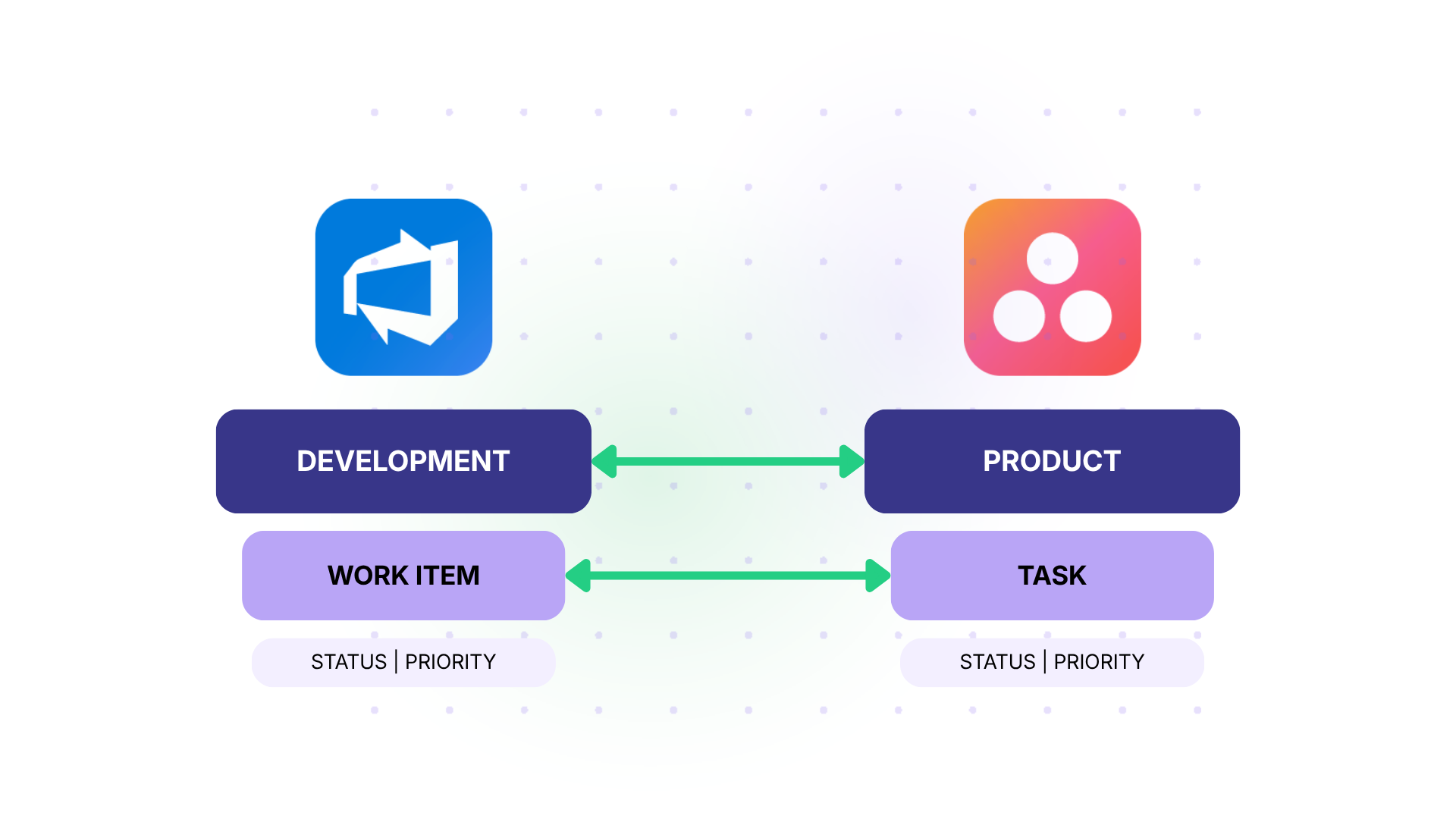
Case: Product managers plan features and track timelines in Asana. Developers execute sprints in Azure DevOps. Product managers have no visibility into sprint progress without attending standups or requesting manual updates.
Solution: Set up a two-way sync where Azure DevOps work items tagged for a specific sprint automatically create or update corresponding Asana tasks. Status changes in Azure DevOps (Active, Resolved, Closed) are reflected in Asana in real time. Product managers see live progress without leaving Asana.
Real-World Application: A SaaS company with separate product and engineering teams uses Asana for quarterly roadmap planning and Azure DevOps for two-week sprints. The integration feeds sprint-level status back into the Asana roadmap view, giving leadership accurate delivery forecasts without additional reporting overhead.
Case 2: Outsourced Development Handoffs
Case: A company outsources development work to an external agency. The internal team tracks projects in Asana. The agency’s developers use Azure DevOps. Neither side wants to grant the other full access to their platform.
Solution: Use Exalate to create a connection where each side controls its own sync rules independently. The internal team decides what task data leaves Asana. The agency decides how incoming data maps into Azure DevOps work items. Status updates and comments flow both ways, but internal notes on either side stay private.
Real-World Application: A retail company outsources mobile app development to a partner agency. The integration syncs feature requests from Asana to the agency’s Azure DevOps backlog. Bug reports and resolution updates flow back. Neither party needs access to the other’s platform, and sensitive internal discussions remain private.
Case 3: Bug Triage from Business Teams
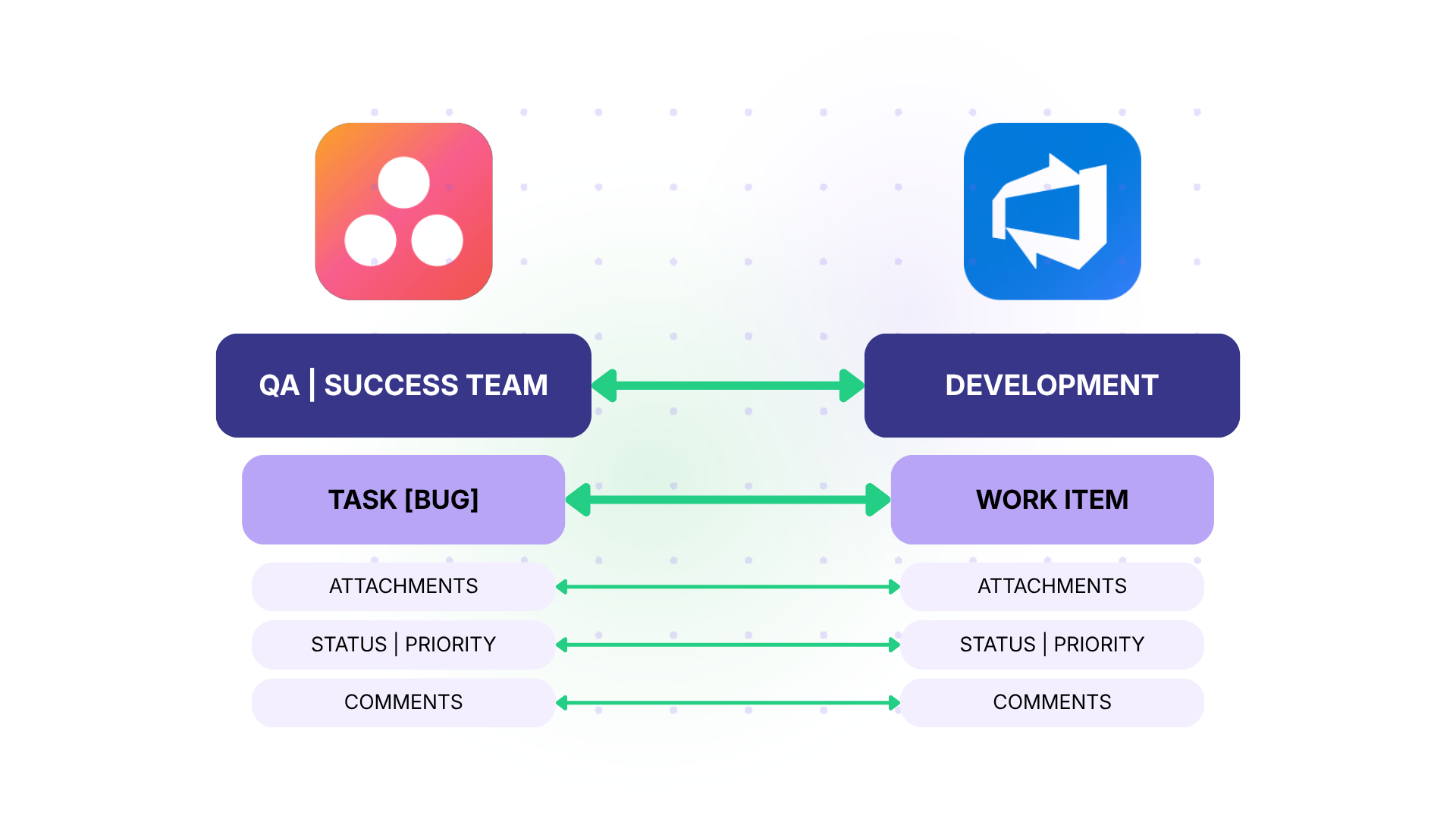
Case: Non-technical teams (customer success, QA testers, internal operations) discover and report bugs in Asana. Developers need these reports in Azure DevOps to prioritize and fix them. Manual copy-paste between platforms loses context and creates delays.
Solution: When a bug-type task is created in Asana with specific tags (e.g., “bug-report”), a trigger automatically creates a corresponding Bug work item in Azure DevOps with the full description, attachments, and priority. Developer comments and status updates sync back to the Asana task so the reporting team stays informed.
Real-World Application: A gaming studio’s QA team logs visual bugs with screenshots in Asana. The integration routes these to the development team’s Azure DevOps backlog automatically. Developers see the original screenshots, add technical notes, and resolve the item. The QA team sees the resolution in Asana without ever logging into Azure DevOps.
Case 4: Release Management Coordination
Case: Release managers coordinate go-to-market activities in Asana (documentation, marketing assets, training materials) while developers track deployment status in Azure DevOps. Without integration, release readiness depends on Slack messages and status meetings.
Solution: Sync Azure DevOps release milestones and deployment statuses to Asana tasks that represent go-to-market activities. When a release branch passes QA in Azure DevOps, the corresponding Asana task updates automatically, triggering downstream work for documentation and marketing teams.
Real-World Application: A B2B software company coordinates monthly releases across five teams. The integration ensures that when a release candidate is approved in Azure DevOps, the marketing team’s Asana project automatically moves from “Awaiting Build” to “Ready for Launch Prep,” eliminating the manual handoff that previously caused two-day delays.
Case 5: Multi-Vendor Coordination
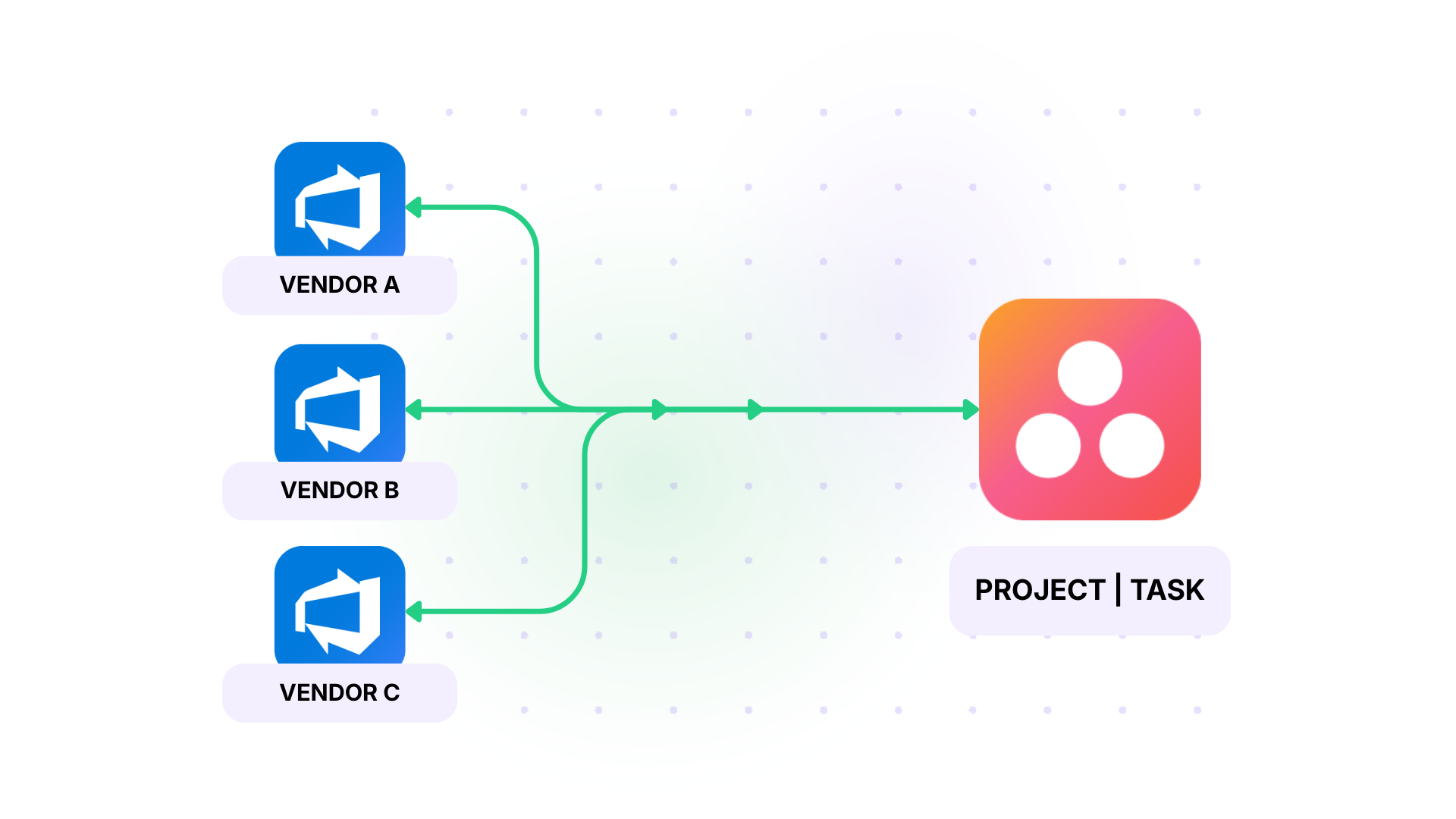
Case: Large enterprises work with multiple development vendors, each using their own Azure DevOps organization. The enterprise tracks all vendor deliverables in a central Asana workspace, but needs each vendor connection to remain separate and secure.
Solution: Create independent Exalate connections between the central Asana workspace and each vendor’s Azure DevOps organization. Each connection has its own sync rules, triggers, and field mappings. Data from Vendor A never crosses into Vendor B’s connection.
Real-World Application: A telecommunications company manages three development vendors building different components of a platform. Each vendor’s Azure DevOps instance connects to the enterprise’s Asana workspace through separate Exalate connections. The program manager sees consolidated progress in Asana while each vendor operates independently.
Best Practices for Asana Azure DevOps Integration
- Start narrow, then expand. Begin with one project and a small set of fields. Validate that status mapping, comment sync, and field transformations work correctly before rolling out to additional teams.
- Map statuses deliberately. Asana uses board columns or custom status fields. Azure DevOps uses a State + Reason model. Write out the mapping on paper before configuring it in your tool. A mismatch here causes confusion that erodes trust in the integration.
- Decide the comment direction early. Syncing all comments both ways sounds good in theory, but creates noise in practice. Consider syncing only comments tagged with a specific prefix or filtering internal notes from public updates.
- Account for Asana’s priority gap. Since Asana lacks a system-level priority field, decide upfront how your custom priority dropdown maps to Azure DevOps Priority and Severity fields. Document this mapping for both teams.
- Use test runs before going live. Exalate’s test run feature lets you validate sync behavior on real data without publishing the configuration. Run tests with work items that cover your edge cases (items with attachments, items with subtasks, items with custom fields).
- Version your sync scripts. Exalate tracks script versions so you can roll back if a new configuration causes issues. Treat sync scripts like code: test changes before publishing.
- Monitor sync health. Set up alerts for sync failures. A failed sync that goes unnoticed for days can create significant data drift between platforms.
What Data Can You Sync Between Asana and Azure DevOps?
Beyond the standard field mapping table, here is what each category of integration tool typically handles.
- Standard fields: Task name/title, description, assignee, due date, status/state.
- Custom fields: Text fields, dropdown selects, number fields, and date fields. Multi-select fields and cascading dropdowns may require scripting.
- Comments: Bidirectional comment sync with author attribution. Zapier cannot sync comments for this integration pair.
- Attachments: Images, documents, and files. File size limits vary.
- Subtasks and hierarchy: Mapping Asana subtasks to Azure DevOps child work items (Tasks under User Stories) requires scripting to maintain the parent-child relationship.
- Sprints and iterations: Mapping Asana timeline milestones to Azure DevOps iteration paths. This is an advanced scenario that requires Groovy scripting.
- Area paths: Mapping Asana sections or projects to Azure DevOps area paths for organizational alignment.
How to Set Up an Asana Azure DevOps Integration With Exalate
This walkthrough covers connecting Asana and Azure DevOps through Exalate.
Create Your Exalate Account
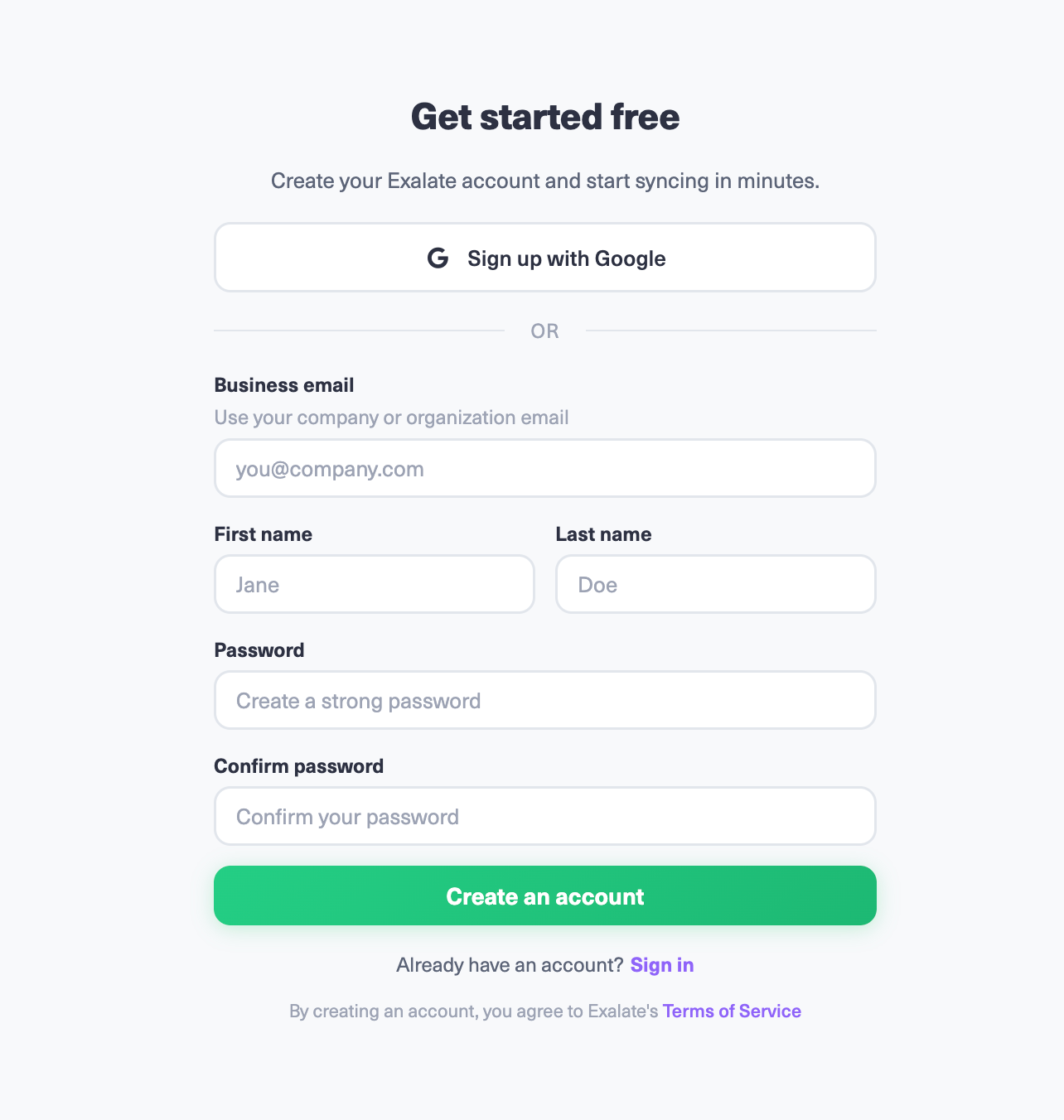
Visit the Exalate integrations page to get started and create a new account. You can register by manually entering your business email and verifying it, or sign up using Google. If you already have an account, log in to access the dashboard.
Create a New Connection
To create a connection, you need an active Exalate account with access credentials for Asana and Azure DevOps.
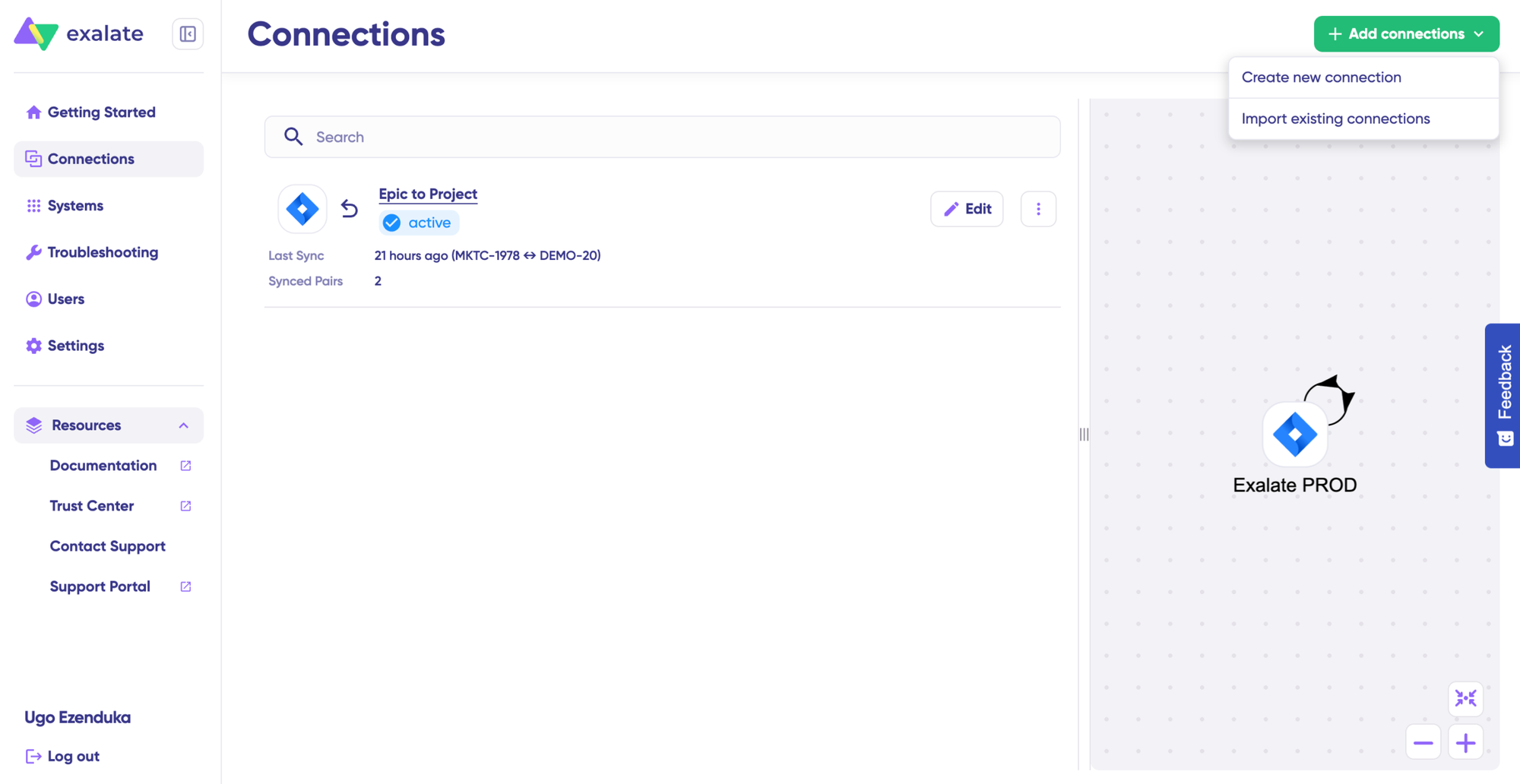
Click on “+ Add connections” and select “Create new connection.” Enter the name for your first system. It does not matter whether you start with Asana or Azure DevOps. Enter the URL of your system.
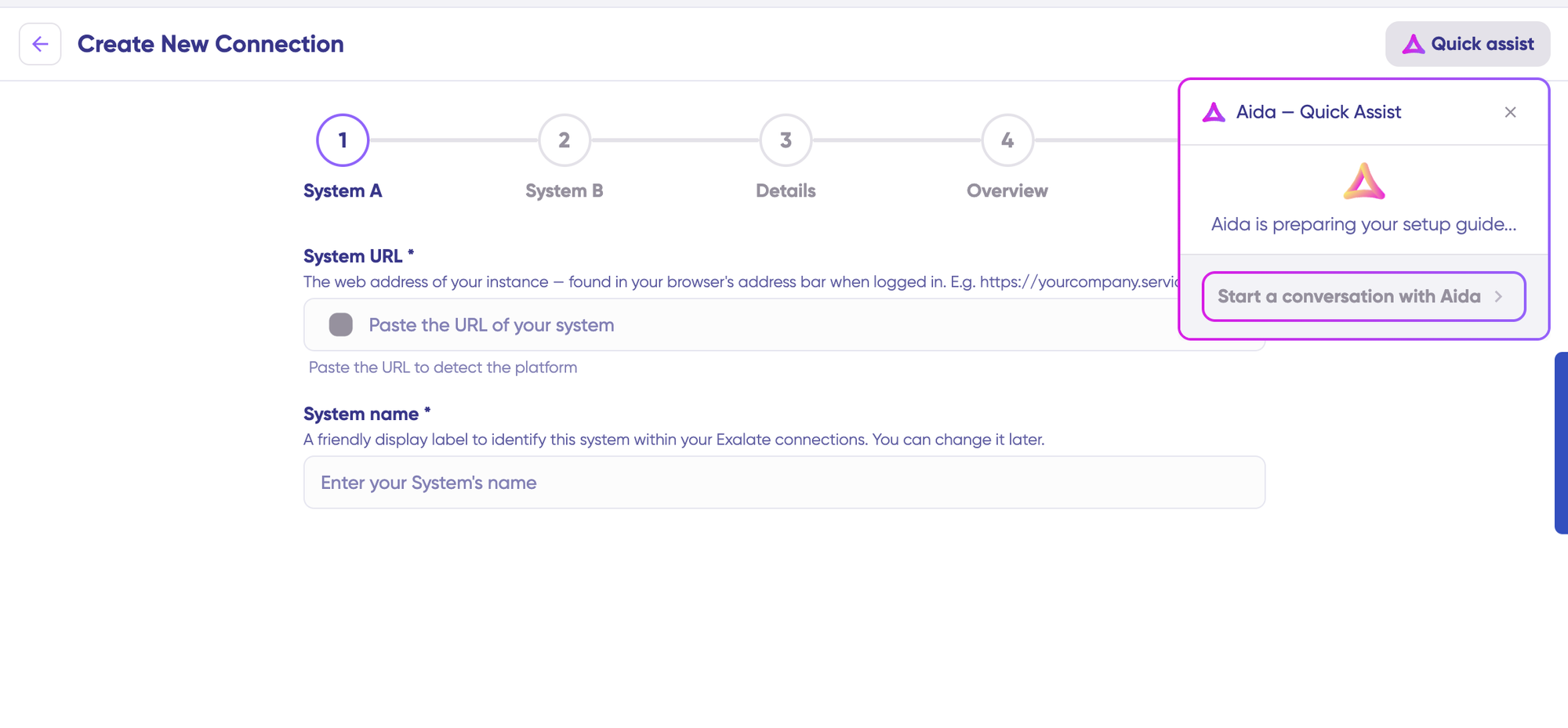
You can also speed up the process by using Aida – Quick Assist at the top right of the dashboard.
Once you enter the URL, a small check happens behind the scenes. If your system is already registered, authentication happens automatically.
For a new system, you need to enter your authentication details. For both Asana and Freshdesk, use your API key to authenticate your system. Azure DevOps uses PATs and OAuth, while Azure DevOps Server uses only PATs.
Finish this setup for the second system as well. The same rules apply.
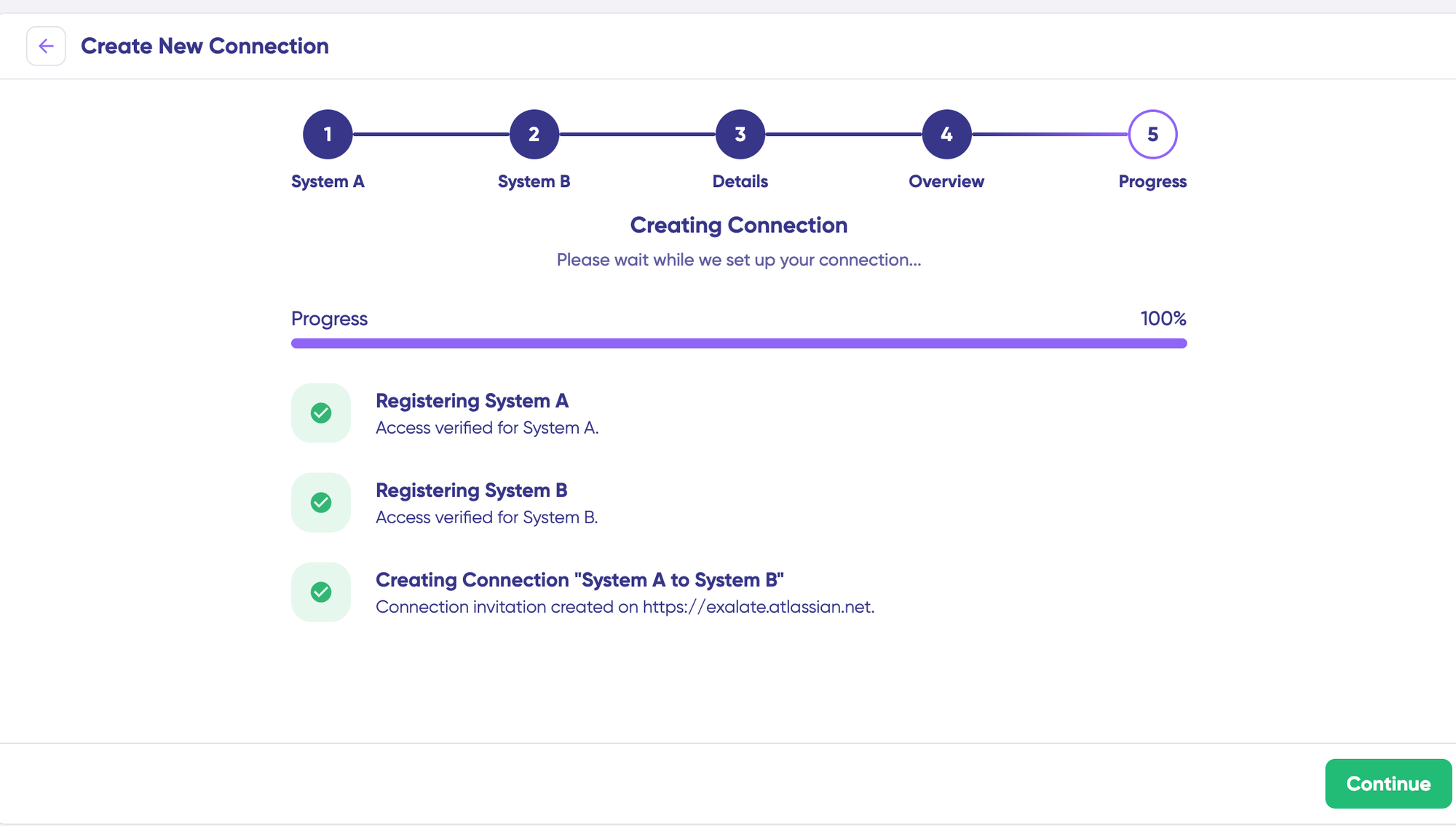
Give a name and description to your connection. Click “Next.” Review the details and click “Create connection.” When the process is complete, select “Continue to configuration” and choose the Asana project and Azure DevOps team project you want to use for synchronization. Then click “Build & continue.”
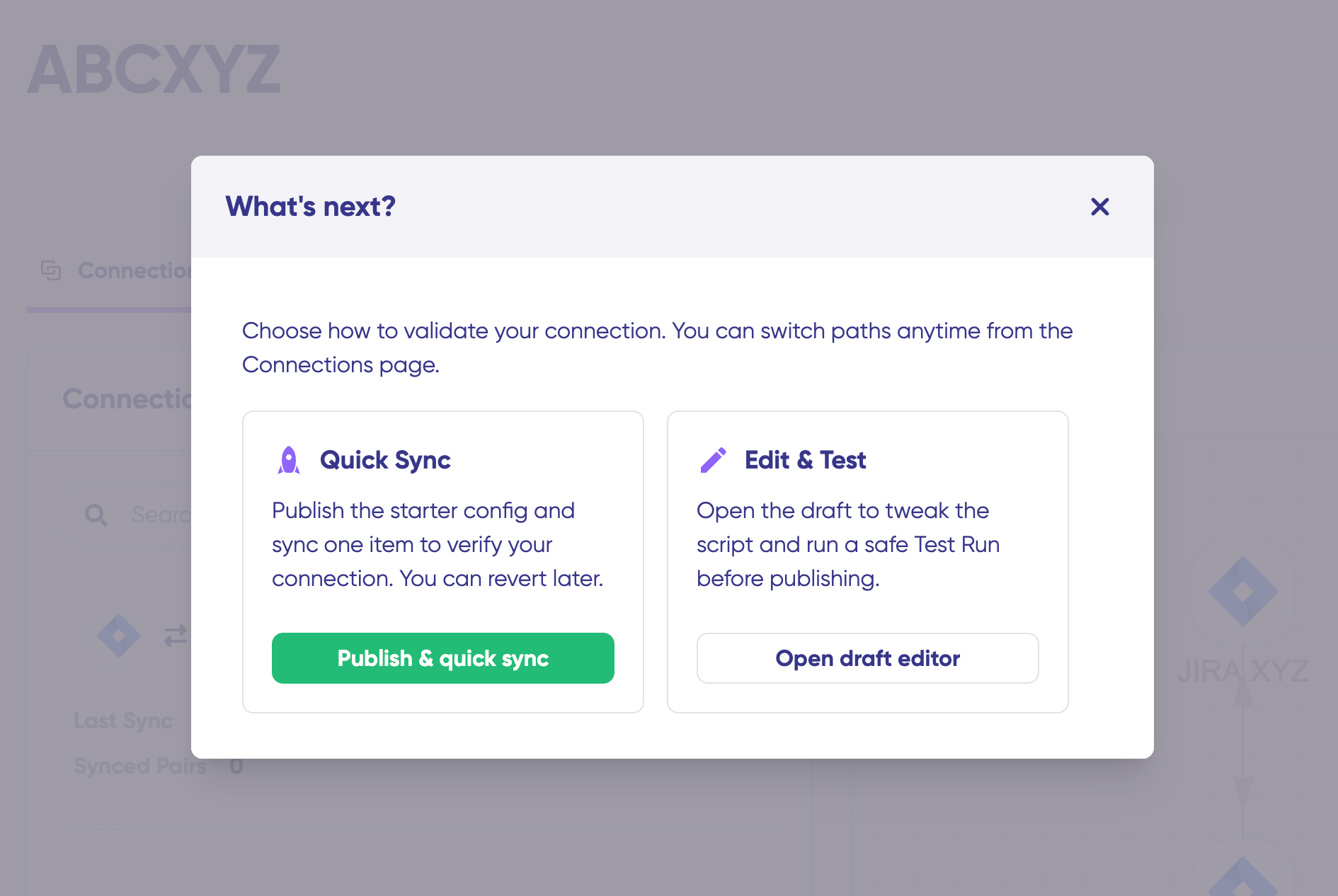
Now you have two options: “Quick sync” and “Edit & Test.” Let’s go through them one by one.
Quick Sync (Optional Validation)
Using this option, you can sync one item between Asana and Azure DevOps to verify that your connection works properly. This step is optional.
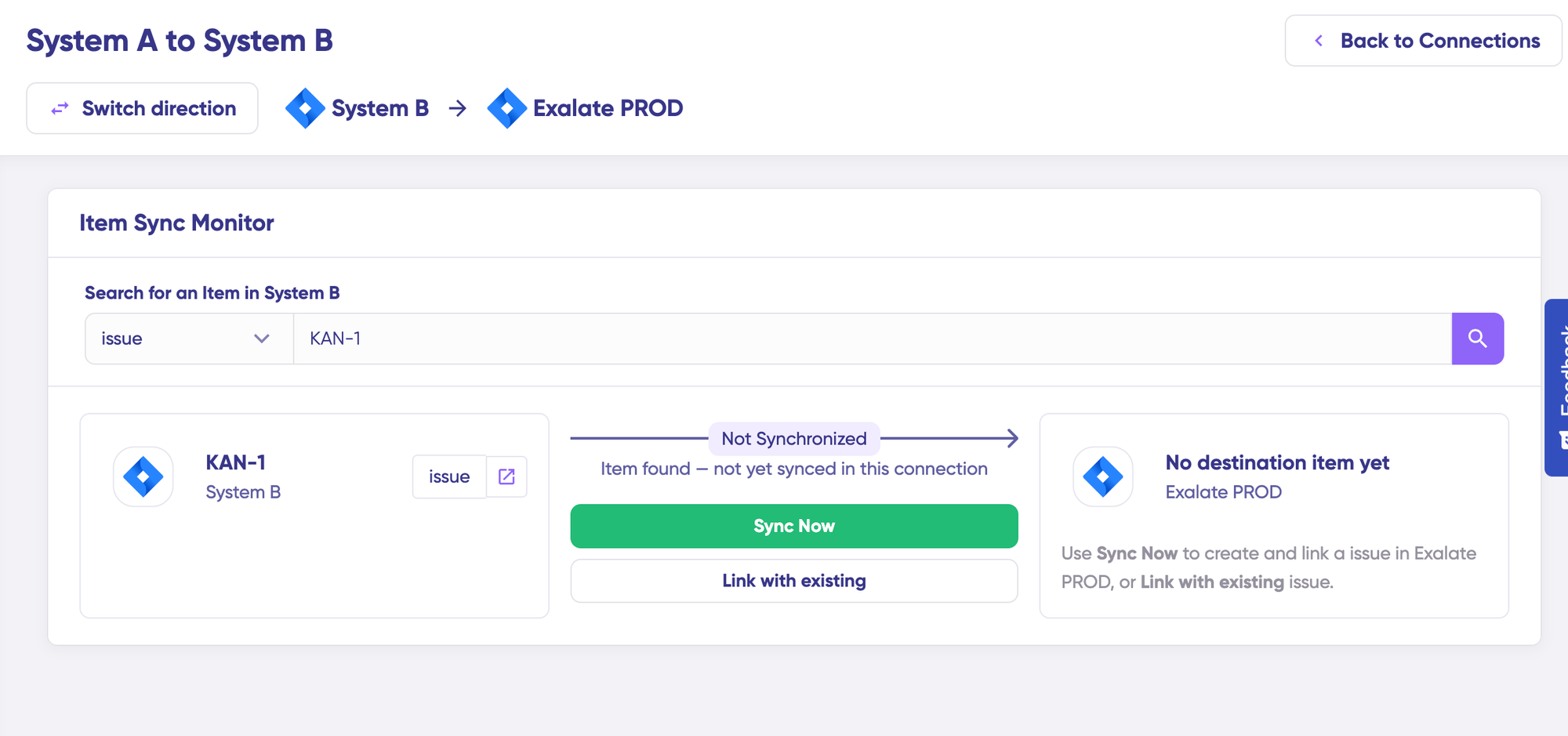
Under the “Item sync monitor,” enter the Asana task ID or the Azure DevOps work item ID. To sync the first item, click “Sync Now.” To link two existing items, click “Link with existing.” While the items sync, you get status updates. Once the sync is complete, you can view both synced items by opening them in a new window.
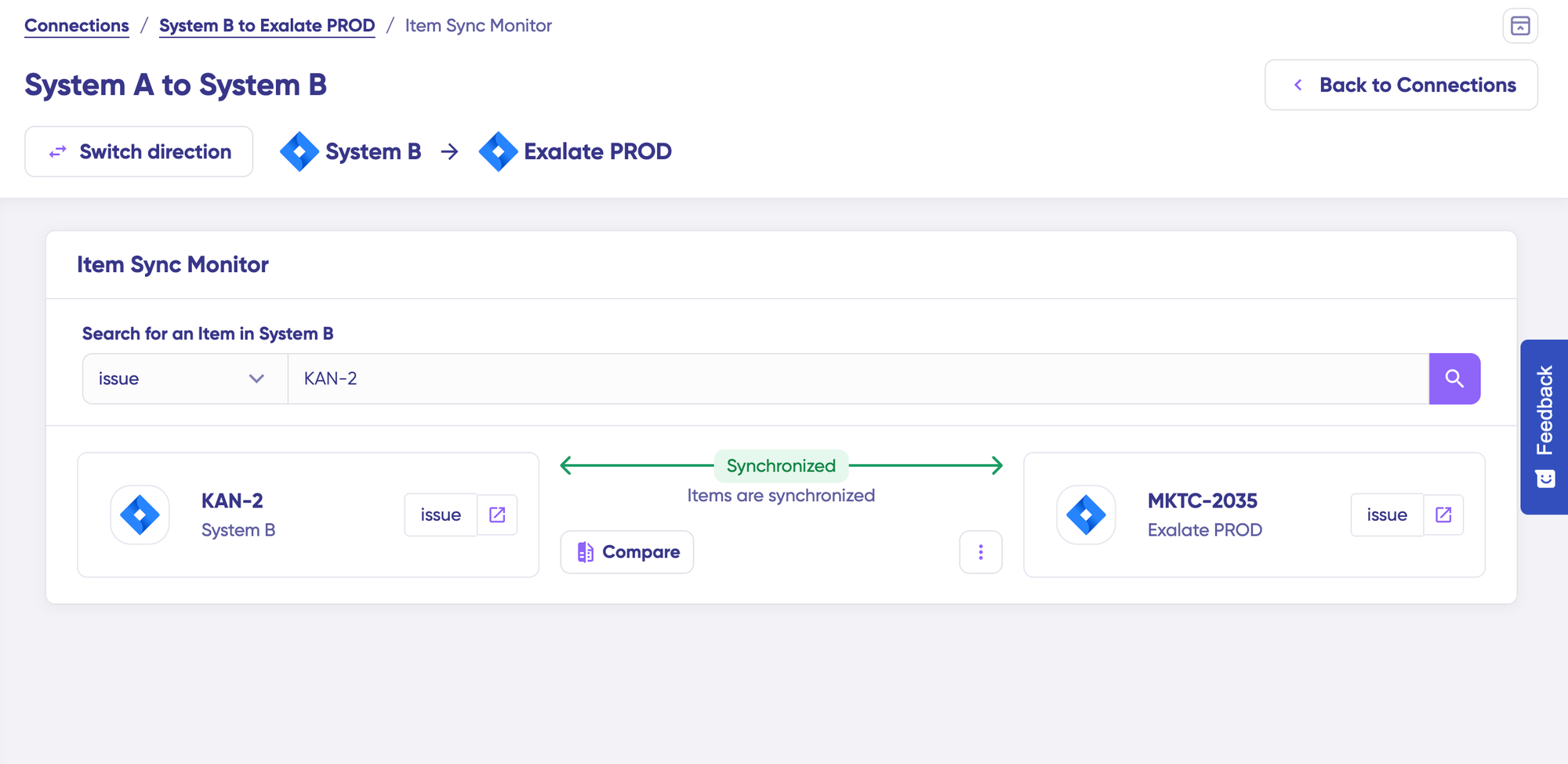
You can also compare how the synced items look and how changes would be applied.
Open the Draft Editor
To start making changes, click “+ New version” or select “Open latest draft.” This ensures you do not modify the existing configuration accidentally. Changes in the draft are saved automatically.
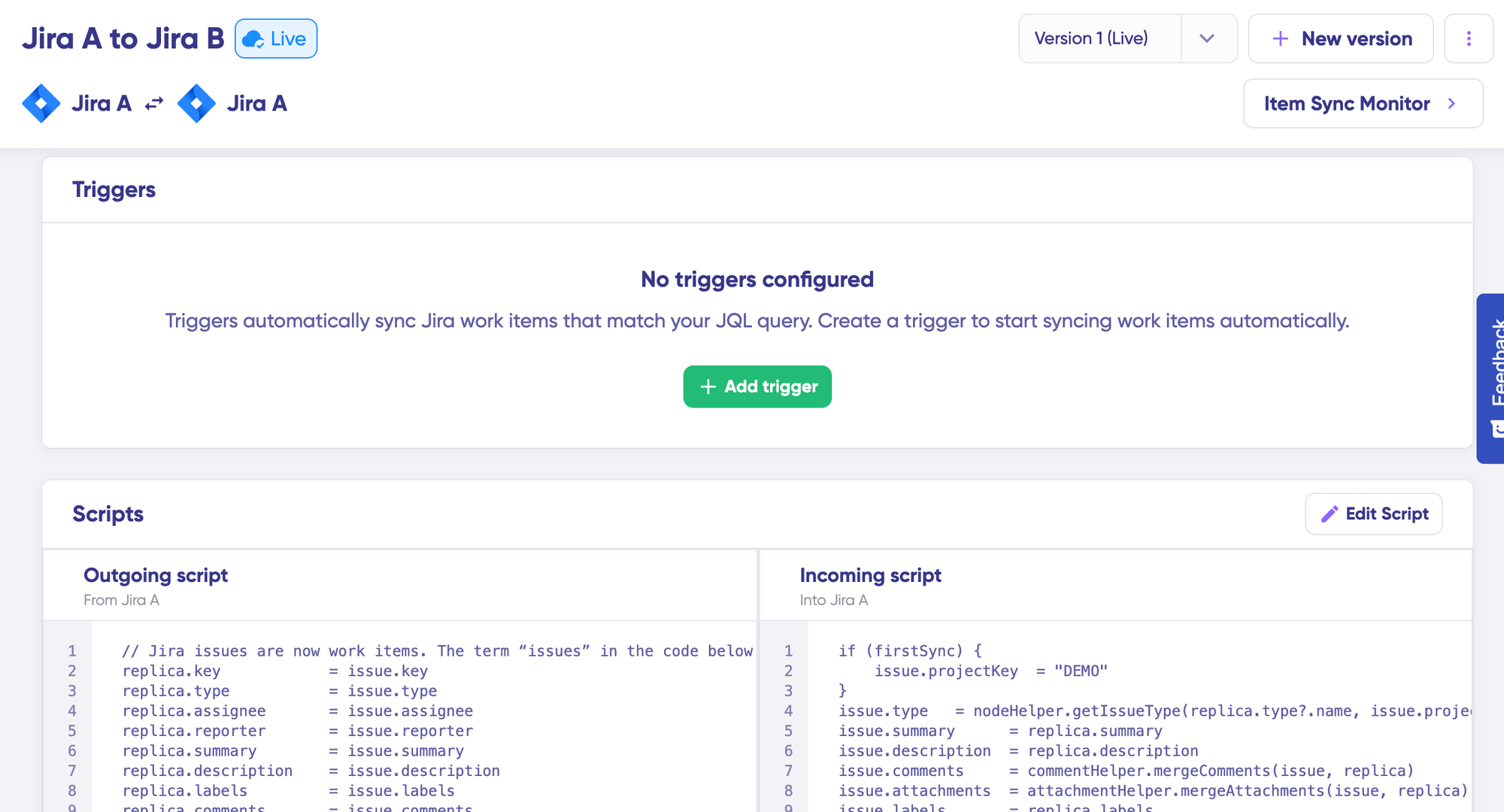
Click the “Edit Script” button to open the editor and adjust the sync rules. Sync rules are based on Groovy scripts. With these scripts, you can add custom data logic and mapping, along with conditional flows, allowing you to adapt for any complex or advanced use case.
The sync direction can be changed by clicking the two arrows next to the connection name. The scripts are divided into incoming and outgoing sections.
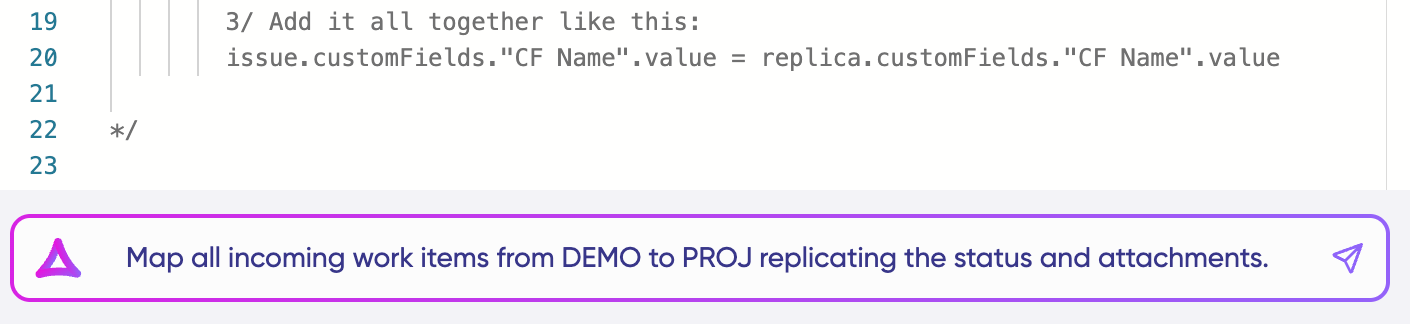
If the sync direction is from Asana to Azure DevOps, the outgoing script holds the values passed from Asana, and the incoming script defines how those values are mapped in Azure DevOps. These scripts reverse if the direction changes.
The Replica works like a message payload and holds the actual data passed between the synced entities. It exists in JSON format. To sync new values, you can enter the sync script yourself. To stop something from syncing (for instance, no attachments from Asana to Azure DevOps), remove that script line from the outgoing Asana script.
Example mapping for this integration: On the outgoing Asana side, send task name, description, assignee, due date, comments, attachments, and custom fields (including your Priority dropdown).
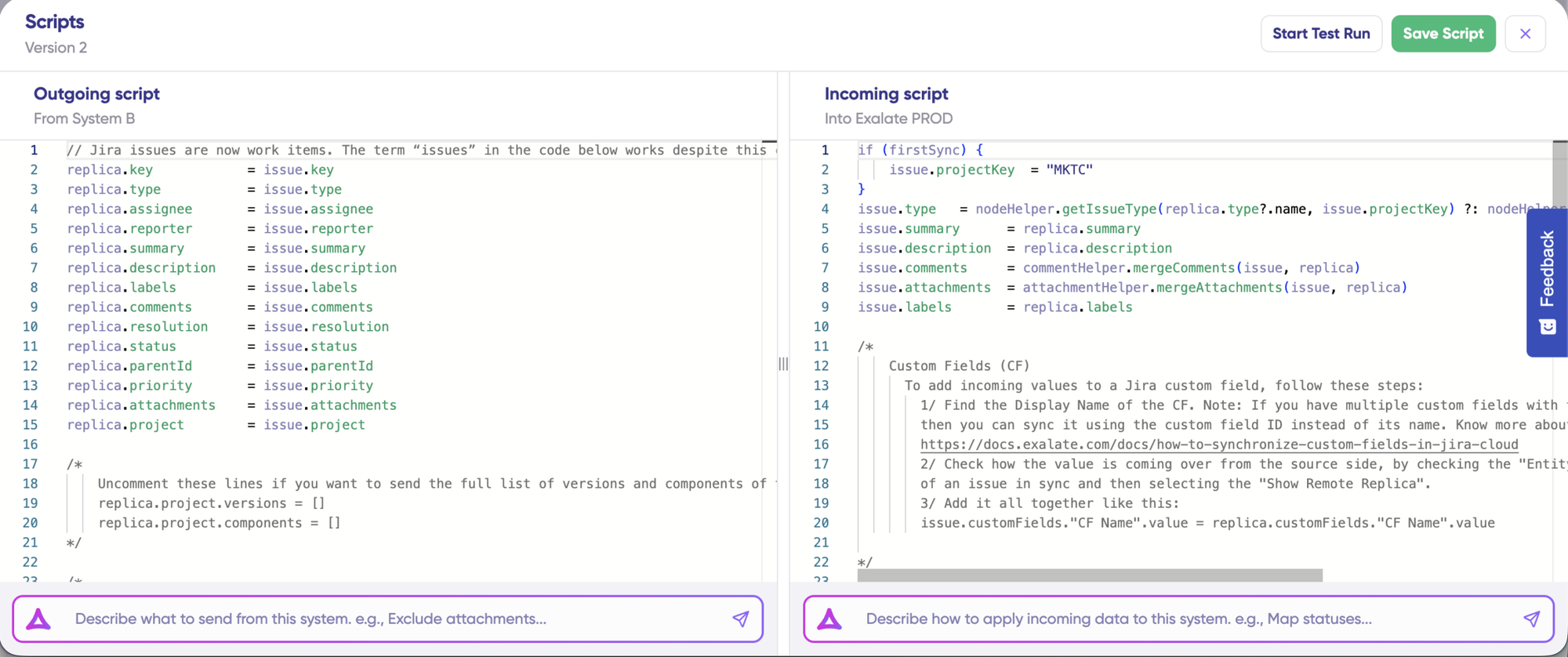
On the incoming Azure DevOps side, map the task name to Title, description to Description, and translate Asana’s Priority values to Azure DevOps Priority numbers (e.g., “High” maps to 1, “Medium” to 2, “Low” to 3).
Map Asana statuses to Azure DevOps States (e.g., “To Do” maps to “New,” “In Progress” maps to “Active,” “Completed” maps to “Closed”).
Use Aida AI to Generate Sync Scripts
If you want to save time and avoid scripting from scratch, use Exalate’s AI-assisted configuration feature called Aida to generate the sync scripts. Aida exists in both the incoming and outgoing script sections, so choose the side accordingly.
Aida helps in two ways. For outgoing scripts, describe what data should leave your system. For incoming scripts, describe how incoming data should be applied.
Based on Exalate’s scripting API and your existing scripts, Aida generates the working Groovy script with proper field mappings for you.
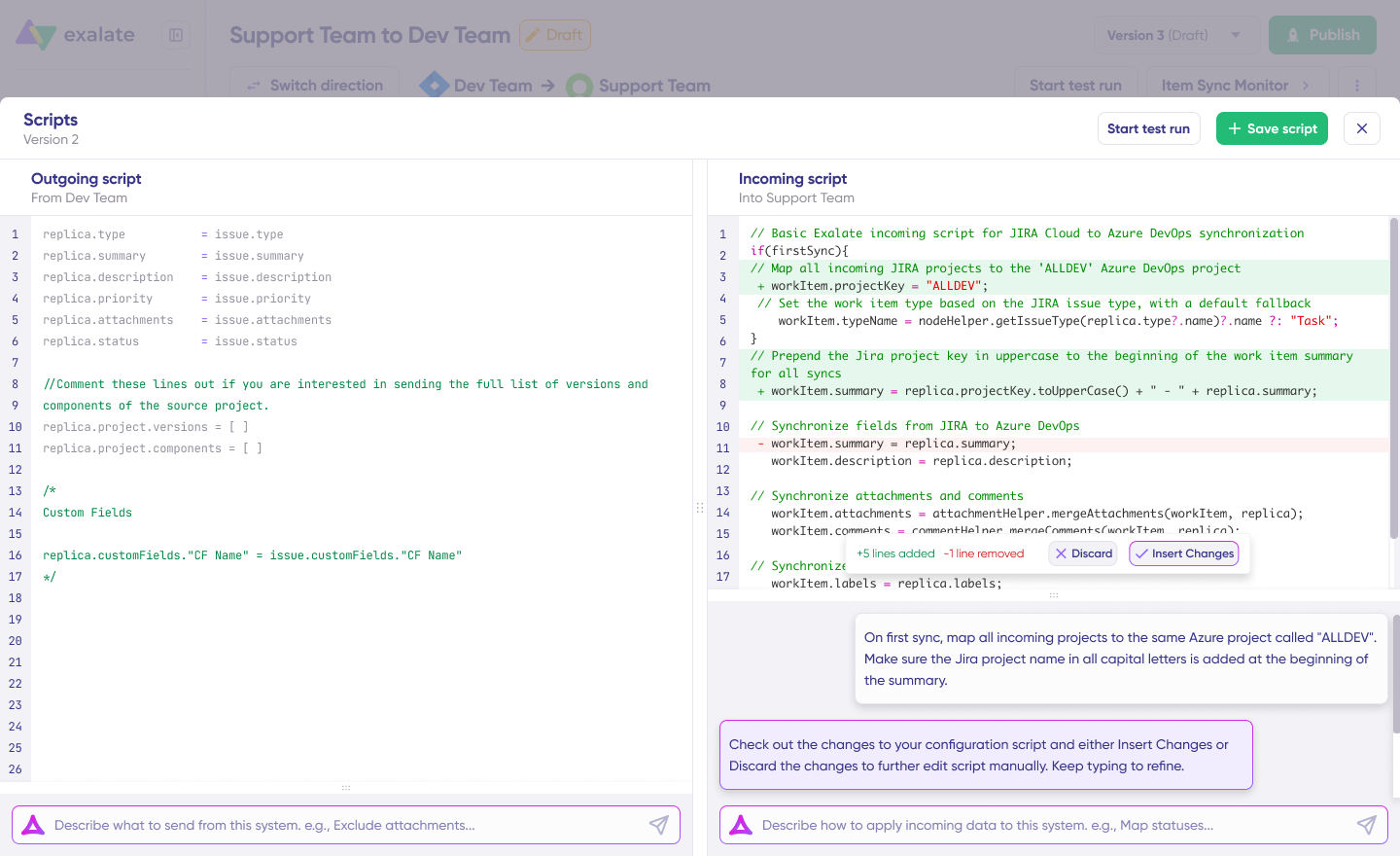
Example prompt: “Sync Asana tasks to Azure DevOps User Stories. Map task name to title, description to description, and sync all comments bidirectionally. Map the Asana custom field ‘Priority’ (High, Medium, Low) to Azure DevOps Priority (1, 2, 3). Only sync tasks from the ‘Engineering Requests’ section.”
Once Aida finishes drafting your script, review the changes suggested. Green highlights the new lines that will be added. Red highlights lines that would be removed from your script. You can choose to “Insert” or “Discard” Aida’s suggestions.
The outgoing and incoming scripts work independently, and so does Aida. Maintain a separate context and direction for each prompt.
Note: Aida is helpful, but just like with any other AI, please review the generated code before applying it.
Test Run (Validate Before Production)
Once your sync scripts are ready, you can choose to “Save script” or proceed to dry-run them using the “Start Test Run” option.
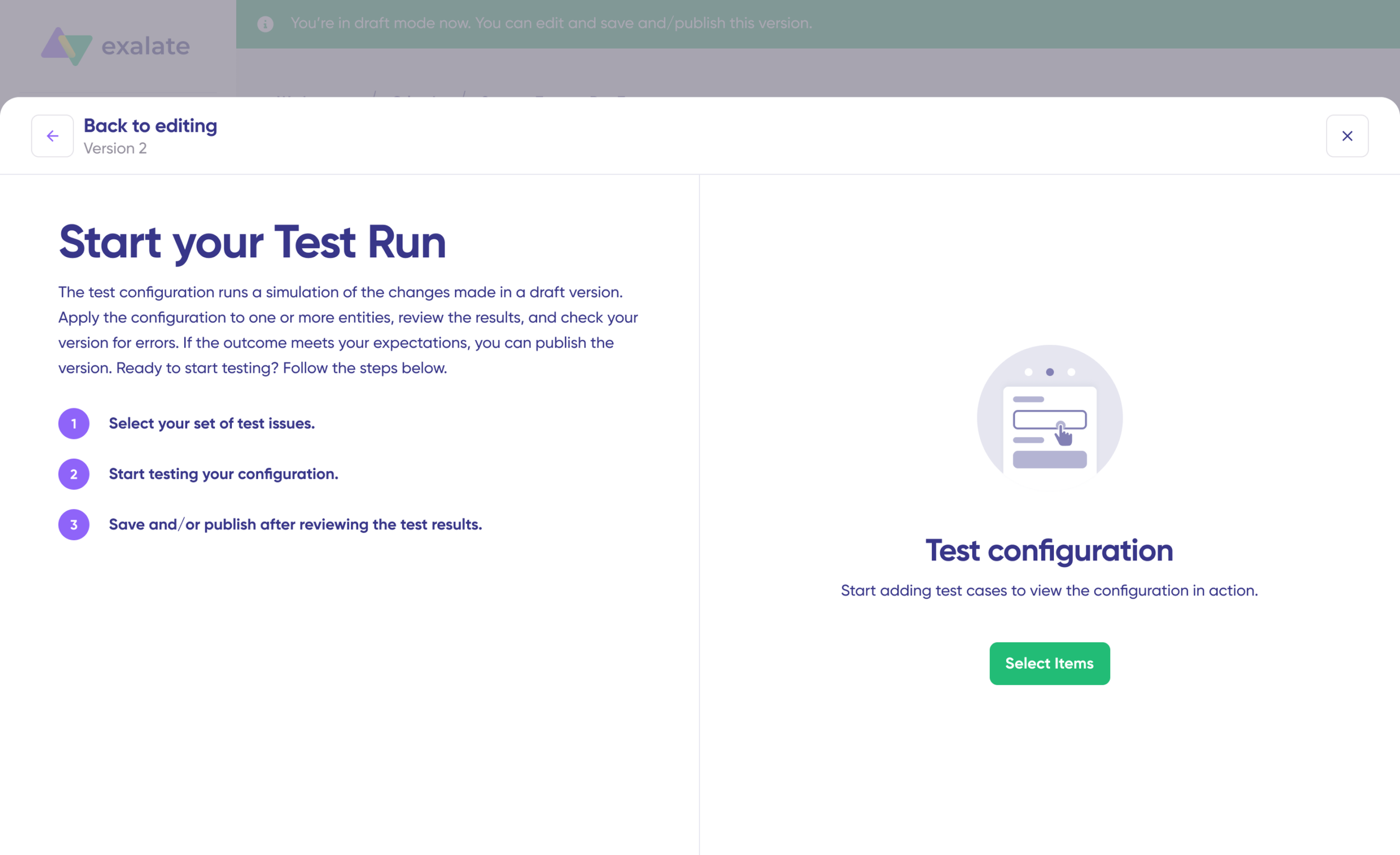
To test the configuration, choose “Select Items” to choose what you want to apply the sync to. You can select multiple items. Click “Start Test Run.” You can now see all the incoming and outgoing replicas for each item you selected in the respective tabs.
View how the sync configuration will be applied to your items, preview the replica, and verify that field mappings look correct.
If needed, go back, adjust the scripts, and test again. Deploy only when you are confident it works. This safety net prevents errors from affecting live data.
Publish and Go Live
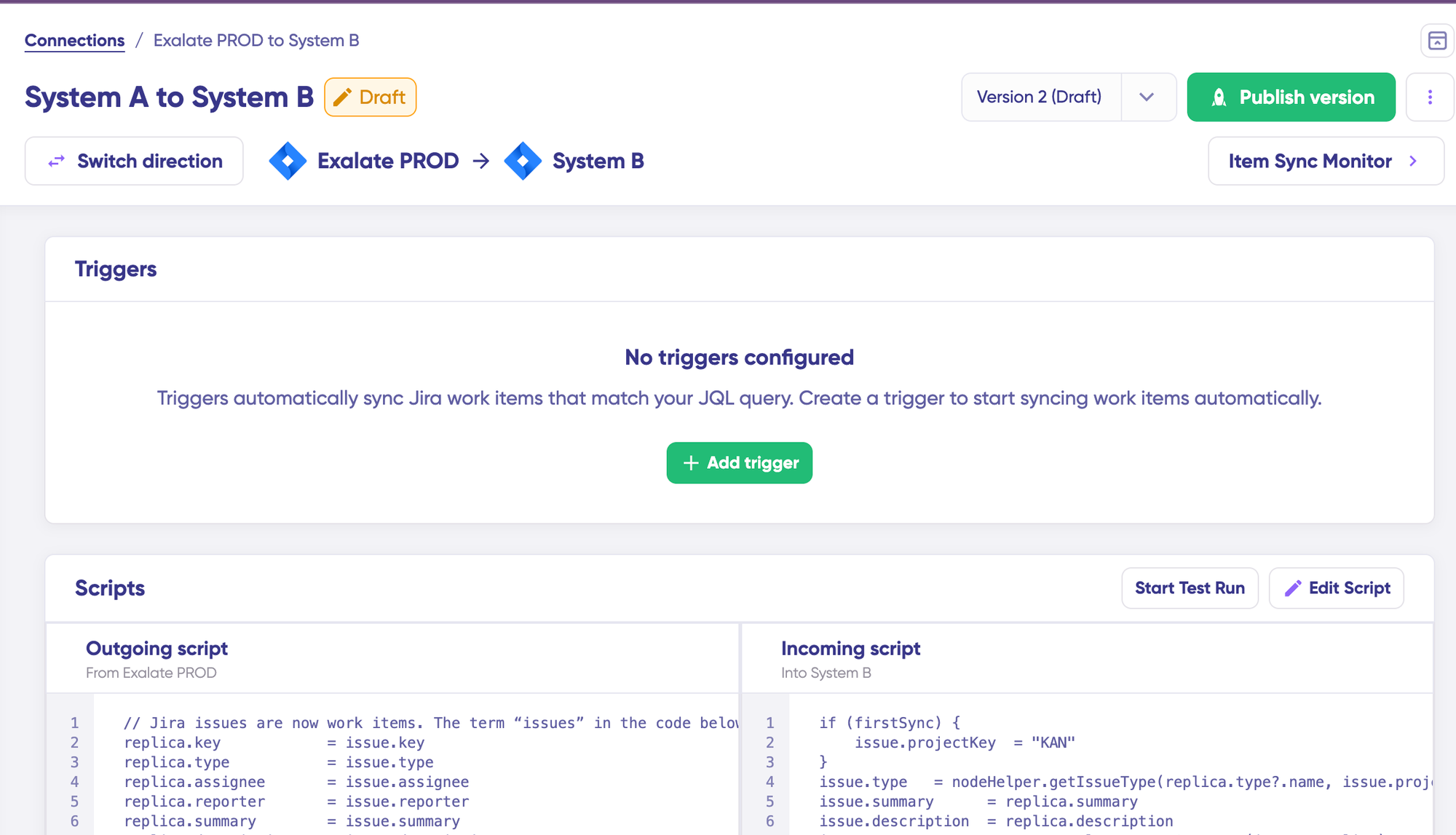
Once everything matches your needs, click “Publish Version” to apply the updated configuration to your live synchronization. All versions for a connection are available in the “Version” dropdown. Versions can be “Active,” in “Draft” (editable), or “Archived.”
Set Up Triggers
To start your sync automatically, add triggers. Triggers are conditions or filters you apply to specific items. For example, sync all Asana tasks that have a tag = "azure-sync," or sync all Azure DevOps work items that belong to a specific area path.
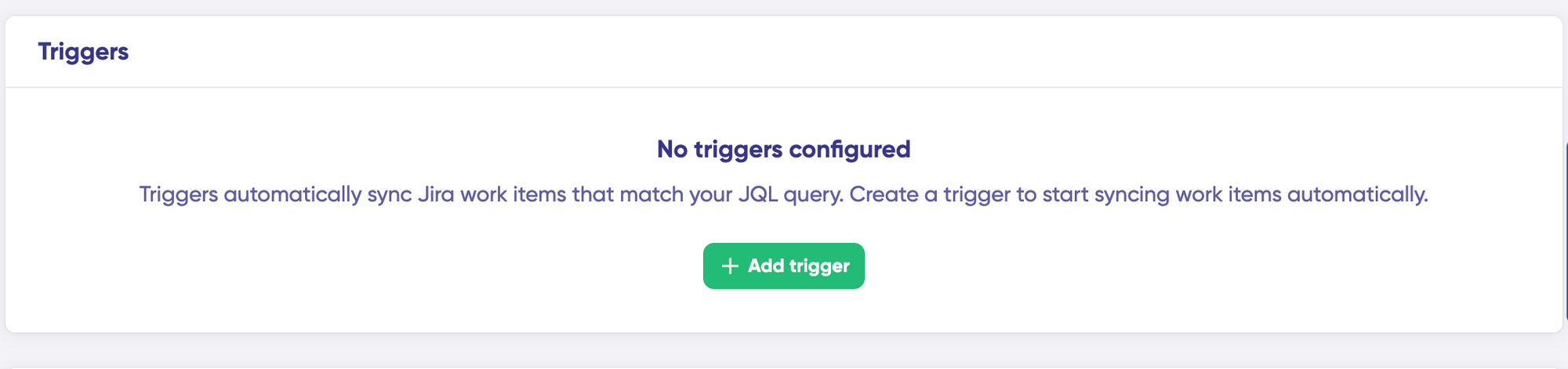
Click the “+ Add trigger” button to start creating triggers. These triggers are platform-specific. For Asana, you can use tag-based or section-based filter rules.
For Azure DevOps, you can use WIQL (Work Item Query Language) to specify conditions. Example: [System.WorkItemType] = 'User Story' AND [System.AreaPath] = 'ProjectName\TeamName' syncs only User Stories under a specific area path.
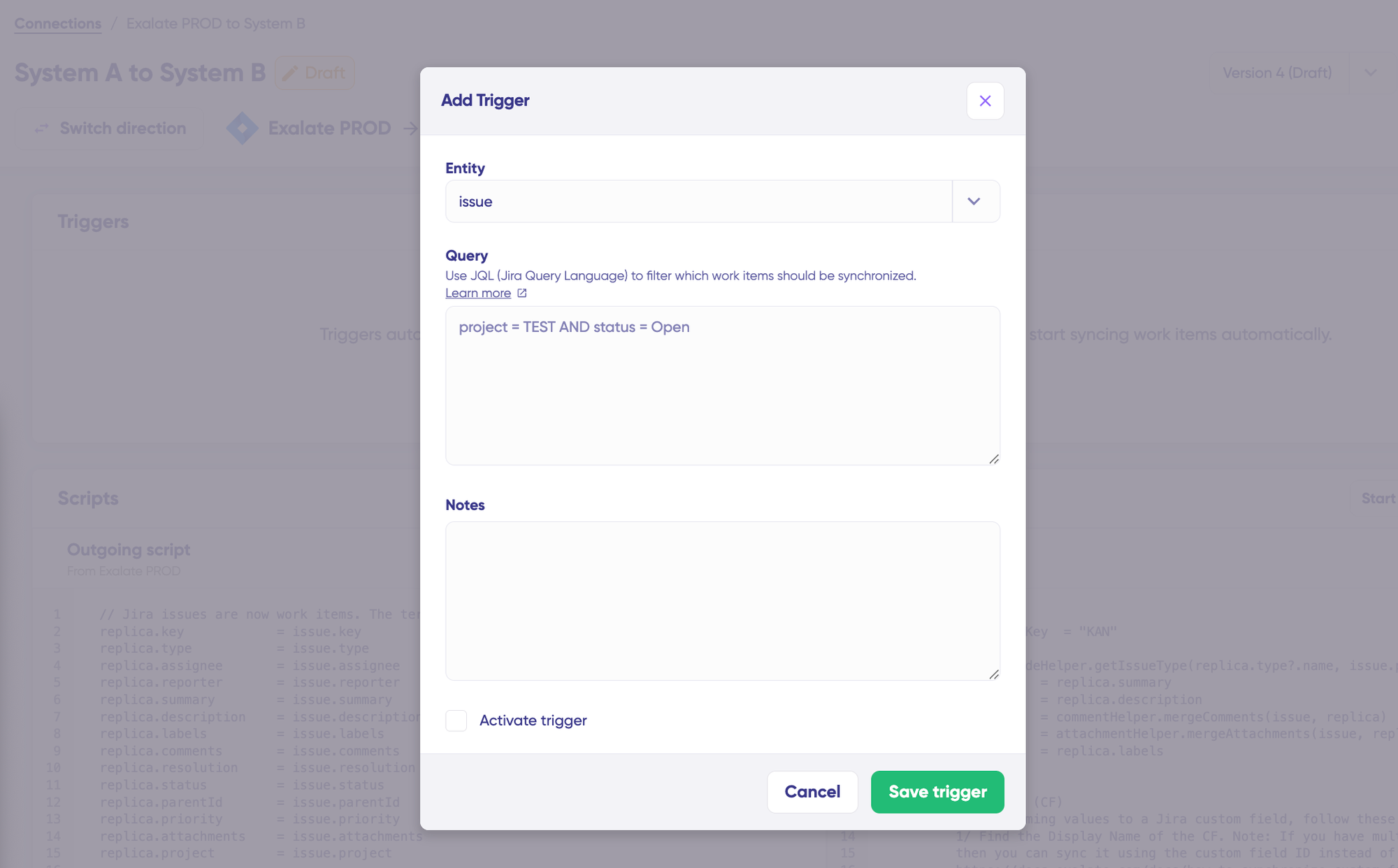
Save your changes by publishing them. Your synchronization will start automatically based on the sync rules and triggers you have set.
Troubleshoot With Aida
A big part of synchronization involves troubleshooting errors, especially with script-based tools like Exalate that allow the flexibility of setting up complex workflows. Aida helps you troubleshoot errors faster by offering clear, context-aware suggestions right where you see them.
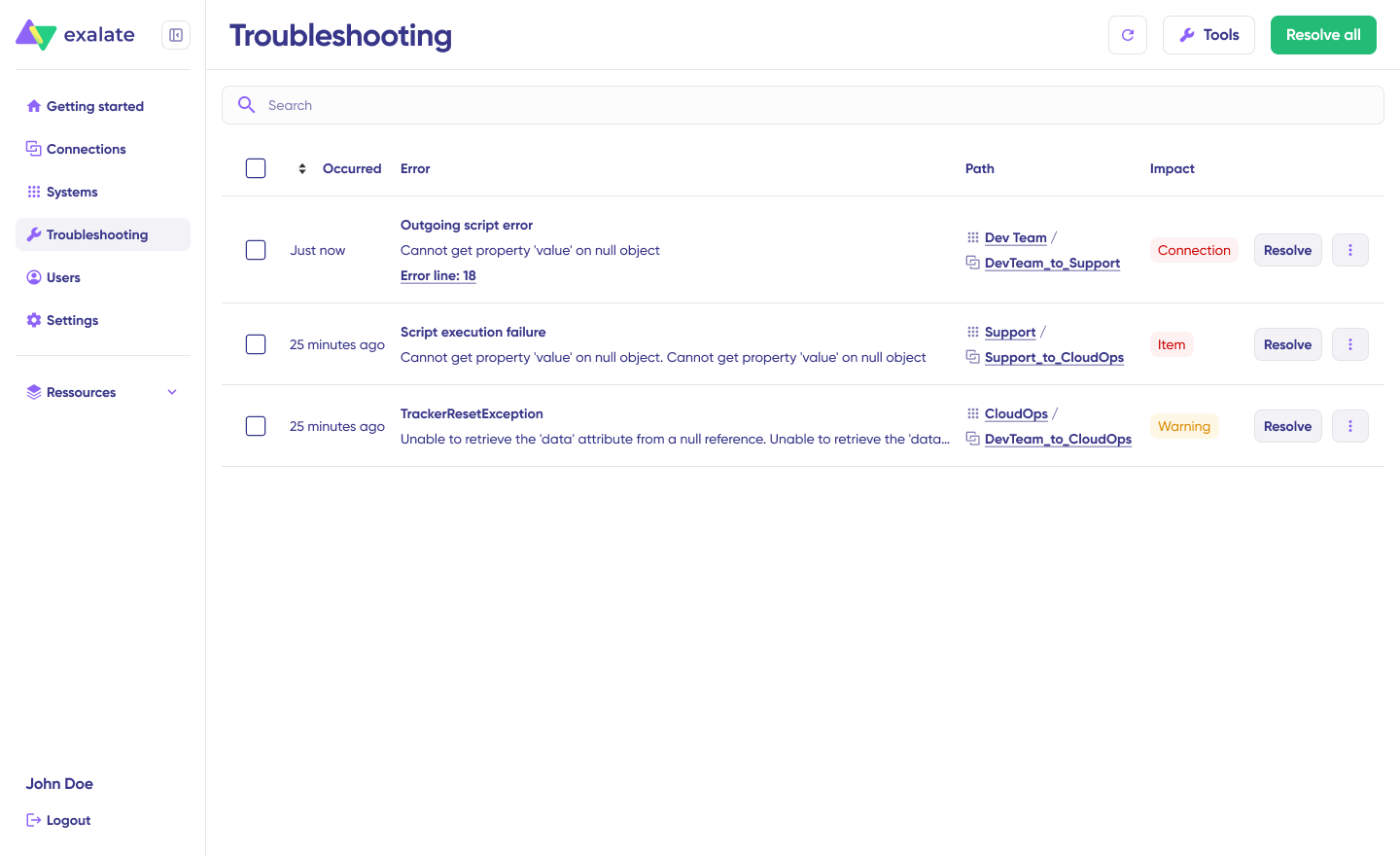
If there is an error, go to the “Troubleshooting” tab. Hover over the error you want to diagnose and click the Aida icon that appears next to it. You will see the AI-generated suggestion in a modal window, including a short explanation of the error and a proposed solution.
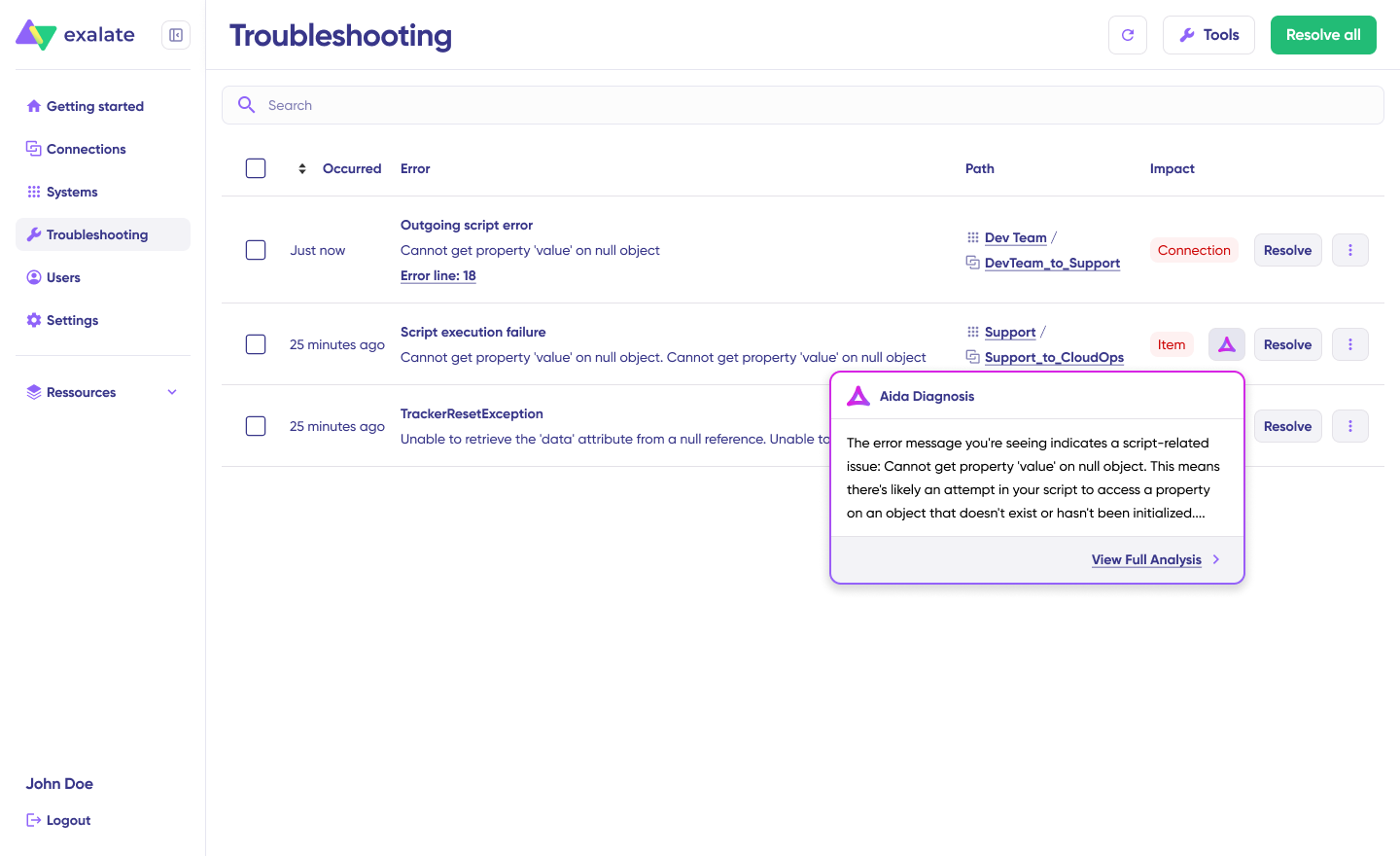
You can also “View Full Analysis” for more context, view “Error details” to copy the stack trace, and check “Replicas” to view the JSON format if needed. Choose to “Resolve” and retry errors.
Exalate supports a Chrome extension called Sync Panel, which you can use to check sync status, spot errors, trigger manual syncs, and unlink sync pairs straight from the browser, without opening the console.
Sync Panel
Exalate also comes with a Chrome extension called Sync Panel that lets users check sync status, spot errors, trigger manual syncs, and unlink sync pairs straight from the browser, without opening the console.
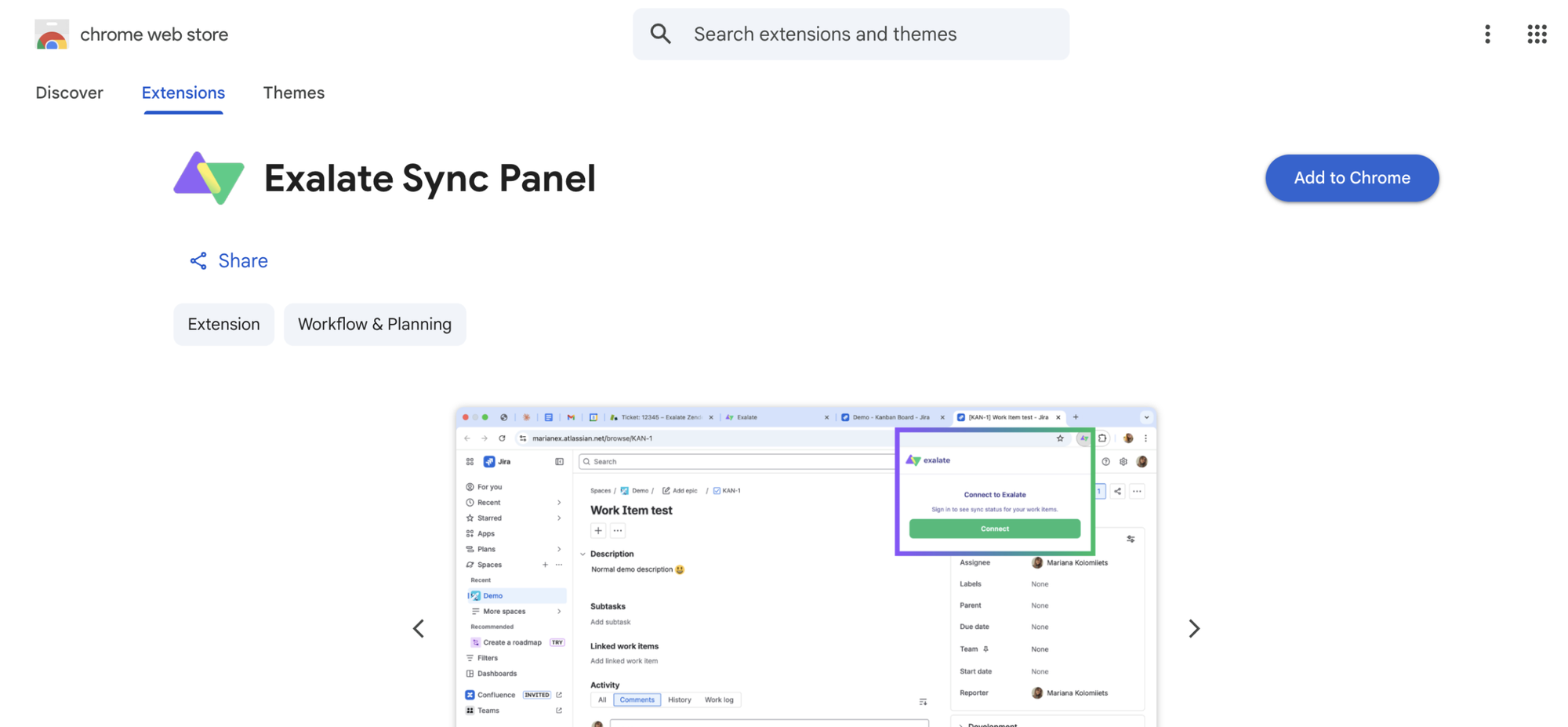
- Open the Exalate Sync Panel listing in the Chrome Web Store.
- Click Add to Chrome
- When prompted, click Add extension to confirm.
- The Exalate icon appears in your browser toolbar. Pin it for easy access.
Note: The extension works on Chrome. Other browsers are not supported at this time.
It’s useful for two groups: admins who want to keep an eye on sync status without switching tabs and end users who want to confirm that the remote side received their update.
You can access this feature via the browser. But if you want to check the sync queue status or configure your sync, you still need to log in to the Exalate console.
Dashboard
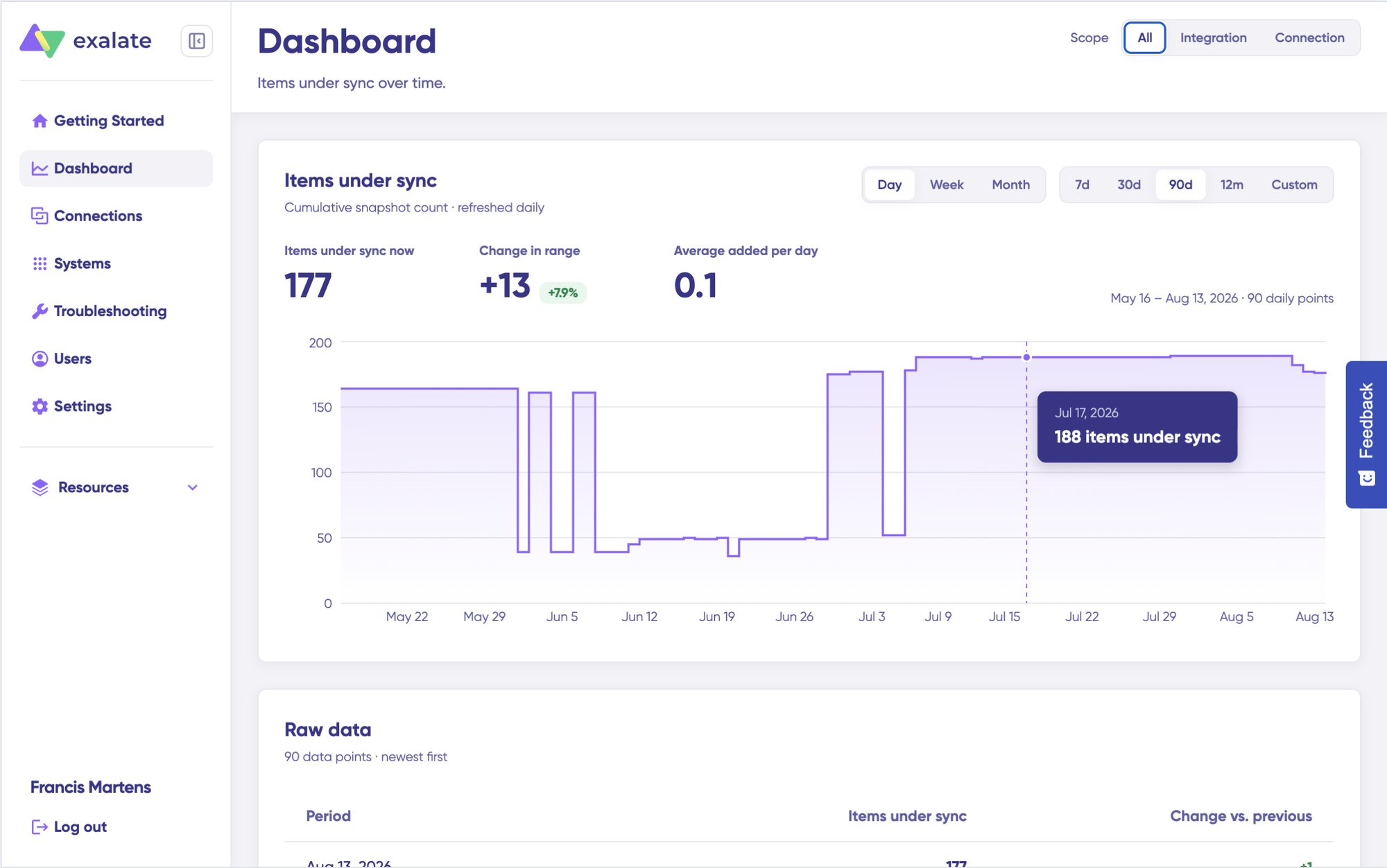
The Dashboard lets you track the number of items under sync over time. You can monitor all the connections you have access to or focus on a specific integration or connection.
- Log in to the Exalate Console.
- Select Dashboard from the left menu.
You can also open the Dashboard for a specific connection:
- Go to the Connections list.
- Open the Action Menu for the connection.
- Select View Dashboard.
Dashboard data is displayed as cumulative snapshots and refreshed daily. You can display everything or choose a specific integration or connection to be shown, as well as a time range.
Building a Multi-Platform Integration Strategy For Asana, Azure DevOps, and Others
Most organizations do not stop at two tools. Asana may also need to connect with Jira, ServiceNow, Salesforce, Zendesk, or other platforms. Azure DevOps may need to integrate with GitHub, ServiceNow, or Freshservice.
When planning your integration architecture, consider the following.
- Avoid point-to-point sprawl. If you build a separate integration for every tool pair using different platforms (Zapier for one, Unito for another, custom scripts for a third), you end up with a fragmented system that is hard to monitor and maintain.
- Standardize on a single integration platform where possible. Using one platform (like Exalate) for multiple connections means consistent scripting patterns, unified monitoring, and a single place to manage all sync rules. Exalate supports Asana, Azure DevOps, Jira, ServiceNow, Salesforce, Zendesk, GitHub, Freshservice, Freshdesk, and more.
- Design connections that operate independently. Each Exalate connection between two platforms operates as its own unit. Adding a new connection (e.g., Azure DevOps to ServiceNow) does not affect the existing Asana-to-Azure-DevOps connection.
- Plan for cross-company scenarios from the start. Even if your first integration is internal, structuring it with independent control on each side means you can extend the same pattern to external partners later without re-architecting.
Conclusion
Asana and Azure DevOps serve different teams with different workflows, and that is exactly why they need to be connected. Without integration, the gap between project planning and software delivery fills up with manual updates, stale data, and lost context.
Since there is no native connector, your integration choice matters. Automation tools cover basic scenarios. No-code sync platforms handle standard field mapping. Script-based platforms like Exalate give you the flexibility for conditional logic, cross-company collaboration, and multi-platform networks.
Start with a clear scope, map your fields and statuses deliberately, test before going live, and expand as your requirements grow. Reach out to us to discuss your specific use case.
Frequently Asked Questions
Can you integrate Asana with Azure DevOps?
Yes, but not natively. Asana and Azure DevOps do not have a built-in connector. You need a third-party tool like Exalate. The right choice depends on whether you need one-way automation, visual field mapping, or full scripting control with bidirectional sync.
What data can Exalate sync between Asana and Azure DevOps?
Exalate syncs any data available through the Asana and Azure DevOps REST APIs. This includes task names, descriptions, statuses, priorities (custom fields), assignees, comments, attachments, tags, subtasks, due dates, and custom fields of any type. You define the exact mapping in Groovy sync scripts.
Does Exalate support two-way sync between Asana and Azure DevOps?
Yes, Exalate supports full bidirectional sync where changes in either platform reflect on the other side automatically. You can also configure selective sync where certain fields go one way, and others go both ways.
Can Exalate handle cross-company Asana Azure DevOps integration?
Yes. Each side of the connection is configured independently. The company using Asana controls what data leaves and how incoming Azure DevOps data is applied. The company using Azure DevOps does the same. No shared credentials, no admin access to the other side, and no visibility into the other party’s internal configuration.
How does Exalate handle the priority mapping between Asana and Azure DevOps?
Asana uses a custom dropdown field for priority (e.g., High, Medium, Low). Azure DevOps has separate Priority and Severity system fields with numeric values. In Exalate, you write a mapping rule in the incoming script that translates Asana priority values to the corresponding Azure DevOps Priority number (e.g., “High” maps to Priority 1, “Low” maps to Priority 3).
Can I use Aida to generate sync scripts for this integration?
Yes, Aida is available in both the outgoing and incoming script editors. Describe what you want to sync in plain language, and Aida generates the Groovy script. You can prompt it with specific requirements like “sync only Bug-type work items” or “exclude attachments larger than 5MB.” Always review the generated script before publishing.
How does Exalate handle downtime on either platform?
Exalate uses asynchronous transactional sync queues on both sides. When Asana, Azure DevOps, or the network connection goes down, changes are tracked and queued in order. Once connectivity resumes, Exalate replays the queued changes from the exact interruption point without manual intervention.
Can I connect Asana and Azure DevOps with other platforms simultaneously?
Yes, Exalate supports multi-platform integration networks. You can connect Asana to Azure DevOps, Azure DevOps to Jira, Asana to ServiceNow, and other combinations. Each connection operates independently, so adding a new integration does not affect existing ones.
What is the difference between Exalate’s Quick Sync and Edit & Test modes?
Quick Sync lets you test the connection immediately by syncing a single item between Asana and Azure DevOps. Edit & Test opens the script editor where you customize field mappings, triggers, and conditional logic before publishing. Use Quick Sync for validation and Edit & Test for production configuration.
How does Exalate pricing work for Asana Azure DevOps integration?
Exalate uses outcome-based pricing. You pay based on the number of items actively synced, not user seats or connection counts. Each integration pair (Asana to Azure DevOps) is billed independently. You can create unlimited connections, users, and triggers within each integration. Cost per item decreases as sync volume increases. Self-serve plans start at $100/month per integration.
How much does Exalate cost for an Asana to Salesforce integration?
Exalate uses outcome-based pricing, so you pay for active sync pairs (the items currently being synced) rather than per user or API call. You can estimate costs using the pricing calculator, and there’s a 30-day free trial so you can test things before committing.
Is Exalate secure enough for enterprise development data?
Exalate uses JWT-based tokens, HTTPS, TLS 1.2/1.3 encryption, role-based access controls, and multi-factor authentication. It holds ISO 27001 certification. For cross-company scenarios, each organization maintains full authority over its data, with no requirement to share credentials or expose internal system configuration.