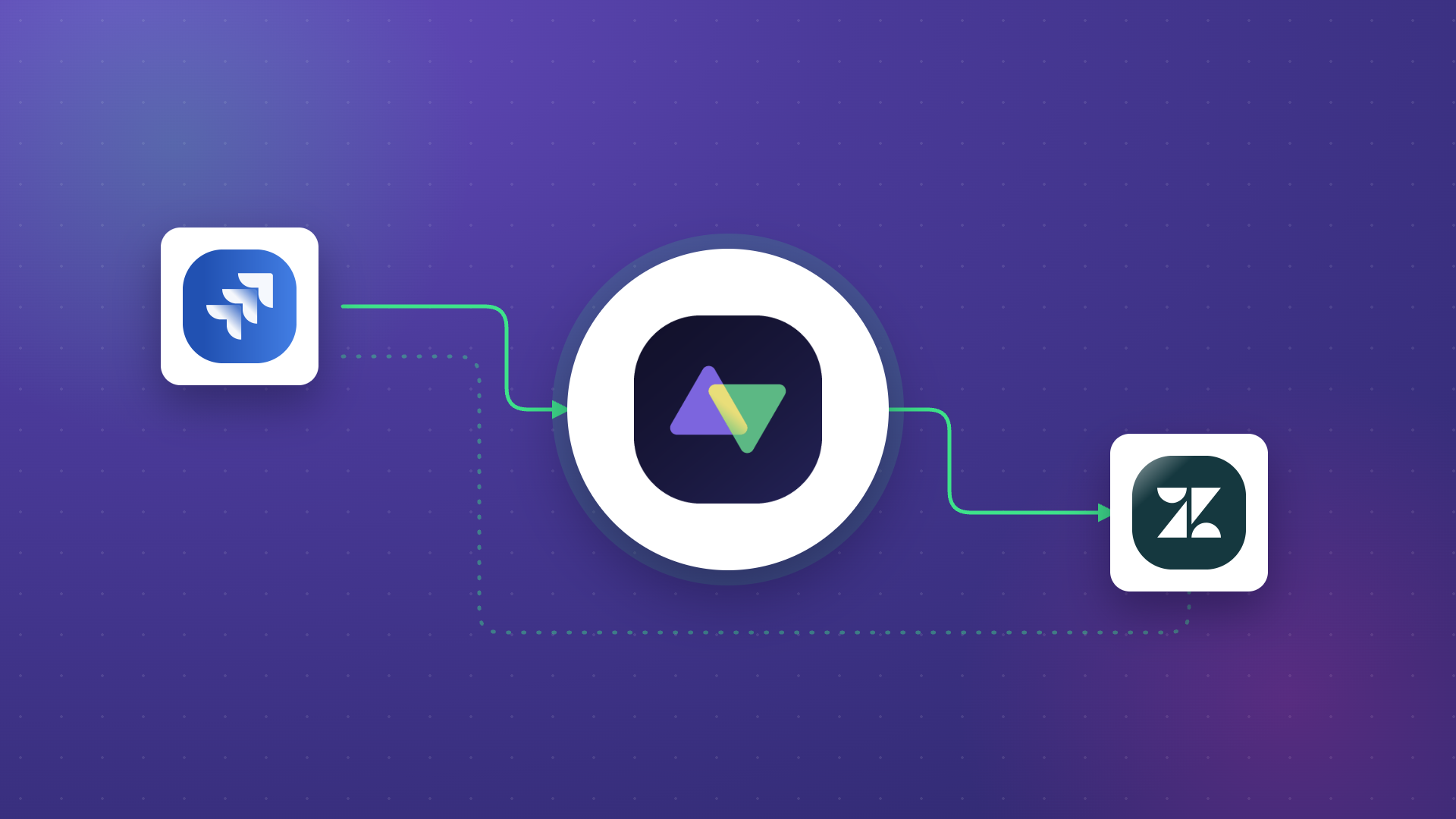
When a customer reports a product defect through Freshdesk, the support agent needs to route it to the project team. The project manager in Asana needs to track the fix. And when the fix ships, the agent needs to know so they can update the customer.
An Asana Freshdesk integration automates this handoff. Tickets become tasks. Status updates flow back. Comments stay in sync. Each team works in their own platform while sharing exactly the data they need.
This guide covers every aspect of integrating Asana and Freshdesk, from native marketplace apps and automation platforms to script-based tools and custom API builds. You will also find practical use cases, a step-by-step setup walkthrough, detailed field mapping tables, security considerations, and answers to common questions.
Key Takeaways
- Exalate provides full control over sync rules, field transformations, triggers, and error handling for both directions independently.
- Choosing the right integration approach depends on your sync direction requirements, field complexity, volume, and whether you need intra-company or cross-company collaboration.
- Security, reliability, and scalability should drive your tool selection, especially when syncing customer data between platforms.
- AI-assisted configuration reduces the scripting barrier by generating Groovy sync rules from plain-language prompts.

What is Asana Freshdesk Integration?
Asana Freshdesk integration is the process of connecting Freshdesk (customer support) and Asana (project management) so that data flows between them automatically, reducing manual handoffs and keeping both teams aligned.
Here is a quick look at what each platform does and why bridging the gap matters.
Freshdesk is a cloud-based customer support platform built by Freshworks. It handles ticket management across email, phone, chat, social media, and self-service portals. Support teams use it to categorize, prioritize, and resolve customer requests while tracking SLA compliance and satisfaction scores. Freshdesk also includes an automation engine, canned responses, knowledge base management, and omnichannel support capabilities.
Asana is a work management platform used for planning, tracking, and coordinating tasks across teams. Project managers, operations teams, marketing departments, and cross-functional groups use Asana to organize initiatives, assign responsibilities, set deadlines, and monitor progress. Asana supports task hierarchies, custom fields, timeline views, forms, rules-based automations, and portfolio-level reporting.
The gap: Freshdesk is optimized for reactive work (responding to customer issues) while Asana is optimized for proactive work (planning and executing projects). When customer issues require project-level attention, like a product bug that needs a fix or a feature request that needs roadmap consideration, there is no built-in way for these platforms to share structured data bidirectionally.
A proper integration bridges that gap by connecting to the APIs of both platforms, transforming data between different field types and structures, maintaining security throughout the data flow, and operating bidirectionally or unidirectionally depending on your requirements.
Why Integrate Asana and Freshdesk?
Connecting these two platforms addresses specific friction points that teams encounter when support and project management operate in isolation.
- Stop re-entering ticket details as tasks. Without integration, support agents copy ticket summaries into Slack or email, and project managers manually create Asana tasks from those messages. This introduces delays, errors, and incomplete context. Integration automates the ticket-to-task conversion with full field mapping.
- Keep resolution status visible across teams. When a developer fixes a bug tracked in Asana, the support agent in Freshdesk has no way to know unless someone tells them. Integration pushes status changes from Asana back to Freshdesk, so agents can update customers without chasing the project team.
- Prioritize project work based on customer impact. Asana tasks created from Freshdesk tickets carry customer context: how many users are affected, what priority level the ticket was assigned, and whether an SLA is at risk. This helps project managers prioritize work based on actual customer pain rather than internal guesses.
- Preserve team autonomy. Support agents stay in Freshdesk. Project managers stay in Asana. Neither team needs access to the other platform. Integration handles the data exchange while each team keeps full control of its workspace.
- Enable cross-company collaboration. If you outsource support to a third-party team or work with external agencies on project delivery, integration lets both sides share relevant data without granting direct access to internal platforms.
- Reduce platform costs. When ticket data flows to Asana automatically, you do not need to buy Asana licenses for support agents or Freshdesk licenses for project managers just so they can check statuses manually.
Integration Approaches for Connecting Asana and Freshdesk
Several categories of tools can connect these platforms. Each comes with different trade-offs in setup complexity, sync depth, flexibility, and cost.
Native Marketplace Apps
Both Asana and Freshdesk offer native and partner-built connectors through their respective app marketplaces.
- Asana’s built-in Freshdesk widget lets users add Freshdesk ticket details to Asana tasks. It is read-only: you can view the ticket subject, status, owner, and request date directly inside an Asana task. But it does not create tasks from tickets, sync comments, or push status updates in either direction. It is essentially a reference link.
- Asana Connect by Swedbyte (available on the Freshworks Marketplace) goes further. It allows agents to create Asana tasks from Freshdesk tickets, link tickets to existing tasks, and sync comments bidirectionally. Agents can also set the Asana team, project, assignee, due date, and custom fields when creating a task. Ticket status updates can push to linked Asana tasks as comments.
- IntegrateCloud’s Freshdesk Asana Connector (also on the Freshworks Marketplace) provides create, link, and notify functionality. Agents can create Asana tasks from tickets, link existing tickets to existing tasks, and send notification messages from Freshdesk to Asana. It supports one-way task creation from Freshdesk into Asana but does not offer full bidirectional field sync.
- Freshworks’ own Asana app (by Freshworks) allows agents to view Asana projects and tasks within Freshdesk, create tasks using ticket details, and reflect ticket changes (replies, notes) as comments in Asana. Agents can also mark Asana tasks as completed from within the Freshdesk widget.
The bottom line: These native apps handle task creation and basic linking well. Asana Connect by Swedbyte is the most capable of the group with its comment sync and custom field support.
However, none of them support advanced features like conditional sync logic, custom field transformations, cross-company data isolation, or scripted business rules. If your needs go beyond “create a task when a ticket comes in,” you will need a more robust tool.
Template-Based Automation Tools
Platforms like Zapier, Make, Integrately, n8n, Albato, and Appy Pie Automate offer visual workflow builders that connect two apps through trigger-action pairs.
How they work: Select a trigger event in one app (e.g., “New ticket created in Freshdesk”) and an action in the other (e.g., “Create task in Asana”). The platform handles authentication, polling, or webhooks, and basic field mapping through a no-code interface.
Strengths:
- Fast setup for straightforward, one-directional automations
- No coding skills required
- Cost-effective for low-volume use cases and small teams
- Useful for prototyping workflows before committing to a more permanent solution
Limitations:
- Bidirectional sync requires two separate automations (Freshdesk-to-Asana + Asana-to-Freshdesk), which increases complexity and creates the risk of sync loops
- Shallow custom field support: cascading dropdowns, multi-select fields, and complex data types often need manual workarounds
- No built-in conflict resolution when both sides update the same record simultaneously
- Rate limits and per-task pricing can get expensive at scale (Zapier’s Professional plan, for example, charges per task execution)
- Limited error recovery: if a sync fails during a platform outage, data may be lost unless you build retry logic manually
- No test-run capability before going live.
Script-Based Integration Tools
Script-based tools like Exalate offer full programmatic control over what syncs, how data transforms, when triggers fire, and how errors resolve. They use sync scripts (Groovy-based in Exalate’s case) that define outgoing and incoming data flows independently for each side of the connection.
How they work: Install a connector on each platform, establish a connection between them, and write (or generate with AI assistance) sync rules that control exactly which fields map where, under what conditions, and in which direction. Each side of the connection manages its own scripts, so adjustments on one side do not affect the other.
Strengths:
- True bidirectional sync with independent control over each direction
- Conditional logic: sync only high-priority tickets, only tickets tagged for escalation, only tasks in a specific Asana project
- Advanced field mapping: transform data between different field types, apply default values, combine or split fields
- Built-in error queuing, conflict resolution, and automatic retry during outages
- AI-assisted scripting (Aida) generates Groovy sync rules from natural-language descriptions
- Test run capability: validate sync behavior on real items before publishing to production
- Version control for sync scripts with draft, active, and archived states
- Supports cross-company integrations with data isolation per connection
Trade-off: More initial configuration time than template-based tools. Complex scenarios require some familiarity with the scripting model. But for teams that need reliability, flexibility, and control at scale, it is the most capable option.
Custom API Integration
Both Freshdesk and Asana expose well-documented REST APIs. Freshdesk supports API key authentication and webhooks. Asana supports OAuth 2.0, Personal Access Tokens, and webhooks.
When it makes sense: If your organization has dedicated developers and very specific integration requirements that no commercial tool covers.
When it does not: Building production-grade integration is harder than a proof of concept. You need to handle bidirectional sync loops, conflict resolution, rate limiting, webhook reliability, error queuing, authentication token management, and ongoing API version updates.
For most teams, the total cost of building and maintaining a custom integration exceeds the cost of a commercial tool.
Choosing Your Approach
| Criteria | Native Marketplace Apps | Template-Based (Zapier, Make) | Script-Based (Exalate) |
| Bidirectional sync | Limited (Asana Connect only) | Requires chained automations | Yes, built-in |
| Custom field mapping | Basic (Asana Connect) | Basic | Advanced (scripted) |
| Conditional logic | No | Basic filters | Full scripting |
| Error handling and queuing | No | Basic retry | Built-in resilience |
| AI-assisted setup | No | No | Yes (Aida) |
| Test run before publishing | No | No | Yes |
| Multi-platform support | No (pairwise only) | Chained automations | Native multi-connection |
| Setup time | Minutes | Hours | Hours to days |
| Maintenance burden | Low (vendor-managed) | Low | Low (vendor-managed) |
| Scalability | Limited | Constrained by task quotas | Enterprise-grade |
| Best for | Basic task creation from tickets | Simple one-way automations | Complex, bidirectional, enterprise sync |
Start by identifying your requirements: Do you need one-way or two-way sync? Do you have custom fields that need transformation? Will you be syncing across companies? Then select the tool that matches those needs without capping your ability to grow later.
Common Use Cases for Asana Freshdesk Integration
Case 1: Routing Confirmed Bugs from Support to Project Teams
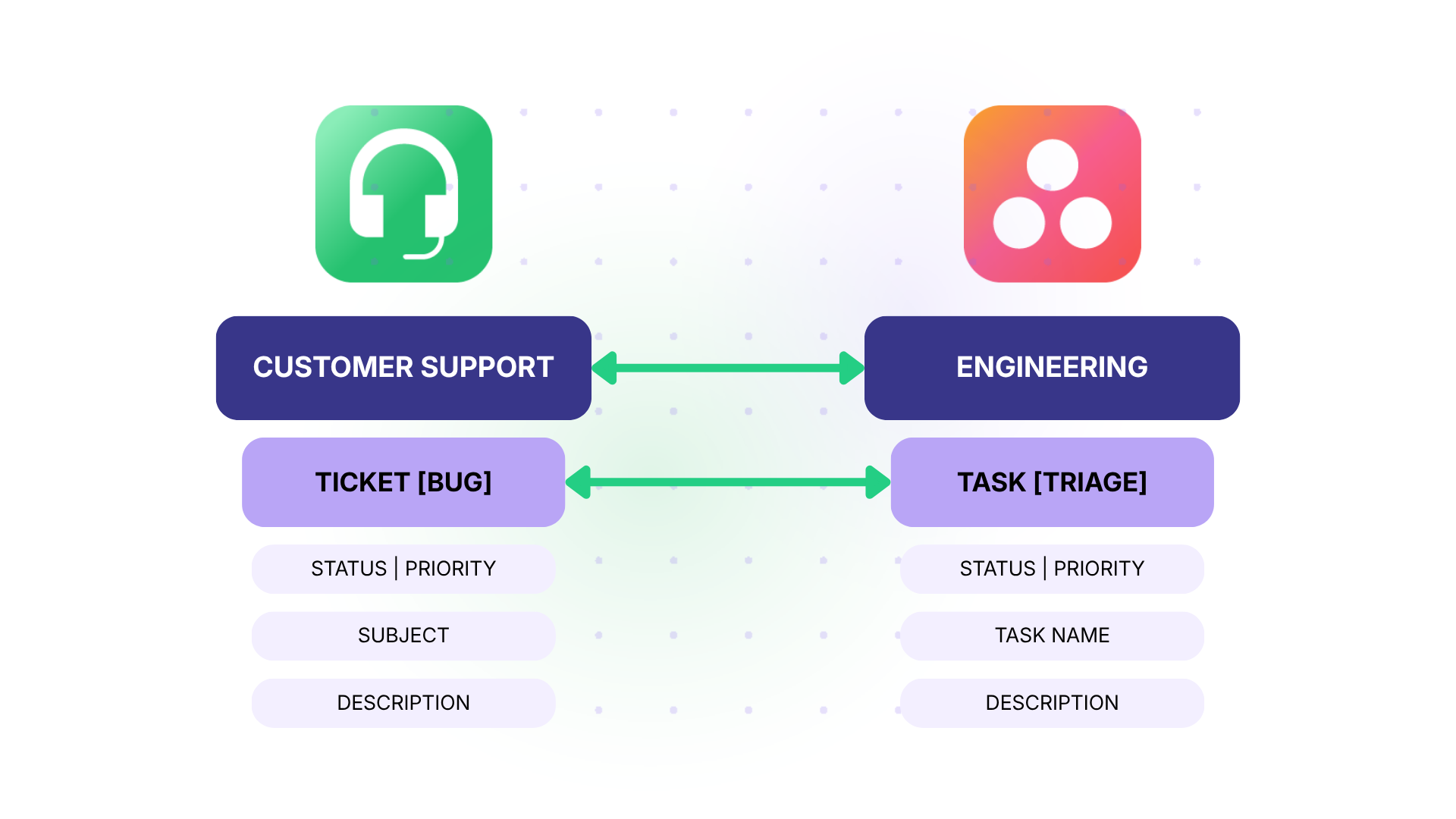
The Challenge: Support agents in Freshdesk confirm that a customer-reported issue is a legitimate software bug. The project team in Asana needs a task with full context (steps to reproduce, affected users, severity) to schedule the fix. Currently, agents paste ticket links into a Slack channel and hope someone picks it up.
The Solution: Set up a trigger so that when a Freshdesk ticket is tagged “bug-confirmed,” it automatically creates a task in a designated Asana project (e.g., “Bug Triage”). The sync maps ticket subject to task name, ticket description to task notes, and ticket priority to an Asana custom field. When the project team updates the Asana task status to “Fixed” or “Deployed,” that status change flows back to Freshdesk so the agent can close the loop with the customer.
Real-World Application: A SaaS company processing 400+ support tickets monthly cut their average bug triage time from 48 hours to under 6 hours by automating the Freshdesk-to-Asana handoff. Agents no longer spent 15-20 minutes per ticket manually copying details, and PMs gained instant visibility into the incoming bug queue.
Case 2: Onboarding New Clients with Coordinated Support and Project Kickoff
The Challenge: When a new client signs up, the support team in Freshdesk creates an onboarding ticket to track setup steps (account provisioning, training scheduling, documentation delivery). The project team in Asana has a parallel onboarding template with internal tasks (technical setup, data migration, integration configuration). Both tracks need to stay in sync.
The Solution: When a Freshdesk ticket is created with the type “Onboarding,” integration creates a task in Asana using a predefined project template. Key milestones sync between both platforms: when the project team completes “Technical Setup” in Asana, the corresponding Freshdesk ticket note updates automatically. The client-facing agent always knows where things stand without asking the project team.
Real-World Application: A managed services provider onboarding 10-15 new clients per month used this integration to reduce onboarding coordination time by 40%. Agents stopped attending internal standups just to get status updates, and PMs stopped fielding “where are we with Client X?” messages.
Case 3: Turning Feature Requests into Roadmap Candidates
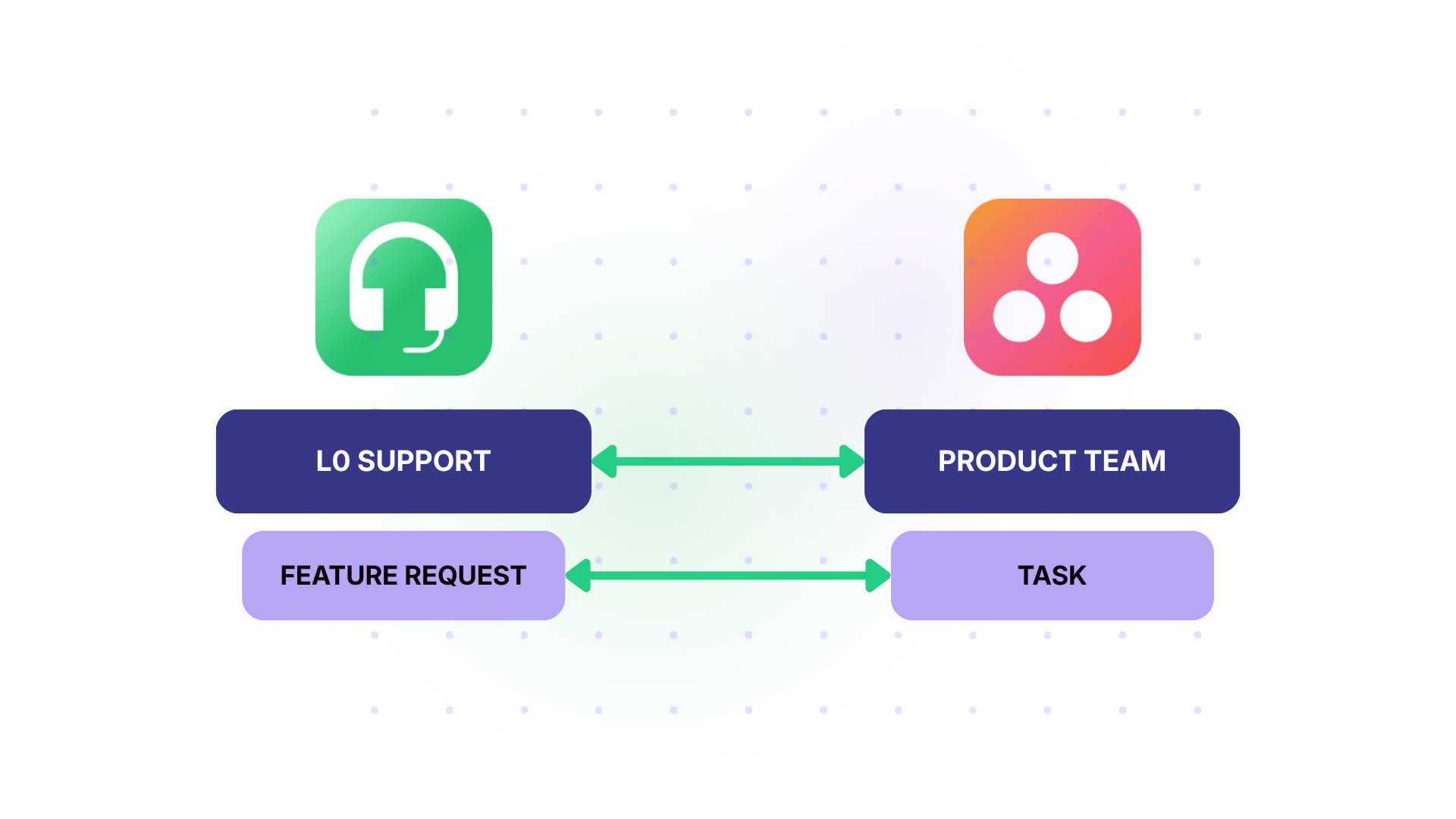
The Challenge: Customers submit feature requests through Freshdesk. Product managers in Asana want to track demand signals and prioritize the roadmap accordingly. But feature requests are scattered across hundreds of tickets with no structured way to aggregate or deduplicate them.
The Solution: Tag feature request tickets in Freshdesk with “feature-request” and a product area label. Integration creates Asana tasks in a “Customer Requests” project, organized by product area (using Asana sections or tags). The PM consolidates duplicates, adds internal notes, and promotes high-demand items to the active roadmap. The Freshdesk ticket retains a link to the Asana task so agents can tell customers their request is being tracked.
Real-World Application: A B2B platform used this integration to process 150+ feature requests per quarter. PMs could see which requests had the most associated tickets (a direct demand signal), helping them prioritize based on customer volume rather than internal assumptions.
Case 4: Agency Coordinating Client Deliverables and Support
The Challenge: A digital agency uses Freshdesk to manage client support requests (site bugs, content updates, access issues) and Asana to manage internal project delivery (design sprints, development tasks, marketing campaigns). Each client has their own support queue, but the agency’s project teams work across multiple client accounts.
The Solution: Configure separate Exalate connections per client. Client A’s Freshdesk tickets sync to Client A’s dedicated Asana project. Client B follows the same pattern with a different connection and different sync rules. The agency’s project managers see all client work in Asana’s portfolio view while keeping each client’s data siloed.
Real-World Application: Agencies managing 8+ concurrent clients used this setup to eliminate the risk of client data cross-contamination. Each connection operates independently, so changes to Client A’s sync rules have zero effect on Client B’s configuration. Internal teams get a unified view in Asana without mixing client contexts.
Case 5: Post-Incident Review and Follow-Up Tracking
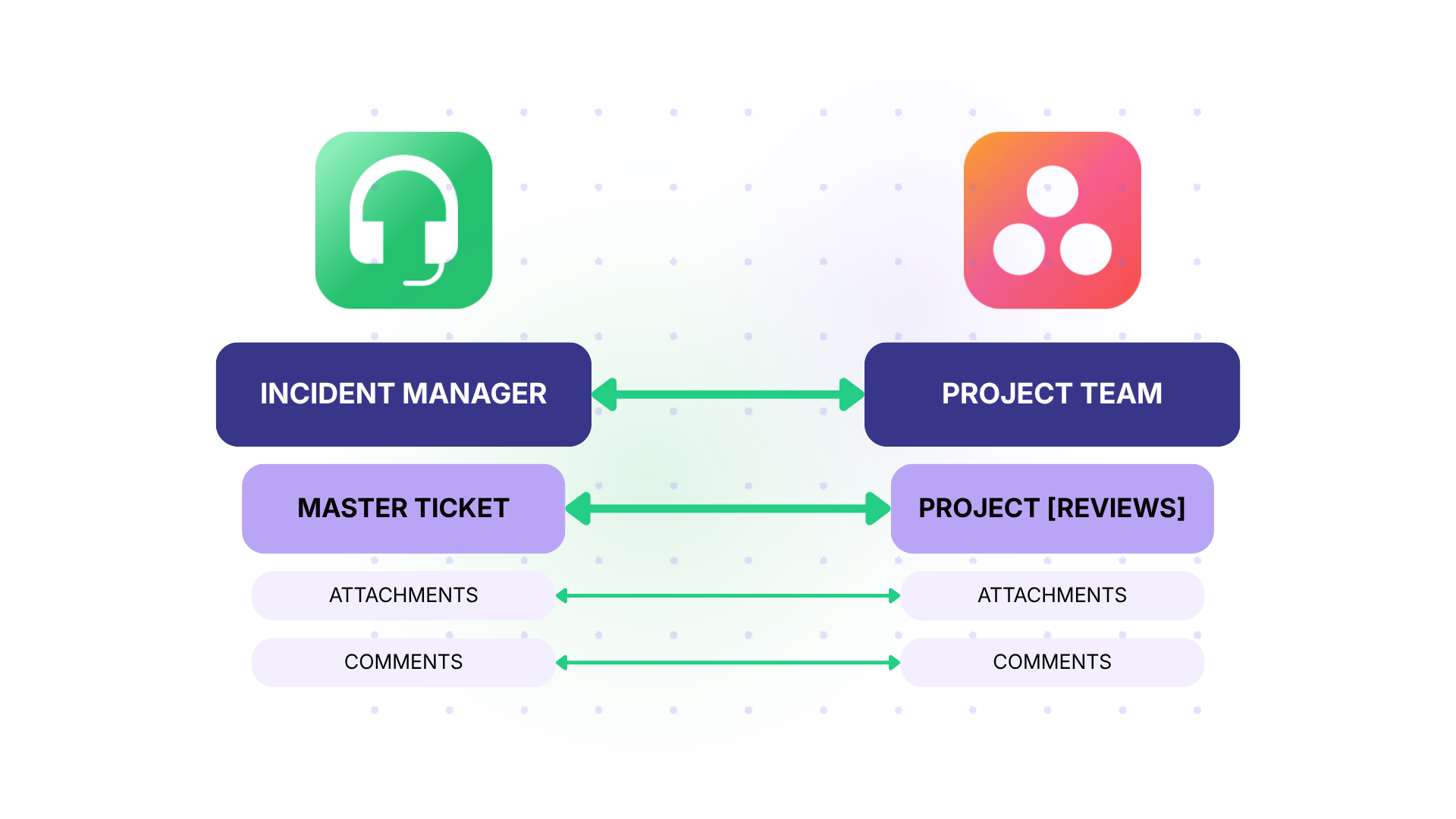
The Challenge: After a major service incident, the support team in Freshdesk handles customer communication while the project team in Asana manages the post-mortem, root cause analysis, and remediation tasks. These two streams need to share data: the project team needs to see which customers were affected and what was communicated, while the support team needs to know when remediation is complete.
The Solution: Sync the incident’s master Freshdesk ticket (typically a parent or tracker ticket) with an Asana task in a “Post-Incident Reviews” project. Comments from both sides sync bidirectionally, so the project team can post investigation updates that agents see in Freshdesk, and agents can add customer feedback that the project team sees in Asana. When the remediation task is marked complete in Asana, the Freshdesk ticket status updates to “Resolved.”
Real-World Application: A cloud infrastructure provider used this pattern during quarterly incident reviews. Having the full ticket-to-task chain documented in both platforms gave them a complete audit trail from customer impact (Freshdesk) through remediation and prevention (Asana).
Best Practices for Asana Freshdesk Integration
Scope your field mapping before writing sync rules. Decide upfront which Freshdesk fields should reach Asana and which should stay private. Support agents probably do not need to see Asana subtask structures. Project managers probably do not need Freshdesk SLA metrics. Sync only what each team will actually use.
- Map statuses deliberately. Freshdesk uses ticket statuses (Open, Pending, Resolved, Closed). Asana does not have a native linear status field; it uses task completion plus custom fields or sections to represent workflow stages. Plan your status mapping before configuring sync rules. For example, Freshdesk “Open” might map to an Asana custom field value of “To Do,” while Freshdesk “Resolved” maps to “Done.”
- Filter comments to reduce noise. When comments sync in both directions, automated messages (like “Status changed to In Progress”) can generate duplicate notifications. Set up filters in your sync scripts to exclude system-generated comments or comments that match specific patterns.
- Start with a pilot project. Do not sync every Freshdesk group and every Asana project on day one. Begin with one support queue and one Asana project. Validate that fields map correctly, status updates propagate as expected, and no sync loops occur. Then expand gradually.
- Document your sync rules. As your configuration grows, document what each script does, which triggers exist, and what conditions apply. This is critical when multiple team members manage the integration or when you need to onboard someone new.
- Set up monitoring and alerts. Multi-platform integrations have more failure points than single-platform tools. Configure alerts for sync errors so you can catch problems before they compound. Exalate provides error logs and Aida-assisted troubleshooting for this purpose.
What Can You Sync Between Asana and Freshdesk?
The specific fields and entities available for sync depend on your integration tool. Here is what each platform exposes through its API and what a script-based tool like Exalate can handle.
| Freshdesk Field | Asana Equivalent |
| Ticket subject | Task name |
| Ticket description (HTML) | Task description (rich text) |
| Priority (1-4 scale) | Custom field or tag |
| Status (Open, Pending, Resolved, Closed) | Custom field or section |
| Agent replies and notes | Task comments |
| Attachments | Task attachments |
| Tags | Tags |
| Ticket type | Custom field or tag |
| Requester name and email | Custom field |
| Due date | Due date |
| Group (support team) | Asana project or section |
| Custom fields | Custom fields |
| Contact/company info | Custom fields |
For a complete reference of supported entities and fields across all connectors, check the Exalate documentation for Freshdesk and Asana.
How to Set Up an Asana Freshdesk Integration with Exalate
This walkthrough covers setting up an Exalate connection between Freshdesk and Asana.
Create Your Exalate Account
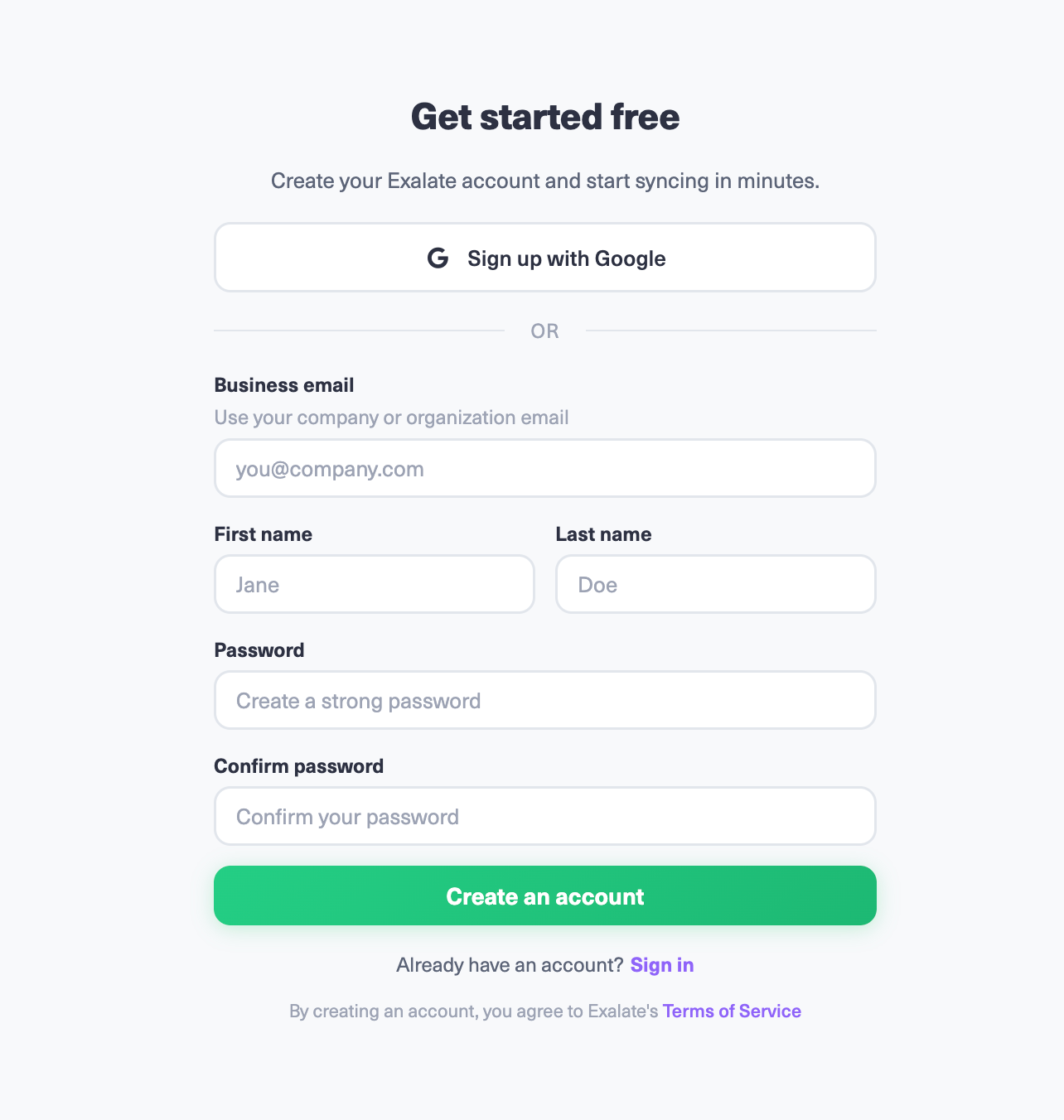
Create your account on the Exalate app or log in if you already have one. You can sign up by manually entering your business email and verifying it, or sign up using Google. If you already have an account, log in.
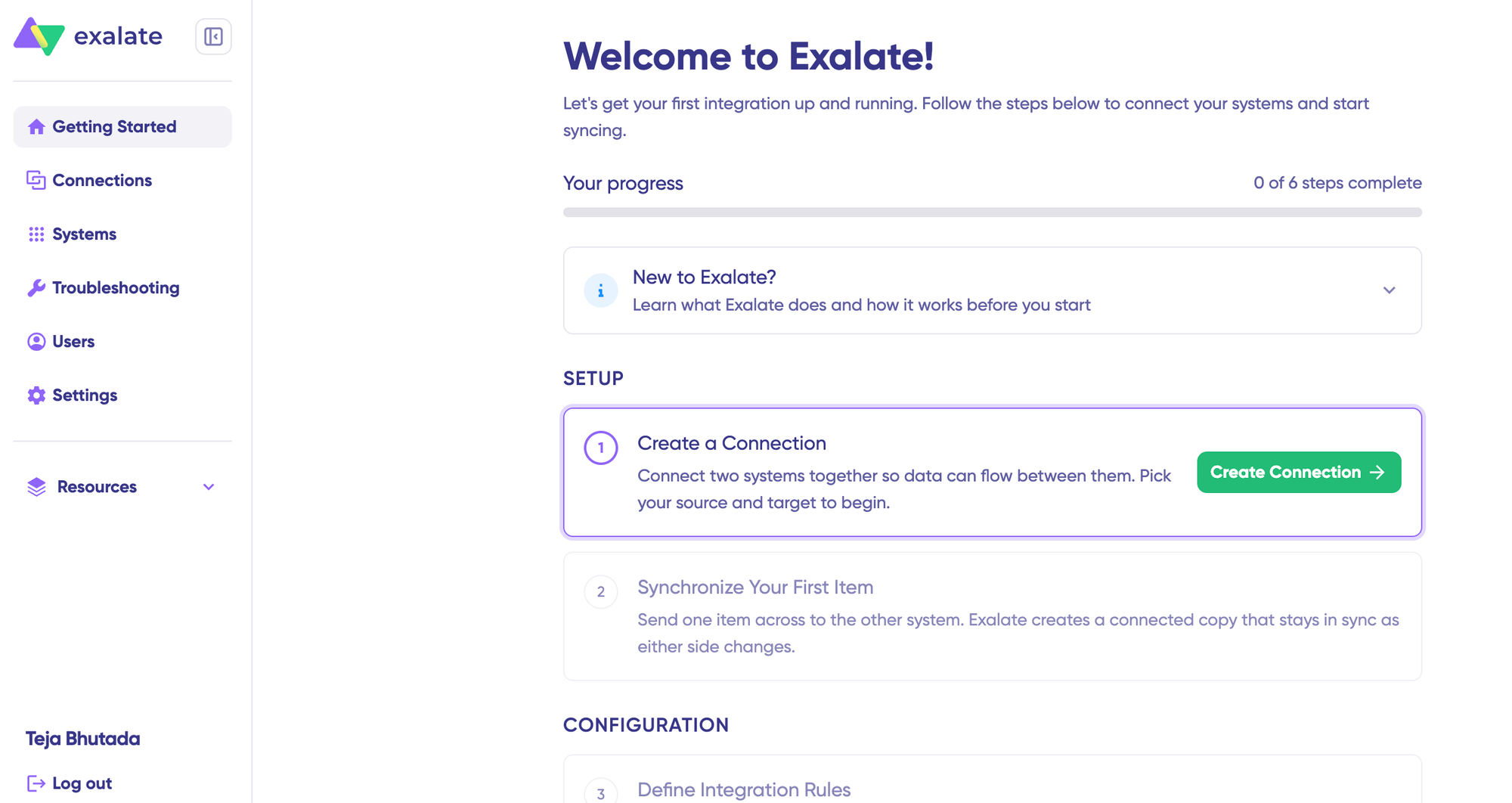
You can find all your connections in the Connections tab. Enter a name and description (e.g., “Support-Project Sync”), then click “Create connection.”
Create Your First Connection
To create a connection, you need an active Exalate account and the access credentials for both systems.
Click on “+ Add connections” > “Create new connection.” Enter the name for your first system. Name Freshdesk as your System A. It does not matter which one goes first. Enter your Freshdesk instance URL.
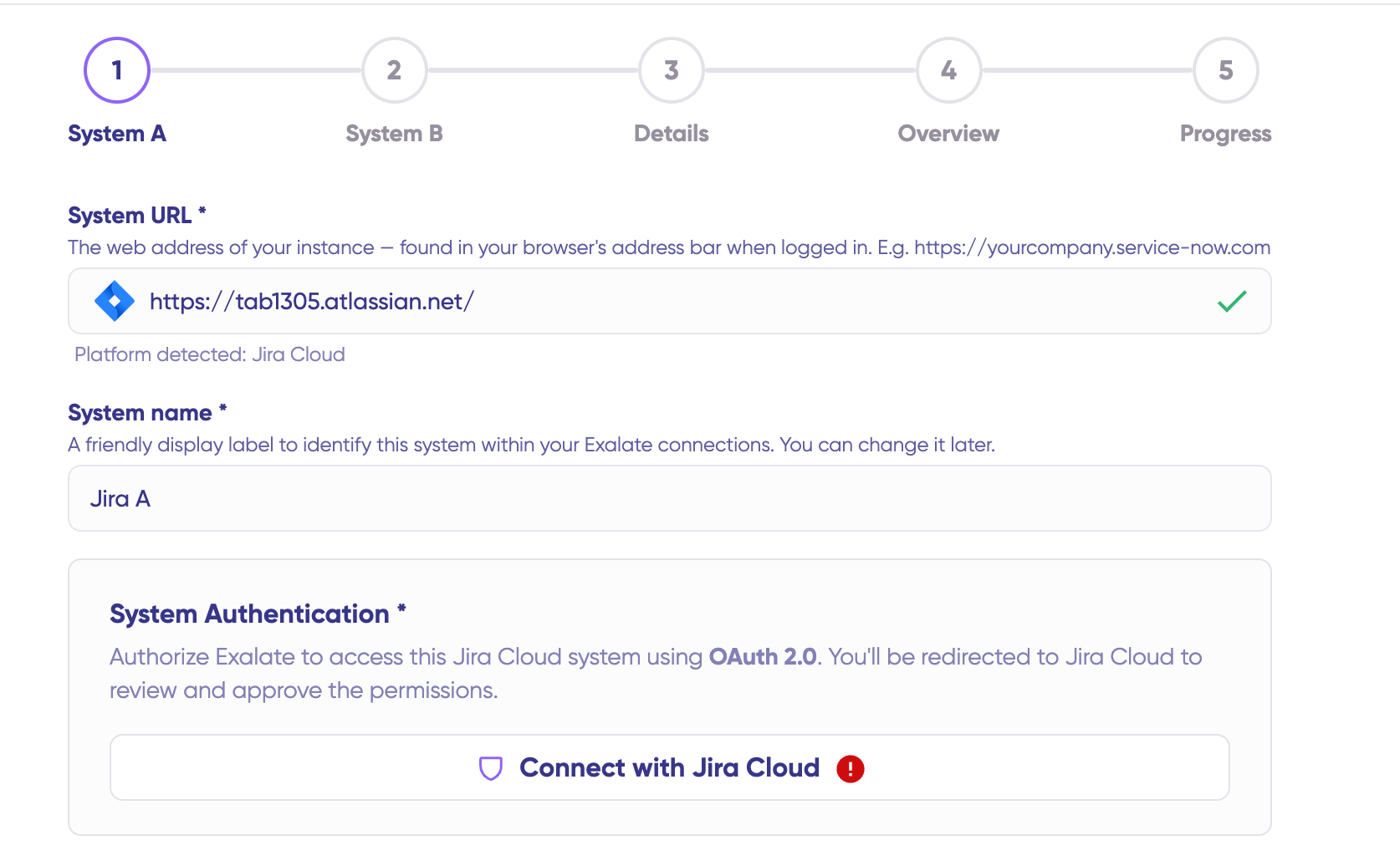
Once you enter the URL, a small check happens behind the scenes.
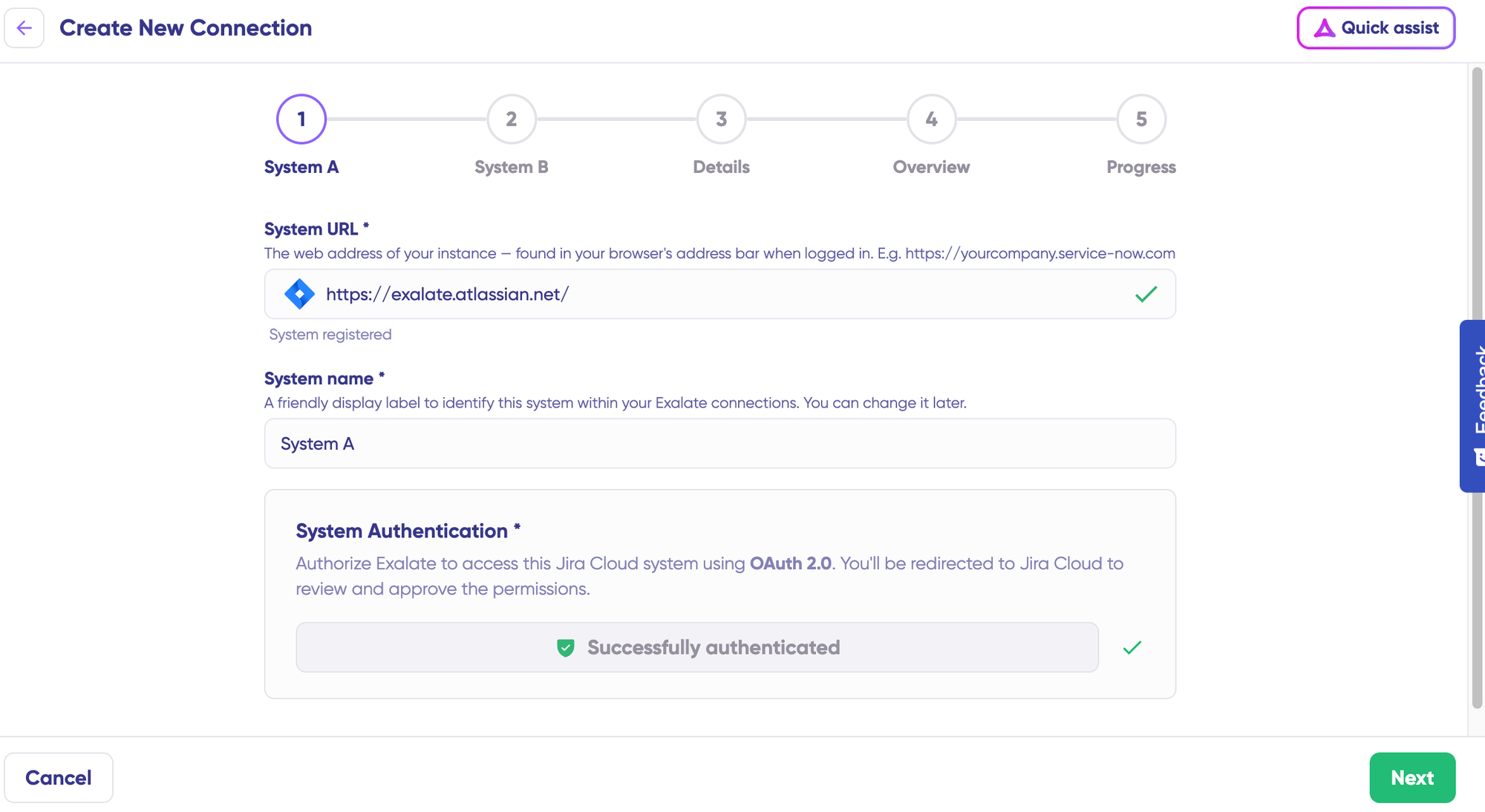
For both Asana and Freshdesk, use your API key.
Finish the setup for System B (Asana). The same rules apply. Give your connection a name and description (e.g., “Freshdesk-Asana Ticket Sync”), click “Next,” review the details, and click “Create connection.”
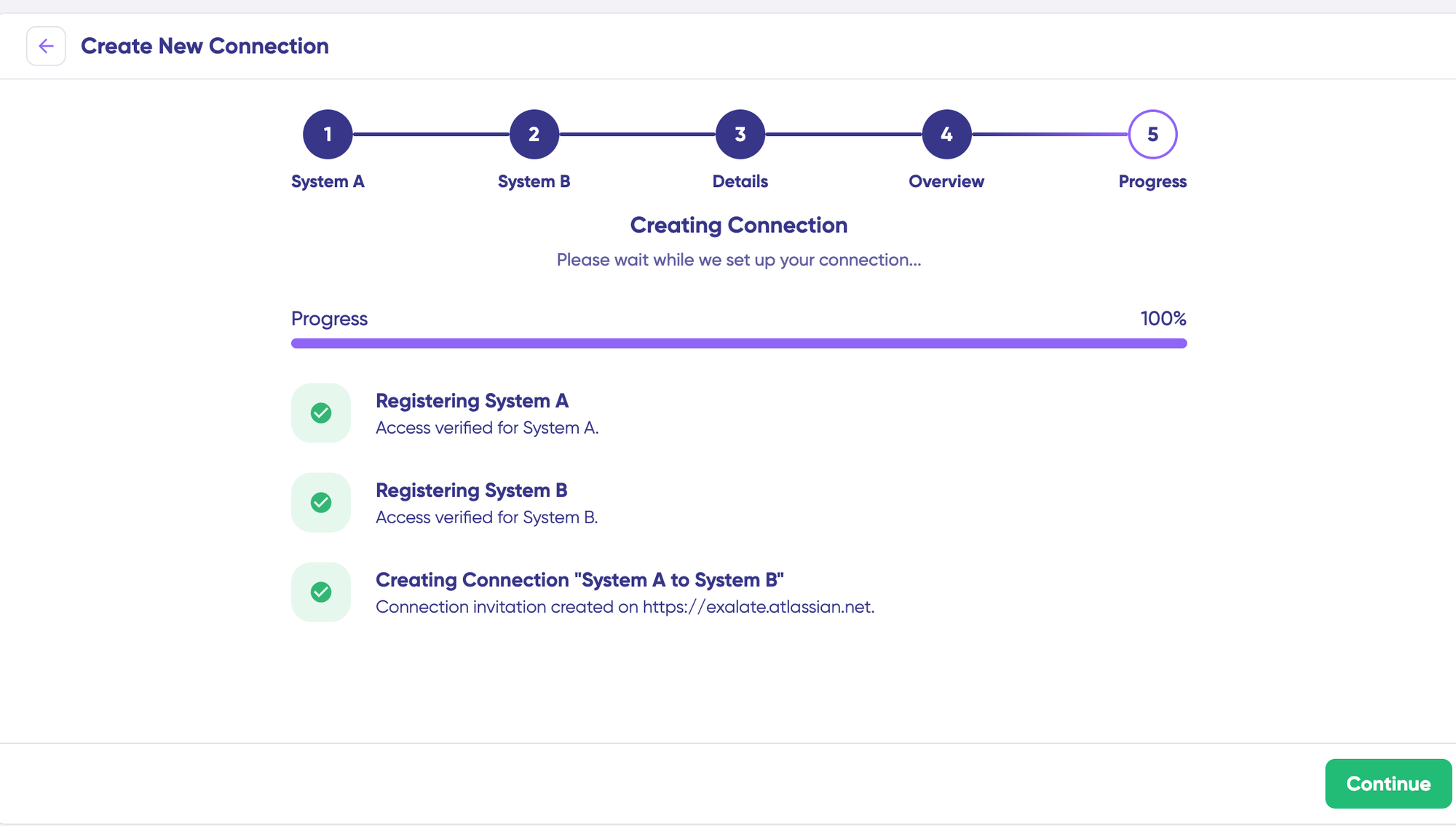
When the process is complete, select “Continue” and choose the Freshdesk group or queue and the Asana project you want to use for synchronization on both sides. Then click “Build & continue.”
Now you have two options: “Quick sync” and “Edit & Test.” Let’s go through both.
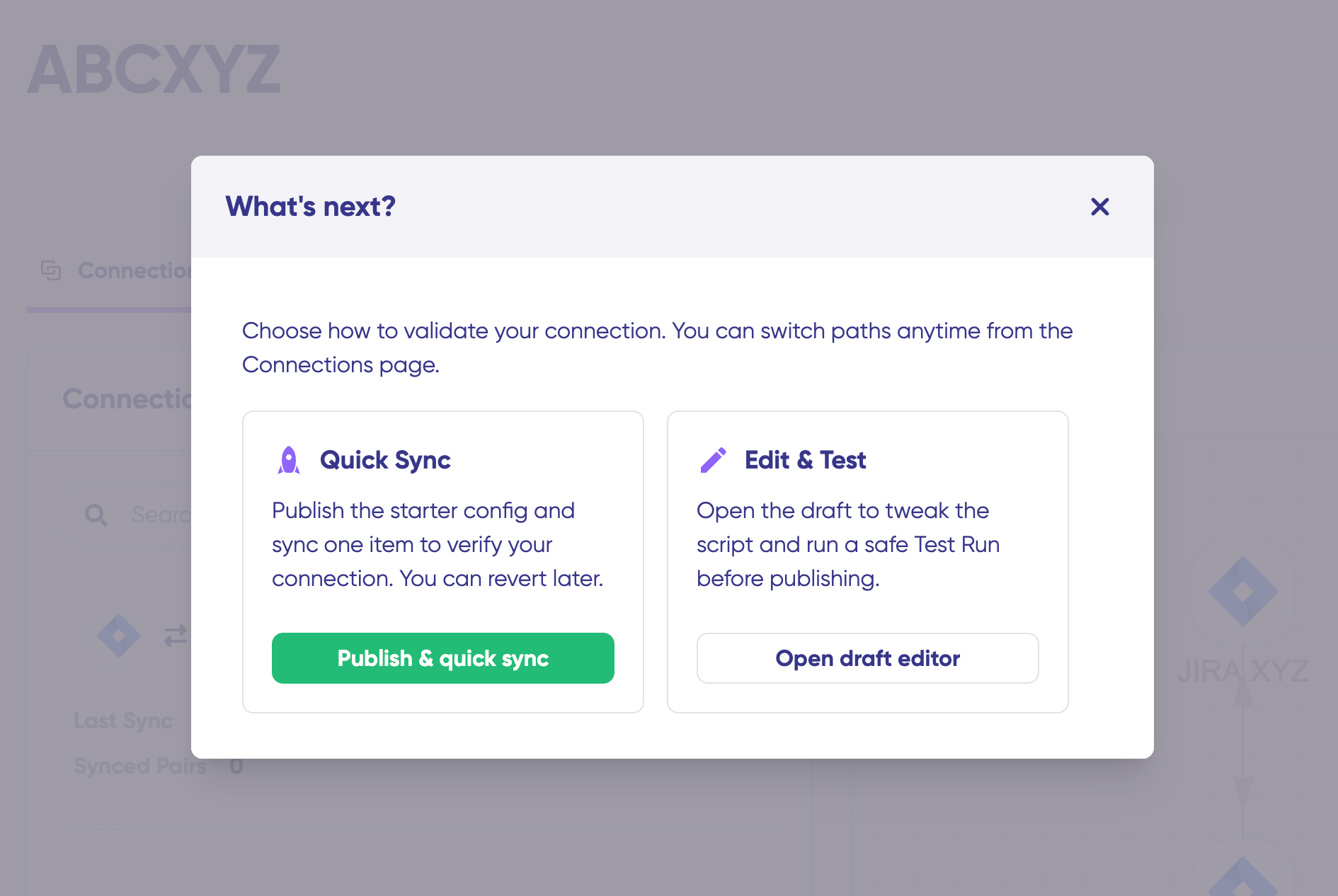
Quick Sync (Or Manual Sync)
Using this option, you can sync one item between Freshdesk and Asana to verify that the connection works properly. Under the “Item sync monitor,” enter the Freshdesk ticket number or Asana task ID. Click “Sync Now” to sync the first item. To link two existing items, click “Link with existing.”
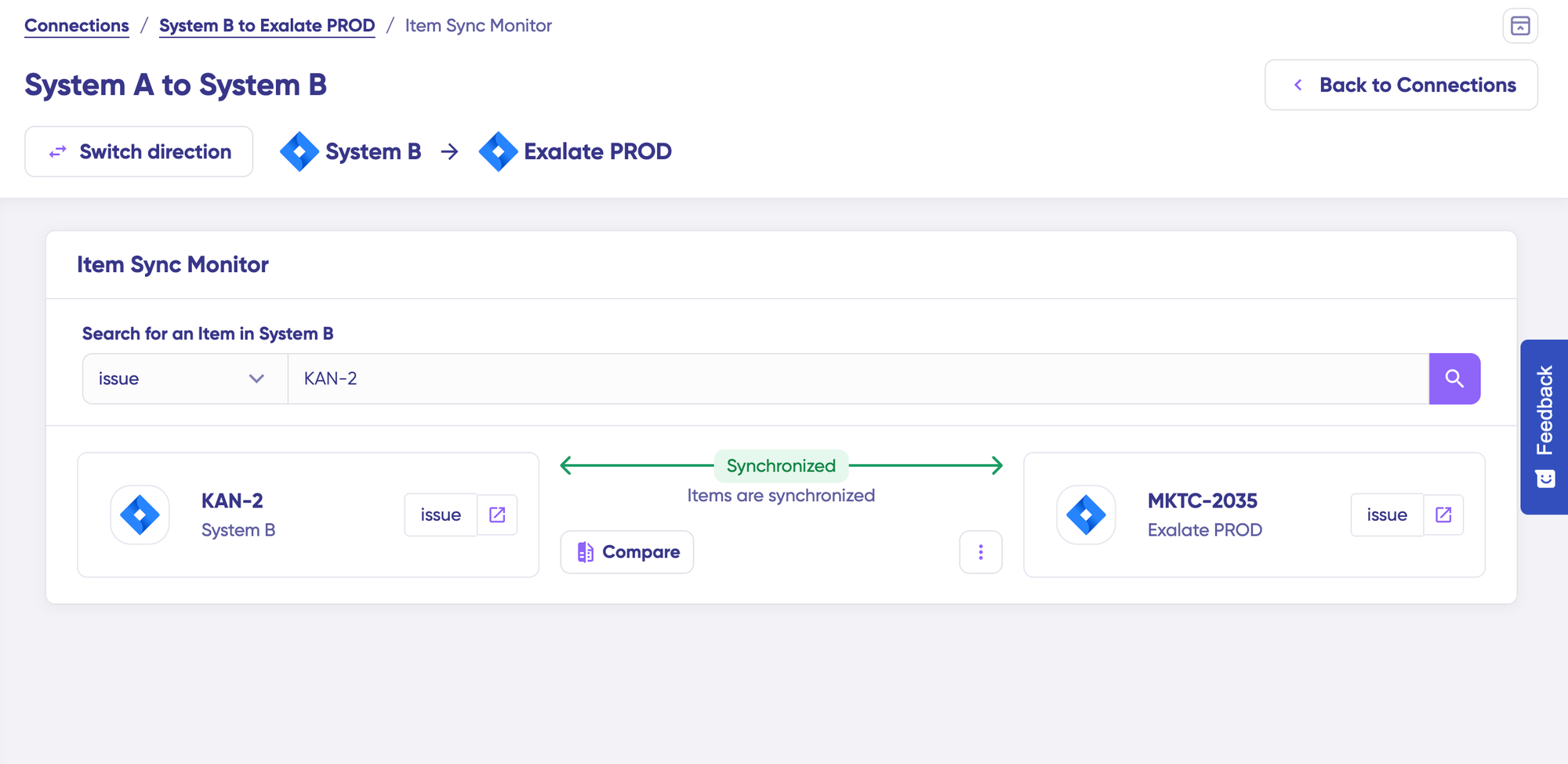
While the items sync, you get status updates. Once the sync is complete, you can view both synced items by opening them in a new window. You can also compare how the changes were applied.
Edit Sync Rules (Scripts)
To start making changes, click “+ New version” or select “Open latest draft.” This ensures you do not modify the existing configuration accidentally. Changes in the draft are saved automatically.
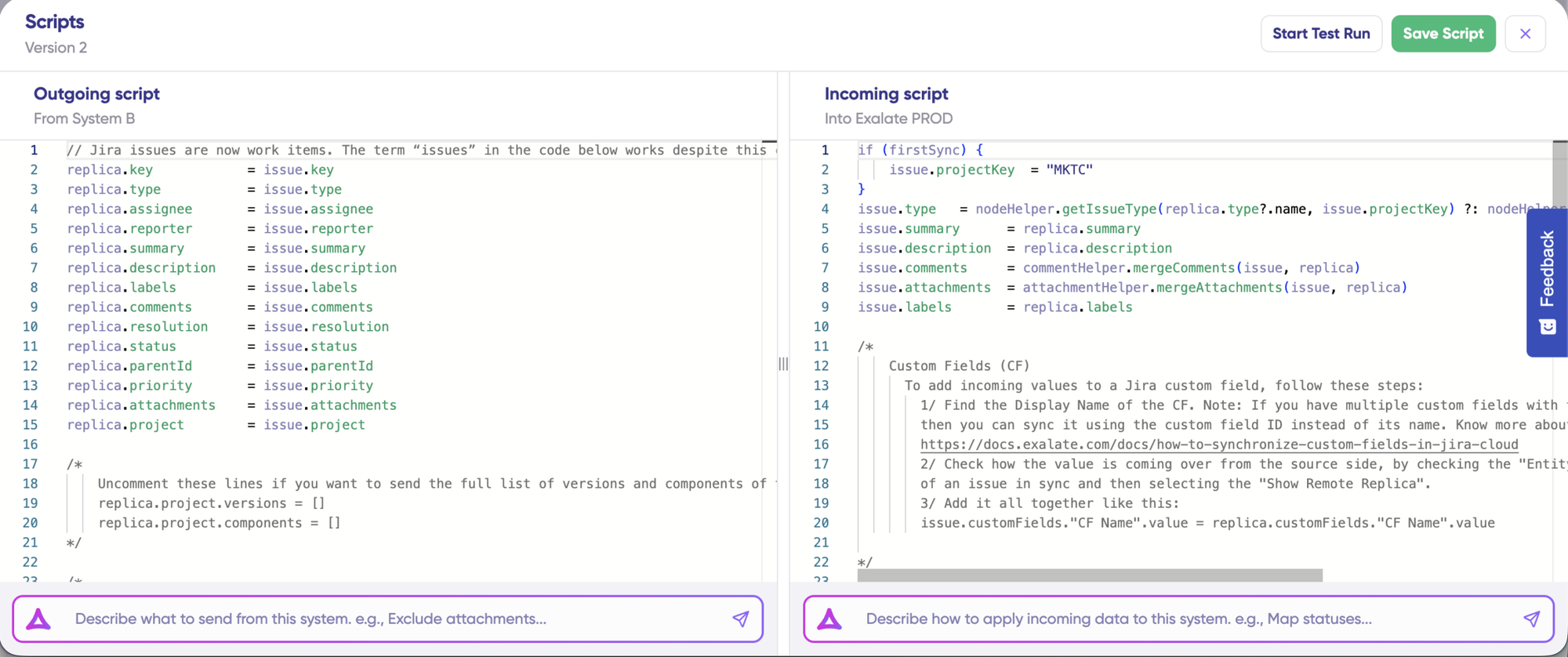
Click the “Edit Script” button to open the editor. Sync rules are based on Groovy scripts. With these scripts, you can add custom data logic, field mapping, and conditional flows for any complex or advanced use case.
Change the direction of the sync by clicking the “Switch direction” button at the top.
If the sync direction is from Freshdesk to Asana, the outgoing script holds the values passed from Freshdesk, and the incoming script defines how those values are mapped in Asana. The Replica works like a message payload and holds the actual data passed between synced entities in JSON format.
Example outgoing script (Freshdesk side):
replica.summary = entity.subject
replica.description = entity.description
replica.priority = entity.priority
replica.status = entity.status
replica.comments = entity.comments
replica.attachments = entity.attachments
Example incoming script (Asana side):
entity.summary = replica.summary
entity.description = replica.description
entity.comments = replica.comments
entity.attachments = replica.attachments
If you want to stop something from syncing (for instance, no attachments from Freshdesk to Asana), remove that script line from the outgoing Freshdesk script.
Use AI-Assisted Configuration (Aida) to Generate Sync Scripts
If you want to save time and scripting effort, use Exalate’s AI-assisted configuration feature called Aida to generate sync scripts. Aida exists in both incoming and outgoing script sections, so choose the side accordingly.
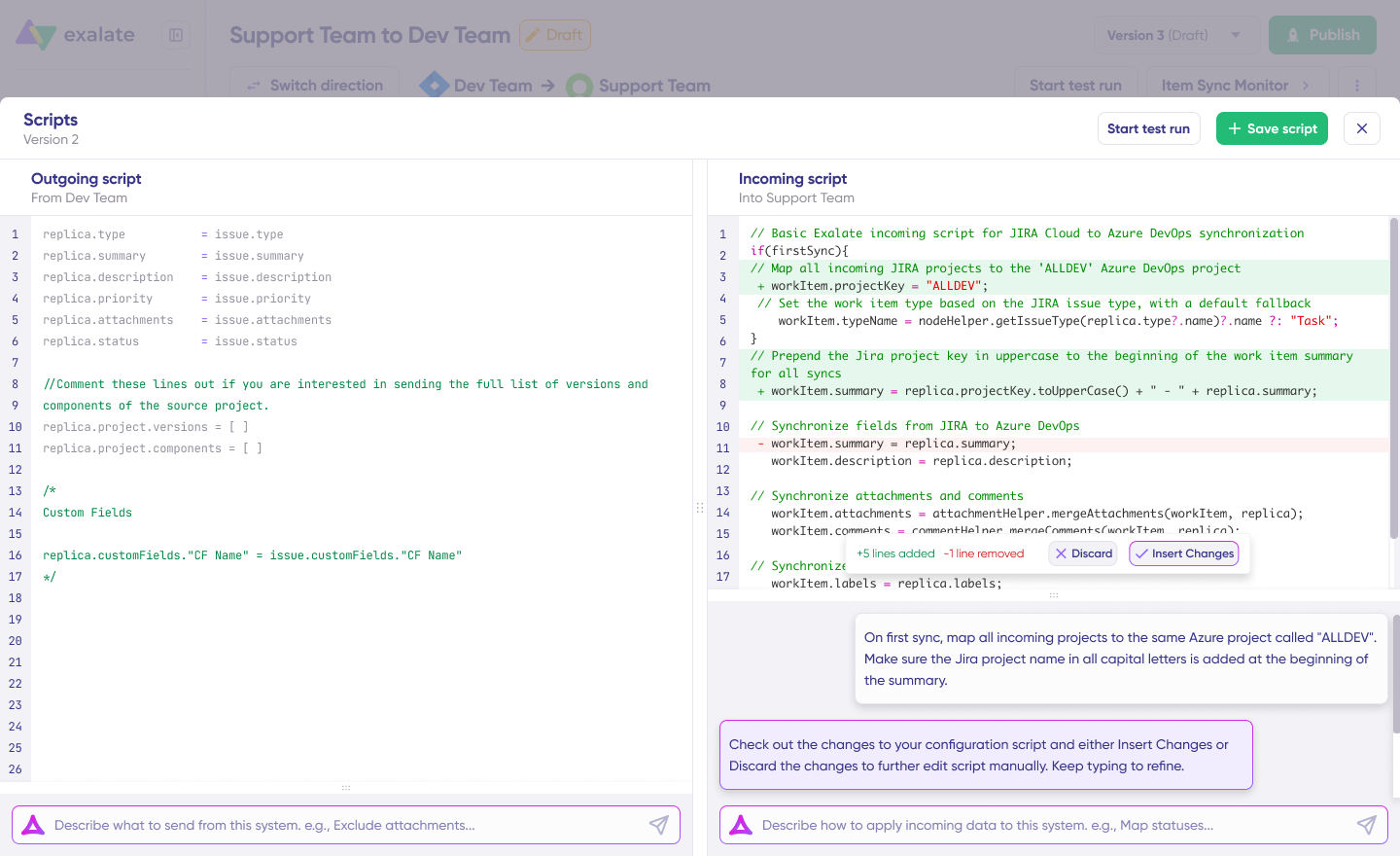
For outgoing scripts: Describe what data should leave your system. For example, “Exclude attachments” or “Only sync high-priority tickets.”
For incoming scripts: Describe how incoming data should be applied. For example, “Map Freshdesk priority 1-2 to a custom field value ‘High’ in Asana, and 3-4 to ‘Normal'” or “Create the task in the ‘Urgent’ section if priority is 1.”
Based on Exalate’s scripting API and your existing scripts, Aida generates the working Groovy script with proper field mappings. Once Aida finishes drafting, review the changes. Green highlights new lines to be added. Red highlights lines to be removed. You can choose to “Insert” or “Discard” Aida’s suggestions.
The outgoing and incoming scripts work independently, and so does Aida, so maintain separate context and direction for each prompt.
Note: Aida is helpful, but just like with any other AI, please review the generated code before applying it.
Test Run Your Sync Scripts (Validate Before Production)
Once your sync scripts are ready, you can choose to “Save script” or proceed to dry-run them using the “Start Test Run” option.
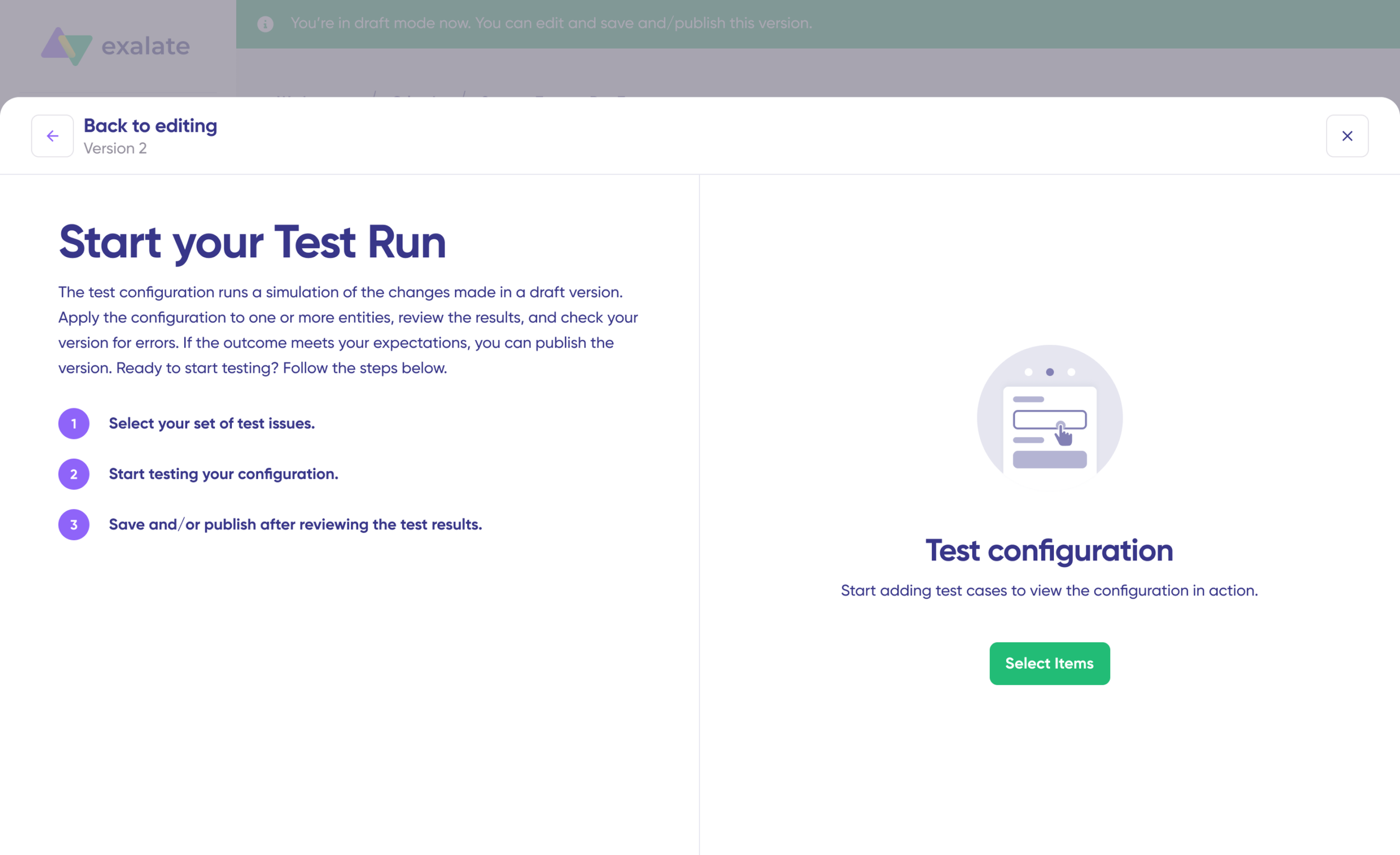
To test the configuration, “Select Items” you want to apply the sync to. You can select multiple items. Click “Start Test Run.” You can now see all incoming and outgoing replicas for each item, viewable in their respective tabs.
Review how the sync configuration will be applied, preview the replica, and verify that field mappings look correct. If needed, go back, adjust the scripts, and test again. Deploy only when you are confident it works. This safety net prevents errors from affecting live data.
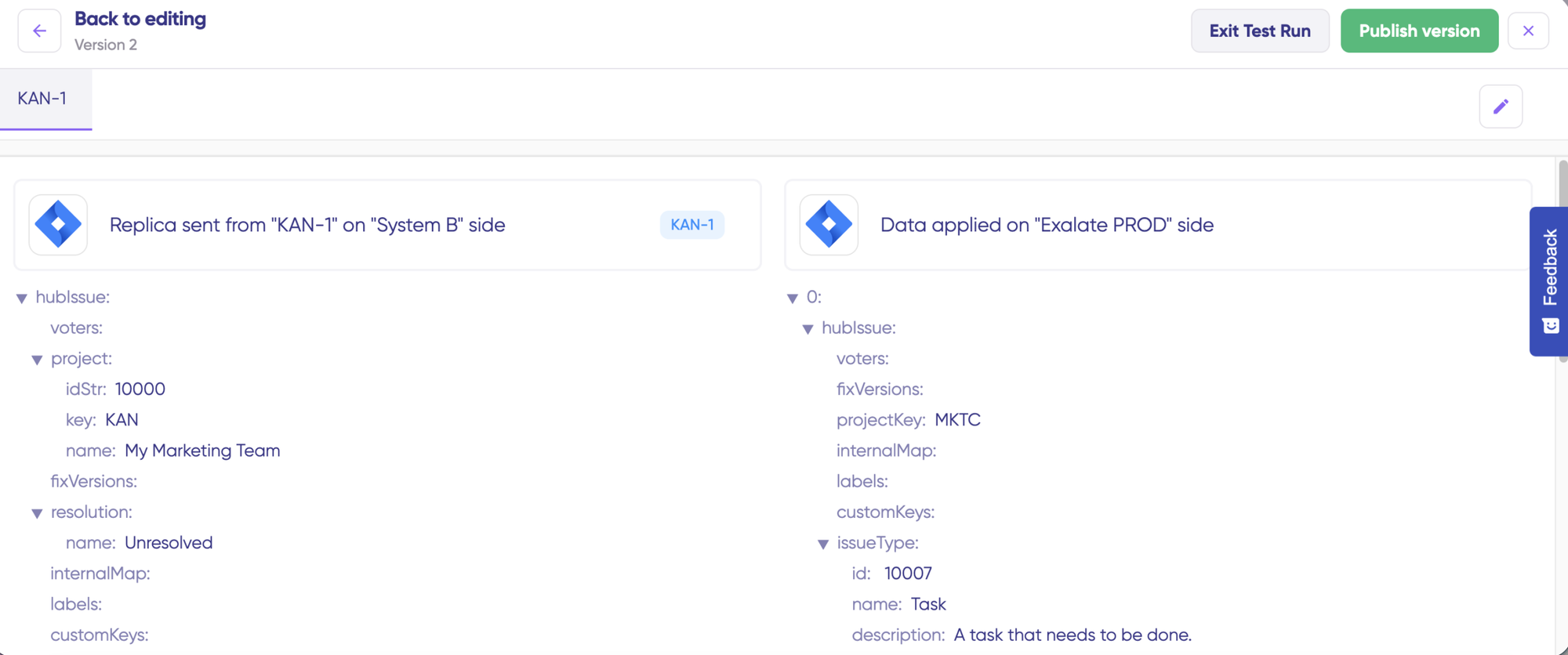
Once everything matches your needs, click “Publish Version” to apply the updated configuration to your live synchronization. All versions for a connection are available in the “Version” dropdown. Versions can be “Active,” in “Draft” (editable), or “Archived.”
Set Up Triggers For Automated Sync
To start your sync automatically, add triggers. Triggers are conditions or filters applied to specific items.
Click the “+ Add trigger” button to start creating platform-specific triggers.
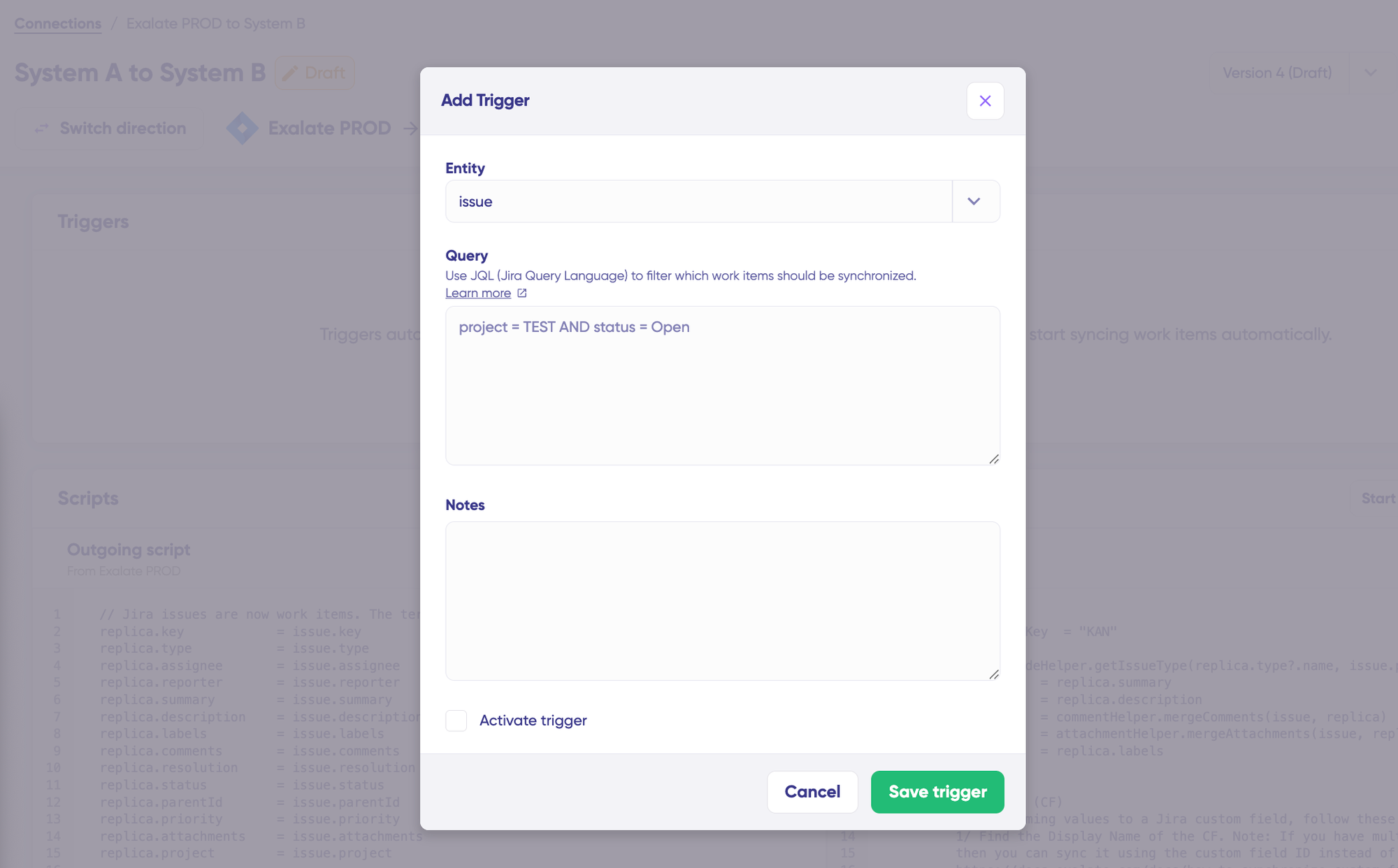
For Freshdesk: Use Freshdesk’s filter syntax to target tickets. For example, sync all tickets with tag:escalate or tickets assigned to a specific group.
For Asana: Set triggers based on project, section, or tag. For example, only sync tasks in the “Support Escalations” project.
Save your changes by publishing them.
Your synchronization will start automatically based on the sync rules and triggers you have set.
Troubleshoot with Aida
A significant part of synchronization involves troubleshooting errors, especially with script-based tools that support complex workflow configurations.
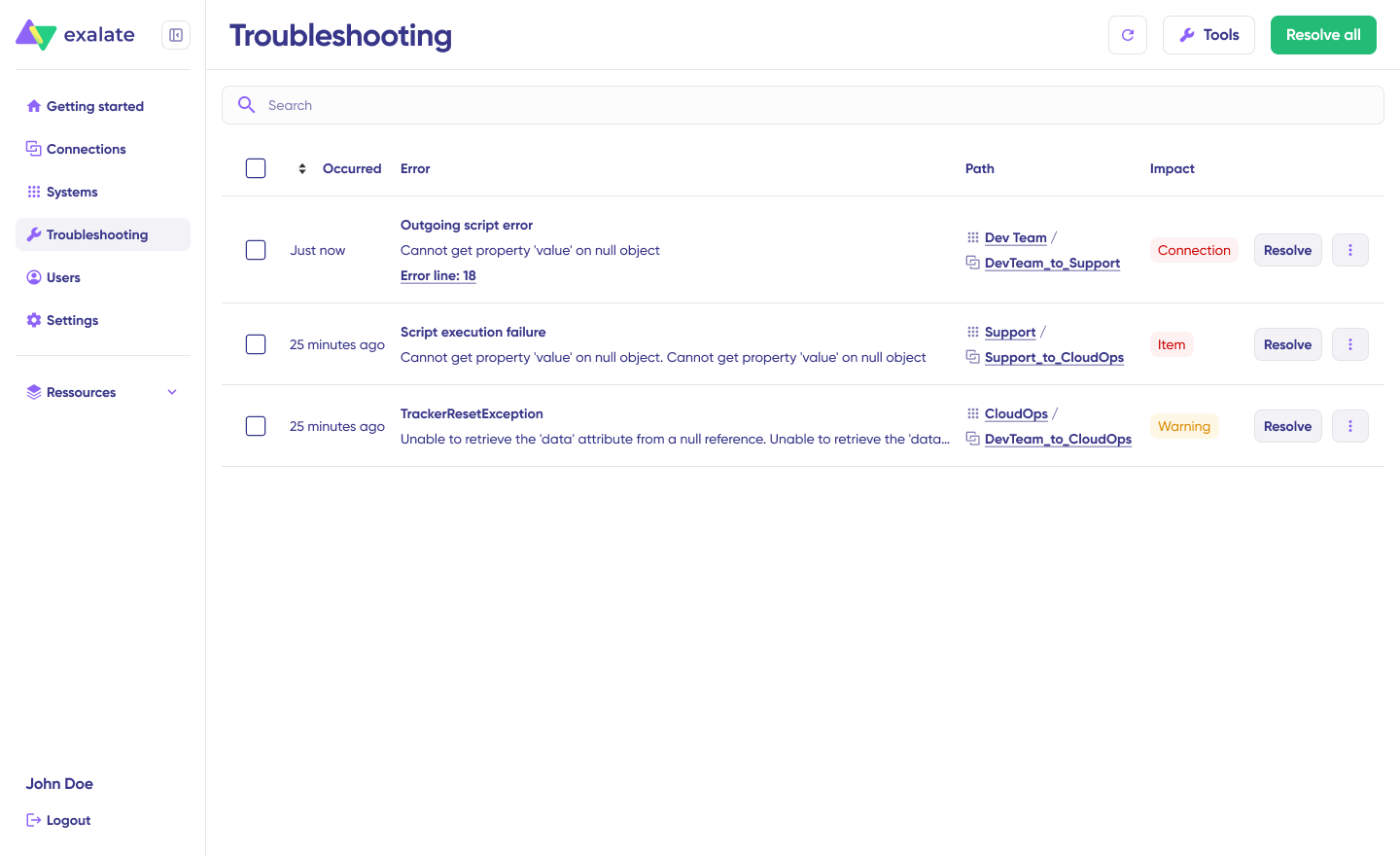
Aida helps you troubleshoot errors faster by offering clear, context-aware suggestions right where you see them. If there is an error, go to the “Troubleshooting” tab. Hover over the error you want to diagnose and click on the Aida icon that appears next to it.
You will see the AI-generated suggestion in the modal window, including a short explanation of the error and a proposed solution.
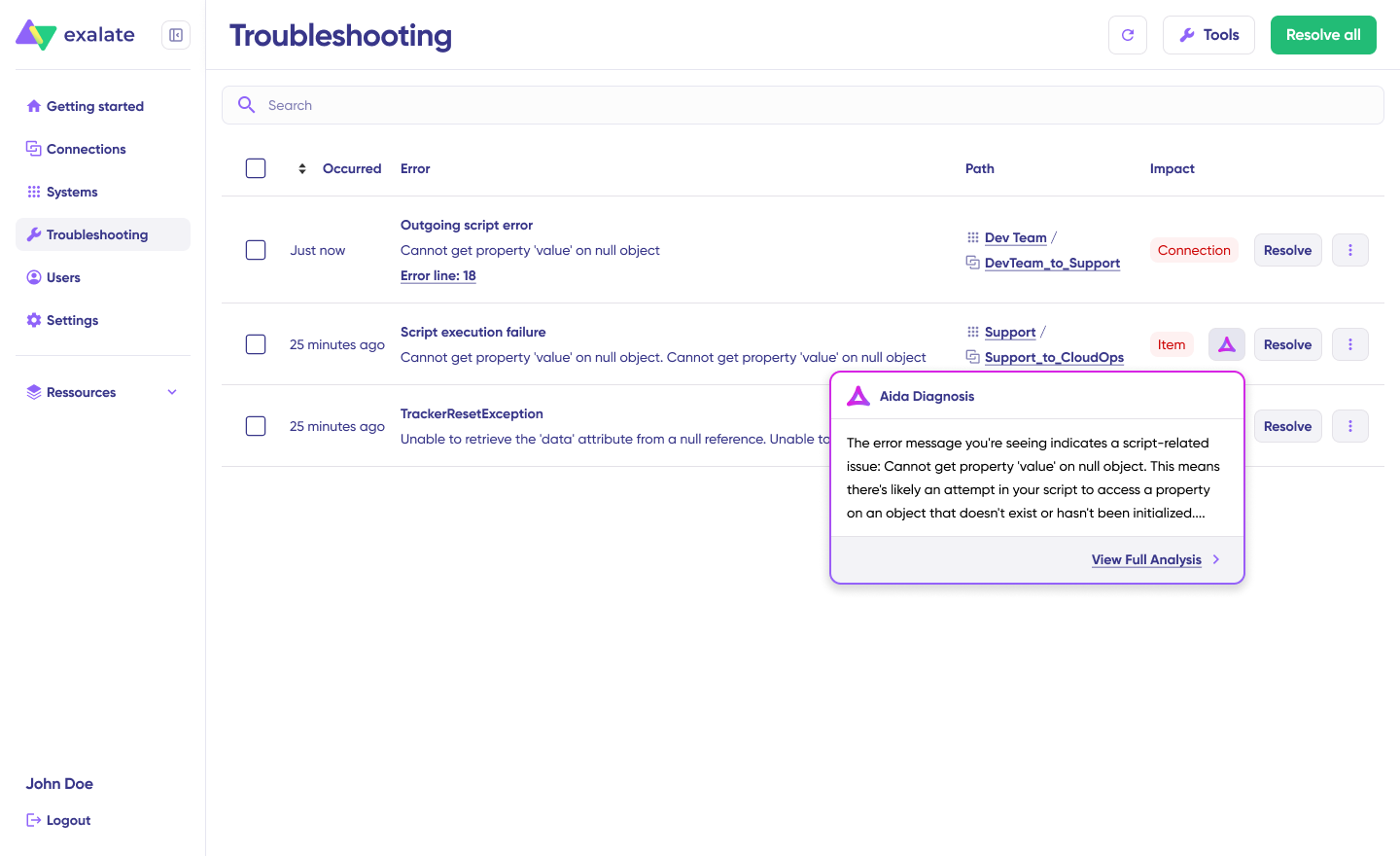
You can also “View Full Analysis” for more context, view “Error details” to copy the stack trace, and inspect “Replicas” to view the JSON payload. Choose to “Resolve” and retry errors.
Sync Panel
Exalate also comes with a Chrome extension called Sync Panel that lets users check sync status, spot errors, trigger manual syncs, and unlink sync pairs straight from the browser, without opening the console.
It’s useful for two groups: admins who want to keep an eye on sync status without switching tabs and end users who want to confirm that the remote side received their update.
You can access this feature via the browser. But if you want to check the sync queue status or configure your sync, you still need to log into the Exalate console.
Conclusion
Connecting Freshdesk and Asana bridges the gap between customer support and project management. Tickets flow into tasks. Status updates flow back. Both teams stay aligned without leaving their own platform.
Native apps handle the basics. Automation tools cover simple one-way workflows. But for bidirectional sync with conditional logic, custom field transformations, and enterprise reliability, script-based tools like Exalate provide the control and flexibility your teams need.
Start with a clear picture of what data needs to move where. Choose the right integration approach for your complexity level. And expand gradually as requirements grow.
Ready to connect Asana and Freshdesk? Book a call with us to get started, or start a free trial to explore the platform yourself.
Frequently Asked Questions
Can Exalate sync data bidirectionally between Asana and Freshdesk?
Exalate supports full bidirectional synchronization. You configure outgoing and incoming sync scripts independently for each side, controlling exactly what data flows in each direction.
Can I sync only specific Freshdesk tickets to Asana?
Yes. Use triggers to filter which tickets enter the sync pipeline. You can trigger based on ticket tags, priority levels, ticket types, assigned groups, or any combination of Freshdesk filter criteria.
What happens if Freshdesk or Asana goes down during a sync?
Exalate queues pending sync events during outages. When the platform comes back online, queued events replay in the correct order. No data is lost, and the systems re-sync automatically.
Can I use Aida to generate sync scripts for this connection?
Yes, Aida is available in both the incoming and outgoing script editors. Describe your requirements in plain language, review the generated Groovy script, and insert it. Aida maintains a separate context for each script direction.
How does Exalate handle different field types between Freshdesk and Asana?
Exalate’s scripting engine transforms data between field types as part of the sync. You can map Freshdesk dropdown values to Asana custom field options, convert Freshdesk priority numbers to Asana tag values, or apply default values when a field has no direct counterpart.
Can I integrate Asana and Freshdesk with other platforms simultaneously?
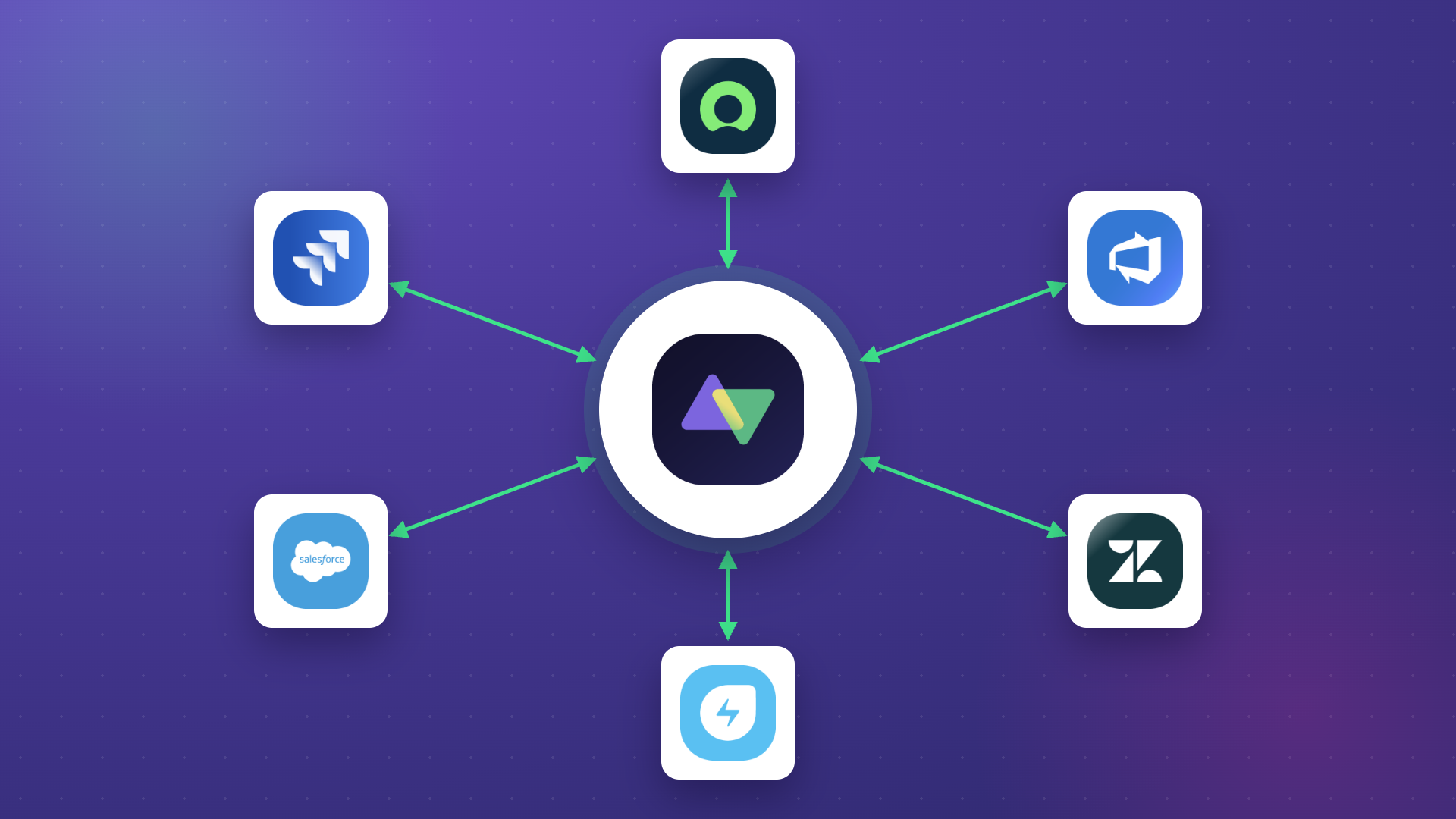
Yes. Exalate supports connections with Jira, ServiceNow, Freshservice, Zendesk, Salesforce, Azure DevOps, and GitHub in addition to Freshdesk and Asana. Each connection operates independently, so you can build a multi-platform integration network with Asana or Freshdesk as a hub.
How long does setup take?
A basic configuration with default field mappings takes a few hours. More complex setups with conditional logic, custom field transformations, and multiple triggers may take one to two days. AI-assisted configuration (Aida) significantly reduces scripting time compared to manual setup.
What support options are available?
Exalate offers Standard Support and Priority Support (dedicated engineer, configuration assistance, enhanced SLAs). For MSPs and service providers, specialized packages are available. Self-service resources include the documentation, community forum, and Aida-assisted troubleshooting.
Can I map Freshdesk ticket types to different Asana tasks?
Yes. Using conditional logic in your sync scripts, you can route tickets to different Asana projects based on their type, group, priority, or any other field value. For example, “Bug” tickets go to the “Engineering Triage” project while “Feature Request” tickets go to the “Product Feedback” project.
How does Exalate pricing work for Asana Freshdesk integration?
Exalate pricing is based on the number of items in active sync, not the number of users. Each integration connection is billed separately. Go to the Exalate pricing page to find out more. You can estimate costs using the pricing calculator, and there’s a 30-day free trial so you can test things before committing.
Recommended Reads