Engineering lives in Jira, while product, marketing, and operations live in Asana. Both teams depend on each other, but neither has visibility into what the other side is doing. A Jira Asana integration fixes that by syncing tasks, work items, statuses, comments, and custom fields between both platforms automatically.
Not every integration method works the same way, though. The native Asana for Jira Cloud Data Sync is limited to certain plan tiers and only connects to Jira Cloud. Zapier handles basic triggers but can’t do true bidirectional sync. And platforms like Exalate support advanced scripting, cross-company collaboration, and all Jira deployment types.
This guide covers every option, with practical use cases, a step-by-step Exalate setup walkthrough, a decision framework, and answers to common questions.
Note: Jira now refers to “issues” as “work items” across its platform. This guide uses the updated terminology.
Key Takeaways
- Jira Asana integration keeps engineering teams in Jira and business teams in Asana aligned by automatically syncing tasks, work items, statuses, and comments in real time.
- Third-party platforms like Exalate support deep, scriptable integrations across Jira Software, Jira Service Management, and more, including cross-company collaboration where each side controls its own sync rules.
- Mapping fields correctly between Asana tasks and Jira work items (statuses, priorities, assignees, custom fields) is the most critical step in any integration setup.
- Choosing the right integration tool depends on your Jira deployment type, the level of customization you need, whether the sync is internal or external, and your Asana plan tier.

Why Teams Need Jira Asana Integration
Jira and Asana solve different problems for different people. Jira is built for software teams: sprint planning, bug tracking, release management, and agile workflows. Asana is built for work management at the organizational level: project timelines, cross-functional coordination, goal tracking, and campaign planning.
The overlap happens when both types of teams work on the same initiatives. A product launch requires the marketing team to track deliverables in Asana while the engineering team builds features in Jira.
A client project at an agency requires the account team in Asana to stay informed about development progress tracked in Jira. An enterprise IT rollout might involve operations in Asana coordinating with DevOps in Jira.
Without integration, these teams default to status meetings, email threads, and manual updates. That creates delays, version conflicts, and missed deadlines. Here’s what a functioning Jira Asana integration actually solves:
- Real-time visibility across tools. When a developer moves a Jira work item from “In Progress” to “Done,” the corresponding Asana task updates immediately. Product managers don’t need to ask for a status update. They see it.
- Elimination of duplicate data entry. Instead of creating a Jira work item and then manually logging the same information as an Asana task, the integration handles it. Create in one, and it appears in the other.
- Consistent priority alignment. When a business-critical task gets escalated in Asana, the linked Jira work item reflects the updated priority. No more situations where support thinks something is urgent while engineering has it queued as low priority.
- Fewer context-switching interruptions. Developers stay in Jira. Project managers stay in Asana. Both teams get the data they need without switching platforms, which reduces cognitive load and keeps focus intact.
- Better reporting for leadership. With synced data across both tools, managers and executives can build dashboards that combine development velocity from Jira with project milestones from Asana, giving them a consolidated picture of delivery progress.
What Data Can You Sync Between Jira and Asana?
Before choosing an integration method, it helps to understand what data flows between the two platforms. The scope varies depending on which tool or method you use, but here’s a general breakdown:
- Standard fields: Task/work item titles, descriptions, due dates, assignees, statuses, priorities, and comments. These map relatively cleanly between Asana tasks and Jira work items, though the exact values may need transformation (e.g., Asana’s “On Track” status mapped to Jira’s “In Progress”).
- Custom fields: Both Asana and Jira support custom fields, but they use different formats. Asana uses dropdown, number, text, date, and people fields. Jira supports single-select, multi-select, text, number, date picker, user picker, cascading selects, and more. A capable integration tool handles these conversions.
- Comments and notes: Bidirectional comment sync ensures that conversations happening in Jira are visible in Asana and vice versa. This is critical for keeping both teams in the loop without requiring them to check a second tool.
- Attachments: Files attached to Jira work items can sync to Asana tasks and the other way around. Not all integration tools support this. For example, basic Zapier automations don’t handle attachment transfers natively.
- Subtasks and hierarchy: Jira has subtasks, epics, and stories. Asana has subtasks and sections within projects. Mapping these hierarchies correctly matters for teams that work with multi-level task structures.
- Project-to-project mapping: Most integrations connect a specific Asana project to a specific Jira project. Some tools also support many-to-one mappings, where tasks from multiple Asana projects feed into a single Jira project.
Integration Options: Native, Automation, and Third-Party
There are three main categories for connecting Jira and Asana. Each comes with trade-offs in flexibility, pricing, and complexity.
Asana for Jira Cloud Data Sync (Native)
Asana offers a built-in integration with Jira Cloud that provides two-way data sync between Asana tasks and Jira work items. It’s developed and maintained by Asana and available directly through the Asana app directory.
What it does well: It creates a real-time bidirectional sync between a connected Asana project and a Jira project. You can configure which fields sync (title, description, assignee, status, comments) and set the direction for each field. Tasks created in one tool automatically appear in the other.
It also works with Asana Rules, which means you can set up project-level automations. For example, when a task is added to a specific Asana project, it automatically creates a corresponding work item in Jira.
Where it falls short:
- It requires an Asana Business or Enterprise plan for full Data Sync functionality. Asana Starter (formerly Premium) only gets the ability to create Asana tasks from Jira work items and view a Jira widget on tasks.
- It only works with Jira Cloud. If your team runs on Jira on-premise, the native sync is not an option.
- Custom field mapping options are limited compared to dedicated integration platforms.
- There’s no support for cross-company sync. Both the Asana and Jira instances need to be within the same organizational boundary.
Best for: Internal teams where both sides are on Asana Business/Enterprise and Jira Cloud, with straightforward field mapping needs.
Automation Platforms (Zapier, Make, Power Automate)
General-purpose automation tools connect Asana and Jira through trigger-action workflows. For example: “When a new task is created in Asana, create a work item in Jira.”
What they do well: Quick to set up for simple, one-directional workflows. Good for lightweight use cases like automatically creating Jira bugs from Asana tasks or posting Jira status changes as Asana comments.
Where they fall short:
- Bidirectional sync is difficult to configure and prone to infinite loops if not handled carefully.
- Custom field mapping is basic. Complex transformations (like converting Asana’s priority dropdown to Jira’s priority scheme) often require workarounds.
- Attachment sync is either unsupported or requires extra steps.
- Each automation step consumes a “task” in the platform’s pricing model, so high-volume syncs can get expensive.
- No concept of cross-company or autonomous control.
Best for: Teams with simple, one-way workflows who already use Zapier or Make for other automations.
Dedicated Real-time, Bidirectional Integration Solutions (Exalate)
These tools are purpose-built for syncing work management platforms. They go deeper than automation tools and handle the nuances of bidirectional sync, custom field transformation, and error recovery.
Exalate stands out in this category for several reasons:
- Supports Jira Cloud. This matters for enterprises that haven’t fully migrated to the cloud.
- Uses a scripting engine (Groovy-based) that gives you code-level control over how data transforms between Asana and Jira. You can write conditional logic, map values across different field types, and handle edge cases that template-based tools can’t.
- Offers AI-assisted configuration through Aida. Instead of writing sync scripts manually, you describe what you want in plain language, and Aida generates the sync rules. This cuts setup time significantly and makes advanced integrations accessible to teams without dedicated integration developers.
- Supports intra-company and cross-company collaboration. Exalate’s architecture means each side of the integration controls its own sync rules. Your agency can control what data gets sent to a client’s Jira, and the client controls what they share back. Neither side needs access to the other’s instance.
- Features a transactional synchronization engine that tracks changes even during downtime. If either system goes offline temporarily, Exalate queues the updates and applies them in the correct order once connectivity is restored.
- ISO 27001 certified, with single-tenant architecture, JWT access tokens, TLS 1.2/1.3 encryption, and role-based access controls.
- Sync panel: Exalate also offers a Chrome extension, Sync Panel, which lets users check sync status, catch errors, run manual syncs, and unlink sync pairs straight from the browser without touching the console.
Best for: Teams with complex workflows or requirements, cross-company collaboration needs, or use cases that require conditional logic and data transformation beyond basic field mapping.
Jira Asana Integration Use Cases
Here are practical scenarios where Jira Asana integration delivers measurable value. Each is broken into the problem, the integration solution, and a real-world application.
Product Launch Coordination
Case: The product team manages launch timelines in Asana, covering go-to-market activities, documentation deadlines, and partner enablement. The engineering team tracks feature development, bug fixes, and release readiness in Jira. Both teams need to know when milestones are hit, but neither wants to check the other tool daily.
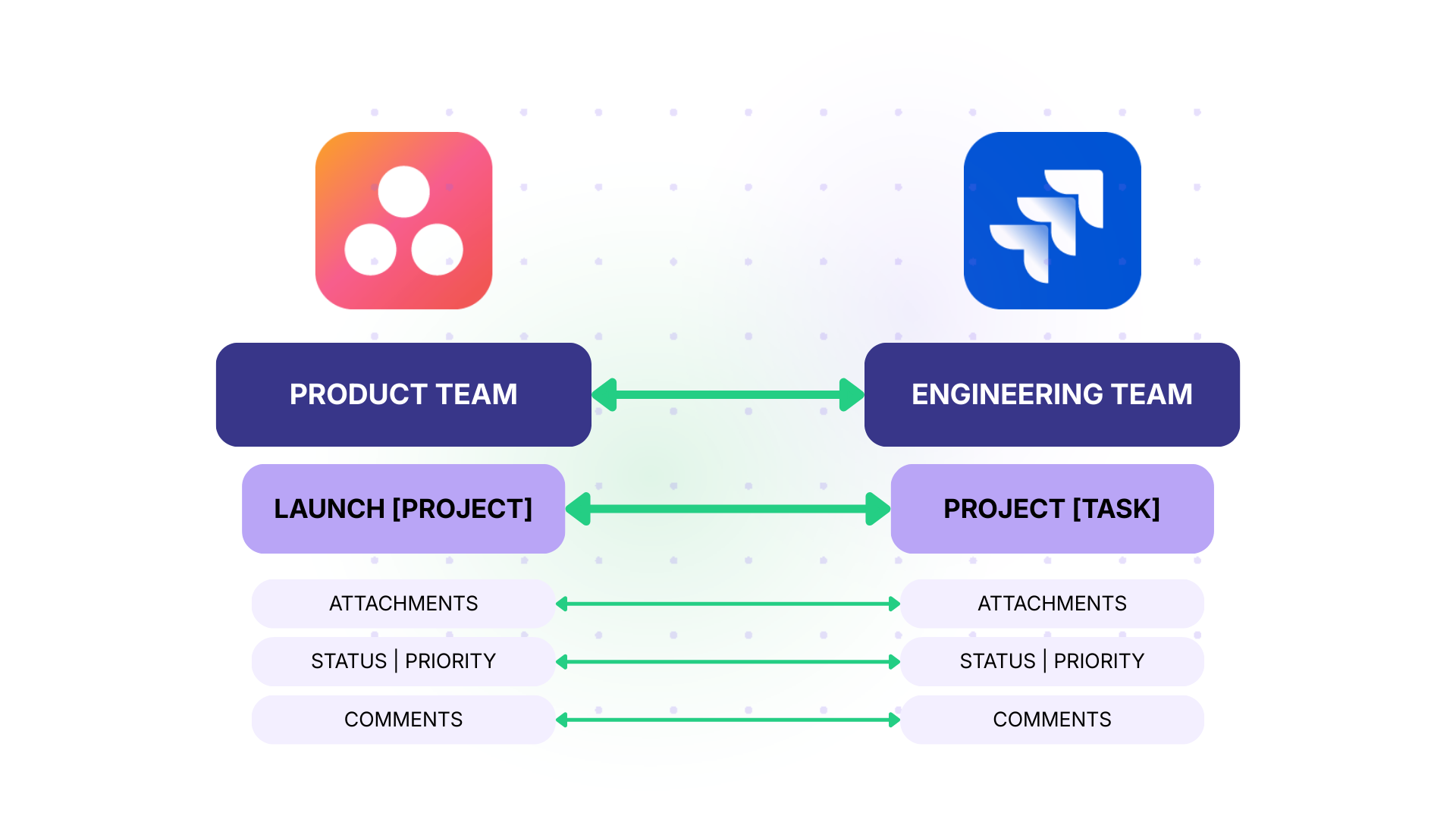
Solution: Set up a two-way sync between the Asana “Product Launch” project and the relevant Jira project. Map the status field bidirectionally so that when engineering moves a feature to “Ready for Release” in Jira, the corresponding Asana task updates to “Development Complete.” Comments sync in both directions, so product managers can ask clarifying questions directly from Asana.
Real-World Application: A SaaS company launches a new feature quarterly. Before integration, the product team held weekly standup meetings just to get engineering status updates. After connecting Asana and Jira, the product manager sees real-time progress on every feature in their Asana timeline. Standup frequency dropped from weekly to biweekly, saving the team approximately 4 hours per month.
Agency-Client Project Delivery
Case: A digital agency manages internal work in Asana (design briefs, content calendars, campaign tracking). Their client’s development team uses Jira to build and deploy the features the agency designs. The agency needs to submit requirements and track progress. The client needs to receive specs without giving the agency access to their internal Jira.
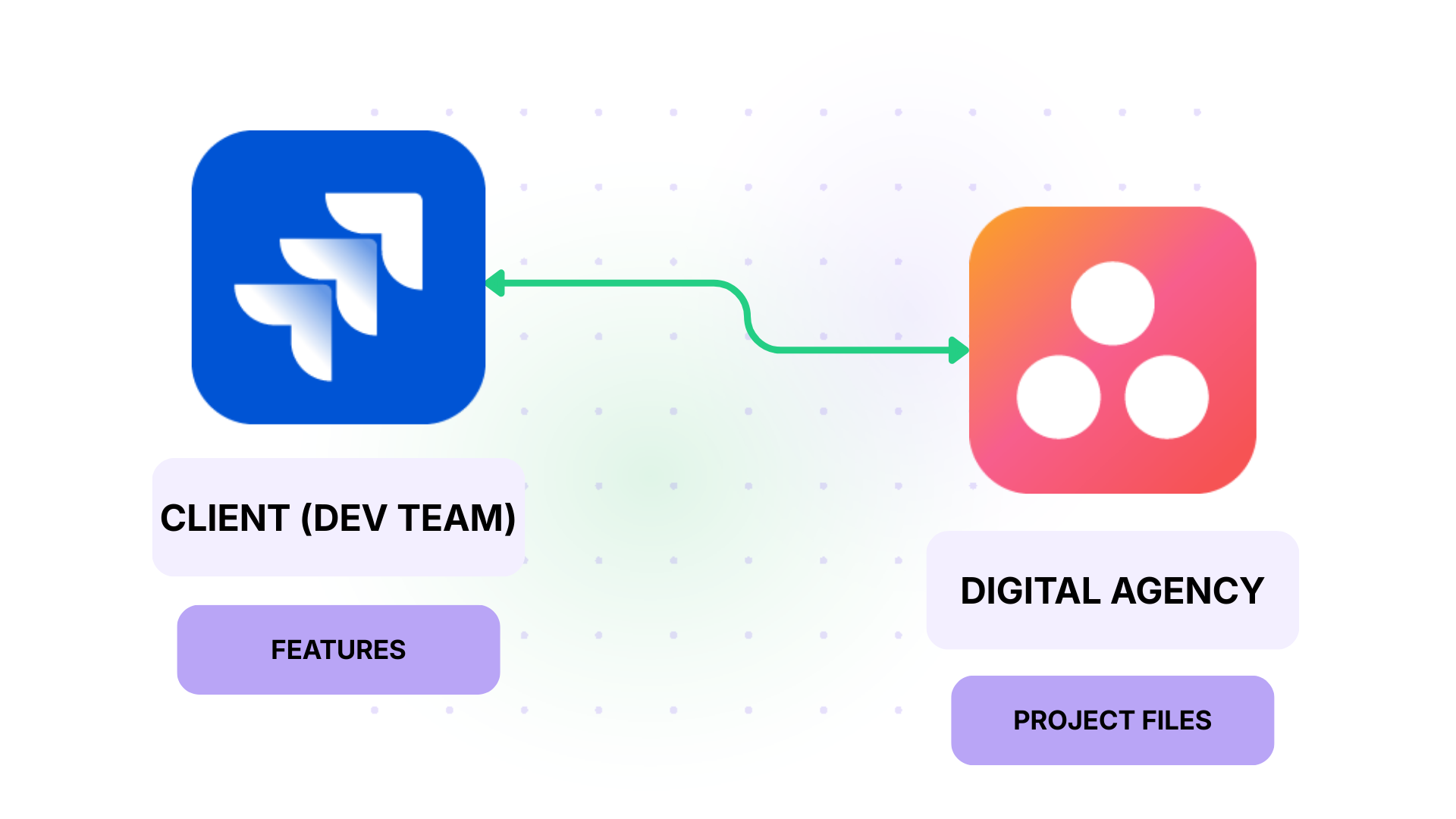
Solution: Use Exalate to create a cross-company integration where the agency’s Asana project syncs with the client’s Jira project. The agency controls which task fields (title, description, attachments, priority) get sent to Jira. The client controls what comes back (status updates, developer comments).
Real-World Application: A marketing agency works with an e-commerce client on seasonal campaigns. Previously, requirements were shared via email, and status updates required weekly calls. With the cross-company sync in place, the agency sees feature completion status in their Asana board the moment the client’s developer updates Jira. Email volume for this project dropped significantly, and campaign launches hit target dates more consistently.
Bug Escalation from Business Teams
Case: A customer success team uses Asana to track customer-reported issues and internal improvement requests. When something requires engineering attention, they need to escalate it to Jira without re-entering all the details manually.
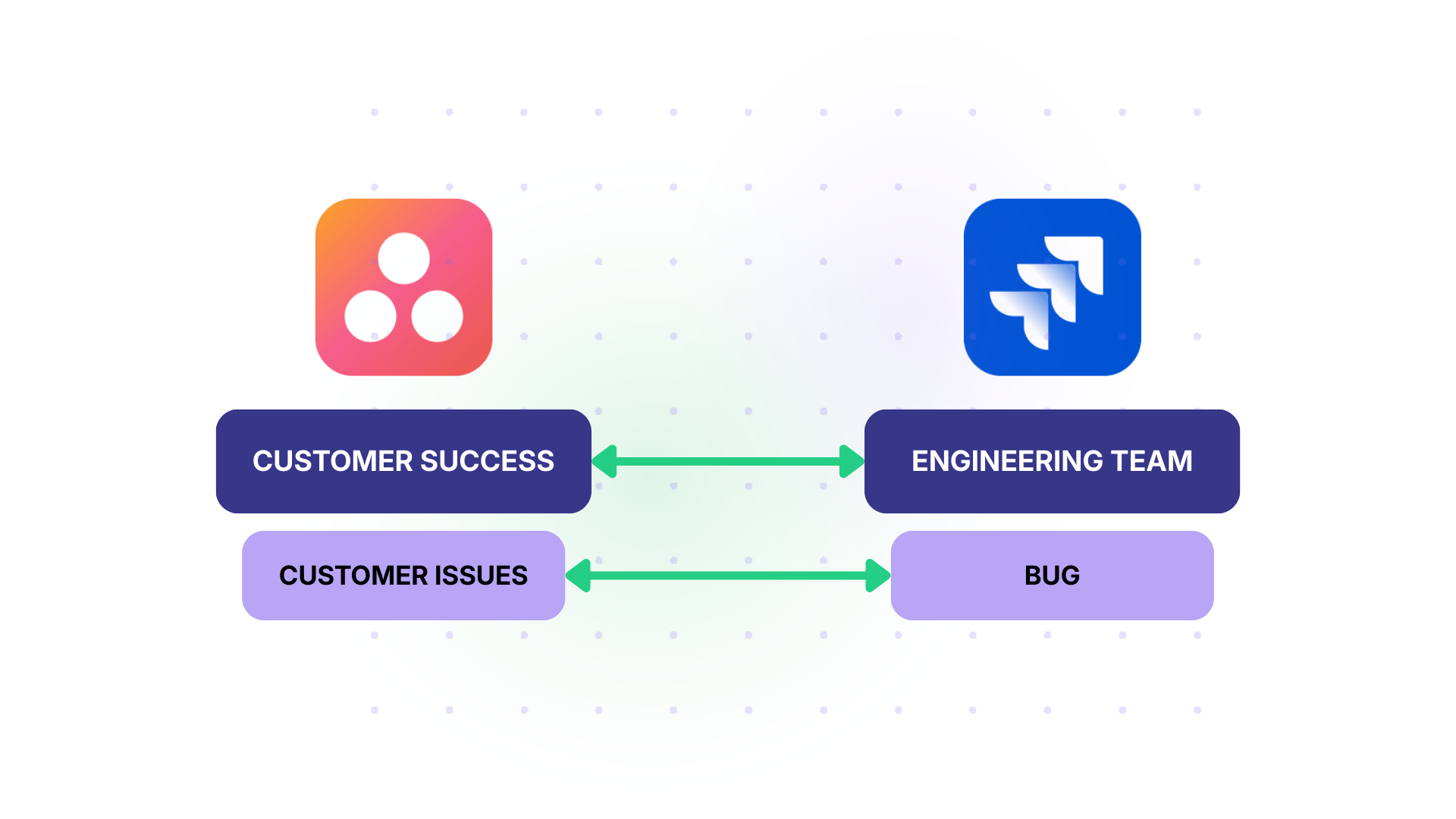
Solution: Configure a one-way sync with trigger conditions. When an Asana task in the “Customer Issues” project is tagged as “Needs Engineering,” the integration automatically creates a Jira work item with the task title, description, attachments, and priority mapped. Optionally, set up a reverse sync for status updates only, so the customer success team can track resolution progress without accessing Jira.
Real-World Application: A B2B software company’s customer success team logs between 30 and 50 issues per week. Before integration, the team lead manually created Jira tickets for each escalation, spending roughly 5 hours per week on data entry alone. After setting up the automated escalation flow, the time dropped to near zero, and engineering received consistently formatted bug reports with all necessary context attached.
Enterprise IT and Operations Alignment
Case: An enterprise runs a large-scale IT infrastructure upgrade. The operations team plans and tracks rollout phases in Asana (hardware provisioning, network configuration, user migration). The DevOps team uses Jira to manage the technical implementation.
Solution: Sync specific Asana tasks from the “Infrastructure Upgrade” project to a Jira project dedicated to the DevOps workstream. Map custom fields like “Environment” (Production, Staging, Development) and “Region” (US-East, EU-West) to corresponding Jira fields. Use conditional logic in Exalate to only sync tasks where the Asana custom field “Requires DevOps” is set to “Yes.”
Real-World Application: A financial services company manages a multi-region cloud migration. Operations tracks 200+ tasks in Asana, but only about 60 require DevOps action. By filtering with conditional sync triggers, the DevOps team in Jira only sees the work that’s relevant to them, avoiding clutter and keeping sprint planning focused.
Multi-Platform Integration Hub
Case: A large organization uses Asana for business teams, Jira for engineering, ServiceNow for IT service management, and Salesforce for customer data. Work items occasionally need to flow between all four.
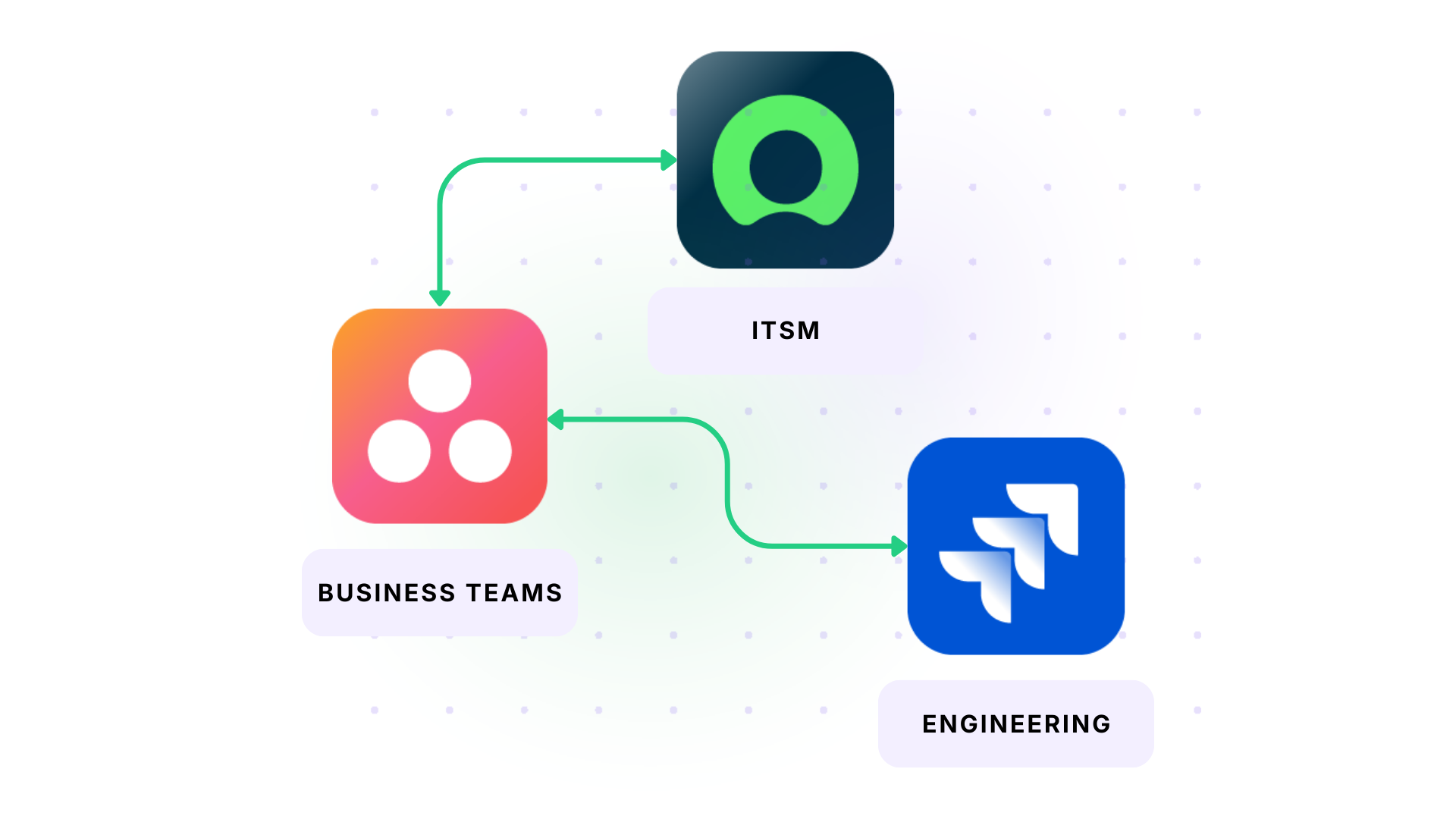
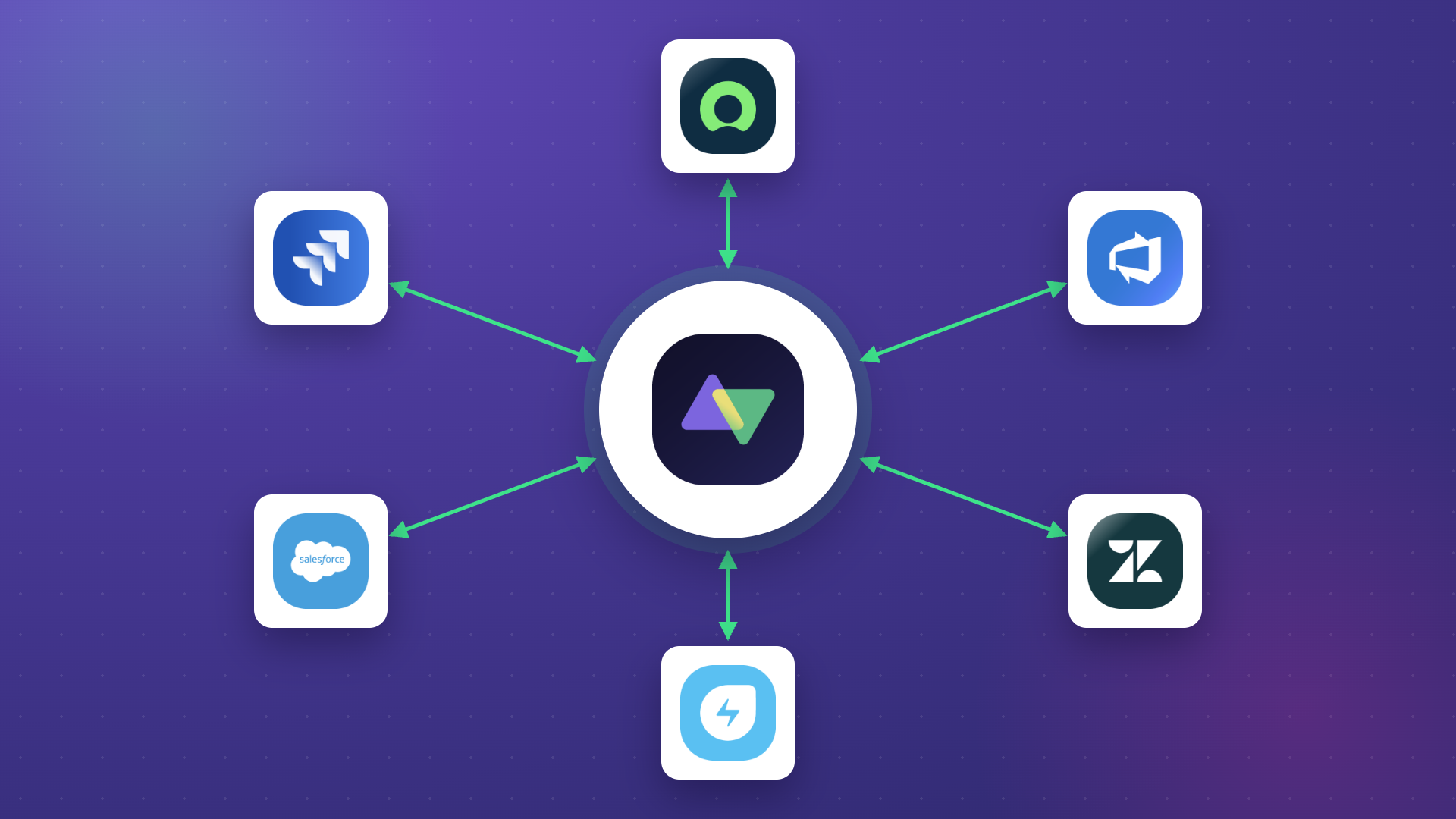
Solution: Exalate acts as an integration hub. An Asana task syncs to Jira for development. When the Jira work item reaches “Done,” a linked ServiceNow incident updates automatically. Customer-facing data from Salesforce feeds context into the Asana task for the account team. Each connection is configured independently with its own rules, field mappings, and sync direction.
Real-World Application: An enterprise software company uses this hub model to connect product feedback from Salesforce to feature requests in Asana, which become engineering work in Jira, which updates related ServiceNow change records. The result is end-to-end traceability from customer request to deployment without manual handoffs between teams.
How to Set Up Jira Asana Integration With Exalate
This walkthrough covers the full process from account creation to live synchronization between Jira and Asana.
Step 1: Create Your Exalate Account
Visit the Exalate integrations page to get started. Create a new account by entering your business email and verifying it, or sign up using Google. If you already have an account, log in.
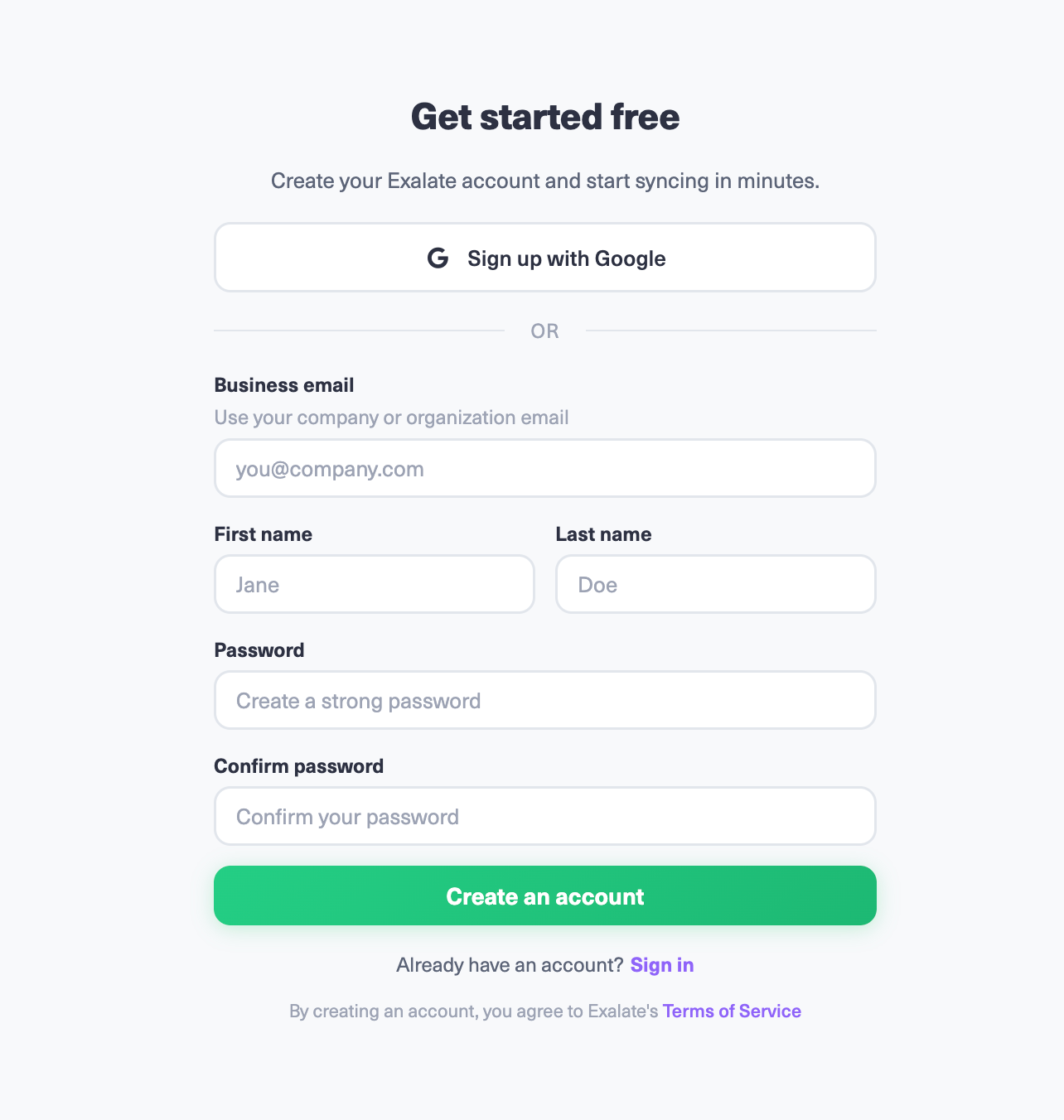
Once you are in, time to set up connections.
Step 2: Create a Connection Between Jira and Asana
Start creating your first connection. You can view all existing connections under the “Connections” tab.
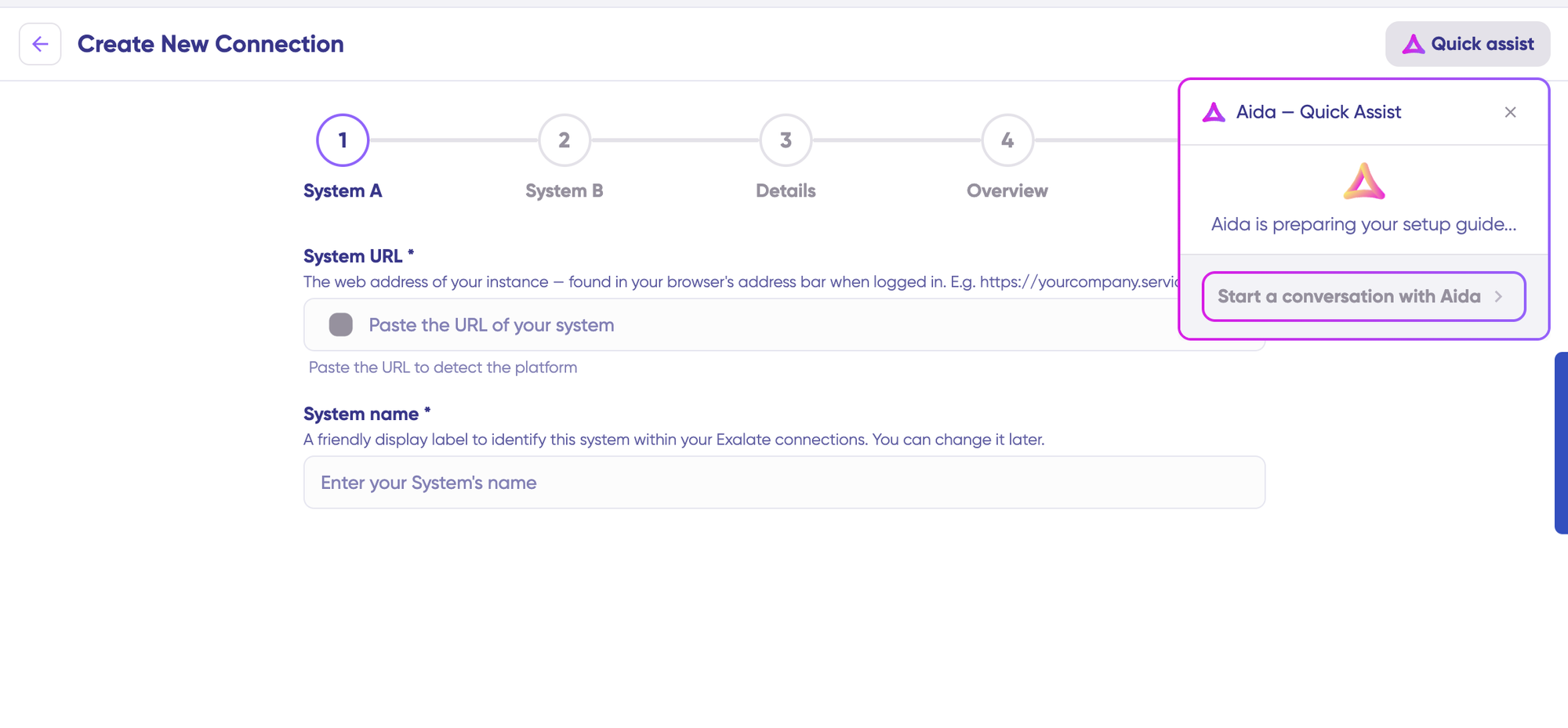
You can also speed up the process by using Aida – Quick Assist at the top right of the dashboard.
Click on “+ Add connections,” then “Create new connection.” Enter the name for your first system. Name either Jira or Asana as your System A. It does not matter which one goes first. Enter the URL of your system.
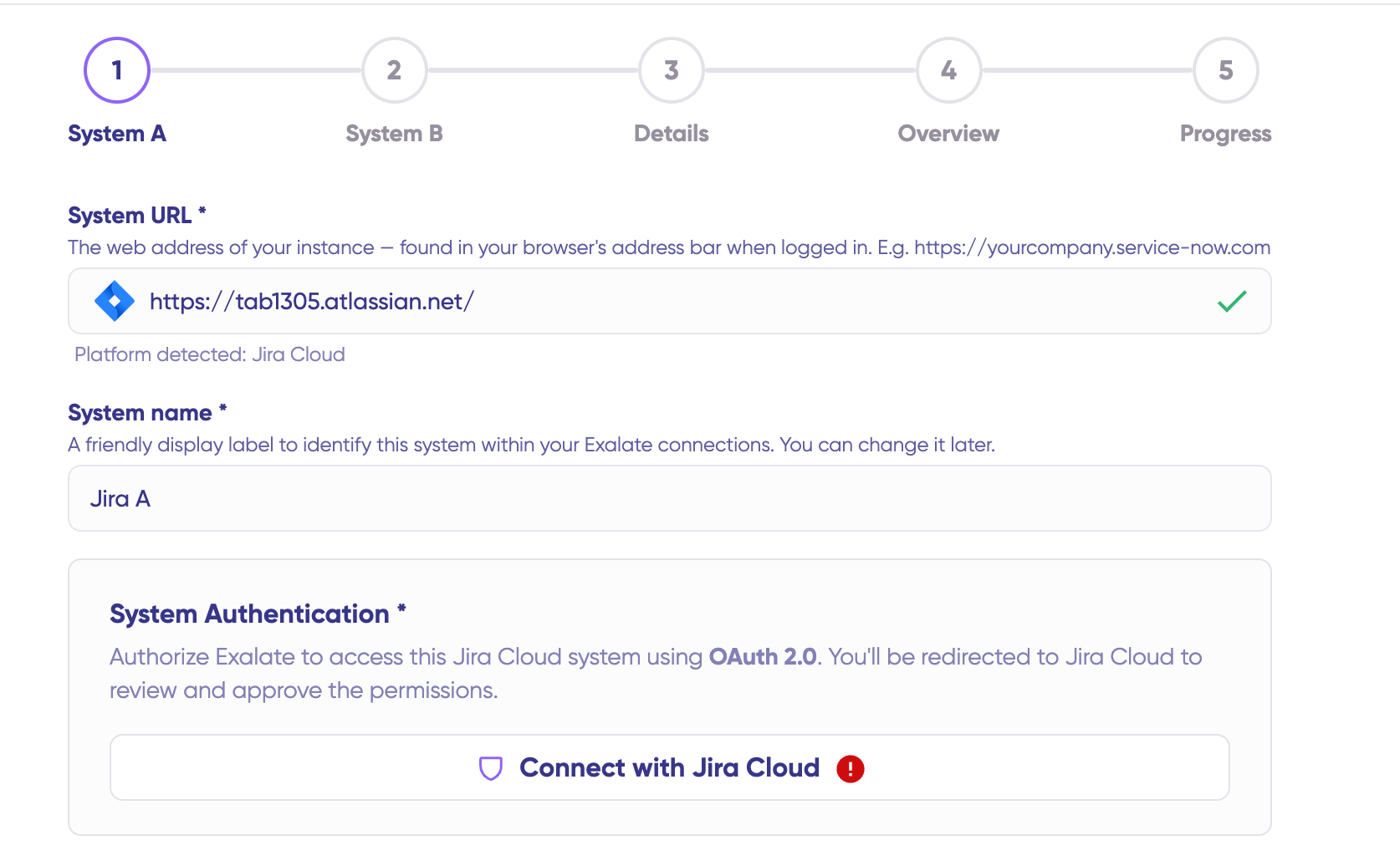
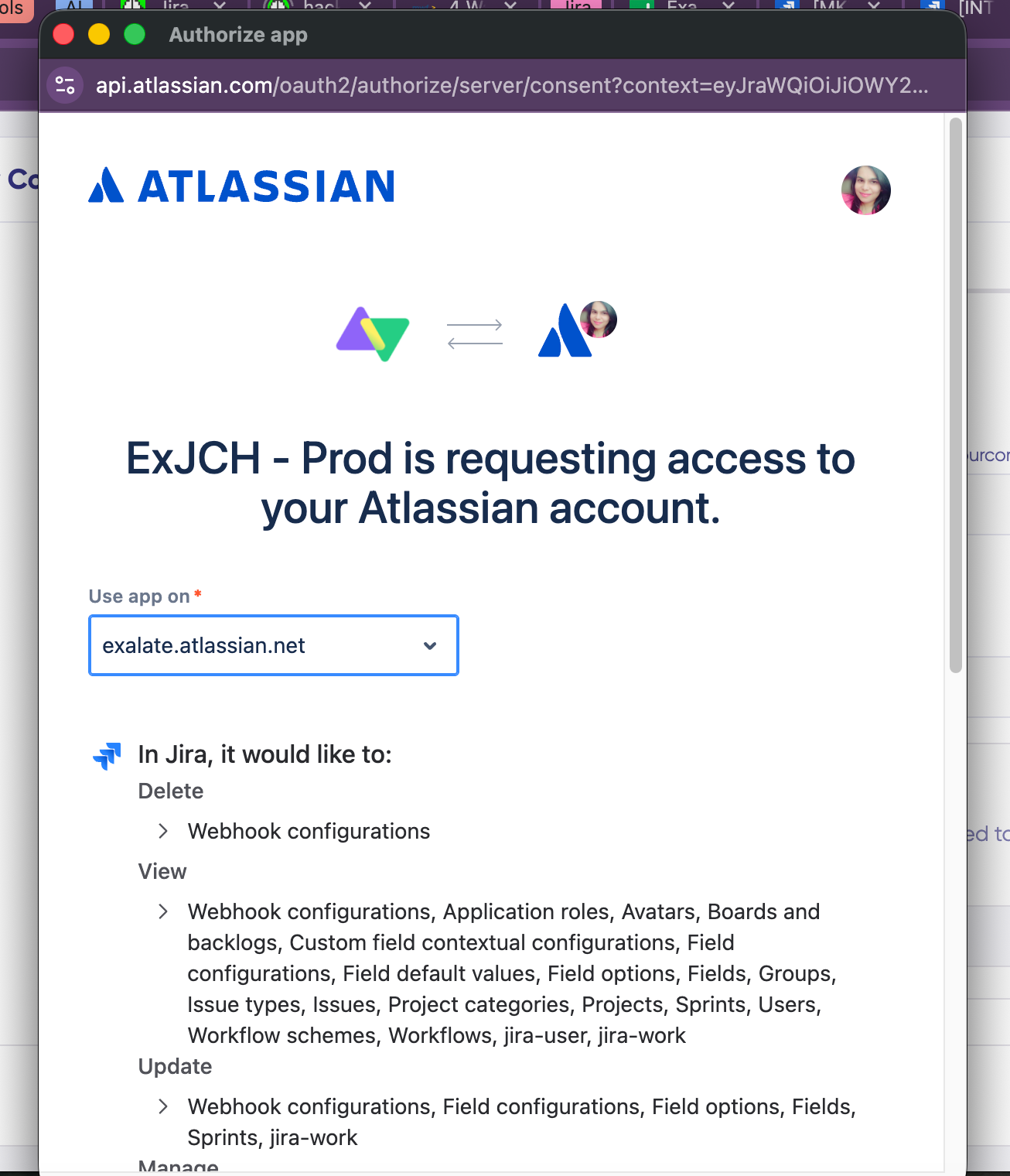
Once you enter the URL, a check happens behind the scenes. If your system is already registered, authentication happens automatically. If not, it will be newly registered for the current one. For a new system, you need to enter your authentication details for both Jira and Asana. Jira uses OAuth, while Asana uses the API key.
Give a name and description for your connection (for example, “Engineering Requests from Asana to Jira Sprint Board”). Click “Next,” review the details, and click “Create connection.”
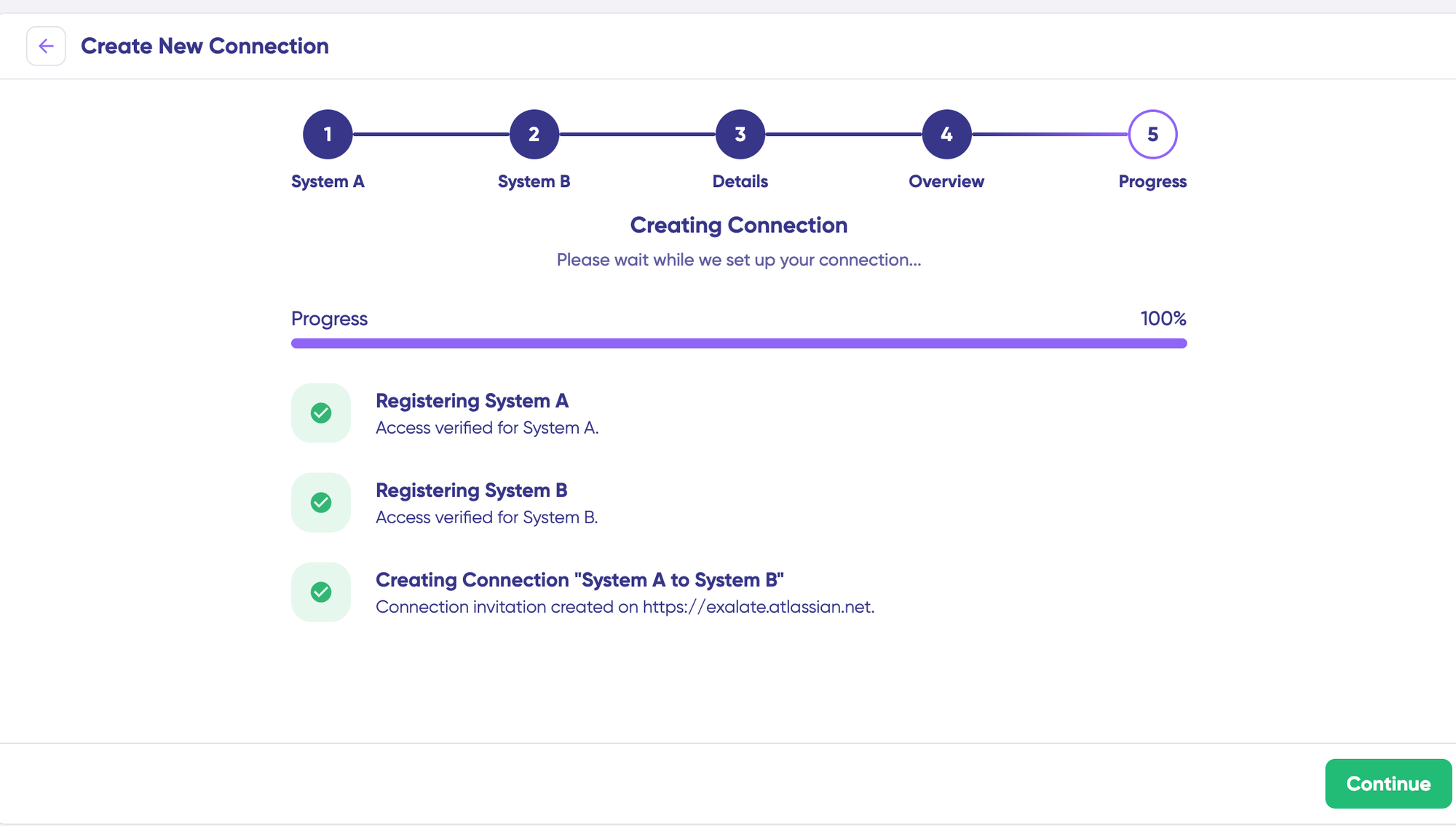
When the process is complete, select “Continue to configuration” and choose the Jira project or Asana project you want to use for synchronization. Then click “Build & continue.”
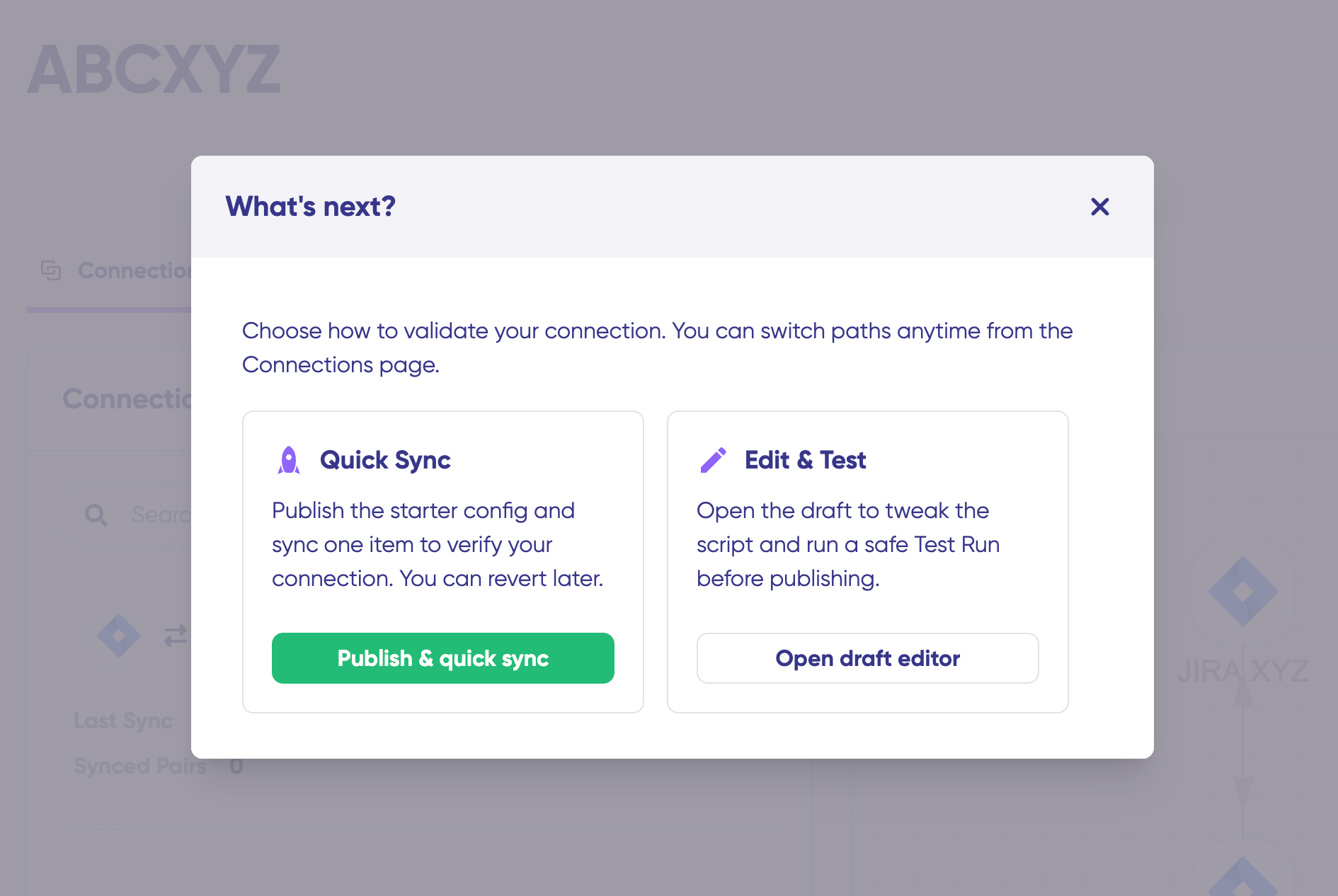
You now have two options: “Quick sync” and “Edit & Test.”
Local connections in Jira also give you the option to sync work items across different Jira projects (or spaces) within a single instance.
For example, with a URL like https://example.net/ holding 2 Jira projects (or spaces)—project A with work item PROJA-11 and project B with work item PROJB-12—both work items can sync through local connections in Exalate.
Step 3: Quick Sync (Optional Verification)
Using Quick Sync, you can sync one item between Jira and Asana to verify that your connection works properly. This step is optional but recommended.
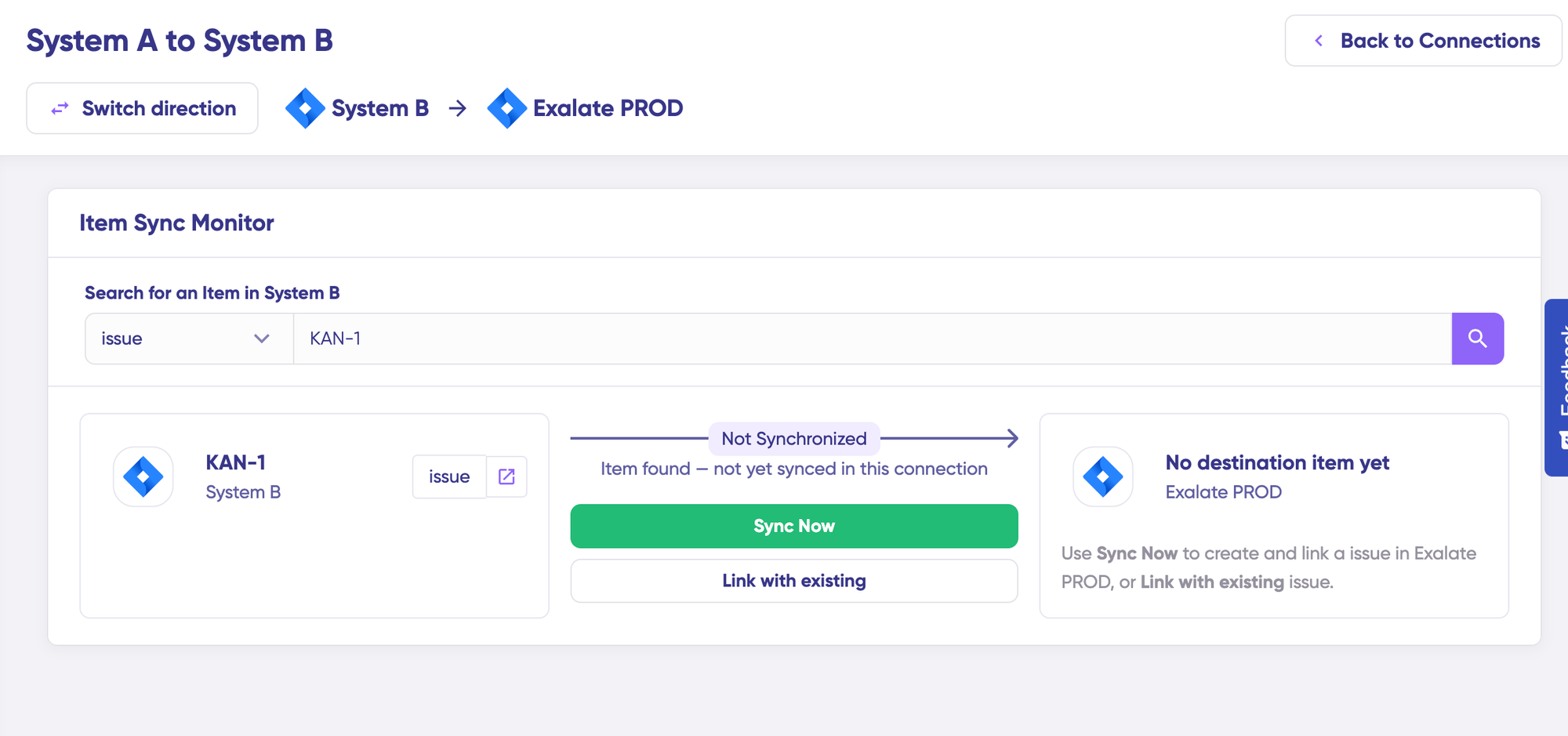
Under the “Item sync monitor,” enter a Jira work item key or an Asana task ID. Click “Sync Now” to sync the first item. To link two existing items, click “Link with existing.”
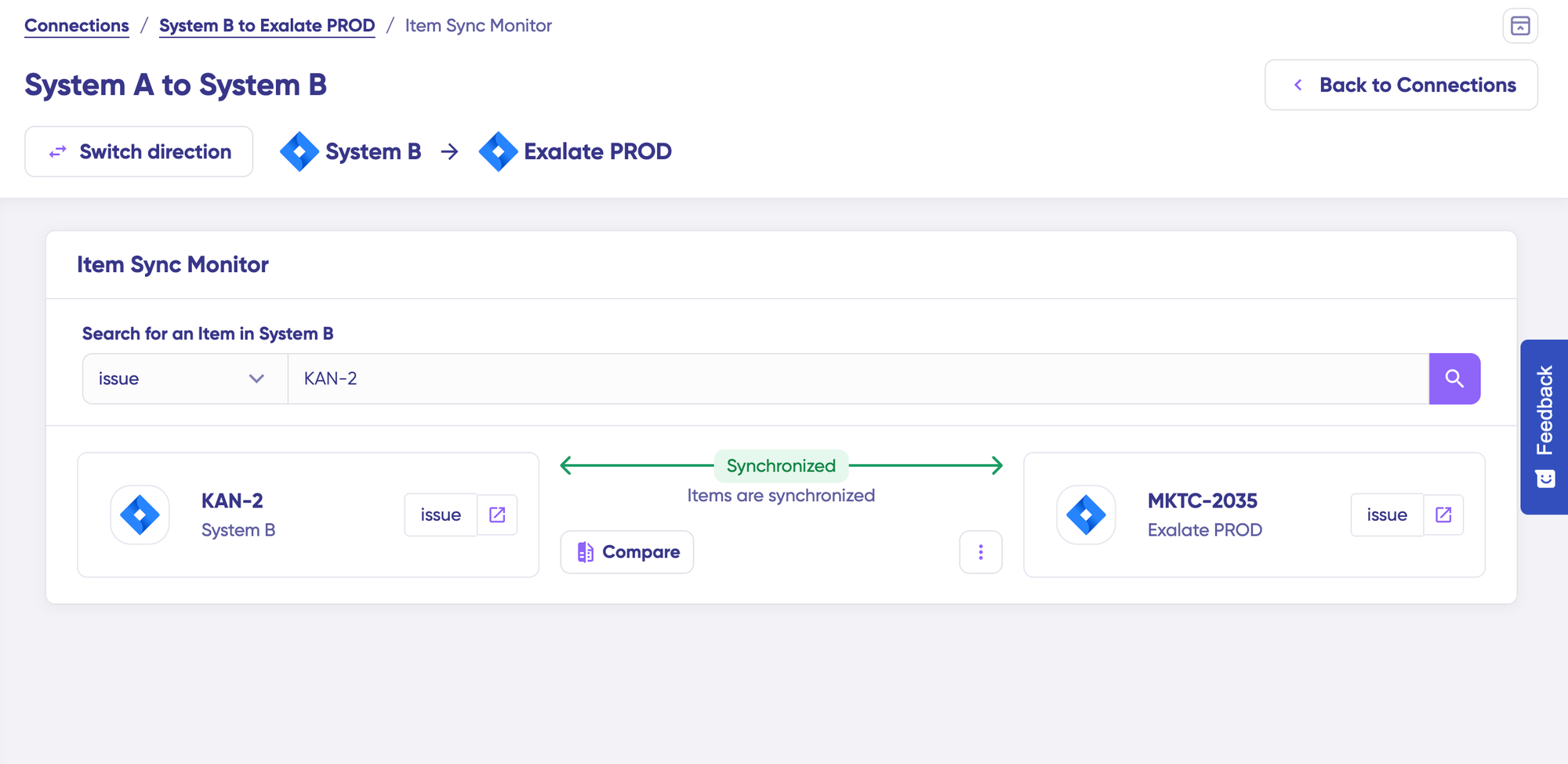
While the items sync, you will get status updates. Once the sync is complete, you can view both synced items by opening them in a new window. You can also compare how the synced items look and how changes will be applied.
Step 4: Edit and Configure Sync Rules
To start making changes, click “+ New version” or select “Open latest draft.” This ensures you do not modify the existing configuration accidentally. Changes in the draft are saved automatically.
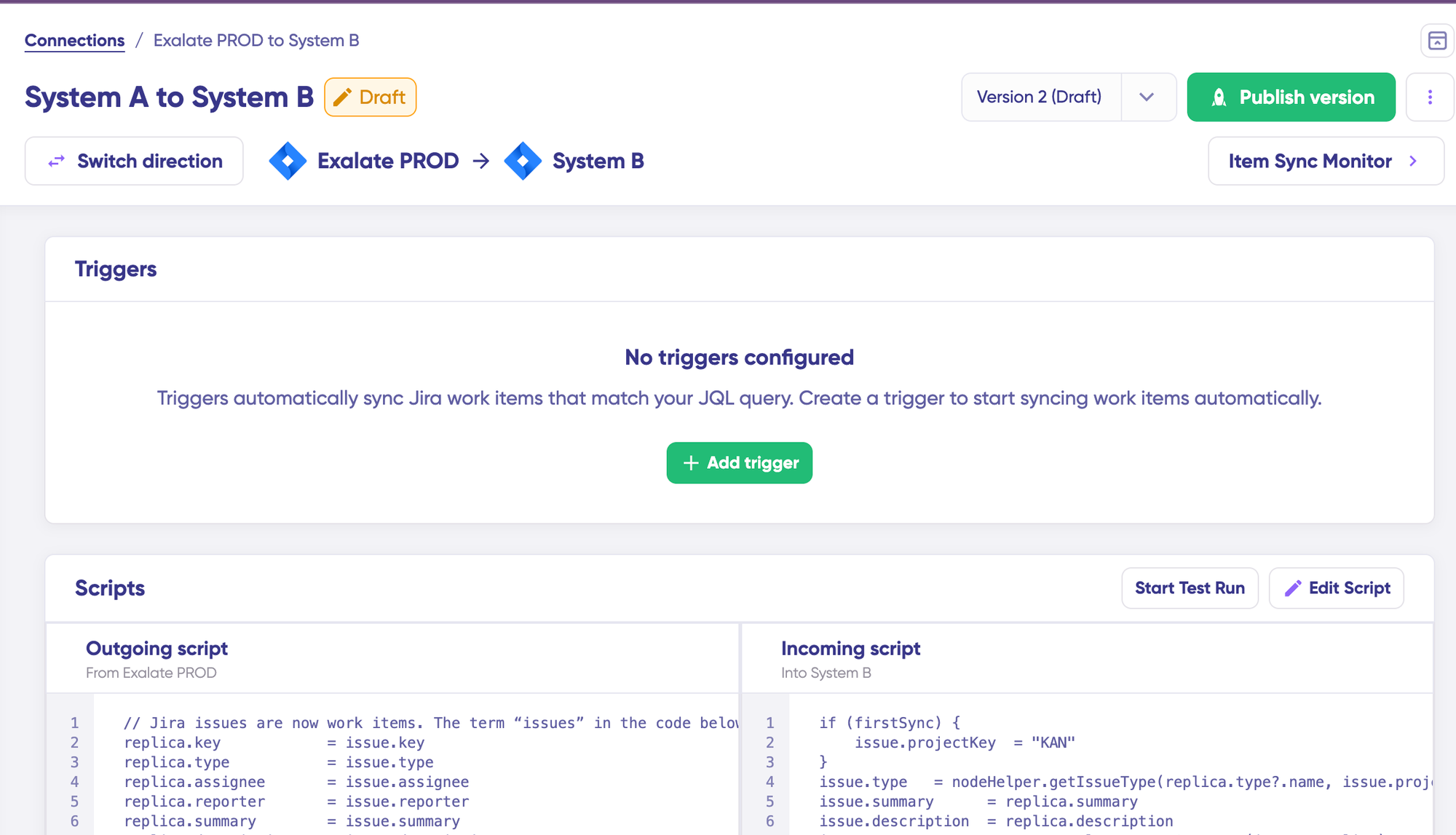
Click the “Edit Script” button to open the editor and edit the sync rules. Sync rules are based on Groovy scripts. With these scripts, you can add custom data logic and mapping, along with conditional flows, allowing you to adapt to any complex or advanced use case.
Change the direction of the sync by clicking “Switch direction” next to the connection name. The scripts are divided into incoming and outgoing scripts.
If the sync direction is from Asana to Jira, then the outgoing script holds the values passed from Asana to Jira, and the incoming script defines how the values coming from Asana are mapped in Jira. These scripts reverse if the direction changes.
The Replica works like a message payload and holds the actual data passed between the synced entities. It exists in JSON format. To sync new values, you can enter the sync script yourself. If you want to stop something from syncing (for instance, no attachments from Asana to Jira), remove that script line from the outgoing Asana script.
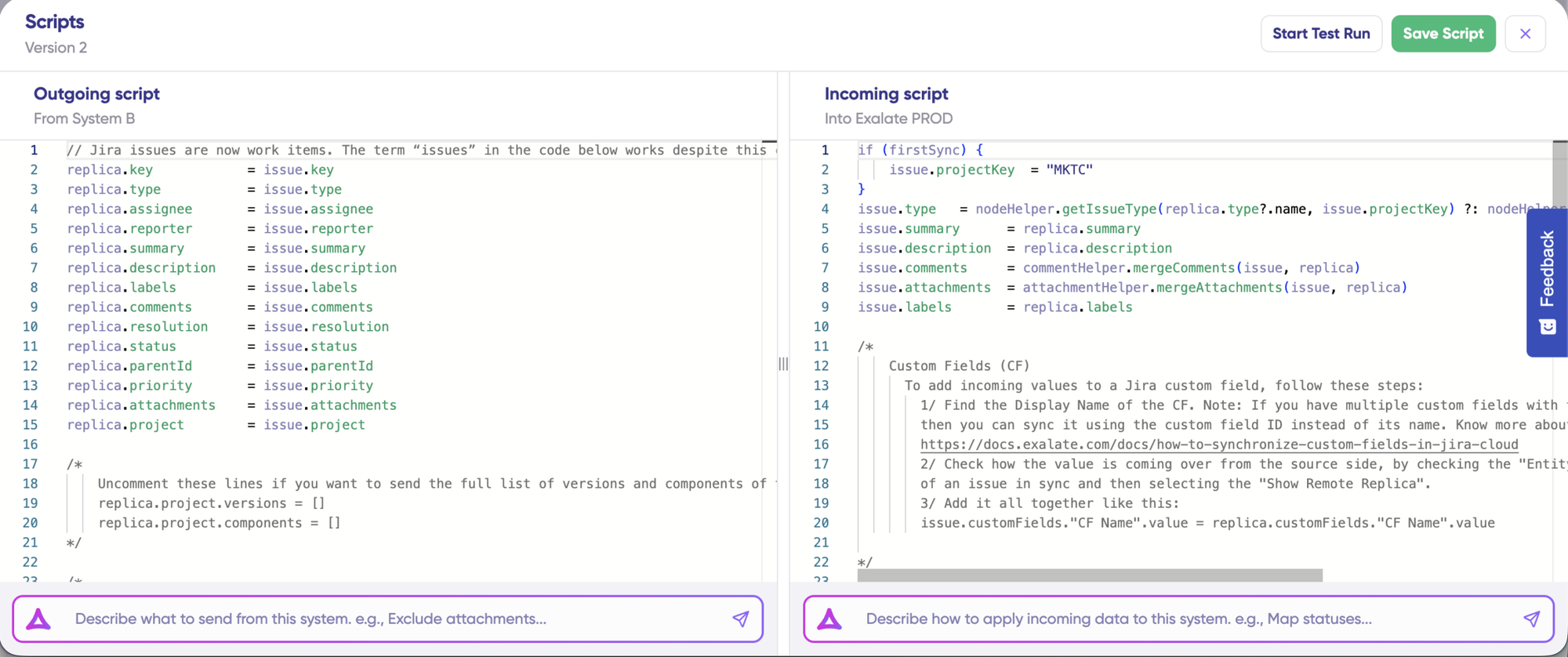
For example, on the Asana outgoing side, you specify which task fields leave Asana: task name, description, due date, assignee, priority, tags, and any custom fields. On the Jira incoming side, you define how those values map to Jira entities: task name becomes the work item summary, due date maps to the Jira due date, Asana priority (Low, Medium, High) converts to Jira’s priority scheme (Lowest, Low, Medium, High, Highest), and tags map to Jira labels.
Step 5: Use Aida for AI-Assisted Configuration
If you want to save time on scripting, use Exalate’s AI-assisted configuration feature called Aida to generate sync scripts. Aida exists in both the incoming and outgoing script sections.
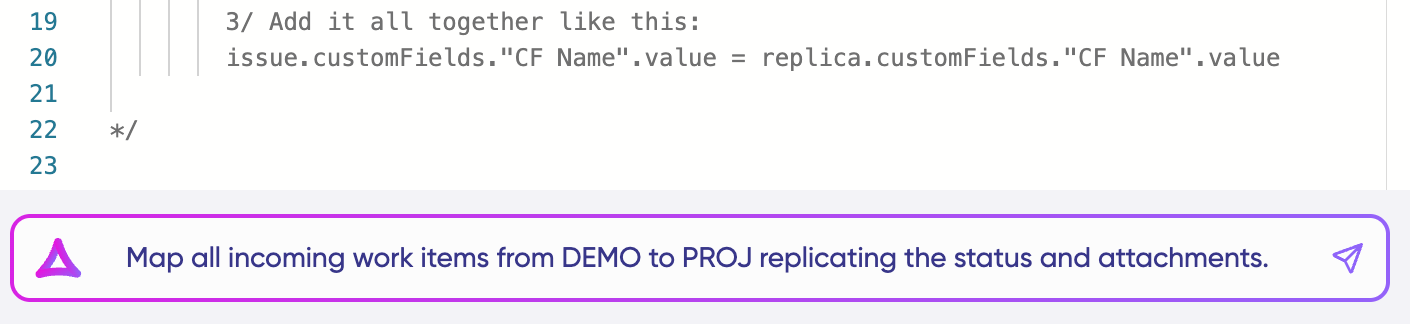
Aida helps you in two ways:
For outgoing scripts, describe what data should leave your system. For example, “Only sync tasks tagged with ‘Engineering’ and include the task name, description, assignee, and due date.”
For incoming scripts, describe how incoming data should be applied. For example, “Map Asana status ‘On Track’ to Jira status ‘In Progress'”.
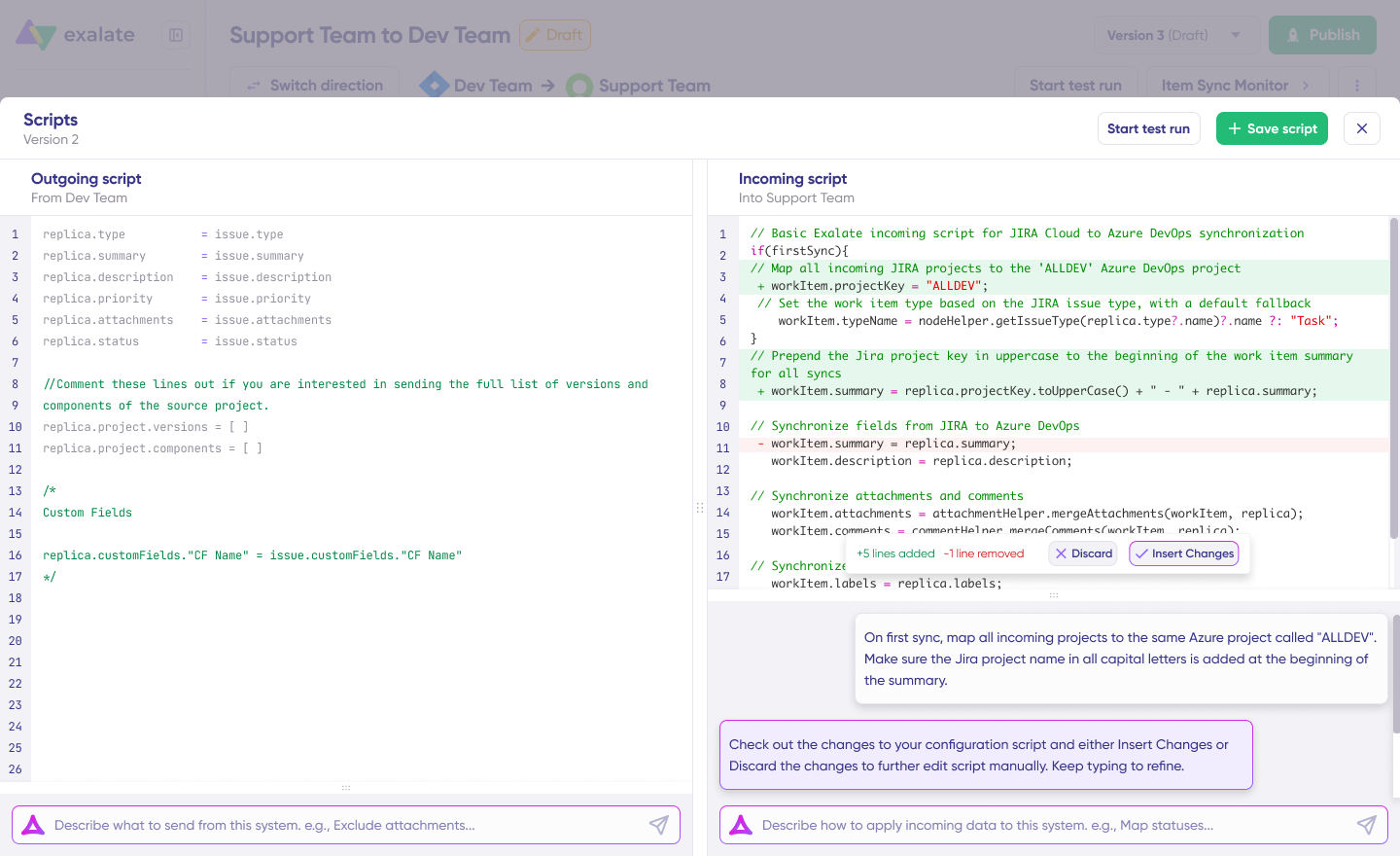
Based on Exalate’s scripting API and your existing scripts, Aida generates working Groovy scripts with proper field mappings. Once Aida finishes drafting, review the changes suggested. Green highlights new lines that will be added. Red highlights lines that would be removed. You can choose to “Insert” or “Discard” Aida’s suggestions.
The outgoing and incoming scripts work independently, and so does Aida, so maintain separate context and direction for each prompt.
Note: Aida is helpful, but just like with any AI assistant, review the generated code before applying it.
Step 6: Test Run Before Going Live
Once your sync scripts are ready, you can save them or proceed to dry-run them using the “Start Test Run” option.
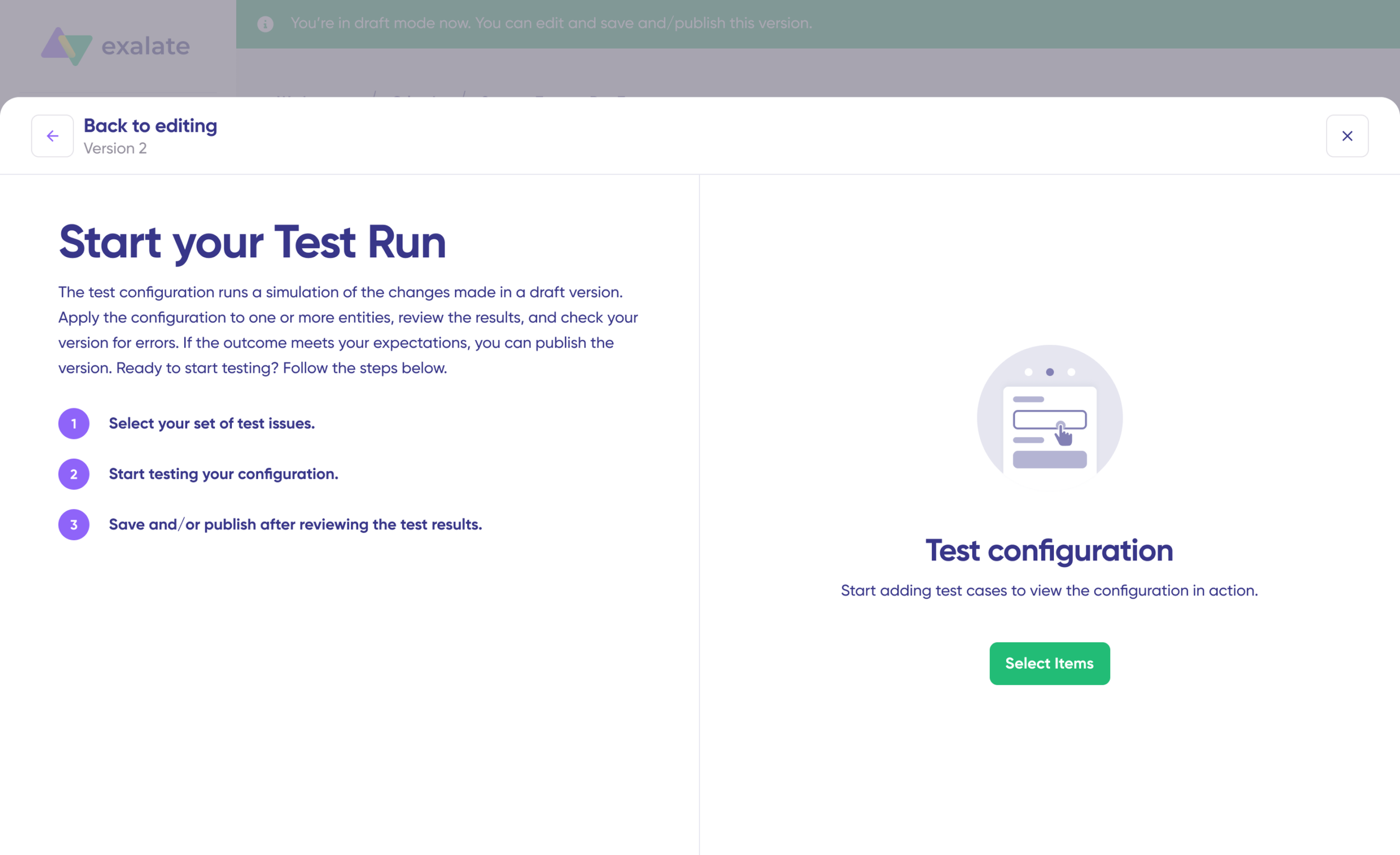
Select the items you want to apply the sync to. You can select multiple items. Click “Start Test Run.” You can now see all the incoming and outgoing replicas for each item you selected in the respective tabs.
View how the sync configuration will be applied to your items, preview the replica, and verify that the field mappings look correct. If required, go back, adjust the scripts, and test again.
Deploy only when you are confident it works. This safety net prevents errors from affecting live data.
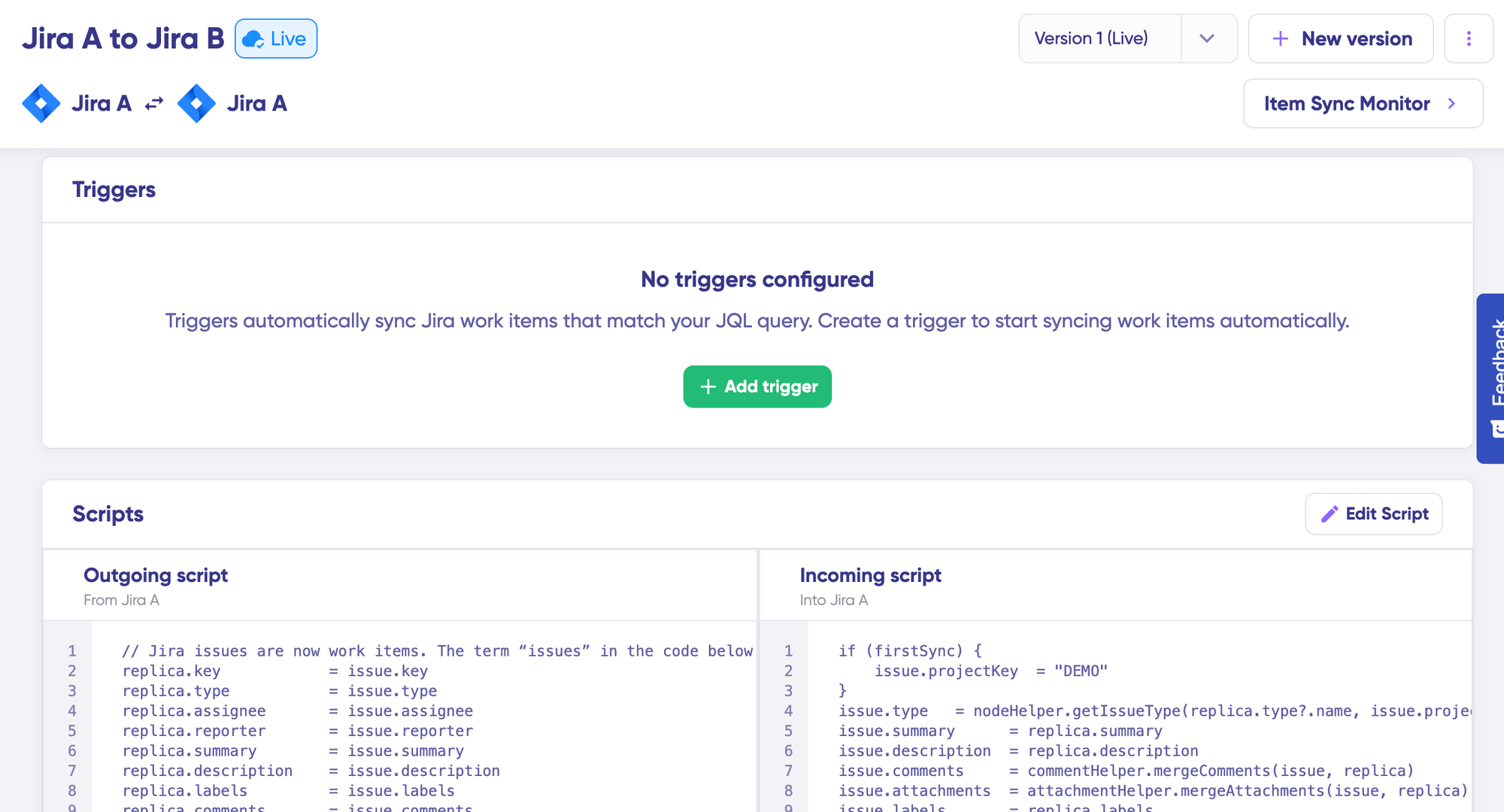
Once everything matches your needs, click “Publish Version” to apply the updated configuration to your live synchronization. All versions for a connection are available in the “Version” dropdown. Versions can be “Active,” in “Draft” (editable), or “Archived.”
Step 7: Add Triggers to Automate Sync
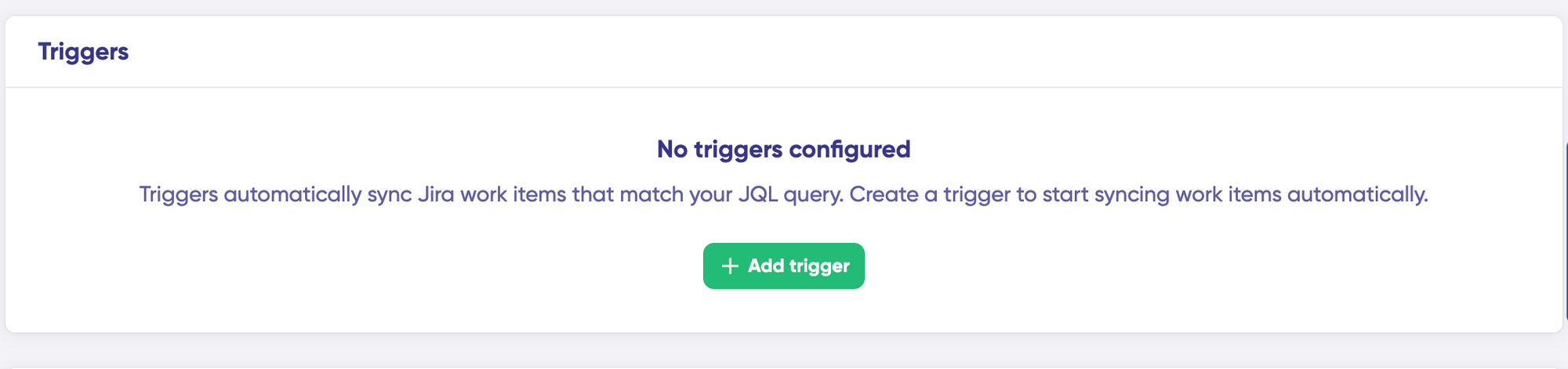
To start your sync automatically, add triggers. Triggers are conditions or filters you apply to specific items.
For Jira, you can use JQL (Jira Query Language) to specify conditions. For example, sync all work items where project = 'ENG' AND status != 'Backlog', sync all work items with label = 'asana-sync', or sync all bugs with priority = 'High'.
For Asana, set conditions for which tasks should sync to Jira, such as all tasks in the “Engineering Requests” project or tasks tagged with “Jira-Sync.”
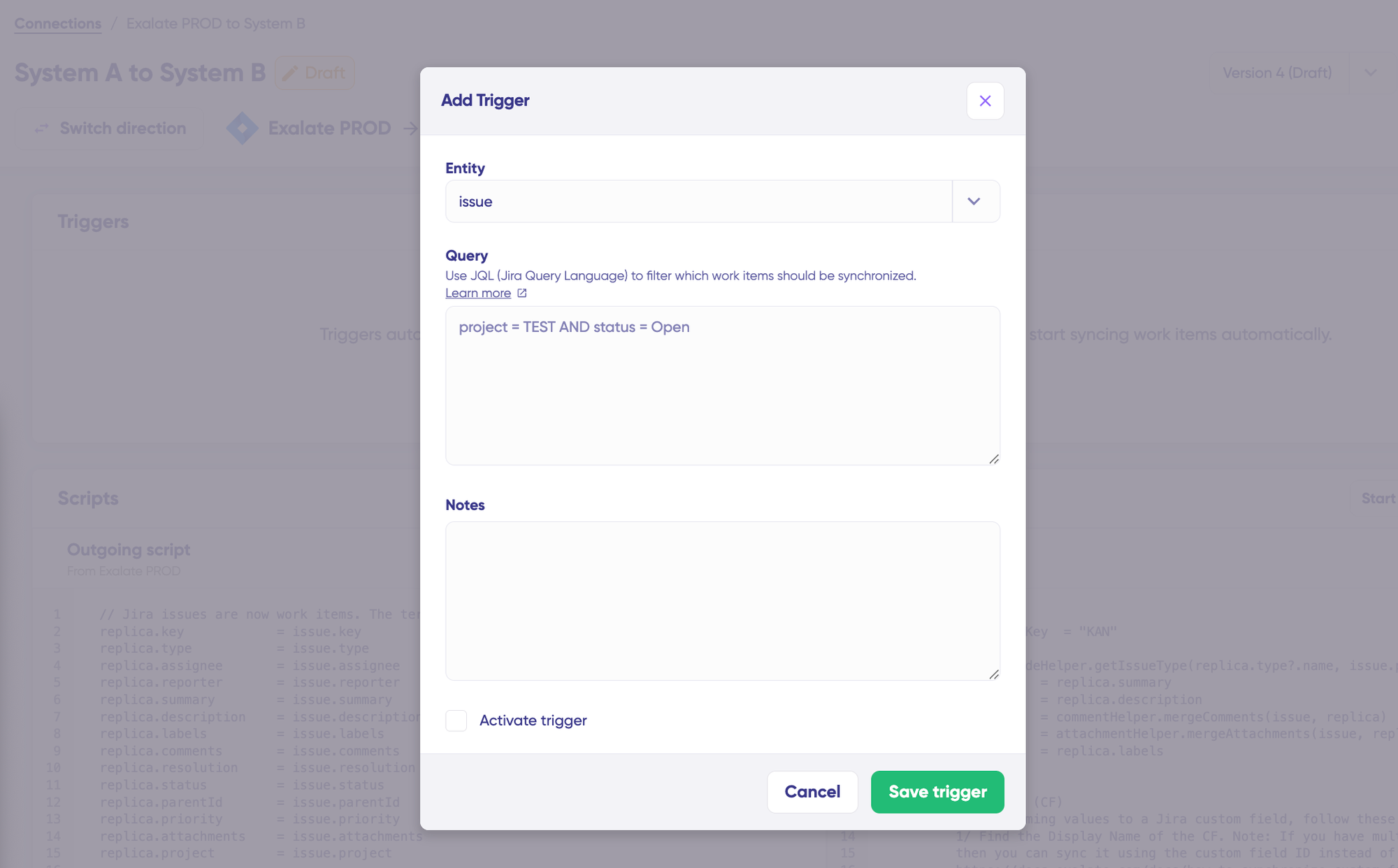
Click the “+Add trigger” button to start creating triggers. Click “Save trigger” to register your changes by publishing them.
Step 8: Deploy and Monitor
Your first synchronization will start automatically based on the sync rules and triggers you have set.
A significant part of synchronization can involve troubleshooting errors, especially in script-based tools like Exalate that allow flexibility for complex workflows.
Step 9: Troubleshoot With Aida
Aida also helps you troubleshoot errors faster. It offers clear and context-aware suggestions to resolve errors right where you see them.
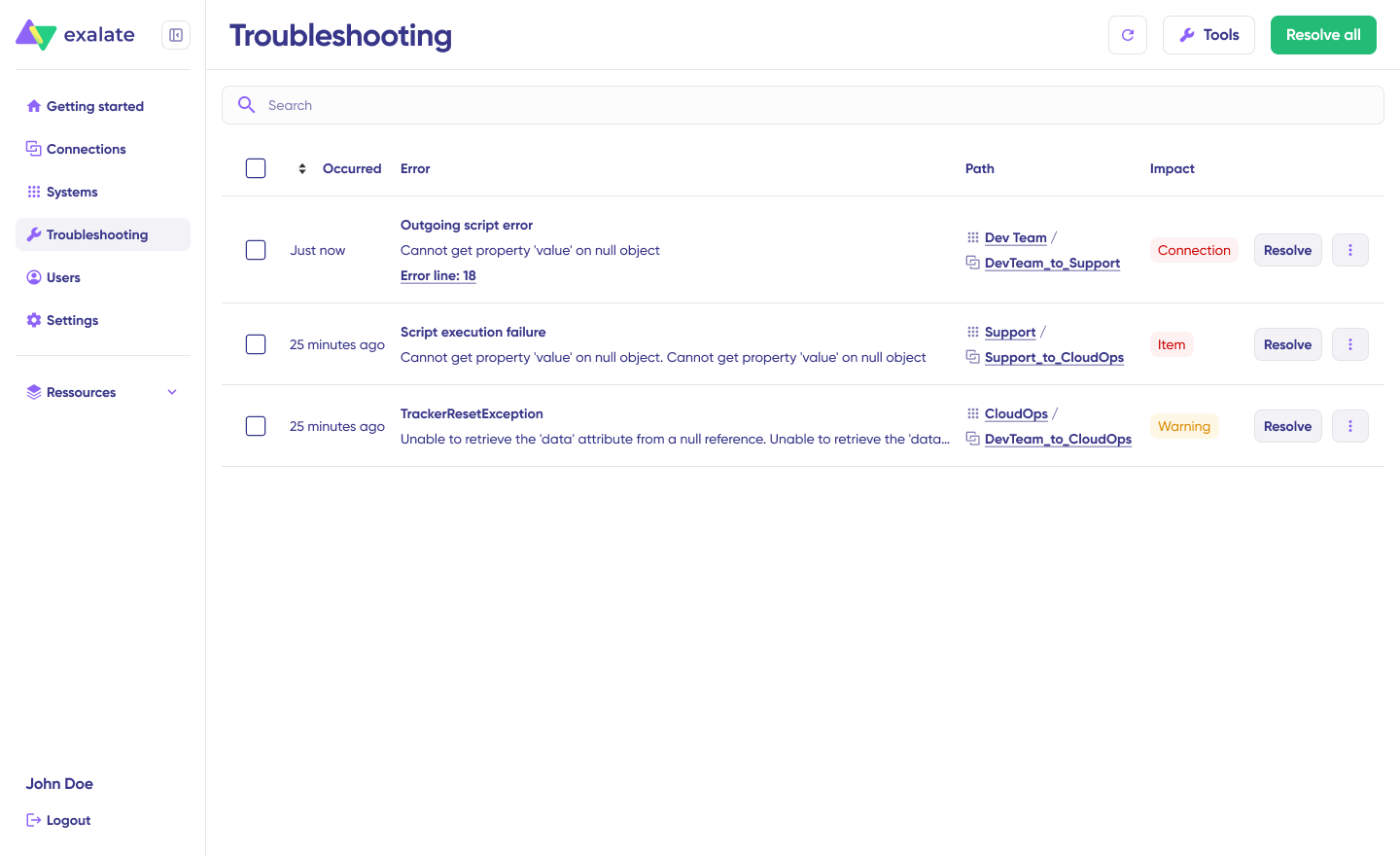
If there is an error, go to the “Troubleshooting” tab. Hover over the error you want to diagnose and click the Aida icon that appears next to it. You will see the AI-generated suggestion in a modal window, including a short explanation of the error and a proposed solution. You can also “View Full Analysis” for more context, “Error details” to copy the stack trace, and “Replicas” to view the JSON format if needed.
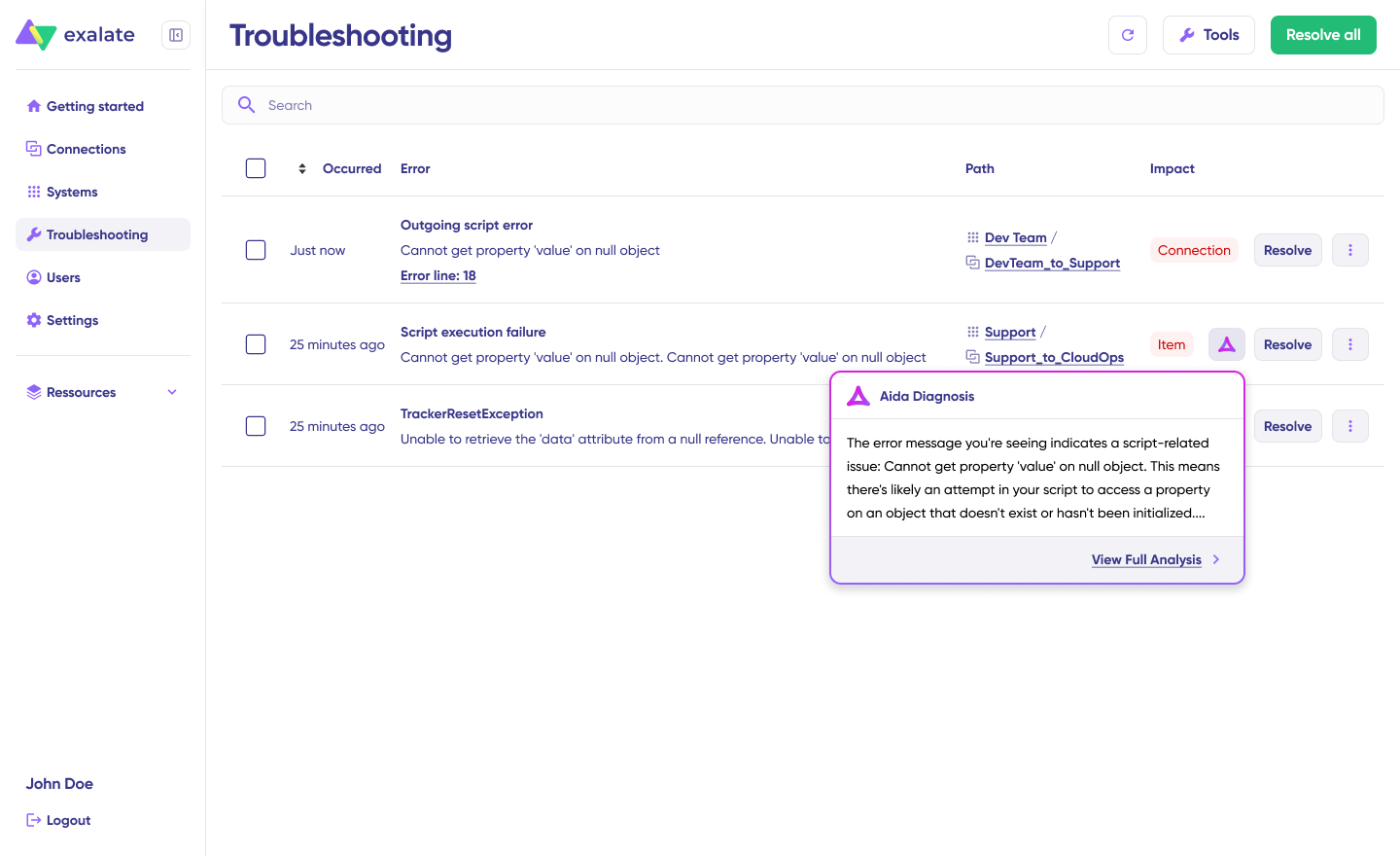
Choose to “Resolve” and retry errors from there.
How to Choose the Right Jira Asana Integration Tool
The right tool depends on your specific requirements. Here’s a framework for evaluating options:
- Asana plan tier limits native options. Asana’s native Jira integration requires a Business or Enterprise plan for full Data Sync. If you’re on Asana Starter, you only get basic widget-level linking, not field-level sync.
- Sync direction complexity. One-way sync is straightforward with any tool. True bidirectional sync with conflict handling, code-level flexibility, and selective field direction requires Exalate.
- Cross-company vs. internal. If the integration is between your own teams, most tools work. If it involves an external partner, vendor, or client, you need a tool with independent control. Exalate handles this natively. Unito and the Asana native integration do not.
- Custom field depth. Simple field mapping (title, status, assignee) works everywhere. Complex transformations (cascading selects, multi-value fields, and conditional mappings) require scripting capabilities that only Exalate offers in this category.
- Error recovery and reliability. For mission-critical integrations, transactional sync engines (like Exalate’s) that handle downtime gracefully matter. If a system goes offline for 30 minutes, you want queued changes applied in order, not lost.
- Scalability across Asana plans. Asana Business and Enterprise plans unlock custom fields, goals, portfolios, and advanced reporting. As your usage matures, your integration needs grow with it. Exalate scales with your Asana plan, so you can start simple and add complexity without switching tools.
Common Pitfalls and How to Avoid Them
- Syncing too many fields at once. Start with the essentials: title, description, status, assignee, and priority. Add more fields later as you confirm the basic sync is stable. Overloading the initial setup with every custom field creates debugging headaches.
- Ignoring status mapping conflicts. Asana and Jira use different status workflows. If you don’t map these explicitly, you’ll end up with tasks stuck in limbo or statuses that don’t match reality. Document the status mapping before configuring the integration.
- Not setting up triggers properly. Without filters, every task in the connected project syncs. That means draft tasks, internal notes, and brainstorming items all end up in Jira. Use tags, sections, or custom field values as trigger conditions to control what gets synced.
- Skipping the test phase. Always run a test sync with a few sample tasks before activating for the full project. Check that comments, attachments, and custom fields all transfer correctly. Fixing issues in testing is far easier than debugging a live production sync.
- Assuming one-size-fits-all. The best integration setup for a 10-person startup is very different from a 500-person enterprise with cross-company partners. Evaluate your actual workflows before picking a tool. Overpaying for features you don’t need is just as wasteful as underpaying and hitting limitations within weeks.
What’s Next?
Jira Asana integration removes the manual overhead that slows down cross-functional teams. Whether it’s a product launch where marketing tracks milestones in Asana while engineering ships features in Jira, or a cross-company collaboration where an agency needs visibility into a client’s development progress, the right integration keeps both sides aligned without extra meetings or copy-paste workflows.
Start by defining what data needs to sync, in which direction, and between which teams. Then pick the tool that matches those requirements without overcomplicating the setup or limiting your ability to scale later.
Sign up with Exalate’s free tier and set up a working sync without a sales call. Connect both sides, write your rules with Aida or a Groovy engineer, and the records start flowing.
If you’d rather watch it handle your specific case before setting up, book a demo for a live walkthrough of the integration patterns from the Exalate team.
Frequently Asked Questions
Can I sync Jira work items with Asana tasks in real time?
Yes. Exalate supports real-time bidirectional sync between Jira and Asana. When a work item status, priority, or comment changes in Jira, the linked Asana task updates immediately, and vice versa. You can also configure one-way sync if you only need data flowing in a single direction.
What Asana plan do I need to use Exalate?
Exalate works with all Asana plans, including Starter, Advanced, Enterprise, and Enterprise+. Unlike the native Asana for Jira Data Sync (which requires Business or Enterprise), Exalate doesn’t impose Asana plan restrictions for its own functionality.
Can I sync custom fields between Jira and Asana?
Yes. Exalate’s scripting engine lets you map any custom field available through the Asana and Jira REST APIs. This includes dropdowns, multi-select fields, date pickers, number fields, and user pickers. You define the transformation logic in the sync script, so even fields with different formats on each side can be mapped accurately.
Can I integrate Asana with multiple Jira projects at the same time?
Yes. You can set up multiple connections in Exalate, each linking a different Asana project to a different Jira project. You can also configure many-to-one scenarios, where tasks from multiple Asana projects sync to a single Jira project.
How does Exalate handle cross-company integrations between Jira and Asana?
With Exalate, each side of the integration manages its own sync rules independently. Your organization controls what data leaves your Asana instance, and the external party controls what they share from their Jira instance. Neither side needs administrative access to the other. This makes it ideal for agency-client, vendor-partner, and MSP scenarios.
Can Exalate connect Asana to platforms other than Jira?
Yes. Exalate connects Asana with Jira, ServiceNow, Azure DevOps, Azure DevOps Server, Salesforce, Zendesk, GitHub, Freshservice, Freshdesk, and other platforms. This allows you to use Asana as a hub that connects to multiple technical systems across your organization.
How does Aida (AI-assisted configuration) work?
Aida is embedded in Exalate’s scripting console. You describe your sync requirements in plain language, and Aida generates a working Groovy script. It considers your existing configuration context, so suggestions complement rather than conflict with established mappings. You review the output, accept what’s correct, and refine anything that needs adjustment. This reduces setup time significantly and makes advanced integrations accessible to non-technical users.
How is data secured during Jira Asana synchronization?
Exalate protects data in transit and at rest using TLS 1.2 and 1.3 encryption, JWT access tokens, role-based access controls, and multi-factor authentication. Its single-tenant cloud architecture means your data is isolated in its own process space, file system, network, and database, separate from all other customers. You can review detailed security documentation in the Trust Center.
How does Exalate pricing work for Jira Asana integration?
Exalate pricing is based on the number of items in active sync, not the number of users. Each integration connection is billed separately. Visit the pricing page to see the plan that works best for your team.