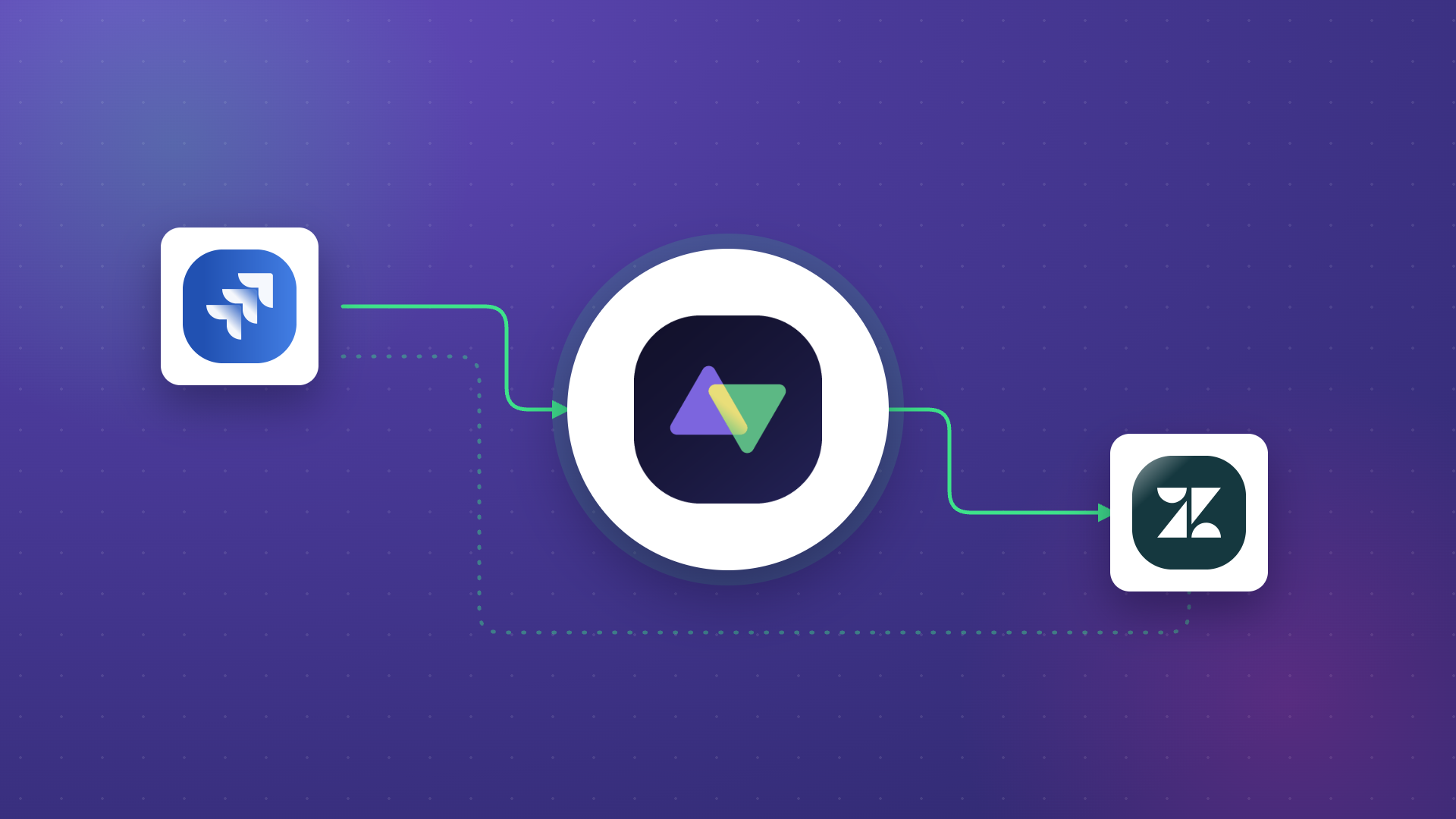
Sales teams close deals in Salesforce. Delivery teams execute projects in Asana. Without integration, the handoff between closing a deal and starting the work is manual, slow, and full of gaps.
Asana Salesforce integration eliminates that disconnect. It syncs opportunities, cases, accounts, and custom objects with Asana tasks and projects, so updates flow automatically across both platforms.
The native Asana for Salesforce AppExchange connector was deprecated in February 2026. That means organizations now need to choose between Asana Rules (available on Advanced, Enterprise, and Enterprise+ plans), general automation tools like Zapier, or dedicated integration platforms like Exalate that support bidirectional sync, custom field mapping, and cross-company workflows.
This guide walks through all the available options, compares them honestly, covers real implementation scenarios, and helps you pick the right approach for your team’s complexity level.
Key Takeaways
- Dedicated integration platforms like Exalate provide Groovy-based scripting, conditional sync triggers, and independent configuration on each side of the connection for complex enterprise scenarios.
- Common use cases range from post-sale onboarding automation to multi-department pipeline visibility, customer escalation routing, and cross-company partner collaboration.
- Organizations running Asana alongside Salesforce and other tools benefit from a platform that supports multi-system integration networks rather than point-to-point connectors.
- AI-assisted configuration reduces setup time for teams without scripting experience, while full script control remains available for advanced data transformation requirements.

What Is Asana Salesforce Integration?
Asana Salesforce integration connects your CRM with your work management platform, so data moves automatically between them. Instead of sales reps manually notifying project teams about closed deals or project managers updating Salesforce records by hand, the integration handles it.
Here is what it looks like in practice. A sales rep closes an opportunity in Salesforce. The integration creates a project in Asana with templated tasks, assigns the right team members, and maps key deal data (customer name, contract value, close date, product type) to custom fields in Asana.
As the project progresses, status updates in Asana sync back to Salesforce so the account manager can track delivery without switching tools.
The same concept applies in reverse. A customer submits a support case in Salesforce. The integration creates a task in Asana for the relevant team. When that task is completed, the Salesforce case updates automatically.
What Is Asana?
Asana is a work management platform used by project managers, marketing teams, operations teams, and cross-functional groups to organize tasks, manage deadlines, and track project progress. It supports list views, board views, timelines, and custom workflows.
Asana also includes automation through its Rules engine, portfolio-level reporting, and integrations with tools like Slack, Google Workspace, and Microsoft Teams.
What Is Salesforce?
Salesforce is a cloud-based CRM platform for managing customer relationships, tracking sales pipelines, handling support cases, running marketing campaigns, and more. Its product suite includes Sales Cloud, Service Cloud, Marketing Cloud, and the newer Agentforce AI automation capabilities.
Salesforce supports extensive customization through its AppExchange marketplace, Flow Builder for process automation, and APIs for third-party integration. It is particularly common in mid-market and enterprise environments where CRM data needs to connect to multiple downstream systems.
Why Connect Asana and Salesforce?
Sales and project teams depend on each other but rarely work in the same tool. The sales team lives in Salesforce because that is where customer records and revenue metrics live. The delivery team stays in Asana because that is where project plans, task assignments, and timelines live.
Without integration, the space between these tools creates several problems.
- Data silos form quickly. When a deal closes, the delivery team needs customer details, contract terms, timeline expectations, and technical requirements. Without automation, someone has to manually transfer that information from Salesforce to Asana. That process introduces delays and errors.
- Status updates lag behind real-time updates. A project manager updates task progress in Asana, but the account executive in Salesforce has no idea. They either ask for manual updates (which adds overhead) or guess at progress (which damages customer relationships).
- Manual work scales poorly. If your team handles 5 deals per month, manual handoffs might be manageable. At 500 per month, they become a bottleneck that slows time-to-value for every customer.
- Cross-functional visibility disappears. Executives who need to understand both sales performance and delivery health have to pull data from two separate systems and reconcile it manually.
Connecting both platforms automates the data flow, keeps records consistent, and gives every stakeholder the context they need without switching tools.
Asana to Salesforce Integration Options
The Asana Salesforce integration landscape shifted significantly in early 2026. Here is what is currently available.
Asana’s Native AppExchange Connector (Deprecated)
Asana’s official Salesforce integration, available on the Salesforce AppExchange, was deprecated on February 27, 2026. No new installations are supported. Organizations that had the connector installed before that date may still have it running, but Asana is not maintaining or updating it.
This connector allowed users to add an Asana Lightning component to Salesforce object pages, view and manage Asana tasks from within Salesforce, and link Salesforce records to Asana tasks and projects.
However, it had notable limitations even before deprecation. Two users viewing the same Salesforce record could see different Asana tasks due to Asana’s privacy model. Notifications only came through Asana, not Salesforce. The component displayed Asana tasks within Salesforce but did not perform true field-level synchronization between the two systems.
Asana Rules with Salesforce Triggers
Asana still supports Salesforce integration through its Rules engine. This is available on Advanced, Enterprise, and Enterprise+ plans.
It works like this: you create a rule in Asana that uses a Salesforce trigger (such as an opportunity stage changing) and pair it with an Asana action (such as creating a task, adding a comment, or adding a collaborator).
This approach is useful for straightforward automation. For example, when a Salesforce opportunity reaches “Closed Won,” a rule can create an Asana task for the onboarding team. Or when a linked opportunity is updated, Asana can add a comment with a snapshot of the deal details.
The limitations here are important to understand. Rules are one-directional from Salesforce to Asana. There is no built-in mechanism for syncing Asana updates back to Salesforce through Rules alone. Complex field mapping, conditional logic, and bidirectional synchronization require external tools.
iPaaS and Automation Platforms (Zapier, Make, Workato, Tray.io)
Platforms like Zapier and Make offer pre-built connectors for both Asana and Salesforce. They work on a trigger-action model: when something happens in one tool, an action fires in the other.
Zapier, for example, supports Zaps like “When a new Salesforce opportunity is created, create an Asana task” or “When an Asana task is completed, update a Salesforce field.” Make (formerly Integromat) provides similar functionality with a visual workflow builder.
These tools are effective for simple, one-directional automations. They become less reliable for bidirectional workflows where changes need to flow both ways simultaneously.
Building two separate automations (one from Salesforce to Asana and one from Asana to Salesforce) can create sync loops, data conflicts, and error cascading. Some users in the Asana community forums have reported persistent bugs with Zapier’s Salesforce connector specifically.
Workato and Tray.io handle more complex scenarios but come with higher costs and steeper learning curves. They are better suited for organizations that need an enterprise iPaaS across many systems, not just Asana and Salesforce.
Dedicated Integration Platforms (Exalate)
Exalate is a purpose-built integration platform that supports bidirectional synchronization between Asana and Salesforce (along with Jira, ServiceNow, Zendesk, Azure DevOps, GitHub, Freshservice, Freshdesk, and other platforms).
What sets this category apart from iPaaS tools is the architecture. Each side of the connection is configured independently. The Salesforce admin defines what data leaves Salesforce and how incoming Asana data maps to Salesforce objects.
The Asana admin does the same on their side. Neither side depends on the other’s configuration, which is particularly useful for cross-company integrations where two organizations manage their own systems.
Aida, Exalate’s AI scripting assistant, also makes it possible to generate sync rules in order to configure connections. All you need to do is write a prompt describing what you want to sync and the entities, then Aida will generate the code for you in seconds.
Exalate also comes with a Chrome extension called Sync Panel that lets users check sync status, spot errors, trigger manual syncs, and unlink sync pairs straight from the browser, without opening the console.
Comparing Integration Approaches Between Asana and Salesforce
Here is how the available options stack up across the criteria that matter most for Asana Salesforce integration.
- Sync direction. Asana Rules supports one-way (Salesforce to Asana). Zapier and Make support one-way natively, with two-way requiring dual automations that risk conflicts. Exalate supports true bidirectional sync with built-in conflict handling.
- Field mapping depth. Asana Rules maps Salesforce events to Asana actions but does not perform granular field-to-field mapping. Zapier maps basic fields. Exalate maps any Salesforce object field (including custom objects and fields) to any Asana task or project field, with transformation logic in between.
- Custom object support. Asana Rules works with standard Salesforce objects (Opportunities, Accounts, Cases). Zapier supports some custom objects depending on the plan. Exalate supports any Salesforce object available through the API, including custom ones.
- Cross-company use. Asana Rules and Zapier require shared credentials or admin access to both tools. Exalate’s architecture allows each organization to control its own side without sharing credentials or configuration access.
- Multi-platform support. If you need to connect Asana and Salesforce alongside Jira, ServiceNow, or other platforms, iPaaS tools cover broad app catalogs but with shallow integrations. Exalate supports deep, platform-aware integrations across its supported connectors with independent configuration per connection.
- Test run before going live. Exalate includes a Test Run feature that lets you preview exactly how your sync rules will apply to selected records before publishing. You see the incoming and outgoing data and catch errors before they touch production data.
- Reliability and error recovery. Asana Rules execute when triggered and do not retry on failure. If the action fails, you may not know until someone notices the missing task. Exalate uses a transactional synchronization engine that queues failed operations and retries them automatically once the issue clears. Changes are applied in the correct chronological order after downtime, so no data is lost, and no manual re-sync is needed.
- Versioning and rollback. Asana Rules and Zapier do not version your automation configurations. If you make a change that breaks something, you have to manually undo it or rebuild from memory. Exalate versions for every configuration change. Each published sync rule set is stored as a version (Active, Draft, or Archived), so you can roll back to a previous working version and maintain an audit trail.
Use Cases for Asana Salesforce Integration
Post-Sale Customer Onboarding
Case: A SaaS company closes deals in Salesforce. After the deal closes, the customer success team in Asana needs to kick off an onboarding project with specific milestones, task assignments, and deadlines derived from the deal data.

Solution: Configure the integration to trigger when a Salesforce opportunity stage changes to “Closed Won.” Automatically create an Asana project using a predefined template. Map Salesforce fields (customer name, contract value, product tier, expected go-live date) to Asana custom fields. Assign the project to the customer success manager linked to that account.
Real-World Application: A mid-market SaaS company handling 40 new customer onboardings per month previously spent 3 to 4 hours per onboarding just setting up project plans manually. After automating the Salesforce-to-Asana handoff, project creation became instant, and the CS team reclaimed roughly 120 hours per month for actual customer-facing work.
Sales Pipeline Visibility for Project Teams
Case: A professional services firm sells consulting engagements through Salesforce. Delivery leads in Asana need to see incoming opportunities early so they can plan resource allocation before deals close.
Solution: Sync Salesforce opportunities at the “Proposal” or “Negotiation” stage to Asana as draft project placeholders. Include estimated hours, service type, expected start date, and assigned account executive. As the opportunity progresses, update the Asana task status automatically.
Real-World Application: A consulting firm with 200 active engagements uses this approach to give delivery managers a 2- to 4-week planning window before new work hits. They reduced last-minute resource scrambles by roughly 60% because delivery leads could see what was coming and staff accordingly.
Customer Support Escalation to Delivery Teams
Case: Support agents handle incoming cases in Salesforce. Some cases require work from the product, engineering, or operations team that tracks their tasks in Asana.

Solution: Set up conditional sync triggers so that only cases meeting specific criteria (such as case type = “Bug,” priority = “High,” or product area = “Enterprise”) create tasks in Asana. Map case subject, description, attachments, priority, and account name to Asana task fields. When the Asana task is completed, update the Salesforce case status.
Real-World Application: A fintech company’s support team logs roughly 200 cases per week. About 30% require product team involvement. Before integration, the support lead manually triaged and forwarded cases via email, resulting in a 48-hour average delay before the product team even saw the issue. After implementing conditional sync, escalated cases reach the Asana product board within minutes, and resolution time dropped by 35%.
Marketing Campaign Execution
Case: The marketing team manages campaigns in Asana or tracks campaign-related opportunities. Creative and content execution happens in Salesforce. Both teams need visibility into each other’s progress.
Solution: When a new campaign launches in Salesforce, automatically create an Asana project with tasks for content creation, design, distribution, and analytics. Sync campaign performance data from Salesforce back to Asana so the project team can see whether the campaign is hitting its targets.
Real-World Application: A B2B company runs 8 to 10 product launch campaigns per quarter. Each campaign involves sales, marketing, product marketing, and design. By connecting Salesforce campaign records to Asana execution projects, the team eliminated the weekly cross-functional sync meetings they used to hold just to share status updates. Each team now checks its own platform and gets the full picture.
Cross-Company Partner Collaboration
Case: An organization works with external agencies, contractors, or partners who manage their work in Asana while the internal team tracks client-related data in Salesforce. Both sides need to exchange project updates without exposing their full system to each other.
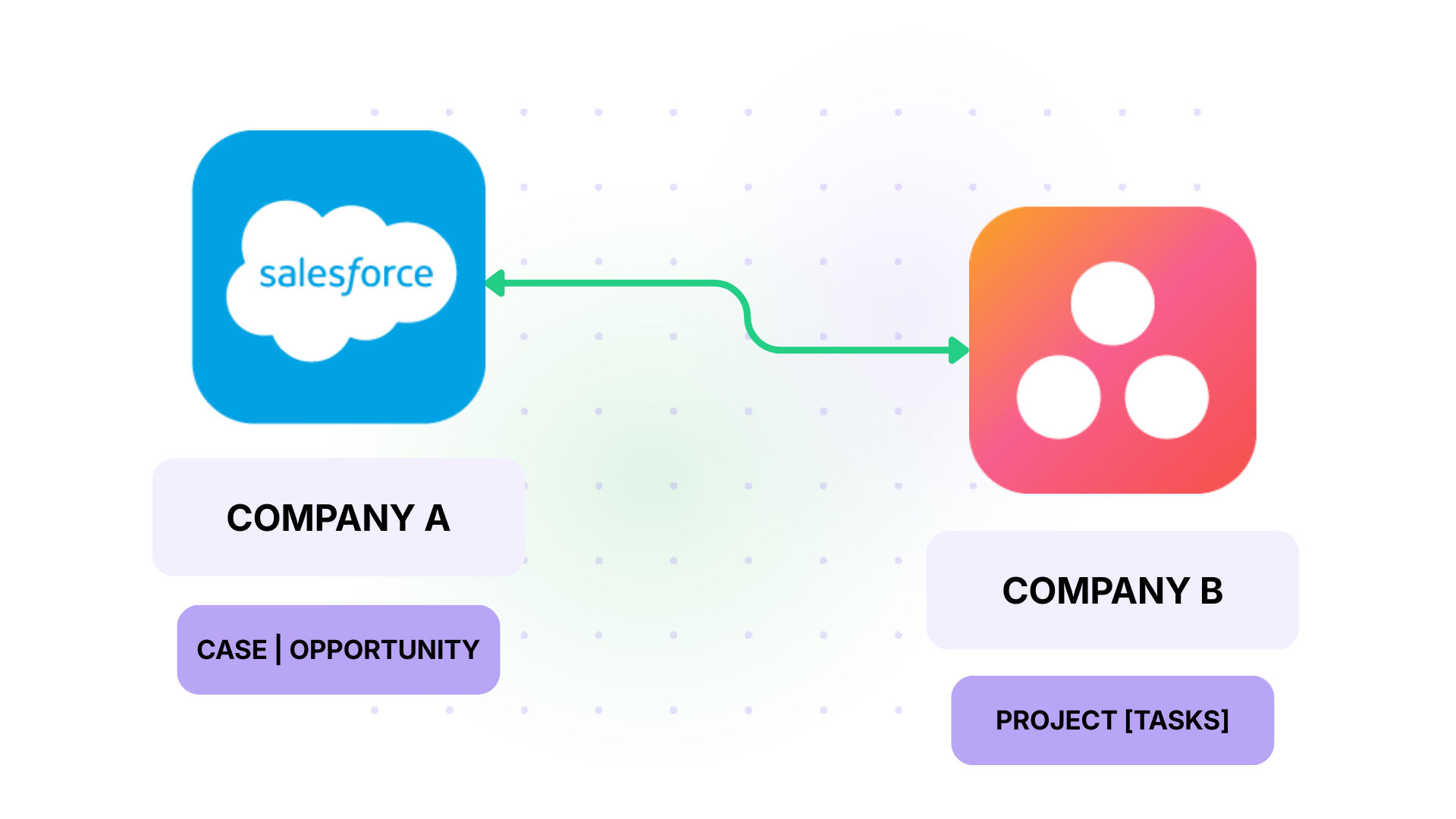
Solution: Use Exalate’s architecture, where each organization configures its own sync rules independently. The internal Salesforce admin controls what data leaves Salesforce. The external partner’s Asana admin controls how that data maps to their projects. Neither side needs credentials for the other system.
Real-World Application: A retail brand outsources product launch execution to an agency. The brand’s sales team tracks retail partnerships and launch timelines in Salesforce. The agency manages creative production and event logistics in Asana. Using Exalate, launch milestones and deadlines sync bidirectionally, giving both sides real-time visibility without sharing logins or exposing sensitive CRM data.
What Data Can You Sync Between Asana and Salesforce?
The scope of what syncs depends on which integration method you use. Asana Rules and basic automation tools cover a limited set of actions. Dedicated platforms like Exalate can handle virtually any field available through the Asana and Salesforce REST APIs.
Here is a breakdown by category.
- Core fields. Opportunity Name or Case Subject maps to Asana task name. Description maps to description. Close Date or Due Date maps to the Asana due date. Owner or Assigned User maps to the Asana assignee. These are supported by most integration methods.
- Statuses and stages. Salesforce uses opportunity stages (Prospecting, Qualification, Proposal, Closed Won, Closed Lost) and case statuses (New, Working, Escalated, Closed). Asana uses task statuses like “Not Started,” “On Track,” “At Risk,” and “Complete.” With Exalate, you define the explicit mapping in your sync scripts. For example, Salesforce “Closed Won” becomes Asana “Ready to Start” for the onboarding team, while Salesforce “Escalated” becomes Asana “At Risk.”
- Priorities. Salesforce Cases have a built-in priority field (Low, Medium, High, Critical). Asana supports priority as a custom field, typically with Low, Medium, and High values. Exalate handles the conversion, including mapping Salesforce’s “Critical” to a combined Asana priority and tag so it stands out visually.
- Custom fields. Both platforms support custom fields extensively. Salesforce custom fields can be text, picklists, multi-select picklists, currency, date, lookup, formula, and many other types. Asana custom fields include dropdown, number, text, date, and people types. Exalate’s scripting engine translates between these formats.
- Comments. Comments added to Asana tasks can sync to Salesforce case or opportunity Chatter feeds, and vice versa. This keeps both sales and project teams informed about updates without switching tools.
- Attachments. Files attached to Salesforce records (proposals, contracts, screenshots) can sync to Asana tasks, and Asana task attachments can flow back to Salesforce.
- Account and contact data. Salesforce Account Name, Contact Name, Contact Email, and other relationship data can be mapped to Asana custom fields. This gives project teams customer context directly on their tasks without logging into the CRM.
- Additional fields via REST API. For any field not covered by default mappings, Exalate’s Groovy scripting engine can access any data point available through the Salesforce and Asana REST APIs, including formula fields, roll-up summaries, and cross-object references.
How to Set Up Asana Salesforce Integration With Exalate
This walkthrough covers the full process from account creation to live synchronization between Asana and Salesforce.
Step 1: Create Your Exalate Account
Visit the Exalate integrations page or start directly from the Exalate app. Create a new account by entering your business email and verifying it, or sign up using Google. If you already have an account, log in.
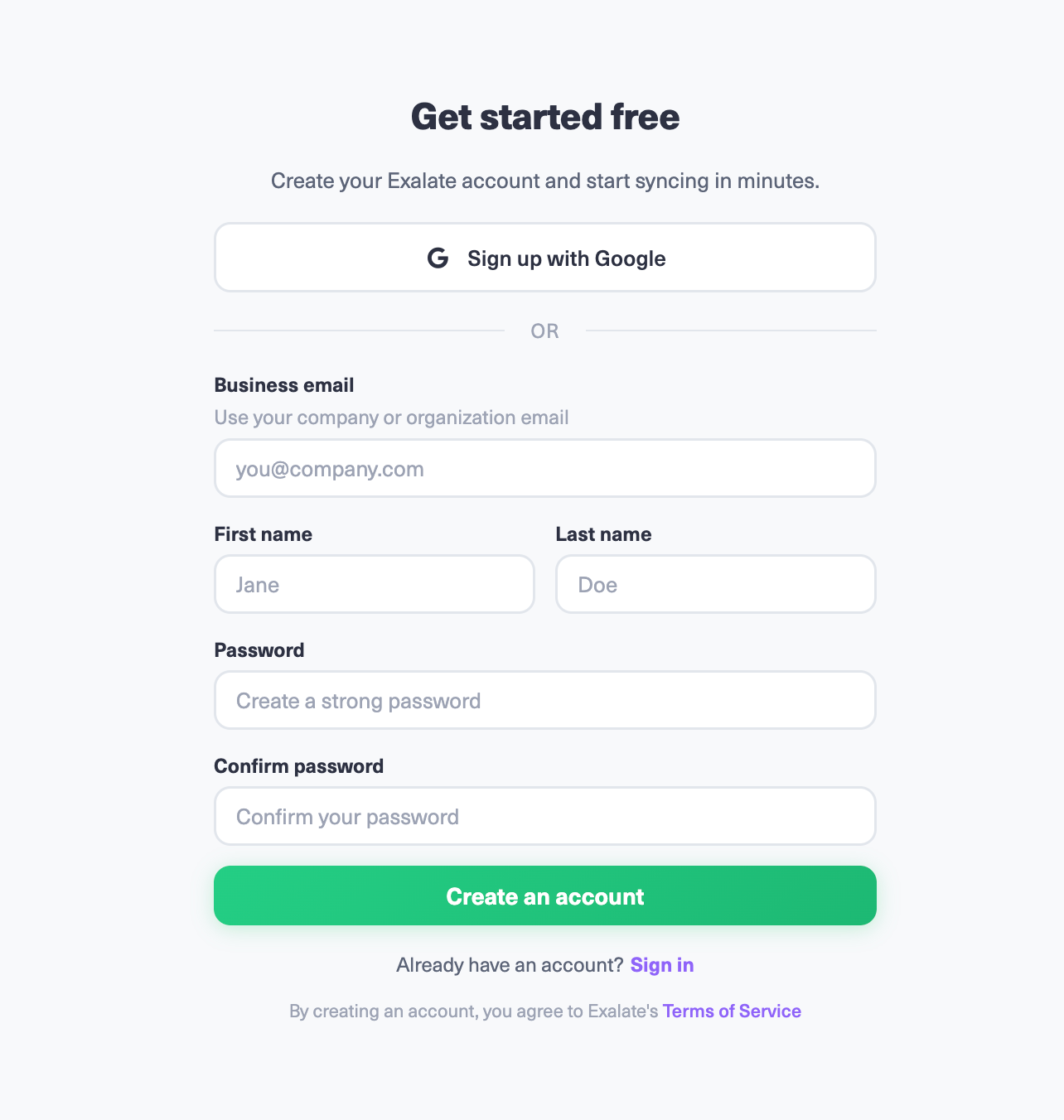
Once you are in, you can start creating connections.
Step 2: Create a Connection Between Asana and Salesforce
Start creating your first connection. You can view all existing connections under the “Connections” tab.
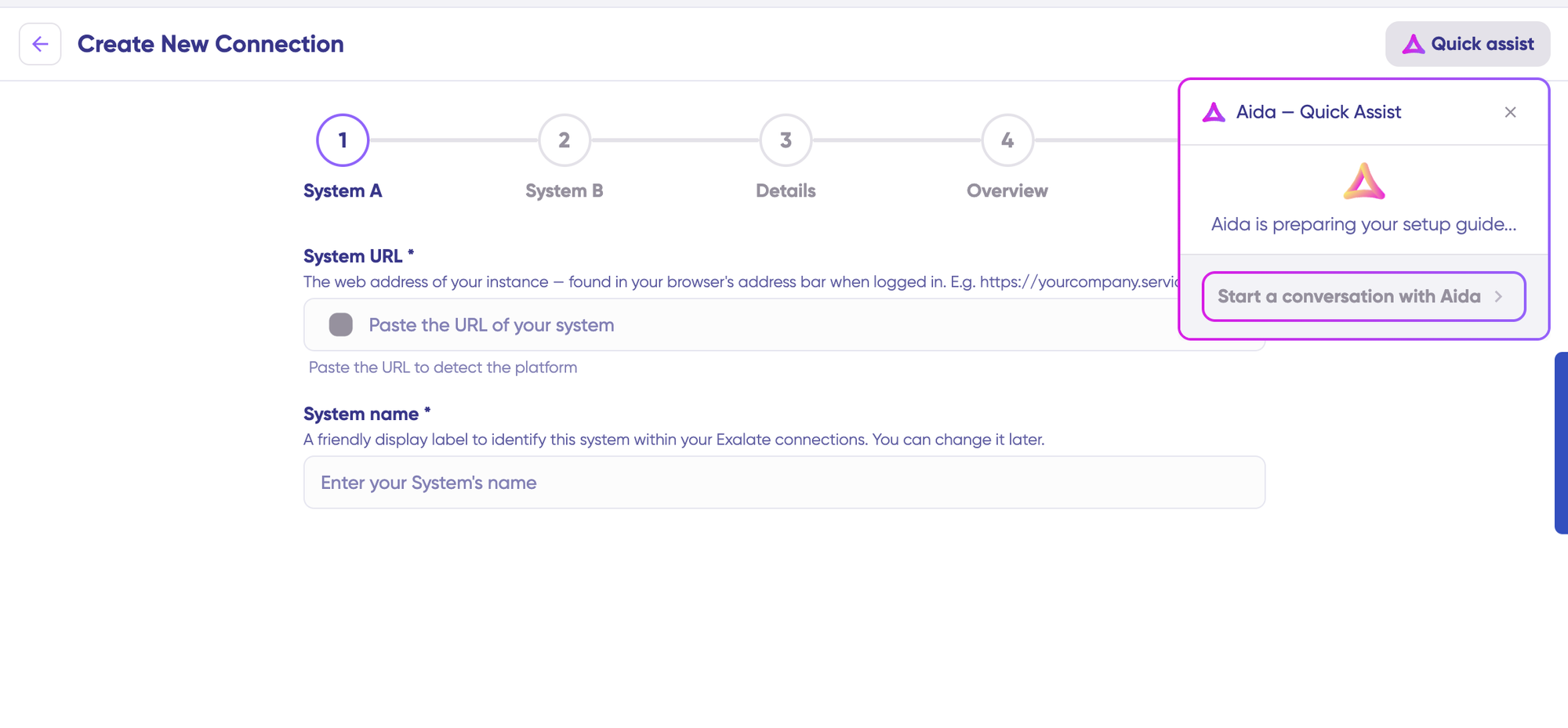
You can also speed up the process by using Aida – Quick Assist at the top right of the dashboard.
Click on “+ Add connections” then “Create new connection.” Enter the name for your first system. Name either Asana or Salesforce as your System A. It does not matter which one goes first. Enter the URL of your system.
Once you enter the URL, a check happens behind the scenes. You also need to authenticate with both your Salesforce and Asana accounts to proceed.
Complete the same setup for the second system. Give a name and description for your connection (for example, “Oppos to Projects”). Click “Next,” review the details, and click “Create connection.”
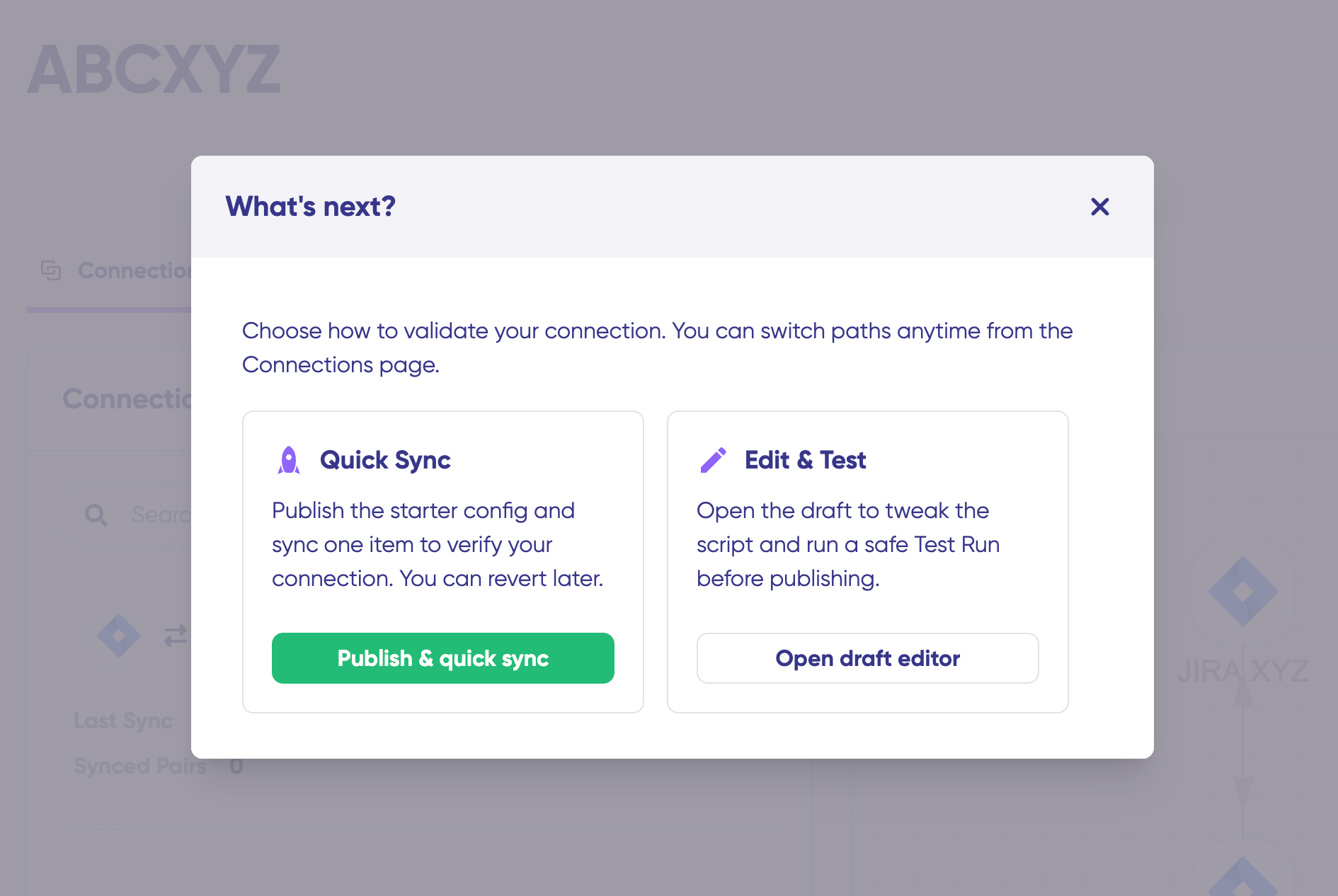
When the process is complete, select “Continue to configuration” and choose the Salesforce object or Asana project you want to use for synchronization. Then click “Build & continue.”
You now have two options: “Quick sync” and “Edit & Test.”
Step 3: Quick Sync (Optional Verification)
Using Quick Sync, you can sync one item between Asana and Salesforce to verify that your connection works properly. This step is optional but recommended.
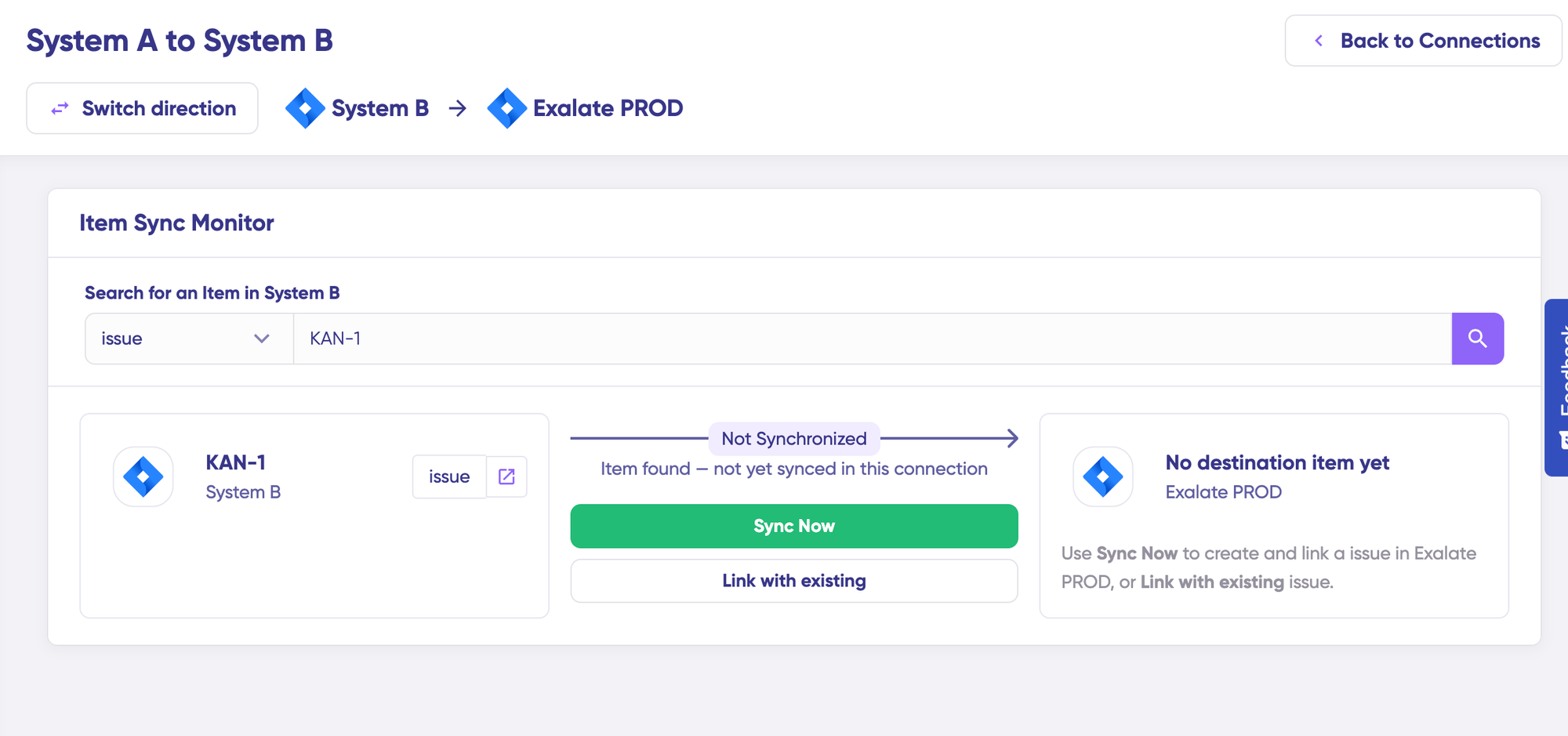
Under the “Item sync monitor,” enter a Salesforce record ID (like an Opportunity or Case number) or an Asana task ID. Click “Sync Now” to sync the first item. To link two existing items, click “Link with existing.”
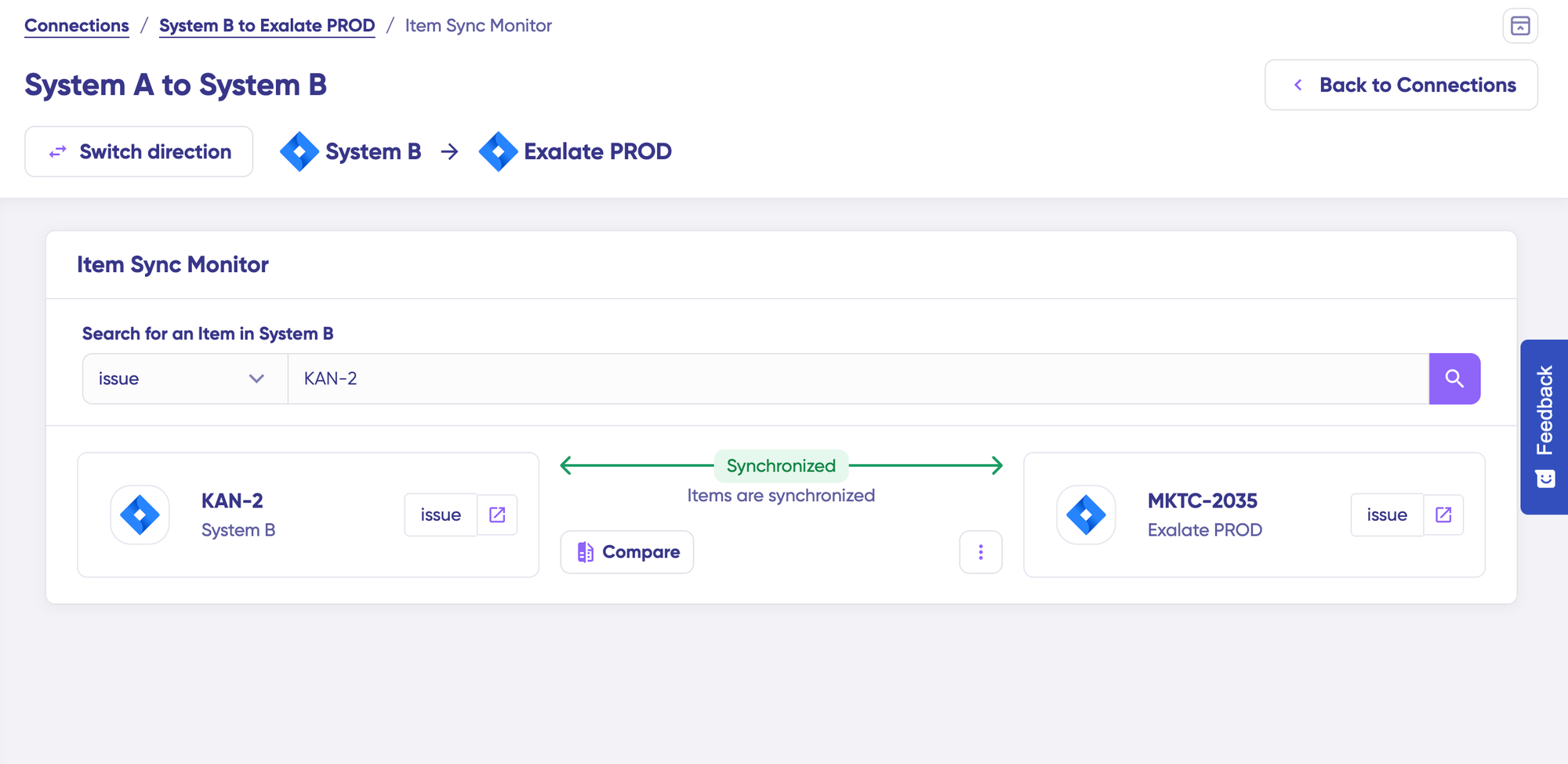
While the items sync, you will get status updates. Once the sync is complete, you can view both synced items by opening them in a new window. You can also compare how the synced items look and how changes will be applied.
Step 4: Edit and Configure Sync Rules
To start making changes, click “Create a new version” or select “Open latest draft.” This ensures you do not modify the existing configuration accidentally. Changes in the draft are saved automatically.
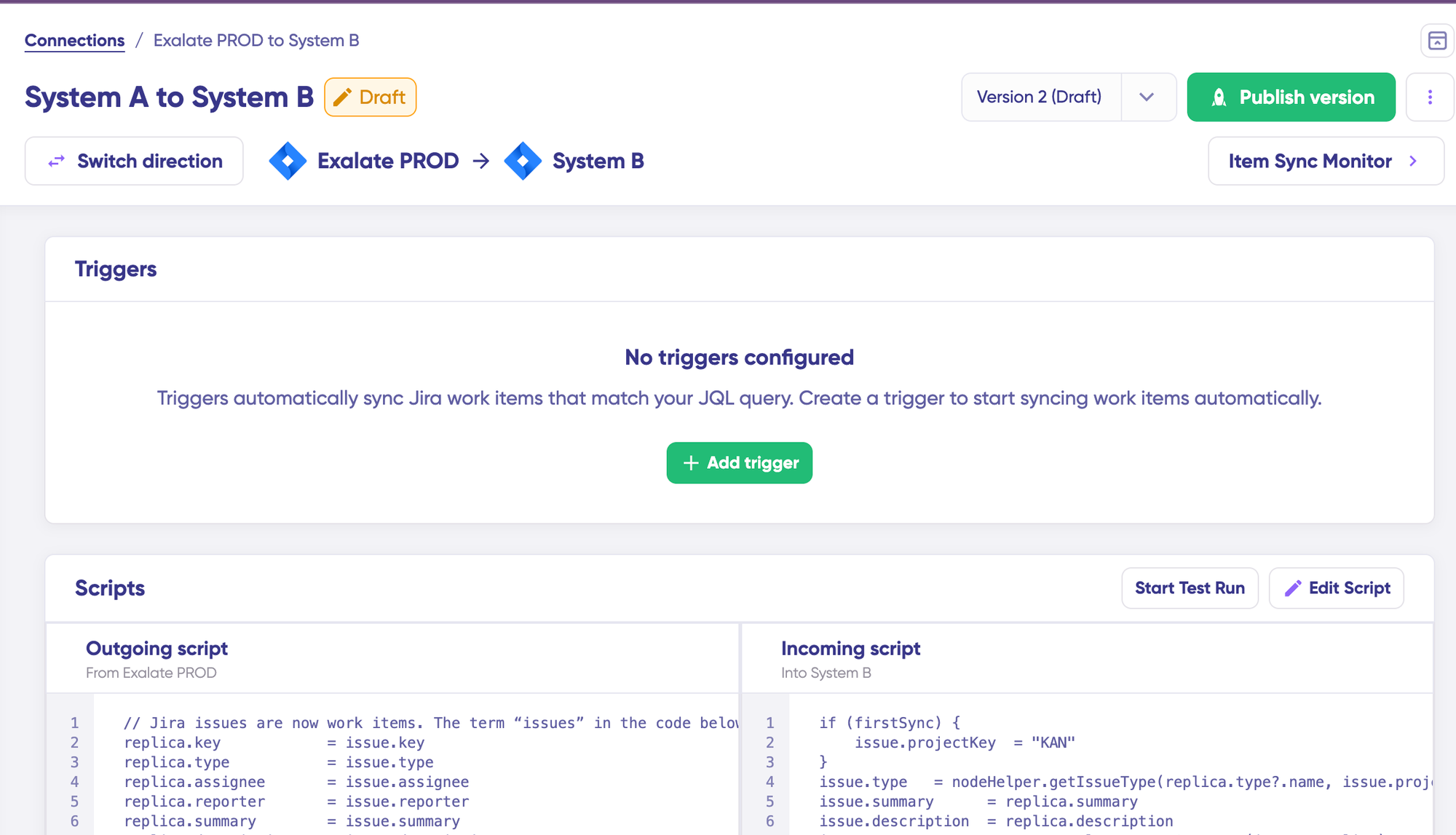
Click the “Edit” button to open the editor and edit the sync rules. Sync rules are based on Groovy scripts. With these scripts, you can add custom data logic and mapping, along with conditional flows, allowing you to adapt for any complex or advanced use case.
Click the “Switch direction” button to change the directional flow of the data.
If the sync direction is from Salesforce to Asana, then the outgoing script holds the values passed from Salesforce to Asana, and the incoming script defines how the values coming from Salesforce are mapped in Asana. These scripts reverse if the direction changes.
The Replica works like a message payload and holds the actual data passed between the synced entities. It exists in JSON format. To sync new values, you can enter the sync script yourself. If you want to stop something from syncing (for instance, no attachments from Salesforce to Asana), remove that script line from the outgoing Salesforce script.
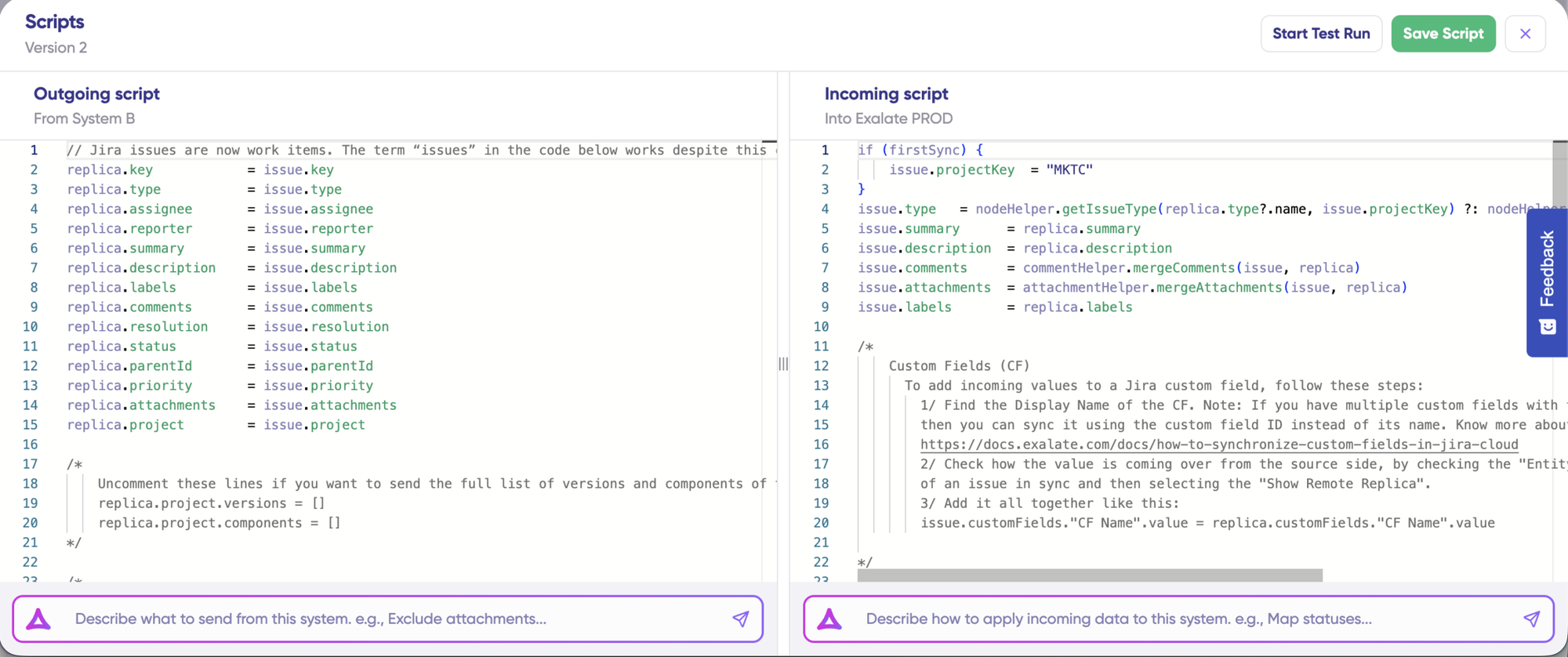
For example, on the Salesforce outgoing side, you specify which object fields leave Salesforce: Opportunity Name, Close Date, Account Name, Amount, Priority, and any custom fields. On the Asana incoming side, you define how those values map to Asana entities: Opportunity Name becomes the task name, Close Date becomes the due date, Account Name becomes a custom field, and Amount populates a number field.
Step 5: Use Aida for AI-Assisted Configuration
If you want to save time on scripting, use Exalate’s AI-assisted configuration feature called Aida to generate sync scripts. Aida exists in both the incoming and outgoing script sections.
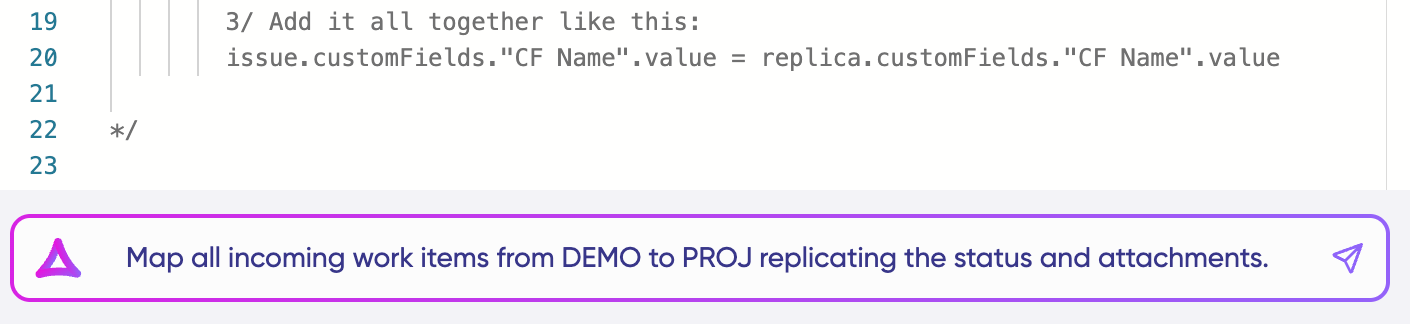
Aida helps you in two ways:
For outgoing scripts, describe what data should leave your system. For example, “Only sync closed-won opportunities with the account name, deal value, and close date.”
For incoming scripts, describe how incoming data should be applied. For example, “Map Salesforce opportunity stages to Asana task statuses” or “Set a default assignee if the user cannot be found in Asana.”
Based on Exalate’s scripting API and your existing scripts, Aida generates working Groovy scripts with proper field mappings.
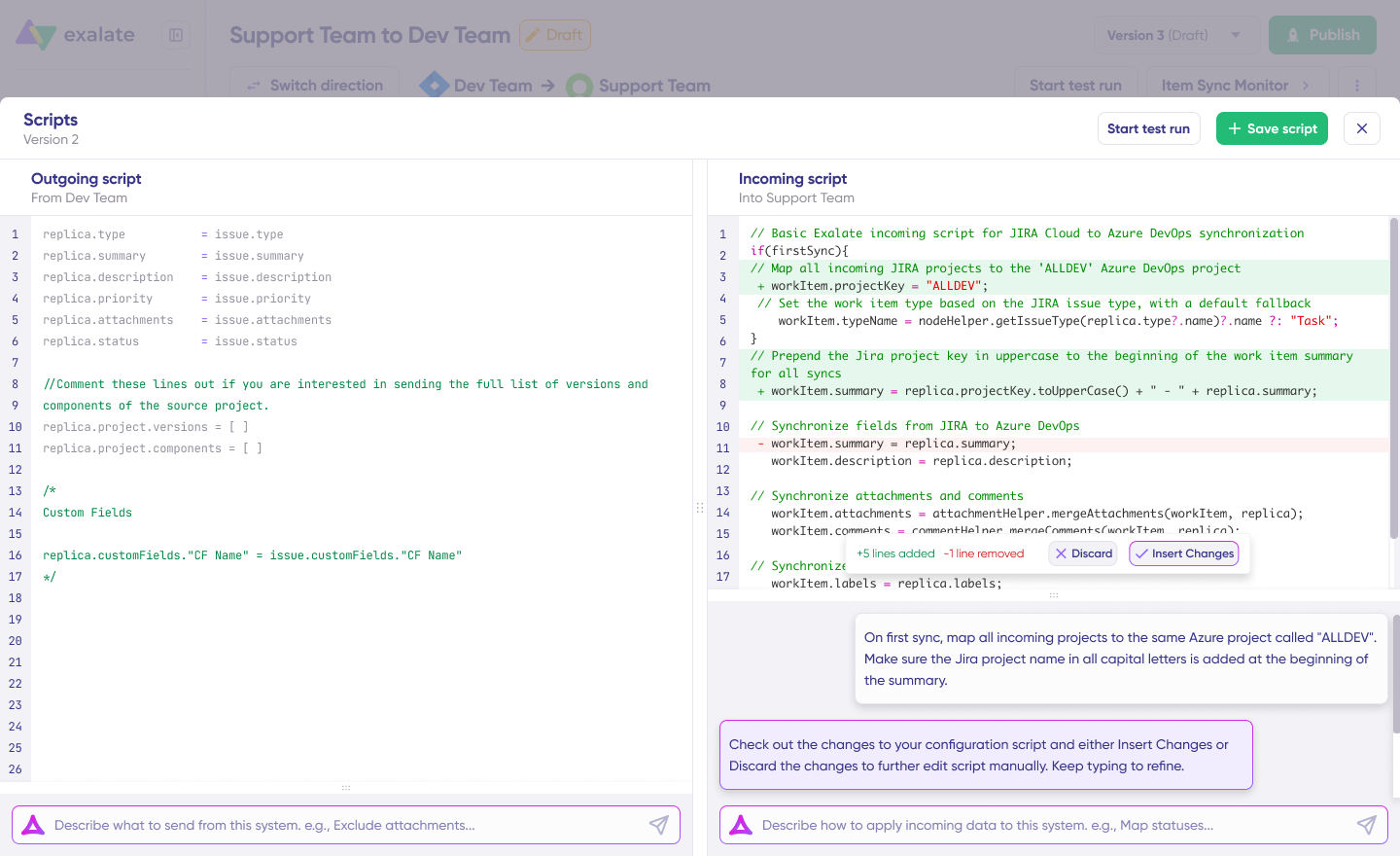
Once Aida finishes drafting, review the changes suggested. Green highlights new lines that will be added. Red highlights lines that would be removed. You can choose to “Insert” or “Discard” Aida’s suggestions.
The outgoing and incoming scripts work independently, and so does Aida, so maintain separate context and direction for each prompt.
Note: Aida is helpful, but just like with any AI assistant, review the generated code before applying it.
Step 6: Test Run Before Going Live
Once your sync scripts are ready, you can save them or proceed to dry-run them using the “Start Test Run” option.
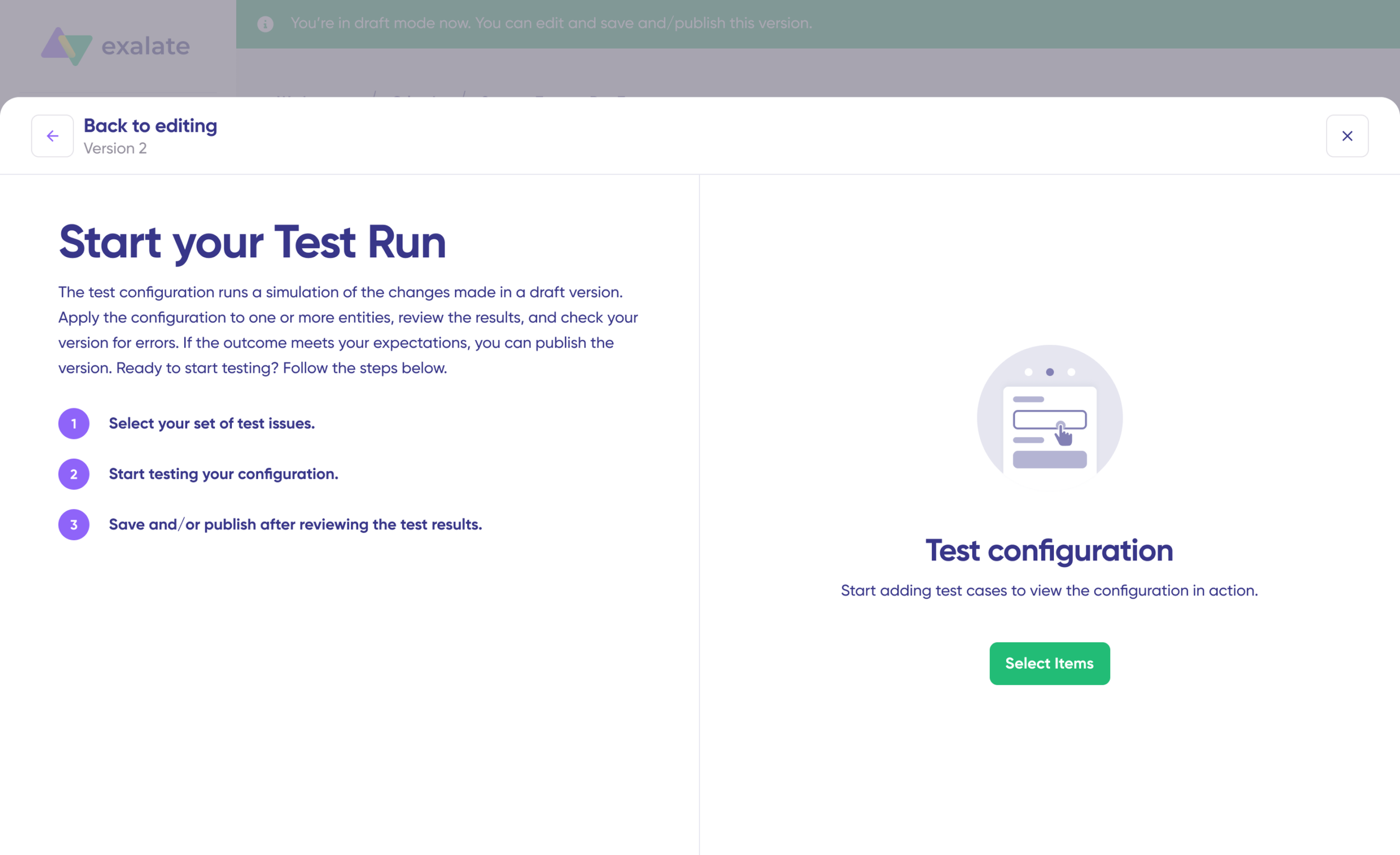
Select the items you want to apply the sync to. You can select multiple items. Click “Start Test Run.” You can now see all the incoming and outgoing replicas for each item you selected in the respective tabs.
Confirm how the sync configuration will be applied to your items, preview the replica, and verify that the field mappings look correct. If required, go back, adjust the scripts, and test again.
Deploy only when you are confident it works. This safety net prevents errors from affecting live data.
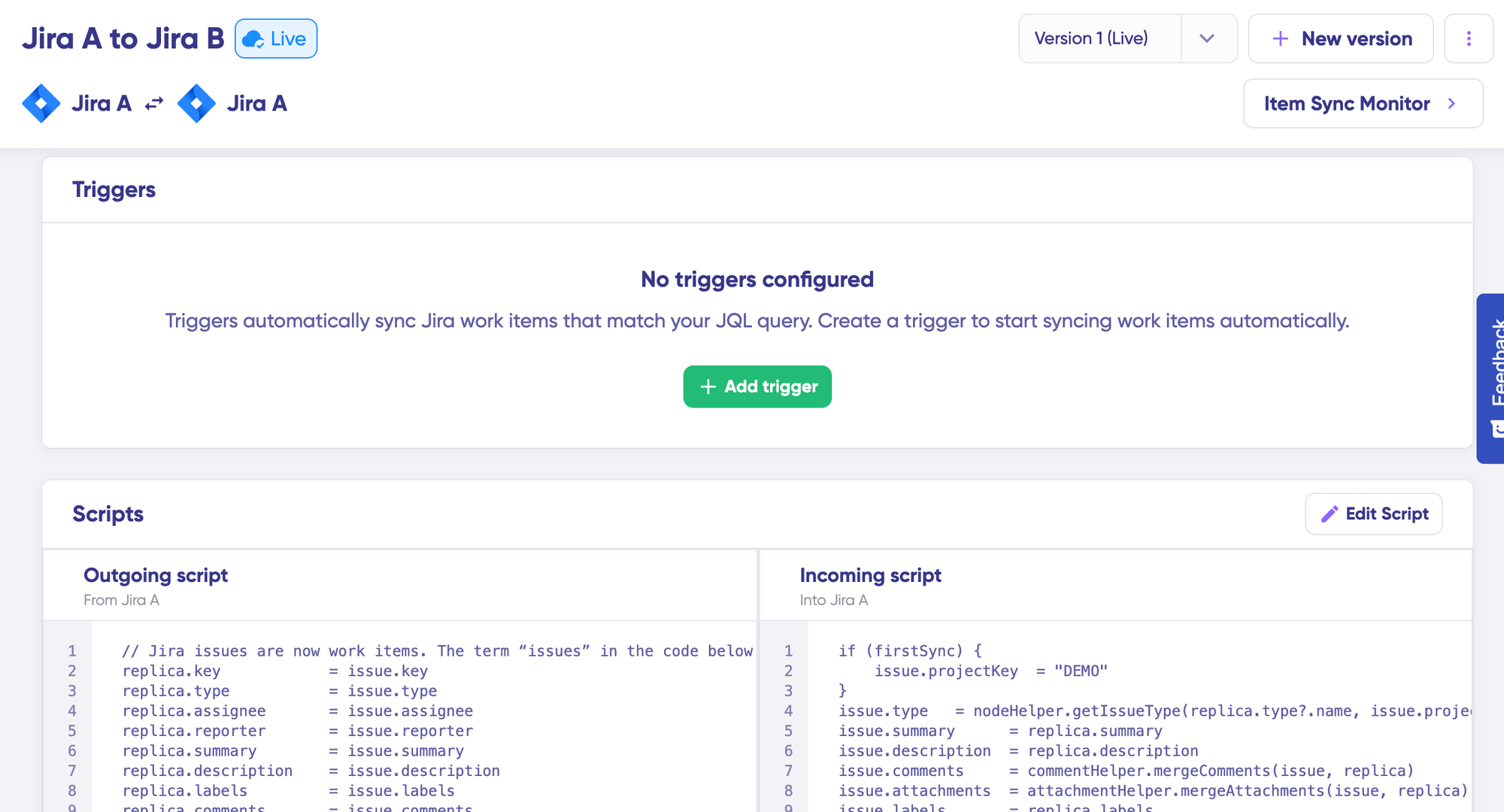
Once everything matches your needs, click “Publish Version” to apply the updated configuration to your live synchronization. All versions for a connection are available in the “Version” dropdown. Versions can be “Active,” in “Draft” (editable), or “Archived.”
Step 7: Add Triggers to Automate Sync
To start your sync automatically, add triggers. Triggers are conditions or filters you apply to specific items.
For Salesforce, you can use SOQL (Salesforce Object Query Language) to specify conditions. For example, sync all Opportunities where StageName = 'Closed Won', sync all Cases where Priority = 'High' AND Type = 'Bug', or sync all custom objects where Status != 'Archived'.
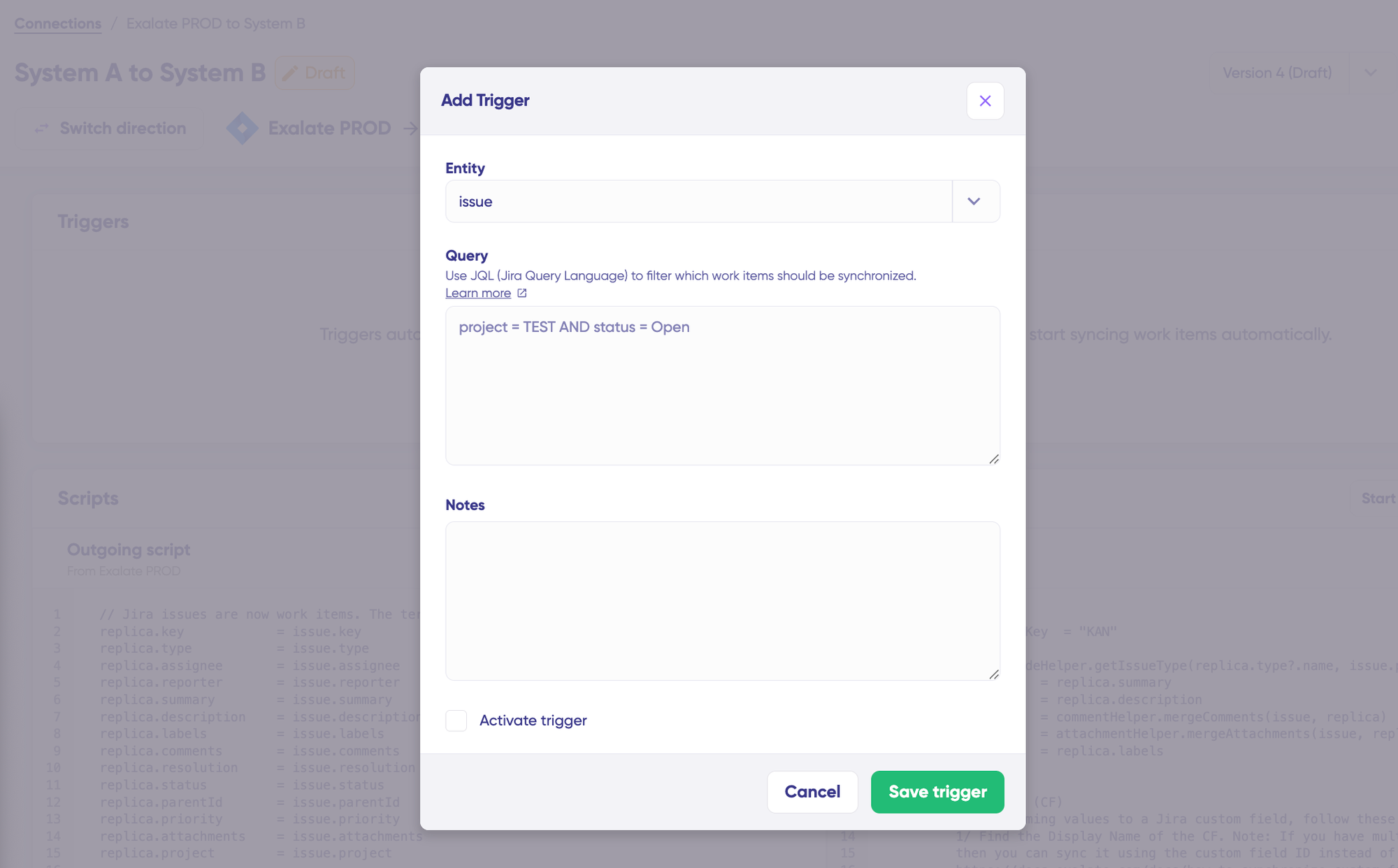
For Asana, set conditions for which tasks or projects should sync back to Salesforce. Click the “+Add trigger” button to start creating triggers. Save your changes by publishing them.
Step 8: Deploy and Monitor
Your first synchronization will start automatically based on the sync rules and triggers you have set.
A significant part of synchronization can involve troubleshooting errors, especially in script-based tools like Exalate that allow flexibility for complex workflows.
Step 9: Troubleshoot With Aida
Aida also helps you troubleshoot errors faster. It offers clear and context-aware suggestions to resolve errors right where you see them.
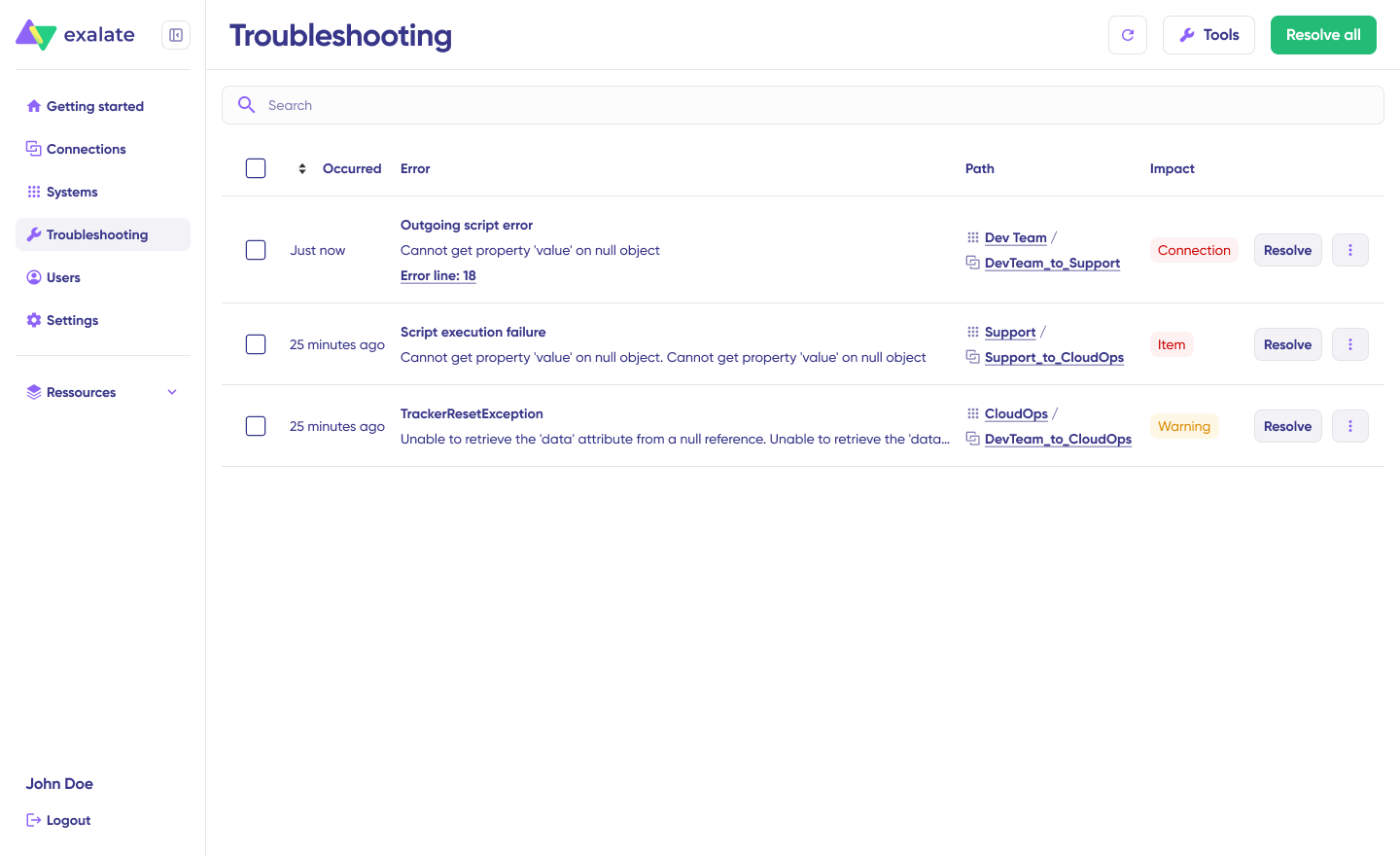
If there is an error, go to the “Troubleshooting” tab of your connection. Hover over the error you want to diagnose and click the Aida icon that appears next to it.
You will see the AI-generated suggestion in a modal window, including a short explanation of the error and a proposed solution.
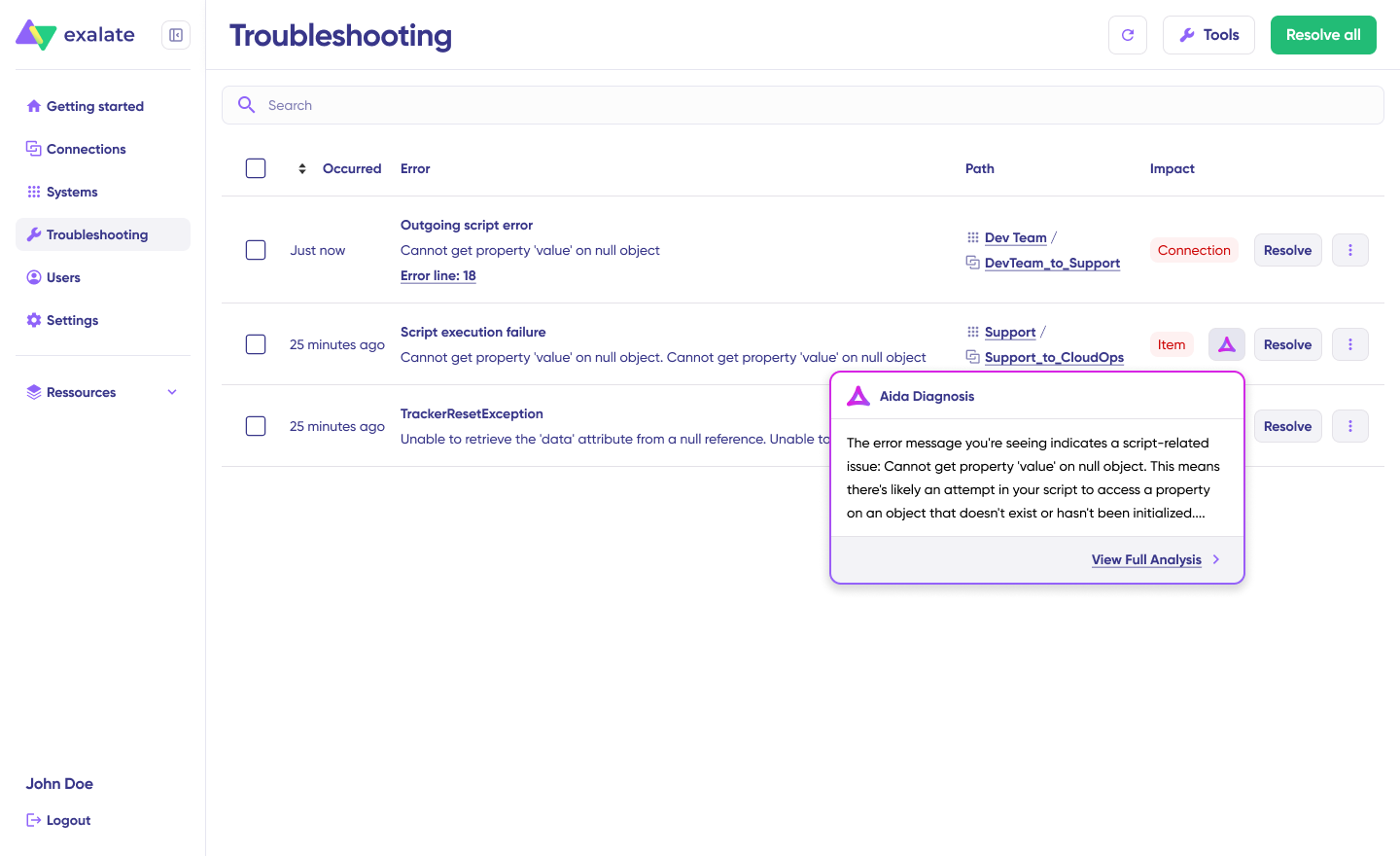
You can also “View Full Analysis” for more context, “Error details” to copy the stack trace, and “Replicas” to view the JSON format if needed. Choose to “Resolve” and retry errors from there.
Best Practices for Asana Salesforce Integration
- Start with one high-impact workflow. The most common mistake is trying to sync everything at once. Pick the single workflow that causes the most friction between sales and project teams (usually post-sale onboarding or support escalation) and get that running smoothly before expanding. A working integration that handles one use case well builds internal trust faster than a half-configured integration that covers five.
- Define data ownership before configuring anything. Decide upfront which platform is the source of truth for each data point. Customer name and deal value? Salesforce owns those. Project status and task completion? Asana owns those. When both platforms can write to the same field without clear ownership rules, you end up with sync conflicts and overwritten data.
- Map your statuses on paper first. Salesforce opportunity stages, case statuses, and Asana task statuses will not match one-to-one. Before touching any configuration, create a mapping table on paper or in a spreadsheet. For example: Salesforce “Closed Won” = Asana “Ready to Start,” Salesforce “In Progress” = Asana “On Track,” Salesforce “Closed Lost” = no sync needed. This exercise surfaces edge cases early and prevents post-launch confusion.
- Use conditional triggers to control sync volume. Not every Salesforce record needs to appear in Asana. Set triggers that filter by criteria like opportunity stage, case priority, record type, or account segment. This keeps the Asana workspace focused and prevents project teams from drowning in irrelevant items. For example, only sync cases where
Priority = "High"andType = "Bug"rather than syncing all 500 cases per week. - Build a naming convention into your sync rules. When Asana tasks are auto-created from Salesforce records, give them a consistent naming pattern that includes the source. Something like “[SF-Opp] Acme Corp – Enterprise” makes it immediately clear where the task originated and what type of record it represents. This is especially helpful when project teams manage tasks from multiple sources in the same Asana project.
- Document your sync rules somewhere accessible. Integration configurations can become opaque over time, especially when the person who set them up moves on. Maintain a simple document (in Confluence, Notion, or even a shared Google Doc) that describes each connection: what triggers it, what fields it maps, what statuses it translates, and who to contact if something breaks.
- Test with sandbox environments first. Both Salesforce and Asana support test environments. Run your integration against a Salesforce sandbox and a dedicated Asana test project before connecting production instances. This catches field mapping errors, trigger misfires, and unexpected data transformations before they affect real customer records.
The Role of AI in Asana Salesforce Integration
AI is changing how integrations get configured and maintained.
On the configuration side, Exalate’s Aida assistant converts natural language prompts into working Groovy sync scripts. Instead of writing field mappings from scratch, you describe what you need, and Aida generates the configuration. This reduces implementation time significantly for teams that do not have Groovy expertise.
On the Salesforce side, Agentforce and Flow Builder are adding AI capabilities for automating internal processes. These tools can complement an Asana integration by, for example, using AI to classify incoming cases before the integration routes them to the correct Asana project.
On the Asana side, Asana’s AI features help with task prioritization, workload balancing, and status reporting. When integrated with Salesforce data, these features become more powerful because they have richer context about the customer and the deal behind each project.
The trend is clear: integration is moving from manual configuration toward AI-assisted setup and AI-driven routing. Organizations that adopt this approach now will be better positioned as both Asana and Salesforce continue expanding their AI capabilities.
How Asana Salesforce Integration Fits Into a Larger Integration Strategy
Most organizations do not just use Asana and Salesforce. They also run Jira for engineering, ServiceNow or Freshservice for IT operations, Zendesk for external support, GitHub for code repositories, and Slack or Teams for communication.
A single Asana-to-Salesforce connection is useful, but the real value multiplies when it is part of a broader integration network.
For example, a customer request logged in Salesforce creates an Asana task for the project team, which links to a Jira work item for engineering, which updates a ServiceNow change record when deployed. End-to-end traceability from customer request to deployment, with no manual handoffs.
Exalate supports this multi-platform approach because each connection is configured independently. Adding a new Jira-to-Salesforce sync does not affect your existing Asana-to-Salesforce configuration. You build your integration network incrementally as needs grow.
Conclusion
Asana Salesforce integration is no longer optional for teams that rely on both platforms. With the native AppExchange connector deprecated, the path forward is either Asana Rules for simple one-directional automation or a dedicated integration platform for bidirectional sync, custom field mapping, and cross-company scenarios.
The right choice depends on your complexity. If you just need a task created in Asana when a deal closes, Asana Rules or Zapier can handle it. If you need true bidirectional sync, conditional routing, custom object support, and the flexibility to expand to other platforms later, a tool like Exalate is built for that.
Prioritize the highest-volume or highest-friction handoffs. Then pick the integration approach that matches your operational complexity, security requirements, and growth trajectory.
Need help setting up your integration? Book a call with our integration experts right away to get started.
Frequently Asked Questions
Can you integrate Asana with Salesforce?
Yes. Even though the native Asana for Salesforce AppExchange connector was deprecated in February 2026, you can still connect both platforms using Asana Rules (for one-way automation) or dedicated integration platforms like Exalate for bidirectional sync with advanced field mapping.
Does Exalate support Asana and Salesforce integration?
Yes. Exalate connects Asana and Salesforce bidirectionally with support for custom field mapping, conditional sync triggers, Groovy-based scripting, and AI-assisted configuration through Aida. Each side of the connection is configured independently, so the Salesforce admin and Asana admin each control their own sync rules.
What data can Exalate sync between Asana and Salesforce?
Exalate can sync Asana task and project fields, including summary, description, status, priority, attachments, custom fields, and notes. On the Salesforce side, it supports any standard or custom object and field available through the Salesforce API, including Opportunities, Cases, Accounts, Contacts, and custom objects.
Can I set up a one-way sync instead of bidirectional?
Yes. Exalate supports one-way sync, two-way sync, and selective sync (where certain fields go one direction and others go both ways). You configure this in the sync rules for each side of the connection.
Does Exalate work with Salesforce Flow Builder?
Exalate operates alongside Salesforce Flow Builder rather than replacing it. You can use Flow Builder for internal Salesforce automation (like updating fields or sending notifications) while Exalate handles the cross-platform synchronization with Asana. Both tools can complement each other in a larger automation strategy.
Can I connect Asana and Salesforce with other platforms simultaneously?
Yes. Exalate supports multi-platform integration networks. You can connect Asana to Salesforce, Salesforce to Jira, Asana to ServiceNow, and other combinations simultaneously. Each connection is configured independently, so adding a new integration does not affect existing ones.
Is Exalate secure enough for enterprise Salesforce data?
Exalate uses JWT-based tokens, HTTPS, TLS 1.2/1.3 encryption, role-based access controls, and multi-factor authentication. It holds ISO 27001 certification. For cross-company scenarios, the architecture ensures neither party needs to share credentials or expose their system configuration.
How long does it take to set up Asana Salesforce integration with Exalate?
Simple integrations (one-directional sync with basic field mapping) can be configured in under an hour using Aida’s AI-assisted setup. More complex configurations with conditional triggers, multi-object mapping, and custom transformations typically take a few hours to a couple of days, depending on requirements.
What Asana plan do I need for Salesforce integration?
Asana Rules with Salesforce triggers require the Advanced, Enterprise, or Enterprise+ plan. For Exalate, any Asana plan that provides API access works, since Exalate connects through Asana’s API rather than through Asana’s internal Rules engine.
Can Exalate handle Salesforce custom objects?
Yes. Exalate supports any Salesforce object available through the API, including custom objects, custom fields, and custom record types. You define the object and field mappings in the sync rules using Groovy scripts or Aida’s AI-assisted configuration.
Can I use Exalate if I also need to integrate Salesforce with Jira?
Yes. Exalate supports Salesforce integration with Jira, ServiceNow, Azure DevOps, Zendesk, GitHub, Freshservice, Freshdesk, and Asana. You can run multiple integrations from the same workspace, and each connection operates independently with its own sync rules and triggers.