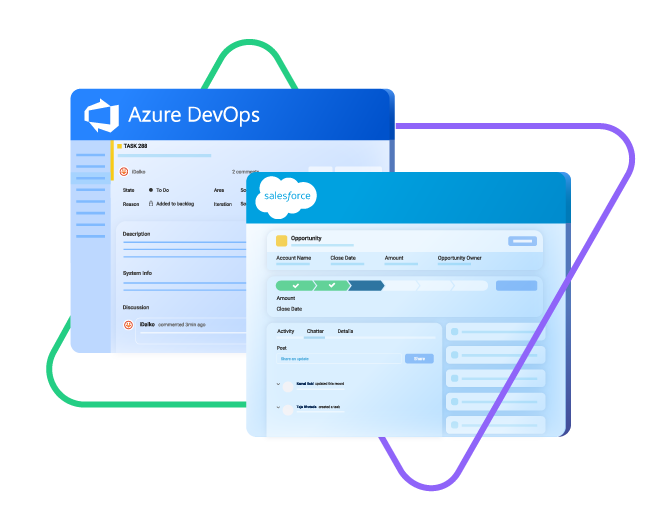
Two-way Salesforce Azure DevOps Integration
Experience a frictionless collaboration between sales and other teams, across company borders or internally.
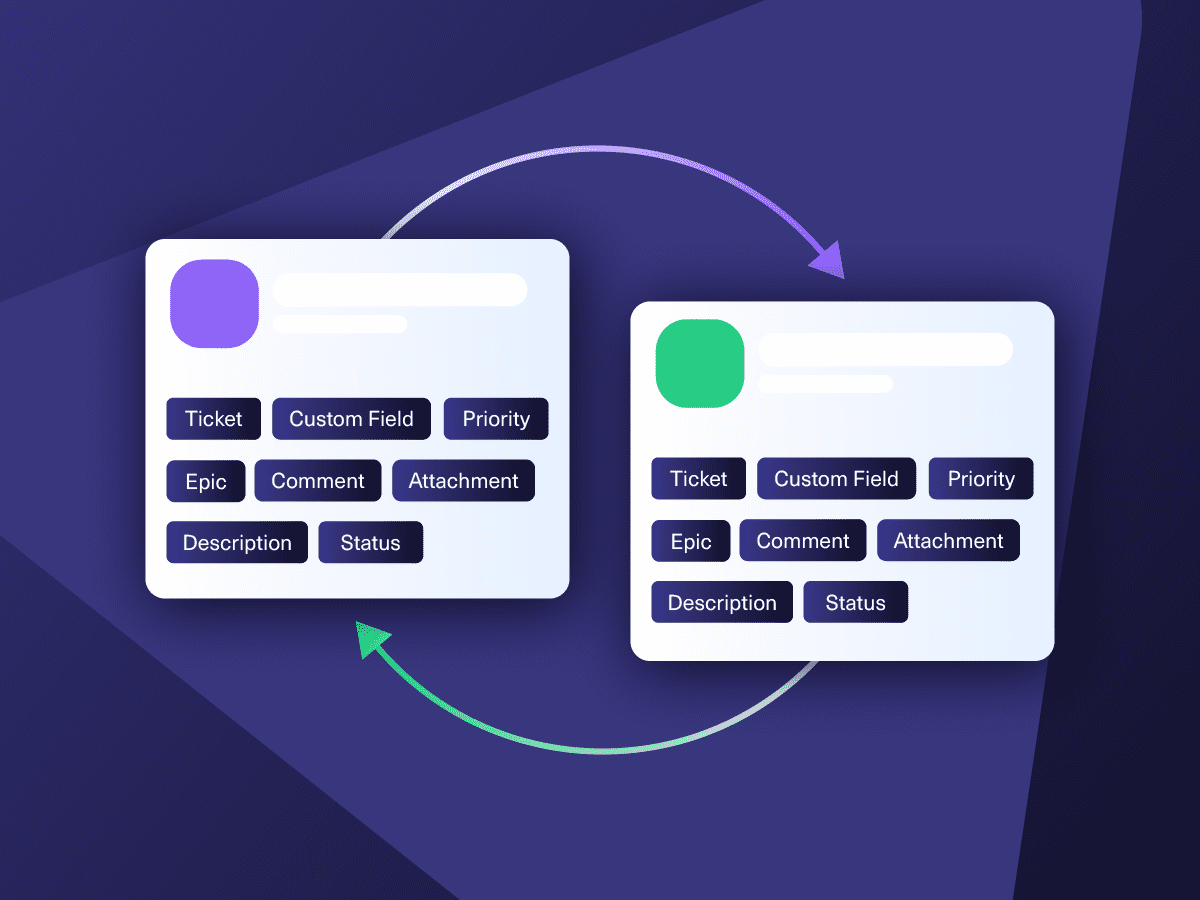
Map any Salesforce entity to Azure DevOps, and vice-versa. Keep the necessary fields synced with the help of AI scripting and automated triggers.
Sync type, title, creator...
sync status, description, priority...
sync attachments, custom fields...
sync comments...
Sync opportunity, case, task, account, product...
sync owner, status, number, priority...
sync contact details, internal comments...








Unlimited Syncing Possibilities

Azure DevOps
Work Items
+20 fields are supported, including:
- Custom fields
- Attachment
- Comment
- Title
- Description
- Tags
- Priority
- State
- Created by

Salesforce
Case
All fields are supported, including:
- Custom fields
- Account Name
- Asset
- Business Hours
- Case Owner
- Contact Email
- Escalated
- Priority
- Product
- SLA Violantion
- Type
Problems
All fields are supported, including:
- Close Date
- Contract
- Delivery/Installation Status
- Description
- Lead Source
- Order Number
- Opportunity Score
- Price Book
- Probability
- Tracking Number
Change Requests
All fields are supported, incuding:
- Account Owner
- Annual Revenue
- Billing Address
- Customer Priority
- Parent Account
- SIC Code
- Tradestyle
- Upsell
- Year Started
Sync any Salesforce entity
Exalate for Salesforce allows syncing all the available objects and their fields within the Script connection. This page only shows the most popular and widely used objects and their fields.
“
I was surprised by how Exalate satisfied our synchronization needs. We managed to reduce the monthly costs of Growth’s Service Desk by around 95%.
Piotr Radtke

How it Works
Connect
Easily connect multiple projects, instances, and platforms. With local, or external partners.
Customize
Set your sync rules to make sure the right data is shared.
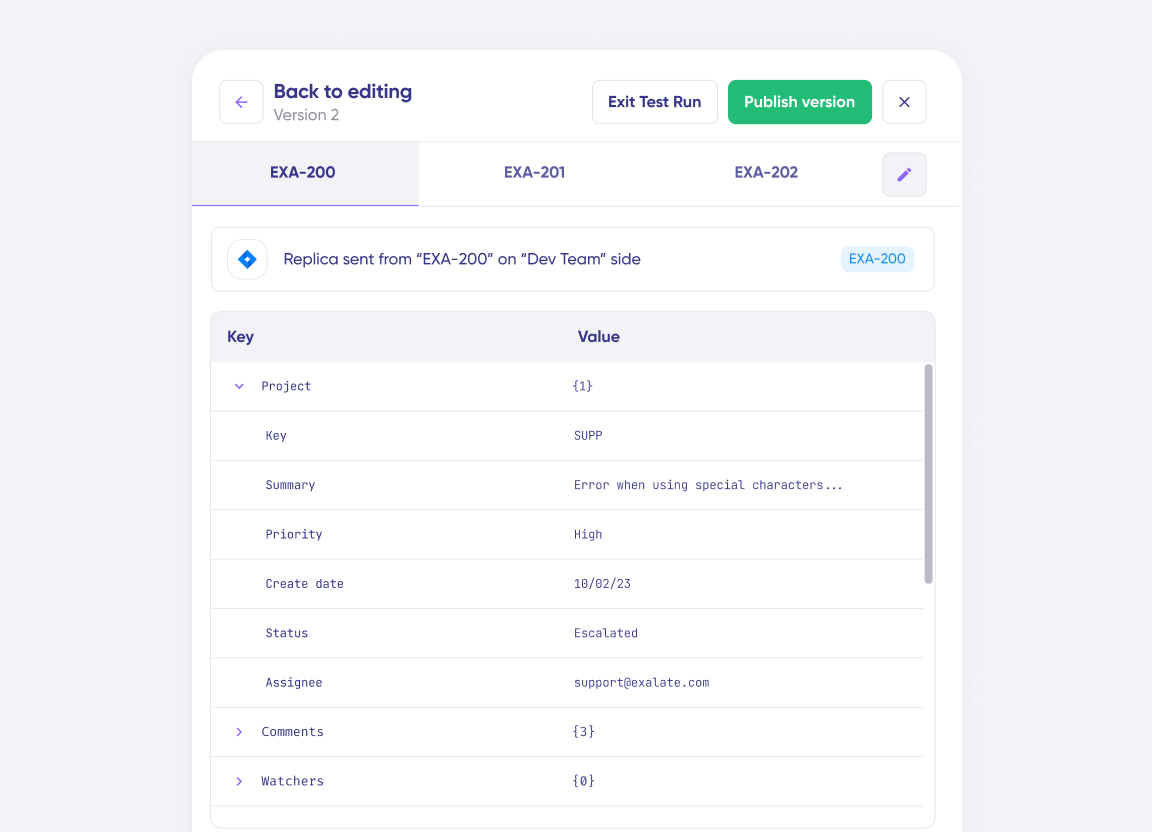
Prompt Exalate’s AI to generate rules, or fine-tune with Groovy-based custom mappings and logic for complete control.
Automate
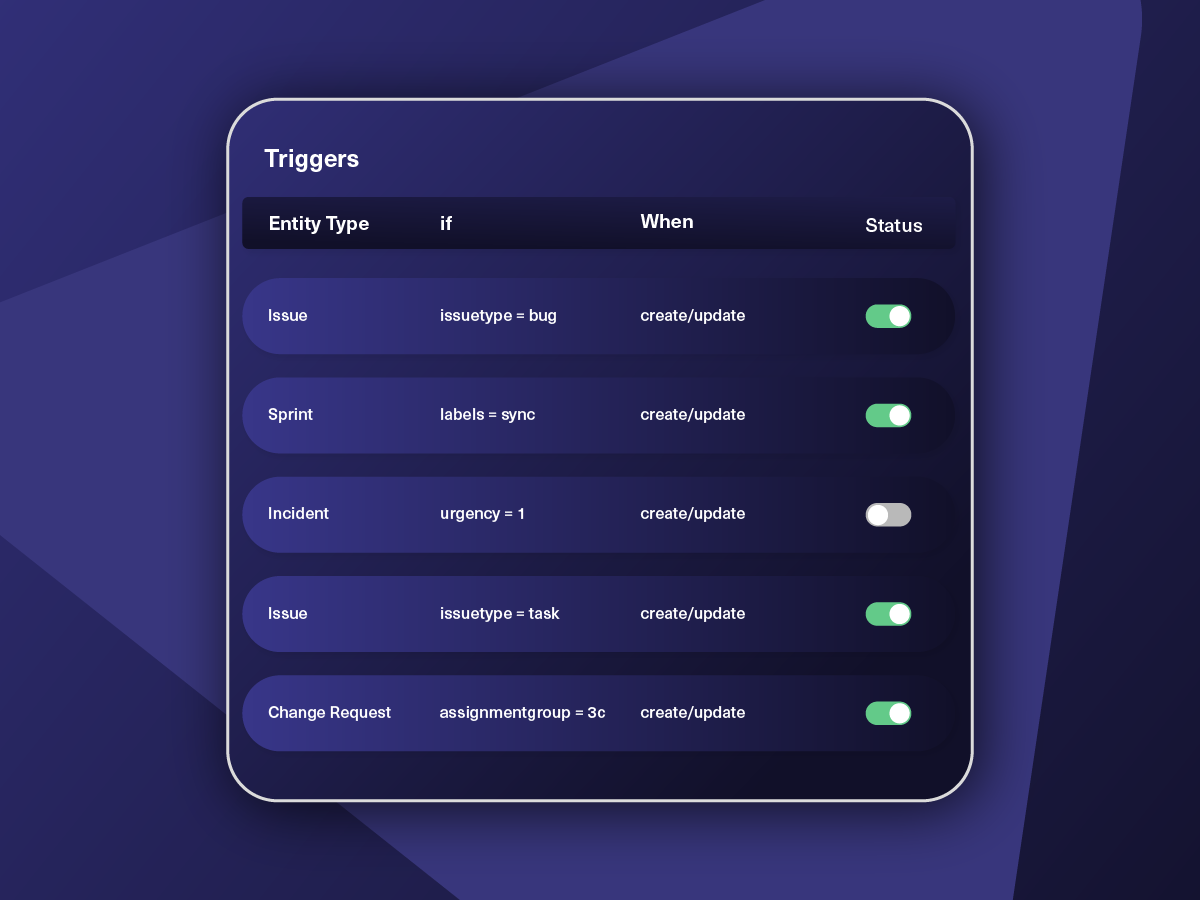
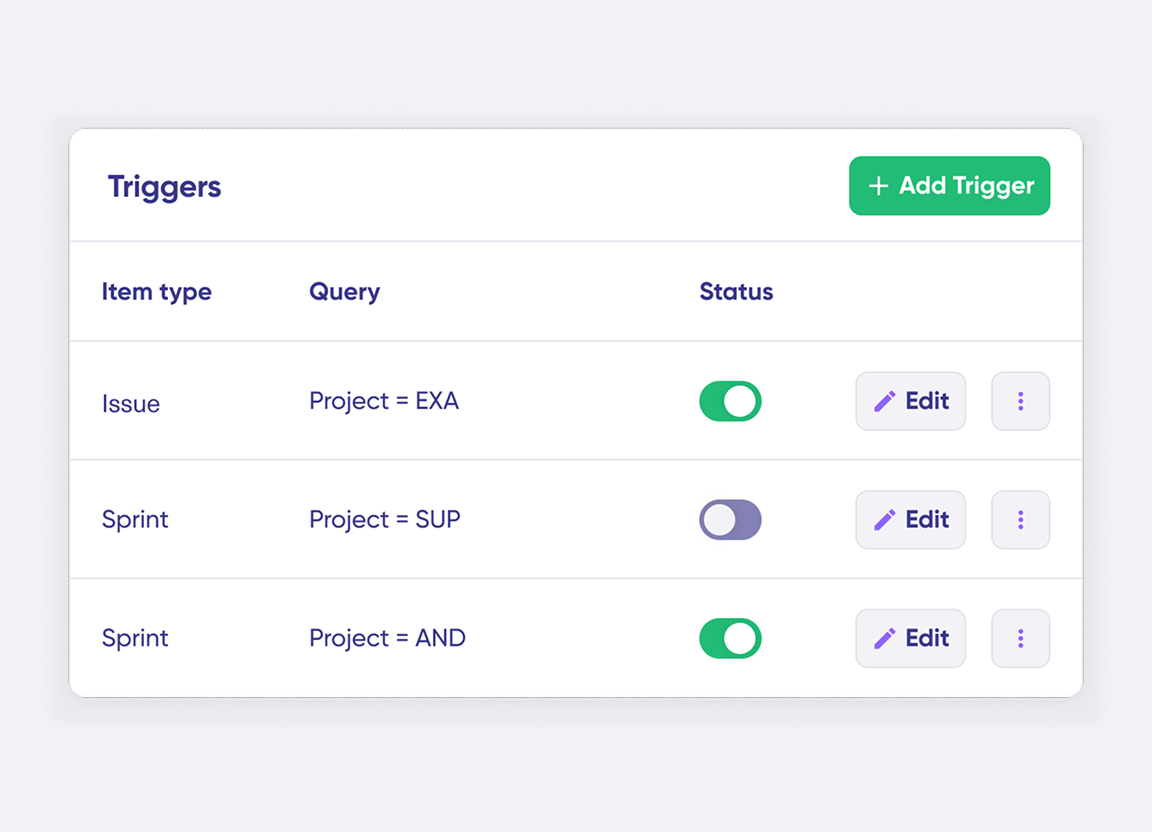
Set triggers to automate your sync based on specific conditions.
Synchronize
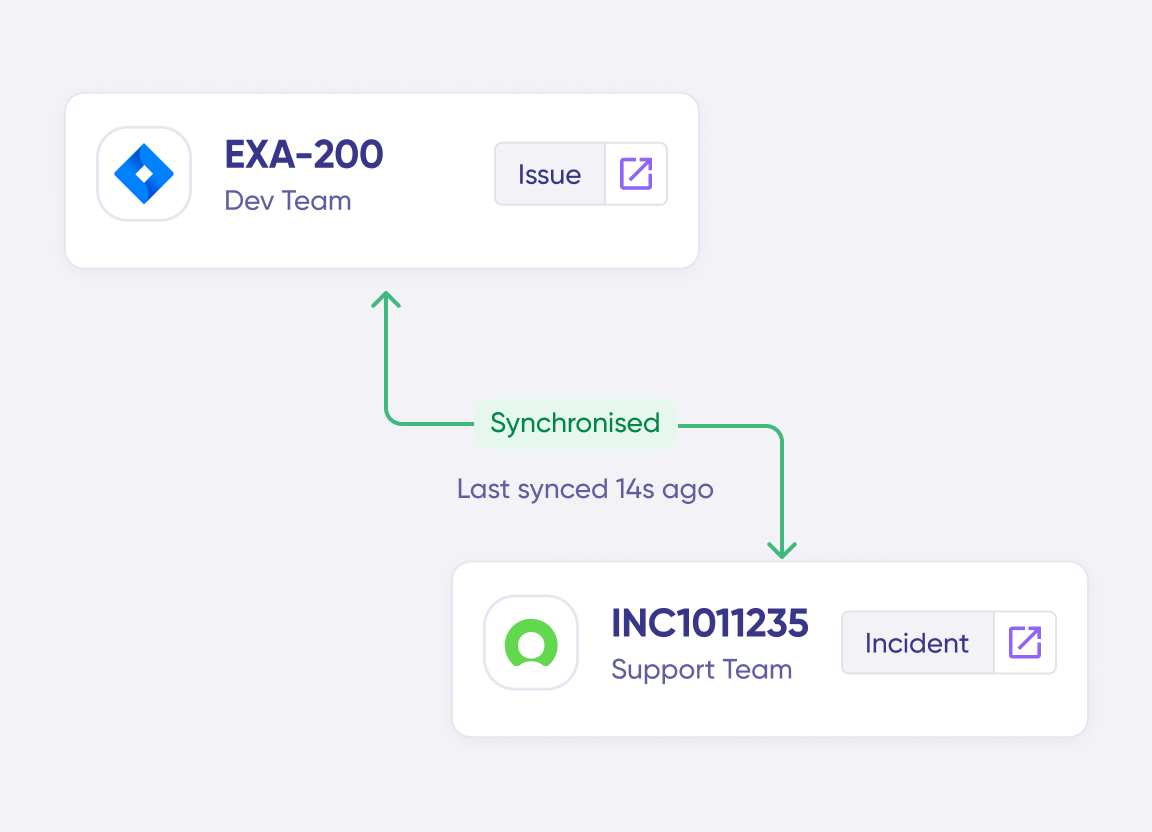
Now your connected instances will exchange information automatically. Happy syncing!
Get the Most Out of Your Integration
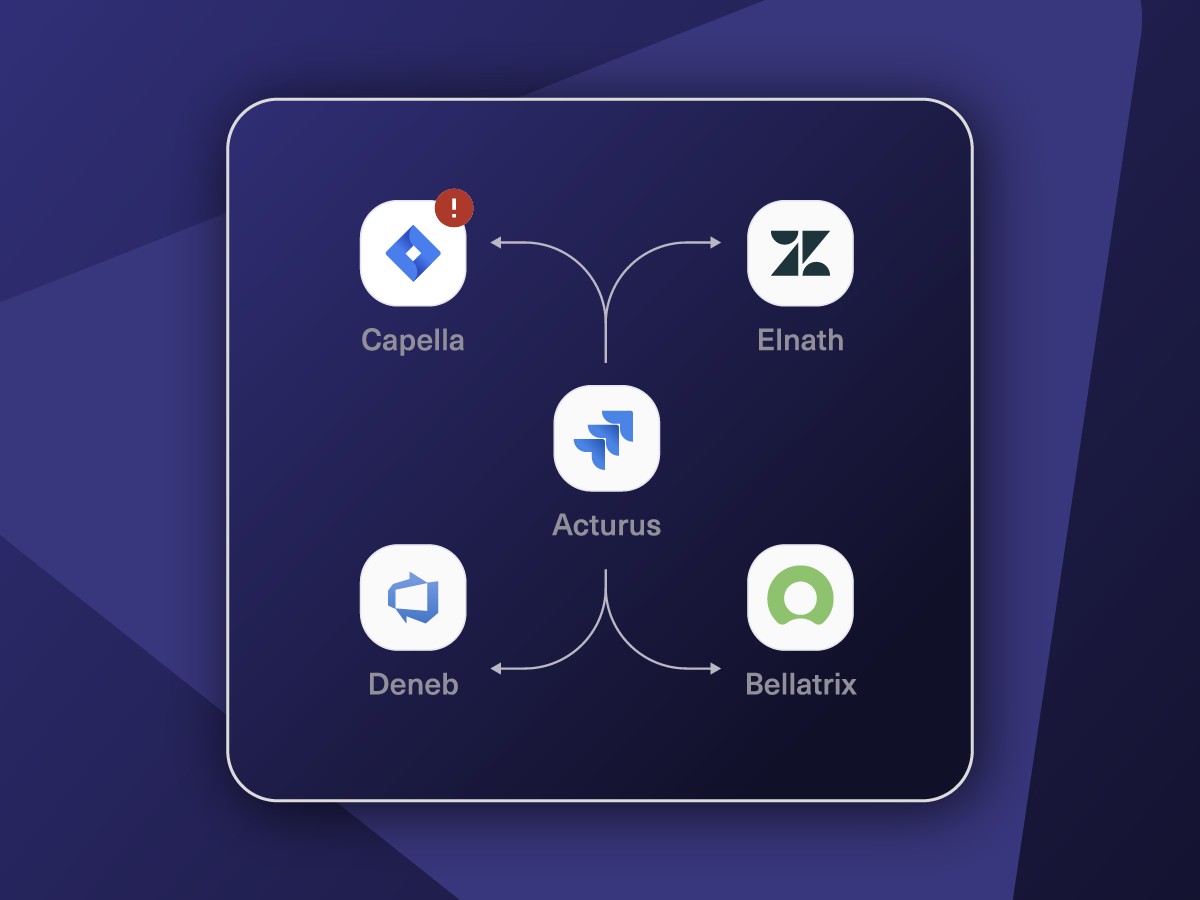
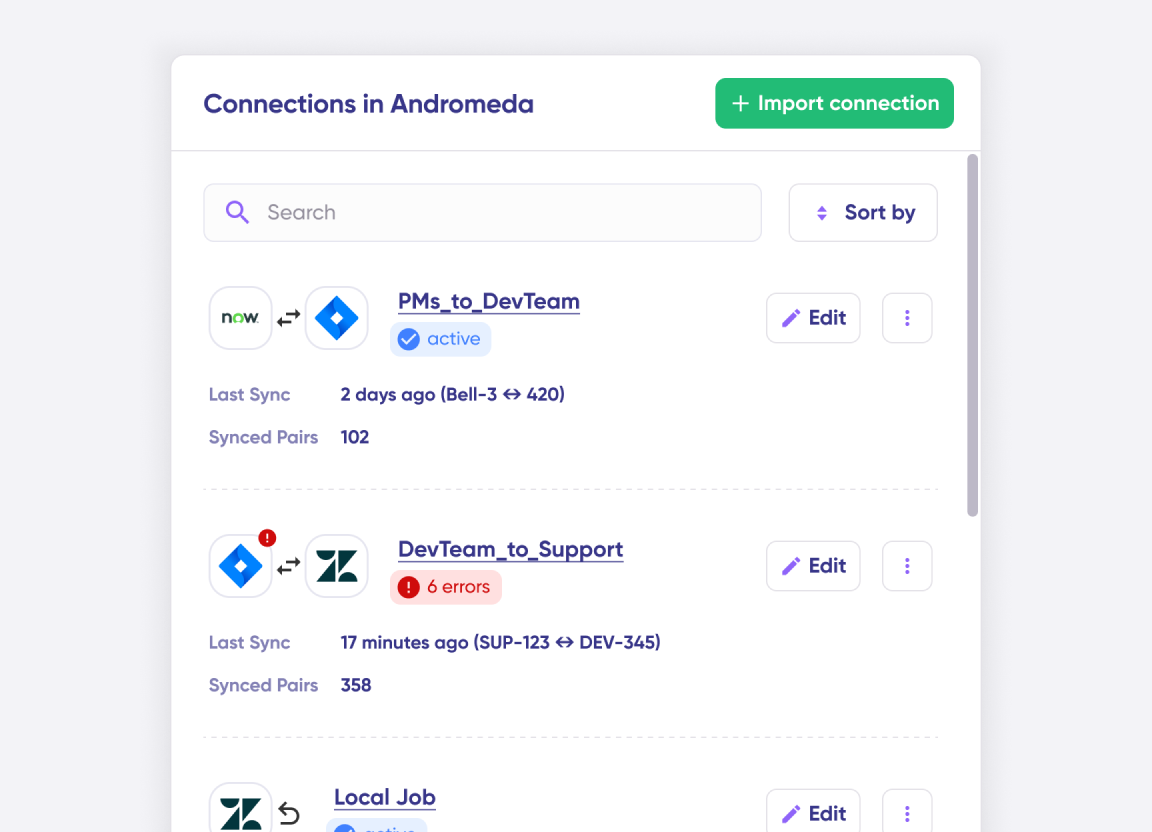
Connect multiple projects, instances, and platforms. Use different rules for each connection.
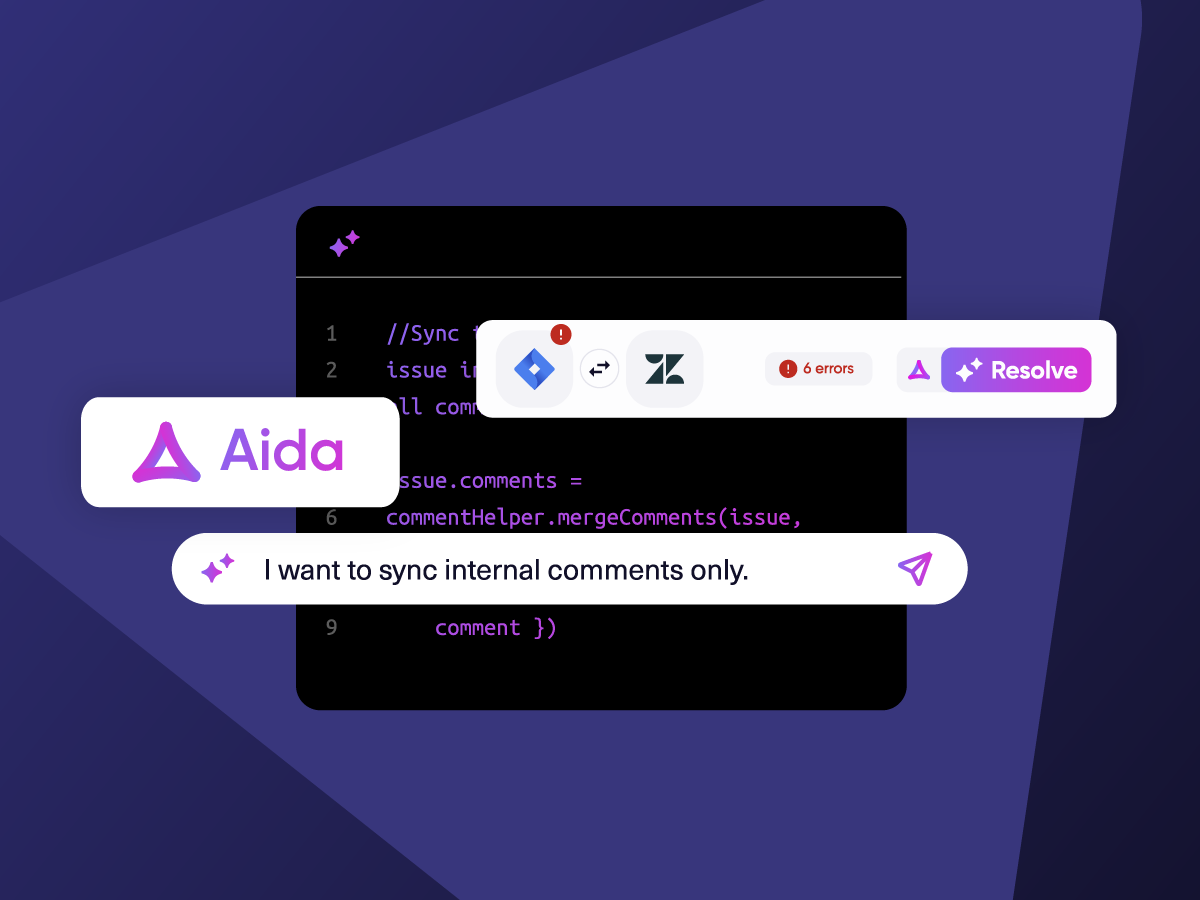
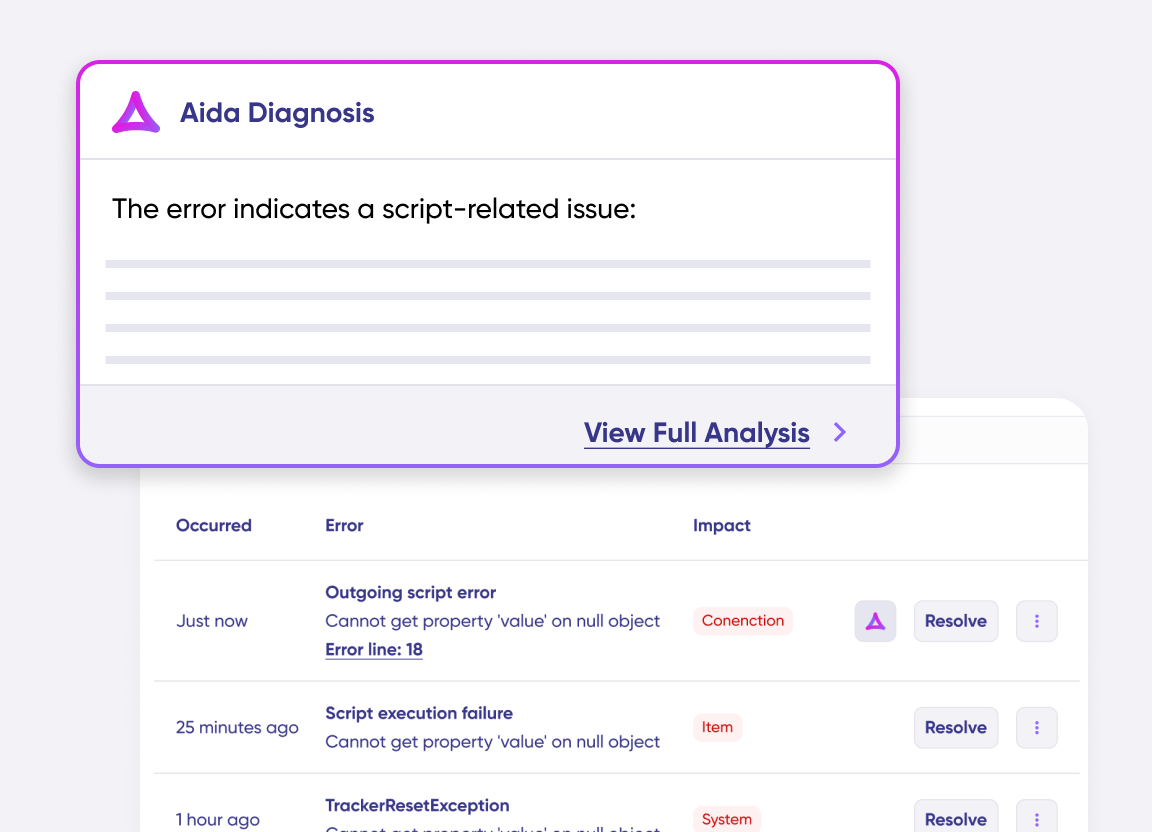
Get AI-powered recommendations for resolving the issue, including possible fixes and next steps.
ai assisted script
Your Integration, Your Rules
Full Control, Boosted by Aida AI
Exalate comes with default sync rules, that can be adapted to your specific needs.
Build your unique integration rules with just a few lines of Groovy Script – or a few prompts.
- Deepen, change, adjust sync rules easily
- Control outgoing and incoming data on each side
- Simply mirror or customize mappings
- Track changes with version history
- Move confidently with draft mode
“
We can do almost anything we want with the sync thanks to its groovy script.
I can say I haven’t seen any other apps as flexible as Exalate.
Daniel Miks

Pricing Built for Scale, Not Surprises
Exalate offers a 30-day Free Trial
Pro
Organizations needing enterprise systems
starts atThis is the entry price for the lowest-cost integration. Your price depends on which systems you connect, items in sync, environments, SLA/support, and add-ons. To get a tailored quote, contact sales.
$
550
/mo
Billed annually
Enterprise
Large-scale deployments with custom requirements
Let's talk
Get in touch for your custom pricing














& more
See the New Exalate in Action
Let us show you how Exalate can fit your unique business needs.
+2,500 clients worldwide

FAQ
Answers to the most frequent questions.
Didn't find what you were looking for? Ask Aida
Salesforce and Azure DevOps integration with Exalate allows you to sync all the custom fields, comments, attachments, descriptions, and every other Azure DevOps and Salesforce entity. You can also sync all fields from Salesforce objects such as accounts, cases, opportunities, products, and tasks. You can also sync any default or custom field within an Azure DevOps work item.
You can integrate Azure DevOps and Salesforce to bring the development and delivery processes together and foster collaboration and visibility across both platforms. Overall, it improves efficiency and quality in delivering Salesforce solutions.
Yes, you can use Exalate to connect multiple Salesforce and Azure DevOps instances. This will help you become part of the growing Azure DevOps Salesforce integration network. Exalate also supports other ITSM tools like Zendesk, ServiceNow, and Jira Service Management. Check out our integrations for more information.
To import Azure DevOps work items into Salesforce, you need a third-party solution like Exalate. First, you need to install Exalate on both systems and establish a connection between them. Then, you must write scripts to map the connections. This will determine the fields in sync as well as the direction of information flow (one-way or two-way). Then, set a trigger. Once the conditions are fulfilled, the information in the ticket will be moved to the Salesforce object automatically.
Exalate protects the data flowing through your Azure DevOps integration with Salesforce using JWT access tokens, role-based access controls, HTTP (HTTPs), TLS 1.2 and 1.3, and multi-factor authentication. It is also ISO 27001 certified. You can find out more about it from the security whitepaper.
Exalate provides several Azure DevOps Salesforce integration resources, including a built-in error recovery mechanism that allows you to fix problems and resume synchronization from the moment it fails. You can use the troubleshooter to examine the error stack trace to determine if the error occurred at the entity, connection, or application levels.